
Articles

AI
AI in SharePoint Public Preview: SharePoint Copilot Setup…
Microsoft Copilot in SharePoint introduces new AI features through Microsoft 365 Copilot. AI in SharePoint allows users to interact with…
Read More
Data Lifecycle Management
Microsoft 365 Records Management An In-Depth Guide for…
Managing business data is harder than ever. Companies deal with emails, files, chats, contracts, and sensitive records every day. Without…
Read More
SharePoint Premium
SharePoint Premium: AI-Powered Content Management for Smarter Workflows
Microsoft SharePoint Premium is an AI-powered content management tool. It helps businesses manage documents, improve search, and automate work. SharePoint…
Read More
Information Protection
How to Block External Sharing and Printing Using…
Not every document in Microsoft 365 should be freely shared, downloaded, or printed. Organizations handle sensitive information every day, and…
Read More
Microsoft Defender
How Microsoft Entra Conditional Access Blocks High-Risk AI…
Welcome to the workplace of the future, a vision Microsoft brought to life at Ignite 2025. In this new reality,…
Read More
AI
SharePoint Agents: A New Era of Intelligent Collaboration
The challenge with SharePoint isn’t storing information, it’s finding the right piece of it when you need it. Important documents…
Read More
Copilot
Microsoft Copilot & Microsoft 365 Copilot: AI That…
From BusyWork to Better Work It’s 9 AM. You open your inbox, and it’s already full. A report is due…
Read More
Copilot
Microsoft 365 Copilot vs Google Workspace Gemini: Ultimate…
Microsoft and Google are changing how people work by adding smart assistance into everyday office tools. Email, documents, spreadsheets, and…
Read More
Copilot
Microsoft 365 Copilot vs ChatGPT for Business: Security,…
The Microsoft 365 Copilot vs ChatGPT debate has become a key topic as AI transforms business workflows. From marketing to…
Read More
Power Apps
Top Microsoft Power Apps Use Cases for Enterprise…
Enterprises are under pressure to deliver applications faster while operating with tighter budgets, complex systems, and limited IT capacity. Manual…
Read More
Power Apps
Power Apps Consulting: When to Bring in Experts…
If you have ever thought, “There must be a better way to manage this workflow” while juggling spreadsheets, chasing approvals,…
Read More
Legacy Solutions (2013/2016/2019)
How SharePoint Append Text Fields Work and How…
The SharePoint append text field is widely used in lists to maintain chronological notes, audit comments, and change history without…
Read More
SharePoint 2013
Using CSOM to Create Fast and Flexible InfoPath…
In many medium to large enterprises, SharePoint 2013 and InfoPath forms continue to play an important role in managing documents,…
Read More
Administration & PowerShell
How to Audit and Remove Working with SharePoint…
If you’ve managed a SharePoint farm, you know how messy web parts get: pages pile up, teams add components, migrations…
Read More
AI
Microsoft Copilot Studio Overview: Use Cases and Setup…
Businesses today seek faster customer support, smoother internal operations, and straightforward methods to automate daily tasks without relying on developers.…
Read More
Power Platform
Power Platform vs Custom Development: Which Is Right…
Businesses must adapt to new digital tools to stay productive, keep customers satisfied, and stay competitive. Large enterprises rely on…
Read More
Architecture
Top Microsoft SharePoint Use Cases and Benefits for…
Nowadays, many organizations struggle with scattered data, slow processes, and poor communication between teams. Microsoft SharePoint helps solve these everyday…
Read More
Administration
SharePoint vs OneDrive vs Teams for Business: Complete…
Modern businesses rely on digital tools to manage files, collaborate with teams, and communicate efficiently. Microsoft 365 offers a powerful…
Read More
Information Architecture
The Ultimate SharePoint Information Architecture Guide for Businesses
Modern organizations handle a constant flow of documents, data, and internal communication across teams and departments. Over time, this information…
Read More
Migration & Modernization
Complete SharePoint Migration Checklist 2026 (Step-by-Step Guide)
Migrating to SharePoint Online is no longer just an IT upgrade. It is a strategic move that reshapes how organizations…
Read More
Information Architecture
SharePoint Information Architecture Best Practices for Enterprises
Large enterprises generate and manage an enormous volume of content every day. From internal documents and policies to project files…
Read More
Microsoft Defender
Mastering Modern Protection, Configuring Intune App Protection Policies…
Welcome back! If you read Part 1, you know why Intune App Protection Policies (APPs) are your absolute best bet…
Read More
Cloud App Security
From Deepfakes to Data Breaches: Why App Protection…
Have you noticed how 2025’s headlines are filled with stories of AI-powered phishing, deepfake-driven fraud, and billion-dollar data breaches sparked…
Read More
Power Apps
Workaround to change primary column value from one…
In Dataverse, the primary column serves as a key identifier that plays a crucial role in how data is displayed…
Read More
Power Apps
How to Add a Custom Column to a…
If you’re building a user-friendly app with Power Apps, chances are you’ve used Table control to display lists of data…
Read More
Document Management
Best Practices for SharePoint Document Management Using Document…
Managing documents shouldn’t feel like a never-ending search mission. If your files are scattered across SharePoint, finding the right information…
Read More
Power Apps
How to Use Parse JSON in Power Apps…
Handling large or complex datasets in Power Apps can quickly hit limitations—especially with Power Automate’s manual trigger inputs capped at…
Read More
Information Architecture
How to Create a Checklist in SharePoint and…
Modern work demands structure and checklists are one of the simplest yet most effective tools for creating it. Whether you’re…
Read More
Information Protection & Governance
Top 5 Microsoft 365 Compliance Challenges and How…
As organisations increasingly rely on cloud ecosystems, Microsoft 365 security and compliance have become a critical business priority. Remote work,…
Read More
Company News & Partnerships
Top SharePoint Consulting Companies in USA
Microsoft SharePoint is more than just a document management platform-it’s a central hub for collaboration, workflow automation, and secure information…
Read More
Power BI (Strategy & Comparison)
Power BI vs Tableau: Choosing the Right Business…
The modern enterprise runs on data. But it’s not enough to collect data, you need to turn it into insights…
Read More
Power BI
Step-by-Step Guide to Creating an Interactive Dashboard in…
If you’re interested in analyzing your business data without mastering complicated tools or programming, this blog is where you should…
Read More
Collaboration & Team Sites
SharePoint vs Dropbox: Which is Better for Business…
While both Dropbox and Microsoft SharePoint offer cloud-based file storage and collaboration features, their capabilities, integration, and scalability are fundamentally…
Read More
Migration & Modernization
5 Common SharePoint Migration Mistakes (And How to…
A common mistake is viewing SharePoint as a stand-alone solution within the Microsoft 365 suite. It’s essential to remember that…
Read More
Legacy Systems Migration
Migrate File Shares to SharePoint Online Without Data…
68% of enterprises experience data loss during poorly planned file migrations (Gartner). Before you move a single file to SharePoint…
Read More
Power Automate
10 Power Automate Workflows Every Small Business Needs…
If you’re running a small business, you’re probably wearing multiple hats, handling sales, managing customer support, following up with leads,…
Read More
Information Protection & Governance
Keep Your Data Safe: SharePoint Security Best Practices
If your team depends on Microsoft SharePoint to store, manage, or share documents, something that should always be at the…
Read More
Power Apps
Low-Code Power Apps: Transform Business Processes Without a…
Let’s get this out of the way first: “Low-code” does not mean “lightweight”. In fact, when used right, it’s the…
Read More
Power BI
Leveraging Split Column Values for Dynamic Slicers in…
Have you ever struggled to make your Power BI slicers truly intuitive and effective? Whether you’re optimizing layout with the…
Read More
Power Apps
How to Pass Data from Power Apps to…
Microsoft Power Apps solutions offer a dynamic way to build custom applications, but when integrating with Power Automate, handling large…
Read More
SharePoint Premium
Simplify PDF Management with SharePoint Premium’s New Merge…
SharePoint Premium introduces powerful tools to simplify PDF management directly within SharePoint document libraries or OneDrive. These updates are part…
Read More
Document Management
Effective Ways to Share Large Files via Email
Sending large files through email as an attachment can be challenging, especially when they exceed the typical attachment limit of…
Read More
Power BI
Understanding Power BI Import Query and Direct Query
Introduction: Power BI is a powerful tool that helps businesses analyze data and make informed decisions. To better understand how…
Read More
Power BI
Transform Your Power BI Reports with the New…
Introduction to New Text Slicer feature What If You Could Filter Your Data in Seconds? You’re looking at a huge…
Read More
Power BI
Real-Time Data Updates in Power BI
Imagine this: you’re in a pivotal meeting, ready to make a key decision for your company. Excitement fills the room…
Read More
Power BI
Row-Level Security in Power BI
Knock, knock! Who’s there? Data security! In today’s data-driven landscape, safeguarding access to sensitive information is not just important—it’s essential.…
Read More
Power Apps
How to implement Cascading Drop Downs in Model-Driven…
Introduction: When dealing with applications that manage large amounts of data, filling out forms with numerous fields and options can…
Read More
Dataverse
Concatenation multiple columns using formula type column in…
Information: A dynamic header allows important information to be displayed at the top, making it easier for users to view…
Read More
SharePoint Premium
Break Down Language Barriers: Translate Documents in SharePoint…
How might content translation be useful for your organization? If you work across regions, being able to quickly translate content…
Read More
Power Apps
How to Load 2000+ Records in Canvas PowerApps…
Summary: Loading large datasets into Canvas PowerApps from a SharePoint List can be challenging due to PowerApps’ delegation limits and…
Read More
Power Apps
Offline capability in Canvas PowerApps
Summary: In today’s digital landscape, the demand for offline-capable applications is skyrocketing. With the prevalence of mobile devices and the…
Read More
Legacy Systems Migration
Simplifying & Mastering Complex ECM System Migrations with…
In the rapidly evolving digital landscape, businesses must ensure their content management systems are modern, efficient, and future-proof. Migrating from…
Read More
Migration & Modernization
Achieving Data Accuracy and Compliance in Migrations with…
Ensuring data accuracy and compliance during content migrations is paramount. As organizations move from legacy systems to modern platforms, maintaining…
Read More
Power Apps
How to integrate Microsoft 365 Users with the…
The out-of-the-box people picker in Modern Power Apps Form currently doesn’t work properly with Power Apps modern controls a limitation…
Read More
Extensibility & Customization
Installing a Custom Theme in SharePoint Online with…
Steps: Download and Install SharePoint Online Management Shell Visit the Microsoft download page for SharePoint Online Management Shell. Create a…
Read More
Document Management
Efficient Techniques for SharePoint Co-Authoring
What is Co-Authoring in SharePoint Online? Co-authoring in SharePoint Online enables multiple users to simultaneously edit and collaborate on documents…
Read More
Data Lifecycle Management
Essential Guide: Applying Retention Labels in SharePoint
Retention labels in SharePoint are a powerful tool to streamline document management, ensure regulatory compliance, and optimize storage by automating…
Read More
Power BI
Enhance Power BI Reports – Implement Dynamic Colors…
Embark on a journey to enhance your Power BI reports with dynamic color adjustments based on selected measures through our…
Read More
Power BI
Unlocking Automation – Trigger a Cloud Flow from…
In today’s data-driven landscape, the integration of business intelligence tools and workflow automation has become paramount for organizations seeking to…
Read More
Extensibility & Customization (SPFx)
Developer’s Guide to SPFx Exploring the Key Files…
SPFx developers must grasp the layout of SharePoint Framework. This means understanding the different types of files included and what…
Read More
Extensibility & Customization
Transform Your SharePoint Online List Forms: A Guide…
Customizing SharePoint online forms is typically done using SPFx or Power Apps. However, this blog will demonstrate an alternative approach…
Read More
Migration & Modernization
Data Migration Best Practices for 2024 with Tzunami
Data Migration Best Practices for 2024 As we move forward through 2024, the landscape of data migration has transformed dramatically,…
Read More
Power Automate
How to use dynamic email template in Power…
SharePoint is a strong tool for teamwork, with many features to help teams work efficiently. One useful feature is creating…
Read More
Power Pages
How to add Multistep Form in Power Pages.
Multistep forms in Power Pages are a powerful tool for collecting user input in a clear and organized way. They…
Read More
Power Pages
How to Apply Custom Styles in Power Pages?
Microsoft Power Pages is a user-friendly platform designed for creating and managing websites without the need for coding expertise. It…
Read More
Power Pages
Step-by-Step Guide to Creating Edit Forms in Power…
This guide provides comprehensive insights into editing forms within the Power Pages environment. Through a structured series of steps, users…
Read More
Power Pages
Step-by-Step Guide to Creating View Forms in Power…
This guide helps you understand how to view and read forms in Power Pages. Simply follow these steps: access Power…
Read More
Power Automate
Using SharePoint Filter Queries in Power Automate: A…
The SharePoint Filter Query is a powerful feature that allows users to refine and manipulate data within their Power Automate…
Read More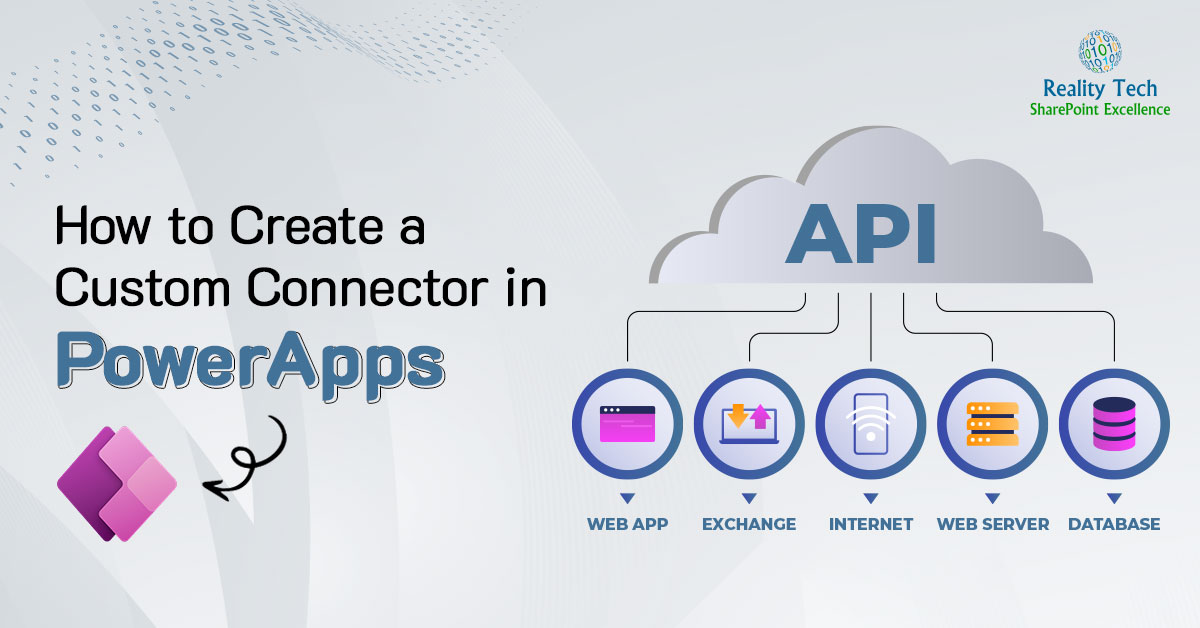
Power Apps
Building Powerful Applications: A Guide to Creating Custom…
Microsoft Power Apps has emerged as a significant change in the realm of app development, offering a versatile platform to…
Read More
Power Apps
Create a Responsive Container-based Popup Dialog Box in…
Creating a responsive container-based popup dialog box in Power Apps involves designing a dynamic and adaptable dialog box that adjusts…
Read More
Audit (Logging)
Unveiling Auditing Excellence: Microsoft Purview’s Advanced Features
Auditing is the process of investigating security events, conducting forensic investigations, complying with internal regulations, and meeting external compliance obligations.…
Read More
Information Protection
Implementing DLP for secure data sharing in SharePoint…
With cyber threats evolving constantly, IT teams face immense pressure to safeguard data from malware, phishing, and insider threats. Microsoft’s…
Read More
Information Protection
The Basics of Data Loss Prevention
Microsoft Purview Data Loss Prevention (DLP) helps prevent that by keeping an eye on your organization’s data. It can identify…
Read More
Information Protection
Safeguard Crucial Info Within Microsoft 365
Looking to Safeguard Crucial Info Within Microsoft 365? Dive into the Power of Sensitivity Labels! Explore how these labels protect…
Read More
Microsoft Purview
Unlocking hidden insights get started with Microsoft Purview…
In today’s digital age, businesses generate massive amounts of data daily, stored across emails, documents, chat logs, and more. But…
Read More
Microsoft Purview
Exploring Microsoft Purview eDiscovery Solutions
In today’s digital age, the volume of electronic data produced by individuals and organizations has skyrocketed. With this exponential growth…
Read More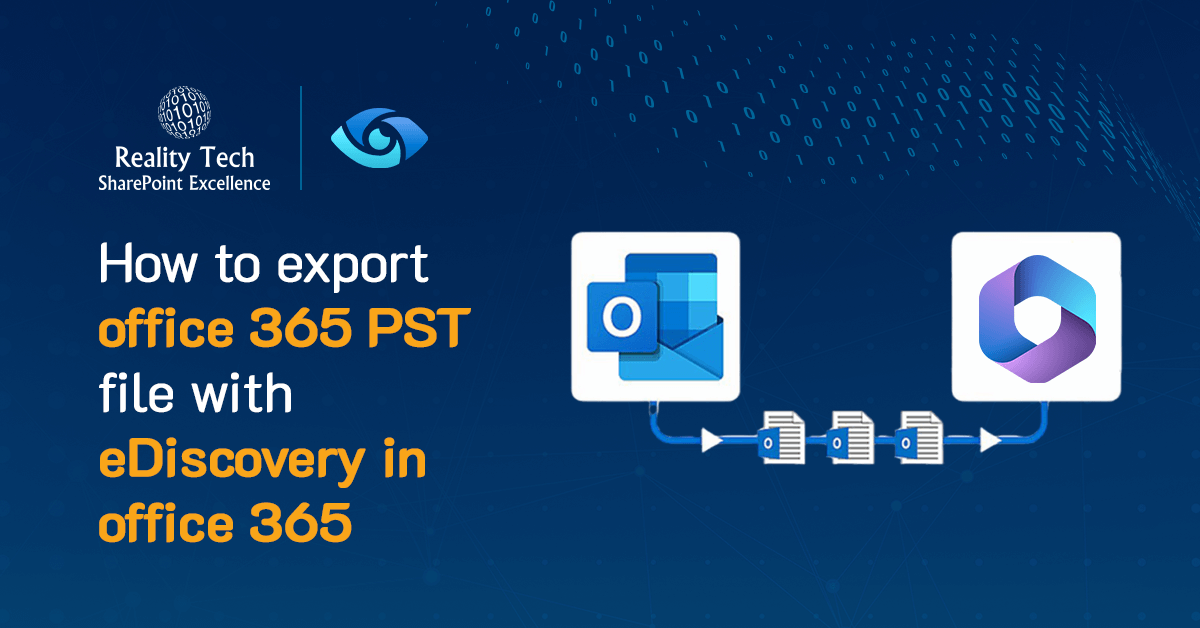
Microsoft Purview
How to export Office 365 PST file with…
In today’s digital landscape, legal and compliance teams are constantly battling the ever-growing tide of electronic data. Complex investigations and…
Read More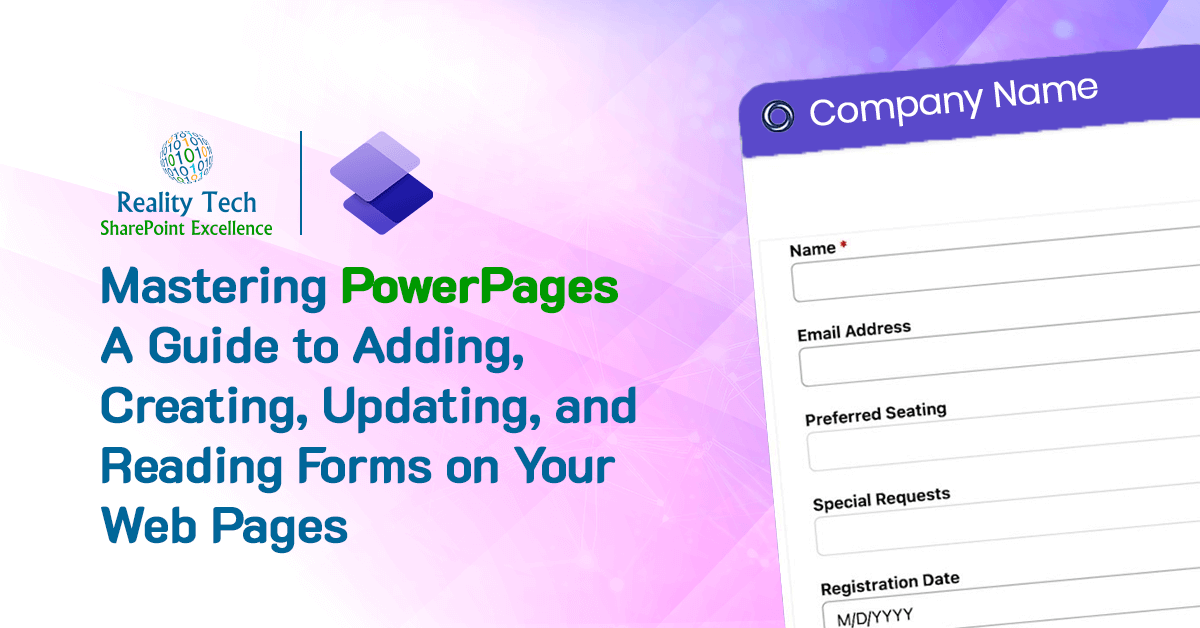
Power Pages
Step-by-Step Guide to Create a Forms in Power…
This tutorial explains advanced techniques for manipulating forms, enabling users to seamlessly integrate, create, modify, and interpret forms within web…
Read More
Power BI
Unlocking the Power BI: A Deep Dive into…
Ever wonder what makes Power BI so effective for data analysis? The secret lies in Semantic Models. These models are…
Read More
AI
Copilot in Action Create Your Site Through AI…
How to use copilot in power pages Make use of Copilot’s features when creating websites with Power Pages. AI…
Read More
Power Automate
Comprehensive Guide to Error-Handling in Power Automate
Significance of Error-Handling In automation, mistakes can occur. These errors might happen because the data format changes, there are connection…
Read More
Power Apps
How to Create the Reusable Header Using Component?
What is component? Components are reusable building elements for canvas apps in PowerApps that include one or more controls. Complex…
Read More
Power BI
Refresh Dataset for Power Bi Report Using Power…
Power Automate, a service by Microsoft, presents a valuable feature that facilitates the refreshing of datasets utilized in Power BI…
Read More
Power Apps
Part – 2 Make Power Apps Ootb Form…
Follow these steps to set up the form responsiveness: Open the power apps and click on the setting. Go into…
Read More
Power Apps
Part – 1 Make Power Apps Custom Controls…
What is the responsive Power App form? Responsive Power App forms are made to be viewed and interacted with on…
Read More
Administration
Connecting to SharePoint Online using Managed Identity
When automating tasks in Microsoft 365, it’s best to avoid logon IDs and passwords. The best practice is to use…
Read More
Power BI
Maximizing Data Efficiency: Comprehensive Guide to Exporting Power…
In the dynamic landscape of data analytics and business intelligence, the seamless integration between Power BI and Excel has become…
Read More
Power Automate
Creating Logs for Every Action in Power Automate
The process of “creating logs for Power Automate instances” involves systematically recording and archiving essential information about each step and…
Read More
Power Automate
How to Create a Word Document From a…
In Microsoft’s Power Automate, crafting dynamic and personalized Word documents through templates has become a streamlined process. Let’s start the…
Read More
Power Apps
Power Apps Modern Controls
The controls in canvas applications now come with a modern touch. These controls make it easier for creators to set…
Read More
Power Automate
Extracting News Post Images in Emails with Power…
This solution is used to display images of news banner images in Outlook desktop when sending news communication over email.…
Read More
SharePoint Premium
SharePoint Premium
Presenting SharePoint Premium: Revolutionizing Content Management and Experiences with AI Technology SharePoint, recognized as the largest and most versatile cloud…
Read More
Information Protection
Safeguarding Collaboration Through Sensitivity Labels Across Microsoft Teams,…
Beyond safeguarding documents and emails, sensitivity labels offer protection for content within various containers like Microsoft Teams sites, Microsoft 365…
Read More
AI
Power Automate Using Copilot
What is Power Automate Copilot? Microsoft’s Power Automate AI Copilot is a solution designed to streamline complex tasks and procedures.…
Read More
Company News & Partnerships
KWIZ & ProvisionPoint forge a strategic partnership with…
KWIZ and ProvisionPoint, operating as a unified force and recognized as a distinguished provider of Microsoft SharePoint governance and technology solutions, have…
Read More
Power Pages
Getting Started with Power Pages
Introduction Power Pages are like a toolbox for making websites that help businesses grow. With Power Pages, we create websites…
Read More
AI
Copilot Studio Components – Building Intelligent Conversations
Copilot Studio, a part of the Microsoft Power Platform, is composed of several key components that work together to facilitate…
Read More
Power Automate
Send SharePoint list item attachments in the email…
The ability to efficiently send multiple attachments using power automate via email is crucial. This blog post will guide you through the…
Read More
Legacy Systems Migration
Mastering Content Migration Challenges: Tzunami’s Solutions for Efficient…
Content migration emerges as a formidable challenge in the intricate world of digital transformation. The seamless transition of vital information…
Read More
Extensibility & Customization
SharePoint Customization: Tailoring Your SharePoint Environment To Fit…
In today’s rapidly evolving business landscape, where adaptability and efficiency are paramount, customization has emerged as a pivotal strategy to…
Read More
Power Automate
Approvals and Notifications: Streamlining Business Processes with Power…
Efficiency and productivity are critical metrics in today’s fast-paced business environment. Manual processes can often hinder progress and lead to…
Read More
Power BI
Harnessing Data Insights With Power BI: Optimizing Decision-Making…
The power of making informed decisions isn’t just advantageous; it’s a prerequisite for success. Organizations across the spectrum are recognizing…
Read More
Power Automate
The Power of Workflow Automation: Simplifying Business Processes…
Introduction: Efficiency and productivity reign supreme in today’s rapidly changing business landscape. However, manual tasks and intricate processes often act…
Read More
Collaboration & Team Sites
SharePoint for Remote Work: Enabling Collaboration and Productivity…
The world of work has undergone a significant transformation, with remote work becoming increasingly prevalent. The need for robust collaboration…
Read More
Information Protection
Ultimate Guide to Microsoft Purview: Revolutionizing Data Governance…
In this data-driven era, organizations face a significant challenge – managing and safeguarding their vast and diverse data assets while…
Read More
Extensibility & Customization
Creating A Custom Site Template in SharePoint Online
Summary In this blog post, I share the steps for creating the custom template for any SharePoint Online site —…
Read More
Legacy Systems Migration
Confluence to SharePoint Migration – Step by Step…
As businesses grow, the need to store, secure, and manage crucial information becomes increasingly important. Microsoft SharePoint is a cloud-based…
Read More
Document Management
New SharePoint Feature: External File Requests
SharePoint External File Requests With SharePoint, one can now request external files quickly and easily. The feature initially surfaced first…
Read More
Information Protection
Microsoft Purview Compliance Manager
Microsoft Purview Compliance Manager is a relatively new solution that helps organizations manage their compliance needs across multiple cloud platforms…
Read More
Power Automate
Seamlessly Automate Your SharePoint Tasks with Power Automate
Introduction: While SharePoint Online is a powerful collaboration and content management tool, manual tasks can often take up valuable time and resources.…
Read More
Administration
Reality Tech Announces Partnership with Mozzaik365 to Enhance…
New York, USA (April 2023): Reality Tech, an award-winning Microsoft Office 365 SharePoint services and solution provider, has announced its…
Read More
Administration
Best Practices for SharePoint Online Governance and User…
SharePoint Online is a powerful collaboration platform that can help organizations streamline workflows, improve communication, manage documents and enhance productivity. However,…
Read More
Administration
Microsoft Viva: A Guide to Enhancing the Employee…
Introduction: Microsoft Viva is the latest offering from Microsoft, aimed at revolutionizing how we work and enhancing the employee experience.…
Read More
Power Platform
Microsoft Power Platforms – Introduction, Products, Benefits &…
Introduction Businesses today require a wide range of technologies and tools to manage business processes, including approvals, reviews, filings, workflows,…
Read More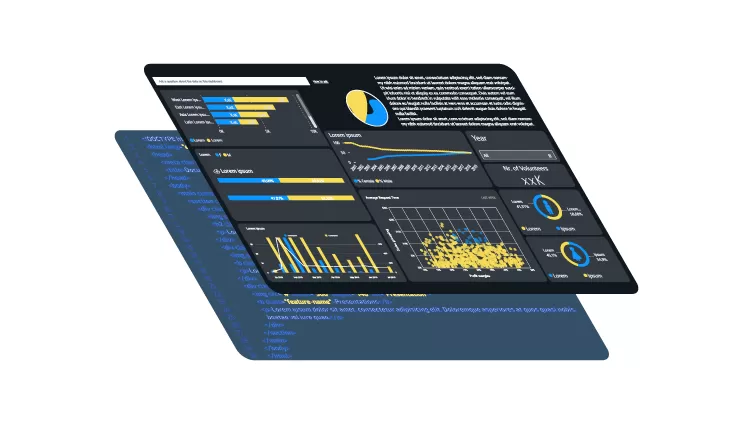
Power BI
Power BI’s Interactive Dashboard – Development, Features &…
Introduction: Power BI is a business intelligence service provided by Microsoft that allows users to connect to various data sources,…
Read More
Migration & Modernization
What Are the Difficulties You Are Facing While…
Often businesses seek to streamline their core business operations for enhanced workforce efficiency that contribute towards better business decisions, stronger…
Read More
Migration & Modernization
Migrate Email to Office 365 – The Step-by-Step…
Why Migrate Email to Office 365 The email platform you use in your enterprise is key to a consolidated and…
Read More
Migration & Modernization
Goals For Your SharePoint Project
There are many reasons to fully migrate to Office 365. Before undertaking any project, it’s important to define the major…
Read More
Migration & Modernization
How to Choose the Right SharePoint Migration Tool…
Even though your company needs the best and cutting-edge SharePoint collaboration technology, are you still using SharePoint 2016 or earlier?…
Read More
Administration
How To Choose the Right SharePoint Services Firm…
Since its introduction, SharePoint and now Office 365 more broadly have become an industry standard platform delivering collaboration capabilities for…
Read More
Power Apps
Repeating Control in PowerApps
Repeating controls functionality in PowerApps can be achieved using Gallery Control of PowerApps. Repeating control functionality can be useful in…
Read More
Power Apps (Licensing & Governance)
PowerApps Premium Licensing
Power Apps premium license is required only if your application utilizes some of the premium features. If not, a Microsoft…
Read More
Migration & Modernization
SharePoint Online vs On-Premises – Migrate from On-Premises…
Fewer businesses are migrating to on-premises SharePoint as they increasingly switch to cloud-based SharePoint Online/Microsoft 365. The trend is for…
Read More
Document Management
The Ultimate Guide to Using SharePoint for End…
Globally, businesses are adopting agile methods for creating and implementing their business and IT strategies, and they are also searching…
Read More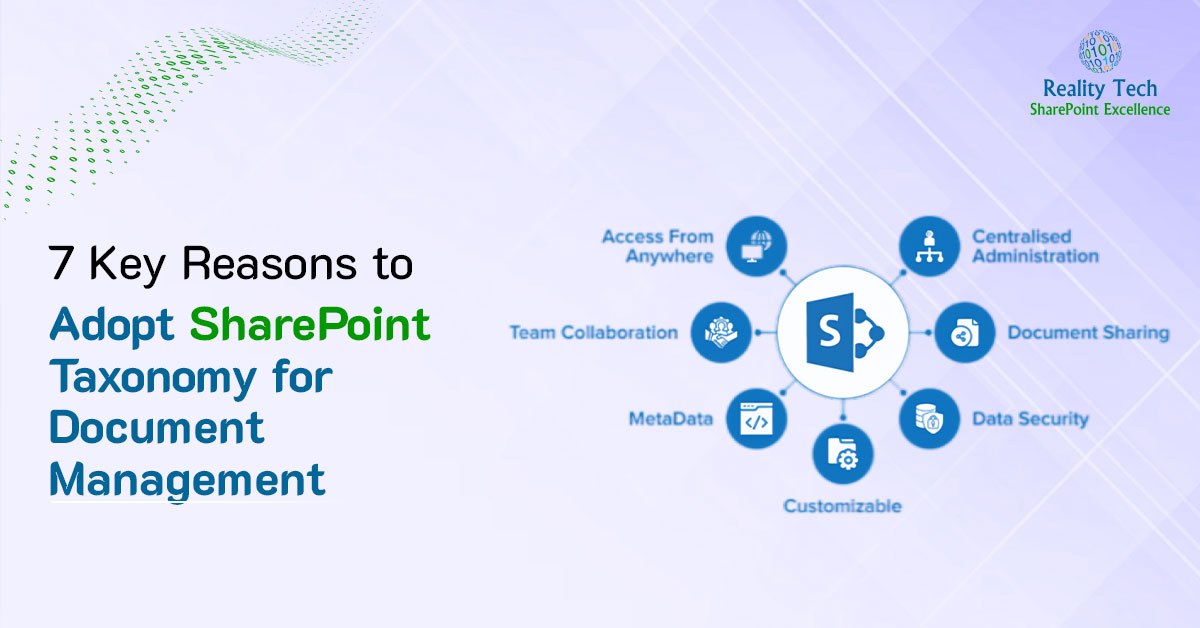
Information Architecture
7 Key Reasons to Adopt SharePoint Taxonomy for…
A robust and well thought through taxonomy is mandatory when you’re trying to search within an ECM’s (Enterprise Content Management)…
Read More
Information Protection & Governance
Essential Tips and Best Practices for SharePoint Security
Most every collaboration Site Owner is probably concerned about security, which is quite understandable. Companies are now all too aware…
Read More
Document Management
How to Set Up SharePoint Document Management –…
Managing a large volume of documents in an enterprise can be time-consuming, labor-intensive, and error-prone. For document management to be…
Read More
Integration & Modernization Strategy
How Enterprise Web Application Development Benefits Your Business
A set of web pages with a single domain name representing your business is one way to define a business…
Read More
Migration & Modernization
Migration From SharePoint 2013 to SharePoint Online –…
Microsoft SharePoint has been the best collaborative and content management solution for literally decades. When Microsoft released SharePoint Server 2013,…
Read More
Power Automate
Mirroring SharePoint Document Library Contents to Multiple Sites
We had a use case where one of our clients had two different SharePoint sites. One SharePoint site was where…
Read More
Power Apps
Part 1: Expand-Collapse rows in PowerApps Canvas App…
Summary In this blog post, I share the steps for creating an expand-collapse gallery control in the PowerApps Canvas App. Now, let’s start building the Gallery, for…
Read More
Power Apps
PowerApps – Role Based Security Using SharePoint Group
Summary While creating a PowerApps app, we needed to add a button that would be visible only for a particular set of…
Read More
Power Apps (Deployment & Integration)
Publish Power App To The Teams App Store
Summary In this blog, I am performing the steps one should follow to publish your PowerApps to the Teams App Store. …
Read More
Power Automate
Generate a PDF from Microsoft Automate Method –…
Summary In previous blog, we discussed Generating the PDF from Microsoft Flow with two approaches. The First one with an HTML Template can be accessed from here…
Read More![How-to-Migrate-File-Server-to-SharePoint-Online-[Expert-Guide]](https://reality-tech.com/wp-content/uploads/2022/07/How-to-Migrate-File-Server-to-SharePoint-Online-Expert-Guide.jpg)
Migration & Modernization
How to Migrate File Server to SharePoint Online…
Switching to SharePoint entails more than simply transferring all of your data to a cloud server: it’s a completely new…
Read More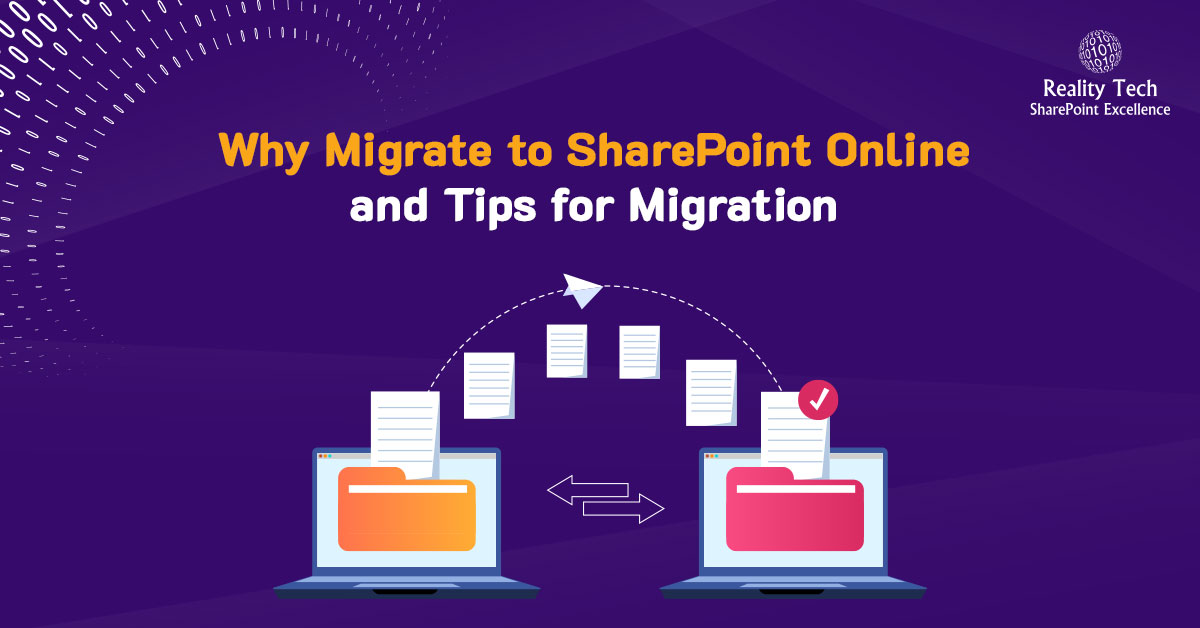
Migration & Modernization
Why Migrate to SharePoint Online and Tips for…
SharePoint was first released as a portal and collaboration platform as SharePoint 2001. It has gradually evolved to cover a…
Read More
Power Platform
How Financial Process Automation Can Help Your Business
Finance automation is leveraging technology to automate critical finance tasks with minimal human participation, including accounting, integration, general ledger,…
Read More
Document Management
SharePoint for Enterprise Content Management – Why Should…
Do You Know? 60% of the global data worth 175 zettabytes will be generated and managed by enterprises by 2025,…
Read More
Document Management
Why You Should Use SharePoint for Document Management…
SharePoint offers Document Management System (DMS) capabilities to streamline the document lifecycle from creation to archiving and offers the following…
Read More
Migration & Modernization
Your Complete SharePoint Migration Guide (Step-By-Step)
Teamwork is the backbone of any successful organization, and effective collaboration is the key. Collaboration is not easy when teams…
Read More
Infrastructure
Best Tips for SharePoint Infrastructure Monitoring and Health…
Microsoft 365 SharePoint is a web-based platform that can be used by organizations to manage collaboration effectively. SharePoint also provides…
Read More
Administration
Microsoft 365 Groups vs. Teams vs. SharePoint Comparison
Microsoft 365 cloud technology tools have emerged as one of the best platforms for organizations and enterprises to work in…
Read More
Legacy Solutions (2013/2016/2019)
How to Activate SharePoint Publishing Infrastructure
SharePoint has emerged as one of Microsoft’s most popular products after MS Word, Excel, and PowerPoint. It is used by…
Read More
Data Lifecycle Management
7 Critical Office 365 Disaster Recovery Plan Mistakes…
Data is the primary asset for every organization and a data loss can become very costly for respected enterprises. The…
Read More
Power BI
Business Intelligence Solution: What It Is and Why…
Business intelligence (BI) consolidates data to render valuable insights in a user-friendly manner through dashboards, reports, graphs, and charts. This…
Read More
Company News & Partnerships
Challenges in the Hybrid sourcing model
Overcoming cultural challenges in the Hybrid sourcing model The focus of this article is how team members within offshore organizations…
Read More
Power BI
Excel corruption writing DIF files
When Excel writes a file in the DIF format, SAS is unable to read the file. Here’s a valid DIF…
Read More
Governance & Permissions
SharePoint Group Management
Managing SharePoint Groups in PowerShell SharePoint Groups are a great mechanism for managing user permissions; however, they exist within a…
Read More
Administration & PowerShell
Restore SharePoint document timestamp and author from feedfile
Often an administrator during maintenance or checking in a document for a user, “stomps” on a timestamp and who edited…
Read More
Legacy Systems Migration
Use PowerShell to Automate Migration of FTP files…
A common business process to automate is moving files from an FTP server. To copy the files from an FTP…
Read More
Infrastructure
How to Download All Attachments for All Tasks…
Downloading all attachments for a SharePoint task list Tasks can have attachments. In fact, they can have multiple attachments. However,…
Read More
Document Management
How to Configure a URL to a Specific…
URL to a Location Inside a PDF It turns out, there is no way to specify a URL to a…
Read More
Migration & Modernization
How To Migrate Documents Into SharePoint
Getting documents into SharePoint There are many ways to get documents into SharePoint. This article covers a range of approaches…
Read More
Infrastructure & Farm Architecture
Setting a Site Collection to not be read-only
How to set a site collection as not read-only Is your site collection read-only? It is critical to be able…
Read More
Legacy Solutions (2013/2016/2019)
Creating an MS Office Add-In using Visual Studio…
Process for creating MS Office Add-In from Visual Studio IDE Step 1: To start constructing an Office add-in, we are…
Read More
Legacy Solutions (2013/2016/2019)
Fixing Repeated Logon Prompts in SharePoint
There’s nothing that annoys users as much as repeated logon prompts. Recently a SharePoint 2013 farm was prompting all users…
Read More
Infrastructure
Granting myself site collection admin access
Sometimes one needs to grant themselves site collection admin access, here’s two kinds of site collection admin status assignments: $meStr…
Read More
Information Architecture
Creating Fields and Content Types cleanly in SharePoint
when creating Content Types in SharePoint, it’s nice to script the process, for planning and repeatability. Here’s a nifty routine…
Read More
Automation & Scripting
Folder, File size and timestamp analysis using PowerShell
In just a few lines, one can generate a CSV of all files and their attributes including size and timestamp.…
Read More
Automation & Scripting
Encoding and Decoding URLs in PowerShell
URLs in SharePoint are often filled with “%20” in place of blanks, and other substitutions. However, there are times when…
Read More
SharePoint Migration
Fixing taxonomy terms after a Metalogix Migration
When migrating from SharePoint 2010 to 2013 using the Metalogix Content Matrix 7.0.0.1 migration tool, a taxonomy issue was encountered.…
Read More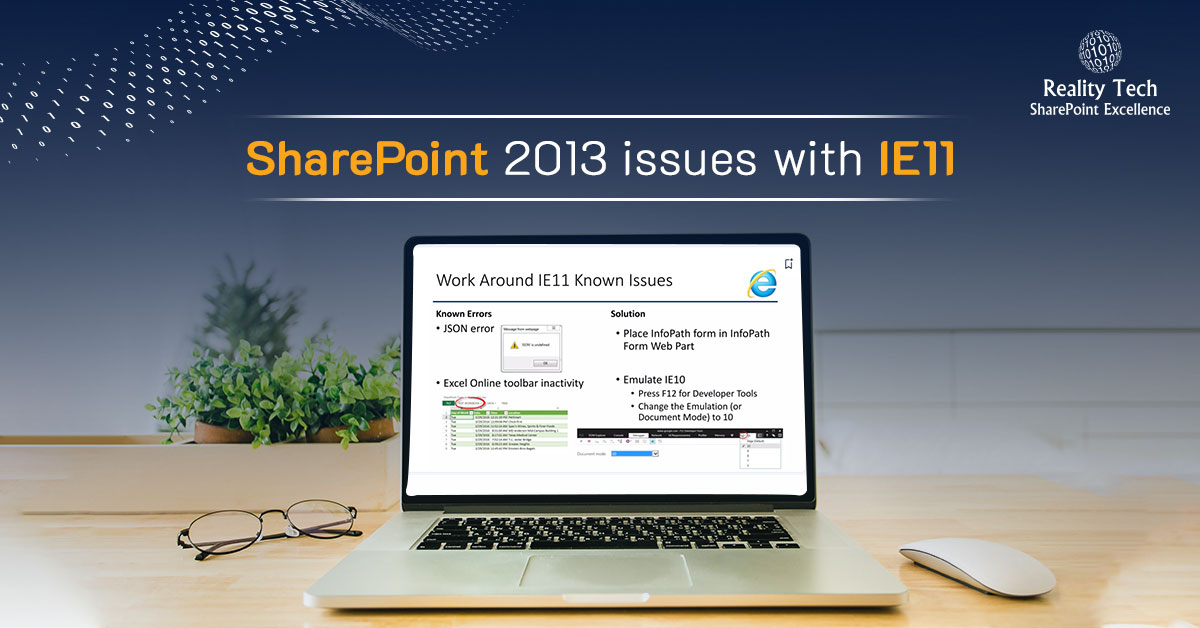
SharePoint 2013
SharePoint 2013 issues with IE11
Working with IE11, Web Part pages could not be edited in the browser. Web parts could not be selected during…
Read More
Administration & Governance
Challenges in SharePoint projects
SharePoint is a great platform for application development. However there exist some challenges that need to be kept in mind…
Read More
Administration
Checking for a specific permission for a specific…
While the UI allows one to easily check permissions for a given user, how can one do that iteratively? Here’s…
Read More
Legacy Solutions (2013/2016/2019)
Enhancing SharePoint breadcrumbs when navigating deeply nested folders
I had an interesting challenge to improve breadcrumbs in navigating a deeply folder nested library. The nice breadcrumb dropdown icon…
Read More
Administration
Fixing Checked Out Files
Fixing Checked Out Files I ran into a challenge this evening with a monstrously large library filled with 5,000+ folders…
Read More
Legacy Solutions (2013/2016/2019)
Custom SQL Reporting in MS-Project Server 2013
Custom SQL Reporting in MS-Project Server 2013 It is easy to navigate the database schema in MS-Project Server to generate…
Read More
Infrastructure & Farm Architecture
How to delete all SharePoint webs in a…
Pretty useful and simple to delete all webs in a site collection except the root web. This worked for me,…
Read More
Infrastructure & Farm Architecture
Assigning an Application Pool to a SharePoint Web…
the easy/obvious way is the wrong way. The trick is to reassign the app pool to the web app so…
Read More
Administration & PowerShell
Programmatically Targeting Audiences for Audience Enabled Libraries in…
Overview Targeting an audience for a given document is a great capability within SharePoint. There’s a simple Document Library setting…
Read More
Infrastructure & Farm Architecture
Getting PowerPivot working in SharePoint
PowerPivot with SharePoint Diagnostics There are a lot of moving parts to PowerPivot. Here are some common causes of PowerPivot…
Read More
Administration & PowerShell
How to write a SharePoint File to disk
It is quite common, there is a file in SharePoint, and you want to see it written to a local…
Read More
Automation & Scripting
Generating alternate colors in an email HTML table…
Generating rich text emails with PowerShell In this post: Generating automatic emails with embedded-reports and link to uploaded csvwe explored sending…
Read More
Information Architecture
Designing your SharePoint content hierarchy
Key SharePoint Limits Microsoft publishes a long list of soft and hard boundaries and limits within SharePoint. These have not…
Read More
Infrastructure
Getting your arms around the database sizing of…
SharePoint Database Size Planning In order to manage your SharePoint farm, and especially for planning for backup/recovery you need to…
Read More
Infrastructure
Stopping and Starting SharePoint
How to safely stop and start SharePoint for a reboot I recommend in the SharePoint Server(s), Start, Run, services.msc:Stop: SharePoint…
Read More
Administration & PowerShell
How to recover from a malfunctioning SharePoint Master…
Recover from a broken Master Page Last night I had a bit of fun trying to fix a bad Master…
Read More
Infrastructure
SharePoint Admins – How to Recover
Save your hide by restoring a SharePoint farm configuration I had the scare of the week last night. I was…
Read More
Document Management
A link straight to a SharePoint document’s metadata
Often users want a link direct to a document’s metadata. That’s easily done using this format: ht tp://SharePoint/sites/SiteCol/DemoMajorV2/forms/DispForm.aspx?ID=[x] Here’s a…
Read More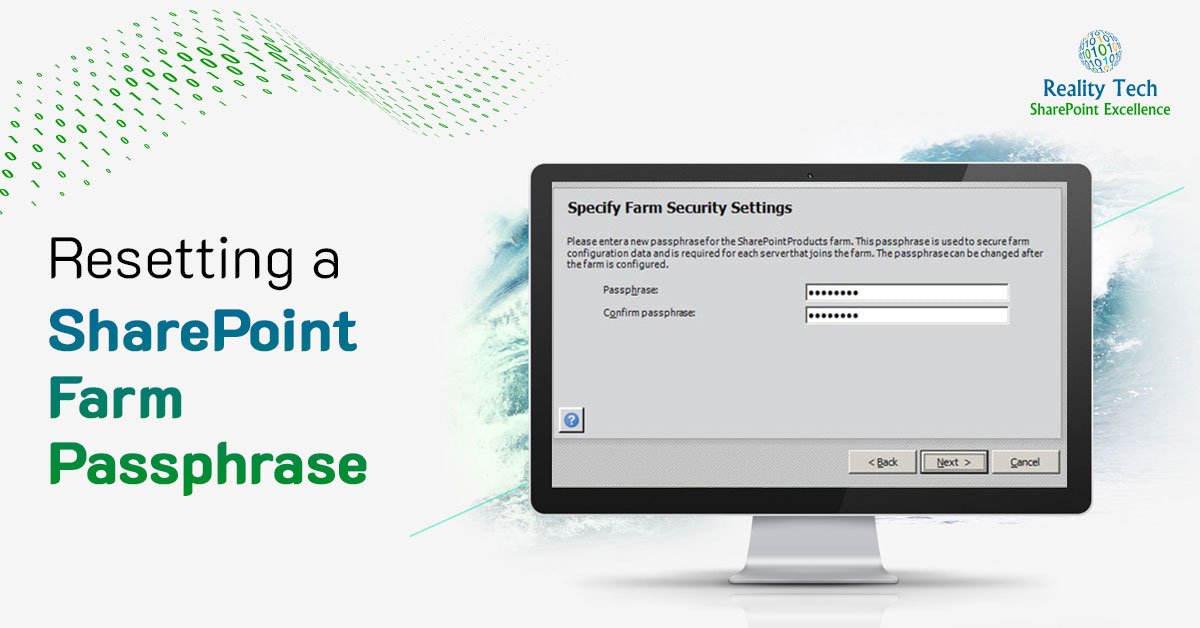
Infrastructure
Resetting a SharePoint Farm Passphrase
Resetting a SharePoint Farm Passphrase If you don’t have the SharePoint farm passphrase, you can’t join a server to the…
Read More
Infrastructure
Tuning SharePoint Search Ranking
Tuning SharePoint Search Ranking in the object model SharePoint Search results are returned in order of relevancy, which is determined…
Read More
Infrastructure
Feature Reporting and Deactivation across a SharePoint Farm
Reporting on features across a SharePoint Farm Before retracting a SharePoint solution, it is best to deactivate the associated feature…
Read More
Infrastructure & Farm Architecture
Adjusting Quicklinks Programmatically in SharePoint
Use PowerShell to set Quicklinks Programmatically in SharePoint Wouldn’t it be great to hide all lists of a certain type…
Read More
Information Architecture
Removing a stubborn Content Type from a SharePoint…
Removing a Content Type from a SharePoint Library Having a single content type in a library can make a library…
Read More
Legacy Solutions
Programatically reassigning Content Types in a library
Reassigning Content Types in a library using PowerShell It is useful to be able to change the Content Type for…
Read More
Infrastructure & Farm Architecture
Clearing out all SharePoint document versions for a…
Wiping out all SharePoint document versions for a set of documents Sometimes users create many versions of a document inadvertently.…
Read More
Infrastructure
Scripting SharePoint logging to ULS and Event Log
It’s easy to dump output to a text file in a script, but for enterprise-class logging, the two standards are…
Read More
Information Architecture
How to Fix Bad Taxonomy Terms in Sharepoint…
Fixing bad SharePoint taxonomy term references A given document using managed metadata can have a term orphaned from the termset.…
Read More
Infrastructure
Granting SharePoint Shell Administration access
Granting SharePoint Shell Administration access via PowerShell Enabling a PowerShell user can be as simple as granting local admin rights…
Read More
Infrastructure
SharePoint Group Management
Managing SharePoint Groups in PowerShell SharePoint Groups are a great mechanism for managing user permissions, however they exist within a…
Read More
Infrastructure & Administration
Content Type Syndication tips from the Masters
Content Type Syndication must-know tips Content Type Syndication is a must for enterprise-class structured SharePoint document management systems. There are…
Read More
Infrastructure
Remote Blob Storage Report
When configuring RBS (Remote Blob Storage), we get to select a minimum blob threshold. Setting this offers a tradeoff between…
Read More
Administration
View all Crawled Properties for a given SharePoint…
View all Crawled Properties for a SharePoint Document I often need to examine all the properties of a document. This…
Read More
Infrastructure & Administration
Adding one field to a SharePoint View in…
Adding a field every SharePoint View Sometimes one needs to change a SharePoint library view across all libraries and sites.…
Read More
Infrastructure
Adding a SharePoint View to every library
How to add a SharePoint View to every library Sometimes one has to create a custom view and deploy it…
Read More
Administration & PowerShell
Save a SharePoint Library as a Site Collection…
Save a SharePoint Library as a Site Collection List Template SharePoint has the capability to create list templates for future…
Read More
Records Management
Propagating legacy Document IDs into SharePoint
Document IDs in SharePoint Document IDs are generated automatically by SharePoint when configured, but what if you have your own…
Read More
Automation & Scripting
Generating automatic emails with embedded reports and link…
Generating automatic emails with the embedded content There’s often a need to automate the generation of reports on SharePoint. I…
Read More
Infrastructure
Patching SharePoint: Useful Tips
Patching SharePoint In patching SharePoint, prior to the August 2012 CU (wow, that’s a long time ago), patches had to…
Read More
Migration & Modernization
Migrating to SharePoint: A rational approach
Migrating to SharePoint What’s the best way to go about migrating to SharePoint? Of course it depends on where documents…
Read More
Infrastructure
SharePoint Timer Job History analysis
Analyzing the SharePoint Timer Job History At times one needs to analyze the timer job history to see what jobs…
Read More
Infrastructure
System characteristics of a well performing SharePoint Farm
Characteristics of a well-performing SharePoint Farm Tempdb data files Dedicated disks for the tempdb Tempdb should be placed on RAID…
Read More
Infrastructure
Customized scheduled SharePoint Search Alerts in HTML
Customized scheduled SharePoint Search Alerts in HTML Occasionally I get requests for customized notification about documents within a SharePoint farm.…
Read More
Infrastructure & Monitoring
SharePoint Monitoring Metrics
SharePoint Monitoring Metrics I pulled together some useful metrics for monitoring SharePoint environments: Storage Server drive(s) disk space availability (15%…
Read More
Infrastructure
Setting the Minimum BLOB Storage Size Correctly
How to set the Minimum BLOB Storage Size Setting the minimum storage size for BLOBs is a bit tricky. It…
Read More
Legacy Solutions (2013/2016/2019)
Add a Taxonomy Field into Every Site Collection…
Add a Taxonomy Field into Every Site Collection I recently had to add a Taxonomy Site Column into a range…
Read More
Infrastructure & Administration
Creating a View in each Document Library in…
Crate a View in each Library in a Web App My friend Rob Holmes raised an interesting challenge; deploying a…
Read More
Performance Optimization
Configuring Blob Cache correctly
Blob Cache For snappy SharePoint performance, one great option to enable is Blob Caching. Make sure to first back up…
Read More
Identity & Access Management
AD User group membership not propagating into site…
AD User group membership propagation issue In some rare instances, users may exist within a Site Collection that don’t receive…
Read More
Information Architecture
When users can’t access a taxonomy
When users cannot access a MMS taxonomy The Managed Metadata Service is great; but what do you do when users…
Read More
Infrastructure
Send Email From PowerShell
Sending An Email from PowerShell It’s easy to send an email from PowerShell, and it’s really useful for notifying yourself…
Read More
Infrastructure
Output User Profile Service Colleagues
Output User Profile Service Colleagues SharePoint User Profile Service maintains the set of colleagues associated with each user registered within…
Read More
Legacy Solutions & Custom Development
Extending the Outlook Ribbon programmatically
Extending the Outlook Ribbon The MS-Office ribbon can be extended programmatically. In this article, I add a new tab to…
Read More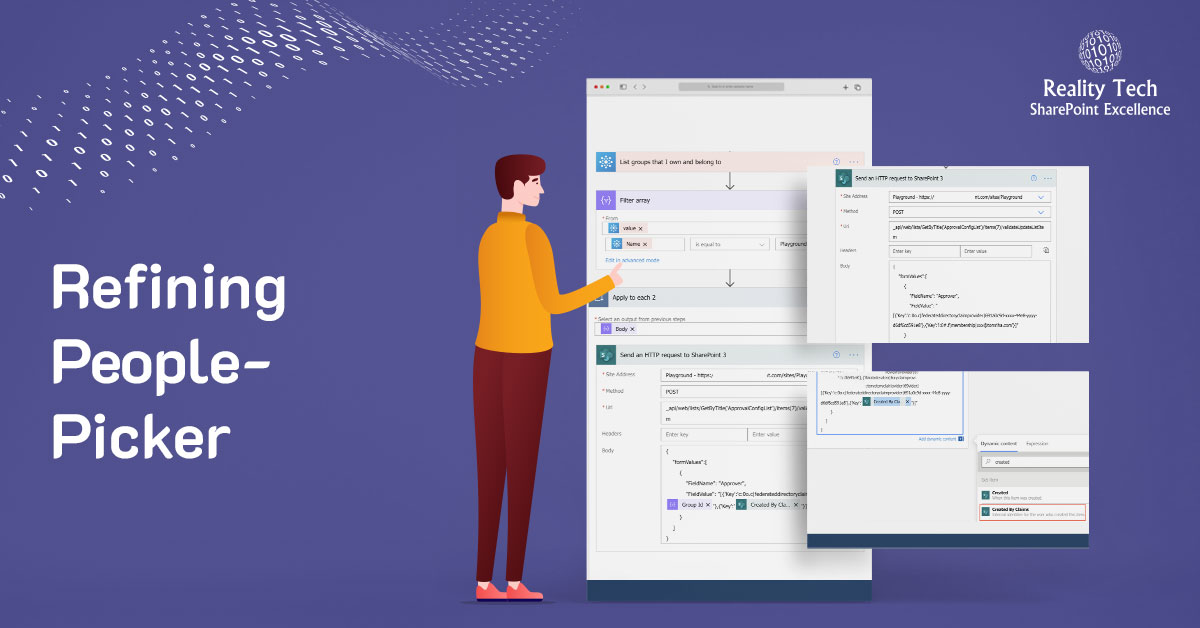
Infrastructure
Refining People-Picker
Refining The SharePoint People-Picker In SharePoint there are several locations where a set of users is presented in what is…
Read More
Infrastructure & Administration
Gradually reducing the Change Log for a Web…
Safely reducing the Change Log for a Web Application Content Databases by default contain logs of all change events for…
Read More
Legacy Solutions (2013/2016/2019)
Folder Metadata Web Part
Creating a Folder Metadata Web Part An interesting challenge I faced was programmatically exposing custom folder metadata within a specific…
Read More
Information Architecture / Metadata
Metadata Defaults for Folders
Setting Metadata Defaults for Folders SharePoint Libraries can be configured with metadata defaults for documents added to specific folders. Column…
Read More
Records Management
Structure Document IDs to be unique across Site…
Configure Document IDs to be unique across the farm Document IDs are only guaranteed unique within a single site collection.…
Read More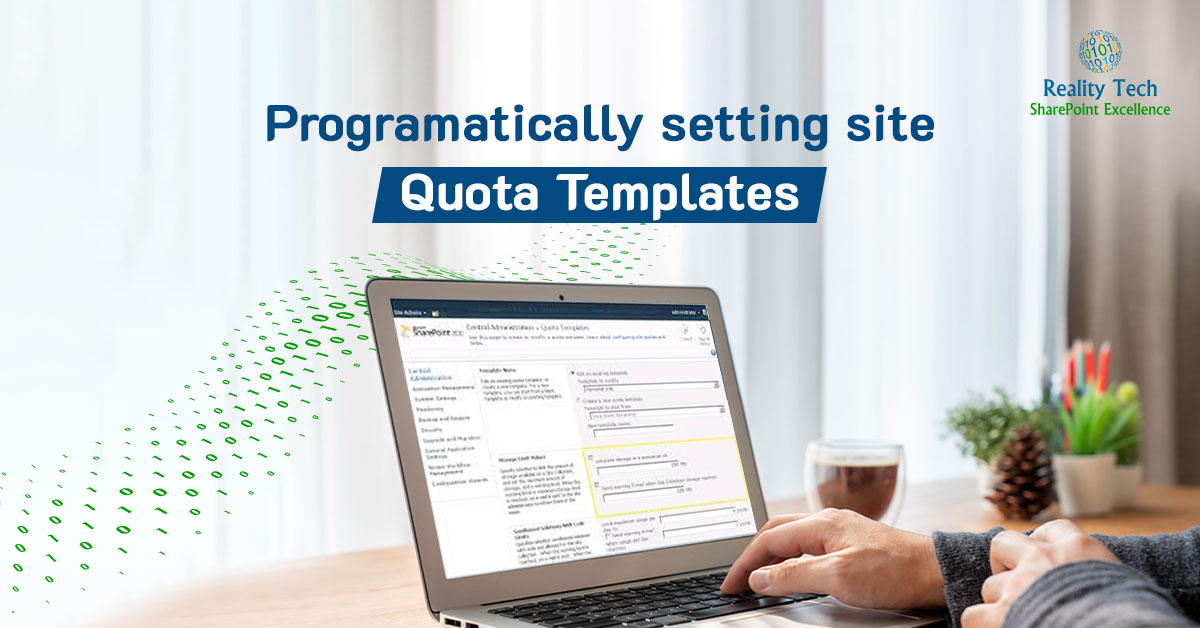
Infrastructure
Programatically setting Site Quota Templates
Setting Site Quota Templates using PowerShell Once sites are created, it can be a challenge to change the quota template.…
Read More
Legacy Solutions
Automating Creation of Per-Location Views
Automating the Creation of Per-Location Views SharePoint offers the capability of customizing the Views in Folders. This can be done…
Read More
Records Management
SharePoint Document IDs
SharePoint Document IDs The SharePoint Document ID Service is a new feature of SharePoint 2010 that offers a number of…
Read More
Governance & Permissions
Item Level Permissions
Item Level Permissions SharePoint has a robust object model supporting security at each level of the farm. Let’s take a…
Read More
Infrastructure
Consolidation of Application Pools
Automated Consolidation of Application Pools SharePoint leverages IIS, and runs within Application Pools. One should recognize up front that there…
Read More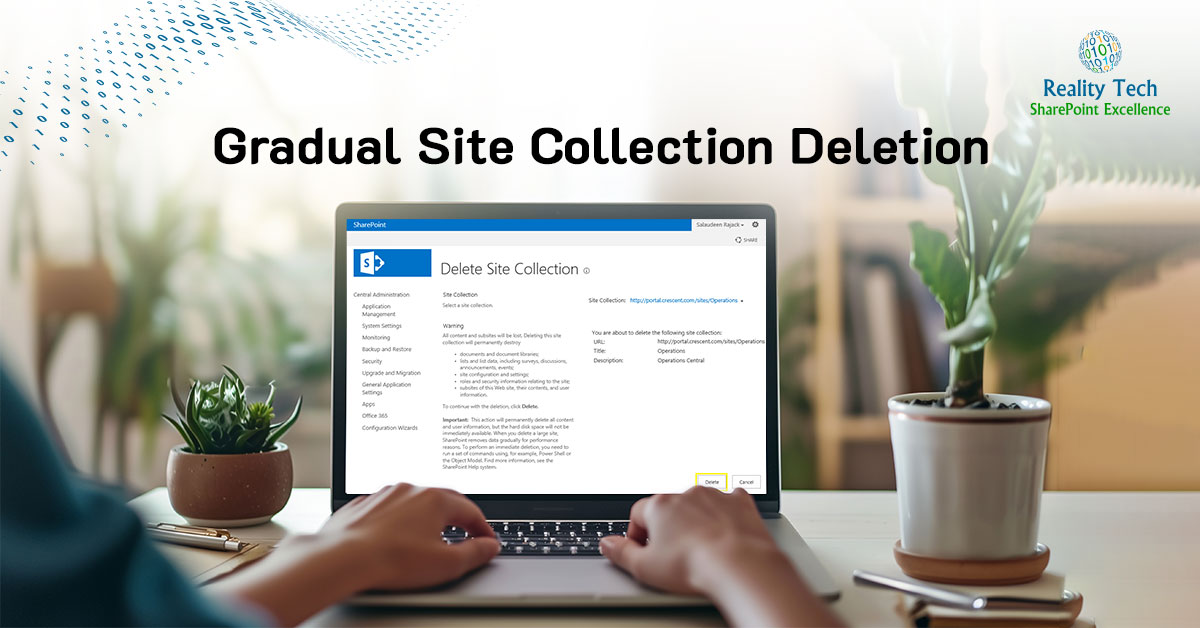
Infrastructure & Farm Architecture
Gradual Site Collection Deletion
Gradual Site Collection Deletion I had a mission to achieve overnight; move 28 site collections into a new managed path,…
Read More
Administration
Reporting on “Anonymous” surveys
Reporting on Anonymous surveys SharePoint enables the creation of anonymous surveys, but how anonymous are they? If you want a…
Read More
Infrastructure & Farm Architecture
Sync DB Grows Indefinitely
Sync DB is a database that is a part of the User Profile Service related to Active Directory synchronization. Unfortunately…
Read More
Infrastructure / Performance Optimization
Compression In IIS
There’s a relatively obscure setting in IIS that can have a dramatic effect on the performance perceived by SharePoint users. …
Read More
Governance & Permissions
Clarifying the Security Scope limits in SharePoint lists
Historically, Microsoft has defined it along the more conservative definition as “A scope is the security boundary for a securable…
Read More
Administration & PowerShell
Scripts To Create Scripts…
Everyone writes PowerShell scripts, but writing scripts to create scripts? I had an interesting challenge. I needed to create a…
Read More
Infrastructure
Redirect to Friendly URLs in SharePoint
It’s hard to pull the plug on an old URL host name in favor of a new one. Sure AAM…
Read More
Data Lifecycle Management
Records Management with SharePoint – Information Architecture: part…
There is a good deal of groundwork required to fully implement Records Management in SharePoint. The foundation is the overall…
Read More
Extensibility & Customization
Library and Folder Security Gotchas in SharePoint
Document libraries and folders are the backbone of SharePoint. They hold your critical business files, organize collaboration, and control who…
Read More
Infrastructure (Search Configuration)
Limiting Search Crawling to a subsite
I had an interesting challenge. I was asked to limit Search Crawling to a single subsite. The underlying issue was…
Read More
Infrastructure
Memory Management in PowerShell
For limited work in SharePoint PowerShell, memory is freed when the PowerShell session is closed. If your script ignores memory…
Read More
Administration & PowerShell
Reporting on all user permissions in a web…
Frequently I am asked to report on user permissions across the enterprise. While each site collection, probably each site and…
Read More
Infrastructure
Secure Store Master Key Error
Don’t you hate mysterious, scary errors? How about this one? A critical incident has occurred where the Secure Store service…
Read More
Infrastructure
FAST Search and the ticking time bomb
Tick…tick..tick…when you install FAST Search for SharePoint (FS4S), you probably have a time bomb set to go off exactly one…
Read More
Infrastructure
Removing metadata from Folders
A dear friend of mine inadvertently tagged his SharePoint Document Library folders while using a combination of Default Metadata and…
Read More
Infrastructure & Farm Architecture
RBS (Remote Blob Storage) part 3
A configured and running Remote Blob Storage (RBS) is a ticking time bomb until you’ve configured the Maintainer to run.…
Read More
Infrastructure & Farm Architecture
RBS (Remote Blob Storage) part 2
To get RBS going we are going to configure SQL Server, install the RBS libraries on the SharePoint servers, and…
Read More
Infrastructure & Farm Architecture
RBS (Remote Blob Storage) part 1
Remote Blob Storage (RBS) is a Microsoft technology for managing large BLOBs (Binary Large Objects) in SQL Server and is…
Read More