



Not every document in Microsoft 365 should be freely shared, downloaded, or printed.
Organizations handle sensitive information every day, and even a small mistake can create security or compliance risks.
This is why sensitivity labels have become an important part of modern data protection in Microsoft 365.
What Are Sensitivity Labels in Microsoft 365?
Sensitivity labels help organizations classify and protect content based on how sensitive it is.
Think of them as security tags that travel with your documents and emails. After a label is applied, users can only perform actions allowed by the policy.
With Microsoft Purview sensitivity labels, organizations can:
- Prevent accidental data leaks
- Restrict access to sensitive documents
- Block external sharing
- Prevent printing or copying
- Add encryption and protection controls
These labels can be applied to:
- Emails
- Documents
- Microsoft Teams
- SharePoint sites
- Microsoft 365 Groups
With sensitivity labels in Microsoft 365, organizations can better protect sensitive business information.
Enhanced Security and Compliance with Sensitivity Labels
-
-
- Protect Sensitive Content Beyond Permissions: Traditional permissions decide who can access information. However, Microsoft sensitivity labels provide protection even after the content is opened or shared.
- Encrypt Sensitive Content: Highly sensitive files can be encrypted automatically. This ensures unauthorized users cannot read the content.
- Restrict User Actions: Organizations can block actions such as:
- Printing
- Copying
- Downloading
- External sharing
This reduces the risk of sensitive data being exposed accidentally.
-
- Disable Screen Capture: Organizations can prevent screenshots of highly confidential information. This adds another layer of security.
- Work Alongside Existing Security Controls: Microsoft Purview sensitivity labels work with existing Microsoft 365 security and permission settings. This creates multiple layers of protection for sensitive data.
Simplify Compliance Requirements
Many regulations, including GDPR and HIPAA, require organizations to protect sensitive information properly.
Sensitivity labels help simplify compliance by automatically classifying and protecting content based on its sensitivity level.
This helps organizations:
- Reduce compliance risks
- Improve data governance
- Protect confidential information
- Meet regulatory requirements more effectively
How to Block External Sharing and Printing Using Sensitivity Labels
In this blog, we’ll focus on how Microsoft sensitivity labels can help prevent two major security risks:
- Unauthorized external sharing
- Accidental printing of sensitive documents
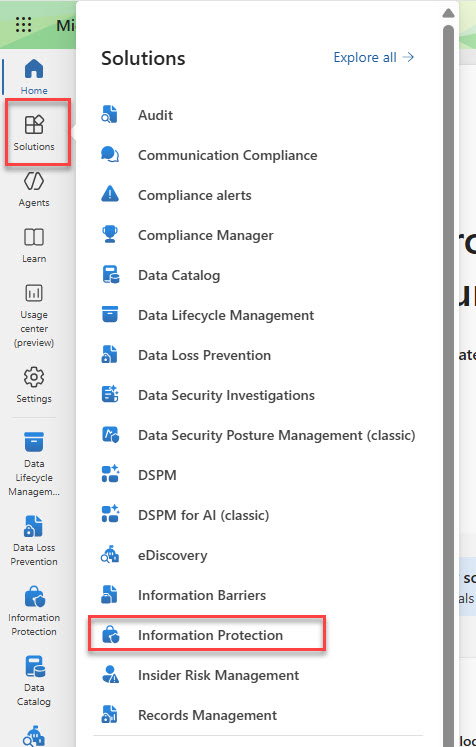
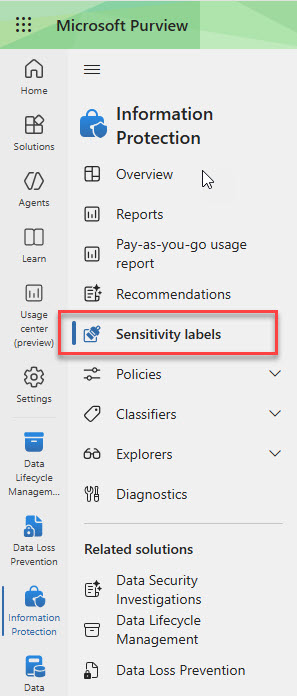
1. Access the Label Creation Portal
Go to the Microsoft Purview compliance portal and navigate to:
Information Protection → Create Label
This is where you can create and manage Microsoft Purview sensitivity labels for your organization.
2. Create a Clear and Informative Label
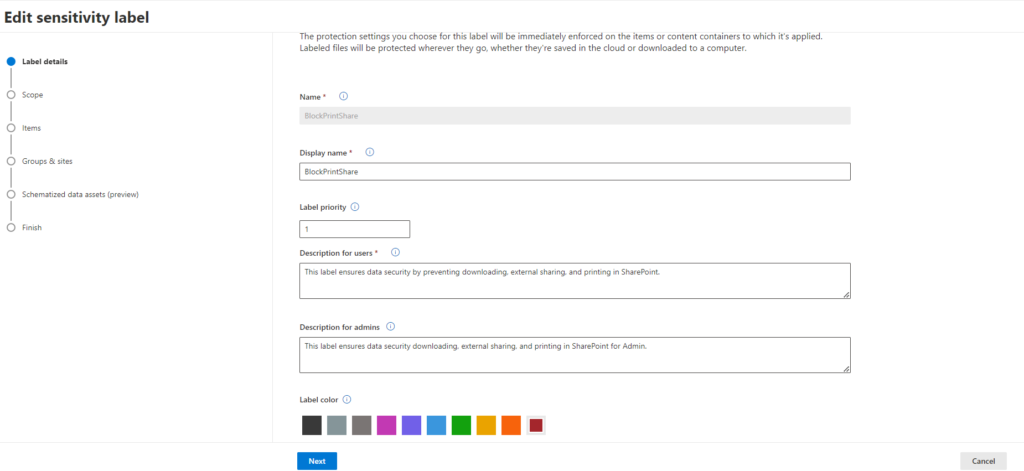
Name: Choose a descriptive name such as “BlockSharingPrinting.” This helps clearly identify the label’s purpose.
Description: Add a short explanation about the restrictions applied by the label. This helps both users and administrators understand when the label should be used.
Display Name: This is the label name users will see in Microsoft 365 applications, such as “Confidential.” Keep it short and easy to understand.
Colour: Select a colour that represents the sensitivity level visually. This helps users quickly identify protected content.
3. Define the Label Scope
Choose where you want the label to be applicable.
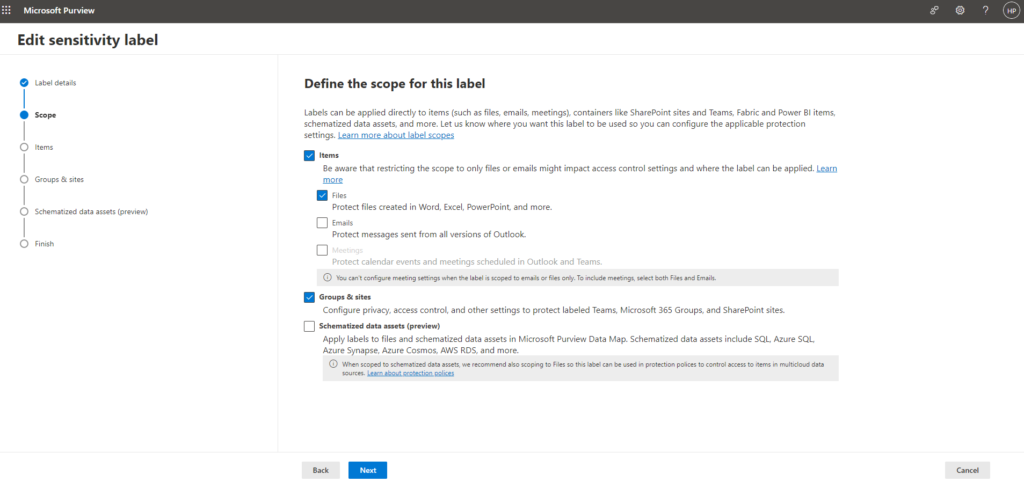
You can apply the label to:
- Emails
- Documents
- Both emails and documents
- Containers such as Groups and Sites
Select the required scope based on your organization’s requirements, then click Next to continue.
4. Configure Protection Settings
This step defines how the content will be protected after the label is applied.
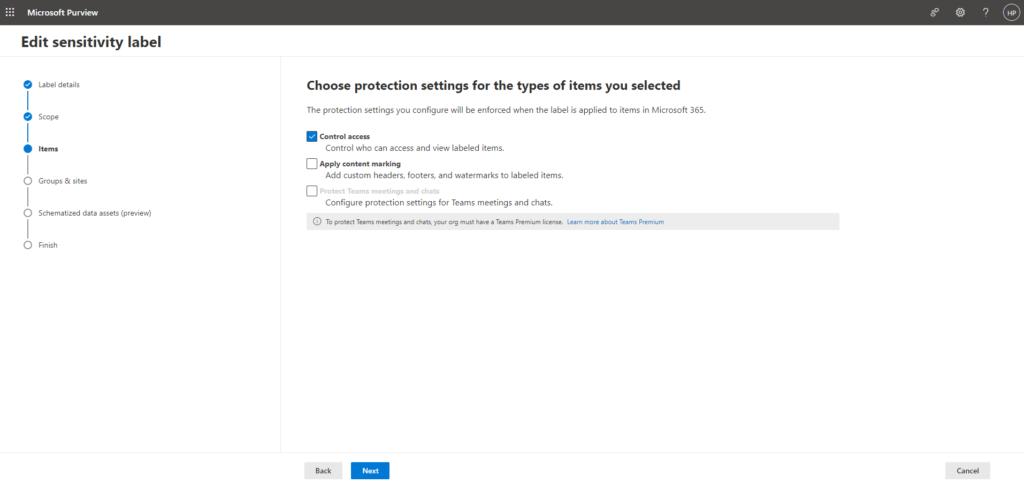
You can configure settings to:
- Block external sharing
- Restrict printing
- Prevent downloading
- Control copying permissions
- Apply encryption to sensitive files
- Limit access to authorized users only
These controls help strengthen security and reduce the risk of accidental data exposure.
5. Configure Content Marking
Organizations can also apply visual markings to protected content.
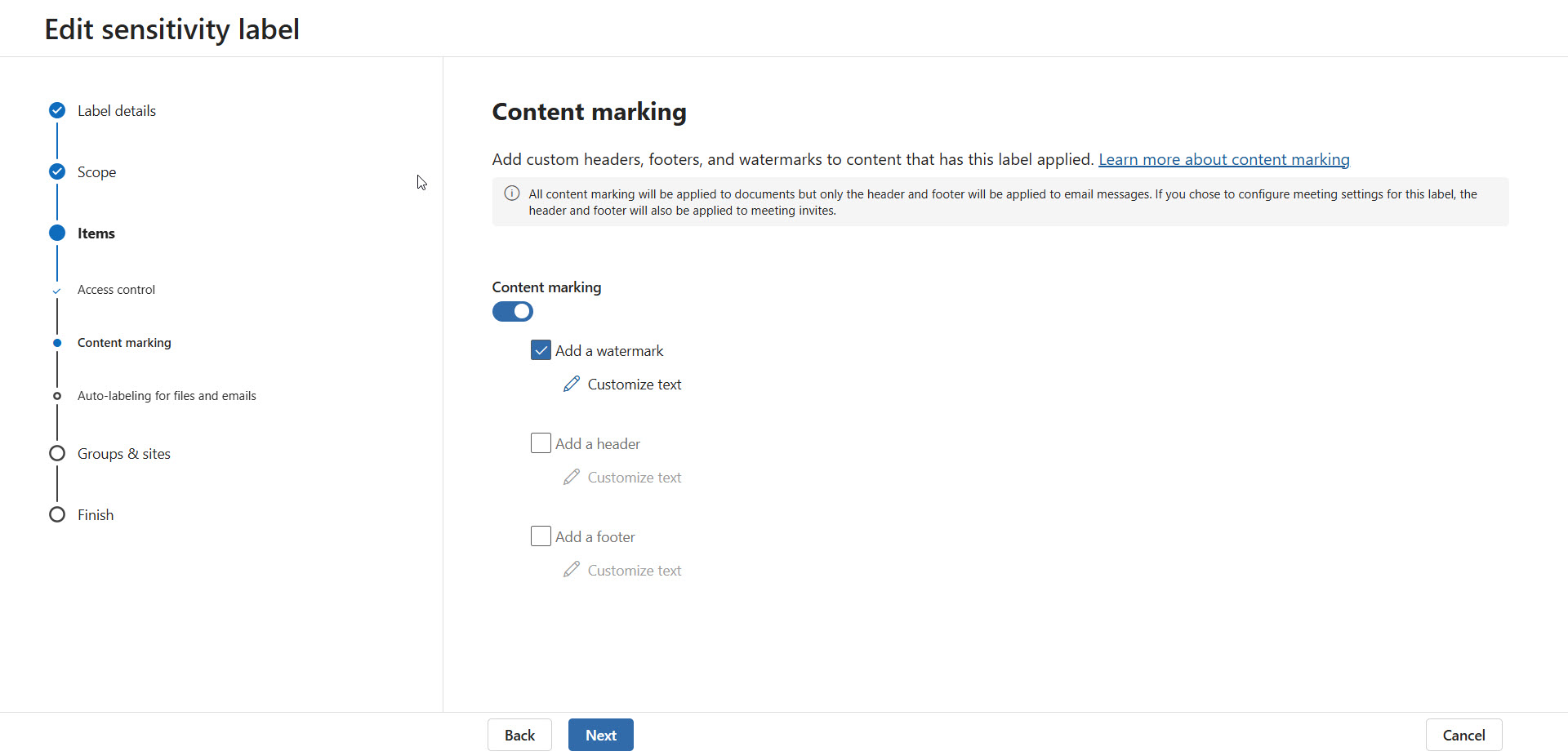
This may include:
- Watermarks
- Headers
- Footers
For example:
- Confidential
- Internal Use Only
- Restricted
These markings help users quickly identify the sensitivity level of documents and emails.
6. Configure Auto-Labelling for Files and Emails
Organizations can automatically apply labels when sensitive information is detected.
For example:
- Financial information
- Personal data
- Customer information
- Confidential business terms
This helps apply labels consistently and reduces manual effort for users.
7. Publish the Label
After configuration, publish the label to the required users or groups.
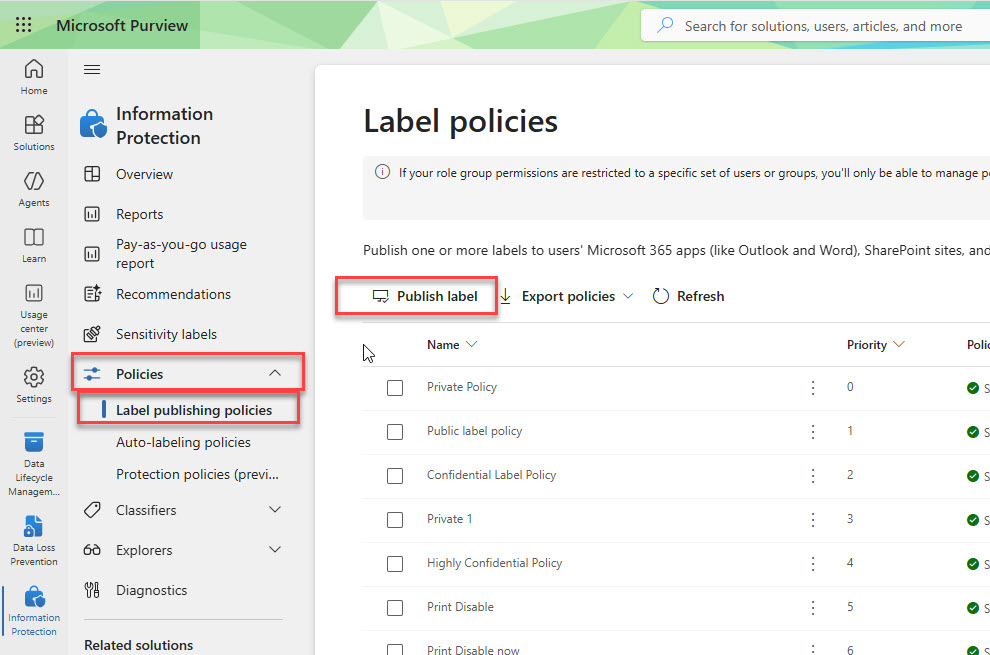
Once published, users can start applying the label across Microsoft 365 applications, such as:
- Word
- Excel
- Outlook
- Teams
- SharePoint
8. Test Before Full Deployment
Before deploying organization-wide:
- Test with a smaller group
- Validate restrictions and permissions
- Confirm the user experience
- Ensure compliance requirements are met
Testing helps identify issues early and prevents disruptions during deployment.
Why Organizations Use Sensitivity Labels
Organizations use sensitivity labels in Microsoft 365 to keep sensitive content protected after sharing.
This helps businesses:
- Protect confidential information
- Reduce accidental sharing
- Improve compliance
- Secure remote collaboration
- Strengthen Microsoft 365 security
Microsoft sensitivity labels help organizations protect sensitive information more effectively every day.
Conclusion
Organizations continue to collaborate across cloud platforms every day. Because of this, protecting sensitive information is more important than ever.
Sensitivity labels help secure documents, control external sharing, and prevent unauthorized printing.
With Microsoft Purview sensitivity labels and Microsoft 365 sensitivity labels, organizations can improve security and compliance while protecting important business information.
Have a question?
We’re here to help. Get in touch with us anytime, 24/7