




Implementing Microsoft Purview sensitivity labels requires three core steps: (1) enable container-level labeling in Microsoft Entra ID through PowerShell, (2) create and configure labels in the Microsoft Purview portal with privacy and access controls, and (3) publish labels through policies to your target users.
A basic implementation takes 2-4 weeks for small organizations, while enterprise deployments protecting thousands of Microsoft Teams, SharePoint Sites, and M365 Groups typically require 90 days for complete rollout and adoption.
With Microsoft Copilot now surfacing content across your entire Microsoft 365 environment, properly implemented sensitivity labels are the primary control preventing Copilot from inadvertently sharing sensitive deal materials, LP capital commitments, or portfolio company financials with unauthorized users.
According to IBM, in 2024, financial services organizations faced average data breach costs of $6.08 million, 22% higher than other industries. Most breaches were not caused by sophisticated attacks but misconfigured Teams channels, publicly accessible SharePoint Sites, or unauthorized guest access to sensitive Groups.
This blog teaches you how to implement sensitivity labels correctly, avoid the common failure patterns that derail most DIY implementations, and determine whether your organization needs expert support or can handle this internally.
Why Sensitivity Labels Matter Now More Than Ever?
Microsoft Copilot accesses everything users have permissions to see across Teams, SharePoint, and M365 Groups.
If a junior analyst has access to a SharePoint Site containing confidential acquisition targets, Copilot can surface that information in responses to casual queries like “what projects are we working on?”
Sensitivity labels solve this by controlling access at the container level, automatically enforcing privacy settings, blocking external sharing, preventing guest access, and requiring multi-factor authentication based on data classification.
When properly implemented, labels ensure that:
- Confidential deal flow stays restricted to authorized investment team members
- Limited partner data can’t be accidentally shared with portfolio company contacts
- Material non-public information remains segregated from general business collaboration
- Portfolio company financials across multiple funds stay properly separated
Why 60% of DIY Implementations Fail? The Three Failure Modes
After analyzing implementations across private equity, hedge funds, asset management firms, and regional banks, Reality-Tech has identified three patterns that derail most projects:
Failure Mode 1: Checkbox Compliance
Labels get enabled, policies published, training conducted. And then? Nothing really happens. Six months later, 65% of Teams and Sites remain unlabeled.
This mostly happens because there is no enforcement mechanism in place. Which might lead to no consequences for non-compliance, assuming that “if we build it, they will use it.”
How does this impact businesses? Through a false sense of security. During regulatory examinations or investor due diligence, auditors find the same unprotected data exposure that existed without labels. You paid for the security theater, not security.
Here’s how we suggest you do it:
- Implement automated monitoring with escalation workflows.
- Set a 30-day grace period where containers get default labels auto-applied.
- Create weekly reports showing unlabeled containers by department with clear ownership.
This approach achieves higher labeling rates within 90 days.
Failure Mode 2: Label Chaos
What it looks like: 47 different sensitivity labels exist because each fund or department created their own. Fund I has “Confidential-Fund1,” Fund II has “Confidential-FundII,” Legal has “Attorney-Client.” Users confused, security inconsistent, compliance gaps multiply.
Why it happens: No enterprise-wide governance framework before implementation. Each team solves their problem in isolation without considering cross-functional collaboration needs.
Business impact: Users can’t figure out which label to apply to cross-fund collaboration, so they don’t apply any. Or they apply the wrong label. Portfolio managers can’t access deal materials they should see. Security becomes unpredictable.
The fix: Start with taxonomy design workshops involving all stakeholders—investment teams, operations, compliance, legal, IT. Create a unified classification scheme (typically 4-6 top-level labels maximum) that works across all funds and functions. Map all departmental requirements to shared labels. Result: Consistent security that users actually understand.
Failure Mode 3: Implementation Limbo
Let’s assume, your project kicked off 8 months ago. But, your systems are still stuck in the “pilot phase.” Internal IT teams are juggling 15 other priorities. There is no clear owner, no deadline. Just mounting frustration from investment teams needing solutions. That is definitely a recipe for a disaster.
More often, this stems from underestimating complexity combined with IT bandwidth constraints. What seemed like a “few weeks” project reveals itself as requiring deep Microsoft Purview expertise most internal teams don’t have.
As a result, budget overruns, there is project fatigue, which may lead to in worse cases, eventual abandonment. Meanwhile, the data exposure risks that triggered the project, LP information accessible to wrong people, deal flow visible across funds, MNPI controls inadequate, continue to go unaddressed.
Here’s what we suggest:
- Employ dedicated expert resources with proven 90-day implementation methodology.
- Set fixed timeline, fixed deliverables, predictable outcome.
- Teams that implement this 100+ times know every edge case, regulatory requirement, and technical nuance.
Reality-Tech’s Microsoft Purview implementation services provide this proven methodology across New York, Connecticut, New Jersey, Florida, Texas, California, Illinois, Massachusetts, Pennsylvania, and Virginia.
What Actually Works When You Build Your Sensitivity Label Taxonomy?
Before configuring anything technical, you need a taxonomy that balances security with usability. Based on implementations across private equity firms, hedge funds, and financial institutions, here’s the framework that has worked for our clients:
The Four-Tier Classification Framework
Tier 1: General Business
- Privacy: Public
External Sharing: Anyone with link
Guest Access: Allowed - Use Cases:
Marketing materials, public-facing documents, general collaboration - Examples:
Firm overview presentations, public event planning Teams
Tier 2: Internal Only
- Privacy: Private
External Sharing: Allowed for approved domains only
Guest Access: Restricted to pre-approved service providers
Device Access: Any device - Use Cases:
Cross-functional projects, operational planning, internal business analysis - Examples:
Annual planning Teams, operations SharePoint Sites
Tier 3: Confidential
- Privacy: Private
External Sharing: Blocked
Guest Access: Disabled
Device Access: Managed devices only
MFA: Required (enforced via Microsoft Entra ID Conditional Access) - Use Cases:
Deal flow, investment analysis, portfolio company data, LP communications - Compliance Mapping:
Supports regulatory requirements such as SEC guidelines, investment advisor obligations, and state-level data protection laws - Examples:
Active deal Teams, portfolio company analysis Sites, LP reporting Groups
Tier 4: Highly Confidential
- Privacy: Private
External Sharing: Blocked
Guest Access: Disabled
Device Access: Managed devices only (with encryption required)
MFA: Required (enforced via Conditional Access)
Authentication Context: Triggered via sensitivity label
Session Controls: Enforced via Conditional Access (e.g., reduced session timeout) - Use Cases:
Material non-public information (MNPI), pending acquisitions, regulatory filings, Investment Committee (IC) discussions - Compliance Mapping:
Supports protection of material non-public information (MNPI), helps prevent insider trading risks, and aligns with regulations such as SEC Rule 10b5-1 - Examples:
Investment Committee Teams managing deal decisions, pre-announcement acquisition SharePoint Sites, regulatory filing Groups
Disclaimer: Managed Device access and MFA are not actually configured inside the Purview label wizard. The label only acts as a ‘trigger’ via an Authentication Context. The actual enforcement must be configured in Microsoft Entra ID using a Conditional Access Policy.
Label Naming That Users Actually Understand
Effective naming:
- “Confidential – Deal Flow” (clear purpose)
- “Highly Confidential – MNPI” (specific restriction)
- “Internal Only – Cross-Fund” (indicates scope)
Ineffective naming:
- “Level 3” or “Classification B” (meaningless)
- “Confidential 1” vs. “Confidential 2” (unclear difference)
- “Reg-Protected-L2” (technical jargon)
Each label needs a description with concrete examples: “Use for Teams and Sites containing active deal analysis, target company information, or investment recommendations.
For organizations needing help designing taxonomies that map to SEC requirements, investment advisor regulations, or fund-specific compliance needs, Reality-Tech’s Security and Compliance consulting provides taxonomy design workshops with regulatory mapping. Reach out to us at joel@reality-tech.com for a free consultation.
Technical Implementation: The Three-Step Process
Step 1: Enable Container-Level Labeling in Microsoft Entra ID
This one-time configuration requires Global Administrator privileges and takes approximately 30 minutes.
# Install and import module
Install-Module AzureADPreview -Scope CurrentUser -Force
Import-Module AzureADPreview
# Connect
Connect-AzureAD
# Get existing Group.Unified setting
$grpUnifiedSetting = Get-AzureADDirectorySetting | Where-Object {$_.DisplayName -eq “Group.Unified”}
# If setting does not exist, create it
if (!$grpUnifiedSetting) {
$template = Get-AzureADDirectorySettingTemplate | Where-Object {$_.DisplayName -eq “Group.Unified”}
$setting = $template.CreateDirectorySetting()
$setting[“EnableMIPLabels”] = “True”
New-AzureADDirectorySetting -DirectorySetting $setting
}
else {
$grpUnifiedSetting[“EnableMIPLabels”] = “True”
Set-AzureADDirectorySetting -Id $grpUnifiedSetting.Id -DirectorySetting $grpUnifiedSetting
}
# Verify
(Get-AzureADDirectorySetting | Where-Object {$_.DisplayName -eq “Group.Unified”}).Values
# Connect to Purview / Compliance
Install-Module ExchangeOnlineManagement -Force
Import-Module ExchangeOnlineManagement
Connect-IPPSSession
# Sync labels
Execute-AzureAdLabelSync
You should see EnableMIPLabels = True in the output. If you encounter errors, verify your account has Global Administrator privileges and you’re connected to the correct tenant.
Label availability typically takes 1-2 hours for new labels and up to 24 hours for modified labels, according to Microsoft’s documentation (https://learn.microsoft.com/en-us/purview/sensitivity-labels-teams-groups-sites).
For organizations needing PowerShell automation services for bulk operations across thousands of containers, Reality-Tech provides production-ready scripting with error handling and audit logging.
Step 2: Create and Configure Labels in Microsoft Purview
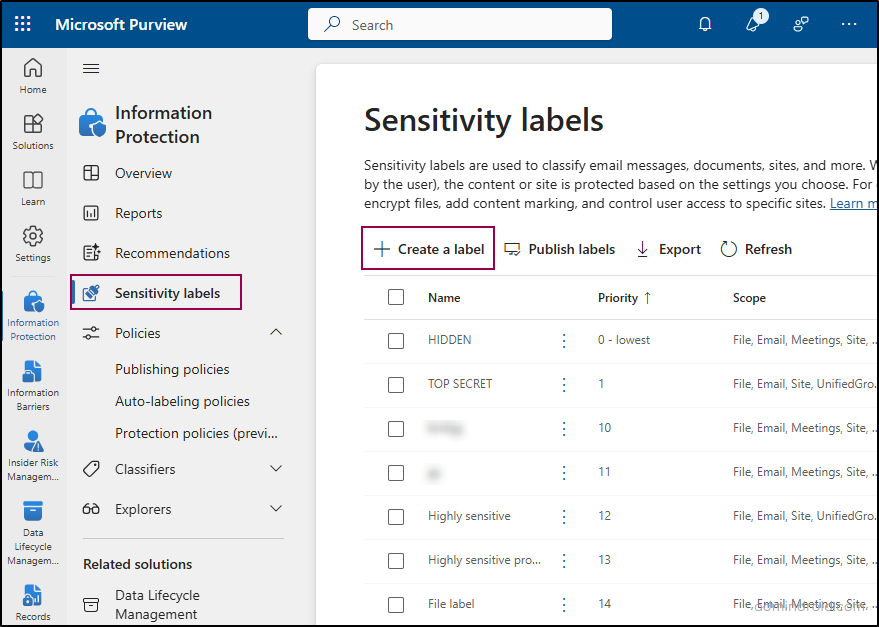
- Navigate to Microsoft Purview Portal > Solutions > Information Protection > Labels
- Click Create a label
- Define Name (internal identifier), Display name (what users see), Description for users (guidance with concrete examples)
- Select scope: Check Groups & sites for container-level protection
- Configure Privacy and External User Access settings:
- Set Privacy (Public, Private, or None)
- Control whether owners can add guest users
- Configure External Sharing and Conditional Access settings:
- Control external sharing from SharePoint Sites
- Determine access from unmanaged devices
- Select authentication contexts (requires Microsoft Entra Conditional Access configuration)
Critical for private equity and hedge funds: The “Highly Confidential” label protecting MNPI should use the strictest settings: Private, no external sharing, no guests, managed devices only, MFA required, with authentication context requiring terms of use acceptance.
Step 3: Publish Labels Through Policies
After configuring labels, publish them through label policies:
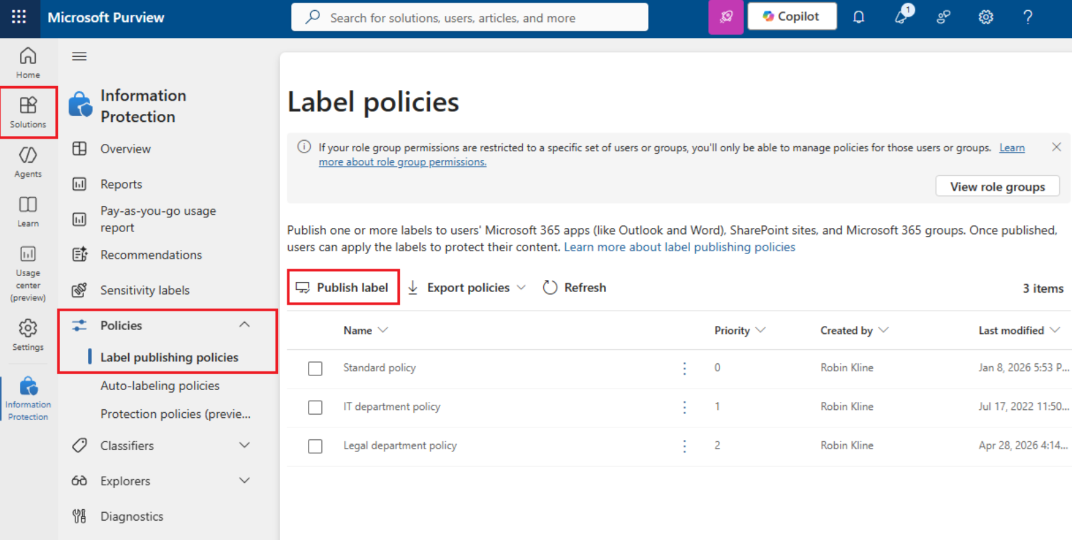
- Navigate to Information Protection > Label policies > Publish labels
- Select which labels to publish (start with 3-4 labels for pilot groups)
- Assign to pilot users (recommend 20-50 users across investment, operations, and compliance)
- Configure policy settings:
- Apply default label: Set “Internal Only” as default to prevent accidentally public containers
- Require label application: Enable after pilot phase to ensure 100% compliance
- Provide help link: Direct users to internal governance documentation
Timing considerations: New policies take effect within 24 hours. Plan for 2-week pilot phase before broader rollout.
Applying Labels: Teams, SharePoint Sites, and M365 Groups
For Microsoft Teams
During Team creation:
- Teams > Join or create a team > Create team
- Select Sensitivity dropdown during setup
- Choose appropriate label (e.g., “Confidential – Deal Flow”)
- Label displays in upper-right corner of all channels
For existing Teams:
- Navigate to Team > More options (•••) > Edit team
- Select Sensitivity dropdown
- Choose new label
- Changes apply immediately and are audit-logged
Important: Only Team owners can change labels. All changes are logged for compliance reporting and regulatory examinations.
For SharePoint Sites
During Site creation:
- SharePoint Admin Center > Sites > Active sites > Create
- Select Team site
- Expand Advanced settings > Select Sensitivity label
- Label applies immediately to entire Site
Special Considerations for Private Equity and Hedge Funds
Protecting Material Non-Public Information (MNPI)
Investment firms managing MNPI need additional controls beyond standard sensitivity labels:
MNPI Label Configuration:
- Privacy: Private
- External Sharing: Completely blocked
- Guest Access: Disabled
- Device Access: Managed devices with BitLocker encryption
- MFA: Required
- Authentication Context: Additional conditional access with terms of use
- Session Timeout: 15-30 minutes (shorter than standard)
When to apply: Pre-announcement acquisition Teams, earnings-related analysis Sites, insider trading restricted list Groups, Investment Committee deliberation channels.
Segregating Fund Data
Multi-fund organizations need clear segregation:
Fund-Specific Labels:
- “Confidential – Fund I” for Fund I portfolio companies and deal flow
- “Confidential – Fund II” for Fund II investments and analysis
- “Confidential – Cross-Fund” for shared resources (back office, compliance)
Access controls: Use Microsoft Entra ID security groups aligned with fund investment teams. Labels enforce privacy and sharing restrictions; security groups control which investment professionals access which fund containers.
Limited Partner Data Protection
LP capital commitments, investor reports, and fundraising materials require specialized protection:
LP Data Label:
- Block all external sharing
- Restrict to fund management and investor relations teams only
- Require MFA
- Implement authentication context for additional verification
- Enable detailed audit logging for regulatory compliance
Monitoring and Measuring Success
Key Metrics to Track
Adoption Metrics:
- Percentage of containers with labels (target: 95%+ within 90 days)
- Time-to-label for new containers (target: labeled at creation)
- User error rates in label selection (should decrease as users learn)
Security Metrics:
- External sharing policy violations (target: zero)
- Unauthorized guest access attempts (target: blocked 100%)
- Unmanaged device access to Confidential containers (target: blocked 100%)
Compliance Metrics:
- Audit findings related to access control (should show continuous improvement)
- Data exposure incidents (should decrease significantly)
- SEC examination or investor due diligence results (should demonstrate effective controls)
Accessing Audit Logs
- Microsoft Purview Portal > Audit > Search
- Filter to Sensitivity label activities category
- Monitor critical events:
- Applied sensitivity label (who labeled what, when)
- Changed sensitivity label (modifications with justification)
- Removed sensitivity label (potential policy violations requiring investigation)
- Detected document sensitivity mismatch (higher-priority document in lower-priority container)
Export logs monthly for compliance documentation, regulatory examinations, and investor due diligence. Financial services firms took an average of 219 days to identify and contain breaches in 2024.
Using Activity Explorer (Advanced Visibility)
Navigate to Microsoft Purview Portal > Information Protection > Explorers > Activity Explorer
Track sensitive data activity across your environment:
- View how labeled and sensitive data is being accessed, shared, or moved
- Identify risky actions such as external sharing, downloads, or uploads
- Filter by sensitivity labels, sensitive info types, locations (Teams, SharePoint, Exchange), or users
Activity Explorer typically provides up to 30 days of data (extended with licensing) and displays up to ~10,000 results per query in the UI.
Use filters to narrow results and focus on high-risk activities such as external sharing or access to highly confidential data.
Expert Implementation Support
Implementing Microsoft Purview sensitivity labels for private equity firms, hedge funds, and financial institutions requires specialized knowledge of SEC regulations, investment advisor requirements, and fund-specific compliance needs. Reality-Tech provides proven implementation methodology across New York, Connecticut, New Jersey, Florida, Texas, California, Illinois, Massachusetts, Pennsylvania, and Virginia.
What Reality-Tech delivers:
- Taxonomy design workshops mapping labels to SEC requirements and fund structures
- Complete technical configuration and deployment across Microsoft 365
- PowerShell automation for bulk labeling of existing containers
- Investment team training and change management
- Automated monitoring, audit logging, and compliance reporting
- Integration with broader information governance and eDiscovery strategies
Ready to protect your deal flow, LP data, and portfolio company information?
Schedule a consultation or explore comprehensive Microsoft Compliance Purview services.
For additional insights on Microsoft 365 governance and security best practices, visit Reality-Tech’s video library featuring expert guidance from SharePoint and compliance specialists.
FAQs
Sensitivity labels control access, privacy, and security settings, determining who can access containers and how content can be shared. Retention labels control data lifecycle, how long content must be kept and when it should be deleted. Most organizations use both together for comprehensive governance. For example, a Teams channel for deal analysis might have a “Confidential – Deal Flow” sensitivity label (controlling access) and a “Investment Records – 7 Years” retention label (controlling lifecycle). Reality-Tech’s Records Management services implement both label types aligned with SEC and investment advisor requirements.
Microsoft doesn’t provide native auto-labeling for containers, but you can implement automation through PowerShell scripts and Power Automate workflows. Monitor for new Teams creation and automatically apply labels based on naming patterns (any Team with “Fund I” gets “Confidential – Fund I” label). You can also trigger label application based on metadata, creation by specific departments, or content analysis. Reality-Tech’s Power Automate consulting services build custom workflows enforcing labeling policies automatically.
Applying a container label does NOT automatically label documents inside. Container labels and document labels are independent protection layers—container labels control workspace access while document labels control individual file protection. For complete security, implement both strategies: use container labels for Teams, Sites, and Groups, and use document auto-labeling policies or user training for files. This layered approach ensures both the workspace and its contents receive appropriate protection.
Shared channels automatically inherit the parent Team’s sensitivity label, and this inheritance cannot be changed or removed—even by Team owners. This ensures consistent security across all shared collaboration. If your Team has a “Confidential – Deal Flow” label blocking external sharing, all shared channels inherit that restriction automatically. When designing your taxonomy, choose Team-level labels carefully since they’ll apply to all standard and shared channels.
Have a question?
We’re here to help. Get in touch with us anytime, 24/7