




A least-privilege approach to secretless SharePoint automation with Microsoft Entra ID and Microsoft Graph.
Managed identity removes the need to store client secrets, passwords or certificates in an Azure workflow. Combined with Sites.Selected, it also limits the workflow to the SharePoint site collections it genuinely needs.
This matters for unattended processes such as document routing, list synchronisation, reporting and scheduled integrations. A compromise of the workflow identity should not automatically expose every SharePoint site in the tenant.
The modern design uses Microsoft Entra ID, a managed identity and Microsoft Graph. Do not use appregnew.aspx, appinv.aspx or the legacy Azure Access Control Services (ACS) app-only model. Microsoft fully retired Azure ACS for SharePoint Online on 2 April 2026.
How the Sites.Selected Permission Model Works
Sites.Selected is an application permission for site-collection-level access, unlike tenant-wide permissions such as Sites.Read.All or Sites.ReadWrite.All, consent does not immediately unlock SharePoint content. The managed identity must pass two independent authorisation gates.
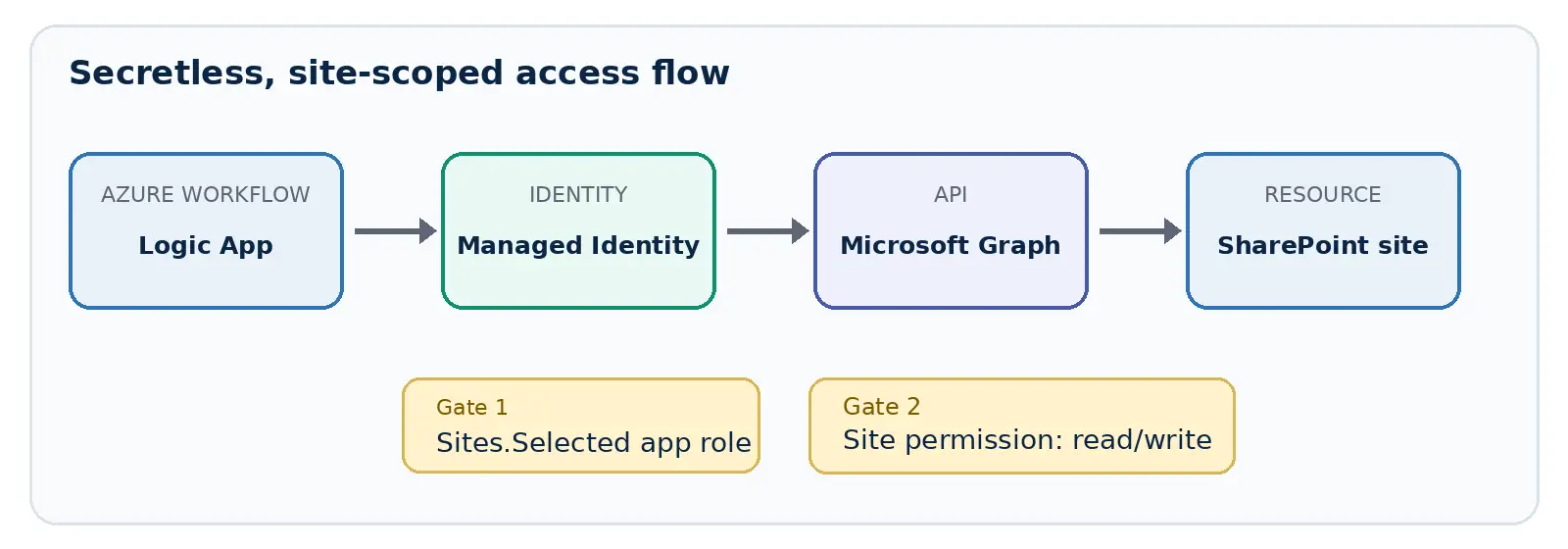
- Gate 1 – Tenant consent: Assign the Microsoft Graph Sites.Selected application role to the managed identity in Microsoft Entra ID.
- Gate 2 – Resource permission: Grant that identity read, write or another justified role on the target SharePoint site through Microsoft Graph.
Least privilege: Use read for retrieval-only workloads and write only when the workflow must create, update, or delete content. Avoid tenant-wide Graph permissions unless the business requirement genuinely spans the tenant.
Prerequisites
- An Azure Logic App (Consumption or Standard) and a system-assigned or user-assigned managed identity.
- A target SharePoint Online site and a known list or library for testing.
- Microsoft Entra PowerShell and Microsoft Graph PowerShell installed in Azure Cloud Shell or an administrator workstation.
- An appropriate Microsoft Entra administrator role for assigning Microsoft Graph app roles, plus SharePoint Administrator or higher for the site permission grant.
Identifier check: The managed identity object ID is used for the Microsoft Graph app-role assignment. Its application (client) ID is used when granting access to the SharePoint site. Confusing these IDs is a common cause of failed deployments.
Step 1: Enable the Logic App Managed Identity
In the Azure portal, open the Logic App, select Identity, enable the system-assigned identity and save. Record its object (principal) ID. A user-assigned identity is useful when several workflows need a governed, reusable identity; a system-assigned identity has a simpler one-to-one lifecycle with the Logic App.
Step 2: Assign Sites.Selected to the Managed Identity
Microsoft now documents Microsoft Entra PowerShell for granting API permissions directly to managed identities. The following example locates the Logic App identity, finds the Microsoft Graph Sites.Selected app role and creates the app-role assignment.
POWERSHELL
Connect-Entra -Scopes "Application.ReadWrite.All", "AppRoleAssignment.ReadWrite.All"

$managedIdentityName = "<logic-app-name>"
$managedIdentitySP = Get-EntraServicePrincipal -Filter "displayName eq '$managedIdentityName' and servicePrincipalType eq 'ManagedIdentity'"

$graphSP = Get-EntraServicePrincipal -Filter "appId eq '00000003-0000-0000-c000-000000000000'"
$sitesSelected = $graphSP.AppRoles | Where-Object {
    $_.Value -eq "Sites.Selected" -and
    $_.AllowedMemberTypes -contains "Application"
}

$params = @{
    ServicePrincipalId = $managedIdentitySP.Id
    PrincipalId        = $managedIdentitySP.Id
    ResourceId         = $graphSP.Id
    AppRoleId          = $sitesSelected.Id
}

New-EntraServicePrincipalAppRoleAssignment @params
Before running the assignment, confirm that the service-principal query returns exactly one managed identity. Duplicate display names can otherwise lead to give permission to the wrong object.
Step 3: Grant Access to the Required SharePoint Site
Sites.Selected alone provides no content access. An administrator must add a permission object to the target site. The delegated administrator session uses Sites.FullControl.All to create that permission; this high privilege belongs to the administrator performing the grant, not to the managed identity.
POWERSHELL
Connect-MgGraph -Scopes "Sites.FullControl.All"

$hostname = "contoso.sharepoint.com"
$sitePath = "FinanceAutomation"
$site = Invoke-MgGraphRequest -Method GET -Uri `
    "https://graph.microsoft.com/v1.0/sites/$hostname:/sites/$sitePath"

$permission = @{
    roles = @("write")
    grantedToIdentities = @(
        @{ application = @{
            id          = $managedIdentitySP.AppId
            displayName = $managedIdentitySP.DisplayName
        }}
    )
} | ConvertTo-Json -Depth 6

Invoke-MgGraphRequest -Method POST `
    -Uri "https://graph.microsoft.com/v1.0/sites/$($site.id)/permissions" `
    -Body $permission -ContentType "application/json"
Replace write with read when the workflow only reads data. Record the returned permission ID so access can be reviewed or removed later. For narrower access, Microsoft Graph also offers selected permissions at list, list-item, folder and file levels; these can break inheritance and increase unique-permission counts, so use them deliberately.
Step 4: Call Microsoft Graph from the Logic App
Add the built-in HTTP action to the workflow. Configure it with the target Microsoft Graph request and managed identity authentication.
- Method: GET
- URI: https://graph.microsoft.com/v1.0/sites/{site-id}/lists/{list-id}/items?$expand=fields($select=Title,Status)&$top=100
- Authentication type: Managed identity
- Managed identity: System-assigned managed identity, or the required user-assigned identity
- Audience: https://graph.microsoft.com
A successful request returns HTTP 200. Process @odata.nextLink when the response is paginated rather than assuming that $top returns the entire dataset. For write operations, use the relevant Graph endpoint and keep the site permission role aligned with the action.
A Secure Default for SharePoint Automation
Managed identity solves the credential-management problem; Sites.Selected solves the excessive-access problem. Together they provide a strong default for Azure-hosted SharePoint automation: no stored secret, no dependency on a user account and no automatic tenant-wide SharePoint access.
Start with one workload, one identity and the smallest practical SharePoint scope. Document both permission gates, test with a low-risk list and build permission review into the solution lifecycle. If your organisation is replacing legacy ACS or broad app-only permissions, our Microsoft 365 team can help assess the current integrations and design a least-privilege migration path
Have a question?
We’re here to help. Get in touch with us anytime, 24/7