How to Create a Word Document From a Template in Power Automate

In Microsoft’s Power Automate, crafting dynamic and personalized Word documents through templates has become a streamlined process. Let’s start the detailed steps that illuminate the path to seamlessly generating these documents using Power Automate.

Crafting Your Word Template

Step 1: Activating the developer option

To begin, open up your Office Word application. Navigate to the “File” tab, then click on “Options.”

img-01


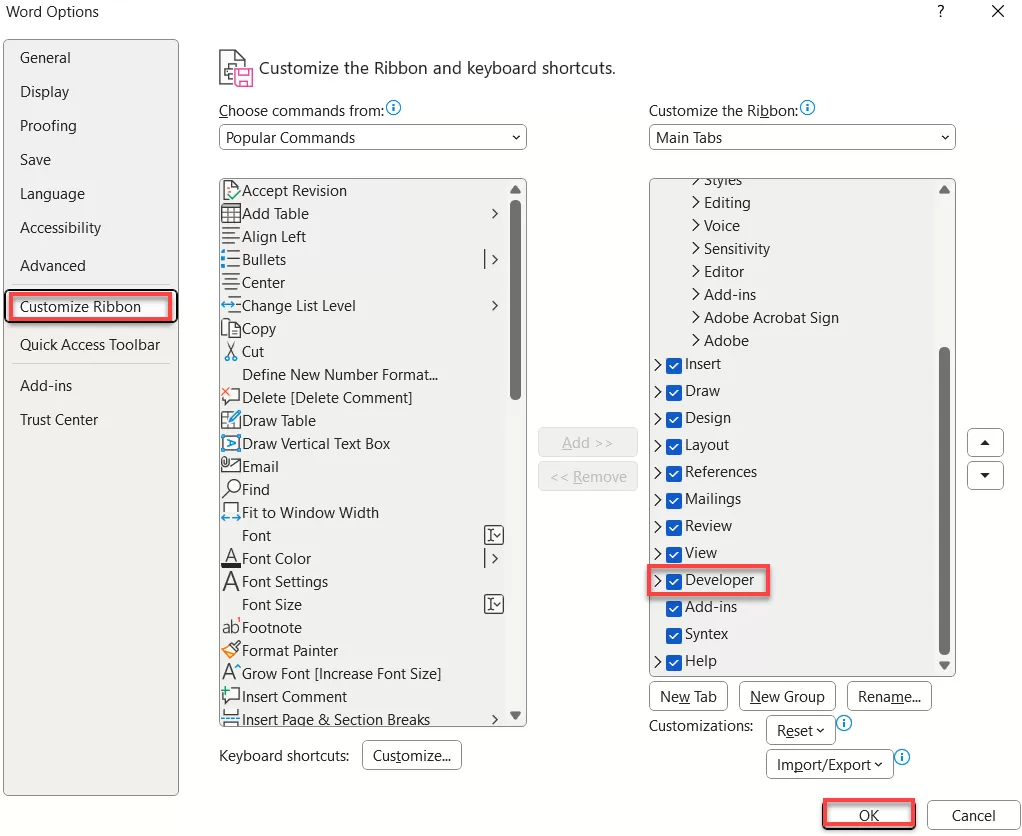
This leads to the “Customize Ribbon” tab, where you activate the “Developer” option by checking the designated box. This action grants access to the Developer tools on the application’s homepage tab.

img-02

Step 2: Incorporating Dynamic Content

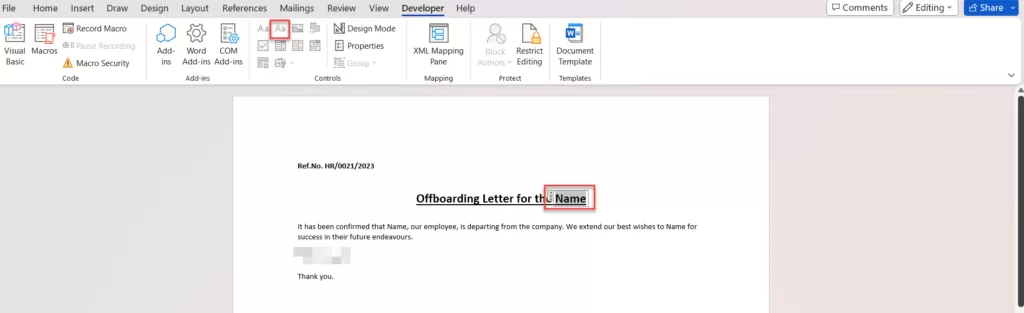
Enabling the Developer option facilitates the use of the “Insert Plain Text” control, allowing the inclusion of dynamic content. Then after Create a template according to your needs.

img-03


(Highlighted is the “Insert Plain Text” option)

Utilize this tool to add fields, such as “Name,” for dynamic content within your Word template. Navigate to Developer, select the text you wish to make dynamic, and click on the Highlighted Icon for the desired effect.

img-04


Step 3: Uploading to SharePoint

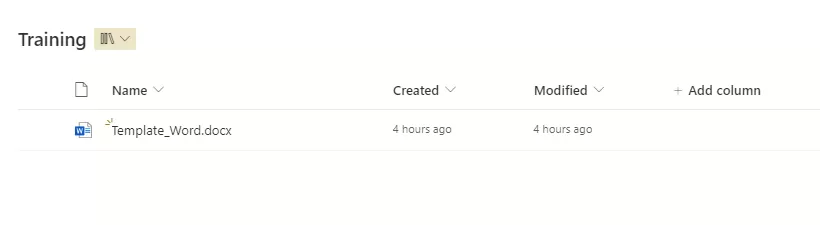
Once your template is created, ensure to upload it to the SharePoint library for accessibility and seamless integration.

img-05

Developing a Flow in Power Automate

Step 1: Setting Up the Flow

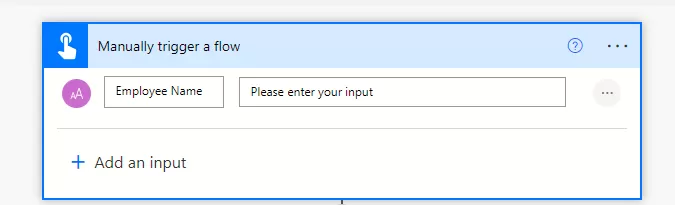
After uploading the template, configure a manual trigger flow. Incorporate necessary fields, like the person’s name, ensuring you’re effectively setting the stage for dynamic input.

img-06


Step 2: Populating the Word Template

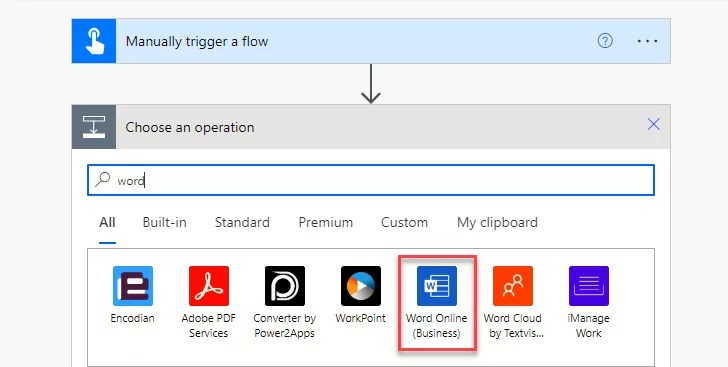
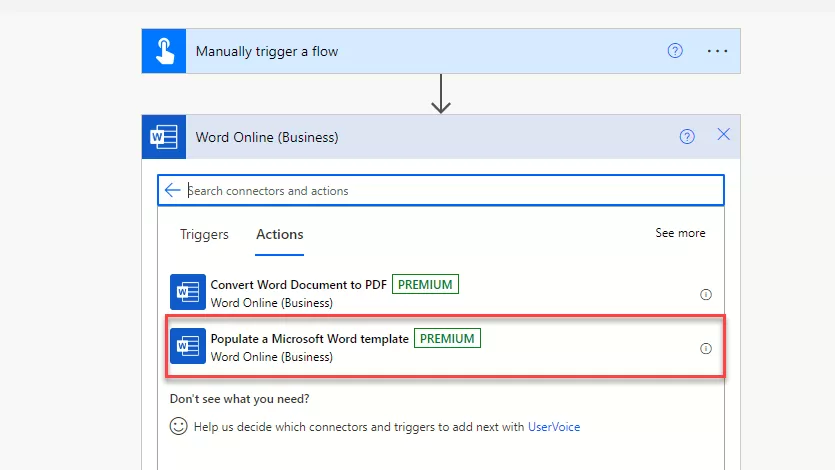
In the ‘Manually trigger a flow’ section, include the action called “Word.” Then, select ‘Word online (Business),’ where you’ll find the “Populate a Microsoft Word template” action.

img-07

(Search for “word”)

img-08

(Select action called “Populate a Microsoft Word template”)

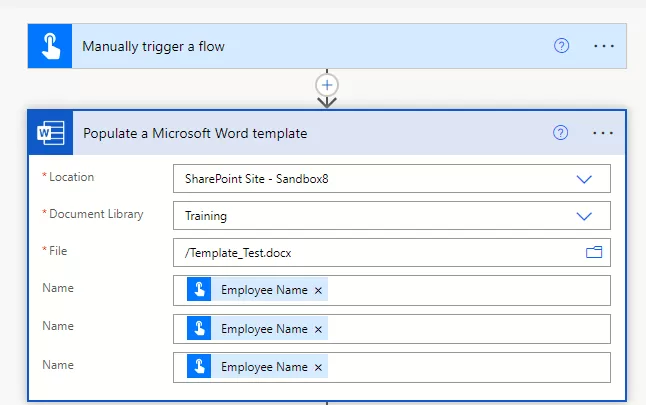
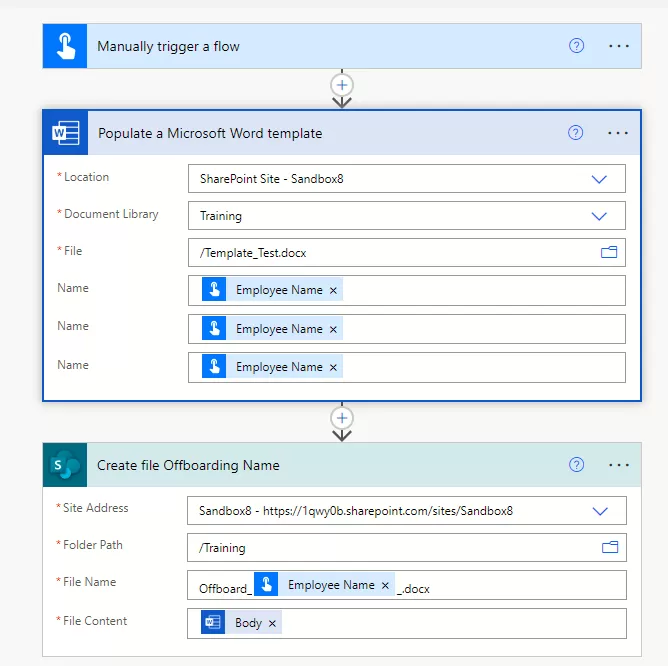
Select “Populate a Microsoft Word template” action and Put in the important info about where your Word template is in SharePoint. Then, pick the Document library and select the template file. Use the manual trigger field to keep things changing.
img-09

(Consult this step for the action called “Populate a Microsoft Word template”)

Next, choose ‘Create file’ action and where you want to keep the new Word files created. You can even give them a special name like “Offboard_Employeename.”

img-10

(Consult this step for create file)

Step 3: Initiating the Flow Manually

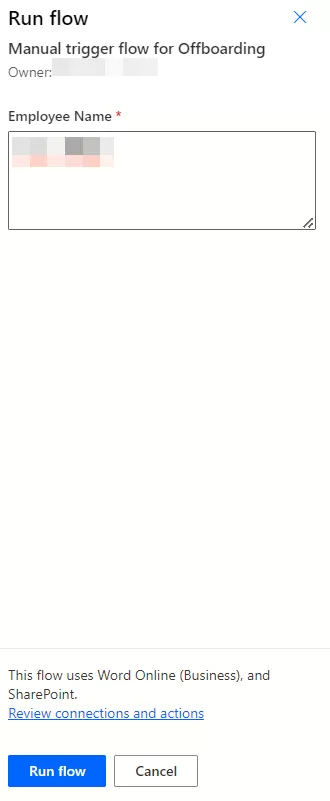
Once the flow is set, manually initiate it. This prompts the input of the person’s name, seamlessly integrating the dynamic element into the document.
img-11


Step 4: Generating the Word File

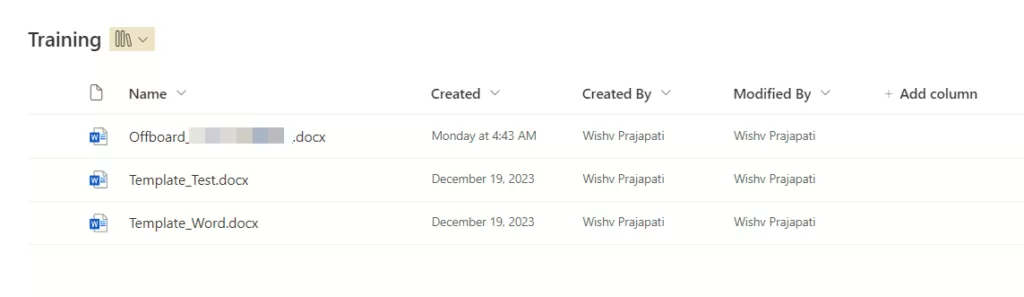
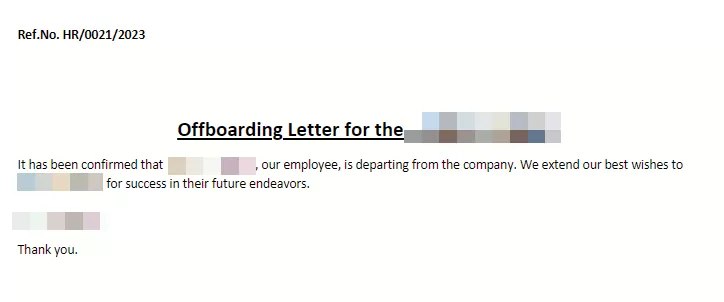
Upon execution, witness the magic as the file, named as per the flow, is automatically generated in the SharePoint document library. Open the Word document to observe the dynamic change, showcasing the effectiveness of Power Automate.

img-12

(Generated File the SharePoint document library)


img-13

(Updated Content of Word File)

Conclusion – Creating Word documents from templates within Power Automate empowers users to streamline and personalize their document creation process. By following these steps, one can harness the full potential of Power Automate’s capabilities in generating dynamic and customized documents effortlessly.

Power Apps Modern Controls

The controls in canvas applications now come with a modern touch. These controls make it easier for creators to set up, offering a quicker and more straightforward configuration process.

At the same time, they enhance the overall experience for end-users by providing a seamless interface.

The design of these contemporary controls prioritizes accessibility, user-friendliness, and performance, resulting in visually appealing, highly functional, and easily understandable elements.

To complement these controls, there’s a newly introduced theming system that aligns with the Fluent 2 design framework. This system allows centralized adjustments to the visual appearance and atmosphere of an application.

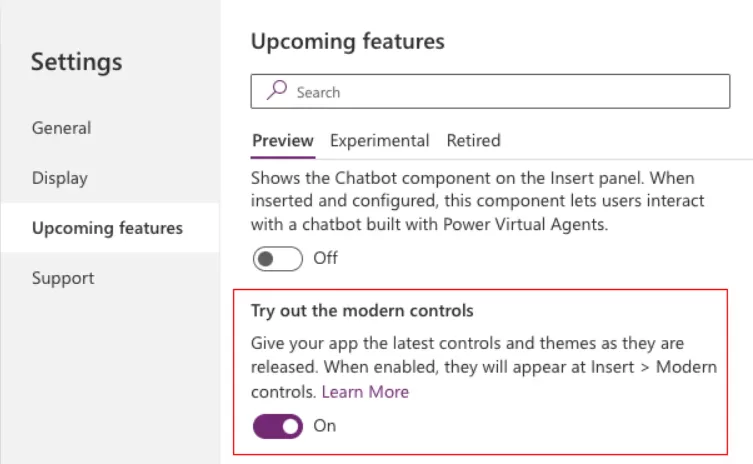
Power Apps Modern Controls are still in the preview feature, so we will have to activate it manually from the Power Apps settings.

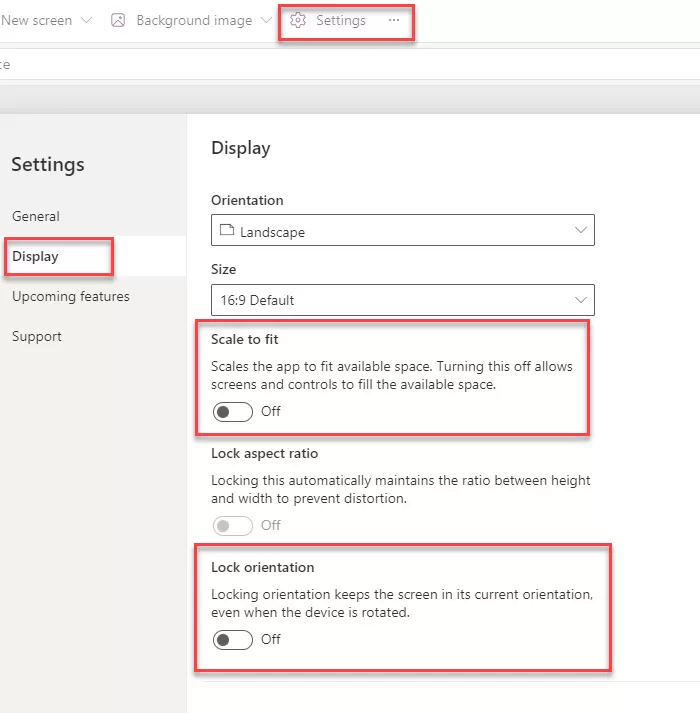
Go to the any Power Apps Settings and click on “Upcoming features”.

Inside the “Preview” tab, toggle the switch for “Try out the modern controls” to the “On”.

img-01

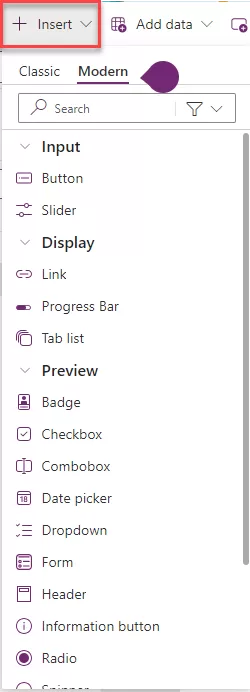
To view a list of all modern controls, navigate to the app authoring menu and choose “Insert.” From the list of controls, select “Modern”.

img-02

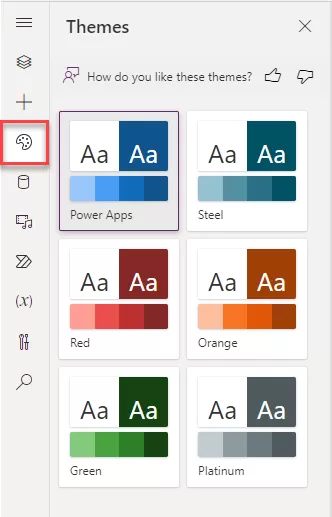
On the app authoring menu, select > Themes.

Choose one of the six default themes from the Themes pane.

  • You can quickly change the visual presentation of your application by applying modern themes—pre-established collections of styles that influence the user interface. These themes follow Microsoft’s Fluent design language, adjusting various style elements like color, typography, borders, and shadows in a cohesive and aesthetically pleasing manner. This modern theming approach streamlines the customization process, allowing creators to easily design a visually harmonious and unified application.

img-03

Follows a structured approach with a predefined layout and components. Components are automatically generated based on the data model, providing a consistent user interface. It suits scenarios where data and business processes are the primary focus.

Concept: Utilizes pre-built components based on Microsoft’s Fluent design system, offering a consistent and user-friendly experience.

Data Sources: Primarily focuses on the Common Data Service, although some integrations with other sources are possible.

Automatically generates the user interface based on the underlying data model.

Tightly integrates with the Common Data Service (CDS), providing a unified and structured data source.

Suitable for scenarios where the focus is on data-driven applications with predefined entities and relationships.

Modern controls and theming are default in preview: Before the end of this year, all new apps built in make.preview.powerapps.com (and in the preview environment) have modern controls enabled by default as a control set. The opt-in setting is still part of the general tab and can be switched off if required.

Fluent icons: Makers can add standalone icons. They can also add an icon on the button.

Automatically generates the user interface based on the underlying data model.

Modern controls

Badge – A badge is a visual decoration for UI elements.

A Power Apps badge, referred to as an informational token, presents brief details like a user’s task indicator. Typically, it provides a quick way to check notifications or important messages without the necessity of reading through extensive text.

  • Content: This refers to the text displayed inside the badge control.
  • Content Language: It defines the audience’s language (e.g., “en-US”).
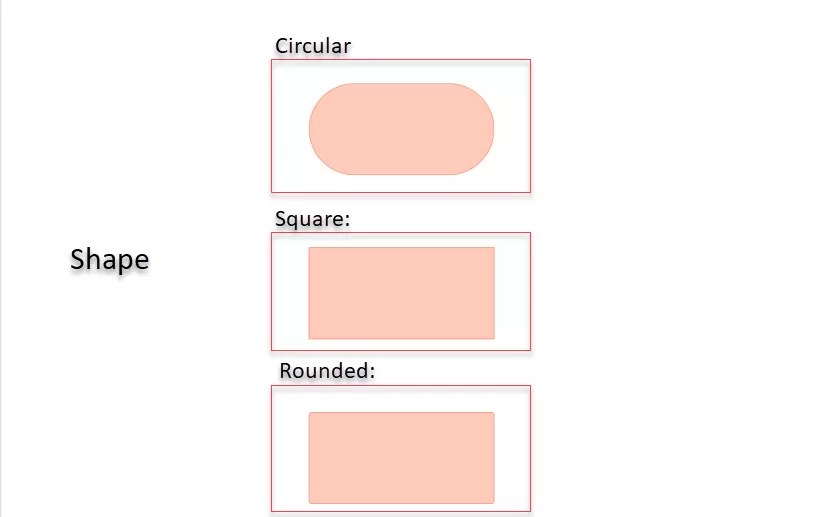
  • Shape: There are three different badge shapes available, including:

img-04


Header – A control that creates a modern app header.

The Header control serves as a crucial element, streamlining the user interface design for a standard app.

With minimal setup, this control seamlessly integrates with themes utilizing modern theming and dynamic responsiveness, automatically adapting to the dimensions of the parent container or app.

It accommodates a logo and a page title and displays the user picture, all while providing various distinctive styling options.

img-5


Tabs or Tab List: Select a tab to navigate screens or take actions within the app.

The Power Apps tab list control displays a series of tabs, each representing a distinct section or page within an app. Its primary purpose is to facilitate seamless navigation between related content, allowing users to effortlessly switch between different views or modes.

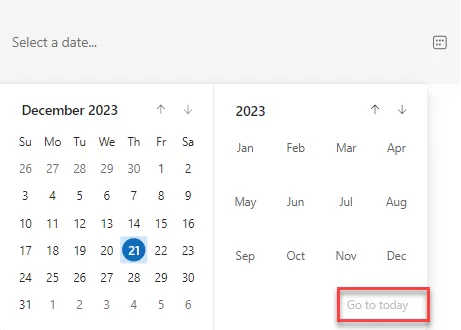
Date Picker: This new control surpasses the classic date control, offering a more user-friendly UI and improved UX. A notable feature includes the ‘go to today’ option, which is truly impressive. Navigating to any year or date is easy—simply click on the ‘go to today’ option, and it will bring you to the current date.

img-06

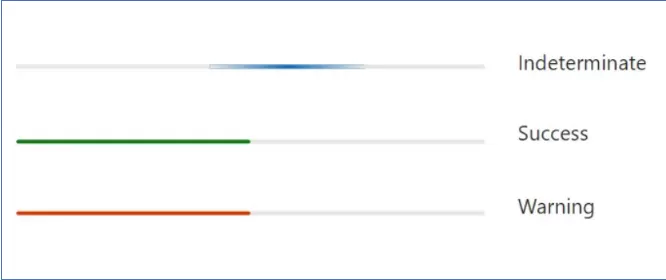
Progress Bar: This control provides options such as success, warning, and, most importantly, “Indeterminate,” where the progress bar keeps loading continuously, resembling buffering. All other properties are similar to the slider (classic control).

img-07

Conclusion: PowerApps Modern Controls represents a potent and innovative tool, empowering you to craft modern and engaging applications with enhanced features and functionalities.

Extracting News Post Images in Emails with Power Automate Flow

This solution is used to display images of news banner images in Outlook desktop when sending news communication over email.

There are six ways to upload images for a news banner:

  1. Stock Images: When uploading images using stock images, we can view them in the Outlook web version and desktop version without any changes.
  2. Web Search: When uploading images using web search, they can be seen in the Outlook web version, but these images do not show in the desktop version.
  3. One Drive: When uploading images using OneDrive, only the user with access to that specific OneDrive can see the image in the Outlook web version and desktop version.
  4. Site: When uploading images from the SharePoint site, they can be seen in the Outlook web version, but these images are not displayed in the desktop version.
  5. Upload: When uploading images from the desktop, they can be seen in the Outlook web version, but these images do not display in the desktop version.
  6. From a Link: When uploading images using a link, if the image link is copied from a running site, the image can be seen in the Outlook web version, but it does not show in the desktop version. If the image link is copied from another SharePoint site, the image cannot be seen in both the Outlook web version and the desktop version.

These are steps to see the images in Outlook Desktop.

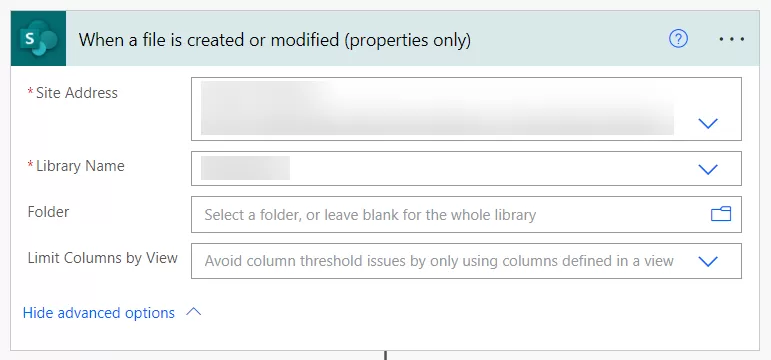
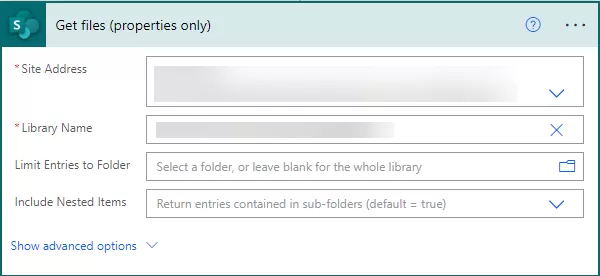
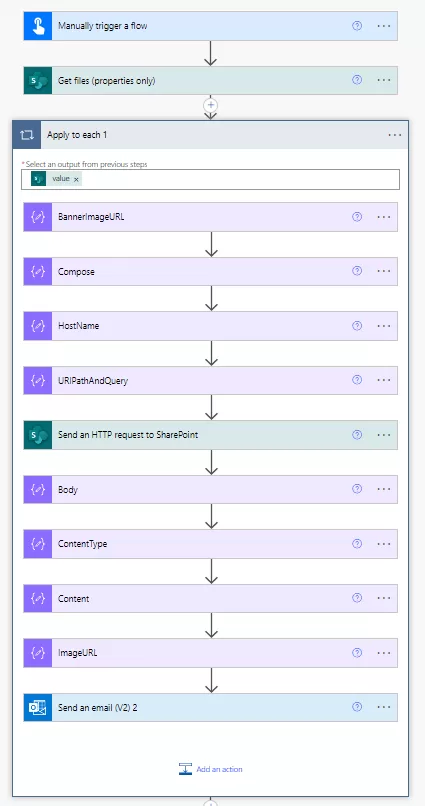
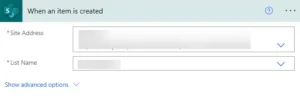
Step 1: Select the trigger “Get files (properties only)”, then choose the SharePoint site address and library name.

img-01

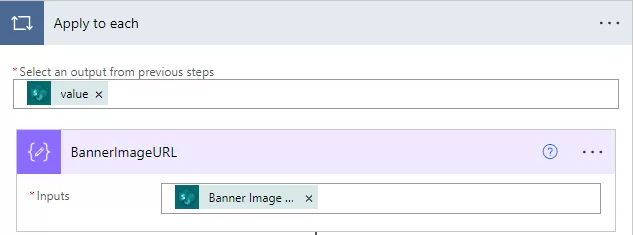
Step 2: Then added the “Compose” action. Add the Banner Image URL in the compose inputs. Once the banner image URL compose action is added, it will automatically add the apply to each action.

img-02

Step 3: Then added another “Compose” action. Input the output from the previous compose action with the ‘decodeUriComponent’ expression in the compose input field.

Decode URI Component” in Power Automate reverses URL encoding, converting encoded URI components back to their original human-readable form for accurate data interpretation or manipulation within the flow.

img-03

 decodeUriComponent(outputs('BannerImageURL'))

Step 4: Then added another “Compose” action. Input the output from the compose action (BannerImageURL ) with the ‘uriPathAndQuery’ expression in the compose input field.

img-04

Value of the above action:

uriPathAndQuery(outputs('BannerImageURL')

Step 5: Select the ‘Send HTTP request to SharePoint’ action.

  1. Add the site address
  2. Add the method as a GET
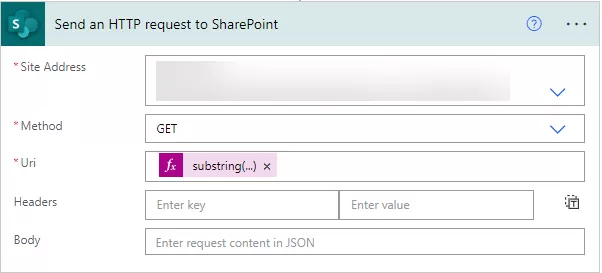
  3. In the URI, add the substring expression with the output of (URIPathAndQuery) composed action.

img-05

Value of the above action:

substring(outputs('URIPathAndQuery'),1)

Step 6: Then added another “Compose” action. In the input add body of the “Send an HTTP request to SharePoint” action.

img-06

Step 7: Then added another “Compose” action. In this compose we get the content type from the “Send an HTTP request to SharePoint” actions body.

img-07

Value of the above action:

outputs('Send_an_HTTP_request_to_SharePoint')?['body']['$content-type']

Step 8: Then added another “Compose” action. In this compose we get the content from the “Send an HTTP request to SharePoint” actions body.

img-08

Value of the above action:

outputs('Send_an_HTTP_request_to_SharePoint')?['body']['$content']

Step 9: Then added another “Compose” action. After the data add output of (“Compose-ContentType”) and after base64 add output of (“Compose-Content”) action.

img-09

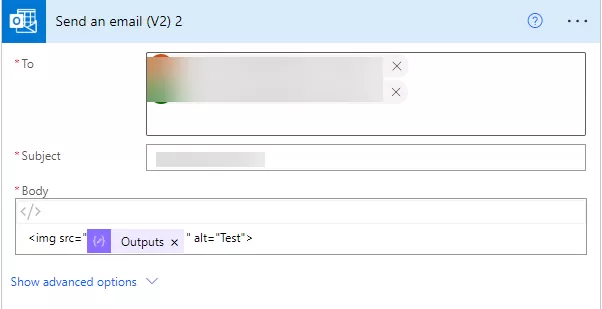
Step 10: Added action Send an email.

Add the email address of the user

Add subject

Add the output of (“Compose – ImageURL”) in the body.

img-10

Output after running this flow

img-11

Step 11: The setup of the flow concludes in just a few simple steps.

img-12

Conclusion

Making news images show up properly in Outlook emails involves different ways of adding these pictures. However, each method affects how they appear on both the web and desktop versions differently. To see these images correctly in Outlook on your computer, we follow a step-by-step process.

This includes things like converting web addresses to show the right images, asking SharePoint nicely for the pictures, and figuring out what type of images they are. Finally, we put all this together and sent an email with the image link so that it shows up the way we want in Outlook. It might sound technical, but with these steps, we ensure that the images appear just right when you open your email in Outlook.

SharePoint Premium

Presenting SharePoint Premium: Revolutionizing Content Management and Experiences with AI Technology

SharePoint, recognized as the largest and most versatile cloud content management platform worldwide, plays a pivotal role in supporting Microsoft 365 applications like OneDrive, Teams, Syntex, Viva, Loop, Stream, and the newly introduced Microsoft 365 Copilot. The content from SharePoint serves as a primary foundation for your interactions within Copilot, underscoring its importance that extends beyond its basic features.

SharePoint vs. SharePoint Premium?

SharePoint

  • SharePoint stands out as the most widely used, largest, and exceptionally versatile cloud tool for content management on a global scale.
  • With 300 million monthly active users and a staggering upload of 2 billion new documents daily.
  • SharePoint serves as a content management platform, allowing you to host and manage content. Utilizing SharePoint empowers you to create sophisticated applications extending beyond Microsoft 365, all while maintaining fully managed and controlled content within your organization’s trust boundary. This flexibility spans from no-code solutions to fully managed implementations.

Why Need of SharePoint Premium

SharePoint Premium is an upgraded version of Microsoft’s popular collaboration platform, SharePoint, infused with AI, automation, and advanced security features to address the growing content management needs of organizations. Here are some key reasons why someone might choose SharePoint Premium:

  • Enhanced Content Experiences:
    • Streamlined file collaboration: Foster seamless co-authoring and document management with features like versioning, locking, and real-time updates.
    • Intelligent search: Find what you need quickly and easily with AI-powered search capabilities that understand context and intent.
    • Leverage AI to understand your content, surface relevant information, and personalize user experiences.
  • Boosted Productivity:
    • Automated workflows: Reduce manual tasks and streamline processes with automated workflows triggered by specific events or conditions.
    • Content assembly automation: Automatically generate documents by combining pre-approved content modules, saving time, and ensuring consistency.
    • eSignature integration: Get documents signed electronically quickly and securely, eliminating the need for printing and physical signatures
  • Advanced Security and Governance:
    • DLP (Data Loss Prevention): Prevent sensitive data from being shared or leaked accidentally with data loss prevention policies.
    • Improved access control: Granular permissions and access management ensure only authorized users can access specific content.
    • Content lifecycle management: Manage the lifecycle of your content from creation to deletion, ensuring compliance and information governance.

Overall, SharePoint Premium offers a more intelligent, secure, and productive content management experience compared to the standard SharePoint. Whether you’re dealing with large volumes of content, complex compliance requirements, or simply want to streamline your workflows, SharePoint Premium can be a valuable investment.

Here are some additional points to consider:

  • SharePoint Premium is a paid add-on to your existing Microsoft 365 subscription.
  • The specific features and benefits of SharePoint Premium may vary depending on your subscription plan.
  • It’s essential to assess your organization’s specific needs and requirements before deciding whether SharePoint Premium is right for you.

SharePoint Premium Work:

SharePoint Premium unlocks a treasure trove of features that take content management and collaboration to a whole new level. Let’s dive into some exciting functionalities you can leverage, accompanied by helpful screenshots:

Content platforms must transcend the role of mere file repositories. They should provide sophisticated solutions designed to seamlessly operate with any file, catering to the entire lifecycle of your pivotal and high-value documents.

Initially, we are enhancing the capabilities of our integrated file viewer by extending the influence of Office collaboration. This advancement enables support for an extensive range of over 400 file types. Soon, users will have the ability to incorporate features such as ink, comments, mentions, tasks, and more into any supported file type, mirroring the collaborative functionalities currently enjoyed with Office documents.

img-01

SharePoint Premium introduces innovative solutions tailored for handling high-value documents. The new Business Documents app within Teams allows users to seamlessly engage with contracts, statements of work, orders, invoices, and other important documents. Within the app, users can conveniently access a comprehensive view of the entire list of high-value documents. Additionally, the app provides actionable insights, including timely alerts for contracts that are nearing expiration or require attention. This integration enhances the efficiency and management of critical documents within the collaborative environment of Teams.

gif-1

SharePoint eSignature:

SharePoint eSignature introduces a secure digital transformation for document approval workflows. The general availability of this feature is scheduled to roll out throughout the first quarter of 2024, commencing with tenants in the United States. Notably, if your organization presently employs alternative eSignature services, we are pleased to announce Adobe and DocuSign as our SharePoint eSignature launch partners. Third-party integration with Adobe Acrobat Sign and DocuSign is expected to be generally available in early 2024, providing users with enhanced flexibility in their eSignature choices.

Autofill Columns:

Enable dynamic addition of new columns to a document library using AI, allowing for the automatic population of discovered values.

img-03

PII Detection:

Identify and flag files containing personally identifiable information (PII), including addresses, phone numbers, credit card details, and other sensitive data.

Multilabel Classifier:

Employ a single AI model to automatically set content types and determine the most suitable model for comprehensive data extraction and analysis. This eliminates the need to run multiple models to identify the best match.

Redaction:

Locate and redact specific sensitive information, such as names, addresses, and social security numbers, to ensure the removal of visibility for select confidential details during content viewing.

Content Governance using Data Access Governance (DAG)

Ensuring the appropriate sharing of information is crucial as workloads generate more content. It’s essential to prevent accidental oversharing or exposure of sensitive data in search or Copilot. SharePoint Premium expands traditional IT controls, giving content owners and creators the tools to manage content at scale throughout its lifecycle.

Overshared sites and content pose risks like unauthorized access and operational issues for organizations. Data Access Governance (DAG) insights are valuable in this context. DAG reports provide a comprehensive view of potentially overshared sites, categorized by sharing policy, Teams-connected sites, sensitivity labels, privacy, and more. Notably, sites housing high-value business content are highlighted, as they often require more stringent policies and reviews.

img-04

Safeguarding Collaboration Through Sensitivity Labels Across Microsoft Teams, Microsoft 365 Groups, and SharePoint Sites

Beyond safeguarding documents and emails, sensitivity labels offer protection for content within various containers like Microsoft Teams sites, Microsoft 365 groups (previously Office 365 groups), and SharePoint sites. These labels can be applied to manage settings such as:

  • Privacy (public or private) of team sites and Microsoft 365 groups
  • External user access, external sharing from SharePoint sites
  • Access from unmanaged devices
  • Authentication contexts
  • Default sharing links for SharePoint sites (configuration via PowerShell only)
  • Site sharing settings (configuration via PowerShell only) and default labels for channel meetings.

Safeguarding Collaboration: Implementing Sensitivity Labels Across Microsoft Teams, Microsoft 365 Groups, and SharePoint Sites

Once sensitivity labels for containers are set up, users can view and use them for Microsoft team sites, Microsoft 365 groups, and SharePoint sites. For instance, when making a new team site in SharePoint.

img-01

Once a sensitivity label has been assigned to a site, changing that label in SharePoint or Teams requires specific roles:

  • For a group-connected site: Microsoft 365 group Owners
  • For a non-group-connected site: SharePoint site admin
  • Learn the process of activating sensitivity labels for containers and ensuring label synchronization.

If you haven’t yet enabled sensitivity labels for containers, do the following set of steps as a one-time procedure:

Ensure that this PowerShell snippet is executed with Global Administration privileges.

 
Import-Module AzureADPreview
Connect-AzureAD

#Run the code snippet below if you don't have directory settings
Get-AzureADDirectorySettingTemplate

$TemplateId = (Get-AzureADDirectorySettingTemplate | where { $_.DisplayName -eq "Group.Unified" }).Id

$Template = Get-AzureADDirectorySettingTemplate | where -Property Id -Value $TemplateId -EQ

$Setting = $Template.CreateDirectorySetting()

#Use URL of Your Tenant
$Setting["UsageGuidelinesUrl"] = "https://Tenant.sharepoint.com/_layouts/15/sharepoint.aspx"

$Setting["EnableMIPLabels"] = "True"

New-AzureADDirectorySetting -DirectorySetting $Setting

$Setting.Values

#For existing settings
#$Setting = Get-AzureADDirectorySetting -Id (Get-AzureADDirectorySetting | where -Property DisplayName -Value "Group.Unified" -EQ).id
#$Setting.Values
#$Setting["EnableMIPLabels"] = "True"
#Set-AzureADDirectorySetting -Id $Setting.Id -DirectorySetting $Setting

Once you run this script in Windows PowerShell (run ISE as an Administrator), a pop-up will appear prompting you to input the credentials of the “Global Administrative Account”. Following that, review the highlighted outcome below. (Name: EnableMIPLabels Value: True)

img-02

Optimizing Group and Site Settings: A Configuration Guide

Once sensitivity labels are activated for containers as detailed earlier, you can now establish protection settings for groups and sites within the sensitivity labeling setup. Access Microsoft Purview > Information Protection > Labels > Create Label. You’ll notice that the option for “Group & sites” in the label scope is now enabled.

To access Microsoft Compliance, click here Microsoft Purview

img-03

Next, within the “Define protection settings for groups and sites” page, choose either or both provided options:

  • Adjust the “Privacy and External user access” settings to configure Privacy and External user’s access.
  • Adjust “External sharing and Conditional Access” settings to configure Control external sharing from labeled SharePoint sites and Use Microsoft Endpoint Conditional Access to protect labeled SharePoint sites settings.

img-04

For “Privacy and external user access settings”:

  • Public: Allows anyone in your organization access to the labeled site or group.
  • Private: Limits access to approved members only within your organization.
  • None: Protects content with the sensitivity label while enabling users to adjust privacy settings themselves.

Your chosen setting replaces prior privacy configurations and locks it. Changing requires removing the sensitivity label first. Once removed, the labeled privacy setting remains, and users regain control.

  • External user access: Manages the group owner’s ability to add guests to the group.

img-05

If you’ve chosen External Sharing, proceed to adjust these options:

  • “Control external sharing from labeled SharePoint sites”: Choose from external sharing options like anyone, new and existing guests, existing guests, or only internal users.
  • If your sensitivity label hasn’t been published yet, proceed by adding it to a sensitivity label policy. Users assigned to this policy, encompassing this label, will gain the ability to choose it for sites and groups.

img-06


Select this option: If you want to:
Anyone Allow site owners and others with full control permission to share the site with people who authenticate. Allow site users to decide when sharing files and folders to require authentication or allow unauthenticated people to access the item. Anyone links to files and folders can be freely forwarded.
New and existing guests Allow site owners and others with full control permission to share the site with people outside the organization. These people will need to sign in and will be added to the directory. Allow site users to share files and folders with people who aren’t in the organization’s directory.
Existing guests Allow sharing with only people already in your directory. These users may exist in your directory because they previously accepted sharing invitations or because they were manually added. (These users have #EXT# in their user’s principal name.)
Only people in your organization Prevent all site users from sharing any site content externally.

Power Automate Using Copilot

What is Power Automate Copilot?

Microsoft’s Power Automate AI Copilot is a solution designed to streamline complex tasks and procedures.

Its primary function is to utilize artificial intelligence to recognize user queries and provide the best possible results.

To take advantage of the Power Automate AI Copilot, you must have access to a Power Automate environment that is in the United States or Europe through a work or school account that has been granted authorization.

How Copilot Feature Works in Power Automate?

  • Power Automate transcends the conventional workflow design by integrating AI-driven conversations, primarily through Copilot. Seamlessly embedded within Power Automates flow studio, Copilot acts as a guiding force, offering support and direction during the creation or modification of flows.
  • Within Power Automate, Copilot introduces an interactive, conversational element to the flow-building process. Users can engage in open-ended discussions, seeking assistance or clarification while constructing flows. Crucially, Copilot’s natural language processing eliminates the need for specialized knowledge of Power Automate’s intricacies, allowing users to create workflows, from simple processes to complex enterprise-wide procedures.
  • This user-friendly approach ensures inclusivity, enabling users of varying expertise levels to build robust, effective flows collaboratively and confidently with Power Automate’s Copilot.
  • There are many methods to generate the flow using copilot features.
    • This inclusive and user-friendly approach ensures that users, regardless of their level of expertise, can confidently and collaboratively build robust and effective flows with Power Automate Copilot.

Method – 1: Upon accessing Power Automate, you will notice a description box displayed on the homepage, as depicted in the image below.

img-01

Method – 2:  An alternative method is available on the left panel of the homepage where you can select “Create.” This action will prompt the appearance of options on the right side, including the “Describe it to design it” feature, as illustrated in the image below. Subsequently, upon selecting this option, a new window opens allowing you to input your description.

img-02

Example – 1

 Let’s build the onboarding Approval process using Copilot.

Sample Prompt: I want to develop the flow for the onboarding process my requirements is here When new request is created or modified in the SharePoint list, an email is sent to the manager for the approval process. Once the manager approves the request, an email is sent to the HR Admin including email approvers, After the HR admin approves the request, the request status is updated to ‘Completed’, and email is sent to the request creator to be conforming that the request has been completed.

img-03

  • Click on the next button you can see that all required power automates connectors required in the automatically add as show in the below image.

img-04

  • When Click on the ‘Create flow’ button, Power Automate AI Copilot uses its AI development function to find and execute relevant activities, which automatically creates the flow.

img-05

  • When you click the trigger, a pop-up will appear on the left-hand side, prompting you to select the relevant information needed to complete a specific task. The SharePoint trigger “When item is created or Modified” is available in this scenario, and it requires two primary parameters: the site address and the List or Library name. As an example, consider the following:

img-06

  • Similarly, you must include all specific actions, necessary items, and relevant steps required for the onboarding approval process.
  • You may also include actions based on your individual needs by typing into the Copilot function. For example, if you wish to add an “update item” action under a specific condition, enter the following question, as seen below.
    Sample prompt “add the update item action in the condition true then update the status value Pending by Accounting set up”.

img-07

  • If the copilot does not add the certain action, then it’s also provided the suggestion to how you can add the action and performed your task as show in the below image:

img-08

  • If users wish to remove a specific action, they can achieve this by entering the command “Delete the Send an email action” into the AI-generated box. This input serves as an instruction for the artificial intelligence system, prompting it to identify and subsequently eliminate the specified “Send an email” action from the process or workflow. Users can use this straightforward command to communicate their intent to the AI, enabling a seamless and efficient removal of the designated action.

Example – 2

Sample Prompt: I aim to create a workflow where, within the ‘Get Items’ action in a SharePoint list. only item with a ‘Completed’ status are retrieved. Send an email notification will be sent, and a new entry will be generated in a separate SharePoint list.

img-09

Proceed to the next stage by clicking on the “Next” button. Take a moment to attentively observe the smooth integration of Power Automate actions, as they seamlessly become part of the workflow without manual intervention. For a more comprehensive understanding of this process, refer to the visual representation presented in the image below, as indicated by the user in the details box.

img-10

Users can customize conditions and logic based on their preferences. Select the ‘Get Items’ option and open the left-side box to observe the AI (Artificial Intelligence) independently generating a filter query for the ‘completed’ status, as previously mentioned. Additionally, users can include the site and list to establish the connection.

img-11

Users can change the filter query then users write in the AI- generated box and AI changed the filter query which user mention likewise, below example. Users have the option to modify the filter query by entering their specifications into the AI-generated box. The AI will then adjust the filter query based on the users provided.

If users wish to remove a specific action, they can achieve this by entering the command “Delete the Send an email action” into the AI-generated box. This input serves as an instruction for the artificial intelligence system, prompting it to identify and subsequently eliminate the specified “Send an email” action from the process or workflow. Users can use this straightforward command to communicate their intent to the AI, enabling a seamless and efficient removal of the designated action.

img-12

Users have the flexibility to incorporate the action at their preferred location, as demonstrated in the image below. This means that users can choose where within the provided context they would like to add or perform the specified action. The image serves as a visual guide, illustrating the diverse options or possibilities for integrating the action within the given framework.

img-13

Users have a complex task with multiple steps and uses need help understanding how it works. users would write down questions or instructions in the AI system’s input box. The AI would then analyse users input and provide you with a complete explanation of the task, including each step, any dependencies, and any other relevant information users might need to know. This explanation would be tailored to user’s specific needs and would help users understand the workflow in a comprehensive and easy-to-grasp manner.

The preview version of Copilot within Power Automate has certain constraints and boundaries.
  1. Limited Parameterization Support: Copilot’s current functionality might not fill in parameters for all actions, although it is available in certain connectors.
  2. Limited Support for Looping Constructs: Creating looping constructs like ‘Apply to each’ and ‘do until’ has limited support within Copilot.
  3. No Support for Solution Flow Using Connections Instead of Connection References: Copilot does not support using a solution flow with connections instead of connection references. It is recommended to utilize a connection reference instead.
  4. ncompatibility with Personal Microsoft Accounts: Copilot cannot be utilized with personal Microsoft accounts (e.g., someone@live.com). It requires a work or school account like someone@contoso.com.
  5. Language Support: Copilot currently only supports the English language for its models.
  6. A flow may include an unsupported hybrid trigger. Hybrid triggers operate without connections and are manually triggered from outside of Power Automate. Examples of such triggers include actions like selecting an item or selecting a row.

KWIZ & ProvisionPoint forge a strategic partnership with Reality Tech to revolutionize Microsoft Technology Solutions

KWIZ and ProvisionPoint, operating as a unified force and recognized as a distinguished provider of Microsoft SharePoint governance and technology solutions, have entered into a strategic partnership with Reality Tech, a leading SharePoint Services and solution provider. This collaboration empowers organizations with cutting-edge, efficient and user-centric Microsoft technology solutions.

A Unifying Vision: Enhancing Efficiency, Speed, and Agility

Reality Tech, known for its deep experience in SharePoint deployments, migrations, intranets, workflows, and custom solutions, has consistently delivered excellence, optimizing collaboration within the Microsoft ecosystem. Their commitment to tailored services perfectly aligns with their clients’ diverse and evolving needs.

This strategic partnership brings together the unique strengths of KWIZ & ProvisionPoint, and Reality Tech, offering organizations a comprehensive suite of Microsoft technology solutions. This suite is meticulously designed to elevate efficiency, accelerate processes, and instill a new level of agility in business operations.

Key Highlights of the Partnership:

  • Innovative Solutions: KWIZ & ProvisionPoint, and Reality Tech unite to enhance and extend the possibilities of Microsoft technology solutions.
  • Enhanced Efficiency: The partnership aims to transform processes, empowering organizations with streamlined workflows.
  • User-Centric Governance: Reality Tech, in collaboration with KWIZ and ProvisionPoint, is poised to contribute to effective provisioning, compliance and control over Microsoft 365 environments.
  • Customized Services: KWIZ, ProvisionPoint, and Reality Tech offer a blend of customized web parts and integrated solutions to provide clients with precision and agility.
  • Tailored Services: KWIZ & ProvisionPoint, and Reality Tech offer a blend of customized solutions and integrated tools aimed at delivering precision, increased productivity, enhanced user experiences and optimizing the utilization of existing software to its fullest potential.

Insights from the Partners:

“Efficiency is at the core of our partnership. By combining our strengths, we aim to revolutionize processes and empower organizations with streamlined workflows and governance processes,” emphasized Fadwa Elsaqa, Partner Manager, KWIZ & ProvisionPoint.

“Tailoring services to meet unique client needs is our forte. The partnership introduces a spectrum of customized solutions intended to offer clients precision, adaptability and immediate responsiveness” highlighted Joel Plaut, Principal Architect at Reality Tech.

This partnership represents a collective vision to introduce an integrated range of services and products, focusing on efficiency, speed and an enriched and enlightened user experience in the Microsoft technology solutions landscape.

KWIZ & ProvisionPoint, and Reality Tech invite organizations to embark on a transformative journey toward heightened productivity and enhanced user satisfaction. 

For more information, please also visit https://kwizcom.com/https://provisionpoint.com/.

Getting Started with Power Pages

Introduction

Power Pages are like a toolbox for making websites that help businesses grow. With Power Pages, we create websites that work smoothly on computers and phones. Using Copilot makes building websites easy. There are lots of different designs to choose from in Power Pages, so we can pick one and change it to fit what our business needs. This makes designing a website quick and easy.

img-01

What are Power Pages?

  • Microsoft Power Pages is a highly secure and robust low-code platform offered as a service. It enables the effortless development, management, and hosting of contemporary business websites intended for external use.
  • Power Pages offers diverse and adaptable templates, a user-friendly design studio for seamless visual creation, and a comprehensive learning center. These tools expedite the process of constructing tailored websites that cater specifically to your business requirements.
  • Power Pages is a sophisticated low-code SaaS (Software as a Service) solution for crafting, managing, and overseeing dynamic business websites aimed at external audiences.

Why are Power Pages Important?

  • Power Pages are like ultimate guides packed with valuable information on specific topics. They’re designed to captivate people with eye-catching visuals and thorough content, making them go-to sources in their respective fields. By being super informative and trustworthy, they help websites rank better on search engines, drawing in more visitors naturally. This boosts credibility and makes the brand more reputable online.
  1. Information Hub: Power Pages act as centralized repositories, providing extensive and detailed information on specific topics. They serve as valuable resources where audiences can access comprehensive insights, fostering better understanding and education on particular subjects.
  2. Enhanced Audience Engagement: With visually compelling and informative content, Power Pages captivate audiences’ attention, encouraging prolonged engagement. The depth of information and visually appealing elements keep visitors interested and involved, increasing the likelihood of them exploring the content thoroughly.
  3. Establishing Authority and Credibility: By showcasing expertise and comprehensive knowledge, Power Pages help establish the website owner or organization as an authoritative source within a particular niche or industry. This credibility encourages trust among visitors, enhancing the brand’s reputation.
  4. SEO Boost: Well-structured and content-rich Power Pages often rank higher in search engine results. Their depth and comprehensive nature appeal to search engine algorithms, leading to improved visibility and higher rankings. This, in turn, drives organic traffic to the website, expanding its reach and relevance.

Key Features and Benefits

  1. Swift Implementation: Quickly conceptualize and launch websites, slashing the time required to go live significantly. Refine and fine-tune your designs promptly through real-time previews.
  2. User Friendly: An easy-to-use, drag-and-drop interface for creating websites without extensive coding knowledge.
  3. Design Flexibility: Personalize layouts, infuse interactive components, and seamlessly integrate with diverse Microsoft services, ensuring websites are tailored to suit a wide range of requirements.
  4. Template Library: Pre-built templates for various industries or use cases, enabling quick website creation.
  5. Responsive Design: Ability to create websites optimized for various devices (desktops, tablets, smartphones) without manual adjustments.
  6. Security Measures: Built-in security features ensure data protection, compliance with regulations, and secure user access.
  7. Customization Options: Extensive options for customizing the look, feel, and functionality of websites to match specific brand requirements or user preferences.
  8. Support and Training: Access to resources, documentation, and possibly training materials to assist users in maximizing the platform’s capabilities.

How to Create a Site Using Power Pages: A Step-by-Step Guide

img-02

  • On the homepage, you’ll find two ways to create a site: “Start with a template” or “Start from blank.”

img-03

  • If you pick “Start from blank,” you’ll be asked to create a name for your site.

img-04

  • If you choose “Start with a template,” you’ll see various template designs to create your site. To learn more about each template, hover over it and click “Preview template.
  • Once you have found the best template for your needs, click on “Choose this template.”
  • Provide a site name and web address, then confirm your selection.

img-05

  • After creating the site, we can edit or preview it as needed.

img-06

Conclusion

Power Pages is a tool from Microsoft that makes building websites easier. It provides user-friendly tools and ready-to-use templates, making it simple to create engaging and trustworthy websites. It’s quick to set up, offers various design options, and ensures strong security through Microsoft Dataverse. Users can easily make custom websites by choosing templates or starting from scratch, making it much simpler to establish an online presence.

Copilot Studio Components – Building Intelligent Conversations

Copilot Studio, a part of the Microsoft Power Platform, is composed of several key components that work together to facilitate the creation and management of intelligent chatbots. Here are the main components of Copilot Studio:

Topics: Navigating Knowledge Spaces

At the core of Copilot Studio lie “Topics,” which serve as the building blocks for the chatbot’s knowledge. Topics categorize and organize information, allowing the chatbot to respond intelligently to user queries. By defining specific areas of expertise, users can ensure that the chatbot is well-equipped to handle a variety of subjects, contributing to a more coherent and contextually relevant conversation.

img-01

Entities: Extracting Meaningful Insights

Entities play a pivotal role in understanding and extracting specific pieces of information from user inputs. Whether it’s extracting a date, location, or any custom data, entities enhance the chatbot’s ability to gather relevant details. This functionality contributes to the personalization of responses, ensuring that the chatbot can tailor its interactions based on the unique information provided by users.

img-02

Triggers: Initiating Engaging Conversations

Triggers act as the catalyst for conversation flow, determining when the chatbot should become active and engage with users. By setting up triggers, users can define the conditions under which the chatbot initiates interactions, ensuring timely and contextually relevant responses. Triggers play a crucial role in orchestrating a seamless and dynamic user experience.

img-03

Power Automate Integration: Expanding Possibilities

The integration with Power Automate significantly extends the capabilities of Copilot Studio. It enables the chatbot to connect with external services and perform actions beyond basic conversation, such as sending emails or updating databases. This integration empowers users to create chatbots that not only provide information but also execute a wide range of tasks, contributing to enhanced productivity and efficiency.

System Variables: Contextual Intelligence

System Variables are predefined elements that store information about the conversation context. They provide the chatbot with access to contextual information, enabling it to understand and respond in a way that aligns with the ongoing conversation. Leveraging system variables enhances the chatbot’s coherence and responsiveness, creating a more natural and user-friendly interaction.

img-04

Entities from Power Automate and Data: Data-Driven Insights

Copilot Studio enables the incorporation of entities from Power Automate flows and data stored in Microsoft Dataverse. This capability expands the chatbot’s understanding and data-handling capabilities. By leveraging data-driven insights, users can create chatbots that not only respond based on predefined knowledge but also adapt and learn from real-time information, contributing to more informed and intelligent interactions.

img-05

Publish: Chatbot on multiple platforms

Effortlessly extend the reach of your chatbot by publishing it on various platforms, including websites, mobile apps, Facebook, Microsoft Teams, Skype, Cortana, and more. Copilot Studio offers a seamless and versatile deployment, ensuring your chatbots are accessible across a multitude of channels. Whether engaging users on websites or interacting within popular applications, the flexibility of publishing options enhances the impact and accessibility of your Copilot Studio chatbots.

img-06

Understanding and harnessing these Copilot Studio components empower users to create chatbots that transcend traditional conversational boundaries. By integrating these elements strategically, businesses can design intelligent chatbots that streamline processes, enhance user engagement, and unlock new dimensions of efficiency in the evolving landscape of conversational AI. Copilot Studio, with its versatile components, stands as a catalyst for innovation, providing a platform where the potential of AI-driven interactions is truly unlocked.

Send SharePoint list item attachments in the email using Power Automate

The ability to efficiently send multiple attachments using power automate via email is crucial. This blog post will guide you through the detailed process of achieving this using the powerful capabilities of Microsoft Power Automate. Whether you’re sharing documents, images, or other essential files, this feature ensures a more versatile and streamlined communication experience. 

Step: 1 Add the “When an item is created” action.

Step: 2 Select the Site address and List name where an item, along with its attachments, will be added.

img-01

Step: 3 Add the “Initialize variable” action.

Assign a name to the variable, such as “AttachmentArray,” and specify its type as an array. This variable will be used to create an array containing all the attachments of the newly created item.

img-02

Step: 4 Add another action “Get attachments” and add the Site Address and List Name. Set the “Id” field to the ID of the “When an item is created” trigger using the Dynamic content available on the right, as shown below.

img-03

Step: 5 Add an action “Get attachment content” and select the Site Address and List name. Set the “Id” to the ID of the “When an item is created” trigger from the Dynamic content displayed on the right.

img-04

Step: 6 Set the file identifier to the ID obtained from the Dynamic content of the “Get attachments,” as illustrated below. Once users set the File Identifier, an “Apply to each” loop will be added automatically to retrieve the attachment content for each file.

img-05

Step: 7 Insert the “Append to array variable” action after the “Get attachment” action, within the “Apply to each” loop. Choose the variable “AttachmentArray” as the name, which was created at the beginning of the flow.

Assign the Value to the following JSON structure:

  • Name: DisplayName of the “Get attachments”
  • ContentBytes: Attachment content of ‘Get attachment content’.

img-06

 
{

"Name": @{items('Apply_to_each')?['DisplayName']},

"ContentBytes": @{body('Get_attachment_content')}

}

Step: 8 Last, add an action “Send an email”. Additionally, include the ‘Subject’ and ‘Body’ for the email.

Set the value of Attachments to AttachmentArray variable.

img-07

Step: 9 The setup of the flow concludes in just a few simple steps.

img-08

Step: 10 Generate a new entry in the SharePoint list and attach multiple files to it. An item has been created and three attachments have been added to it. Users will receive an email with the attachments, as illustrated below.

img-09

Conclusion: In conclusion, Power Automate offers a user-friendly and powerful solution for sending multiple attachments in emails. By following this step-by-step guide, you can enhance your email communication experience, making it more efficient and versatile.