How to Add a Custom Column to a Table Control in Power Apps

If you’re building a user-friendly app with Power Apps, chances are you’ve used Table control to display lists of data in a clean, tabular format. However, one limitation developers often face is the inability to directly add custom columns like you would in a gallery. But don’t worry, there’s a simple workaround!

In this blog, we’ll walk you through how to add a custom column to a Table control by extending the data source using calculated fields. And yes, we’ll keep it easy and beginner-friendly!

Real-World Scenario

Let’s say you’re working with SharePoint data, and your list contains columns like:

  • First Name
  • Last Name
  • Joining Fees (which is a currency column)

Now, when you connect this list to a Power Apps Data Table control, you might notice two things:

  1. The Joining Fees column shows up as just a number it doesn’t look like currency.
  2. There’s no way to show a Full Name by combining the first and last names.

That’s where a small trick using Power Apps formulas comes in handy.

This is the SharePoint data that I want to display in the Power Apps table control.
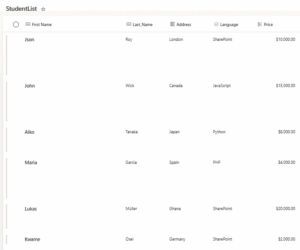
Power Apps table control

I have now added a custom column in Power Apps and populated it with the data, which is visible in the table control shown in the image below.
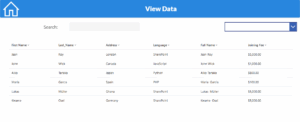
Power Apps table control

As we can see here, the ‘Joining Fees’ column in SharePoint is a currency column. However, when we add it to the table control in Power Apps, it doesn’t appear as a currency column. So, we’ll explore how to format this using a custom column. We’ll also look into how we can merge the ‘First Name’ and ‘Last Name’ columns in this Power Apps table column guide.

Step-by-Step Guide to Add a Custom Column

Step 1: Use the Add Columns Function

AddColumns(

    YourSharePointList,

    FormattedFee, Text(ThisRecord.’Joining Fee’, “$#,###.00”),

    Full Name, Concatenate(ThisRecord.’First Name’, ” “, ThisRecord.Last_Name)

)

First, select your Table control and go to its Items property. Instead of just binding your SharePoint list directly, use the AddColumns function to create custom columns:

This creates two new columns: Full Name and Formatted Fees.
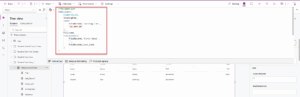
Use the Add Columns Function

Step 2: Update the Table Fields

Click on the Table control, then go to the Fields property pane on the right.

  • Click Edit Fields
  • Remove the old columns (like First Name, Last Name, and Joining Fees)
  • Click Add field and select the new custom columns (Full Name and Formatted Fees)
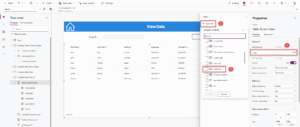
Update the Table Fields

Step 3: Rename the Column Headers

You can rename the column headers to make them user-friendly:

  • Click on each column in the Table control
  • Go to the Header Text property
  • Change it to something like “Full Name” or “Joining Fees”
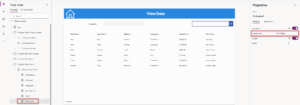
Rename the Column Headers

What You Get in the End

Now, your Table control will display:

  • A clean Full Name column combining first and last names
  • A Joining Fees column formatted as currency

This not only makes your app look more professional but also improves the user experience.
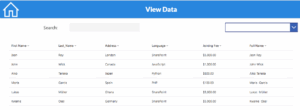
Table control

Bonus Tips

  • You can use the same method to add columns like Age (from Birthdate), Status Labels, or even calculated totals.
  • Keep your formulas simple for better performance.
  • Always test on a small set of data first.

Conclusion

Customizing a Table control in Power Apps doesn’t have to be complicated. With a simple formula and a few clicks, you can shape your data the way you want. By using AddColumns, you gain the ability to enhance your app’s visuals and functionality all without using collections or complex logic.

This trick is especially helpful when you need to merge fields, apply formatting, or display user-friendly data views. Keep experimenting, and you’ll discover how flexible and powerful power apps development services can be.

Best Practices for SharePoint Document Management Using Document Sets

Managing documents shouldn’t feel like a never-ending search mission. If your files are scattered across SharePoint, finding the right information can be frustrating and time-consuming. That’s why organizing SharePoint properly is essential.

This is where SharePoint Document Sets come in. They help you organize documents in SharePoint by keeping related files together in one place along with shared metadata, version tracking, and automated workflows. Whether you’re managing legal case files, project deliverables, deal documents, or HR records, Document Sets streamline access and improve efficiency.

In this blog, we’ll walk you through SharePoint document management best practices and explain why Document Sets are a smart solution for businesses looking to simplify and secure their document processes.


Why Document Sets Are a Smarter Choice

A powerful way to implement SharePoint document management best practices with structure, consistency, and control.

  • Shared Metadata (Inheritance Done Right!)
    Every file in a set inherits common metadata, no more mismatched tags or missing fields.
  • Logical Grouping (Encapsulation for Documents)
    Instead of searching through multiple libraries, related files are stored together like a structured data model.
  • Version Control (State Management for Files)
    Track changes across the entire set instead of juggling disconnected document versions.
  • Automation & Workflows (No More Manual Repetitive Tasks!)
    Apply workflows to the entire set, just like running a function instead of repeating the same code.
  • Security & Access Control (Permission Scope Like a Pro)
    Set permissions at the Document Set level to ensure consistent security no need to manage access file-by-file.

Real-World Use Cases

Legal Teams (Encapsulation for Case Files)

Store contracts, agreements, and client documents together. This makes case tracking and legal retrieval seamless.

Project Management (Organized Data Structures)

Group project plans, reports, meeting notes, and deliverables are logically in one container instead of across scattered libraries.

HR Compliance (Automated Process Flow)

Manage employment contracts, policy documents, and training materials in structured sets, streamlining onboarding and audits.

How to Set Up a Document Set in SharePoint

Step 1: Enable Document Sets

Before using Document Sets, you need to activate the feature.

  • Navigate to your SharePoint site.
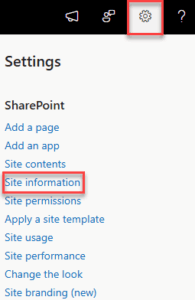
  • Click on the gear icon (⚙️) in the top-right corner and select Site settings.

Click on the gear icon () in the top-right corner and select Site settings.

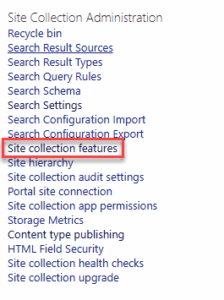
  • Under Site Collection Administration, click Site Collection Features.

Under Site Collection Administration, click Site Collection Features

  • Scroll down and find Document Sets.

Scroll down and find Document Sets.

  • Click Activate.

Step 2: Create a Document Set Content Type

To create a Document Set, you must first define it as a content type.

  • Go to Site settings.
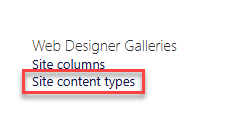
  • Under Web Designer Galleries, click Site content types.

Under Web Designer Galleries, click Site content types.

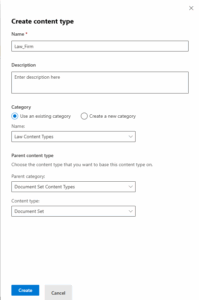
  • Click Create.

Click Create

  • Provide a Name (e.g., “Project Files Set”) In the Parent Content Type dropdown, choose Document Set Content Types.

Provide a Name

  • Select Document Set as the parent.
  • Click OK.

Step 3: Configure Document Set Settings

After creating the content type, configure it for your needs.

  • In the Site Content Types list, find and select your newly created Document Set.
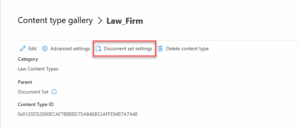
  • Click Document Set settings.

Click Document Set settings.

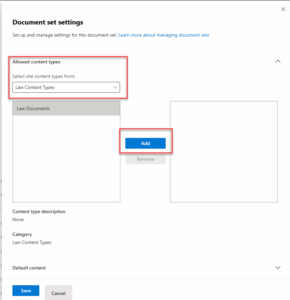
  • Under Allowed Content Types, select the document types that can be included in the set by clicking on Add button.

Under Allowed Content Types

  • Click Save.

Step 4: Add a New Document Set Instance

To create an actual Document Set:

  • Go to the document library where you want to create a Document Set.
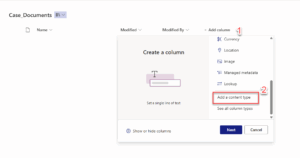
  • Click Add columns, then select Add content type to include the Document Set content type.

Click Add columns

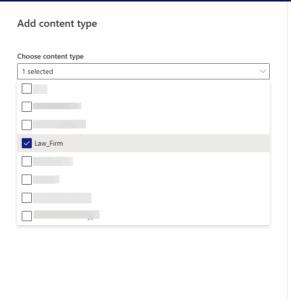
  • Select the Content Type you want to add.

Select the Content Type you want to add

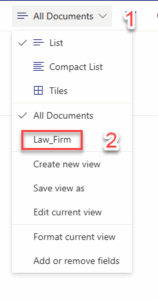
  • Once the content type is added, the view is configured.

Once the content type is added, the view is configured.

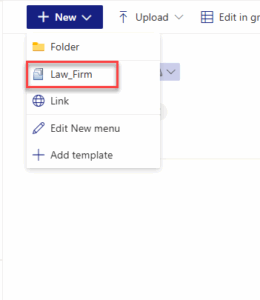
  • Click New, then select your Document Set content type.

Click New, then select your Document Set content type.

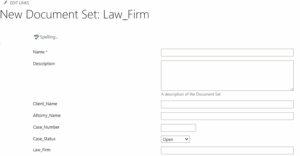
  • Enter the name of the document set and fill metadata values you want to inherit by child documents.

Enter a name of the document set and fill metadata values you want to inherit by child documents.

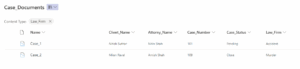
After the Document set is created, add the content inside it. Here we create a Case_1 Document Set with predefined metadata values, any document added inside it will automatically inherit those values.

automatically inherit

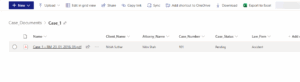
Here, you can see in the image below that we have added the document inside the Document Set Case_1, which has inherited the Case_1 metadata values.

Document Set Case_1

Final Thoughts

Using SharePoint without Document Sets is like managing a library without categories, books scattered everywhere, no system, and endless searching.

With the right setup, everything falls into place:

  • Find documents faster with all related files grouped together
  • Ensure consistency with shared metadata
  • Improve security with unified access controls
  • Reduce manual work with automated workflows

This is where SharePoint document management best practices make all the difference. By leveraging tools like Document Sets, you create a scalable, searchable, and secure file system that supports growth and compliance.

Need help implementing this at scale? The right SharePoint Consulting Services can help you craft a tailored SharePoint Document Management strategy, one that saves time, enhances compliance, and drives collaboration.

Why waste time searching when you can stay organized from day one?

How to Use Parse JSON in Power Apps for Efficient Data Handling

Handling large or complex datasets in Power Apps can quickly hit limitations—especially with Power Automate’s manual trigger inputs capped at 20. This can complicate efforts to automate processes that involve SharePoint or other data sources. Fortunately, by using JSON parsing within Power Apps, you can work around these restrictions and unlock far more flexible, scalable data handling.

In this guide, we’ll show you step by step how to set up and use Parse JSON Power Automate and Power Apps, so you can retrieve, process, and display SharePoint list data efficiently in your apps. Whether you’re building internal tools or streamlining business workflows, this approach will help you get the most out of the Power Platform.

Follow these steps to set up your SharePoint list and Power Apps flow for JSON parsing:

Step 1: Create a list in the SharePoint site with the following columns:

  •   Student Name: Single Line of Text
  •   Birth Date: Date Only
  •   Course Name: Single Line of Text
  •   Course Price: Currency
  •   Course Expire Year: Number

IMG 01

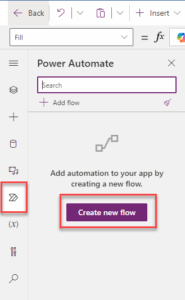
Step 2: Create a new blank canvas in Power Apps. Then, from the left navigation menu, click on Power Automate and create a new flow.

IMG 02

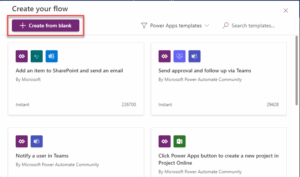
Step 3: After clicking “Create new flow,” click “Create from blank.

IMG 03

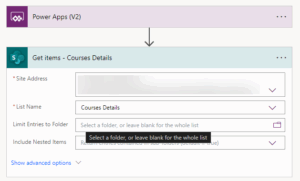
Step 4: After creating the flow, add an action to “Get items” and select the site and list from where you will retrieve the data.

IMG 04

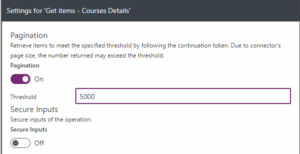
Step 5: SharePoint Get Items action returns up to 100 records by default. To increase the limit, go to the action’s settings menu, turn on pagination, and enter a number in the threshold field. The maximum value is 5000.

IMG 05

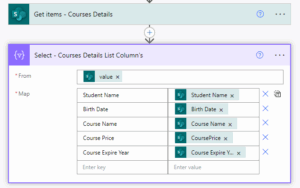
Step 6: Add a “Select” action from the Data Operation after the “Get items” action. Using the “Select” action, you can specify which columns you need.

IMG 06

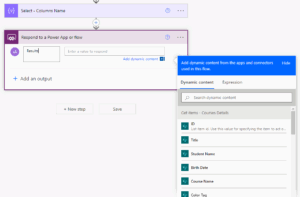
Step 7: Add a “Power Apps – Respond to a PowerApp or flow” action at the end of the flow. Add a text type output called “Results.” Note that the “Select” action output does not appear in the Dynamic content.

IMG 07

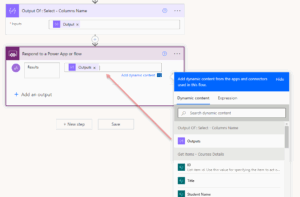
Step 8: To get the output, there are two ways. First, add a “Compose” action and put the “Select” output in the “Compose.” Then, put the “Compose” action output in the “Respond to a PowerApp or flow” action.

IMG 08

Step 9: Another way you can manually type the expression like this.

IMG 09

Step 10: Now, add a button to the screen in Power Apps. When this button is pressed, we want to load the flow output into a collection. On the button’s On Select property, we need to create a collection.

IMG 10

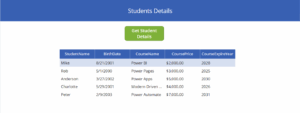
Step 11: To display the data on the screen, we have added a data table. In the data table’s data source, we selected the collection we created. Then, we chose the fields we wanted to show in the table.

IMG 11

Conclusion

This guide offers a thorough walkthrough for integrating power apps Parse JSON to manage data in Microsoft Power Automate. By following the steps, users can set up Parse JSON in power automate, streamlining automation and data handling. From creating SharePoint lists to displaying data, it enhances workflow efficiency in the Power Platform ecosystem.

For businesses looking to optimize these processes, partnering with power apps development services can further improve solution design and implementation.

How to Create a Checklist in SharePoint and Microsoft 365

Modern work demands structure and checklists are one of the simplest yet most effective tools for creating it. Whether you’re tracking employee onboarding, managing a compliance process, or planning team activities, a checklist ensures that nothing slips through the cracks.

If your organization is already using SharePoint or Microsoft 365, you don’t need another tool to build and manage checklists. These platforms offer multiple, practical ways to create checklists, each suited to different use cases.

In this blog, we’ll explore how to create a SharePoint checklist using native tools, why it makes sense to use checklists in SharePoint and Microsoft 365, and how to pick the right method depending on your team’s needs.

What Is a SharePoint Checklist?

A SharePoint checklist is a structured list of tasks or items created within your SharePoint site or Microsoft 365 environment. It helps individuals or teams track progress, maintain consistency, and ensure accountability in various business processes.

Think of it as your digital “to-do list” but embedded into your internal systems, with full visibility, collaboration, and automation capabilities.

Unlike standalone checklist apps, a SharePoint checklist sits within your organization’s existing workflows, user permissions, and document structures. This means better control, fewer tools to manage, and improved team adoption.

Why Use a Checklist in SharePoint or Microsoft 365?

Checklists are not new but using them inside SharePoint or Microsoft 365 unlocks extra benefits beyond ticking off tasks.

Centralized Collaboration

Everyone on the team can access the checklist in one place, reducing scattered communications and version issues.

Role-Based Access

With SharePoint’s permission settings, you control who can view, edit, or manage the checklist.

Process Standardization

Standard operating procedures (SOPs), onboarding flows, and project checklists can be turned into repeatable templates for consistency across departments.

Integration with Microsoft 365 Tools

Leverage Power Automate, Teams, Planner, or Lists to build workflows around your checklist reminders, approvals, or conditional logic.

Audit-Ready Reporting

Need to track compliance or accountability? Your checklists become trackable records, not just informal notes.

In short, using SharePoint for checklists is about building structured, repeatable processes within the systems you already rely on.

4 Smart Ways to Create a Checklist in SharePoint & Microsoft 365

Depending on your goals, here are five practical ways to build checklists in SharePoint or Microsoft 365 each with real use cases and steps to get started.

1. Use Microsoft Lists (Built on SharePoint)

Best for: Task tracking, onboarding, SOPs, process management

Microsoft Lists is a modern, intuitive way to manage checklists and task structures. It’s built on the SharePoint platform, meaning it enjoys the same benefits like permission management and versioning but offers a cleaner UI and better app integration.

How to create a checklist with Microsoft Lists:

  • Go to your SharePoint site or Microsoft Lists app.
  • Click New List, and choose from a template or create from scratch.
  • Add columns like “Task Name,” “Assigned To,” “Due Date,” “Status” (Yes/No or Choice).
  • Share with stakeholders and assign ownership.

Use Case Examples: Employee onboarding, compliance tracking, internal audit preparation.

Note: This is also referred to as a “SharePoint Custom List” in legacy terms. But with Microsoft Lists, the experience is modernized, mobile-friendly, and better integrated with Teams.

2. Use Microsoft Planner for Visual Team Checklists

Best for: Visual task tracking, team collaboration, project checklists

Planner offers a kanban-style task management interface. Within each task card, you can add a mini-checklist ideal for breaking larger tasks into sub-steps.

Steps to build a checklist:

  • Open Microsoft Planner from Office.com or the Planner app in Teams.
  • Create a plan (e.g., “Q2 Marketing Campaign”).
  • Add tasks and include a checklist within each task card.
  • Assign tasks to team members and add due dates.

Caution: Planner’s built-in checklists are great for execution but don’t support reporting or automation like Microsoft Lists. They’re not ideal for audit trails or workflows.

Use Case Examples: Campaign launch tracking, product development tasks, content pipeline management.

3. Use Power Apps with SharePoint List as a Backend

Best for: Custom checklist apps, advanced data inputs, mobile-friendly forms

Power Apps lets you create fully customized checklist apps built on SharePoint lists. The UI is configurable, and you can apply business logic, validations, conditional formatting, and dynamic layouts.

How to get started:

  • Start with a SharePoint List as your backend data store.
  • Open Power Apps and build a canvas app.
  • Add forms, controls, and custom logic.
  • Publish and embed the app in Teams or SharePoint.

Important Note: Power Apps can require Power Platform licensing for certain features and development knowledge. We recommend this path if you have IT support or are working with a Microsoft Partner like Reality Tech.

Use Case Examples: Field inspection forms, safety audit apps, or incident reporting systems.

4. Embed a Checklist in a SharePoint Page (with Planner or List Web Part)

Best for: Lightweight task display, documentation with task context

You may want to display checklist tasks inside a SharePoint page, such as an onboarding guide, SOP, or documentation article. While modern SharePoint does not support manual checkboxes in text fields natively, you can embed a Microsoft List or Planner board using web parts.

Steps:

  • Edit a SharePoint modern page.
  • Add a List web part to display an existing Microsoft List.
  • Or use the Planner web part to show tasks visually.
  • Optionally, add text and context around the embedded checklist.

This is perfect for giving users both context and action, think of it as “guided documentation” where users can act directly.

SharePoint Checklist Examples for Common Use Cases

Here are some real-life SharePoint checklist examples to help you get started:

Use Case Recommended Tool Notes
Employee Onboarding Microsoft Lists Use templates for role-based onboarding
Internal Audits Power Apps + SharePoint list Add approval workflows
Marketing Campaign Tasks Microsoft Planner Assign owners and track deadlines
SOP Documentation SharePoint Page + Web Parts Inline checklists with guidance
IT Maintenance Logs Custom SharePoint List Date filters, logs, and reminders
Training Completion Tracker Microsoft Lists Add conditional formatting for overdue tasks

Start Building Powerful Checklists with SharePoint Today

Checklists may look simple but in the right environment, they become strategic tools for execution and accountability.

Using SharePoint and Microsoft 365 to build your checklists helps your business:

  • Centralized task tracking
  • Improve collaboration and communication
  • Create repeatable processes
  • Enforce compliance and quality standards
  • Leverage your existing Microsoft investments

At Reality Tech, we help organizations not just use SharePoint but maximize its potential. Whether you need help building structured lists, creating automation workflows, or developing custom Power Apps for your teams, our Microsoft 365 Solutions and SharePoint Development Services are built for real business outcomes not tech jargon.

If you’re ready to bring structure to your operations, check out our SharePoint Services. We’ll help you turn your checklists into strategic assets for growth.

Top 5 Microsoft 365 Compliance Challenges and How to Overcome Them

As organisations increasingly rely on cloud ecosystems, Microsoft 365 security and compliance have become a critical business priority. Remote work, AI-powered tools, and growing regulatory pressure are combining to create new levels of complexity in data governance.

At the same time, rising Microsoft 365 security risks such as data leaks, insider threats, and misconfigured access are putting organisations at risk of compliance violations and financial penalties. Understanding these risks is the first step toward building a resilient strategy.

In this guide, we break down the top Microsoft 365 compliance challenges businesses face today and provide practical, actionable solutions to overcome each one.

What Is Microsoft 365 Compliance?

Microsoft 365 compliance management refers to the processes, tools, and policies used to ensure your organisation meets regulatory, legal, and internal data protection requirements. It spans a wide range of disciplines, including data classification, access control, auditing, and risk management.

At the heart of this ecosystem sits Microsoft Purview compliance, a suite of tools that helps organisations manage sensitive data, enforce policies, and stay audit-ready across all Microsoft services. Most enterprise teams manage day-to-day activities through the Microsoft Compliance Center, where they can monitor posture, configure policies, and track risk levels in real time.

Effective Microsoft 365 data governance goes beyond setting policies once. It requires continuous monitoring, regular reviews, and alignment with evolving regulations to remain effective over time.

5 Microsoft 365 Compliance Challenges 

Let’s explore the most common challenges organizations face and how to solve them effectively.

1. Unclear Data Residency and Storage Locations

Microsoft 365 operates on a distributed cloud infrastructure, making it difficult for organizations to determine exactly where their data is stored. This becomes a serious issue when regulations require data to remain within specific geographic boundaries.

Key Risks:

  • Violation of local data protection laws
  • Difficulty proving compliance during audits
  • Increased risk of fines and penalties

How to Overcome It:

To address this challenge, organizations should implement the Microsoft Compliance Purview solution to gain visibility and control over data movement across regions.

In addition, aligning your strategy with Microsoft 365 governance ensures that data residency policies are enforced consistently across departments.

Setting up multi-geo configurations and maintaining proper documentation also helps meet regulatory requirements.

2. Lack of Visibility into Shadow IT and Connected Apps

Employees frequently connect third-party tools and personal applications to Microsoft 365 without IT approval. This creates shadow IT environments that bypass security and compliance controls.

Key Risks:

  • Data leakage through unauthorized apps
  • Bypassing governance and DLP policies
  • Increased exposure to compliance violations

How to Overcome It:

Using Microsoft Defender for cloud apps, organizations can detect, monitor, and control shadow IT activity in real time.

This visibility allows IT teams to enforce policies, restrict risky applications, and ensure that all integrations align with compliance standards.

Strengthening Microsoft 365 security management practices also helps maintain control over connected ecosystems without limiting productivity.

3. Inconsistent or Missing Data Classification

Without proper data classification, organizations lack visibility into where sensitive information resides. This makes it nearly impossible to protect data or demonstrate compliance during audits.

Key Risks:

  • Exposure of confidential data in Teams or SharePoint
  • Weak data protection policies
  • Failure to meet audit requirements

How to Overcome It:

Implementing Microsoft Purview sensitivity labels enables organizations to classify and protect data automatically based on its sensitivity.

By following established compliance best practices, such as defining clear labeling policies and automating classification, businesses can ensure consistent data protection across the organization.

This foundational step significantly improves both security and compliance posture.

4. Low Compliance Awareness Across Teams

Even with advanced tools in place, compliance ultimately depends on user behavior. Many organizations struggle with employees who are unaware of compliance policies or fail to follow them consistently.

Key Risks:

  • Accidental data sharing or leakage
  • Incomplete audit trails
  • Decline in compliance posture

How to Overcome It:

Improving your Microsoft compliance score is a key step toward identifying gaps and tracking progress.

Organizations should also invest in regular training programs and policy awareness initiatives to ensure employees understand their role in maintaining compliance.

Building a culture centered around Microsoft 365 security and compliance ensures that policies are followed consistently across teams.

5. AI-Driven Risks with Microsoft Copilot

The introduction of AI tools like Microsoft 365 Copilot has transformed productivity, but it also introduces new compliance challenges. Copilot can surface sensitive data or generate content based on protected information if not governed properly.

Key Risks:

  • Exposure of confidential data in AI-generated responses
  • Lack of visibility into AI interactions
  • Inadequate governance for AI usage

How to Overcome It:

Organizations must establish clear governance policies for AI tools and monitor their usage closely.

Using Microsoft 365 ediscovery, businesses can track interactions and investigate potential compliance issues related to AI-generated content.

It is also essential to define data access policies that limit what Copilot can retrieve, ensuring sensitive data remains protected.

Microsoft 365 Compliance Checklist: Is Your Environment Audit-Ready?

Ensuring compliance in Microsoft 365 is not just about setting policies once. It requires continuous monitoring, proper configuration, and alignment with evolving regulations. A structured checklist helps organizations identify gaps, reduce risks, and maintain a strong compliance posture.

Below is a practical checklist to evaluate whether your environment is truly audit-ready:

  • Sensitivity labels deployed across SharePoint, OneDrive, and Teams
  • Microsoft Purview policies tailored to your industry
  • Data residency is documented and enforced
  • Audit-ready logs through Purview and Defender
  • Controlled app integrations with usage insights
  • Governance strategy in place for Copilot and AI features

A strong checklist like this not only helps you stay audit-ready but also strengthens your overall security posture. If multiple areas above are incomplete, it’s a clear sign that your compliance strategy needs attention.

How Reality Tech Can Help You Overcome Microsoft 365 Compliance Challenges

Managing compliance in Microsoft 365 requires the right combination of tools, expertise, and ongoing monitoring. This is where Reality Tech delivers measurable value. From deploying the Microsoft Compliance Purview solution to configuring advanced security controls, their team ensures your environment is fully aligned with regulatory requirements.

With proven expertise in Microsoft ecosystems and a comprehensive suite of Microsoft Security and Compliance Services, Reality Tech helps organisations reduce risk, improve visibility, and stay genuinely audit-ready as regulations evolve.

Whether you are addressing a specific gap or building a compliance programme from the ground up, partnering with experienced specialists makes a significant and lasting difference.

Ready to strengthen your Microsoft 365 compliance strategy? Connect with Reality Tech today and take the first step toward a more secure and compliant digital workplace.

Top SharePoint Consulting Companies in USA

Microsoft SharePoint is more than just a document management platform-it’s a central hub for collaboration, workflow automation, and secure information sharing across teams. But implementing it effectively requires more than just installing the software. That’s where expert SharePoint consulting services come in.

Whether you’re planning a new SharePoint deployment, optimizing an existing setup, or migrating from a legacy system, choosing the right SharePoint consulting partner can significantly impact your long-term digital strategy.

In this blog, we’ll break down what makes a SharePoint consulting company stand out, list some top SharePoint consultants in the USA, and guide you through the selection process while showing how Reality Tech fits right into that equation.

What Makes a Great SharePoint Consulting Company?

Before diving into the list, it’s worth understanding the qualities that SharePoint consulting services that companies in USA offer:

1. Deep Platform Expertise

It’s not just about knowing SharePoint, but understanding how it integrates with the broader Microsoft ecosystem-Teams, OneDrive, Power Automate, Microsoft Lists, and more.

2. Business-First Approach

Top consultants prioritize your business needs over the tech. They ask: What problem are we solving? What workflows are we improving?

3. End-to-End Services

From planning and architecture to development, migration, and ongoing support good consulting partner offers a full range of services under one roof.

4. Security-Driven Implementation

With SharePoint often serving as the backbone of a company’s document infrastructure, security best practices aren’t optional-they’re essential.

5. Real-World Experience

SharePoint consulting companies in USA that work across industries and scenarios can anticipate roadblocks you haven’t even considered yet-and solve them proactively.

Top SharePoint Consulting Companies in the USA

Here are some standout names in the SharePoint consulting space, known for their expertise, customer-centric approach, and consistent results.

1. Reality Tech 

Location: USA  | Website: realitytech.com
Reality Tech is trusted by enterprises for SharePoint solutions that go beyond just deployment. Our team offers deep experience in:

  • SharePoint migration (on-prem to cloud, file server to SharePoint Online)
  • Custom workflows using Power Automate
  • Governance, security, and compliance consulting
  • Intranet portal development for seamless team collaboration
  • Post-migration support and performance tuning

We help businesses transform SharePoint from a storage platform into a productivity engine-with a focus on minimizing disruption and maximizing ROI. Reality Tech’s SharePoint Premium Consulting Services are designed to reduce manual work, improve collaboration, and give you full control over your content, securely and efficiently.

2. Gig Werks

Location: New York, NY | Website: gig-werks.com

Gig Werks brings deep expertise in document management and compliance-led SharePoint solutions. As a Microsoft Gold Partner, they help companies in legal, healthcare, and finance build secure, centralized content systems tailored to strict industry regulations.

Core Focus Areas:

  • Microsoft 365 content services
  • Compliance-driven SharePoint implementations
  • Digital document lifecycle and metadata design

3. Soho Dragon

Location: New York, NY | Website: sohodragon.nyc

Soho Dragon is known for combining user-focused design with SharePoint development. They specialize in creating intuitive digital workplaces, with attention to usability, layout, and seamless integration with Microsoft Power Platform.

Core Focus Areas:

  • UX-first SharePoint intranet development
  • Power Apps and Power Automate integration
  • Departmental portals and dashboards

4. Red Level Group

Location: Novi, MI | Website: redlevelgroup.com

Red Level focuses on combining IT strategy with SharePoint consulting to help mid-market companies modernize their collaboration systems. Their training-centric approach ensures teams don’t just adopt SharePoint—they actually use it the right way.

Core Focus Areas:

  • SharePoint and file share migrations
  • Governance strategy and security setup
  • SharePoint adoption training and workshops

5. Compass365

Location: California | Website: compass365.com

Compass365 delivers robust enterprise SharePoint solutions. Their strength lies in helping organizations move off legacy systems and reimagine how content is structured, accessed, and automated using SharePoint Online and Microsoft 365.

Core Focus Areas:

  • Legacy SharePoint modernization
  • Workflow automation with Power Automate
  • Enterprise content collaboration

How to Choose the Right SharePoint Consultant for Your Business

Here’s a practical checklist to help you evaluate your SharePoint consulting options:

Assess Their Experience with Your Specific Scenario

Are you migrating from a file server, consolidating multiple sites, or building a company-wide intranet? Your consultant should have done this multiple times before.

At Reality Tech, we’ve handled over 50 SharePoint migration projects, helping organizations consolidate content from disparate platforms like Dropbox, Google Drive, and legacy file systems-all without data loss or downtime.

Check for Integration Know-How

A SharePoint setup isn’t complete without Microsoft 365 integration. Look for SharePoint Premium consultants who can connect SharePoint with Teams, Power BI, Power Apps, and Outlook for end-to-end productivity.

Don’t Ignore Post-Implementation Support

The real test begins after go-live. Choose a partner who offers long-term SharePoint support, not just project-based engagements.

Reality Tech offers SharePoint Premium Consulting Services, including:

  • Monthly governance reviews
  • User adoption training
  • Real-time performance monitoring
  • Emergency rollback planning
  • SharePoint security audits

Prioritize Communication and Flexibility

Your SharePoint partner should feel like an extension of your team, available, proactive, and responsive. At Reality Tech, we assign a dedicated SharePoint consultant to every project to ensure clear, consistent communication throughout the lifecycle.

Conclusion

Choosing the right SharePoint consulting company is more than a procurement decision; it’s a long-term partnership. The right consultant can help you:

  • Reduce manual work with smart workflows
  • Secure your content without slowing down collaboration
  • Scale your setup as your business grows

Reality Tech stands out not just for our technical expertise, but for the way we embed ourselves in your business goals. We don’t just “implement” SharePoint-we make it work for your people, your processes, and your future.

Need SharePoint Help?

Whether you’re starting fresh, migrating to the cloud, or struggling with SharePoint governance, Reality Tech is here to help. Contact us for a no-obligation SharePoint health check and let’s get your business collaboration-ready.

Power BI vs Tableau: Choosing the Right Business Intelligence Tool for Your Enterprise

The modern enterprise runs on data. But it’s not enough to collect data, you need to turn it into insights that drive real business outcomes. That’s where two names dominate the conversation: Power BI and Tableau.

At Reality Tech, we’ve worked with organizations across industries to implement scalable data solutions that align with their operational goals. We know that selecting the right BI tool isn’t just about features, it’s about how well it fits into your existing ecosystem, scales with your data needs, and supports real-time decision-making.

So let’s settle the debate: Power BI vs Tableau, which one is right for your enterprise?

Power BI vs Tableau: Quick Overview

Feature Power BI Tableau
Owned by Microsoft Salesforce
Primary Strength Seamless integration with Microsoft stack Advanced data visualization
Licensing Lower-cost, monthly subscription Higher-cost, tiered pricing
Learning Curve Beginner-friendly Drag and drop but requires more expertise
Cloud Support Microsoft Azure Tableau Cloud, AWS
Enterprise Suitability High (especially for Microsoft environments) High (especially for analytics-heavy orgs)


Power BI is designed with a tight integration into the Microsoft ecosystem, making it ideal for enterprises already using Office 365, Azure, or SharePoint. It’s easy to deploy, cost-effective, and great for standardized reporting.

Tableau, on the other hand, is revered for its rich visualizations and data exploration capabilities. It offers deeper customization and is favored in data science-driven environments.

Feature-by-Feature Comparison for Enterprise Needs

1. Ease of Use

  • Power BI: Designed with business users in mind. With its drag-and-drop interface and Excel-like formula syntax (DAX), Power BI reduces the learning curve for non-technical teams.
  • Tableau: Built for data analysts and visual thinkers. It offers greater flexibility in charting but comes with a steeper learning curve.

Power BI is more beginner-friendly, which translates to faster adoption across large teams.

2. Data Integration

  • Power BI: Native connectors to Microsoft SQL Server, Excel, Azure, and SharePoint. It also supports hundreds of third-party connectors.
  • Tableau: Connects to a wide range of data sources, including cloud databases (Snowflake, Google BigQuery), but requires more configuration for Microsoft products.

 Power BI wins if you’re already a Microsoft-heavy shop. Tableau excels in hybrid or multi-cloud setups.

3. Visualization Capabilities

  • Power BI: Offers a solid library of visuals and custom visuals from AppSource. Built for functional dashboards and reporting.
  • Tableau: Known for superior, interactive data visualizations. More control over every aspect of charting and storytelling.

 Tableau is the clear leader in data storytelling. Power BI gets the job done for executive dashboards and KPIs. 

4. Performance and Scalability

  • Power BI: Scales well for mid to large enterprises when hosted on Azure. But large datasets require data modeling for performance.
  • Tableau: Handles large datasets with more grace out-of-the-box, especially when paired with strong backend architecture.

 Tableau slightly edges out Power BI in scalability for extremely large datasets and complex models. 

5. Collaboration and Sharing

  • Power BI: Seamless sharing across Microsoft Teams, SharePoint, and PowerPoint. Governance through Azure Active Directory is robust.
  • Tableau: Sharing via Tableau Server or Tableau Online requires more setup, but access controls and role management are enterprise-ready.

 Power BI wins in environments already using Microsoft tools. Tableau provides equal capabilities but with more overhead. 

6. Advanced Analytics

  • Power BI: Supports R, Python integration, and Microsoft’s AI-powered visuals. Tightly integrates with Azure Machine Learning.
  • Tableau: Strong R and Python support, along with Tableau Prep for data cleaning. Better suited for in-depth statistical modeling.

 Tableau is preferred by data science teams. Power BI is more balanced for business-focused analytics.

7. Security and Governance

  • Power BI: Leverages Microsoft Security Stack Azure Information Protection, Data Loss Prevention, sensitivity labeling, and tenant-level governance.
  • Tableau: Enterprise-grade security features like SAML, LDAP, and extensive admin controls, but integration is more manual.

 If you’re already within the Microsoft cloud, Power BI’s security advantage is significant. Tableau’s security is strong, but configuration-heavy.

8. Mobile Support

  • Both tools offer mobile apps for iOS and Android with real-time access to dashboards.

Draw. Both provide reliable mobile support, though Power BI’s integration with Office mobile apps gives it a small edge.

Pricing & Licensing for Enterprises

Plan Power BI Tableau
Entry-Level User Plan Power BI Pro – $10/user/month Tableau Viewer – $15/user/month
Mid-Tier User Plan Power BI Premium Per User – $20/user/month Tableau Explorer – $42/user/month
Advanced/Creator Plan Power BI Premium Capacity (P SKU) – Starts at $4,995/month Tableau Creator – $70/user/month
Server/Cloud Deployment Included with Premium Capacity Tableau Server/Online – Additional cost per deployment


Power BI is generally more affordable and predictable in pricing. Tableau can get expensive quickly, especially at scale, but justifies the cost with advanced features.

Platform Compatibility: Supporting a Diverse Workforce

Tableau has a distinct advantage here Tableau Desktop and Tableau Prep run natively on both Windows and Mac, allowing your entire organization to participate in data analysis without hardware limitations. This inclusive approach helps build a stronger data culture, ensuring everyone -from finance to marketing to product -can access, analyze, and act on insights regardless of their device.

Power BI, while a powerful tool within the Microsoft ecosystem, is limited to Windows-only for its desktop version. Mac users must rely on the Power BI Service via a web browser, which offers fewer capabilities for building and modeling reports. While workarounds like virtual machines exist, they often introduce complexity, slow performance, and added costs.

At Reality Tech, we often advise clients to consider their device landscape during BI planning. If your workforce is heavily diversified across platforms, Tableau offers greater flexibility and ease of deployment -helping teams collaborate seamlessly without compromising on tools or functionality.

Which One Is Right for Your Business?

Let’s simplify the decision:

Choosing between Power BI and Tableau comes down to your organization’s infrastructure, data needs, and budget. Power BI is best suited for enterprises heavily invested in Microsoft 365 or Azure, offering seamless integration, faster implementation, and lower licensing costs at scale. 

It’s ideal for companies seeking standardized reporting, governance, and security within a familiar Microsoft environment. In contrast, Tableau is the better option for businesses that require advanced, interactive data visualizations, work with complex, multi-source data environments, and have a dedicated analytics or data science team.

Although Tableau involves a higher upfront investment, it offers deeper customization and exploratory capabilities, making it a powerful tool for data-driven storytelling.

Power BI vs Tableau for Reporting

When it comes to operational, financial, or sales reporting, both tools deliver but the real difference lies in how they approach the reporting lifecycle.

  • Power BI thrives in structured reporting environments where consistency, automation, and Microsoft ecosystem integration are critical. It supports paginated reports, role-level security, and Excel-like drill-downs ideal for C-level and boardroom-ready reporting.
  • Tableau allows more exploration-based reporting, ideal for teams who want to dive deep into data and uncover trends without being confined to templates.

At Reality Tech, we’ve seen enterprises evolve by modernizing their reporting strategy using either tool but the final choice always depends on your long-term analytics goals.

Microsoft BI Consulting Services

At Reality Tech, we specialize in helping enterprises implement Microsoft BI solutions, including:

  • End-to-end Power BI implementation
  • Custom reporting dashboards
  • Azure Synapse Analytics + Power BI pipelines
  • Migration from Tableau to Power BI
  • Governance, licensing, and cost optimization

However, we’ve also supported hybrid BI environments where Tableau is used for exploratory data science, while Microsoft Power BI Consulting Services handles executive reporting.

Our Reporting and Data Analytics Solutions are designed not to push one tool over the other but to align your BI infrastructure with your unique business workflows. 

Final Thoughts

There’s no one-size-fits-all BI tool but there is a right choice for your business.

  • If you’re an enterprise with Microsoft 365, SharePoint, or Azure at your core, Power BI is likely the most frictionless, cost-effective, and secure choice for Enterprise Solutions.
  • If your organization leans heavily on data science and complex analytics, and you’re ready to invest in a more exploratory experience, Tableau may deliver greater insights.

Still unsure which way to go? Reality Tech is here to help you evaluate, plan, and implement the ideal business intelligence solution. Whether it’s Power BI, Tableau, or a hybrid approach, we’ll help you turn your data into a strategic advantage.

Step-by-Step Guide to Creating an Interactive Dashboard in Power BI

If you’re interested in analyzing your business data without mastering complicated tools or programming, this blog is where you should be.

In this blog, we’ll show you how to create a dashboard in Power BI with no technical skills required. If you have a small business, are in charge of a team, or simply need improved reports, Power BI enables you to create intuitive dashboards that are easy to navigate and comprehend.

We’ll also provide design advice, avoid common pitfalls, and explain how the Power BI consulting service will enable you to get started quicker.

Why Power BI Is Perfect for Non-Tech Users

You no longer have to be an IT specialist to explore data. Power BI simplifies data for anyone. With its simple drag-and-drop functionality, you can create dashboards without coding. 

It integrates well with Excel, Google Sheets, SQL, and other data sources. You can create interactive visuals, clickable charts, and graphs without a lot of effort.

Power BI also includes pre-made, professional templates, so your reports are awesome by default. And since it’s cloud-based, you can share and access your dashboards anywhere, anytime.

If you’re familiar with Excel, you can learn Power BI. Its simplicity is its greatest strength.

Note for Mac Users: While Power BI Desktop requires Windows, our team can help you access it via Power BI Service or cloud solutions.

Step-by-Step Guide: Building an Interactive Power BI Dashboard

Let’s simplify the process so anyone can follow along.

Step 1: Download Power BI Desktop

Grab it free from Microsoft’s website and install it like any other Windows software.

Step 2: Connect to Your Data

Once installed, you can easily connect to various data sources. 

Click “Get Data,” choose your source (Excel, CSV, Web, SQL, etc.), and load it into Power BI. The software supports a wide range of data formats, making it versatile for various businesses.

Step 3: Prepare the Data

Once your data is loaded, use Power Query Editor to prepare it. You can remove extra columns, rename fields, and ensure the correct data types are applied. Clean data is the foundation for building reliable dashboards.

Pro Tip: Bad data costs businesses $12.9M annually.

Step 4: Add Visuals

In the Report View, you can start adding visuals like bar charts, line graphs, cards, tables, and even maps. All you need to do is drag and drop your data into the visuals. This is the point where you start creating your first Power BI interactive dashboard.

Step 5: Make It Interactive

What makes a Power BI dashboard stand out is its interactivity. Every visual in your dashboard responds to user input. For example, if a user clicks a chart bar, it filters the other visuals in the dashboard accordingly. 

You can also add slicers to create dynamic filters by attributes like date, product, or region, making the dashboard much more interactive and user-friendly.

Here is a quick overview 

  • Cross-filtering: Click on any visual to filter others automatically.
  • Slicers: Add dropdowns for dynamic filtering (e.g., by date, region, product).
  • Tooltips: Hover over data points for extra details.

Step 6: Polish the Design

The design of your dashboard should always prioritize clarity. Be sure to use consistent colors across your visuals to maintain a professional look. 

Align the charts neatly and make sure to add titles and labels to make your visuals clear. Group similar visuals together to help users easily navigate the data.

Step 7: Publish and Share

Once you’re satisfied with your dashboard, you can publish it. Simply click “Publish,” sign in to your Power BI account, and upload your dashboard to Power BI Service. 

From there, you can share it with your team, access it on your mobile device, or even embed it into websites.

Design Tips to Make Dashboards User-Friendly

Good design enhances the clarity and effectiveness of your dashboard. To create user-friendly dashboards, first, know your audience. For instance, a dashboard for your CFO will look different than one for your sales team. 

Prioritize the key KPIs at the top of the dashboard so they’re easy to find. Avoid overloading your dashboard with too many visuals, which can overwhelm users. Use charts that are appropriate for the data, don’t use pie charts unnecessarily, for example. 

The layout should tell a story: start with a summary of key insights and then provide more detailed information as users dive deeper into the data.

Here is a Quick Overview:

Know your audience: Executives need high-level KPIs; analysts need details.

  • Prioritize key metrics: Place the most important numbers at the top.
  • Avoid misleading visuals: Don’t use 3D charts or overload pie charts.
  • Use conditional formatting: Highlight trends (e.g., red for declining sales).

Build Your Power BI Dashboard with Confidence

Our Power BI experts help organizations transform raw data into interactive, insight-driven dashboards that fuel better business decisions. Backed by proven experience and trusted by industry leaders, we ensure fast, effective visual analytics delivery.

Real-World Uses of an Interactive Power BI Dashboard

Power BI dashboards empower various departments by making data analysis more accessible. For sales teams, Power BI can track leads, revenue, and top-performing sales reps.

Marketing teams can use it to measure campaign performance and conversion rates. Finance departments can monitor budgets, profit margins, and other key financial metrics. 

Operations teams benefit by optimizing inventory levels and improving the supply chain, while HR teams can use it to analyze hiring trends, employee satisfaction, and other workforce data. 

By creating an interactive dashboard, Power BI enables users to drill down into the data to uncover deeper insights, providing customized views for each department.

Why Consider Reality Tech’s Power BI Services

If you’re looking for assistance in setting up your dashboard or optimizing your data visualizations, Reality Tech can help. 

Our Power BI consulting services include custom dashboard creation, data integration, expert training, and performance optimization. 

We also offer data reporting and analytics solutions to automate reports, saving you time while improving accuracy.

In one of our recent projects, we helped a client connect Salesforce, SharePoint, SQL Server, and Power BI, streamlining their data and giving teams real-time insights across departments.

Read the Case Study to see how connected systems and smart dashboards transformed their reporting.

Avoid These Common Dashboard Mistakes

While Power BI is powerful, there are a few common mistakes that can hurt the performance and clarity of your dashboards. Having too many visuals in one report can confuse users, so it’s important to be selective about what data to display. 

Neglecting to format your data properly is another mistake that can make your dashboards look unprofessional. Inconsistent colors and fonts can make the dashboard difficult to read, so always aim for uniformity. 

Missing tooltips or labels can lead to confusion, as users may not know what each visual represents. Finally, forgetting to update your data model can lead to outdated information, which could result in poor decision-making.

Why Interactive Dashboards Beat Static Reports

Traditional static reports can be slow to update and lack interactivity, making it harder to gain real-time insights. 

In contrast, an interactive Power BI dashboard provides up-to-the-minute data and allows users to interact with it to filter and drill down. This interactivity not only speeds up decision-making but also helps users uncover deeper insights from their data.

Did You Know? Companies using interactive dashboards report 27% faster decision-making (Source: Aberdeen Group).

Conclusion

You now know how to create a dashboard in Power BI without needing a technical background. With a straightforward approach, anyone can start building clear, interactive dashboards.

If you need additional help, Power BI consulting services and data reporting and analytics solutions are available to guide you through the process.

Let your data speak for itself, and start building dashboards that bring your business insights to life.

SharePoint vs Dropbox: Which is Better for Business Collaboration?

While both Dropbox and Microsoft SharePoint offer cloud-based file storage and collaboration features, their capabilities, integration, and scalability are fundamentally different. For organizations serious about security, workflow automation, and long-term scalability, understanding this difference is critical.

At Reality Tech, we help organizations modernize their collaboration ecosystems and in most cases, SharePoint isn’t just an alternative to Dropbox; it’s a complete digital workspace.

A Quick Look: SharePoint vs Dropbox

Feature Dropbox SharePoint Online
Primary Use File storage and sharing Document management, team collaboration, intranet, and business workflows
Integration Works well with many apps Deep integration with Microsoft 365, Teams, Power Platform
Permission Control Basic folder-level permissions Granular control at every file, folder, and user level
Customization Minimal Highly customizable sites, libraries, and workflows
Compliance & Security Decent security Enterprise-grade compliance, auditing, and DLP features


1. Collaboration Beyond File Sharing

Dropbox makes file sharing easy, and for freelancers or small creative teams, that’s often enough. But for businesses needing structured collaboration like legal teams, HR departments, or distributed project teams SharePoint Online shines. It acts as the backbone of your digital workplace, enabling teams to co-author documents in real-time, automate approval flows, and maintain version control without ever leaving Microsoft Teams or Outlook.

At Reality Tech, we’ve helped clients build intranet portals and team sites that go far beyond file storage; they serve as living knowledge hubs.

 2. Security That Meets Enterprise Standards

While Dropbox offers standard encryption and secure sharing links, SharePoint provides enterprise-grade security features. These include:

  • Role-based access controls
  • Microsoft Purview Data Loss Prevention (DLP)
  • Sensitivity labels and information protection
  • Multi-geo capabilities for compliance in regulated industries

Reality Tech’s SharePoint Security Services specialize in helping organizations enforce data governance policies and secure sensitive information especially in industries like finance, legal, and healthcare.

 3. Integration with Business Processes

Dropbox doesn’t have built-in workflows. You’ll need external tools or integrations to create approval processes, task assignments, or reminders.

SharePoint, on the other hand, is built for process automation. When connected with Power Automate, it can handle:

  • Onboarding workflows
  • Document approvals
  • Project tracking
  • Compliance logging

Our SharePoint Development Solutions team helps clients automate these repetitive tasks, reducing manual work and minimizing errors.

 4. Flexibility and Scalability

Dropbox offers a uniform experience for every user, which limits customization. If your organization grows or your business model changes, Dropbox can’t adapt beyond simple folder structures.

With SharePoint, you can:

  • Build department-specific portals
  • Set up metadata tagging for easier search
  • Customize lists, libraries, and forms
  • Design role-specific dashboards

This flexibility is crucial for mid-size to large enterprises. Whether you’re scaling up or restructuring teams, Reality Tech’s SharePoint Premium Consultants ensure your platform evolves with your business.

5. Licensing and Cost Implications

Dropbox’s pricing is straightforward: per user, per month. But when compared to Microsoft 365, which includes SharePoint, Teams, Word, Excel, Outlook, and more, SharePoint offers better value, especially when bundled in enterprise plans.

And here’s the kicker: most businesses are already paying for Microsoft 365 and not using SharePoint to its full potential. With proper setup and training, you can unlock a lot more from your existing investment. That’s exactly where Reality Tech’s SharePoint Consulting Services come in.

Pricing

Feature / Plan Dropbox Business

SharePoint Online / Microsoft 365

Starting Price $15/user/month (Standard) $5/user/month (SharePoint Plan 1)
Storage 5 TB (Standard Plan) 1 TB per user + pooled storage
Apps Included Dropbox only SharePoint, Teams, Outlook, Word, Excel, etc.
File Sharing Yes Yes
Team Collaboration Basic folders, comments Advanced team sites, co-authoring, workflows
Workflow Automation Not built-in With Power Automate
Customization & Branding Limited Extensive (Intranet portals, team hubs)
Governance & Security Standard encryption & permissions Advanced compliance, DLP, auditing


At first glance, Dropbox seems more straightforward with its tiered pricing plans ranging from basic personal plans to business tiers starting at around $15/user/month. It offers predictable costs and simplicity, but what you get is limited primarily to file storage and sharing.

SharePoint Online, however, is part of the Microsoft 365 ecosystem, which most businesses already subscribe to. Starting at $5/user/month for standalone SharePoint Online plans and included in Microsoft 365 Business Standard and E3 licenses, the value compounds when you consider it also gives you access to Teams, OneDrive, Word, Excel, Outlook, and more.

The real cost advantage of SharePoint comes from long-term ROI: you’re not just paying for storage; you’re investing in a customizable, secure, and collaborative platform that adapts to your business needs. With the right setup from a SharePoint expert like Reality Tech, businesses often save more through automation, improved governance, and better team productivity.

SharePoint or Dropbox: What’s Right for You?

Business Need Recommended Platform

Why It Fits

Simple File Sharing Dropbox Dropbox is easy to set up and ideal for quick file exchanges, especially for small teams or temporary sharing needs.
Secure Document Management SharePoint SharePoint offers granular permission controls, audit logging, version history, and compliance tools that ensure enterprise-grade security.
Workflow Automation SharePoint SharePoint integrates with Power Automate, enabling document approvals, task routing, and custom flows to streamline operations.
Intranet and Team Collaboration SharePoint SharePoint powers modern intranet sites, department hubs, and shared workspaces, improving internal communication and team productivity.
Long-Term Scalability SharePoint Built to grow with your organization, SharePoint supports structured content, governance, and extensibility for future digital initiatives.


When choosing between SharePoint and Dropbox, it’s important to align the platform with your specific business needs. Dropbox works well for basic file sharing and quick collaboration, especially for small teams that need simplicity. But for organizations that require secure document management, workflow automation, or a centralized intranet, SharePoint is the clear choice. It not only integrates tightly with Microsoft 365 tools like Teams and Outlook but also scales with your business over time. From automating processes to enabling structured team collaboration, SharePoint offers a long-term solution that goes far beyond just storing files.

Final Thoughts

Dropbox is a great tool for basic file storage and quick sharing. But if you’re a growing organization looking for secure collaboration, automation, and a unified digital workspace, SharePoint delivers significantly more.

At Reality Tech, we don’t just implement SharePoint, we cater it to your business needs. From custom development to governance policies, from security audits to workflow automation, our team ensures you make the most of the platform.

5 Common SharePoint Migration Mistakes (And How to Avoid Them)

A common mistake is viewing SharePoint as a stand-alone solution within the Microsoft 365 suite. It’s essential to remember that it’s not a standalone system and will realize its true potential when used in conjunction with other apps, such as Microsoft Teams, Office 365, Viva, Power Apps, Power Automate, and Power BI.

Yet, many businesses still fall into the trap of underestimating what a SharePoint migration truly involves. Whether you’re moving from legacy systems or planning a platform shift like Confluence to SharePoint, the process demands more than just data transfer; it requires strategy.

Are you making these migration mistakes? Whether you are in the process of a SharePoint migration or just exploring your options, this guide is for you. We’ll walk through the most common SharePoint migration mistakes, what causes them, and how to avoid them. Along the way, we’ll cover common SharePoint migration errors, overlooked security issues, and what you should really consider when starting a move to the cloud.

At Reality Tech, we’ve rescued over 120 migration projects gone wrong. Here are the top 5 mistakes we fix daily, along with how to avoid them from day one.

Mistake 1: Skipping the Pre-Migration Assessment

Before you move a single file or user, it’s crucial to perform a detailed pre-migration assessment. Our Complete SharePoint Migration Guide breaks down this critical step and shows how to avoid surprises that derail timelines and budgets.

Reality Tech finding: 68% of organizations discover redundant data costing $15k+/year in storage fees only AFTER migration. Our pre-migration scanner identifies this upfront.  It is much easier and faster to identify redundancies before the migration and consolidate or correct them during migration than to try to address them after the migration is completed when everything is already live and tangled into new workflows.

Without a full understanding of what content you have, how it’s currently structured, and who’s using it, you’re going in blind. This oversight leads to broken links, misplaced data, and long hours of troubleshooting.

What should your pre-migration assessment include?

  •  Inventory of existing data, files and sites
  •  Identification of outdated or redundant content
  •  Audit of user permissions
  •  Mapping legacy systems and dependencies

A successful SharePoint migration begins with clear visibility. Think of this phase as laying the foundation for your entire move. If it’s weak, everything else is at risk.

Mistake 2: Poor Planning of Information Architecture

Many businesses assume they can just “lift and shift” their old structure into SharePoint and call it a day. That’s a mistake. SharePoint isn’t just a file server; it’s a full collaboration platform, and its value comes from how you organize your information and in how users collaborate and work concurrently within the content

Poor planning of your information architecture leads to user confusion, poor searchability, and unnecessary duplication.

Common SharePoint migration errors related to architecture include:

  •  Flat folder structures with thousands of files
  •  Ignoring metadata and content types
  • Mixing personal and team data
  • Building everything under one massive site collection
  • Not designing Search around how end users work

When you plan your SharePoint architecture thoughtfully using hubs, modern site templates, and defined taxonomies, it becomes easier to govern, scale, and use.

Mistake 3: Ignoring Permissions and Security Settings

This one’s a biggie. One of the most critical (and overlooked) aspects of a SharePoint migration is getting the security model right, not just copying it over.

Too often, teams rush to replicate permissions without evaluating whether the setup actually aligns with how access should work. SharePoint’s security model is powerful but complex, and migration is the perfect opportunity to refine it for better control and manageability.

Common missteps include:

  • Overwriting granular permissions during bulk moves
  • Assigning broad, site-wide access instead of role-based controls
  • Ignoring the distinction between inherited and explicit permissions
  • Failing to align content with Active Directory (AD) groups
  • Not leveraging SharePoint security groups for layered, reusable access management

At Reality Tech, we help clients go beyond replication. We restructure permissions to align with AD, simplify ongoing management, and ensure sensitive data is locked down without slowing teams down.

Mistake 4: Underestimating User Training & Change Management

SharePoint is powerful, but it’s also different from what many users are familiar with, especially if they’ve only used shared drives, legacy tools, or even older on-premises versions of SharePoint. 

One of the most overlooked SharePoint migration problems is the assumption that users will “just figure it out.”

Here’s what often goes wrong:

  • Teams don’t know how to use versioning, check-in/out, or search features
  • Users recreate folder structures manually, negating metadata benefits
  • Adoption is slow, and staff revert to email or old systems
  • Important collaboration features are missed

Users are unaware of co-authoring capabilities

Users who don’t take advantage of Power Platform capabilities

Proper user training, hands-on support, and clear communication go a long way. Even a few short sessions or instructional videos can make a world of difference. And don’t forget, change management doesn’t end once the migration is done. It’s an ongoing process.

Mistake: 5 Migration Without Phases 

One of the most damaging SharePoint migration mistakes is failing to break the process into manageable phases.

Many teams dive in without benchmarking their current environment or testing throughput. The result? They attempt to migrate too much data in one go leading to timeouts, failed transfers, corrupted metadata, or worse, downtime for active teams.

A phased migration allows you to:

  • Benchmark throughput before scaling
  • Handle permissions and metadata accurately
  • Monitor for failures in a controlled environment
  • Ensure business continuity during the transition
  • Triage and adjust based on real user feedback

At Reality Tech, we always test, benchmark, and define migration phases whether by department, site collection, or business priority. This approach reduces risk, improves visibility, and keeps teams productive throughout the process.Mistake 6: Not Testing Before Full Migration

One of the more preventable yet still very common  SharePoint migration mistakes is failing to test before executing the final migration.

Without a pilot phase or sandbox environment, there’s no way to gauge how your migration tools will behave or how your content will appear once it’s in SharePoint Online.

Typical issues from skipping testing include:

  • Broken links or images in migrated documents, Problematic navigation, and hard-to-find content
  • Incompatible file formats or metadata mismatches
  • Unexpected throttling from Microsoft

A solid SharePoint migration strategy includes a staged approach:

  1. Run test migrations with selected content
  2. Validate structure, permissions, and usability
  3. Gather feedback from users
  4. Tweak and refine the process

It might slow things down in the short term, but the time saved fixing problems later is well worth it.

What to Consider When Planning a SharePoint Migration

Beyond avoiding the major mistakes, there are several key considerations that can make or break your migration project.

 1. Understand Your Migration Scope

Are you moving from SharePoint Server to SharePoint Online? From Google Drive to Microsoft 365? The tools, challenges, and approaches will differ. Be clear about what’s in and out of scope.

 2. Choose the Right Migration Tools

There are several options from native Microsoft tools to third-party platforms. Each has pros and cons depending on your needs. Don’t just go with the cheapest or most popular; go with what fits your scenario.

 3. Timeline and Downtime Management

You’ll need a solid timeline that considers dependencies, user downtime, and go-live support. Avoid migrating during business-critical periods like product launches or audits.

 4. Integration with Other Microsoft Tools

Don’t treat SharePoint as a silo. Plan your migration with Microsoft Teams, OneDrive, and Power Platform integrations in mind. For example, files from Teams channels live in SharePoint, so you’ll want to ensure links and file paths remain intact.

How Expert SharePoint Services Can Help

Sometimes, it’s best to leave it to the experts. An experienced SharePoint partner won’t just move your data—they’ll help you evaluate and select the right tools for your needs. This includes knowing how to choose the right SharePoint migration tool and service partner for your specific business case.

When you work with a team offering expert SharePoint Services, you benefit from:

  •  Pre-migration assessment and cleanup
  •  Custom architecture and taxonomy planning
  •  Automated, error-free migrations
  •  Post-migration user training and support
  •  Ongoing Microsoft SharePoint Support Services

This ensures your SharePoint environment is not just functional, but actually working for your business.

Your Next Step: Don’t Let These Mistakes Cost You

Planning a SharePoint migration is about more than just moving files. It’s about transforming the way your teams work, collaborate, and access critical information.

If you’re facing SharePoint common issues or struggling with where to start, you’re not alone.

We specialize in SharePoint Migration Support, designed to help organizations avoid these common pitfalls. From strategic planning to post-migration support, we’ll help you get it right the first time.

Final Thoughts

SharePoint is an investment in your business’s future, but only if it’s set up right. Don’t let simple mistakes derail your goals.

If you’re still unsure where to start, our team can help assess your current setup, avoid migration errors, and build a future-proof environment tailored to your needs.

Let us help you get it right.

Newsletters