PowerApps – Role Based Security Using SharePoint Group

Summary

While creating a PowerApps app, we needed to add a button that would be visible only for a particular set of users who were present in a specific group in SharePoint. This was accomplished with the help of Flow.  

We would check with the help of Flow that the user that is trying to access the App, is present in the group or not. If yes, the button is available and if not, the button won’t be. 

The approach goes like, 

Step-1

Create a SharePoint Security Group and add the users who would have the access to the button in PowerApps App.

And enable the access to view the members of the Group to Everyone, so that when the user tries to login, not all users would be in the group.  

img-01

Step-2

Creating the Flow 

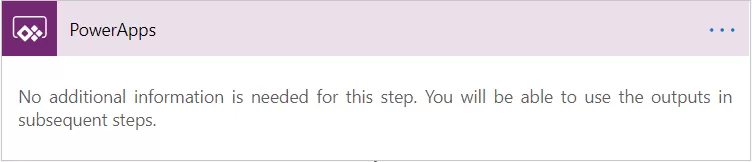
  • Create the Flow, with the trigger PowerApps of PowerApps connector. 
img-02

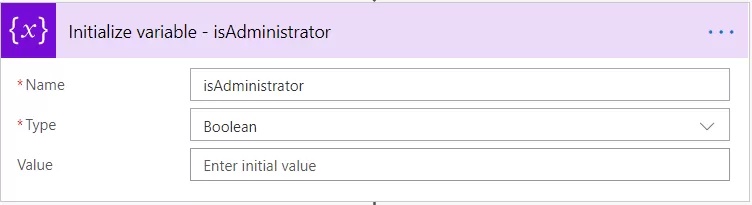
  • Add an action, Initialize variable of Variables connector. Set the name as isAdministrator to store a Boolean value.
img-03

img-04

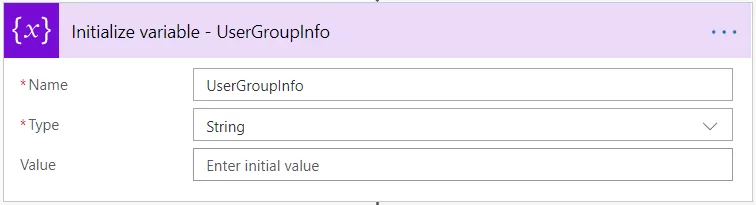
  • Add another Initialize variable of Variables connector. Set the name as UserGroupInfo to store a Boolean value. 
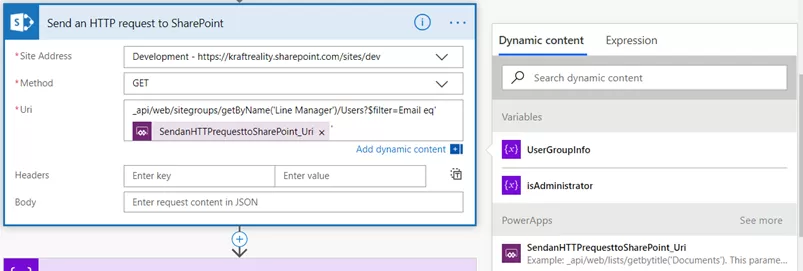
  • Add an action, Send an HTTP request to SharePoint of SharePoint connector.  
Site Address – Select the site address where the security group is created 

Method – GET 

Uri – api/web/sitegroups/getByName(‘SharePoint Group’)/Users?$filter=Email eq ‘’ 

Replace the SharePoint Group with the name of the group created in Step-1. Here I had created the group ‘Line Manager’.  

Put the cursor pointer in between the single quotes and select the option from PowerApps, SendanHTTPrequesttoSharePoint_Uri from dynamic content window.
img-05

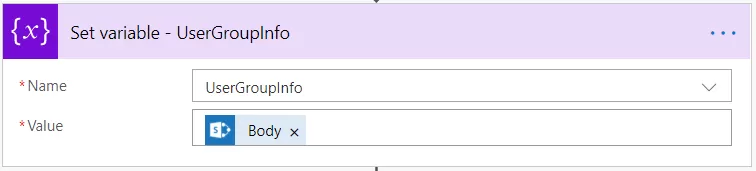
  • Add an action, Set Variable of Variable connector. Select the variable UserGroupInfo in Name and value as Body from Send an HTTP request to SharePoint from dynamic content. 
img-06

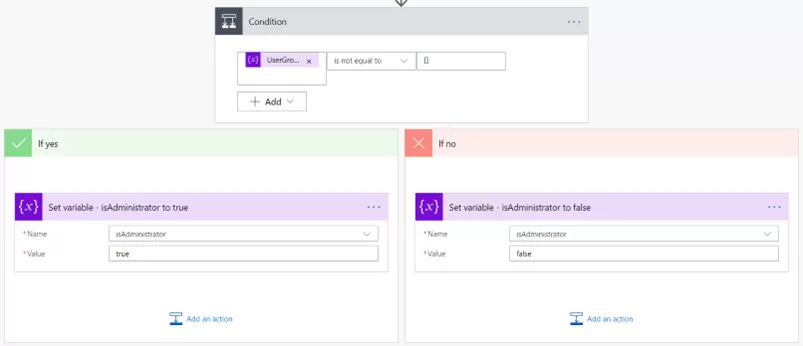
  • Add an action, Condition of Control Connector. Set the conditional value as variable UserGroupInfo and select the condition is not equal to and in value  to be compared as ‘[]’. 

     Inside the if yes and if no options, 

 For the option if yes, add an action Set Variable of Variable connector. Select the variable  isAdministrator and set the value as true, 

         For option if no, add an action Set Variable of Variable connector. Select the variable isAdministrator and set the value as false. 
img-07

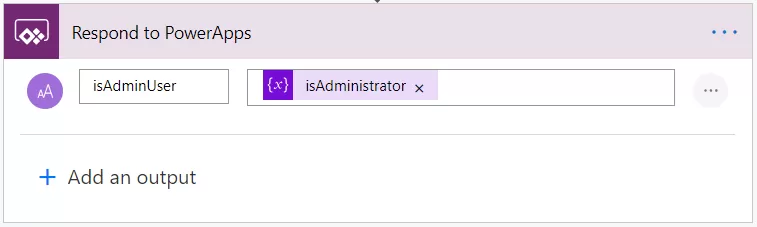
  • Add an action, Respond to PowerApps of PowerApps connector. Select the text option for the output. Set the variable as isAdminUser and the value as isAdministrator from the Dynamic content. 
img-08

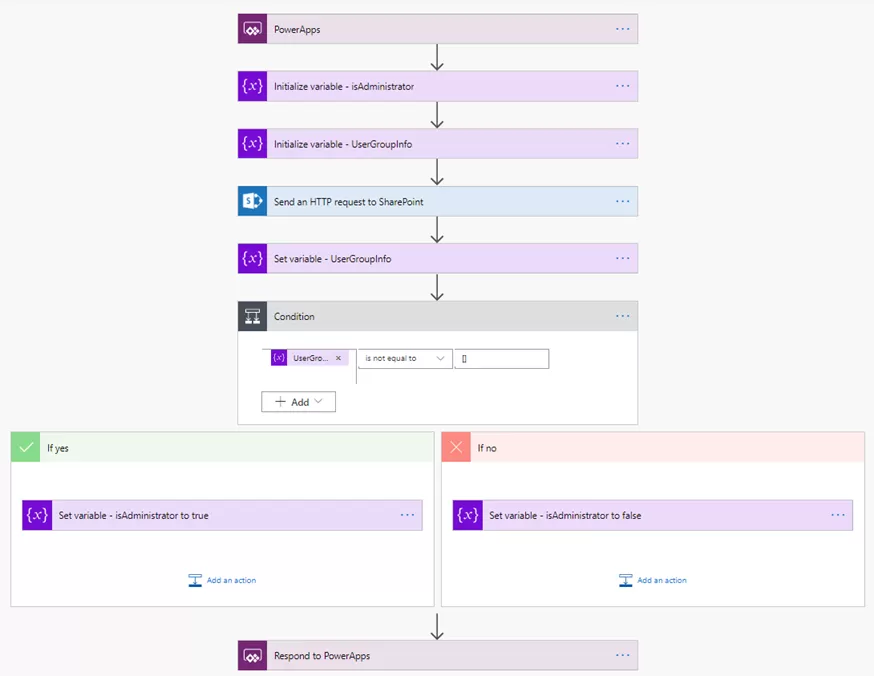
The final look of the flow would be like this: 
img-09

Step-3

Implementing the Flow with PowerApps App 

After the Flow is ready, lets configure the same with the App to test it. 

On the first screen that would be visible when you run the App, on its OnVisible Property, set the variables as below: 

img-10

First, we take the variable isAdmin and set it as false.  

Secondly, we would check with the flow to set the variable UserGroupInfo as the flow’s outcome.   

On the button’s visible property, set it as If(isAdmin, true). SO that if the user is in the SharePoint Group the button would be visible else it would not. 

So when a user is inside the SharePoint Group, the screen would display the button: 
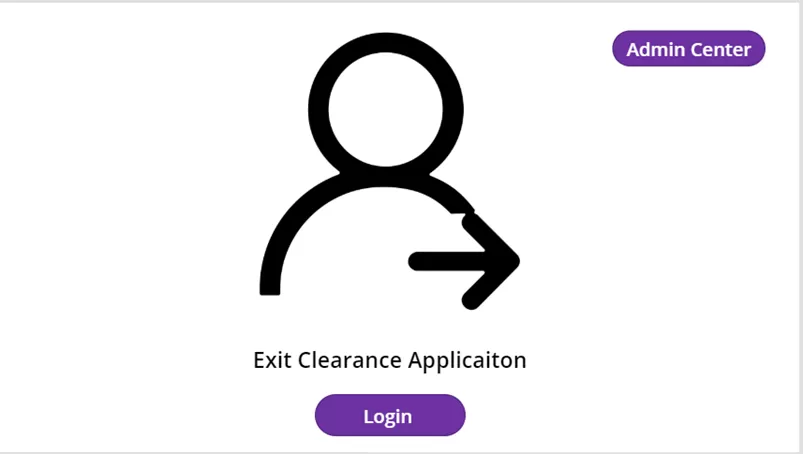
img-11

And when the user is not, we display: 
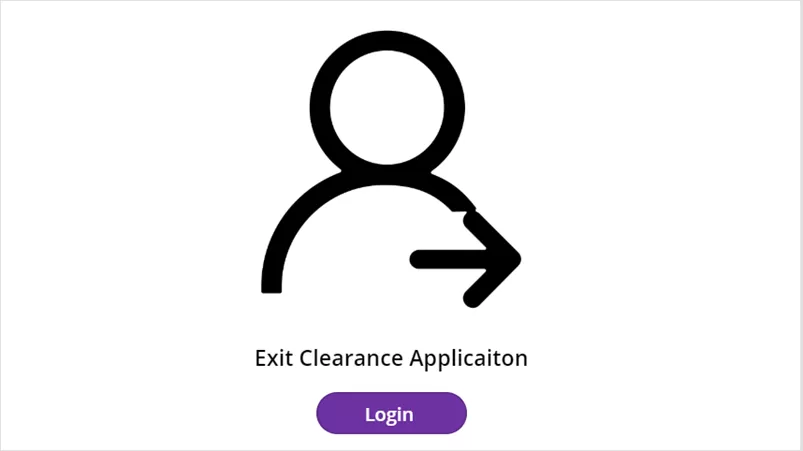
img-12

Additional Read

SharePoint for Enterprise Content Management – Why Should Choose?

In conclusion, leveraging PowerApps in conjunction with SharePoint groups provides a dynamic solution for implementing role-based access control within your applications — a strategy especially important if you’re working with sensitive content or planning to migrate file shares to SharePoint Online.

By utilizing the capabilities of Flow, we have demonstrated how to seamlessly manage user permissions, ensuring that only authorized individuals can access specific features or functionalities.

With Microsoft PowerApps solutions, organizations can not only enhance security measures but also streamline workflows and improve overall efficiency.

Whether it’s creating custom apps tailored to unique business requirements or integrating with existing systems for seamless collaboration, PowerApps empowers businesses to unlock the full potential of their digital ecosystems. And if you’re aiming to optimize internal collaboration, explore the top benefits of SharePoint Online to extend the value even further.

By following the steps outlined in this guide, you can effectively implement role-based security measures in your PowerApps applications, providing a tailored and secure user experience for your organization.

Incorporating Microsoft PowerApps solutions into your development toolkit opens a world of possibilities, enabling you to drive innovation, maximize productivity, and achieve your business objectives with confidence.

Please post your question, if you will find while implementing this process. Thank you.

Publish Power App To The Teams App Store

Summary

In this blog, I am performing the steps one should follow to publish your PowerApps to the Teams App Store.  

Let’s get started- 

Step-1

From the PowerApps portal, Click Apps in the app bar.

Step-2

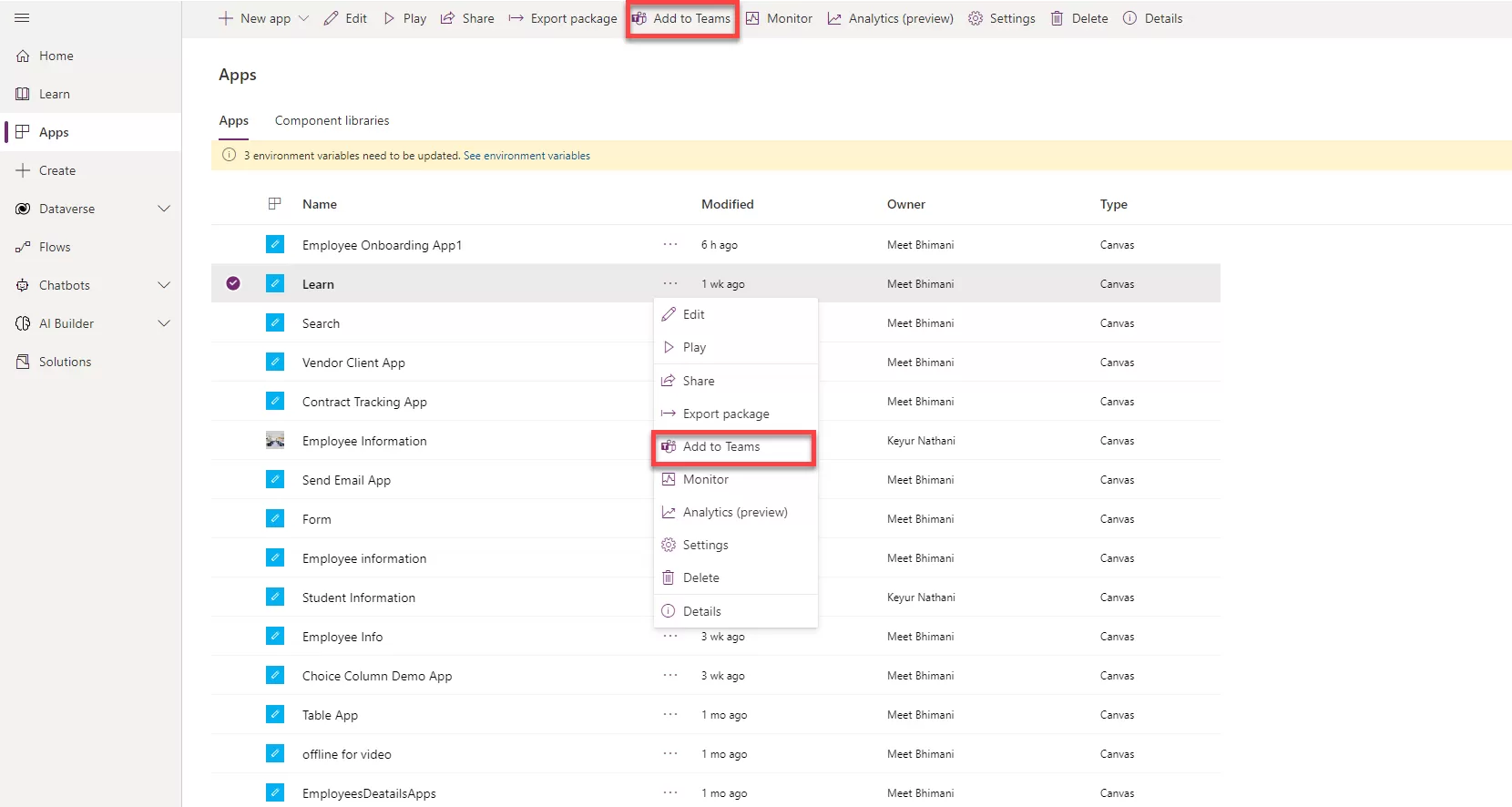
To the right of your app name, Click the menu then select Add to Teams.

img-01

Step-3

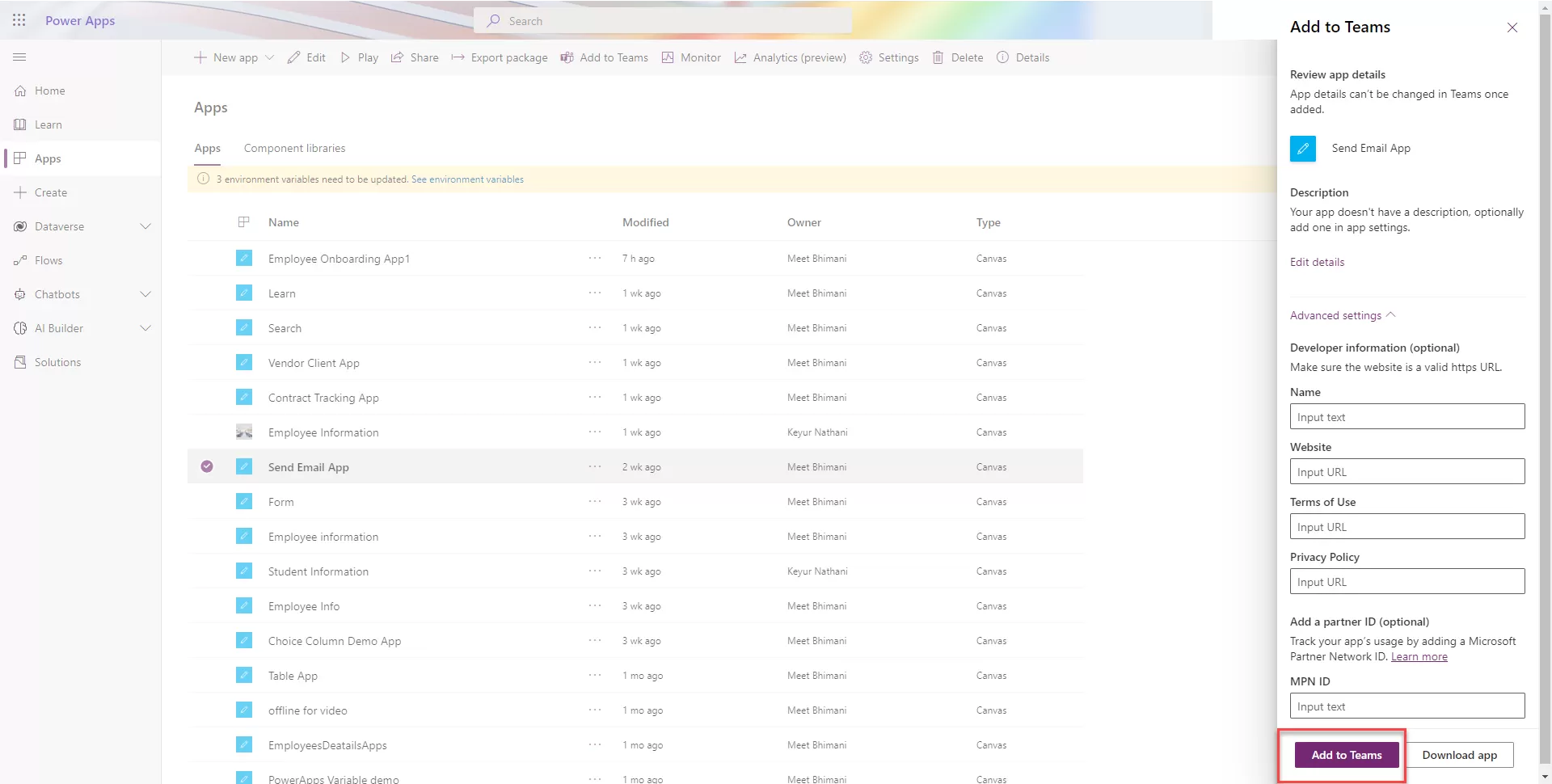
In the Add to Teams pane, click Add to Teams. 

Note: you may want to first click Edit details to add a short description, so your users know what‘s expected when using this app. You can also expand the Advanced settings to add further information. For example, you can include a link to instructions if you‘d like. 

img-02

Step-4

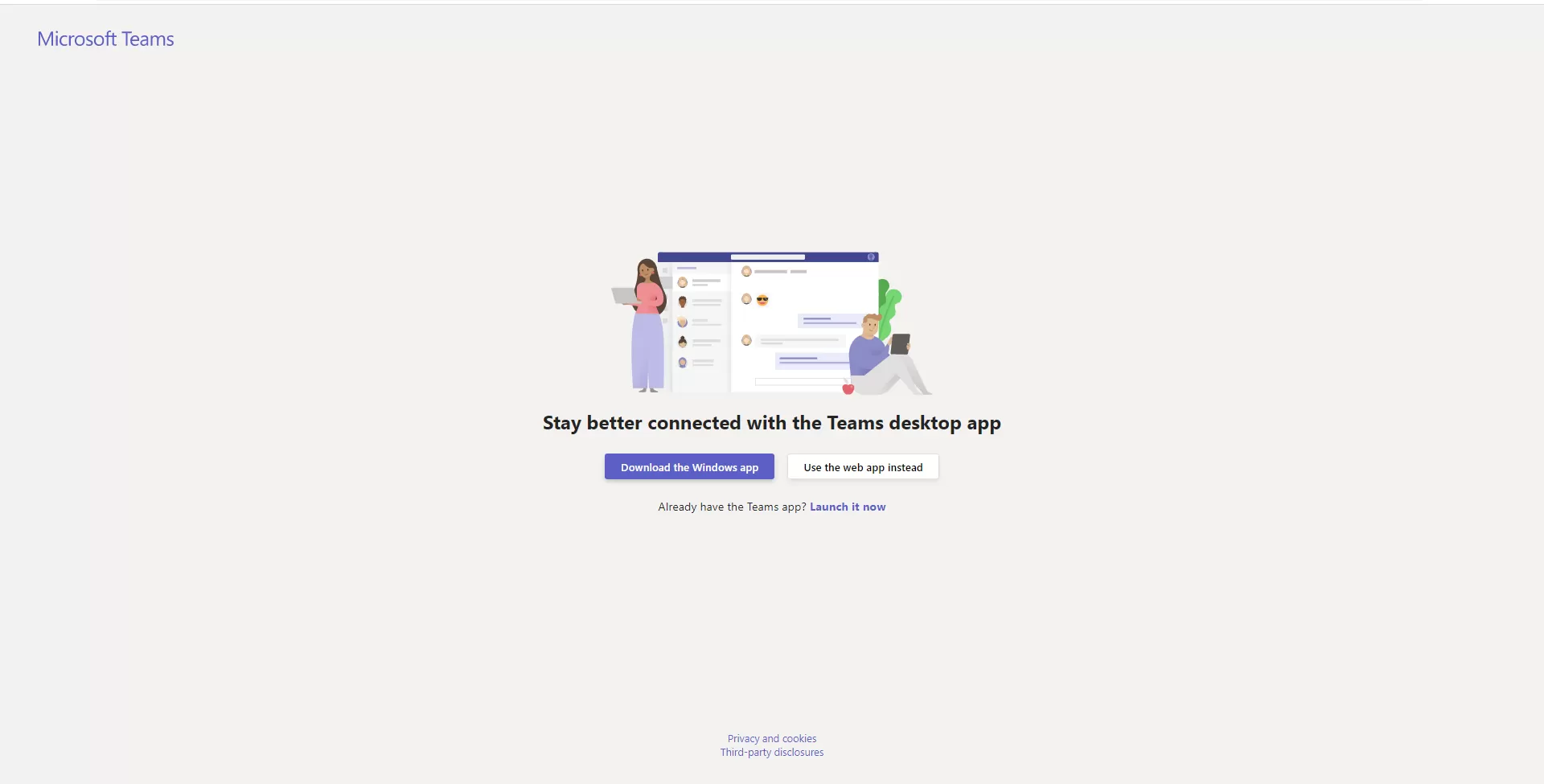
Power Apps will open Teams. Your browser may request access to open in the desktop app. If you prefer that, allow it. If not, click Cancel then click Use the web app instead. 

img-03

Step-5

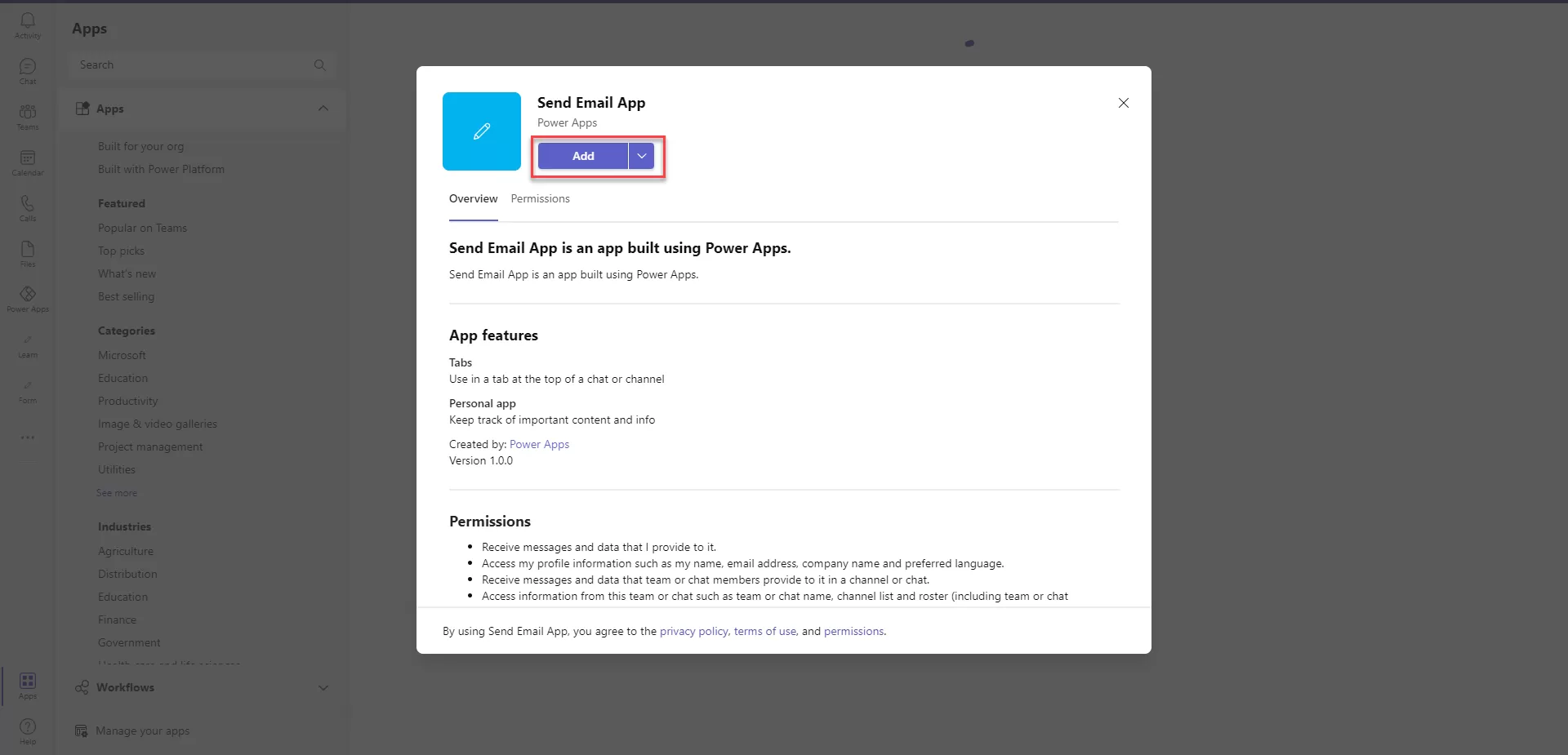
Once Teams opens to the app details page, click Add.

img-04


Step-6

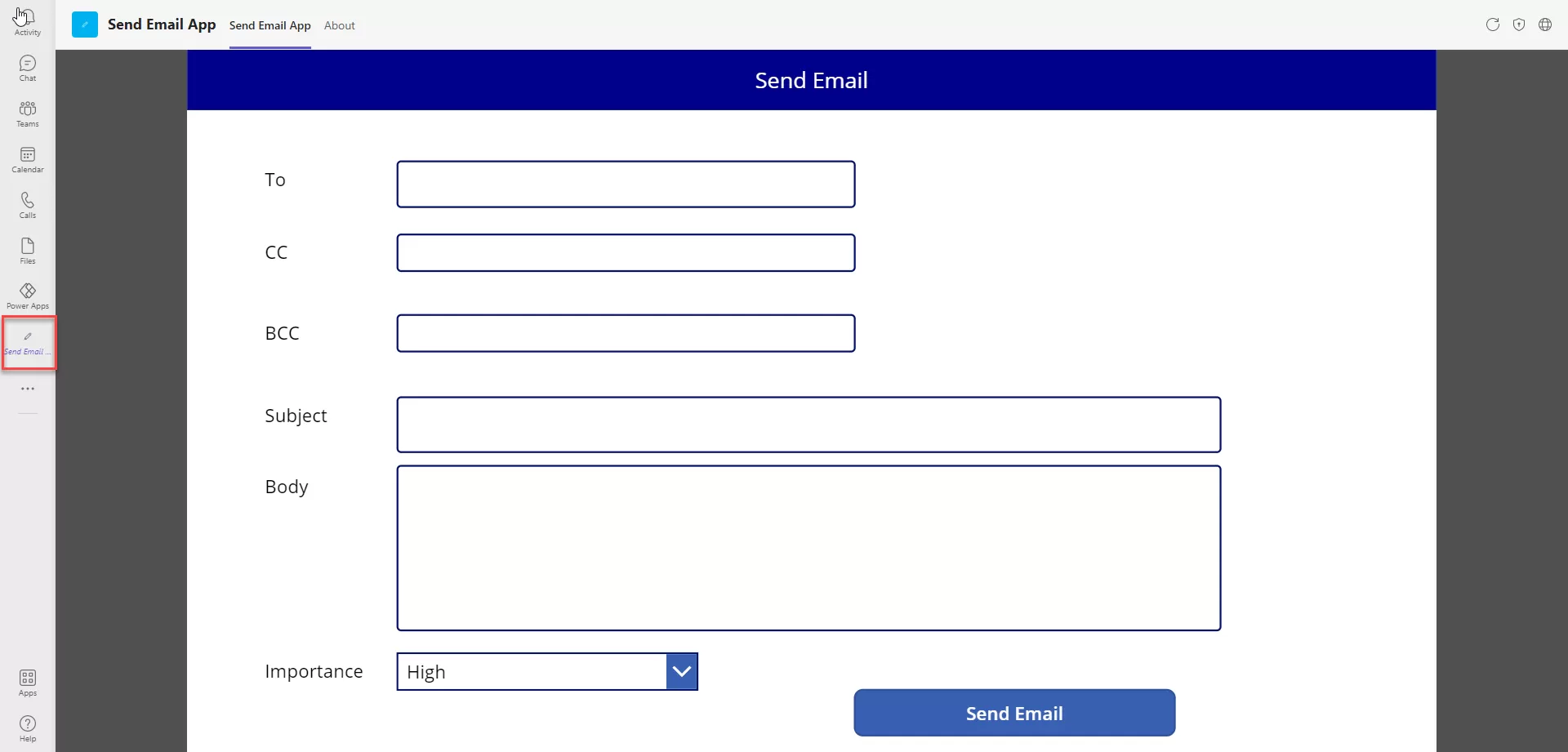
The app opens from the Teams app bar. 

img-05

Step-7

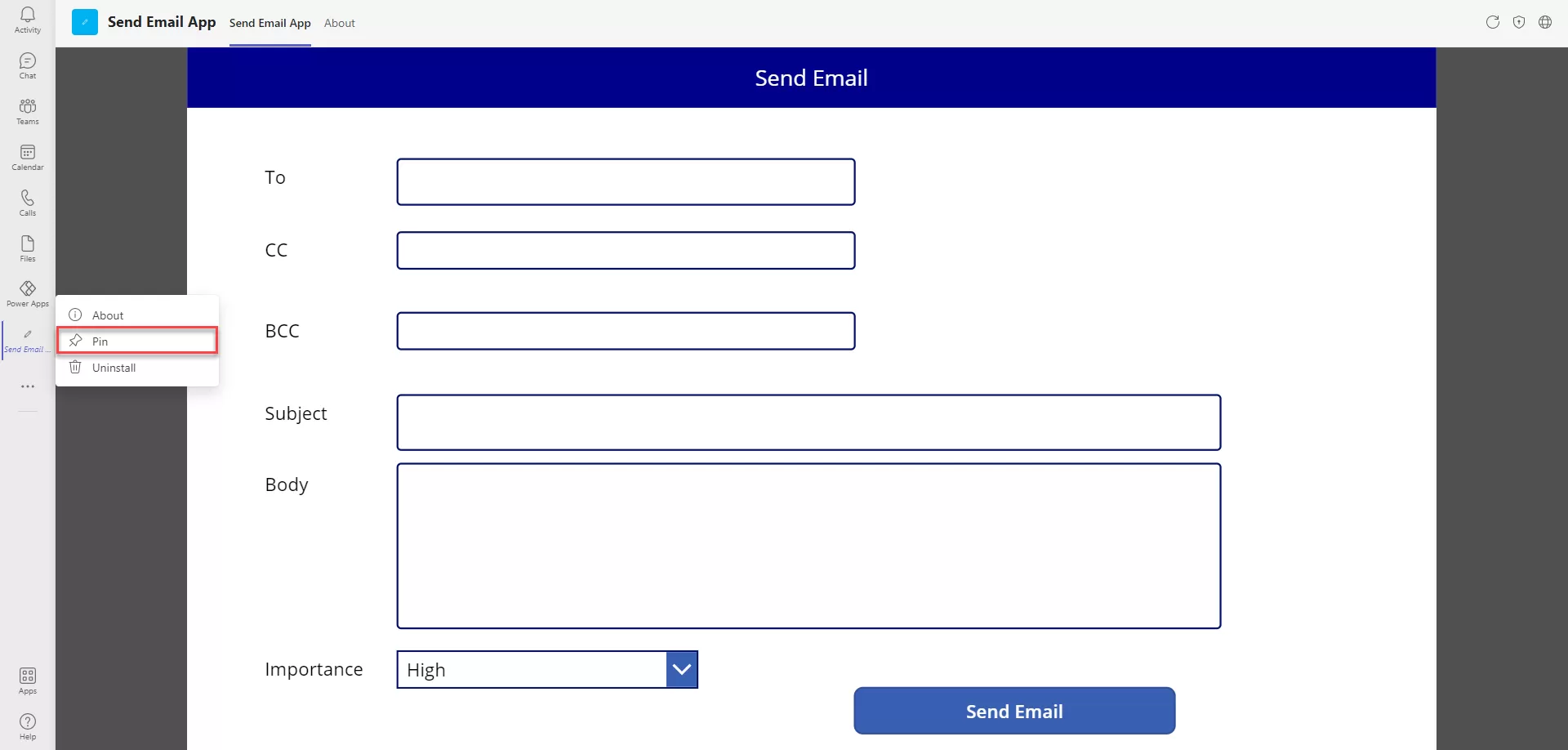
Right-click the app icon to pin it to stay.

img-06

Additional Read

SharePoint for Enterprise Content Management – Why Should Choose?

Please post your question, if you will find while implementing this process. Thank you.
Generate a PDF from Microsoft Automate Method – 2

Summary

In previous blog, we discussed Generating the PDF from Microsoft Flow with two approaches. The First one with an HTML Template can be accessed from here –link—

Let’s start with the Second approach,

Part-2

Generate a PDF of SharePoint List Data with Word Template from Microsoft Flow

This is the second approach for generating the PDF from SharePoint List data that is using the predefined format as Template in SharePoint Document Library, then updated the file properties and created a template in OneDrive then converting that template to PDF and saving in SharePoint Document Library.
The approach is described below:

Step-1

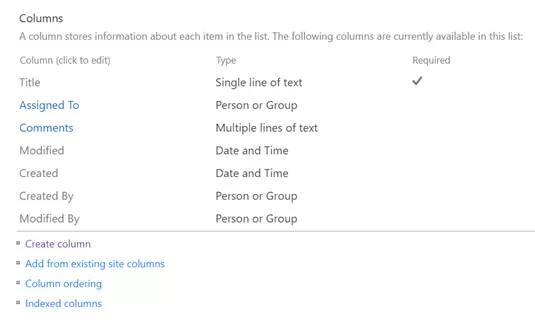
Create a SharePoint Custom List named Conversion-to-PDF-from-Flow with necessary fields to enter the data, required to move to predefined PDF Format. Here I have taken the following fields.

img-01

Create another SharePoint Document Library with name Test-PDF-Documents to store the generated PDF’s. 

Please note, while creating multi-line columns, make sure that  plain text is selected. 

Step-2

The Word Template 

Create a SharePoint Document Library named Test-PDF-Doc-Template. Create the same data fields created in the SharePoint List – Conversion-to-PDF-from-Flow. 

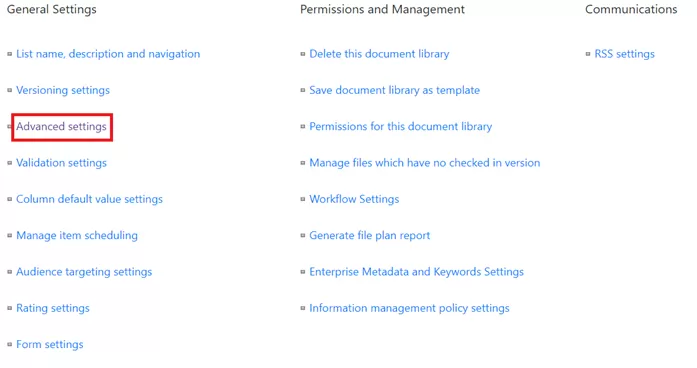
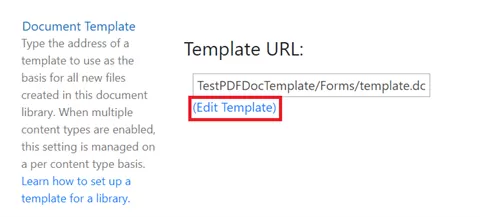
We would create a Document Template in the Library. We would also create the same data fields in the Library as we had created in the List named Conversion-to-PDF-from-Flow. Once we have created the same data fieldswe would go to Library Settings > go to Advanced Setting > Edit Template. 

img-02

img-03

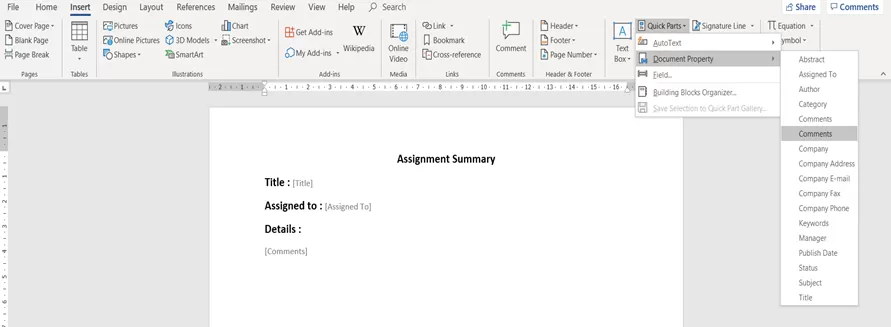
In previous approach, we used tokens. In this approach we would be using the Quick Parts from Insert tab. We can access or add them like Insert > Quick Parts > Document Property > Use the data column which would be used to replace the data inserted in it. 

img-04

One created the template would look like this, 

img-05

Once created, save it in .docx format.  

So the next time when you would try to edit the template it would have to be saved in .docx format. 

Step-3

Creating the Flow 

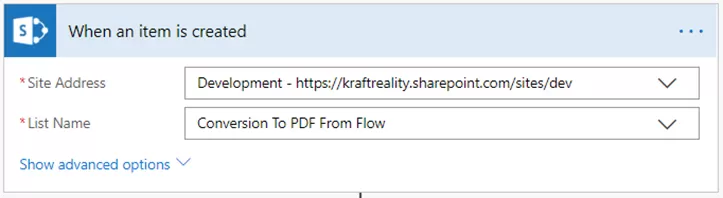
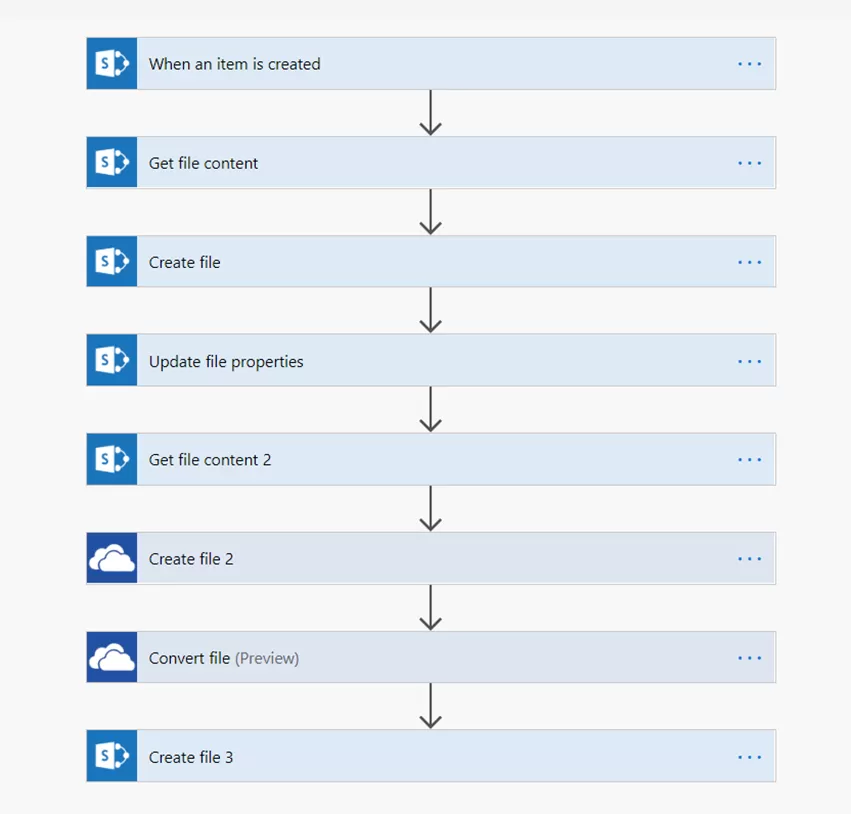
  • Create the Flow with trigger – When an item is created of SharePoint connector. Select the Site collection address and List’s name. 

img-06

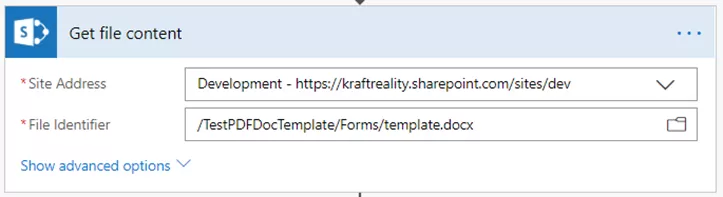
  • Add an action – Get File Content of SharePoint connector. Select the Site collection address and the File from which the template would be taken and used to create the file.  

img-07

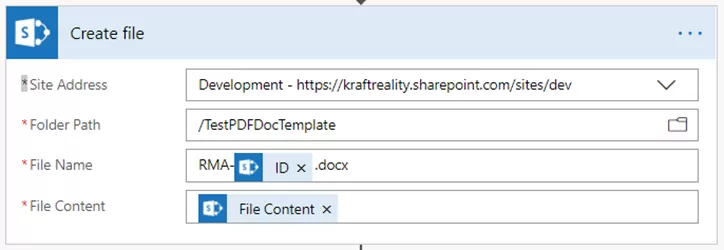
  • Add an action – Create File of SharePoint connector. Select the Site collection address, folder path to the template saved, Create a File name as required and select the file content from the dynamic content window from the previous action 

img-08

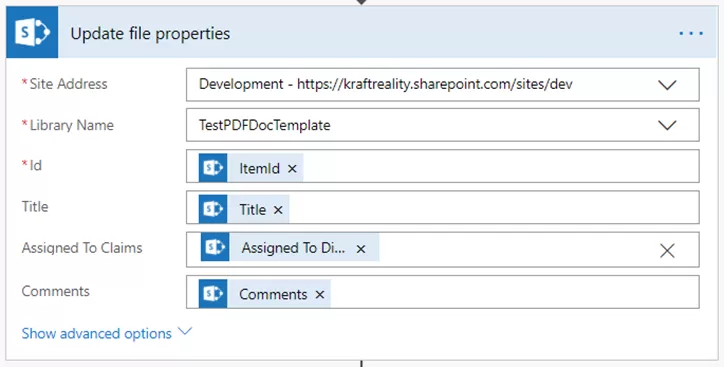
  • Add an action – Update File Properties, select the Site collection address, Library name, Select the ID as ItemID from previous action Create File action and select the data fields linked to each other. 

Additional Read

How to Migrate File Server to SharePoint Online [Expert Guide]

img-09

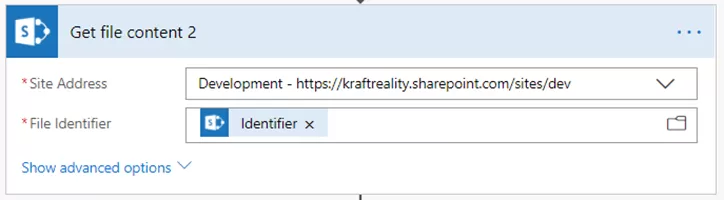
  • Add an action – Get File Content of SharePoint connector. Select the Site Collection address, and the file identifier, set the file identifier as file identifier from the previous action. 

img-10

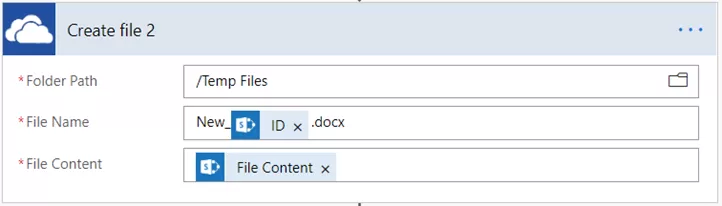
  • Add an action – Create File for the OneDrive connector. Select the Folder path to save the file, name of the file and the file content as file content from previous action from dynamic content. 

img-11

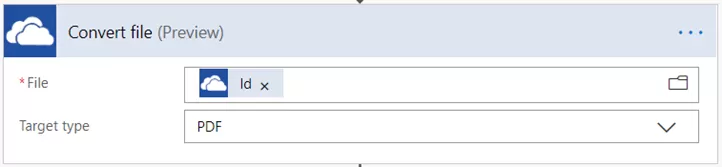
  • Add an action – Convert File for the SharePoint connector. Select the File as ID from the precious action. 

img-12

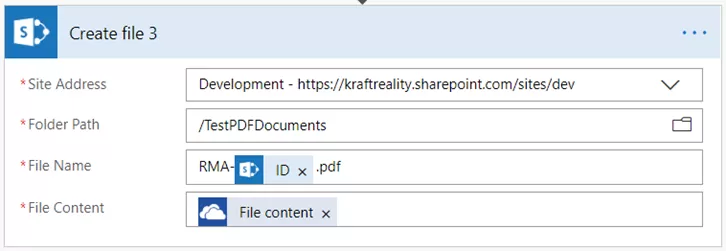
  • Add an action – Create File for the SharePoint connector. Select the Site collection address, folder path to save the file, name of the file with an extension .pdf and file content as File Content from previous action of Convert File.  

img-13

Once the Flow is created, it would look like this: 

img-14

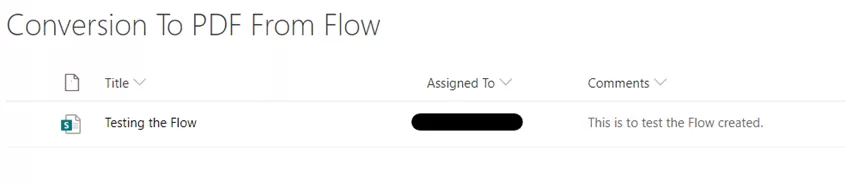
Let’s enter data in our SharePoint Custom List Conversion to PDF from the Flow: 

img-15

The document that gets created in the Library named Test-PDF-Doc-Template while the Flow runs would appear like this: 

img-16

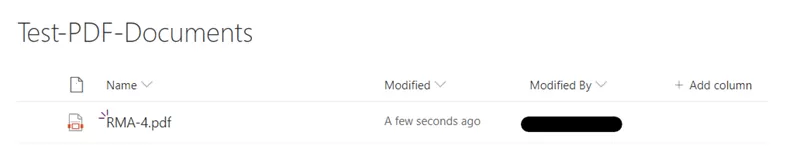
The document that would be created inside the Library Test-PDF-Documents after the Flow runs would appear as: 

img-17

The file content would look like this: 

img-18

Are you in need of assistance? We can help!

Book a live 1-on-1 call with the experts of Reality Tech to find out how we will help you to achieve your goal. You’ll find our solutions robust, scalable, and dependable. Let’s talk!

Please post your question, if you will find while implementing this process. Thank you.
How to Migrate File Server to SharePoint Online [Expert Guide]

Switching to SharePoint entails more than simply transferring all of your data to a cloud server: it’s a completely new browser-based environment linked to your company’s Microsoft 365 account.

While this offers many new features and capabilities, it also has an impact on every aspect of file use, and collaborative task and effort that relies on direct access to a network file.

Migrating to SharePoint Online may necessitate the utilization of a professional SharePoint online migration service provider.

As an end-user, you’ll most likely notice changes. The navigation system is designed differently because you’re accessing via the cloud, and load times are going to be somewhat impacted.

These variances are less likely to pose serious issues, but they’re still worth thinking about: Does a lag time of even 1-2 seconds have an effect on your workflow?

Before you migrate, you should consider all of these factors.

What is a File Server? (And What are the Drawbacks?)

SharePoint Online is a cloud-based file storage and collaboration platform that allows users to share, manage, and collaborate on documents in real time.

SharePoint Online differs from an on-premises file server in that it saves your files in the Microsoft cloud, whereas a file server normally stores them on your onsite network or in an offsite data center for enhanced protection.

Businesses have traditionally utilized on-premises file servers to allow employees to store and access data on a shared drive rather than on their own hard disks.

While this was a significant advancement in business technology at the time, there are various disadvantages to having a shared drive, including duplicate documents, limited metadata, no ability for end-users to adjust permissions, and a lack of search options.

As a result, a solution to boost both efficiency and productivity was required — Microsoft SharePoint.

Traditional file servers have gaps in collaboration; the files are frequently copied and duplicated, outdated versions are mistaken for the most recent rendition, and so on.

All of these things stymie teamwork; they produce communication snafus and can seriously jeopardize the efficiency of the company’s work processes, impacting the bottom line of key knowledge worker efficiency.

Additional Read

SharePoint for Enterprise Content Management – Why Should Choose?

It’s critical to plan your migration result by doing an assessment of your present source environment before you begin.

What you learn will have an impact on your entire strategy and timeline, including:

  • a) The mapping between source and target systems, as well as the architecture of the target environment.
  • b) The quantity of data you’re migrating. Determine if the material is outdated, redundant, or still relevant.

Make user onboarding a part of your initial planning. Inform your users about the move and how it will affect them as soon as possible.

Don’t put off preparing them for the change until go live.

How to Migrate from File Server to SharePoint Online?

Step 1: Do Your Homework First

Yes, there is an appeal to just pushing the Migrate button and informing your employer that you’ve done it, but one can’t migrate content without considering the information architecture, among other things.

We couldn’t possibly express all that needed to be accomplished in a single paragraph.

We have written a great deal about this in the past. At a high level, one must ensure that there is an understanding of how the envisioned SharePoint Information Architecture will function.

Lastly, the sites, document libraries, and metadata need to be realized and surfaced for end-user utilization.

Additional Read

Your Complete SharePoint Migration Guide (Step-By-Step)

Step 2: Select and Configure a Migration Tool

There is a range of commercial 3rd party tools available for content migration.

The selection of the appropriate tool depends on the content source, the volume of content, permissions needs, reporting needs, metadata tagging requirements, and budget.

For guidance in selecting the appropriate migration tool, consider consulting a reliable SharePoint development company like Reality Tech.

There is then the server sizing and configuration and license management of the migration tool.

 Step 3: Perform Your Test Migration

The initial test migration enables one to baseline throughput. With this information, the actual migration of these metrics is key and reflects both the existing network throughput as well as Office 365 SharePoint throughput.

The migration process should always begin with a test migration, as a sanity test on the network, latencies, tools, environment, configuration, throughput, and end-user experience.

The primary risk of the migration is Office 365 throttling.  This occurs in both reading from the source and writing to the destination.  To some extent, this can be optimized by extended efforts, especially during off-peak hours.

Additional Read

How to Activate SharePoint Publishing Infrastructure

Step 4: Plan the Migration

If the volume of content exceeds the throughput that can be migrated in a single weekend as determined during baseline migration testing, then migration in phases is recommended.

Migration in phases allows content map creation, which ensures that each team understands the content transformation as it migrates from the source file server to the new SharePoint environment.

The process of migrating a single group of content as a discrete phase is not only manageable but also reduces the limitations for larger migrations and reduces the number of users impacted on any given weekend cutover.

The following activities are part of the migration planning process:

A. Inventory

In order to migrate, we need to identify what will be migrated, and what will be left in place or archived and not migrated.

This leads then to the design of mapping, from source to proposed destination.

B. Long URL analysis

Efforts to the surface where long URLs may be an obstacle.  Approaches to remediate and address found instances.

These may include proposed hierarchy flattening, or shortening/renaming key folder nodes.

C. Orphan Accounts

Review of handling of accounts that are inactive. Disabled accounts are a known challenge for migration on tagging documents during migration.

This will require some discussion and review of options and setting expectations.

D. Exception Planning

Planning for an approach to handle exceptional situations is needed in advance. One aspect is simply planning for end-user coordination, as well as a general approach to handling with or without user involvement.

This covers topics such as:

  • Blocked File Extensions
  • Very Large Files

E. Site Architecture

Planning for a Site Collection approach, for the appropriate granularity in support of the migration in planned phases:

  • Site Collection granularity, in planning for long-term future growth
  • URL design
  • Site Template
  • Possible site hierarchy
  • Possible security consolidation and simplification
  • Navigation, and possible use of Hub site(s)

F. Project Planning

  • Migration planning, sequence, cut-over planning, and communication
  • Identification of critical path and optimized sequencing of efforts

G. Risk Management

Identification of key risks and mitigation activities

H. Estimation of Remaining Migration Stages

Refined estimation of effort and duration for migrating each department (LOB)

The changeover process in a SharePoint migration plan includes:

  • Stopping workflows that are identified for migration
  • Initial migration
  • Delta migrations
  • Changing the setting of the source to read-only

Are you in need of assistance? We can help!

Book a live 1-on-1 call with the experts of Reality Tech to find out how we will help you to achieve your goal.

Step 5: Initial Migration

The initial migration surfaces migration issues and related migration failures, that are successively addressed.

Once a successful initial migration is completed, changes are made at the source, and any remaining errors, are addressed in the delta migrations.

Typically a delta migration is done daily, up until the migration cutover.

The actual delta frequency is determined by the content sizing, and duration to both analyze the prior migration results and duration to execute the delta migration.

The bulk of the project duration will be on the migration of content.

The approach is to initially move the maximum amount of content, and only when close to cutover, do the final updates to the destination known as the “Delta” migration. This Delta is the final sync-up of content.

Step 6: Delta Migration

The final true-up of content is done and finalized and prepared for the transition.  This is done repeatedly leading up to the cutover.

Typically the delta is applied based on the date of the initial migration (or prior delta).

 Conclusion:

It is recommended but time-consuming to migrate from old-school file sharing to SharePoint. The majority of the work is in the analysis.

Migration is an opportunity to examine all of the content on your file shares in detail and make careful decisions on what to migrate, what to archive, and what to eliminate.

Speak with Professional SharePoint experts about archiving or removing outdated or duplicate material, restructuring for a more coherent organization of content, creating an information architecture in SharePoint, and utilizing all of SharePoint’s and Microsoft 365’s great new capabilities!

Why Migrate to SharePoint Online and Tips for Migration

SharePoint was first released as a portal and collaboration platform as SharePoint 2001.

It has gradually evolved to cover a broader range of content management and collaboration platforms into a document and records management enterprise environment.

SharePoint has grown into a world-class powerful collaboration and content management tool over time.

SharePoint is a safe way to store, organize, and share information that can be viewed from any device from a web browser.

A vast majority of companies have moved to or are considering moving to the cloud. Of course, the latest evolution of the SharePoint platform is the move to the cloud as part of Office 365.

SharePoint Online is more flexible and more fully adopted than the original on-premises versions. Consequently, Office 365 has become Microsoft’s fastest-growing commercial product.

What are the Benefits of SharePoint Online Migration?

1. Complete Access, Always

Employees will have easier access to their content once you migrate your files to SharePoint.

You can access your files on any mobile or personal computing device and from anywhere around the globe, whether at home, at work, or on your way to a meeting.

This is something that ordinary file sharing struggles to match.

2. Co-authoring

A key capability in SharePoint is the ability for multiple authorized users to concurrently edit documents. This enables much faster and interactive efforts and avoids sequential editing of critical documents.

3. Versioning

Every time a document is edited in SharePoint, a version is created. Users can view prior versions, compare versions and even roll back to prior versions.

This offers a safety net, enabling easier trust to end users, given the ability to review and roll back if needed.

Additionally, both minor and major versioning is available, allowing for the option of approval prior to publishing a major version.

Lastly, access for broader users can be restricted to major versions, thereby enabling draft editing in place, prior to making a version broadly available.

4. Alerts

Get notified when key documents are updated.  Notifications are done on your schedule.

You can choose monthly, weekly, daily or even in Real-Time.  Select the kind of updates, such as document creation, editing, or deletion.

Even add others to receive the notifications.  Get notified via email or mobile; the choice is yours.

5. Search Muscles

Perhaps one of the most important reasons to include file shares in your SharePoint online migration is search performance for finding files.

Search for a document name or keyword and get related results in milliseconds.  Search capabilities include filtering by time range, author, and even custom metadata.

Search is highly customizable, allowing for an extraordinary ability of users to find the specific document for which they are searching.

Search refiners that allow drill-in search and search verticals.

The possibility of integrated and consolidated search with emerging MS-Graph capabilities allows Windows Search and Bing Search to surface a consolidated and security-trimmed search experience, including both Internet and SharePoint online content.

6. Data Loss Prevention (DLP)

Policies can be set across Office 365 to manage and monitor for Data Loss Prevention (DLP). This works best when backed by proper SharePoint security best practices to ensure governance and compliance.

This allows enterprise management of data to be following enterprise standards and provide solid assurance to avoid data loss.

7. Information Rights Management

The ability to restrict access, limit download, limit screenshots, limit printing, and retain control over documents even after a local download are possible.

These capabilities allow centralized license management of documents, allowing restricting or removing access, even if a document has left the enterprise.

8. Workflows

Automate the processes behind documents by enabling workflows that assign tasks to users, remind users and escalate in the associated tasks are delayed; collect feedback on documents and acquire approvals for a document.

9. Auditing

Edit, delete, create, and security change auditing and reporting are all available for enterprise tracking and compliance.

10. Check-in and check-out

Frequently, you’ll be working on files and papers with numerous co-workers.

Knowing who is working on the same document as you or who has to make a few last-minute adjustments before starting your assignment can be a pain.

You can check out a file in SharePoint so that no one else can access it, ensuring that everyone knows who has the most recent version of the document. This keeps you from sabotaging each other’s efforts.

11. Information Policy

Fine-grained tuning of an Information Policy is possible, including centralized enterprise definition, management and control of:

  • Document Retention Policy
  • Legal Holds
  • Document Disposition
  • Document lifecycle

The Information Policy can be refined in close coordination and input from Legal and Compliance.

The goal is to meet the organization’s objectives while designing an Information Policy that is both feasible and manageable.

12. No Waiting Time for New Features and Updates

Microsoft has a proactive communication approach for new features and upgrades.

Users of the Office 365 version have an advantage over those who use SharePoint on-premises to obtain early updates on new releases and upgrades.

13. Pay for What You Need and Scale-Up Easily

You can pay for only what you need with the Office 365 environment. You may add and delete members using the monthly subscription model as your company grows. Consider the case where a user leaves the firm.

You can either reassign or delete the license. The same scalability applies to Office 365 data storage, where you only pay for the storage, use what you need, and pay only for what you need, and quickly scale up with a few clicks.

14. Limit Your Maintenance Overhead

Backups, OS maintenance, SharePoint patching, and other duties are avoided while transitioning from SharePoint On-Premise to SharePoint Online.

Your IT personnel may devote their attention to long-overdue intranet updates or other critical activities.

Because there is no hardware to purchase, SharePoint Cloud helps you save money on internal resources.

15. Improvements to OneDrive For Business

OneDrive for business is a highly practical tool for storing and sharing data. A user may create a document in OneDrive for Business and simply share it with internal and external users to gain ideas, feedback, and expertise.

This is essentially your cloud “My Documents” folder. When a document is ready to publish, there’s a capability in OneDrive for Business that allows you to move/copy it to a SharePoint team site for wider distribution.

You can also sync files from your OneDrive for Business and SharePoint sites with the new “Sync client” function, and the new OneDrive app is mobile-friendly.

Are you in need of assistance? We can help!

We help companies upgrade their on-premises SharePoint environment to the very latest for features, performance, security, and scalability.

Tips for Migrating to SharePoint Online

➔    Assess the Business Value of Existing Content

Before you start moving large amounts of company data, ask yourself these three questions:

  • Is it necessary to migrate specific documents to SharePoint Online, or may it be archived at a cheaper cost?
  • Do these documents benefit the company?
  • Are there any libraries that need to be rearranged, sites that need to be changed, or access controls that need to be changed?  Remapping and reconciling is possible.
  • Can the security be simplified, optimized and be brought into alignment with existing Active Directory groups?

Making these decisions ahead of time will save time, lower IT expenses in the long run, and help your company achieve its business goals through good information management.

➔    Identify Potential Technical Issues

SharePoint 2010/2013 and SharePoint Online are somewhat different. However, basic architectural differences might make the transition from on-premise to cloud more difficult than anticipated.

Consider the following scenario:

  • SharePoint Online may have different storage and capacity constraints than SharePoint on-premises. Before migrating, do some research to see how this may affect your company and plan for organic growth and scalability.
  • It’s possible that custom code won’t work with SharePoint Online. Work with business teams to develop a plan for keeping business operations running smoothly without requiring customization, such as by utilizing Microsoft add-ins.
  • Check for file types that are not allowed in SharePoint and plan for this content on an exception basis.  Executables and scripts are among the problem file types.
  • Your SharePoint Online transfer will be faster if more bandwidth is available. However, the opposite is also true.  Consider baseline migration timings to be able to project the migration throughput.

➔    Explore enterprise migration tools

3rd party migration tools can streamline migration efforts, reporting, reconciliation, and migration from unusual source systems.

Get expert advice on the best tool for your needs and budget, and ensure your project efforts are optimized.

➔    Selecting the migration approach and mapping

In the summary view, we retrieve and generate an inventory and assign an action to each item or group of items.

We map out what goes to folders, libraries or sites and how to optimize the migration.

Migrations are then mapped into waves or phases that align with departments and sizing that’s feasible for individual cutover weekends.

➔    Planning to make the source read-only

Avoid users inadvertently editing documents in the source after migration to the destination by setting the source to read-only.

This should be in line with the communication plan.  This avoids an inadvertent challenge of later reconciling documents that are updated simultaneously in both the source and destination.

Additional Read

Best Tips for SharePoint Infrastructure Monitoring and Health Check

Create an Effective Communication Plan for Your SharePoint Migration

Your new SharePoint’s migration adoption might hit resistance from users if you don’t have a solid and well-built communication plan on what will migrate, how it will look after migration, and accommodate training needs that could be needed to ensure users are comfortable and aware of the impending change.

Communication is essential and may be built quickly. Constant communication of planned changes is crucial.

We can provide end-user training or train-the-trainer training while also demonstrating new SharePoint online features that add value to the end-user collaboration and document management experience.

A knowledgeable user will be more likely to tolerate minor flaws in the user experience in some circumstances, provided they understand the overall benefit.

Knowing when and how this change will affect their employment and having access to training offers a lot of value and helps you boost acceptance.

Conclusion:

A file-sharing migration to OneDrive and SharePoint is a demanding operation. Still, with proper planning, preparation, communication and consistent execution, you can accomplish a successful project that encourages users to embrace the new platforms.

Engage with Reality Tech to lead your migration to SharePoint or upgrade. Our skilled team will help with the best-in-class migration services.

How Financial Process Automation Can Help Your Business


Finance automation is leveraging technology to automate critical finance tasks with minimal human participation, including accounting, integration, general ledger, reporting, expense management, and bank reconciliation. Financial automation enables tasks to be completed faster and more accurately.

The financial services business is heavily reliant on processes. These process-based operations constitute the lifeblood of financial institutions, from loan approvals to pre-trade clearances, reporting, analysis, approvals, and workflow bottlenecks that can significantly impact operating costs and impact output. Enterprises are compelled to adopt as competitors and organizations worldwide leverage new technology to streamline, speed, and improve their processes.

Finance Automation Definition:

The use of technology to execute activities with little or no human involvement is known as finance automation. This allows for better use of knowledge workers, with greater efficiencies, without actually supplanting them. It simply refers to automation to perform time-consuming, repetitive manual chores. Finance automation’s main purpose is to increase process efficiency by decreasing or eliminating non-value-added repetitive procedures and activities. Finance departments may then more sharply focus on producing value and driving strategy by automating these repetitive processes.

Gartner Definition

“Finance automation technology integrates machine learning and artificial intelligence for use in areas such as financial analysis, payroll administration, invoice automation, collections action, and preparing financial statements. The use of such automated software reduces the need for human intervention in these activities.” 

How Financial Process Automation Helps Business Owners:

According to an EY analysis of how automation affects modern workplaces, automation benefits 80% of finance-related jobs, which is a higher proportion than for other industries studied. Financial functions, according to EY, are suitable for automation since they are rule-based and can be of higher volumes. In contrast, automation can only enhance 12% of activities when it comes to learning and development.

Financial process automation speeds up these common business processes:

  • Invoicing, including automated reminders for customers
  • Transaction processing
  • Approval management including heuristics
  • Accounts payable, such as paying invoices and handling approvals for expenses
  • Account reconciliation
  • Data capture and recording
  • Financial statement preparation
  • Employee expense reports
  • Expense management
  • Employee benefit management
  • Tax reporting and compliance

Automating these financial functions leads to:

  • Finance executives have more time to focus on efforts that require judgment and higher-level insights.
  • Every processing stage generates an automatic approval request, with forms distributed to each stakeholder in the correct sequence.
  • Data is sent instantly from one organization/department to another.
  • Forms that auto-populate with data from related databases.
  • More frequent periodic batch updates, leading to more real-time reporting

Key Processes in the Finance Function

The finance function consists of a range of procedures, that in aggregate directly influence the bottom line of the company. The following is a summary of an organization’s major financial process:

Budgeting: 

Finance reviews and approves each department’s budget. Aside from individual department budgets, the Finance department also develops a consolidated budget for the CFO’s approval. This procedure facilitates forecasting future activity using previous financial data.

Billing and Approval: 

Payments from customers and other organizations are aggregated and consolidated from approved expenditure requests. Manual request approvals may be one source of delays and manual efforts, leading to delays and process bottlenecks.

Accounts Payable: 

After the department heads and financial officials have approved invoices, payment is authorized and executed. If not automated, manual steps and approvals may introduce delays from these process bottlenecks.

Planning and Forecasting: 

Financial planning keeps budgets on track and balances cash flow and expenses against revenues. Future expenditures are forecasted using historical data collected from prior periods, in recurring planning cycles.

Bookkeeping and Financial close: 

In finance, accounting documents an organization’s financial transactions throughout a fiscal year. A final close of financial records is completed after the fiscal period. During the financial closing procedure, the accounts are consolidated and reconciled.

Auditing: 

Financial transactions and records are checked for compliance with the company guidelines and relevant laws during financial audits.

Data collection and reporting: 

All financial transaction data is kept on file. This information is published in reports based on corporate policy.

Are you in need of assistance? We can help!

Book a live 1-on-1 call with the experts of Reality Tech to find out how we will help you to achieve your goal.

What Are the Benefits of Finance Automation? 

Finance automation offers several benefits to businesses who implement it, including:

1. Cost savings

According to an Ernst & Young analysis, adding robotic process automation may save companies from 20% to 60% of their baseline FTE costs.

2. Error reduction

Reducing the amount of manual labor required automatically reduces the risk of human errors. Financial, regulatory, and even reputational penalties can result from such errors.

3. Employee Satisfaction

Employees may devote more time and attention to problem-solving and strategic efforts since they are spared the drudgery of manual and repetitive tasks, resulting in higher employee satisfaction and ultimately retention.

4. Scalability

Every day more data enters organizations, which can be daunting to manage how to fully leverage it for analysis and insights if the data remains distributed, disjointed, and manually consolidated. Financial automation and Business Intelligence can aggregate data from sources, standardize and format it, and consolidate it so you can get the most out of it.

5. Transparency

Before being deemed complete, financial processes frequently pass through several hands. The steps involved to surface this information can slow the process, leading to stale data in reports to executives and stakeholders who need data near real-time to manage financial oversight and to make informed decisions.

Users who have access to an enterprise software solution visualize the data flow, and surface patterns, and evaluate real-time financial information in an optimal format.

How to Implement Financial Process Automation:

Automating your accounting and finance standards can help you better run your firm, resulting in greater knowledge of your organization’s financial process automation and insights and eliminating points of friction.

Here’s how you can get started:

Map out your financial process:

Account for each step and stakeholder engaged in your financial operations, whether through a rigorous, company-wide critical eye at every stage of your financial processes or start top-down with one extended and expanded brainstorming session. Start building a flowchart to document how financial data is collected and reported, and then identify the most compelling steps that can be automated.

Tie automation to business objectives:

Although it would be ideal to automate every financial operation simultaneously, this may not be feasible. Instead, prioritize your most important demands while implementing automation in phases. If your company is challenged by monthly financial form deadlines, start by transforming those responsibilities and guiding your staff through the refinements.

Find an automation solution for your business:

Automation may be made simple with the correct software solution. Reality-Tech provides a range of options. For example, Reality-Tech offers a variety of business intelligence solutions, workflows, finance templates, and automation, including program management, budgets, and reporting, to help you get started with financial process automation.

Workflows can serve as the foundation for some financial operations, which can be automated. This automation can consolidate, capture, document, and report, and streamline many financial approval processes that keep stakeholders and workers informed and accountable for approvals.

Financial process automation enhances your company’s money management. You won’t have to raise a finger if things operate smoothly in the background.

A future with financial automation:

Although AI and machine-learning algorithms are still in their infancy, they are available and offer benefits today. New opportunities continually emerge due to the exponential expansion of structured data fueled by enterprise resource planning (ERP) systems and the lowering cost of computer power and the increased ability of AI, and machine learning on top of Business Intelligence solutions.

Additional Read

Why You Should Use SharePoint for Document Management System

Conclusion:

Financial automation has a bright future ahead of it, and it is already reshaping how financial processing is done within enterprises in both large and small businesses. Automation might appear overwhelming since numerous activities, and organizational adjustments go into deploying new technology and procedures.  Low-hanging fruit is available for organizations that are looking to streamline and optimize financial processes.

Reality-Tech is a pioneer in Financial Workflow Automation Solutions.

SharePoint for Enterprise Content Management – Why Should Choose?

Do You Know?

60% of the global data worth 175 zettabytes will be generated and managed by enterprises by 2025, tripling from 2021.

(courtesy: IDC Report)

Enterprises are facing a huge challenge these days in organizing massive amounts of diverse content such as documents, images, videos, emails, and web content in a way that is easy to navigate, find and retrieve. Enterprise content management (ECM) software comes to the rescue because it’s designed to assist enterprises to handle this challenge.

To effectively meet the requirements of content management for large businesses, ECM should be feature-rich and flexible. Consequently, SharePoint emerges as a viable content management solution, with its ability to create, edit, manage, share and archive pages and documents throughout the content lifecycle. If you’re curious how this translates into practical value, explore the top features and benefits of SharePoint Online for collaboration. Let’s explore how SharePoint proves to be a real asset for businesses.

What is SharePoint Online CMS?

An ECM is software designed to digitally collect, store, manage, and transfer content and documents. This technology allows enterprises to easily collaborate on, secure, monitor, and manage unstructured data, which leads to enhanced business efficiency for almost every user across the enterprise.

To utilize the full potential of ECM software, it must possess significant capability and proficiency for managing content and documents digitally and efficiently generating business information, and this is where Microsoft SharePoint as an enterprise content management shines.

Why Choose SharePoint for Enterprise Content Management?

1) Document Management System 

The document management system is a process of managing documents efficiently. SharePoint offers the below-listed capabilities to manage documents.

  • It’s a centralized system for storing and accessing business documents.
  • Stakeholders can easily navigate, search and identify the location for sharing and retrieving information for further use.
  • It enables users to create teams, focused roles, and task-oriented groups of users for organizing data and exchanging it with the appropriate set of people, which leads to more outstanding work efficiency and better time management.
  • Documents can be tagged and categorized to better target relevance; thus, users can easily and quickly find, retrieve and access the authentic documents.
  • It smoothly and seamlessly integrates with Microsoft Office products such as PowerPoint, Word, and Excel as well as Teams and Power BI

2) Records Management System 

Records Management is a sophisticated capability to manage formal records. Automating the process allows stakeholders to refine tagging, discovery, workflows, data handling and search and refine and report in real-time, which improves and boosts team collaboration, compliance, and reporting. With SharePoint, you not only automate the process in compliance with corporate standards but conveniently and securely store data in structured and unified locations. Need help planning a secure migration? Read our guide on how to migrate your file shares to SharePoint Online for a streamlined transition.

3) Information Rights Management (IRM)

Information Rights Management (IRM) now known as Azure Rights Management Service (Azure RMS) is a powerful capability to secure and manage content and control what a user can do with the content.  Unlike elsewhere in SharePoint, the management controls are embedded into the content.  Use of the content requires a central licensing server real-time authorization to use the content.  With this approach, even content that left the enterprise can be remotely controlled.  Controls can restrict viewing, printing, and downloading in addition to more common editing controls.

Are you in need of assistance? We can help!

We help companies upgrade their on-premises SharePoint environment to the very latest for features, performance, security, and scalability.

4) Web Content Management 

SharePoint ECM allows users to publish web content by using pre-defined or custom templates and schedule publishing, as well as utilize approval workflows for gaining authorization to publish. Using consistent templates and workflow processes offers web design consistency, easy navigation, and a great user experience. This allows the consistent management of extranet, intranet, and internet sites.

5) Robust Third-Party Support 

There is a wide range of 3rd party add-ons to support specific advanced business requirements.  Third-party software can play an important role in a full features enterprise CMS.  Although SharePoint has a wide range of features, sometimes it’s the extra features provided by a 3rd party that enables business and functional success.

6) Metadata-Oriented Search and Navigation 

It’s a daunting task to search through large libraries or lists simply with text search or scrolling alone. However, SharePoint’s metadata-driven search, navigation, and views enable an easier search experience. You can search and refine by metadata refiners, search verticals, or group-by and filtered list and library views.

Additional Read

How to Activate SharePoint Publishing Infrastructure

Conclusion: 

Although the market is flooded with ECM solutions, Microsoft SharePoint tops the popularity chart due to its broad and mature features, functionality, scalability, seamless third-party integration and support, search, navigation, unified storage, and effortless collaboration between global teams.

For the configuration of a SharePoint ECM solution, qualified technical support is available that assists in a seamless and efficient setup, configuration, customization, and training.

Why You Should Use SharePoint for Document Management System

SharePoint offers Document Management System (DMS) capabilities to streamline the document lifecycle from creation to archiving and offers the following benefits.

✔        20% improvement in employee performance

✔        55% reduction in operational costs over legacy systems.

While SharePoint can be used on-premises, the vast majority of enterprises use it within the Office 365 platform. Today, countless businesses use it as a DMS and sometimes extend it to include an intranet for internal collaboration and communication. Explore the top features and benefits of SharePoint Online for collaboration and teamwork to see how it strengthens internal operations.

Here are 16 Reasons Why SharePoint is the Best Document Management System

1. Concurrent editing

SharePoint and MS Office work hand-in-hand to give an extraordinary co-authoring experience, with edits and updates reflected back into the MS Office documents (office 365 workflow app).

2. Versioning

Fine-grained versioning is available in SharePoint, allowing prior versions to be compared in place in MS Word and document versions to be rolled back or forwards on demand.  Minor versions are available to allow collaborators to co-author documents and only publish for broader availability when ready.

3. Workflows

Document review and document approval workflows are available out of the box and easily adapted to allow for concurrent or sequential approvals.  Notifications, reminders, and escalation are all available to streamline the review or approval workflow.

4. Metadata

Location-based metadata tagging is available, as well as user-selectable metadata, in a range of data types, to allow the best tagging experience, leading to an exceptional search experience along with refiners and filters to quickly and precisely locate documents.

5. Security 

If email is your main mode of communication, it’s most likely that you are sharing sensitive information across the company and with your customers. Sending heavy emails with attachments not only slows down the network but also poses a security threat. Leverage your existing ActiveDirectory groups, Office 365 Groups, or use SharePoint’s own groups for scalable management of SharePoint. Also, don’t overlook the security best practices for SharePoint to ensure your sensitive documents are protected at every level.

6. External sharing

Documents, folders, and sites can be shared externally, with fine-grained control.  Shares can be set to expire at an enterprise level as a policy.  Domains can be whitelisted to restrict sharing to only known partners and vendors.  Alternatively, domains can be blacklisted, preventing sharing to generic domain accounts.  Lastly, external sharing can be restricted to specific site collections or disabled altogether.

Are you in need of assistance? We can help!

We help companies upgrade their on-premises SharePoint environment to the very latest for features, performance, security, and scalability.


7. Full Lifecycle Management

Documents within a library or attached to a content type can have their full life cycle defined. If you’re transitioning from a legacy file system, check out our detailed guide on migrating file shares to SharePoint Online to streamline this process.

8. OneDrive Sync

It’s easy to sync a SharePoint library to OneDrive for convenience and the Explorer experience.

9. Teams

Using or considering using Teams?  An open secret is that all documents stored in Teams are actually stored in SharePoint.  When accessed directly, SharePoint offers a vastly extended set of features for Document Management.

10. Alerts

Get notified in real-time, or periodically, of documents edited or added.  Be in the know on documents updated in your organization.

11. Single Sign-On 

It goes without saying that SharePoint as a Document Management System offers access to the Office 365 suite of applications with a single sign-on. Thus, you can instantly access multiple applications and software on your computer without logging -in individually to each of the applications.

12. Easy Team Collaboration 

Team collaboration becomes easier when documents are stored at a single location accessible to all team members. With SharePoint DMS, you can seamlessly and securely collaborate with teams in and out of your organization, across devices and web browsers.

13. Storage

SharePoint is a true cloud service offering vast scalability for document storage.  Its pricing model and feature set for document management are compelling.

14. SharePoint is on Mobile Devices

SharePoint software is easily accessible across devices and web browsers. It offers convenience to the users because they can download/upload, edit and manage documents on their mobile devices, anywhere, anytime. They no longer have to carry a laptop or sit in front of their computers to access, read, edit, or exchange documents on the go.   All form factors are supported.

 15. SharePoint is Customizable 

SharePoint Document Management System offers customization, with many organizations adding custom functionality to the software as driven by their unique business requirements. This flexibility enables companies to organize their business processes, reduce effort and time wastage, and improve their performance to deliver superior customer satisfaction.

16. SharePoint is Constantly Improving 

In 2001, SharePoint was launched by Microsoft and since then it has gained popularity and momentum. Initially designed as a server management tool, today it has evolved into a successful file sharing and document management software.

Additionally, SharePoint DMS is compatible with third-party security tools, hence it can be used across multiple platforms, web browsers, and devices for storing and managing colossal data sets.

Microsoft continues to patch SharePoint and upgrades and new features are flowing into the enterprise without any intervention by IT or Infrastructure teams.

Financial Outcomes of SharePoint DMS

  • High Scalability – SharePoint Online DMS can easily store and manage several documents simultaneously, hence it’s a perfect solution for all-sized companies – small, medium, and enterprise-level.
  • High Customization Ability – SharePoint is highly customizable, hence it quickly adapts to meet industry and organization’s specific requirements for document management.
  • Easy Availability – SharePoint Document Management System supports 24/7 access, hence employees can access, edit, upload/download documents from any location, device, and at any time, provided they have robust Internet connectivity. The documents can also be accessed offline with Cloud synchronization.
  • Automation – This DMS offers the ability to easily design complex workflows, hence the document lifecycle is fully automated, which saves time and effort for users.
  • Enterprise-level Integration – SharePoint Document Management System seamlessly integrates with other MS applications and document processing tools to deliver quality solutions, quickly. Thus, it’s compatible with Office 365 services (Teams, Power Automate, Outlook, OneDrive, Exchange) and applications (Word, PowerPoint).

Additional Read

Restore SharePoint document timestamp and author from feed file

Conclusion: 

Need an optimal configuration of a  Document Management System? We configure SharePoint, migrate to SharePoint, train your users, and can craft custom solutions that boost your productivity.

Are you in need of assistance? We can help!

Need SharePoint DMS service for your Business? Schedule a call with our expert. You’ll find our solutions robust, scalable, and dependable: complete solutions, and limitless possibilities.

Your Complete SharePoint Migration Guide (Step-By-Step)

Teamwork is the backbone of any successful organization, and effective collaboration is the key. Collaboration is not easy when teams are located across the globe and operate in different time zones, but with a suitable collaboration service, complexity can be resolved. SharePoint Migration Services with its tools and technology, assists businesses to become more productive, efficient, and secure. This article educates you on SharePoint migration and how it works. If you’re considering moving from tools like Confluence, check out this step-by-step guide on Confluence to SharePoint migration.

What Is a SharePoint Migration? 

SharePoint Migration is a process of transferring existing data and solutions residing on a file share system like Google Drive to a new environment, i.e., a new version of SharePoint.

Companies prefer to migrate because they want to use the latest productivity and collaboration tools of SharePoint to improve their operational efficiency, reduce time lags, and deliver superior customer service, which leads to repeat customers and client advocacy (advertising brand through word-of-mouth/referrals). If you intend to use SharePoint Migration Services, analyze your business goals, strategies and requirements to make that successful leap towards simplifying business processes and contributing to organizational growth and expansion.

SharePoint Online Migration Best Practices

1. Scan your source and plan accordingly

Evaluating your existing file-sharing environment allows you to analyze the data from your source – file servers, third-party cloud storage apps, and third-party storage solutions- which facilitates seamless and effortless planning and migration.

You need to start the process by discovering the data location, if it is redundant or in use, the type of users accessing it, and if that data is highly sensitive. Additionally, being prepared with a new file name and path length will help with the new SharePoint environment migration.

Based on your findings, plan suitable workflows and data structures to render a positive user experience. Consequently, install the right collaboration tools to gain success. Before you start, it’s crucial to avoid common pitfalls—review this list of SharePoint migration mistakes to avoid to stay ahead of trouble.

2. Pack Your Content Correctly 

Planning the right size for data transfer will be the key to a smooth migration. Microsoft recommends transferring 250 files per transaction to improve the quality and speed of the migration. Further, the package size should be between 100 – 250 MB, if you want hassle-free migration. It’s important to note that larger files migrate faster as compared to smaller-sized files. Moreover, files migrate faster than list items and objects.

3. Test Migration 

Test migration before launching it for end-users. Migration is a challenging process because it involves restrictions with data migration on Office 365, such as limited characters and length used in file names, file size, and file path length limitations. Thus, you should use suitable test tools for effortless migration.

4. Migration 

Once the testing is complete, now live migration begins, i.e., preparing the cloud servers for launching the tested platform for official use. At this stage, you can decide the number of users or files you want to migrate to a new server. If you want to transfer them slowly or as a large data set migration.

5. Decommissioning

Once the SharePoint Migration is complete, you need to retire your old storage file system. Decommissioning is done according to the following stages – retire each server, decommission only 10 users each time, and any other specific decommissioning plan.

6. Post-Migration Steps 

Before introducing the SharePoint Online environment to your users, ensure that it’s operating smoothly.

  • Test the platform to check all functionalities and features
  • Ensure content migration is successful
  • Test workflows post the migration
  • Test user permissions
  • Create a backup of the new SharePoint environment
  • Delete user access to the on-premise SharePoint server

Learn More About SharePoint Migration 

SharePoint Migration Services with the right tools is a manageable task. Start the process by evaluating the business requirement for migration. Next, create data security regulations and a plan for installing the new collaboration platform to optimally serve the business goals. Choosing the right partner is equally important—here’s a resource on how to choose the right SharePoint migration tool or service partner that will help guide your selection.

SharePoint Migration consultants and support specialists train users on the features and functionalities of the platform that involves collaboration, communication, automation, and engagement.

Additional Read

How to Activate SharePoint Publishing Infrastructure

Organizations across the globe need to adapt to the evolving business dynamics that make significant use of technology. They need to migrate from an on-premise environment to the Cloud to enhance their operational efficiency and employee productivity and reduce costs while improving the bottom line.

SharePoint Migration hosted on the cloud offers substantial benefits in terms of quick and effortless collaboration between global teams, seamless communication, and on-time project deliveries while simplifying the complex business processes. However, governance-based research and planning must be adopted for optimal use of this platform.

Are you in need of assistance? We can help!

We help companies upgrade their on-premises SharePoint environment to the very latest for features, performance, security, and scalability.


Best Tips for SharePoint Infrastructure Monitoring and Health Check

Microsoft 365 SharePoint is a web-based platform that can be used by organizations to manage collaboration effectively.

SharePoint also provides file sharing, content exchange, task management, shared calendars security controls, and workflow.

SharePoint can be used by small and large organizations to manage group collaboration and collaborative project management. By configuring it correctly, you can use SharePoint more effectively.

Correct infrastructure configuration and monitoring also ensure the performance and scalability of your infrastructure.

Moreover, a health check reveals the present and potential risks in your SharePoint configuration.

Best Practices for SharePoint Infrastructure Monitoring

Microsoft 365 SharePoint comes in various installation modes, notably on-premises, online, and hybrid. The SharePoint infrastructure setup of each of the above modes can be involved and necessitates proper monitoring to avoid potential risks.

The proper monitoring and health checking of infrastructure ensures the security of your environment.

It helps you to unmask the potential risks that can be faced by users, developers, or teams over time. Some best practices for proper SharePoint infrastructure monitoring include:

Monitor Health Reports

Regular health checks ensure the prevention of potential harm to the environment due to organic sprawl. Along with the health check, it is vital to analyze the health check reports to be aware of the attributes of the environment.

The health check reports of SharePoint infrastructure reveal various metrics like webpage loading time, library sizing, database sizing and capacity, overall usage, and response time.

Once you are aware of the metric values, you can take action to manage and improve the corresponding metrics.

Implement SharePoint Auditing

User log files can sometimes play a vital role when you are facing regular issues with your website. SharePoint comes with some auditing features that help you view the evolving sizing and performance of the environment.

It enables you to determine which team or user is associated with the effects the sites, lists, and libraries have caused. SharePoint Auditing allows you to filter and analyze the environment to manage such emerging issues.

Monitor SQL Server for Disk Space

Due to the limitation of disk space in on-premises environments, storage management is crucial when working with the SharePoint infrastructure.

SharePoint should not be viewed simply as a database and should be used with caution for large file storage. Monitoring disk space can help avoid performance and scalability issues.

Site Storage Should Be Monitored

The proper structure of the stored data provides many vital advantages and prevents misinterpreting the data. The data for SharePoint content is stored in a SQL database.

It is vital to monitor site collection storage for disk space management and structuring of data. You can view the content stored on your site by following this two-step process:

  • Visit the site settings in your root site collection.
  • Click storage metrics in site collection administration.

Maintain the Structure of the Smart Site Collection

System performance is highly affected by the structure of your libraries. The storage metrics enable you to view the size of your libraries but don’t display the number of items that are contained in a library.

You can store more than 30 million items in a single library, but for best practice, it is advisable to have at most 5000 items inside a library.

Note there are methods to carefully scale beyond the 5000, with limitations. You can view the number of items in your library by using the site content option on your website.

It is advisable to re-evaluate your structure if it contains libraries with more than 5000 items to reduce performance issues and view errors.

Establish Permissions for Governance

If users are not assigned the proper permissions, it causes great confusion in collaborative SharePoint projects.

It is essential to ensure that publicly intended data is easily accessible to all users, while private data be accessible only to authorised users.

Permission management is vital for the smooth workflow and security of projects. The permissions assigned to a site can be viewed by visiting Site Permissions in Site Settings.

Keep an Eye on External User Access

One commonly used feature in SharePoint infrastructure is that you can assign permissions to your site to an external user.

If the permission management is not done properly, the external user may get access to sensitive data from your organization.

Moreover, the data may be visible to the user for longer durations than required.

Are you in need of assistance? We can help!

Book a live 1-on-1 call with the experts of Reality Tech to find out how we will help you to achieve your goal.

When to Go for a SharePoint Health Check

Poor Performance

Running a health check of your SharePoint infrastructure is vital if your site’s performance is being degraded.

The poor performance of your SharePoint site can be due to many reasons, like content structure, library sizing, view configuration, custom solutions, page design, fragmented permissions, and a large number of SharePoint sites along with web parts.

The health check of your SharePoint websites can reveal hidden bugs degrading the website’s performance.

Security Issues

Hidden security issues, vulnerabilities, misconfigured deployments, and mismanagement of permissions can cause serious security threats to the data of the site.

The health check reveals the hidden security threats on your site and enables you to develop a more secure web application.

Poor User Adoption

Users would resist adopting a site if it were changing continuously or poorly structured.

Moreover, teams would be frustrated if security issues and the performance of the site were hampering their users.

High Support Costs

Regular health checks enable you to find issues in the SharePoint site at an early stage. It saves organizations money and effort because bugs at a later stage cost a lot of money.

What Is Included in the SharePoint Health Check?

  • SharePoint farm assessment
  • Custom code review
  • The SharePoint security audit
  • Assessment and analysis of content
  • Customized application evaluation
  • Load time analysis
  • User experience assessment

Additional Read:
7 Critical Office 365 Disaster Recovery Plan Mistakes Businesses Make

Conclusion

SharePoint infrastructure monitoring plays a vital role in maintaining the security and control flow of your projects.

The outsourced health checks prevent larger security breaches, rework costs, and user interface problems.

Monitoring SQL disk space, site storage, SharePoint auditing, and monitoring health reports can reveal potential risks to your project, site, and environment.

Frequent health checks prevent poor performance, security issues, high support costs, and user adoption problems at their early stages and prevent them from growing larger.

Start Your SharePoint Project in a Click

Our technology and wide delivery footprint have created billions of dollars in value for clients globally and are widely recognized by industry professionals and analysts. Let’s connect and brainstorm!


Newsletters