Records Management with SharePoint – Information Architecture: part 2

There is a good deal of groundwork required to fully implement Records Management in SharePoint.  The foundation is the overall Information Architecture.  SharePoint 2010 provides a range of capabilities and is very flexible.  With this flexibility comes choices.  Some of these decisions affect the manageability and extensibility and usability of SharePoint, so we want to plan carefully.  Below are the primary facets of a SharePoint Information Architecture:

  • Hierarchy
    This includes Web Applications, the breakdown of Site Collections, the Site Hierarchy, and associated Document Libraries.  Separate Site Collections that ride along managed paths allow a logical and granular division between content databases, allowing near endless scalability.
  • Navigation
    A good portion of navigation flows out of the decisions on Hierarchy combined with selection and standardization of navigation elements including tables of contents, left hand navigation, horizontal top level global navigation, breadcrumbs, and optionally additional techniques such as MegaMenus.  Best practice dictates security trimmed navigation, so users are only presented with navigation elements to which they have some level of access.
  • Security
    Best practice guides to the use of permissions inheritance wherever possible.  This will make administration as easy as possible.  If security is granted broadly at the top, and more restrictive as one descends the hierarchy, the user will have the best possible experience. This is because subsites will be reachable naturally via navigation, reducing the incidence of pockets and islands that can only be reached via manual bookmarks and links.  Leveraging AD and/or SharePoint groups further minimizes security overhead.
  • Metadata
    This is the heart of the Information Architecture, and the primary focus of this article.

Metadata can be assigned to individual documents and allocated within individual document libraries, however for a true enterprise-class Information Architecture, this needs to be viewed holistically from top down.  To achieve this, the following should be viewed as best practices:

  • Leverage Content Types
    Content Types are the glue that connects data across the enterprise.  The encapsulate the metadata, the document template, workflow and the policies that apply to documents.  A single centrally managed content type can control documents in libraries within countless sites.
  • Content Syndication Hub
    Before SharePoint 2010, Content Types lived within the Site Collection as a boundary.   This was a significant obstacle to scalability and consistency across the enterprise.  The Content Syndication Hub changes all that.  From a single location, All Content Types can be defined and published across the farm.  That includes the information policies, metadata and document template.
  • Content Type inheritance
    All Content Types must inherit from built-in SharePoint Content Types.  However by structuring your content types to inherit is a logical and hierarchical fashion, management and evolution of your Information Architecture can be an elegant and simple affair.   An example could be a Corporation Content Type, with sub-companies inheriting from it, then divisions, departments, and finally use-oriented content types.  Imagine needing to add a new field (or site column) across an entire company.  Adding it high in your hierarchy will propagate to all subordinate content types.
  • Build out enterprise taxonomies
    For the Information Architecture to be relevant and useful, it needs to map to the organization from a functional perspective.  The vast majority of the naming of data in an organization, as well as the hierarchy and relationships need definition, to enable the SharePoint Farm to enable users to tag, search and utilize the documents and information in the farm.  The larger the organization, the harder this is to achieve.

One challenge is managing all the Content Types and Site Columns.   This is because on publishing, Site Collections actually identify these by name instead of a GUID (Guaranteed Unique Identifier).  If you have an existing Site Column or Content Type locally defined in a Site Collection, this name collision will prevent the propagation of these conflicts into this Site Collection.  The challenge is magnified by the Content Syndication Hub publishing the Content Types and Site Columns to all subscribing Site Collections.  So even if your Site Collection only needs a few, it’s an all or nothing affair.

Given we are limited to planning to avoid naming conflicts, my recommendation is to add identifying information to the trailing end of Site Columns and Content Types, especially when defining a generic content type such as “Reference Document” or a Site Column such as “Completion Date”.  Instead, perhaps add additional text in a consistent manner.  Such as “Reference Document (AR)”  (for Accounts Receivable) or “Completion Date (PMO Task)”.  The reason to add the text at the end is in many situations the end of the text is cut-off in the user interface.  While hovering over the text (such as in a grid column) oftentimes shows the full name, best is to make the title easily identifiable from a user perspective.

The real challenge in setting up the Information Architecture is not the technical configuration.  That’s a walk in the park.  The real hard part is gathering the experts to define the taxonomies and making the appropriate decisions is the hardest part in large organizations.   If you have an existing farm that has grown organically and has not taken advantage of content types, the syndication hub, it is actually possible to wrestle it from chaos to order, but it’s not a cakewalk.  I have created a range of scripts and techniques for publishing the components of the new Information Architecture, and reassigning documents and metadata to it, resulting in the structured farm that works within the defined Information Architecture framework.


Library and Folder Security Gotchas in SharePoint

Document libraries and folders are the backbone of SharePoint. They hold your critical business files, organize collaboration, and control who sees what. But here’s the catch if you don’t plan your library and folder security correctly, your SharePoint environment can quickly spiral into confusion, performance bottlenecks, and compliance risks.

When Reality Tech first wrote about library security issues more than a decade ago, SharePoint looked very different. Today, with Microsoft 365, SharePoint Online, and Teams integration, the rules have changed but the risks are still very real.

In this updated guide, we’ll explore the modern folder security issues you need to avoid and how Reality Tech’s Expert SharePoint Services help you stay secure, compliant, and efficient.

Hitting SharePoint Limits the Hard Way

Every SharePoint environment has limits, and ignoring them is one of the biggest mistakes organizations make.

  • Security scope limit: SharePoint Online allows up to 50,000 unique permission scopes per library. Break inheritance too many times (e.g., folder-by-folder permissions) and you’ll run into errors, performance issues, or even access problems.
  • URL and path length: Long folder nesting creates broken links or sync failures, especially since the maximum URL length is still limited (~400 characters).
  • List/library thresholds: If you dump too many items without metadata or indexing, queries and performance take a nosedive.

Overusing Folders Instead of Metadata

Folders feel natural, but in modern SharePoint, they can be more of a curse than a blessing:

  • They create rigid structures that are hard to change.
  • Deep nesting breaks usability and causes long paths.
  • Searching becomes painful if metadata isn’t in place.

Instead, Microsoft recommends metadata-driven libraries. With metadata, you can filter, sort, and group files dynamically without locking them into rigid folder paths.

Example: Instead of HR > 2025 > Contracts > Region > Employee Name, use metadata tags for year, document type, region, and employee. The same file can then appear in multiple useful “views.”

Breaking Permission Inheritance Too Often

One of the most common security gotchas in SharePoint is overusing unique permissions.

Sure, giving a single user access to one folder may feel convenient, but multiply that by hundreds of requests, and soon your folder security issues explode. This leads to:

  • Confusing access structures
  • Admin headaches (“Who has access to what?”)
  • Risk of unintentional exposure

Instead of folder-level permissions, Microsoft recommends:

  • Group-based permissions (via Microsoft 365 Groups or AD security groups)
  • Document library or site-level security
  • Sensitivity labels and DLP policies for granular control

Ignoring Governance and Compliance

SharePoint document library security isn’t just about permissions; it’s also about governance. You must ensure your structure stays clean, consistent, and compliant.

Common governance library security issues include:

  • Inconsistent naming conventions (typos, duplicates, “final_final_v2.docx”)
  • No retention or deletion policies
  • Missing version control or audit logging
  • No standardized metadata

These mistakes don’t just frustrate users, they create compliance risks.

At Reality Tech, our Security and Compliance Services help organizations implement governance frameworks:

  • Naming conventions and content type policies
  • Retention labels and records management
  • Version history and audit logging
  • Automated policies for tagging and classification

Forgetting Automation Opportunities

A decade ago, managing folder permissions was tedious and manual. Today, with Power Automate, you can enforce SharePoint security best practices automatically:

  • Break permission inheritance only when specific conditions are met
  • Send alerts when users request access
  • Automatically apply retention labels to certain file types
  • Move files to secure libraries when they contain sensitive data

Yet most organizations don’t leverage automation for SharePoint Services.

Not Leveraging Modern Features

The SharePoint of 2025 is not the SharePoint of 2012. Many teams are still stuck using it like a file share, missing out on modern features:

  • Teams & OneDrive Integration – Libraries sync seamlessly across devices and chat channels.
  • Improved Document Sets – Group related files with shared metadata and workflows.
  • Bulk Operations – Modern libraries allow bulk tagging, editing, and sharing.
  • IRM & Sensitivity Labels – Prevent printing, copying, or unauthorized sharing.
  • Copilot AI Assistance – Search, summarize, and retrieve content quickly.

Treating SharePoint Like Just Another File Server

Perhaps the biggest mistake of all: using SharePoint like a traditional file share.

When you treat SharePoint as “just storage,” you lose its real power:

  • Dynamic metadata and views
  • Integrated workflows
  • Compliance features
  • Advanced search
  • Audit and analytics

SharePoint is a platform for secure, governed collaboration not a shared drive with a new name.

Conclusion

Library and folder security in SharePoint can be a minefield. From hidden limits to broken inheritance, from compliance oversights to underused modern features the risks are real.

But the good news is, you don’t have to navigate them alone.

At Reality Tech, we’ve spent years helping organizations:

  • Design scalable, metadata-driven libraries
  • Fix broken permission models
  • Automate compliance with Power Automate
  • Govern content with retention, auditing, and labels
  • Unlock modern SharePoint capabilities

Whether you’re struggling with library security issues, battling folder security issues, worried about compliance, or planning a migration to SharePoint Online, Reality Tech has the expertise to guide you.

Ready to secure and optimize your SharePoint environment?
Talk to Reality Tech Expert today about our SharePoint Services and ensure your libraries are built for security, scalability, and success.

Limiting Search Crawling to a subsite

I had an interesting challenge.  I was asked to limit Search Crawling to a single subsite.  The underlying issue was that a great deal of security in this farm was implemented via Audiences which is not a secure method of locking down content. Audiences expose documents and items to users, but don’t prevent the user from actually accessing the documents or items.  Search Content Sources expect to have nice and simple Web Application URLs to crawl.  So how best to restrict crawling to a subsite?

The simple answer is set up the Content Source to crawl the whole Web Application, but set up Crawl Rules to exclude everything else.  Only two rules are needed:

  1. Include: List the site to include, such as “http ://SharePoint/sites/site1/site2”
    Note the * at the end to ensure all sub-content is crawled.  Being the first crawl rule, this takes precedence over the next. Don’t forget the *.*
    It seems the testing of the crawl rule with just a * will appear to capture all content, but at crawl time, only a *.* will capture content with a file extension.
  2. Exclude: List everything else: http://*.*
    This will exclude anything not captured in the first rule.
  3. If you have a content source that includes people (sps3://SharePoint) be sure to use a wildcard on the protocol as well.

Voila!

Memory Management in PowerShell

For limited work in SharePoint PowerShell, memory is freed when the PowerShell session is closed. If your script ignores memory management, everything usually just works fine. But what happens when you alter metadata for hundreds of thousands of documents within thousands of document libraries in one PowerShell script?

Doing a simple $web.update() is not enough. In fact the implications are more significant than just memory. The SharePoint Object Model doesn’t just hold onto the memory. It also keeps the Content DB transaction open on SQL Server. The result is a growing Transaction log, until the transaction is completed. The transaction log is not flushed until the memory is explicitly released. I know, because my script started consuming tens of GBs, until I ran out of Transaction Log space.

Additional Read

Send email from PowerShell


In addition to the normal $var.update() and $var.dispose(), you want to use Start-Assignment/Stop-Assignment both locally through a named Assignment Object, and also Globally at the start/end of the script. If you monitor SQL Transaction Logs, as well as memory utilization, the results are remarkable. Note that you will not be able to access any of the script objects (of course) after the script run, so consider adding these as the final touch after debugging.

Here’s what to add to your scripts to keep both memory management and SQL transaction management lean and mean:


 # avoid problems, try to add in SharePoint snap-in, but don't complain if it's already loaded 
Add-PSSnapin "Microsoft.SharePoint.PowerShell"-ErrorAction SilentlyContinue
 # this frees up all assignments if you end it at end of script 
Start-SPAssignment –Global
#sample function, that cleans up after itself
function Reset-SPstuff ($WebUrl)
{
 $FuncAssign =Start-SPAssignment #start of a named assignment object
  #Here's how to allocate an object using an assignment:
$web=$FuncAssign | Get-SPWeb$WebUrl
 #your function... 
$web.Dispose()
$FuncAssign | Stop-SPAssignment    #release the named assignment object
 }
 
 # here's the main part of script, 
$site =... 
 #for any variable you do use without a named assignment, try to dispose of it after use:
try {$site.Dispose();} catch {Write-Host"can't dispose Site $($site.title) object"}
 # very important to end the assignment of anything from within this script between Start/Stop assignment: 
Stop-SPAssignment –Global

Reporting on all user permissions in a web application

Frequently I am asked to report on user permissions across the enterprise. While each site collection, probably each site and possibly each library and item has its own permissions that are visible, reporting on them can’t be done in the User Interface. This little PowerShell script I wrote will output all permissions in a CSV format that’s easily opened in Excel and manipulated via a PivotTable. I even published this spreadsheet PivotTable in Excel Services allowing end users to interact and manipulate the views interactively in a browser. Here it is:

  $siteCol = Get-SPSite "http://SharePoint"  #replace with your own web app
get-spweb -site $siteCol -Limit ALL | ForEach-Object {
$i++;
$j=0;
$site = $_;
$str1=$i.tostring()+","+$site.Title+","+$site.url+",";
write-host $str1;
foreach ($usr in $site.users) { $j++; $webPermissions += $str1+ $j.tostring()+ ","+ $usr.userlogin +","+$usr.displayname+","+$usr.Roles+"`r`n";}
$site.Dispose();
}
$webPermissions += "`r"+"`n";
$webPermissions | Out-file -Filepath L:logsJP_security.csv  #I am partial to my own initials, replace with your name/path
$webpermissions;
$siteCol.dispose();

Secure Store Master Key Error

Don’t you hate mysterious, scary errors?  How about this one?

A critical incident has occurred where the Secure Store service application errored out because the master encryption key was not found.

Another error:

The Microsoft Secure Store Service application Secure Store Services failed to retrieve the master secret key.  The error returned was: ‘Unable to obtain master key.

While obscure, this was easily solved. It seems the Secure Store Service encrypts the database of credentials.  When a new server joins the farm, it doesn’t yet have the decryption key.  Hence the above error occurs when the Secure Store Service is started on the newly joined farm server.

To fix it, in Central Admin, go to the Manage Service Applications, select Secure Store Service and click on “Refresh Key”.  This propagates the key to all servers.

I did a Generate New Key for good measure, requiring a Passphrase (entered twice, of sufficient complexity).

I waited a minute for it to propagate, and started the service on the server, and checked ULS logs to confirm all was well in my happy farm.

With my small set of Secure Store Application IDs (ten or so) my Secure Store database size was around 11MB, comparatively tiny.

Then again, how much space could a dozen credentials take up?

Additional Read

FAST Search and the ticking time bomb

Tick…tick..tick…when you install FAST Search for SharePoint (FS4S), you probably have a time bomb set to go off exactly one year later to the minute. Unless you configured trust certificates between servers using a Certificate Authority, FAST/SharePoint uses a self-signed certificate with a one year expiration.

Worse, the ULS logs only point out that SharePoint can’t connect to the Content Distributor (green text is environment specific):

Failed to connect to srv-fast01.ReplaceWithYourDomain.com:13391 sp. Error=Failed to initialize session with document engine: Unable to resolve Contentdistributor [documentsubmitterworkerthread.cpp:132] d:officesourcesearchnativegatherpluginscontentpidocumentsubmitterworkerthread.cpp

I also saw the following error which is either misleading or unrelated:

At memory capacity. Load is 80%, configured to block at 80%. have been waiting 00:57 to queue this document [documentmanager.cpp:969]

To make matters worse, without connectivity to FAST, crawls hang and get stuck saying “Stopping”, clearing the FAST Index hangs in Central Admin; it’s not pretty…

Let’s take a step back. FAST requires that SSL is used for communication for search crawling between the FAST Server(s) and SharePoint Server(s). To communicate via SSL, a certificate needs to be generated for the FAST Sever and installed on the SharePoint server.

If you are getting errors connecting to the Content Distributor, it makes sense to first see if it is running, by running the following PowerShell in FAST: nctrl status

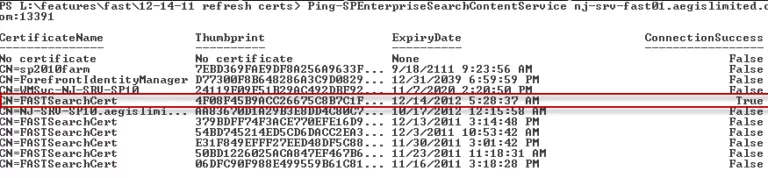
A very useful PowerShell command shows the connectivity and certificate status:

Ping-SPEnterpriseSearchContentService srv-fast01.[ReplaceWithYourDomain].com:13391

The below will show a list of the certificates. The timestamp below doesn’t lie; this is what I was doing at 5:30am this morning. When the problem existed, the highlighted entry showed an ExpiryDate of the day before and ConnectionSuccess of False. Note the port is 391 above your default port, which is 13000 unless you changed it on installation.

img

Here’s how to create a refreshed cert that will again celebrate its own birthday via expiration, On the FAST Server, open a PowerShell window in the D:YourFASTdirectoryInstallerScripts :

.ReplaceDefaultCertificate.ps1 -generateNewCertificate $true

Microsoft helpfully provides a PowerShell script to load the certificate into the SharePoint server. Before we run that let’s configure things so we generate a certificate that’s good for longer than a single year. To do that, let’s edit the script in C:FASTSearchinstallerscriptsinclude called certificatesetup.ps1 and right after the line around line number 246 which says:

Add-Content -Path $infFile -Value "SuppressDefaults=true"
Add the following lines underneath it:
 
Add-Content -Path $infFile -Value "ValidityPeriod=Years" 
Add-Content -Path $infFile -Value "ValidityPeriodUnits=20"  #now we ar

You’ll want to be sure to get the SSA Name correct as well as the service account; this is the account under which the Application Pool is running that hosts FAST Search connector Service Application that is running in IIS. Note you’ll need to copy both the SecureFASTSearchConnector.ps1 script and the certificate itself (find the file by going to Certificates(Local Computer)Trusted Root Certification Authorities in MMC). You will also need to halt the FAST Search Service and FAST Search Monitoring in Servicesc.msc before being able to generate a new certificate. When exporting the certificate, make sure to export the private key, for which you will be prompted for the password. You’ll want in in PFX format, not in DER or CER format. If you try to use MMC, you may find you won’t be able to get the cert exported with the private key. The good news is that the FAST script already automatically exports the script in the right format, in this location: D:FASTSearchdatadata_securitycert

For the FAST SSA, use the Content SSA, and not the query SSA. You can determine the service account easily, by checking the Service Application in Central Admin and clicking “Properties”

.SecureFASTSearchConnector.ps1 –certPath “path of the certificatecertificatename.pfx” –ssaName “name of your content SSA” –username “domainusername”
If you do need to change the port for your Content Distributor, here are the PowerShell commands. Remember to replace the server/domain/port with your own:

$SearchSSA= Get-SPEnterpriseSearchServiceApplication -identity ‘FAST Search Connector’
$SearchSSA.extendedConnectorProperties[“ContentDistributor”]=”srv-fast01.YourDomain.com:13391″
$SearchSSA.update()

Removing metadata from Folders

A dear friend of mine inadvertently tagged his SharePoint Document Library folders while using a combination of Default Metadata and Explorer mode.  Could SharePoint Manager solve this? Nope, much of SharePoint Manager (a quite nice utility) is read-only.  PowerShell to the rescue!

$web = get-spweb "<a_href="ht tp://yourweburl/">ht tp://YourWebURL"
$list1 = $web.Lists["YourLibraryTitle"]
$list1.Folders | ForEach-Object `
{ $_.properties["YourFieldName"]=""
  $_.update()
}
$list1.update()
$web.update()

To understand the code, one needs to recognize that Folders are stored separate from files; usually an annoyance, but in this case where we are only interested in Folders, it works great. Note the three separate update() methods. All three are indeed required.

Of course this can be extended into a function, and it could process all libraries, in all webs, etc…

RBS (Remote Blob Storage) part 3

A configured and running Remote Blob Storage (RBS) is a ticking time bomb until you’ve configured the Maintainer to run. That’s because RBS is designed to leave a trail of unused objects in its wake. RBS counts on a periodic process to run to eliminate all these unused objects. If you save a file in SharePoint a dozen times, even with versioning disabled, each save will leave a blob object behind, largely for performance reasons.

Setting up Maintainer to run is not easy; which is compounded by skimpy and inconsistent documentation.

Microsoft’s documentation indicates that Encryption is not required if a Trusted connection is used. However I have found Encryption was required, with Maintainer complaining if the connection string was unencrypted.

Overview

To configure the Maintainer, the following steps must be carefully done:
1. Decrypt Connection string, if needed
2. Define each connection string in the config file; all connections are defined in this one file
3. Encrypt the connection strings within the config file
4. Run the Maintainer for each connection, referencing each connection by name

Let’s go through these step by step. First establish the locations of some key components. I like to put shortcuts to each on the desktop that open in a CMD window. If you do this, you’ll thank me that you did. For me it was:

Maintainer location:
C:Program FilesMicrosoft SQL Remote Blob Storage 10.50Maintainer

.NET framework location:
C:WindowsMicrosoft.NETFrameworkv2.0.50727

This is the utility to encrypt and decrypt connection strings. It only works against files named “web.config”, so we will need to do a fair amount of file renaming along the way.
aspnet_regiis.exe

Command to encrypt a connection string, from Maintainer directory and rename it back:

C:WindowsMicrosoft.NETFrameworkv2.0.50727aspnet_regiis.exe -pef connectionStrings . -prov DataProtectionConfigurationProvider
 RENAME web.config Microsoft.Data.SqlRemoteBlobs.Maintainer.exe.config

Alternatively, you can run the command to encrypt the connection string from the .NET directory:

aspnet_regiis.exe -pef connectionStrings . -prov DataProtectionConfigurationProvider
 RENAME "C:Program FilesMicrosoft SQL Remote Blob Storage 10.50Maintainerweb.config" "C:Program FilesMicrosoft SQL Remote Blob Storage 10.50MaintainerMicrosoft.Data.SqlRemoteBlobs.Maintainer.exe.config"

To decrypt from the Maintainer directory:

C:WindowsMicrosoft.NETFrameworkv2.0.50727aspnet_regiis.exe -pdf connectionStrings .

This is the command to start maintainer, referencing the PATH variable:

%programfiles%\Microsoft SQL Remote Blob Storage 10.50\Maintainer\Microsoft.Data.SqlRemoteBlobs.Maintainer.exe -ConnectionStringName RBSMaintainerConnection -Operation GarbageCollection ConsistencyCheck ConsistencyCheckForStores -GarbageCollectionPhases rdo -ConsistencyCheckMode r -TimeLimit 120
Microsoft.Data.SqlRemoteBlobs.Maintainer.exe -ConnectionStringName RBSMaintainerConnection -Operation GarbageCollection ConsistencyCheck ConsistencyCheckForStores -GarbageCollectionPhases rdo -ConsistencyCheckMode r -TimeLimit 120

You will want to decrypt and re-encrypt multiple times to make sure the Go to .NET directory. Some suggestions:

  1. run from .NET directory
  2. rename the maintainer config file first to web.config
    REN Microsoft.Data.SqlRemoteBlobs.Maintainer.exe.config web.config
  3. If the web.config file has an empty connectionstring, then the filename/directory was incorrect
  4. Review and tweak the connection string
  5. after encryption, rename back:
    REN web.config Microsoft.Data.SqlRemoteBlobs.Maintainer.exe.config

Decrypt to examine (the “d” in -pdf is “Decrypt”): aspnet_regiis.exe -pdf connectionStrings “%programfiles%Microsoft SQL Remote Blob Storage 10.50Maintainer”

Encryption of connection string within Maintainer config file; run from .NET directory (the “e” in -pef is “Encrypt”):

aspnet_regiis -pef connectionStrings "%programfiles%Microsoft SQL Remote Blob Storage 10.50Maintainer" -prov DataProtectionConfigurationProvider

This is the command to start the Maintainer:

Microsoft.Data.SqlRemoteBlobs.Maintainer.exe -ConnectionStringName RBSMaintainerConnection -Operation GarbageCollection ConsistencyCheck  ConsistencyCheckForStores -GarbageCollectionPhases rdo -ConsistencyCheckMode r -TimeLimit 120

Note that the cofiguration file used by the Maintainer is called ” Microsoft.Data.SqlRemoteBlobs.Maintainer.exe.config”.

Here it is with the connection string unencrypted. A few things to note:

  1. “Application Name=”… must use the &quot and the name in those quotes. This is essential. Changing &quot to an actual quote causes the request to fail.

The connection string must be encrypted for it to work, here it is below encrypted. Note the EncryptedData and CipherData tags:

      AQAAANCMnd8BFdERjHoAwE/Cl+sBAAAAvyx0EESER0Kn9Ui9t9ZzcgQAAAACAAAAAAADZgAAwAAAABAAAAA1gYCb5s1usLg/P7uwA7TmAAAAAASAAACgAAAAEAAAACVQO6o7eVm/lmikyJUtSeRIAgAAX5uFsFeWOEZQycBwOhxJmFN11JFnTdM+PycItclQJYk90gQZhZ2B7E6bf6h3MovJB/jnWM4cEKbOG3w+9pPPEbAuk9c7Y+zQj4atoHdnlNX1D0kKge39A1LQK+C+JQ575bx4TWVI/Zl5Edc5hbLWt+IifMytGHrZ4MHHENQOR3S001yMtBlaISuPQVa1DUDpzoBS3rpTDej2UAmHmBIjtHF1vXfmBz6R+p2xdQlpBajPRLOfQ28gXoT25HrpEyKTZtWyeFyWcYslqm7msowJ6FOP7iwatY9/H9LkvWj0pAegHUQrmaCJnl9M+xGGiOigNeBe1o20tQFxYrW4RIJ/MSOrTZthbccAaRMmgoR8PjMBNOAzE3eDMihGCpeEFtIxSDYZnT7OCuAkSCmqCWqLpDAJyqCmUJbCRrttU2xo7VnfCCGACzI4jfOHWVIFKYaIIfPFD6KVeDSdBDt9J4xeR/sE5HV6Jcugcm8yAcW1CIq6/w5QwfjSN20pjzOHXo9SFukhMJPJIWTf0GnGuwEdO2ci4a6mL0Y8me6BhZxpc3228Hegp+C7/3p3kyrm0H93GwNTB2XkdUajg8K62buGve/OLwIbgLH3pG1jkyhkgm1l5W/CC8lA/6QsdNiLTWHB4fq1AsbxpEIGgOy9sDvJmL3dvcaOeMpMv5g9mVetbYvE0D+WsZVH+ILBeZ0HwsZ4kty3E+5yVTG3TlkQ48j07e8QjE3o4xYv/j5bSB7T+2Udlsi1rlNy93C1iggCfDrGCfpnhhMn5ZsUAAAACeMf9OAnNDQzMKpZ4HseVXcUBpg=
            

Specific steps

The connection string in the Maintainer are specified in the maintainer.exe.config file. This file has to co-exist with the executable. The connection string are either all encrypted or none. The default connection string that the RBS specifies is always encrypted and its a good practice to encrypt the connection strings .

At first glance, the documentation is not clear on where Maintainer should be run. My findings indicate it should be configured on a single WFE (Web Front End) SharePoint server.

Documentation does not indicate it, but I found a special name=tag needed to be added for each connection string, and it needs to be referenced when running the command. On the command line, for each database that the Maintainer needs to be run for, the ConnectionStringName parameter needs to be set to a corresponding Name= in the XML. This matching reference is what connects the command line Maintainer call to the specific connection to a database. depending on how RBS was installed, the default config file could have this tag, or it could be missing, so take care to check.

Logging to the screen is not too helpful, as log data scrolls out of buffer. Enabling logging is recommended in the XML file.

In order to encrypt and decrypt, the source (starting) file needs to be web.config, so the file needs to be repeatedly renamed between web.config and Microsoft.Data.SqlRemoteBlobs.Maintainer.exe.config

For each content Database that is RBS enabled, a content database connection string needs to be added to the Microsoft.Data.SqlRemoteBlobs.Maintainer.exe.config file. It needs to be named using the Add Name=, and then referenced at runtime using the ConnectionStringName parameter. So, for additional databases, simply add additional connection string to the web.config file for each content database that is rbs enabled.


Encrypt the web.config file again by using following command

cd /d %windir%Microsoft.NETFramework64v2.0.50727

aspnet_regiis -pef connectionStrings “%programfiles%Microsoft SQL Remote Blob Storage 10.50Maintainer ” -prov DataProtectionConfigurationProvider

Rename the file back to original

cd /d %programfiles%Microsoft SQL Remote Blob Storage 10.50Maintainer

ren web.config Microsoft.Data.SqlRemoteBlobs.Maintainer.exe.config

Note: the XML file is case sensitive, you need to use the exact string for ‘connectionStrings’ parameter above.

For the first time, run the Maintainer manually. Thereafter, you’ll want to schedule it to run:

  1. Create a Maintenance Task using following steps (for each database)
  2. Click Start, point to Administrative Tools, and click Task Scheduler.
  3. Right-click Task Scheduler (Local) and click Create Task.
  4. Click the Actions tab and click New.
  5. On the New Action page, specify:
i. Action as Start a Program.
ii. For the Program/script, click Browse and navigate to the RBS Maintainer application; by default, the location is %programfiles%Microsoft SQL Remote Blob Storage 10.50Maintainer Microsoft.Data.SqlRemoteBlobs.Maintainer.exe.
iii. In the Add Arguments (optional) field, enter the following parameter string: (change the name of the connection string as specified in the config file earlier)
-ConnectionStringName RBSMaintainerConnection -Operation GarbageCollection ConsistencyCheck ConsistencyCheckForStores -GarbageCollectionPhases rdo -ConsistencyCheckMode r -TimeLimit 120.
iv. Click OK

Note: XML file is case sensitive, you need to use the exact string for the connection string above.

5. On the Triggers tab, click New.

6. In the New task dialog box, set:

iii. Click OK.earlier

i. Begin the task to On a schedule.
ii. The trigger schedule to be Weekly, Sunday, at 2am (or at another time when system usage is low.)
iv. Click OK
  1. On the General tab, enter a name for the task, such as “ RBS Maintainer”, where identifies the database associated with the task. In the Security settings section:
  2. Make sure that the account under which the task is to be run has sufficient permissions to the database.
  3. Select the option to Run whether user is logged on or not.
  4. Click OK.

Tuning the internal Maintainer parameters

There are several internal parameters that should be set that control the frequency that the Maintainer can be run, as well as how long deleted entries should be maintained before being truly removed. This later option is meant to save DBAs from trouble if they restore an older Content DB without restoring the FILESTREAM. If deletes are very “lazy” (ie, delayed by days) rolling back to a previous DB without a FILESTREAM restore could work. I set the parameters more aggressively, knowing I won’t fall prey to this issue. Here’s the SQL to apply the changes. Note it’s better to use the Stored Procedures than setting the values directly:

USE [Content_database_yourname]
GO
SET ANSI_NULLS ON
GO
SET QUOTED_IDENTIFIER ON
GO
exec mssqlrbs.rbs_sp_set_config_value delete_scan_period, 'days 1'
exec mssqlrbs.rbs_sp_set_config_value orphan_scan_period, 'days 1'
exec mssqlrbs.rbs_sp_set_config_value garbage_collection_time_window, 'days 1'
GO

if you want to get aggressive on storage recovery use a smaller timeframe:

exec mssqlrbs.rbs_sp_set_config_value delete_scan_period, 'time 00:00:10'
exec mssqlrbs.rbs_sp_set_config_value orphan_scan_period, 'time 00:00:10'
exec mssqlrbs.rbs_sp_set_config_value garbage_collection_time_window, 'time 00:00:

Tips

  • Back up all configuration files first
  • Use Visual Studio to edit the XML files
  • XML is largely case sensitive, so take care
  • -pdf is for Decrypion, -pef is for encryption

RBS (Remote Blob Storage) part 2

To get RBS going we are going to configure SQL Server, install the RBS libraries on the SharePoint servers, and configure it.


Configure SQL Server

First enable FILESTREAM on the SQL Server instance by:

  1. Right-clicking SQL Server Properties, enable “FILESTREAM for Transact-SQL access”
  2. Enable “FILESTREAM for file I/O streaming access”
  3. Enable “Allow remote clients to have streaming access to FILESTREAM data”
  4. Run the following SQL
EXEC sp_configure filestream_access_level, 2
RECONFIGURE

Next, we’ll provivision a BLOB Store. You want a dedicated drive (not used by SQL Server binaries, temp, or the actual databases), and preferably cheaper storage. The BLOB Store needs to be configured for each database; otherwise the RBS configuration on the SharePoint fails (with a very unhelpful error).

use [WSS_Content]

–name of Content DB for which you are adding BLOB Store; you’ll undoubtedly have a number of DBs if you are doing RBS, so name them with a standard

if not exists
(select * from sys.symmetric_keys
where name = N'##MS_DatabaseMasterKey##')
create master key encryption by password = N'Admin Key Password !2#4'

— replace with your master password

use [WSS_Content]
if not exists
(select groupname from sysfilegroups
where groupname=N'RBSFilestreamProvider')

— SharePoint RBS has an undocumented bug/limitation in that there can only one File Stream Provider, so use the same on e!

alter database [WSS_Content]
add filegroup RBSFilestreamProvider contains filestream
use [WSS_Content]
alter database [WSS_Content]

— set the location to your new cheaper storage dedicated Blob Storage location. You can create separate drives per DB

add file (name = RBSFilestreamFile, filename = 'c:Blobstore') 
to filegroup RBSFilestreamProvider

Point to be aware of:

Windows Firewall on the database server could generate an error. This is solved by disabling the firewall, or unblock remote debugging.

 Install RBS on SharePoint servers

Before we get started, do yourself a favor, and snapshot or backup a server image, as well as the Content DBs. Installing RBS actually changes the Content DBs by adding a number of Tables and Stored Procedures. Make sure you use the x64 RBS drivers, and do not run the wizard to install by double-clicking the .MSI file. Microsoft reports that the wizard configures it suboptimally and is then unchangeable. Lastly, anything you ever install on SharePoint servers should be saved for reference, server reinstallation, DR, recovery, or even simply for adding another server to the farm. This includes any web part, feature, WSP, executable, but I digress…

This is for the first install for the first database:

msiexec /qn /lvx* rbs_install_log.txt /i RBS.msi TRUSTSERVERCERTIFICATE=true FILEGROUP=PRIMARY DBNAME="Content_Intranet_IT" DBINSTANCE="SQL Server Instance Name" FILES
AMFILEGROUP=RBSFilestreamProvider FILESTREAMSTORENAME=[TheNameOfTheFileStream]

This is for subsequent databases:
The key here is the name of the File Stream Store cannot change between databases. This is the RBS limitation mentioned earlier. For each DB, it creates a set of Tables and Stored Procedures.

msiexec /qn /i rbs.msi REMOTEBLOBENABLE=1 FILESTREAMPROVIDERENABLE=1 DBNAME="your content db name" FILESTREAMSTORENAME=[TheNameOfTheFileStream] ADDLOCAL=EnableRBS,FilestreamRunScript DBINSTANCE="SQL Server Instance Name"

he next challenge is determining if the installation worked. The command returns the command prompt instantly; even though it is running in the background. It runs for a minute or so typically. The logs are actually quite unclear. Microsoft says to scroll to the end of the file and on the last 20 lines find “Product: SQL Remote Blob Storage – Installation completed successfully“. Another way to tell is to look at the size of the logfile. A failed install has a logfile has around 500kb and does not have the above text near the end of the file, while a successful install has a logfile of 1.4MB if the database was RBS enabled as part of the RBS install. One last thing to check is that the RBS tables were created in the database. To do that, fire up SQL Studio, open the content database, and look at the end of the list of tables. If RBS is configured for the database, you’ll see roughly 20 tables starting with “rbs_”. These tables track references to the Blob Store, as well as configuration and housekeeping such as the history and deleted items for managing the lazy delete cleanup process we’ll be discussing later on configuring and running the “Maintainer”.

Configuring the Blob Store in SharePoint

At this point we might think we are done, but there’s more to do; nothing is being stored yet in the FILESTREAM Blob Store.  SharePoint will continue to blindly store all files in the database.  Here are the simple steps to take in PowerShell (ensure the SharePoint snap-in is loaded):

# Provide your content DB name using the name of the Content DB, or if there’s only one Content DB for a web app, you can get it by identifying the web app

$cdb=Get-SPContentDatabase -identity Content_DB_Use_Your_Name  
$cdb = Get-SPContentDatabase –WebApplication <a_href="htt mysite"="">htt p://MySite

# This grabs the Blog Storage Object. if you type “$rbs” it will show the status, which initially is not enabled

$rbs = $cdb.RemoteBlobStorageSettings
$rbs.GetProviderNames()
$rbs.Installed()  #this confirms it is installed correctly
$rbs.Enable()   # This is the key; it enables the Blob store
$rbs.SetActiveProviderName($rbs.GetProviderNames()[0])

# Setting the active provider is required; there’s only one, at index 0

$rbs.MinimumBlobStorageSize =500kb

# this is the minimum size of a file to be sent to the Blob Store; anything smaller is kept in the Content DB.

$rbs.Migrate()

# this forces content into Blob Store from the Content DB, or moves content out of the Blob Store and back to the Content DB; based on the minimumBlobStorageSize

$rbs.update()
$cdb.update()

# both updates are absolutely required for the minimumBlobStorageSize size to “stick”. Existing documentation neglects this point.
Setting the MinimumBlobStorageSize is key. Setting it aggressively low results in a smaller Content DB, but relies more heavily on the speed of the Blob Store. A range of 100kb to 1mb is reasonable. You can experiment using different values, doing an $rbs.migrate() and testing. Note the Blob Store can grow rapidly due to the design, where overwritten files in SharePoint are never overwritten in the Blob Store; instead new files are created. A subsequent cleanup process needs to be configured and run called the “Maintainer”, but that’s tomorrow’s blog.
Check out RBS Part 3
[/av_textblock]

Newsletters