SharePoint Document IDs

SharePoint Document IDs

The SharePoint Document ID Service is a new feature of SharePoint 2010 that offers a number of useful capabilities but carries some limitations.  Let’s dig a bit deeper and see what it does and how it works.

One challenge for SharePoint users is that links tend to easily break. Rename a file or folder, or move the document, and a previously saved or shared link will not work.

By tagging a document with an ID, SharePoint can start referencing documents using this ID, even when the underlying structure beneath it has changed.

SharePoint can accept a link with this ID, by referencing a dedicated page on each site that takes care of finding the the document.

This page is named DocIDRedir.aspx.  Here’s what a URL might look like:

“http: //%3csitecollection%3e/%3cweb%3e/_layouts/DocIdRedir.aspx?ID=XXXX”

There’s also a Document ID web part that’s available for users to enter a Document ID.

This is used most prominently when creating a Records Center site, which is based on an out-of-box website template.

The Document ID Service is enabled at the Site Collection level and assigns Document IDs that are unique only within the site collection.

There is a prefix available for configuration that is most useful when assigned uniquely for each Site Collection to ensure uniqueness across your web application and even farm.

If you have more than one farm, it makes sense to provide an embedded prefix to indicate the farm, to ensure uniqueness globally.

One significant aspect of SharePoint’s architecture is its extensibility through custom development.

Organizations often leverage the expertise of a SharePoint development company like Reality Tech to tailor SharePoint to their specific needs.

These SharePoint development services can include custom workflows, integrations with other systems, and user interface enhancements, all of which can benefit from the stability and reliability provided by SharePoint Document IDs.

Setting Document ID

Once the Document ID Service is enabled, every new or edited document instantly gets a Document ID assigned.

However, historical documents do not get an immediate Document ID assignment.  The assignment of Document IDs to documents that were uploaded prior to this service being enabled are assigned by a Timer Job called the “Document ID assignment job” that exists at the Web Application level.

By default, this job runs nightly.  This is one of two jobs associated with the Document ID Service, the other being the “Document ID enable/disable job “

When the Document ID Service is enabled for a Site Collection, Event Receivers are automatically installed in each Document Library.

Actually, there is a set of Event Receivers installed for each and every Content Type configured within that document library.

The Event Receiver is called “Document ID Generator” and is configured to be fired synchronously. How to add location link in pdf, there is a separate Event Receiver for the following events:

  • ItemAdded
  • ItemUpdated
  • ItemCheckedIn
  • ItemUncheckedOut

Once a Document ID is assigned, it is changeable through the Object Model, although do so at your own risk.

Before the Document  ID Service is enabled, the Document ID field does not exist to be assigned. If you are migrating from a legacy system that has existing Document IDs, you can first migrate the documents, then the Document ID service is enabled.

This adds the internal Document ID field.  Then before the daily Document ID Assignment job runs (better yet, disable it during this process), we can programmatically take the legacy Document IDs and assign their values to the SharePoint Online IDs.

With the Document ID field populated, the Document ID Service will not overwrite the already set Document IDs.

Note that part of the Document ID Service is to redirect URLs referencing the Document ID.

It turns out, if you manually assign duplicate Document IDs (something that in theory should never occur), the daily Document ID Assignment Job detects this situation, and the DocIDRedir.aspx redirects to a site-based search page that passes in the Document ID.

Under the covers there are three internal components to a Document ID:

  • _dlc_DocIdUrl: fully qualified URL for document referencing the DocIDRedir.aspx along with the lookup parameter
  • _dlc_DocId: The Document ID.  This is the internal property you can directly address and assign as $item[“_dlc_DocId”]
  • _dlc_DocIdItemGuid: DocID related GUID

That completes our tour of the Document ID Service.  I look forward to hearing of others’ experiences with it.

Item Level Permissions

Item Level Permissions

SharePoint has a robust object model supporting security at each level of the farm.  Let’s take a quick tour of some relevant methods and properties around item level reporting.

All securable objects have a method named GetUserEffectivePermissionInfo, which is defined in the base class SPSecurableObject.

This method returns back an SPPermissionInfo object which we can use to inspect the role definition bindings and corresponding permission levels.

SPSecurableObject is imple,eented at the SPWeb, SPList, and SPLIstItem class level, hence how we assign permissions if needed at the site level.

We can loop through the SPRoleAssignments objects via the RoleAssignments property. This will give us information about how the user is given access to the resource. This returns the Member (the account or group), the RoleDefinitionBindings (permission level). This is an excellent place to start if you are looping through each item.

Next can look at the RoleDefinitionBindings property which returns back a collection of SPRoleDefinition objects that tell us about the type of access granted.

 Other important properties for reporting security include:

  • HasUniqueRoleAssignments, or the method returing the same thing: get_HasUniqueRoleAssignments()
  • RoleDefinitionBindings: collection of SPRole Definition objects returned.
  • IsSiteAdmin : a property of the user, indicates if a user is a Site Collection Admin ,which includes explicit permissions to everything
  • SPListItem.FirstUniqueAncestorSecurableObject: Retrieves the first unique ancestor if it has unique role assignments otherwise returns the first parent object (folder, list, or Web site) that has unique role assignments.
  • SPItem.AllRolesForCurrentUser

For a more general view of Security permissions in SharePoint, please see this TechNet article.

Consolidation of Application Pools

Automated Consolidation of Application Pools

SharePoint leverages IIS, and runs within Application Pools.  One should recognize up front that there are two distinct categories of Application Pools used in SharePoint; Web Application pools and Service Application Pools.

Overview

Application Pools consume an estimated 80-100MB RAM each, and possibly a lot more, depending on usage.  These appear as w3wp.exe processes in Task Manager.  When you have a number of w3wp processes running, it can be hard to tell them apart; which is for a given web or service application?  Here’s a way to get the PID (Process ID) for each worker process, along with the user-friendly name, so you can correlate each w3wp process:


c: 
cd C:WindowsSystem32inetsrv appcmd.exe list wp
[/sourcecode ]
A nice listing of Web Application Pools is generated by this single command.  It ensures the fields are not truncated, and is extensible to allow display of any properties/columns you wish:
[sourcecode language="powershell"]
get-SPWebApplication | select displayname, url, applicationpool | format-table -autosize | out-string -width 2000
[/sourcecode ]
Note the CmdLet "get-SPWebApplication".  For Service Application Pools, the CmdLet is "Get-SPServiceApplicationPool", as in:
[sourcecode language="powershell"]
Get-SPServiceApplicationPool | select Id, Name, DisplayName, processaccountname
[/sourcecode ]

Within IIS, the Service Application Pools are identified by GUID. Their mapping can be explored individually by examining the application pool binding, but this is a bit laborious.

Removing a Service Application Pool

To remove a Service Application Pool by name, you can use: [sourcecode language=”powershell”] Remove-SPServiceApplicationPool -Identity “Your Orphaned SharePoint Service Application Pool Name”

[/sourcecode ]
My own preference is to first consolidate the application pools, then in IIS quiesce the desired application pools, and only once things are truly running smoothly, they can be removed. It is important to do the removing and adding in PowerShell and not directly in IIS. This will ensure that the correct IIS configuration gets propagated to all current and future WFEs (Web Front Ends).

Consolidating Web Application Pools programmatically

Consolidating Web Application Polls is quite easy. If you do not have security driven segregation of Application Pools, you can consider doing so. Note I have received conflicting advice on doing this. Todd Klindt who I hold in the highest regard recommends considering consolidation. Microsoft does advise quite a low maximum number of Application Pools, yet their support staff have advised segregation.

First let’s grab an existing Application Pool, and simply reassign it to the target Web Application Pool:

[sourcecode language="powershell"]
$sourceWebAppPool = (Get-SPWebApplication < URL of a webapp whose application pool you want to use>).ApplicationPool
$webApp = Get-SPWebApplication < URL of the web application you want to change>
$webApp.ApplicationPool = $sourceWebAppPool
$webApp.ProvisionGlobally()
$webApp.Update()

iisreset

Lather, rinse, and repeat for each of your Web Apps to be consolidated…

Note that there is no SharePoint CmdLet for creating an Application Pool.  You can use the IIS CmdLet, but I am not convinced this is a safe method, as right away I can see the service account is an IIS Service Identity reference, and the application pools have a different type and cannot be assigned to a web application directly.   here’s the CmdLet for reference:

Import-Module WebAdministration
$appPool = New-WebAppPool “My new App Pool”
[/sourcecode ]
If you need to segregate previously consolidated web application application pools, the following round-about procedure is safe and works:

  1. Create a brand new temporary Web Application and associated pool
  2. Reassign your target web app’s pool, as described above
  3. Destroy the temporary Web Application

The sequence is key.  If you destroy the temporary web application, the associated pool is destroyed with it, because there are no other associated applications.  In contrast, once you assign a second web application to this new application pool, the application pool will not be destroyed when the temporary web application is removed.

Consolidating Service Application Pools programmatically

On some farms I’ve inherited, there is a profusion of unnecessary Service Application Pools.  Note there are reasons to isolate distinct service application pools, generally around security and multi-tenancy.

I wanted to consolidate my Service application pools but in a safe and programmatic manner.  While you can change the account associated with a service application, there is the risk that the new service account won’t quite have the necessary access.  When SharePoint does automatically grant access to the new service account, it won’t remove access from the original service account.  Lastly, one needs to make sure the new service account is configured as a managed account.  Lastly, SharePoint doesn’t support managed service accounts for all service applications.  Exceptions do include the User Profile Service ADSync account, unattended user accounts (Excel, Visio, PerformancePoint), search crawl accounts (Foundation, Enterprise, and FAST), and the two Object Cache Portal Accounts (which are configured for each Web Application for performance reasons).

Not every Service Application runs under an Application Pool; some run under the Farm’s pool, and hence can’t be directly reassigned. Farm-wide service applications have one and only one instance in the farm.  So the Security Token Service Application, Web Usage Application (WS_UsageApplication), State Service and Application Registry Service Application don’t run under their own Application Pools, and their CmdLets are simpler.  So while one can create multiple Session State Service Applications and corresponding databases, there’s only one State Service Application.  The script below lists them by name in an array and makes sure not to even try to remap these.  For good measure I include the FAST Content Service Application in this category.  Note yours may be named differently.

Next, I wanted to start with a clean Service Application Pool named clearly denoting the desired service account.


$MyRefAppPool=new-spserviceapplicationpool -name “SPService Service Application Pool” -account “YourDomainspservice”
$SPaps = get-spserviceapplication
for ($i=0;$i -lt $SPaps.Count; $i++)
{
$SPap = $SPaps[$i];     
#Some service applications run at the farm level and don’t have selectable application pools, hence is it wiser to filter these out up front.
if (@(“SecurityTokenServiceApplication”,”Application Registry Service “,”FASTContent”,”State Service”,”WSS_UsageApplication”,””) -notcontains $SPAP.DisplayName)
{
try
{
$testAppPool=$SPAp.get_applicationpool();
#Don’t mix & match the application pools and accounts, best is to consolidate along the lines of existing process accounts, to avoid permissions issues
if ($testAppPool.ProcessAccountname -eq $MyRefAppPool.processaccountname)
{
write-host “Processing  $($SPAp.name) because it has the target process account: $($MyRefAppPool.processaccountname)$SPAp.set_applicationpool($MyRefAppPool)
$SPAp.update()  #update() is actually required.  You will notice a processing delay during the update
}
else
{
write-host “Skipping $($SPAp.name) because it has a different process account: $($SPAp.get_applicationpool().ProcessAccountname)}
}
catch
{
$testAppPool=$null;
write-host “Skipping $($SPAp.name) because it had an error”
}
}
}
[/sourcecode ]

An IISReset at this point is advisable. Lastly, you can go into IIS after running this, view Application pools, and “Stop” the GUID named Application Pools with zero associated Applications. Another IISReset is advisable to ensure you are recovering your RAM.

For a more general overview of Application Pool configuration, please see TechNet.

Gradual Site Collection Deletion

Gradual Site Collection Deletion

I had a mission to achieve overnight; move 28 site collections into a new managed path, as well as rename the 28 associated content databases.   Pretty straightforward to do, and to script in advance to run in stages:

  1. Backup site collections
  2. Delete site collections
  3. Dismount content databases
  4. Rename content databases and shuffle around underlying storage including FILESTREAM RBS location
  5. Create the new managed path; reset of IIS
  6. Remount 28 content DBs
  7. Delete the old managed path
  8. Restore the 27 content databases (this is where tinkling glass is heard, followed by painful silence)

After enough jolt cola to get that turtle to beat the hare fair and square, I got to the bottom of the problem.  First the problem.  The site collections could not be restored into their original database, as the site collection purportedly already existed there.  Even though it was deleted.

By midnight I gave up, and did the 28 Restore-SPSite into any random content databases, tossing organization and structure to the winds (temporarily), knowing I’ve got gads of available storage, knowing once I got to the bottom of the issue, a simple set of move-spsite commands would set things right.  No, I don’t like randomness, but I also like a few winks of sleep and happy users…

Now the cause.  I’m running SharePoint 2010 SP1, which has the ability to recover deleted site collections (not through the UI, but only through PowerShell).  I used the -gradualdelete option, thinking I would be nice and gentle with a production farm.  Here’s a sample of my delete commands, where I also disable prompting:

 Remove-spsite  href="http ://SharePoint/div/clm/int/A/"  -confirm:$false -gradualdelete

Here’s the kicker.  After the delete, the site collection is indeed still there.   It sticks around actually for the duration of the the Recycle Bin duration (default 30 days).  There’s one good way to see, let’s dive into the forbidden content database, and have a peek:

 SELECT [DeletionTime]
,[Id]
,[SiteId]
,[InDeletion]
,[Restorable]
FROM [Content_mydivision_a].[dbo].[SiteDeletion]
where (Restorable=1)

Restorable=1 indicates this site collection could be restored.

The solution?  Well, it’s not the recycle bin job, that has no effect on this.  There is a gradual delete job at the web application level, but that won’t help us either; at least not just yet.  First you have to use the remove-spsite CmdLet to remove each site permanently.  Here’s the syntax:

remove-spdeletedsite f5f7639d-536f-4f76-8f94-57834d177a99 -confirm:$false

Ah, you don’t know your Site Collection GUIDs by heart? well, me neither, I prefer more useful allocation of brain cells, so here’s the command that will give you the Site Collection GUIDs that have been (partially) deleted:

  get-spdeletedsite -webapplication "http ://SharePoint/"

So, you got your partially deleted GUIDs, you diligently did a remove-spdeletedsite for each, but the Restore-SPSite still will not work.  Now’s the time to run the handy-dandy Gradual Delete timer job for your web application, in Central Admin, Monitoring.  First thing you might notice is the job is taking a bit of time to run.  That’s good, it’s doing something for you, and actually triggering the Content DB Stored Procedure called proc_DeleteSiteCoreAsync.  It actually deletes in batches.

Here’s how to wipe out all these mildly annoying site collections from your recycle bin for a web application:

  get-spdeletedsite -webapplication "http://ma-srv-sp10/" | Remove-SPDeletedSite

At this point your Restore-SPSite will work to your target content database, and if you played SharePoint Roulette like me and restored to a random location, a move-SPSite will make fast work of putting things where they should be.

More information on the Gradual Deletion Timer Job can be found in this Technet Article by Bill Baer

Reporting on “Anonymous” surveys

Reporting on Anonymous surveys

SharePoint enables the creation of anonymous surveys, but how anonymous are they?   If you want a truly anonymous survey, then you will want to create a new web application that allows anonymous access without authentication.  Here’s a TechNet article with some good guidance on doing that.

If you create an anonymous survey in a web application with authentication, the user information is captured, but is hidden to users, and even within the .NET Object model.   SharePoint will gladly create audit logs of access that can expose the survey use.    Note that a site administrator with Full Control can change a survey to non-anonymous and expose the users.

Using PowerShell, we can temporarily expose the users, report on them, then restore the anonymity.  This is useful when needing to chase down non-respondents to a survey, without exposing which survey was completed by whom.  Here’s the PowerShell I wrote to achieve this.  The console output is structure to allow text-to-column conversion or CSV reading in Excel, then easily pivot-table reporting on the results:

 $web=Get-SPWeb href="http ://SharePoint/sites/EXEC
$lists=$web.Lists;
Write-Host "List or Survey,Creator of List or Survey,List Creation Time,List Edit Time,Person completing Survey,Modified Date of list entry"
for ($i=0; $i -lt $lists.count; $i++)
{
$list=$lists[$i]
if (!$list.get_ShowUser())
{
$reversion=$true;
$list.set_ShowUser($true)
$list.update()
}
else
{
$reversion=$false;
}
 
foreach ($item in $list.Items)
{
Write-Host "$($list.title), $($List.get_author()) , $($List.LastItemModifiedDate), $($List.Created), $($item['Author']),$($item['Created'])"
}
if ($reversion)
{
$list.set_ShowUser($false)
$list.Update();
}
 
}

During the running of the script, the survey becomes non-anonymous briefly, so do consider only running this off-hours
[/av_textblock]

Sync DB Grows Indefinitely

Sync DB is a database that is a part of the User Profile Service related to Active Directory synchronization.

Unfortunately it tends to grow in an unconstrained fashion.  SharePoint has no built-in cleanup mechanism.

The table that grows without bounds is “InstanceData.”  The followed Stored Procedure should be first run in waves, so as not to overload the transaction logs or tempDB.

Running on at least a monthly basis is recommended.

The following is a report that shows monthly growth in row count:

SELECT COUNT ([lastUpdated]) as countOfInstancedata, month ([created]) as month, YEAR([created]) as year
FROM [Sync DB].[dbo].[InstanceData]
group by month ([created]), YEAR ([created]) order by YEAR ([created]), month ([created])
Here’s the stored procedure:

USE [Sync DB]
GO
CREATE SCHEMA FIM
GO
SET ANSI_NULLS ON
GO
SET QUOTED_IDENTIFIER ON
GO
CREATE PROCEDURE [fim].[TruncateInstanceData]
AS
BEGIN
SET NOCOUNT ON;
DECLARE @truncationTime datetime;
SET @truncationTime = DATEADD(day, -1, GETUTCDATE());
DELETE FROM [dbo].[InstanceData]
WHERE ([created] < @truncationTime)
END

Alternatively, I’ve been running this loop to gradually delete rows. You can adjust the loop number, delete size (rowcount) and delay to taste:

 EXEC sp_spaceused N'dbo.Instancedata';
 -- Declare local variables
DECLARE @NumberOfLoops AS int;
SET @NumberOfLoops = 500;
DECLARE @CurrentLoop AS int;
SET @CurrentLoop = 0
 
WHILE @CurrentLoop < @NumberOfLoops BEGIN
set rowcount 10000
delete from [Sync DB].[dbo].[InstanceData] 
where [Sync DB].[dbo].[InstanceData].created <CONVERT(DATETIME,'2012-02-01 00:00:00', 102)
 
WAITFOR DELAY '00:00:01:00';
SET @CurrentLoop = @CurrentLoop + 1;END
-- Check space used by table after we are done
EXEC sp_spaceused N'dbo.BigLoggingTable';

A more generic WHERE clause I’ve successfully used is:
WHERE [Sync DB1].[dbo].[InstanceData].created <= DATEADD(day, -60, GETUTCDATE())

Compression In IIS

There’s a relatively obscure setting in IIS that can have a dramatic effect on the performance perceived by SharePoint users.  By enabling IIS to compress the communication to the user, communication to the user can consume less bandwidth.

The trade-off is with CPU usage to compress the messages.

  • Note the setting is quite fine-grained, allowing you to find the optimal balance of bandwidth conversation against the available SharePoint farm WFE (Web Front End) CPU.

If you open a simple CMD window on your SharePoint WFE, run the following commands (all commands below assume this drive and directory):

c: CD WindowsSystem32Inetsrv appcmd list config -section:httpcompression

This will show you the current compression settings.   Note there are two categories of compression: Static and Dynamic.  We will want to set both.  There are more than one compression mechanism.  GZip is recommended.  The compression can be set between 0 (no compression) and 9 (ultimate).  I would suggest the sweet spot is between 4 and 7 (your mileage may vary).  Here’s the command:

Appcmd.exe  set config -section:httpCompression   -[name='gzip'].staticCompressionLevel:9   -[name='gzip'].dynamicCompressionLevel:7

I look at each environment; not just Production, but Dev and UAT environments.  Where are they located?  How many CPUs are available?  If you are running below Microsoft CPU minimums (shame on you!) then perhaps adding to the CPU load isn’t for you.  If you access your environment over a thin pipe to a remote location, then IIS Compression can make a significant difference in performance.

Let’s look a bit closer at Dynamic Compression.  There are two settings that control when compression is enabled and disabled.  The default is that when the CPU utilization is below 50% compression gets enabled.  Above 90% compression gets disabled.  The CPU utilization is sampled by IIS every 30 seconds.  I think 90% CPU utilization is rather high, given all the SharePoint wonderfulness going on in my farm, so I crank these settings down a bit with these two commands:

appCmd set config -section:httpCompression /dynamicCompressionDisableCpuUsage:50 appCmd set config -section:httpCompression /dynamicCompressionEnableCpuUsage:30

There is a setting to control the minimum size of the object before compression is applied.  The default is 256 bytes.  This applies the overhead of compression to some pretty small files.  You can choose to increase it to 512:

appCmd set config -section:httpCompression /MinFileSizeForComp:512

I found a dramatic improvement in perceived SharePoint performance for users connected over a thin pipe to SharePoint.  This includes remote users.  Give it a try, and let me know what you experience!  For more information, please reference Bill Baer’s in-depth TechNet article.

Clarifying the Security Scope limits in SharePoint lists

Historically, Microsoft has defined it along the more conservative definition as “A scope is the security boundary for a securable object and any of its children that do not have a separate security boundary defined.”.  This implies that 10,000 uniquely assigned documents amongst five people (5*4*3*2*1 = 5! = 120) would be 10,000 security permissions, and not some number <=120.

https://technet.microsoft.com/en-us/library/cc262787(v=office.15).aspx

After the number of unique security scopes exceeds the value of the List Query Size Threshold, SharePoint uses a code path that requires additional SQL round trips to analyze the scopes before rendering a view.  So the impact is on viewing the list of documents (and providing the security trimmed view), hence my suggestion in such situations to consider retaining or even reducing the SharePoint default View limit of 30 items per page.

Additional Read

SharePoint for Enterprise Content Management – Why Should Choose?

Use of Dynamic SQL for SSIS Data Sources

To test this out, I did an extract from a Content DB that houses a Document Library I have handy with many custom permissions divided amongst eight users. Probing the underlying data, it has a 18 distinct ACLs among 7K+ “Scopes” each with a unique ScopeURL and ScopeID (the internal Microsoft field names). Even though the ACLs are identical (SharePoint uses an ACL ID that I can pivot on to group the Scopes) each folder and often document has a unique scope, because of the way I had broken inheritance thousands of times, even though the ACL assignment was only one of a couple dozen permutations. Here’s the SQL you can use if you wish to probe:

SELECT [SiteId], [ScopeId], [RoleDefWebId], [WebId], [ScopeUrl], [Acl]
FROM [your Content DB].[dbo].[Perms] order by scopeurl
An even better query exposes the web URL

SELECT [fullurl],perms.[SiteId] , perms.[ScopeId], [RoleDefWebId], [WebId], [ScopeUrl], [Acl]
FROM [dbo].[Perms],[dbo].allwebs
where perms.WebId = allwebs.id
order by scopeurl
As an aside, you can see the number of security principals per scope, using this SQL:

select COUNT(ra.PrincipalId) as [Count],p.ScopeUrl from RoleAssignment ra with(nolock)
join Perms p with(nolock)
on p.SiteId = ra.SiteId and p.ScopeId = ra.ScopeId
group by p.ScopeUrl
order by p.ScopeUrl desc
So that closes the issue. The limit is not the unique combinations of ACLs, but instead the number of times permissions has been broken from a parent in the Document Library. So the guidelines might be:

Use folders whenever possible to encapsulate security
Break up huge Document Libraries along security boundaries
Never go past 50,000 unique permissions per list
You don’t want to go beyond 5,000 unique permissions per list without suffering severe performance impact
Don’t breech 1,000 unique permissions per list, otherwise you will see a performance impact of 20% or more
Never, ever feed a SharePoint Administrator caffeine after midnight…lol
Microsoft writes:
https://technet.microsoft.com/en-us/library/cc262787(v=office.15).aspx
The maximum number of unique security scopes set for a list should not exceed 1,000.
A scope is the security boundary for a securable object and any of its children that do not have a separate security boundary defined. A scope contains an Access Control List (ACL), but unlike NTFS ACLs, a scope can include security principals that are specific to SharePoint Server. The members of an ACL for a scope can include Windows users, user accounts other than Windows users (such as forms-based accounts), Active Directory groups, or SharePoint groups.

SharePoint 2010:
When a greater number of unique security scopes than the value of the List Query Size Threshold (default is 5,000) set to the web application are created for folders or documents in a list, there’s a significant performance degradation in SharePoint operations that badly affects end users operations(rendering content) as well as SharePoint activities like indexing SharePoint Content. After the number of unique security scopes exceeds the value of the List Query Size Threshold, SharePoint uses a code path that requires additional SQL round trips to analyze the scopes before rendering a view.

Start Your PowerShell Migration Project In A Click

Our technology and wide delivery footprint have created billions of dollars in value for clients globally and are widely recognized by industry professionals and analysts.

Scripts To Create Scripts…

Everyone writes PowerShell scripts, but writing scripts to create scripts?

I had an interesting challenge.  I needed to create a full site hierarchy in “the cloud” that mirrored my production environments, to enable offsite consultants to design our navigation.

We’re talking hundreds of sites and libraries.

The challenge was to automate it and not use any internal content.

PowerShell to the rescue!  First let’s in one line write the script to output all the PowerShell statements that will create all the sites we need:

get-spwebapplication "http ://SharePoint/" | get-spsite -limit ALL |  get-spweb  -Limit ALL | ForEach-Object { "new-spweb -url `"$($_.url)`" -name `"$($_.title)`"  -Template `"STS#0`"" } > siteScript.ps1

This statement does the following:

  • Iterates through the entire production web application
  • Pushes all the Site Collections into the Pipeline
  • For each site collection, pushes all the SPWebs (sites) into the Pipeline
  • Generates the New-SPweb command for each site

Note I used the “backtick” (`) so I could force each ‘$’ and each quote as literals. For my purposes the standard team site (STS#0) was sufficient.

All I then did was to run the sitescript.ps1 output in the cloud. Of course the web application, managed paths and site collection scripting was run in advance.

Next I needed to create the hundreds of Document Libraries in the cloud to mirror production.

That script required multiple script lines to be output, and I needed to filter out several kinds of document libraries that didn’t need to be created.  Here’s the script:

$siteCol = Get-SPSite "http ://SharePoint/"
write-host "`$templateName=`"Document Library`""
get-spwebapplication "http ://SharePoint/" | get-spsite -limit ALL |  get-spweb  -Limit ALL | ForEach-Object {
foreach($JPLib in $_.lists)
{
  if ( ($JPlib.BaseType -ne "DocumentLibrary") -or ($JPlib.hidden) ) {}
  elseif ($JPLib.Title -Match "Photo|Image|CustomizedsReports|Templates|Pages|Picture|cache|style|Slide") {}
  elseif ($JPLib.Title -Match "Assets|Collection") {}
  elseif ($JPLib.BaseTemplate -ne "DocumentLibrary")  {}
  elseif ($JPLib.Title -eq "Shared Documents")  {}
  elseif ($JPLib.Title -eq "Documents")  {}
  else
  {
      write-host "`#   $($_.url)   $($JPLib.Title)"
   write-host "`$SPWeb=get-spweb $($_.url)"
   write-host "`$listTemplate = `$SPWeb.ListTemplates[`$TemplateName]"
   write-host "`$JPGuid=`$SPWeb.Lists.Add(`"$($JPLib.title)`",`"$($JPLib.title)`",`$listTemplate)" 
   write-host "`$ls=`$SPWeb.Lists[`$JPGuid]"
   write-host "`$ls.onquicklaunch=`$true"
   write-host "`$ls.update()"
  }
} #foreach list
} #foreach object

It worked like a charm.  Plus the scripts can be run again to recreate the cloud copy.   The “Cloud” to which I refer is CloudShare.  So far, I am very pleased with the service and functionality for the price.

Redirect to Friendly URLs in SharePoint

It’s hard to pull the plug on an old URL host name in favor of a new one. Sure AAM (Alternate Access Methods) allows for the definition of up to five hostnames (one per zone) on the same Web Application, but there are wrinkles to having alternate hostnames floating about.

For just one example, Contextual Search (searching on a list or site) will only work if you your search crawl is on the default zone, and if the user is using the default zone. Otherwise there will be no search results returned.  Sometimes the goal is to retire a hostname, and perhaps we want to have a transition period where users are redirected to the new URL.

You can have URLs redirected to your preferred host very simply using an add-on to IIS from Microsoft called “IIS Redirect 2.0” available from this site, just be sure to install the x64 version.

The preferred form of redirect in this case is a 301.  It is respected by search engines, and allows browsers the possibility to correct bookmarks.   As per RFC2616, search engines should forget the redirecting address and save the address pointed to by the redirection as the preferred address.

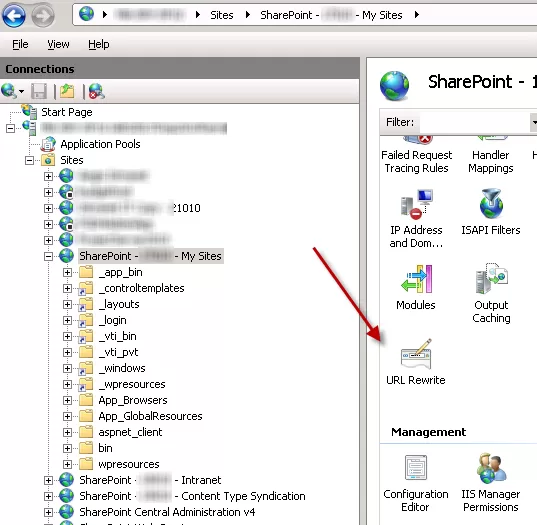
Once you’ve installed “IIS Redirect 2.0”, go into IIS (no reboot required), and find the target site:

img

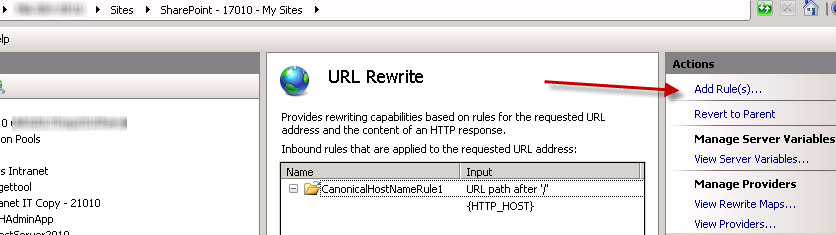
Enter URL Redirect through a double-click or right-click properties, and add a rule:

img

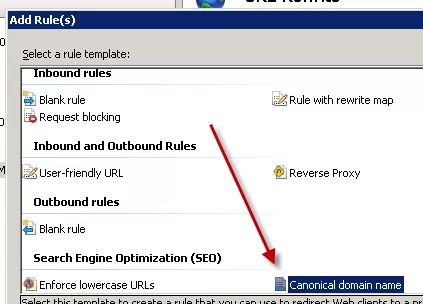
I suggest a Canonical domain name rule:

img

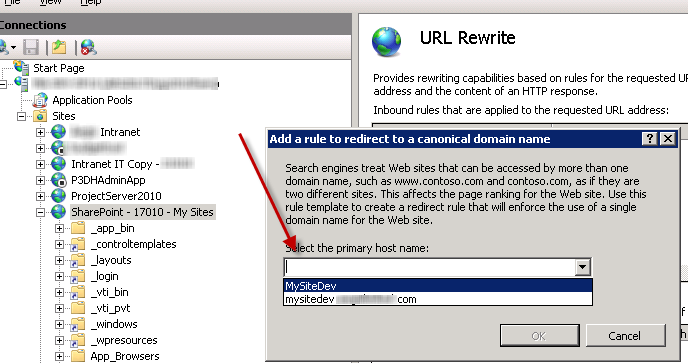
Simply choose the preferred URL to retain; all other ways in get the redirect to this URL:

img

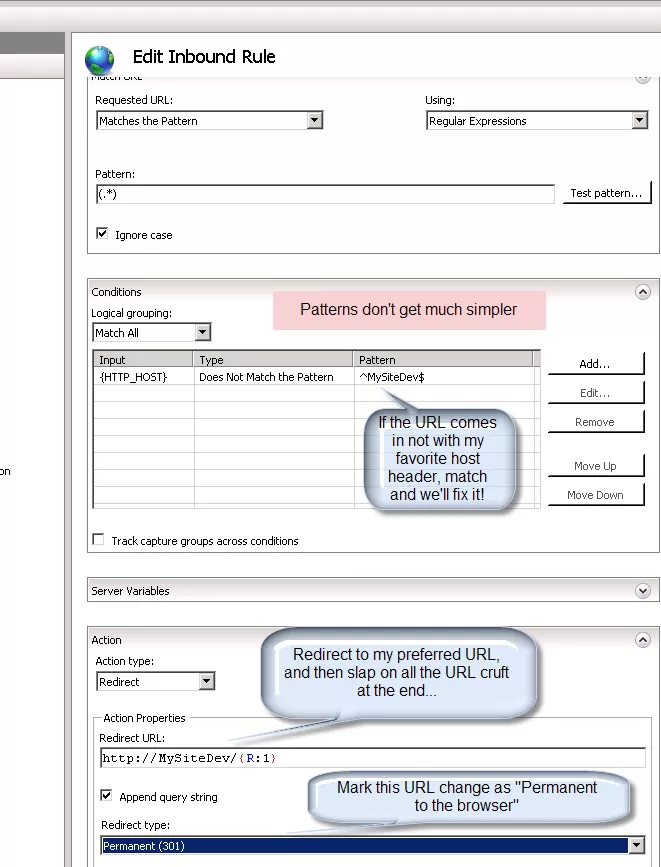
You can view the Rule that’s created. It’s simply a regular expression match on anything that’s different from your preferred URL and a redirect to your preferred URL:

img

An IISReset is always advisable.  Happy Redirecting!

Newsletters