Power BI’s Interactive Dashboard – Development, Features & Benefits!

Introduction:

Power BI is a business intelligence service provided by Microsoft that allows users to connect to various data sources, transform and analyze the data, and create interactive visualizations and reports. The tool is widely used in organizations of all sizes to make data-driven decisions, track performance, and gain insights into business operations.

A dashboard is a key feature of Power BI that provides a visual overview of important metrics and KPIs in a single, interactive interface. The dashboard brings together data from various sources and presents it in a way that is easy to understand and act upon.

Dashboards can be customized to fit different users’ needs and shared across an organization to provide a consistent view of key business metrics. With Power BI, users can create dynamic and interactive dashboards that can be accessed from anywhere, on any device.

Keep reading to learn more about the Power BI dashboard, how to create a personalized dashboard, and its benefits!

What is a Power BI Dashboard?

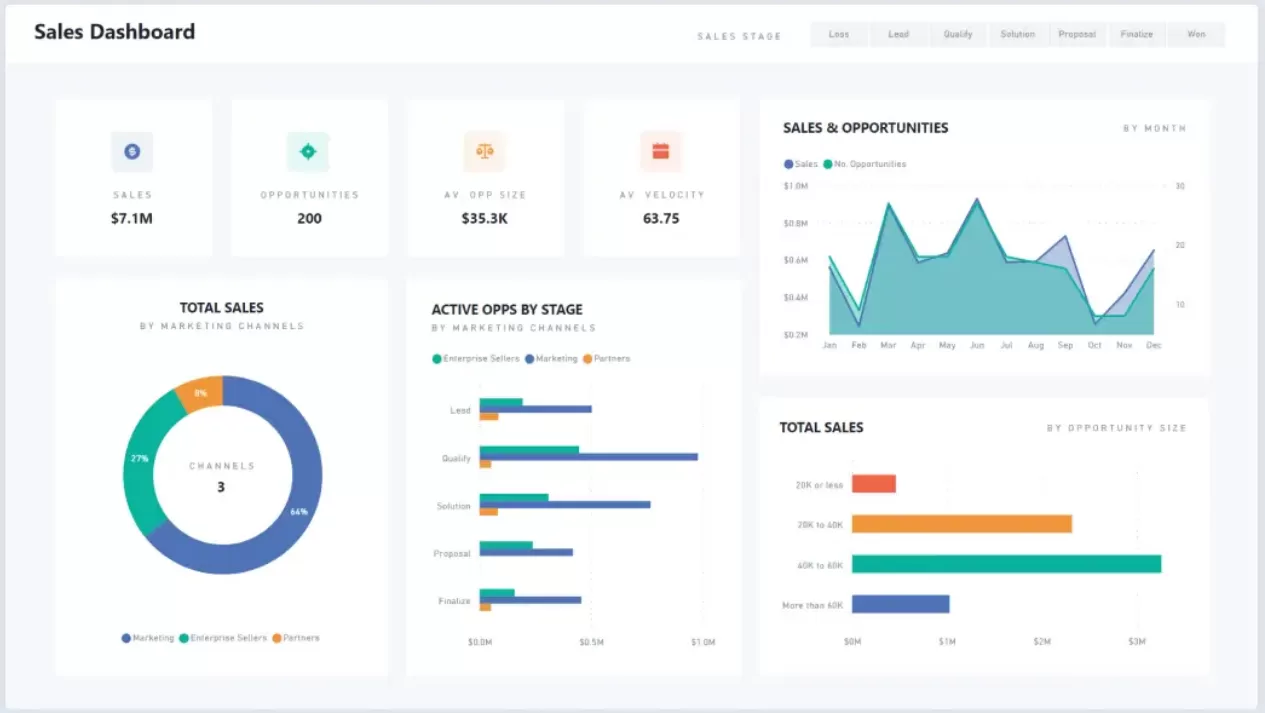
A Power BI dashboard is a data visualization tool that displays the most important data points for a business or organization in a single view.

Power BI dashboards can be customized to show data from various sources, such as Excel spreadsheets, SQL Server databases, and cloud-based services like Google Analytics or Salesforce. They allow users to track key performance indicators (KPIs), analyze trends, and monitor business metrics in real-time. Users can drill down into the data to explore more detailed information, and Power BI automatically updates the dashboard as new data becomes available.

Power BI dashboards are highly customizable, allowing users to create interactive visuals such as charts, tables, maps, and gauges. They can be shared with other users, either within the organization or externally, and can be accessed from a variety of devices, including desktop computers, tablets, and mobile phones. Power BI also offers a variety of collaboration and sharing features, such as commenting and collaboration tools, and the ability to embed dashboards into other applications or websites.

img-01

What are some of the key features of the Power BI Dashboard?

Power BI’s interactive dashboard has several key features and benefits that make it a powerful tool for data visualization and analysis:

Real-time Data:

Power BI dashboards provide real-time data updates, so users can see the latest information as soon as it becomes available.

Interactive Visualizations:

The interactive visualizations in Power BI dashboards allow users to explore data in a more engaging and dynamic way. Users can interact with the data by drilling down into specific visualizations, filtering data, or changing the view of the data.

Customization:

Power BI dashboards can be customized to display the specific data that is important to a particular business or project. Users can choose from a range of data visualization options, including charts, tables, and maps, and can arrange these visualizations in a way that makes sense for their needs.

Mobile Accessibility:

Power BI dashboards are accessible on a range of mobile devices, allowing users to access their data and insights on the go.

Collaboration:

Power BI dashboards can be shared with others in the organization or externally with partners or customers, making it easy to collaborate on data-driven decisions.

Integration:

Power BI dashboards can be integrated with a range of other Microsoft services, including Excel, SharePoint, and Teams, allowing users to work seamlessly across different platforms and tools.

Overall, Power BI’s interactive dashboard provides a comprehensive and customizable view of an organization’s data, helping users to make more informed and data-driven decisions.

How to Create a Live Dashboard in Power BI?

Power BI offers a simple method for creating reports or dashboards that can then be published on the cloud using Power BI Service. Power BI Desktop allows even non-technical users to link data from many sources, change it as needed, generate visuals, and distribute them to others as reports.

One great way to comprehend how a Power BI dashboard functions are to generate reports on the Power BI Desktop and upload them to Power BI Service.

You must first install Power BI Desktop on your computer or laptop before you can construct a dashboard. Let’s create a dashboard in Power BI using the following crucial steps:

Creating a live dashboard in Power BI involves the following steps:

1. Connect to Data Sources:

The first step is to connect to the data sources you want to use for the dashboard. Power BI allows you to connect to a wide variety of data sources, such as SQL Server, Excel, SharePoint, and web APIs. Depending on your needs, you can connect to one or more data sources.

  • To connect to a data source, go to the “Home” tab and click on the “Get Data” button.
  • Then, you need to choose the data source you want to use. For instance, choose Excel as your dataset and find the downloaded sample worksheet.
  • Your data’s columns and rows will all be displayed in a dialogue box on the screen. Now, you may either alter the data according to your needs or use it straight away by pressing the load button.

2. Data Transformation & Modelling:

Data transformation and modelling are crucial components of data visualization because they enable you to rename columns, clarify the link between variables, and eliminate duplicates.

By using the Power Query editor, you can modify your data with the following steps:

  • Choose the Transform Data item from the Editing Panel’s Home tab.
  • You can now change a column and provide a customized column equation by selecting Custom Columns from the Add Columns menu.
  • To finish creating the customized column, select OK.
  • To save all of your modifications, tap on Close & Apply to save the changes.

3. Create Visualizations:

Once the data transformation is done, the next step is to create visualizations based on the data you have connected to. Power BI provides a wide range of visualization options, such as charts, tables, maps, and gauges.

Here’s how you can do it:

  • To create a visualization, click on the “Visualizations” pane on the right-hand side of the screen.
  • Choose the type of visualization you want to create, and drag and drop the fields you want to use into the appropriate places.
  • Then, you can customize the visualizations by changing the colours, fonts, and other settings.

4. Design the Dashboard:

After creating the visualizations, the next step is to design the dashboard itself. It involves arranging the visualizations on the canvas in a way that tells a story or provides insights.

You have been using Power BI Desktop to create visualizations up to this point. Now, to generate the dashboards, you must first pin the graphics from the analysis in the Power BI Service.

To do this, carefully adhere to the guidelines below:

  • From the Home tab’s ribbon, select the Publish Report button.
  • Go to tab 2 of your study and select the pin symbol in the visual of your column chart in the top right-hand corner.
  • You can title and pin the visual to a brand-new dashboard using the dialogue box that will display.
  • You will receive a notification when your visual is successfully pinned to the dashboard. From there, you have the option of creating a phone view or modifying it on the dashboard.
  • Choose the choices for the important influencers’ visual on the first page of your report.
  • When you are finished, hit the Pin Live button to add it to an already-existing dashboard.
  • Once more, a notification stating that your visualization has been pinned will show up. By selecting the Go To Dashboard option, you can access the dashboard.

5. Add Interactivity to your real-time dashboard

You can add interactive features such as filters, slicers, and drill-throughs to make the dashboard more dynamic and user-friendly. Filters allow you to select a subset of the data to display, while slicers allow you to filter multiple visualizations at once. Drill-throughs allow you to create data hierarchies that can be navigated using interactive buttons. To add Interactivity to your dashboard, go to the “Visualizations” pane and choose the type of Interactivity you want to add.

6. Configure the Refresh Rate

Finally, you need to configure the refresh rate for the dashboard. It determines how often the data in the dashboard is updated. You can choose from several options, such as hourly, daily, or weekly refreshes, or you can set up a live connection that updates the data in real time.

  • To configure the refresh rate, go to the “Settings” menu and choose “Options.”
  • Then, go to the “Data Load” tab and select the refresh options you want to use.

Once you have completed these steps, your live dashboard will be ready to use. You now have your initial dashboard, which you can share with other individuals. From the Navigation pane on the left, select My Workspace to share the dashboard.

Enter the email addresses or names of the individuals you wish to share the dashboard with, give them access permission, and press the Share button.

Also, you can publish it to the Power BI service, where other users can access it, or you can embed it in a web page or SharePoint site.

Top Advantages of Power BI Dashboard

1. Access to an intuitive Customized dashboard

Power BI dashboard benefits include a configurable, intuitive, interactive dashboard that can be tailored to a company’s specific needs and an easy drag-and-drop capability option for creating a customized report. To simplify the HR process, you can develop a Power BI HR Analytics Dashboard, a Power BI Dashboard for financial analysis, or a Power BI Marketing Dashboard for project success analysis.

2. Easy-to-use Platform

Power BI is a very user-friendly layout that simplifies the entire dashboard creation process. In fact, they are so well-developed that creating them doesn’t even need writing a single line of code. You can move the features around simply by dragging them. Even better, it has built-in intelligence that suggests the best reporting component based on your preferences.

3. Cost-efficient

Power BI is a relatively inexpensive business intelligence tool for creating aesthetically appealing dashboards for your business requirements. You can make engaging dashboards and reports, both simple and complicated, without spending a dime using the free desktop edition of Power BI. While accessing further capabilities like sharing Power BI dashboards, you will need to pay some payment, while that service is also accessible for only about $10 per month.

4. Extremely Protected Data

Data for Power BI is kept in IRAP-certified Microsoft Azure data centers, providing the highest level of data and cyber protection. In other words, employing this application will not only provide you access to all of your data in real time but also give you the peace of mind that none of your important data will be compromised or stolen.

5. Easy Accessibility & Connectivity

You can have enhanced accessibility thanks to Power BI’s ability to run through remote apps on a range of internet platforms and devices, including Android, iOS, and Windows smartphones.

Additionally, working with remote teams is a breeze because of its seamless integration with Microsoft products like Teams, SharePoint, and Microsoft Projects. You only need an internet connection because the software is cloud-based and allows you to operate from anywhere.

6. Data Caching Is Easier!

How do you ensure that you are viewing the most recent version of your data, as not all data sources allow for live querying? Power BI addresses this by allowing you to update its data up to 8 times per day with Power BI Pro and up to 48 times per day with Power BI Premium.

7. Out of the box Q & A functionality

Power BI’s data cache may be used to deploy reports quickly and easily while also allowing the organization to have the data refreshed at predetermined intervals.

One of the finest features of the Power BI dashboard is likely the Q&A feature. Most BI solutions demand that you go through a number of difficult procedures in order to obtain information. But that’s how Power BI works right now. You can ask questions using natural language and obtain the answers you need, thanks to Power BI’s Q&A functionality.

For instance, you could want to see how your items are doing nationally or by state. Simply go to the Q&A section, type in “what you want,” and it will show you the responses in the bar chart.

8. Migration is Easier

Memory and speed are heavily used when switching from an established system to a robust cloud environment. Nevertheless, this is not the case with Power BI. It provides simple shifting without limiting memory or speed in any way. Large amounts of data can be accessed, stored, and quickly retrieved, as well as quickly analyzed using this application.

Start Your SharePoint Project in a Click

Our technology and wide delivery footprint have created billions of dollars in value for clients globally and are widely recognized by industry professionals and analysts.

Conclusion

In conclusion, Power BI and its Dashboard feature provide users with a comprehensive, interactive, and user-friendly business intelligence solution. By connecting to various data sources and presenting insights in visualizations and reports, Power BI allows users to make data-driven decisions and track performance.

This blog has mentioned everything about Power BI and its comprehensive dashboard. We hope this blog has helped you create a visually appealing dashboard for your business.

In today’s data-driven world, Power BI and its Dashboard feature provide an essential tool for businesses of all sizes to succeed and thrive.

And if you are looking forward to getting some expert guidance, you can reach out to our team, and they will gladly assist you throughout the process to help you design a stunning BI-powered dashboard.

What Are the Difficulties You Are Facing While Migrating to SharePoint Online?

Often businesses seek to streamline their core business operations for enhanced workforce efficiency that contribute towards better business decisions, stronger branding, and improved sales and revenue. Consequently, they usually focus on upgrading their technology infrastructure that enables them to meet their objectives.

One such method to centralize and consolidate their collaboration platform is by transitioning to Office 365 SharePoint through a SharePoint Online Migration. Enterprises using older versions like SharePoint on-premises for document sharing often prefer to upgrade their process to enable storage scalability, improve data security, and enable anywhere-anytime access. However, there are challenges in migration, ranging from broken links, to subtle changes in end-user experience.  While these issues can be smoothed out during the migration and transition, they can cause concern about the risk of such a migration. To migrate smoothly, companies should be diligent about managing their sensitive information while transitioning from SharePoint On-Premises to SharePoint Online.

Additional Read

SharePoint Online vs On-Premises – Migrate from On-Premises to SharePoint Online

Let us consider what types of challenges your company can encounter during the SharePoint Online Migration and how to fix them.

Top 13 Challenges during Migration

1. Unorganized Information

Often libraries, sites, content layouts, lists, and content types are maintained in a haphazard manner perhaps growing over time organically, managed by different administrators. This scattered data can be migrated to the new SharePoint environment, but still lead to user difficulty in locating documents and information rapidly. To enable your workforce, for their ongoing efforts, and manage content post-transition, content and its structure should be analyzed and mapped properly during pre-migration, to optimize the destination Office 365 environment and set your organization up for success today, and scalability and growth tomorrow.

2. Storage Challenges

Managing legacy large sets of document accumulated over potentially many years of operating an enterprise is a challenging task. If not managed properly it leads to loss of data or worse a perpetuation of organic growth that makes documents hard to find and manage.   Best is to plan to migrate based on a set of pre-agreed guidelines such as age by type, and library and archive for eventual deletion of older content.

3. Bulk Migration

Often, some files cannot be migrated during migration. Some of the causes are easily fixable, and others require some creative and exception handling during the planning and initial bulk migration process. This challenge occurs especially for specific blocked file types.  Other causes could be URL length restrictions, checked-out status or URL length. For ease of reporting, tracking, and retry, there is an advantage to exploring the use of third-party tools which facilitate a more nuanced and better managed SharePoint Online Migration process.

4. Loss of Metadata

Losing some of the metadata during SharePoint Online Migration process is normal.  Best is to determine which metadata needs to be preserved, and correctly defining the metadata hierarchically in the destination.  This could be though Content Types, and even centrally managed and published Content Types that could be defined to inherit from each other to build up the desired set of metadata.  This can be optimized by clearly defining an inventory of the content and organizing and aligning it with suitable content types, before the migration. Additionally, regularly adding metadata to content as migration continues will help preserve it.  Lastly centrally managed Content Types allow metadata to be updated in one master location, and propagated throughout the organization for consistency and ease of management.

5. Security

When managing files and contents on-premises at a local server; companies use their security tools and protocols to protect their data. However, during SharePoint Online Migration when the same data is transferred to the Cloud, best practice is to attempt to simplify security, and align it with ActiveDirectory groups that may already exist, for reduced and simplified management with the least possible redundancy, and leveraging the best practices around security and group management.

6. Mapping

Content migrating between fragmented domains can lead to confusion and even data loss, therefore correctly selecting and mapping destination and source domains is important. To plan for a streamlined SharePoint Online Migration, that optimizes the destination environment, groups and users can be identified for simplified grouping and factoring and created on the target system and/or ActiveDirectory with suitable permissions set across site collections, subsites, libraries and lists.

7. Permissions

For a seamless SharePoint Online Migration groups and users should be given relevant SharePoint roles including management of Administrative roles and delegated authority, mapped to their existing Office 365 roles and ActiveDirectory. This allows the users to access content and right-sizes the setup in the destination environment from the start.

8. Right Numbers Document and Libraries

To improve the document management framework only certain document types and libraries should be migrated from on-premise to online. Best is to not “pump and dump” migrating everything; the content should be selected with discipline based on heuristics and rules and filtered and reporting on for confirmation. Migrating selective content requires careful analytical reviews and discussions and signoffs.

9. URL Length Issues

SharePoint Online Migration allows roughly 400 characters in a URL. Any URL beyond this would likely surface an error. This varies, based on filename per file, and of course the impact of both folder naming, and also the use of special characters that require multiple characters to encode into a URL. There are clever shortcuts to reduce and manage the likelihood and frequency of such occurrences.

10. Broken Link Issues

When migrating massive content from on-premise to the cloud, broken links can pose a large challenge. These could range from a few hundred to millions as they are found in MS office suite tools and in other applications such as Adobe Acrobat, web pages, MS-Office documents. Broken links lead to user dissatisfaction.

Fixing millions of broken links manually post migration is a daunting task. Since it is a labor- and time-intensive job, it’s best addressed using third-party applications that automate the repair process—fixing links within documents or via redirection. This aligns with our earlier guide on how to migrate file share to SharePoint Online, where similar challenges were addressed. Contact Reality Tech to learn more about these solutions.

11. Special Characters In Filenames

SharePoint Online Migration rejects a few special characters (~, #, %, &, *, {, \, ;, <, ?, />, |, “). Further, it does not allow file and folder names to exceed 128 characters limit. These limitations make migration process cumbersome; but can be managed in several ways, with some automation and tools.

To combat this challenge, the file/folder names containing special characters can be replaced with approved character and limit in SharePoint. Thus, a script (set of rules) can be created to rename the folders automatically without manual intervention, as one option for a solution.   Most migration tools will also automatically replace the offending characters.  This tends to occur more often in migrations from non-SharePoint systems, such as File Shares / File Servers.

Similarly, truncating long file/folder names to acceptable length can be done prior to the migration.  The closer to the root folder that naming truncation occurs, the more content is affected and long URL lengths addressed.

12. Blocked File Types

For security reasons, SharePoint blocks all files that fail to meet the file extension criteria during a SharePoint Online Migration. To fix this problem, unblocking file extensions of SharePoint may be possible, but with SharePoint Online, it could well be that some file extensions cannot exist as per Microsoft policy, and an alternate and exception location outside SharePoint needs to be found. Microsoft applies such blocked filetype policies to prevent files from being centrally stored in SharePoint, to avoid security risks, such as for script files and executables, for example.

13. Ensuring the Ability to Navigate

Often, organizations prefer to retain the same file and folder structures for operational consistency and to reduce disruption during the SharePoint Online Migration. Thus, maintaining the same structure on the cloud may be preferred for seamless navigation. However, there are strategic reasons and methods to refine and enhance navigation during migration. These include using alternate navigation pages and restructuring content mapping to align with SharePoint security best practices and ensure secure, intuitive access.

Start Your SharePoint Project in a Click

Our technology and wide delivery footprint have created billions of dollars in value for clients globally and are widely recognized by industry professionals and analysts.

Conclusion:

The SharePoint Online Migration approach poses several challenges for businesses seeking to migrate their critical business information from on-premise servers to SharePoint Online. However, with judicious planning, best practices, and the use of third-party migration tools, the transition can be streamlined, and made easier; both to migrate and on the end user experience.

Additional Read

SharePoint Online vs On-Premises – Migrate from On-Premises to SharePoint Online

If you plan on applying best practices, streamlining your structure, and improving the end-user experience during migration, working with a seasoned partner is key. You can also explore the top features and benefits of SharePoint Online for collaboration and teamwork to ensure your migration strategy unlocks SharePoint’s full potential. We provide a safe and hassle-free transition with exceptional collaboration and content management processes, and can surface all the features and functionality that Office 365 has to offer.

Migrate Email to Office 365 – The Step-by-Step Guide

Why Migrate Email to Office 365

The email platform you use in your enterprise is key to a consolidated and integrated collaboration platform. The overall environment and ecosystem should indicate the direction to take on reviewing and possibly changing the email platform.

Migration Approaches and Tools

It can be a daunting task to find the right toolset and methodology for efficiently migrate email to Office 365. For any migration, it starts with an analysis of the source and destination, to understand the scope of the migration. Next is benchmarking the migration so you can baseline the migration throughput in storage (MB/GB) and in number of mailboxes within a period of time, and with confidence.

For effective migration, a migration tool to complete the process quickly, efficiently and accurately. To solve this challenge, there are 3rd party tools for migrating email to Office 365offering high fidelity and flexible and efficient email migration solutions for all-sized businesses.

There are Office 365 Migration solutions that can help migrate contacts, emails and calendars from your existing email, allowing a richer and more integrated end user collaboration experience.

Categories Of Migration Toolsets

Either you can use the Out of the Box free migration toolset available from Microsoft, or step up to more advanced 3rd party tools with greater functionality and capabilities.

In short, the Migration can be done using two methods:

1> Using the Exchange Mailbox Migration tool which can be found in the Exchange Online Admin Center within Office 365

2> Third party migration tool e.g., BitTitan’s MigrationWhiz (Recommended)

We have had great success using BitTitan for robust migration capabilities, higher fidelity, features, logging and reporting.

Understand What Might Not Be Migrated

Not everything will be migrated. Mailbox functionality might differ as well. One example of what won’t be migrated includes Safer Sender / Blocked Sender lists. Additionality additional reminder fields, and contact list fields should be checked in trial migration to know what might not migrate perfectly, and to enable setting user expectations on migration.

Best Practice Migration Planning

The best practice for migration covers these steps to ensure you’ve planned for contingencies and cover all the bases:

  • Map Source and Destination users and accounts
  • Perform an initial migration for baselining
  • Perform a full migration
  • Perform Delta migrations, if needed
  • Select a cutover date and inform users
  • Perform cut over including DNS change.
  • Communicate clearly with users (before and after); especially about what might not be migrated
  • Provide post-migration support

The Complete Process to Migrate Email to Office 365

Before The Migration A Few Points to note:

  • Given the Office 365 service will be provided from a different server than the existing service, changes in the DNS are going to be required.
  • Users will face downtime until DNS domain propagation is complete, hence it is best for no email during this process, so doing the cutover off-hours is advisable.
  • It’s recommended to create a backup of emails, calendar items, and contact in email before Office 365 Migration.

Migration Is A 4-Steps Process Which Is as Follows:

Step#1: Create Data Backups

  • Launch MS Outlook and navigate to File > Open & Export > Import.
  • Click on the option “Export to a File.” Select Outlook Data File (.pst).
  • Select the account name from which the backup needs to created, and click Next.
  • Select e a location for the backup file, suitably name it, and click Next.

Step#2 (a): Migrating Calendar Items

  • In webmail open the Calendar application.
  • Select the calendar data for exporting. Each item needs to be exported separately, if there are multiple items.
  • Select the “Actions” icon available near the calendar and click on Export. It will export calendar items in the iCal format.

Step#2 (b): Migrating Contacts

  • In webmail open the Contacts application.
  • Select the address book for exporting. Each address book needs to exported separately, if there are multiple address folders.
  • Select the “Actions” button and click on Export. It’s advised to use CSV format to export the address books.

Step #3: Connect to Office 365 Servers

To initiate the migration process, start with endpoint creation; it establishes a connection between the destination and source server. This link is created in the Exchange admin center.

Process:

Step#1: Click on New+ in Migration under Recipients option.

Step#2: Select the email users’ group for whom Office 365 Migration has to be executed. Now create batches and initiate the process.

Step#3: Delinking Accounts and DNS Update

The DNS propagation confirms that emails are redirected to Office 365 mailboxes. It’s done in the Accounts Manager section. Upon successful completion of the process, un-assign the mailboxes.

Step#1: Click on the “My Email” option in Account Manager.

Step#2: Select “Un-assign” option for each mailbox that has been migrated. To confirm, click “Continue”.

Step#3: Log out of the Account Manager. To confirm the process is successfully complete re-login.

DNS update procedure

Step#1: Download the Office 365 Migration application on your machine.

Step#2: Run the tool to select from the screen’s left panel.

Step#3: Enter credentials – Email Address and Password. To proceed further, click on Login button.

The software will load all mail folders, automatically. Check marks the required email folders for migrating email. Now, select Office 365 as file saving option. Enter the credentials. Finally, click on Migrate button to launch the process. You need to wait until the migration is successfully completed.

Additional Read

How to Migrate File Server to SharePoint Online [Expert Guide]

Key Features of Office 365 Migration Tool

  • Users can simultaneously migrate multiple email to Microsoft 365 account.
  • This software offers an easy-to-understand graphical user interface. So, you don’t need to be a technical pro to initiate a hassle-free migration. With a few clicks, you can perform the migration process.
  • No third-party applications are required for the Office 365 Migration process. However, 3rd party migration tools are available for specific migration needs.
  • The tool preserves the email properties including structure and hierarchy folders. So, users can easily extract their emails after migration.
  • You can selectively migrate email folders to save effort and time.
  • You can save messages in a default folder, which you can easily manage and access post migration.
  • You change the language of your emails.

This risk-free software supports all Window editions.

Additional Read

How to Choose the Right SharePoint Migration Tool and Service Partner?

Key Benefits of Office 365 Migration

1. Improved Email Service Efficiency with ML and AI

Users can leverage the technological benefits offered by Machine Learning (ML) and Artificial Intelligence (AI). The Microsoft Ggraph uses this intelligent technology to render valuable information that defines how businesses can improve on their internal communication system.

Further, the software supports features like intelligent detection of delivery, intelligent auto-meeting scheduler, and intelligent email search results. The AI-driven options allow users to obtain metrics by email click-thru rate and reader addresses.

2. Enhanced Email Security

To prevent cyber-attacks on servers, Office 365 Migration software contains superior security features, such as, anti-spoofing with sender validation tools – DKIM, SPF & DMARC, multi-factor authentication with notification, encryption (SSL/TSL), mailbox auditing, intensive mobile device security policies with controlled users’ access, unlimitedly secures business mailboxes with litigation hold and Microsoft secure source support.

3. External and Internal User Collaboration

Easily collaborate with team members, vendors, and customers with team collaboration options. These include Shared mailboxes with access control to specific roles, OneDrive integration and storage capacity of 150MB mail attachments.

The Two-way synchronization method allows for enhanced collaboration between global teams. Users can sync their devices with Outlook emails, calendar, contacts, and notes to share business documents anytime, anywhere.

Multi-platform support – Windows, Android & iOS, multiple device support – you can connect 5 devices, simultaneously.

To collaborate, users can avail services of Skype, MS-Teams, and SharePoint and of course all the other O365 products.

4. Migrate to Office 365 to be mobile at Work

Migrating to a cloud platform allows users to store, access, manage, and share documents and files from any location, anytime. Staff can efficiently and easily work and collaborate from any remote location around the world.

Conclusion:

With this guide, you can perform an Office 365 Migration. For special requirements, reach out, we’re glad to share our experience and offer guidance and help with any aspect of your planned migration.


Goals For Your SharePoint Project

There are many reasons to fully migrate to Office 365. Before undertaking any project, it’s important to define the major goals. That allows both the executive presentation of objectives, and also declaring success on project completion. This is even more important given many competing priorities and user demands and a nearly endless set of features and services within Office 365 SharePoint.

  1. Intranet:

    Create an intranet that’s the centerpiece for corporate information, news, updates, and surfaces the values and culture of the organization.

  2. Document Organization and Structure Searchability:

    Structure sites, libraries and folders.

  3. Metadata Management:

    Centrally define the metadata for your organization. Enable tagging and even automated tagging of metadata.

  4. Searchability:

    Refine the search experience to enable search focused on the needs of each department, and surface refiners to allow metadata-based drill downs to quickly find documents.

  5. Centralize Storage within Redundancy:

    Provide a single version of the truth for all your organization’s documents, reducing the risk of version inconsistencies and issues.

  6. Enhanced Collaboration and Communication:

    Enable our teams to work together on documents in real-time, so that they can improve productivity and streamline processes.

  7. Delegated Permissions and Access Control:

    Enable your users to manage their permissions, by exposing groups and owners to manage the permissions.  Separately put in place the right level of granular control over who can access and edit specific documents, ensuring sensitive information stays secure and users get quick access by working within their departments and without burdening IT with tickets/requests.

  8. Recycle Bin

    : enable user self-service, by exposing the recycle bin for user self-management of restoring documents.

  9. Mobile Access:

    Enable user access on any device and from anywhere, smoothly and securely, as we move to hybrid and remote work environments.

  10. Enabling Versioning of Documents:

    Automatically track document versions, making it easy to revert to a previous version if necessary. Enable document version comparison within MS-Office.

  11. Co-authoring:

    Enable multiple users to work on a single document concurrently and see edits of others in real-time.  This is the heart of user collaboration in a literal sense.

  12. Customizable document libraries:

    Ability to create custom document libraries, with views, groupings, and exposing document metadata to meet the needs of your projects, teams, departments and organization.

  13. Workflows:

    Enable document approvals, and streamline automating within the organization. View consolidated dashboards of workflows in process, escalations, notifications, and speed multi-stage processes.

  14. Enable Chat Services:

    Deploy teams to allow users to communicate in real time with document management of SharePoint fully integrated.

  15. Compliance and Security:

    Provide extensive reporting, document lifecycle management, document disposition, security management and compliance capabilities including digital rights management and access controls, to keep your organization’s sensitive information safe, secure and provably so.

This is just a sampling of what might be some organizational project goals, and within easy grasp for any Office 365 project. What might be your goals?  How might you structure such a project?

Reach out to Reality Tech for a discussion on how Office 365 can be the centerpiece of your organization’s collaboration, document management and communication strategy.


Start Your SharePoint Project in a Click

Our technology and wide delivery footprint have created billions of dollars in value for clients globally and are widely recognized by industry professionals and analysts.


How to Choose the Right SharePoint Migration Tool and Service Partner?

Even though your company needs the best and cutting-edge SharePoint collaboration technology, are you still using SharePoint 2016 or earlier? Perhaps your company supports SharePoint On-Premises concurrently with utilizing the cloud for other corporate software? You should migrate your environment to the cloud, for the very latest features, functionality and security.  To get there, a migration is essential.

What is SharePoint Migration?

Moving all of your information and existing solutions from your current environment to another environment, usually with a newer version or to the cloud, is collectively known as a migration. There are several reasons why a business could choose to migrate to or between versions of SharePoint, but one of the main ones is to take advantage of the newest functions, features, security, integration, workflows and communication and productivity capabilities that come with the latest version. Your business’s needs, strategies, and direction are entirely responsible for your decision about when and how to undertake this migration.

Types of SharePoint Migration:

1. Migration from SharePoint 2016 to 2019

Businesses relocating in 2022 typically have significant IT investments and constraints that make it difficult to switch to the cloud. Thus, some enterprises upgrade in place from versions such as 2013 to a more recent on-premises version.

Benefits:

  • Protect sensitive information and adhere to regulations.
  • Keep customizations with minimal update, that would require redesign to go to the cloud.
  • The cost of migration is minimized.
  • Lower impact on end user experience.

Disadvantages:

  • Cost of patching and maintaining security and the IT infrastructure.
  • Looks and feel remains somewhat outdated.
  • Newer features are only available in the cloud online edition of SharePoint in O365.

Additional Read

SharePoint Online vs On-Premises – Migrate from On-Premises to SharePoint Online

2. Migration from On-premise to SharePoint Online

Benefits:

  • Recent additions include Modern UI, Teams integration, Power Automate workflows, Viva, and Security and Compliance tools.
  • Microsoft primarily maintains and provides support for infrastructure, security, and redundancy.
  • User licenses could be less costly, especially considering server operating systems and software and hardware, as well as backup, networking and firewalls.

Disadvantages:

  • Storage restrictions and limitations, although these are overcome by simply purchasing more storage.
  • Issues with data residency Since some aspects of SharePoint Online can only be used in US-based data centers, which can be a problem for some enterprises that are not US-based; requiring some more involved configuration to geo-locate the data to a specific Microsoft cloud region.
  • There is a chance of a slower page load or less control over the hardware allocated to service a tenant. SharePoint Online utilizes common internet infrastructure.

3. Migration from On-premise to Hybrid

Benefits:

  • Utilize the more recent capabilities, including Power Automate, hybrid links, and shared hybrid search that can crawl both cloud and on-premises content.
  • Maintain adherence to legal requirements.
  • Save money by not having to rebuild incompatible applications designed for the SharePoint Online cloud.

Limitations:

  • Costs and complexity of setting up the hybrid environment, such as additional licenses.
  • Maintenance fees for hybrid infrastructure, including security, patches, monitoring, and support.

Additional Read

Why Migrate to SharePoint Online and Tips for Migration

SharePoint Migration Tool to Consider:

The market is overflowing with SharePoint migration tools, making it tough to choose the best option. The best course of action is to compare the many SharePoint migration tools and determine where each should be used.

1. Cloudsfer:

With worldwide support and expertise throughout a tried-and-true migration process, we are expert in Cloudsfer for migration. The tool is designed to satisfy businesses of all sizes’ migration and deployment needs.

     Pros:

  • Trustworthy expertise.
  • Quick turnaround times and delivery.
  • Reliable project management.
  • Fixed-Price Packages.

2. ShareGate Desktop:

ShareGate is a trusted migration solution that can transport both non-Microsoft and all core SharePoint content objects. The utility is notable for having no data size restrictions and the ability to execute transfers quickly. Additionally, while maintaining site navigation and information between tenants, ShareGate may migrate term stores, site settings, customizable displays, and forms. Its error reporting and remedial suggestions are very useful if something goes wrong.

     Pros:

  • Unlimited migration
  • Simple and intuitive user interface
  • Reports on post-migration validation
  • Cost effective
  • Easy to use
  • Industry standard
  • High throughput with option for “Insane Mode” high throughput
  • Licensed by 1 or 5 servers, and for one or more years

3. Tzunami Desktop:

Enterprise-focused SharePoint migration tools and expert SharePoint migration services are available from Tzunami Deployer. Fast and safe conversion from Confluence, Documentum, Open Text Content Server, HPE Content Manager, and many other systems to any version of SharePoint and Office 365. It reduces standard migration times by up to 90%, lowering labor costs and speeding up accessibility to more accurate content.  Tzunami is our go-to system for uncommon data source migrations to SharePoint.

    Pros:

  • Reports on export, deployment, and post-migration
  • 24/7 technical support
  • Simple to use
  • Advanced and sophisticated time-tested tool

4. BitTitan – MigrationWiz:

You can move email and data from various destinations and sources with the help of MigrationWiz, the best SaaS solution in the industry. Multiple cloud workloads can be migrated using a single solution. The 100% SaaS migration solution, MigrationWiz, is fully automated and available from any location at any time. Everything is streamlined through a unified interface, from straightforward mailbox migrations to enterprise-scale migration operations.

     Pros:

  • Collaborative
  • Scalable
  • Simple to use
  • Our go-to tool for highest fidelity mail related migrations

How to choose an outsourcing partner for SharePoint Migration Services:

1. Determine the Work’s Scope:

You should be aware of the tasks your company will need an outsourcing partner to carry out as part of any migration, even before you choose them. The objectives for your business are ones you set for yourself.  One can outsource a project, but one cannot outsource the ultimate responsibility and that starts with a well-defined scope of work.  A fashion company will have migration criteria significantly different from a financial firm, for example. Therefore, they must be aware of these differences before engaging in an vendor’s assistance. To better meet your needs during the migration process, they also need to be completely aware of your business’s objectives, downtime, system availability, critical user capabilities, security oversight and core business processes.

2. Examine the Technical Expertise of the Outsourcer:

A good start after establishing a very clear scope of work, is to assess the candidate migration vendor. Make a list of a few migration vendors. Consider factors like skill set, core experience with the specific migration planned, whether the vendor has worked with the size of the migration source, and their experience with associated workflows or whatever external 3rd party systems for which integration or specific handling might be needed.  Some factors to consider are deep experience with the selected cutting-edge migration tools, technical expertise, and enthusiastic knowledge about collaboration capabilities of the destination system are things to consider. Your vendor must have the expertise to address serious issues identified during migration to ensure smooth mitigation and on-time project delivery. Price is a consideration, but it should not be the primary concern. The vendor you choose to work with should have experience with the range of technologies required and a bench of staff available on demand. It is preferable to work with a company that has above-average experience with the technology set than with one that specializes in just one or two associated technologies that are relevant.

3. Give your Organization Post-Migration Assistance:

Every trustworthy migration partner will offer you post-migration help for a limited time without charging extra. Partners who have extensive migration expertise will make sure to share documents and best practices to aid in your post-migration process. Your users will be better able to exploit the new features at their fingertips and make the best use of key collaboration functionality if you provide supporting documentation and even better to schedule training session(s). To help you overcome any problems you might run into, the ideal Office 365 migration partner will also set up a support center in SharePoint with FAQs (Frequently Asked Questions) and a support document repository.

4. Timeline Management Services:

The management of timelines is essential while migrating. You must have a clear plan for when you will be completely migrated, and a sequence and timeline for specific department migrations. Planning is essential to ensure that all standards are satisfied before the major move. You can ensure a seamless transition with adequate planning and even better to plan for migration benchmark testing. You should have a list of specific due dates for each activity, just like any other migration plan. Doing this will increase your chances of a successful SharePoint Migration.  We often say “Take time to make time” as planning will smooth the migration project.

5. Check to See if the Costs Are Reasonable:

The overall project cost is of course a primary consideration for most organizations when choosing a migration partner. Although this is necessary since you must be able to pay for their services, picking the partner with the lowest cost is rarely the ideal choice. Determine the long-term worth of a potential partner’s services for your business when searching for one. Price should not alone be the deciding factor when evaluating and selecting a SharePoint Migration vendor if it one proposal would help your firm position itself with a better and more advanced platform for your operations that’s truly tuned to the organization needs. It is frequently a good idea to evaluate the service’s value in terms of the level of productivity you will experience after the solution is implemented as well as support services that can be provided seamlessly after the migration.

Additional Read

How To Choose the Right SharePoint Services Firm for Your Business?

Conclusion:

When planning a migration project, you can go internal or bring in the outside experts.  Finding a vendor who can satisfy your needs can take some planning and analysis. However, it could boost your project success probability. Choose the SharePoint Migration service partner that is best for you and your enterprise success.

Along with SharePoint migration, we can also provide services to migrate from one cloud or from a range of on-premises data sources to Microsoft 365 SharePoint and Teams:

  1. Box to SharePoint Online migration
  2. GSuite to M365 Outlook
  3. Teams migrations
  4. Private Teams chat migration
  5. Content Server to SharePoint Online migration
  6. Confluence to SharePoint Online migration
  7. PWA (Project Web App) migration
  8. One SPO (SharePoint Online) tenant to another SPO tenant migration

Do you have an unusual data source to move to Office 365? Give us a call, we relish tough migration challenges.

How To Choose the Right SharePoint Services Firm for Your Business?

Since its introduction, SharePoint and now Office 365 more broadly have become an industry standard platform delivering collaboration capabilities for companies and enabling communication across teams and storing, sharing, and updating documents and content.

It is a highly secure platform with huge potential for optimizing and simplifying a wide range of company functions, processes, collaboration and ongoing work efforts.

SharePoint, Power Automate and other Office 365 tools reduce manual efforts and associated errors by enabling streamlining and automation of a range of operations.

If you’ve decided it’s time to move to or upgrade SharePoint or improve your current setup, you’ll want expert assistance to smooth the migration and transition. But how can you pick the best SharePoint services firm to assist you in achieving your objectives?

This article will cover SharePoint service providers, what they do, why organizations need them, and a variety of aspects.

What’s Included in SharePoint Services:

Let us now examine several SharePoint services:

  • SharePoint consultants assist you with the design, architecture, development, deployment, and maintenance of various SharePoint and Office 365 technologies.
  • SharePoint experts are essential in migrating from an outdated version of SharePoint to the Office 365 cloud or from a file share or legacy content management system to SharePoint.
  • They help you configure and customize SharePoint to meet your specific company needs.
  • A SharePoint Consultant can help you create workflows, and configure metadata, search, structure an intranet and refine and enhance document management and collaboration.
  • They may assist with SharePoint training, documentation and planning.
  • They also assist in the enhancement of numerous corporate processes and activities.
  • SharePoint experts can also assist with automating and completing various activities and business requirements.

Additional Read

The Ultimate Guide to Using SharePoint for End Users!

Points to Consider While Selecting a SharePoint Services Company:

Here are some characteristics to consider while selecting a SharePoint services company:

1. Deep Technical Expertise:

Although configuring and making Office 365 and SharePoint fully functioning should be a priority, organizations must understand that it is just another component of overall enterprise policy, including security and compliance, and needs to be manageable from the start.

Many people with varying skill levels will be users, so hiring a consultant knowledgeable with “soft” skills like SharePoint governance and user acceptance is critical.

Even if a consultant is extremely knowledgeable about the technology, the user implementation may fail if they cannot assist or advise on leadership and user adoption or fail to configure the Office 365 tenant settings in alignment with corporate policies.

2. Knowledge about Data in your Organization:

SharePoint is a fantastic Enterprise Content Management Solution, but only when configured properly.

Your documents may organically evolve in disparate and disorganized ways and become difficult to navigate, with decreasing performance and growing user dissatisfaction, if you do not first think through the organizational hierarchy and map it to overall Office 365 structures, and leverage the built-in enterprise metadata management and search capabilities.

If the SharePoint consultant does not know how to create a data hierarchy, you may not have found the ideal fit.

True experts will even go so far as to restructure and remap, and classify your data and file/folder structures before migration to remove unnecessary data from the system during migration or to migrate to a refined pre-agreed structure.

The migration partner assists you in ensuring that your migration content is safe and properly organized for the destination Office 365 environment, all planned in advance, with throughput benchmarked and early test migrations surfacing the user experience early in the process to allow for refined timelines and adjusted user experience.

3. Training Services:

Implementing SharePoint is only half the battle. Training is something that is needed on an ongoing basis.

When looking for a SharePoint services firm, inquire about professional training for during and after the project itself ends.

It is best to retain some level of internal proficiency in basic SharePoint administration and have a second-tier partner available for support on an ongoing basis.

To ensure this, core training should always be included in the project hand-off.

When you select a SharePoint services firm, you will have an expert on your team who can provide key training on demand.

SharePoint experts have unique training methods from experience across many clients to ensure that selected team members learn SharePoint quickly.

Their practical experience and guidance will simplify the transition and provide the fastest level of support for common requests and tasks.

Office 365 is designed about usability, and that can be leveraged to provide some level of proficiency for in-house SharePoint support.

4. Post-migration Support:

Any reputable migration partner will offer you post-migration assistance for the long term.

Such a partner with extensive migration experience will ensure that documentation is provided to assist in your post-migration support services.

By offering accompanying documentation, your users can determine how to utilize the new features and manage them effectively. The ideal SharePoint migration partner will also offer you access to support services that can fix practically any issue encountered.

Ideally, such a support services center can analyze and handle any issues raised that your organization may have, ranging from support, enhancements, security or licensing.

Other post-migration support issues may include synchronization, navigation, search optimization, performance and basic collaboration functionality. Best to line this up in advance for responsive support and user satisfaction.

Additional Read

SharePoint Online vs On-Premises – Migrate from On-Premises to SharePoint Online

5. Ensure a Service Level Agreement (SLA):

A service-level agreement (SLA) is a type of standardized service contract that formally defines a service.

The service provider and the user agree on specific service features such as scope, quality, responsiveness and obligations. The contracted delivery time is a common aspect of an SLA (of the service or performance).

Outsourcing SharePoint assistance aims to ensure that any issues are fixed immediately or within the timeframe specified in the SLA.

As a result, it is crucial that your SharePoint services partner agrees to a guaranteed service-level contract that is suited to your business needs.

An SLA will also assist you in measuring your partner’s performance against key performance indicators and ensuring that the service they provide is consistently high.

6. End-to-End Customization Services:

Ideally, SharePoint services consultants recommend and try to leverage the “out-of-the-box” (built-in) capabilities of SharePoint to satisfy the specific demands of your business.

This is generally faster and more reliable, with lower maintenance and lower effort.  However, sometimes, going with out-of-the-box functionality requires some compromise and trade-offs against full-blown customization.

Your SharePoint consultant is your partner for assisting in making such trade-off decisions.

You’ll be disappointed if you want customization, and the SharePoint Services architect can only execute basic configuration, so selecting a knowledgeable service provider with extensive experience and demonstrated success is key.

On the other hand, if a SharePoint consultant only tries to promote customization when you merely need something basic, that can lead to a lengthy, expensive and higher maintenance solution.

7. Cost-Effective Solution:

The cost to the company is one of the most important elements that most organizations consider when looking for a SharePoint services provider or migration partner.

Although this is vital because you must be able to afford their services, going with the cheapest partner is rarely the greatest option.

When selecting a partner, consider how much value their services will provide your firm in the long run, and ensure they have the depth to provide the capabilities and breadth to deliver them.

If SharePoint services would help you become more competitive and technically advanced in your operations, the cost is only one of the factors to consider.

It is frequently a good idea to consider the worth of the service in terms of the productivity you will enjoy once the solution is configured.

Start Your SharePoint Online Project in a Click

Our technology and wide delivery footprint have created billions of dollars in value for clients globally and are widely recognized by industry professionals and analysts.

Conclusion:

These suggestions help you choose a SharePoint services company to support your deployment.

Due diligence for any technology services and solution is an important step in the journey, and the selection process is generally far smoother if you can work with a partner who not only has the experience to deploy SharePoint in a way that meets your business requirements but who is also open and transparent with its processes, delivery, and team.

Repeating Control in PowerApps

Repeating controls functionality in PowerApps can be achieved using Gallery Control of PowerApps.

Repeating control functionality can be useful in many scenarios. For instance, you can add multiple products in a data source, and you can add multiple clients’ details in the Data Source.

In this article using the repeating control feature we will save data for multiple employees in a SharePoint List.

In this example we will only use the text input control. But we can use any control inside the gallery for repeating control functionality.

Now let’s start building the solution for Repeating Control in PowerApps.

Additional Read

How to Update Properties of Multiple Controls Inside PowerApps Form Control

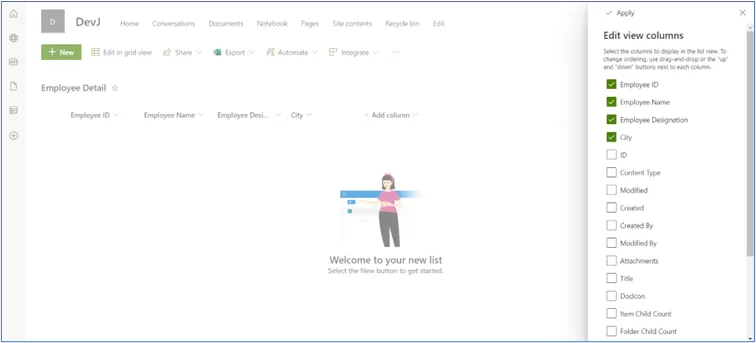
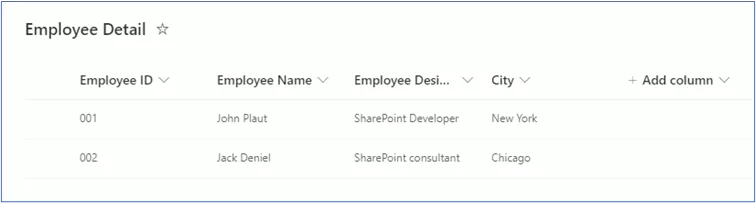
Create SharePoint List


Column Name Column Field
Employee ID Number
Employee Name Single line of text
Employee Designation Single line of text
City Single line of text


img-01

Create PowerApp

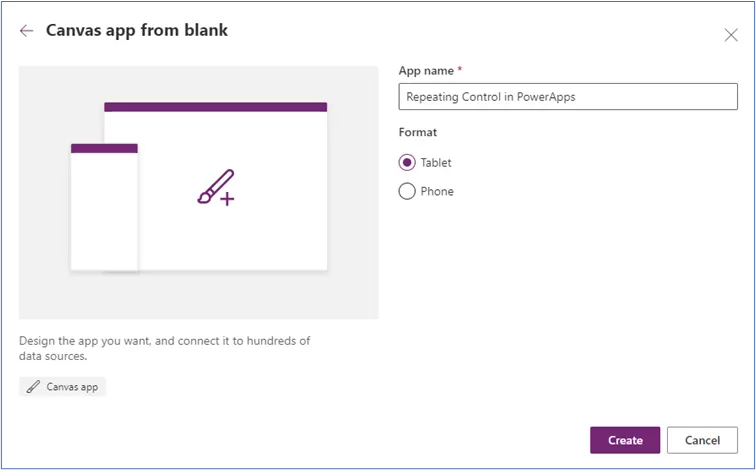
Step 1: Create new canvas app.

img-02

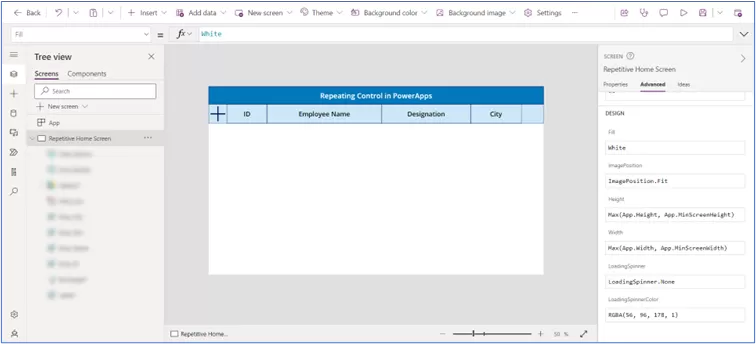
Step 2: Add Label controls for the heading purposes in the screen that looks like as below and add “+” icon in the first column.

img-03

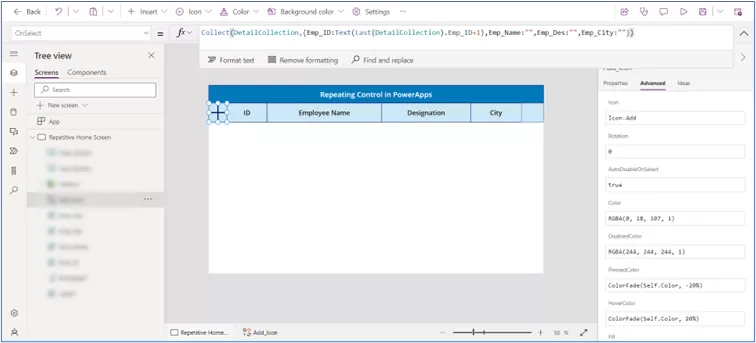
Step 3: After adding “+” icon set its “OnSelect” property as below:

 
Collect(
    DetailCollection,
    {
        Emp_ID: Text(Last(DetailCollection).Emp_ID + 1),
        Emp_Name: "",
        Emp_Des: "",
        Emp_City: ""
    }
)


img-04

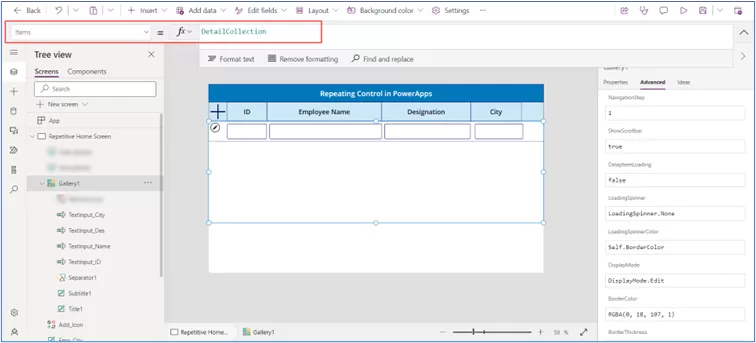
Step 4: Now add the Blank Vertical gallery control and add text input controls for each field (which are created in “Employee Detail” SharePoint list).

Select the gallery control and set its “Items” property to the collection name:

DetailCollection

img-05

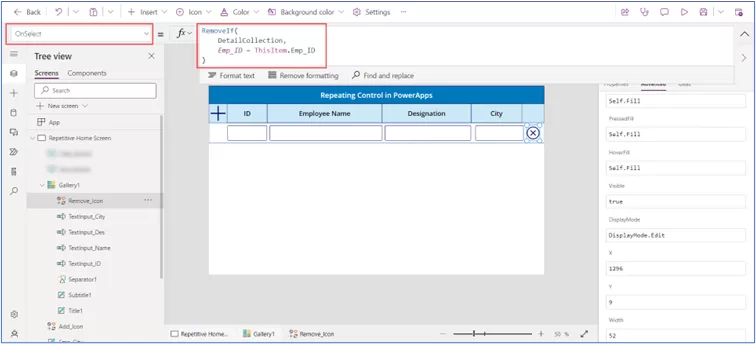
Step 5: Add Cancel icon in gallery to remove each row from gallery control.

For that, set property on “OnSelect” property to:

 
RemoveIf(
    DetailCollection,
    Emp_ID = ThisItem.Emp_ID
)


img-06

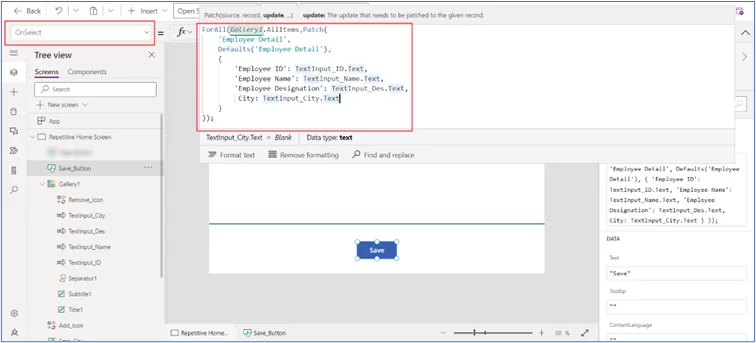
Step 6: Now we will save the rows in the SharePoint list.

 Insert button and set formula on “OnSelect” property.

ForAll(Gallery1.AllItems,Patch(
    'Employee Detail',
    Defaults('Employee Detail'),
    {
        'Employee ID': TextInput_ID.Text,
        'Employee Name': TextInput_Name.Text,
        'Employee Designation': TextInput_Des.Text,
         City: TextInput_City.Text
    }
));

Here we will patch all rows into SharePoint list.

img-07

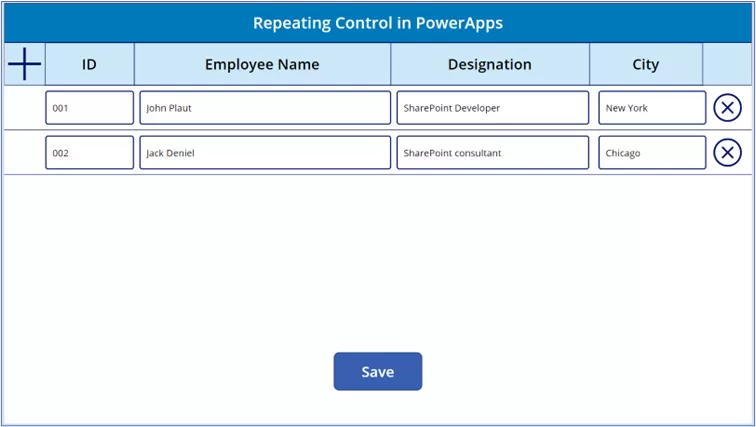
Step 6: Now test the solution for new entries.

img-08

After click on “Save” button then go to the SharePoint list. You can see the new items have been created in list.

img-09

In conclusion, leveraging the repeating control functionality within PowerApps offers a powerful solution for handling repetitive data entry tasks efficiently.

By utilizing Gallery Control, we’ve demonstrated how to streamline the process of managing multiple entries, such as employee details, within a SharePoint list.

Reality Tech Provides Microsoft PowerApps Solutions, through which organizations can enhance productivity and optimize data management workflows.

Whether it is managing products, client details, or employee information, PowerApps provides a versatile platform for building robust applications tailored to specific business needs.

Explore the myriad possibilities offered by PowerApps to revolutionize your data management strategies and propel your organization toward greater efficiency and success.

PowerApps Premium Licensing

Power Apps premium license is required only if your application utilizes some of the premium features. If not, a Microsoft 365 license will be enough.

Using a premium license, you can connect many of the premium connectors.

Few examples:

  • Microsoft Dataverse
  • SQL
  • Custom Connector
  • Azure App Service
  • DocuSign

Premium License Types in PowerApps

  1. Per App Plan
  2. Per User Plan
  3. Pay As You Go Plan

img-01

img-02

Additional Read

Repeating Control in PowerApps

Per App Plan

The Power Apps per-app plan is actually a per-user-per-app.

So, you must buy one “per App” license for each single application user and user provided with this type of license to be able to work with the Power Apps premium feature with one app for one month.

So the costs can really add up quickly. If the licenses are assigned to the app, you can’t use it for other apps, because they were already assigned.

You would instead need to buy more licenses if you want to use this kind of license for a different app.

User Environment 1 Per app licenses consumed
User 1 App A App B 2
User 2 App A App B Port 2 3
User 3 1
  • Sharing an app with a user consumes the per app capacity
  • Each user is required to have a license to run an app

For example:

100 Users want to access 1 PowerApps with premium feature.

 Cost: (Number of users*Per Apps License Cost) * No of Apps

 Cost: (100*$5) *1= $500/Month

Start Your PowerApp Online Project in a Click

Our technology and wide delivery footprint have created billions of dollars in value for clients globally and are widely recognized by industry professionals and analysts.

Pay As You Go Plan

This plan is something different. It is assigned to the environment, not to a User. The Pay-as-you-go plan, like the Power Apps per User/App plans allows users to utilize premium features that are a part of Power Apps, Power Automate and Dataverse.

The Pay-as-you-go plan is assigned to the environment, so consequently it is assigned to every app hosted on this environment. It means that every activity on each application for each user without a license will count as usage, so it will be charged.

If you will assign pay-as-you-go plan to the environment and you will create an app utilizing premium features, you will be charged $10 per each user using this app – per month. 1 application run by a user is enough to charge you $10. Here is Microsoft’s statement from their documentation:

Microsoft calculate the cost of pay as you go plan as below.

img-03

SharePoint Online vs On-Premises – Migrate from On-Premises to SharePoint Online

Fewer businesses are migrating to on-premises SharePoint as they increasingly switch to cloud-based SharePoint Online/Microsoft 365. The trend is for embracing cloud-based productivity capabilities needed for a distributed workforce. Customer data has shown this trend, which serves to confirm a perception we’ve had for a while: for organizations, the cloud is now the standard and default choice, rather than an eventual possibility, across all industries and enterprise sizes. These SharePoint migration best practices, tips, and techniques will help you successfully switch from on-premises to SharePoint Online in your company, without risking broken permissions or user disruption.

What is SharePoint Online?

An intranet can be created using Microsoft SharePoint, a platform for collaboration and communication. This can be the central landing page for an enterprise, with relevant content for all staff. This can be calendars, events, links, news, announcements, weather, stock price, company pictures, and more. Additionally, it drives document collaboration throughout the whole Microsoft 365 ecosystem. Understanding that SharePoint is not desktop stand-alone software like MS Word or MS Excel is crucial. There is no installation required, and everyone generally receives the same product, or we should say service. With your Microsoft 365 subscription, SharePoint Online comes with a built-in cloud document management solution. Members of your organization can use it to securely access files from any location and collaborate in real-time and even co-author a document simultaneously. For example, whenever you create a team in the Microsoft Teams platform, a SharePoint site is automatically created to collaborate on shared files. It is one such way through which SharePoint can be also used as a collaborative content management system instead of only being an intranet or a browser-based file-share.

SharePoint Online is hosted in Microsoft data centers. Microsoft and their army of engineers handle system maintenance, upgrades and patches on their servers. Microsoft guarantees uptime of 99.99%. As part of this division of responsibility, SharePoint Online does not permit client access to the servers, including the usage of server-side code; instead, SharePoint Apps, SPFx, and client-side object model code (CSOM SharePoint) are permitted. A fluent and modern user interface is a key part of the SharePoint Online experience today. The interface is more intuitive, full featured and responsive than in classic SharePoint, making it simple for users to use, and easy enough to modify and adapt to your organization’s current and evolving needs.

Additional Read

The Ultimate Guide to Using SharePoint for End Users!

What is SharePoint On-Premises?

When your company’s data center, or internal IT staff, manages SharePoint locally, it is called SharePoint On-Premises. The organization’s IT department is burdened by handling all server related tasks, including server updates, patches, maintenance, database administration, service accounts and more. There is the Active Directory mapping and filtering for account and profile availability in SharePoint and myriad policies and settings to consider and manage. Intranet sites are licensed for On-Premises utilizing a Server/CAL (Client Access License) approach. A SharePoint on-premises instance has one or more SharePoint servers and a database server, preferably multiple servers and a dedicated SQL Server. Every person or device visiting a SharePoint Server needs a CAL. In SharePoint on-premises, an organization and its administrators have complete access to every aspect, including scripts, underlying code, add-ons, and custom code. The SharePoint fundamental features, such as sites, communities, search, and content, are provided by the Standard CAL. While the Enterprise version of SharePoint offers complete features, including business solutions and business intelligence.

SharePoint Online vs SharePoint On-Premises

The preferred approach today for creating a scalable intranet is SharePoint Online. It minimizes complexity and expense. You can save time and money by choosing this option instead of building the necessary infrastructure. Many organizations already have licensed SharePoint as part of the existing software licenses, so the SharePoint Online service is essentially free to utilize. On the other hand, on-premises is ideal if you already have a dedicated infrastructure.

Let’s discuss some critical distinctions between SharePoint On-premises and SharePoint Online:

1. Dedicated Hardware:

SharePoint Online: Using data centers for the Microsoft Cloud. does not need special hardware installed on site.
SharePoint On-Premises: requires purchasing specialized hardware for on-site use.

2. Data Security:

SharePoint Online: Data is kept up to date following industry-specific security requirements.
SharePoint On-Premises: Data security will be the organization’s responsibility.

Additional Read

Essential Tips and Best Practices for SharePoint Security

3. Data Storage:

SharePoint Online: The cloud is used to store data.
SharePoint On-Premises: Your local network is where you store data.

4. Data Backups:

SharePoint Online: Microsoft controls backups, but with restrictions.
SharePoint On-Premises: Your local environment will require your IT support team to develop, test, and manage backups. Even more importantly, the ability to restore!

5. Updates and Infrastructure:

SharePoint Online: Microsoft executes updates and patches automatically.
SharePoint On-Premises: Patches and other updates are applied by your IT support team to keep your system up to date.

6. Costs:

SharePoint Online: As part of your Microsoft 365 subscription. Per user, monthly billing is generated by Microsoft.
SharePoint On-Premises: You manage the cost of purchasing and maintaining hardware as well as the price of licensing and other expenses such as servers, network, and firewall.

7. External Users:

SharePoint Online: External users are easily enabled.  Azure services can be added for additional capabilities.
SharePoint On-Premises: It is necessary to manually construct and modify the infrastructure for connecting external users.  It is awkward and presents some risks to do.

8. Scalability:

SharePoint Online: It is managed by Microsoft.
SharePoint On-Premises: It should be handled by your enterprise.

9. Introduction of New Tools:

SharePoint Online: Microsoft regularly introduces and updates its tools and features and services.
SharePoint On-Premises: Your IT support team creates or manages or acquires tools and functions.

Additional Read

Creating A Custom Site Template in SharePoint Online

Why you should Migrate from SharePoint On-Premises to SharePoint Online

Companies can switch from SharePoint On-Premises to SharePoint Online using a range of tools. You can quickly transfer your document repositories and files from SharePoint On-Premises sites or your local drive to SharePoint Online or OneDrive. Evaluating your system needs, settings, and permissions behavior is crucial before starting your migration, including baselining any selected tool. The several advantages of SharePoint Online, which was created to enhance collaboration and increase productivity, include:

1. Multifunctionality:

This collaborative platform is adaptable and serves various purposes. It can serve as a corporate intranet for updated news and announcements, planning and managing projects, managing documents, calendars, tasks, and exchanging data. Additionally, you can build up social networking platforms to promote engagement among your staff members or modify the user experience to suit your demands.

2. Microsoft Office Suite Seamless Integration:

Word, Excel, PowerPoint, and Outlook are just a few of the Microsoft business productivity products integrated with SharePoint Online. Additionally, SharePoint Online works with your preferred browsers, including Edge, Chrome, Firefox, and Safari, enabling you to edit documents directly on your desktop or work on them in your browser.

3. Advanced Security:

The security features in SharePoint Online authenticate users and guard against unauthorized access to confidential data. By enhancing shareability and access to data, with the appropriate security, data integrity is preserved. Security settings can also be for a document, folder, library or site. Additional Digital Rights Management capabilities can be enabled to control and restrict access in a fine-grained manner, including restricting the ability to download or print documents.

4. Simple Accessibility:

As SharePoint Online is cloud-based, you only need a web browser and internet access to view files from any location and device.  This enables team productivity on-the-go.

Start Your SharePoint Online Project in a Click

Our technology and wide delivery footprint have created billions of dollars in value for clients globally and are widely recognized by industry professionals and analysts.

Conclusion:

Your platform direction and choice will ultimately be based on your organization’s needs for information security, compliance standards, license and cost management and business continuity. In terms of basic functional coverage, on-premises and online can be compared but have a good deal of overlap. Your internal resources and legal requirements will affect your willingness to move from SharePoint On-Premises to SharePoint Online, but for many organizations that decision was long ago made in favor of the cloud.

The Ultimate Guide to Using SharePoint for End Users!

Globally, businesses are adopting agile methods for creating and implementing their business and IT strategies, and they are also searching for chances and strategies to improve their data management capabilities. Solutions that offer benefits in terms of usability, dependability, adaptability, portability, speed, efficiency, context, and safety are required for proper data management.

Talking about effective & robust data management, SharePoint is the software that comes to mind. SharePoint is widely used for document storage, keeping files, guidelines, procedures, and other types of documents there. Some people think of SharePoint as an “internal website,” content management software, and a way to communicate within the corporation. It is also beneficial in conducting business intelligence, performing advanced searches, collaborating on material, and much more.

More than 75% of Fortune 500 organizations, notably Viacom and Windex, use Microsoft SharePoint due to its many advantages.

What is SharePoint?

SharePoint is an internet-based collaborative software developed by Microsoft in 2001. In general, this software is used by users for managing their documents and even as an online storage capacity.

It also helps you & your team to collaborate with other individuals, even from different sectors of your firm, to work as a team.

It enables corporations to create an Intranet that is widely used for storing, managing, and sharing business-related information for a specific project. In addition, it also gives the business the authority regarding who can access the information and helps self-regulate the workflow.

What is the Use case of SharePoint?

The world is now moving towards a completely digitalized era where data management is becoming more important than ever. Businesses and organizations, too, have started to opt for modernized technology so that they can have complete control of everything in their hands and their employees can persistently satisfy customers’ needs.

Moreover, like every other tool and software, SharePoint has its pros and cons. The only difference is, in this case, the pros overcome the cons. Nevertheless, one of the biggest reasons and highlights of Microsoft SharePoint is that it is completely compatible with all the platforms, such as iOS, Windows, macOS, Android, etc. Given below is a list of the usefulness of SharePoint.

  • It is widely used for uploading and storing documents in the SharePoint Docs Management Library. All types of files, docs, and information can be saved in that library, and the authority of ‘who can access it’ lies with you, ensuring your data’s privacy and security.
  • People given access to a specific document can access it remotely at any time, enabling multiple individuals to work on a single document as a team.
  • It also has this amazing feature where you can keep the old document version while making changes to it. In clear words, one can have both the older and the edited version of a document.
  • It consists of a search box, which makes the process of navigation very easy and less time-consuming. You can enter the keyword in the search box, and by pressing enter, it’ll directly lead you to the file you’re looking for.

As it is a Microsoft product, it works appropriately with most of its software. It means it’ll easily coordinate with other tools used by you, and the process of documents and file management will become less exhausting for you.

Additional Read

How to Activate SharePoint Publishing Infrastructure

The Top Benefits of Using SharePoint: Have a look!

1. Customization:

One of the key features of SharePoint is its Customization. You can completely customize it according to your requirement, or you can use the default settings too, whichever suits you and the business best.  We start with basic configuration, but it can be customized extensively, as required.

It provides you with the ability to create custom elements and web parts seamlessly. In addition, you have the capability to change the look, feel and overall interface, which helps showcase your brand appropriately. SharePoint also allows you to add multiple sites, libraries, web parts, pages, links, tasks, lists, additional applications, and more, to make the platform your very own.

2. Better Communication:

Communication is pivotal if you and your team wish to manage your business successfully or complete your tasks without distraction.

Without proper communication or because of miscommunication, the quality of your team’s work might deteriorate. With the help of SharePoint, efficient and accurate information can be provided to a group of people at one time, which helps in saving time and effort and reducing email and other clutter. Moreover, this information is completely secured, as the authority to edit or upload the information lies with the admin or can be delegated to trusted team members.

3. Collaboration:

This core capability of SharePoint gives you and your business the ability to work seamlessly with other departments and branches to work on a particular project with easy data sharing, management and communication.  Going a step further, external collaboration with other entities is possible, if desired.

Due to these characteristics, it becomes easy for an individual/corporation to work with other workers and businesses on a project which helps improve the quality, save the team time & effort, and get better ideas & desired results.

4. Central Management:

Central and simplified management are also one of the greatest characteristics of Microsoft SharePoint. The administrator has quick access to all the features and settings, such as operational settings, security control, updates and a wide range of fine-grained central policies to control features and capabilities and restrictions in the SharePoint environment.

All these settings and controls are updated and monitored by a software/application called ‘SharePoint Admin Center in Office 365. It works as an alternative to SharePoint Central Admin available in SharePoint on-premise environments, which helps in administration at a central level and ensures a smooth, consistent and compliant experience.

5. Improved Security:

Privacy and security are also significant reasons why you should opt for SharePoint.

The reliability of your data is directly proportional to the optimization and policies around sharing. Following SharePoint security best practices helps ensure information is both protected and accessible to only the right users. You can control the settings easily regarding shareability, editing, uploading, viewing, and other security restrictions in SharePoint.

Additional Read

Microsoft 365 Groups vs. Teams vs. SharePoint Comparison

6. Administration of Content:

At Reality Tech, we leverage Content Types to manage content, and configure the Content Types centrally. When first designing Content Types we configure policies and metadata.  These can be updated before or after content is created and associated with the Content Types.  This covers a wide range of all associated metadata fields as well as the overall Information Policy defining the lifecycle of all associated documents.

Content can be set to be published and become available based on metadata defined scheduling.  This means you can set a specific day, date, time, and place where you want to make the content visible.

You can share both commercial and official docs, which you can publish & share with anyone through this platform, whether they work in the organization or (if allowed by policies) external to the organization.

7. Seamless Upgrades:

Until a few years ago, most of the users felt anxious using SharePoint, especially when it came to on-premise. Users found it exhausting and complicated to work with because it was slow and outdated visually with a dated user experience. Upgrades could be tedious as well, with a labor-intensive upgrade or migration process.

Some of them do not prefer SharePoint to the date. Nevertheless, times changed. In the past few years, SharePoint has updated tremendously, it has become user-friendly, responsive, adapted to all form factors, with real-time dynamic upgrades; whether in Office 365, or the latest on-premises version with continual updates.

Users do not face issues of ‘slow-loading’ and do not feel that the platform is clunky given the new Modern UI interface. In addition, it easily gets along with other Microsoft software, providing you with a better overall experience.

8. Utmost Intranet Technology:

It’s been 19 years since SharePoint launched in the global market for users. And it is the preferred solution tool for collaborative systems.

SharePoint is used for services such as Intranet, Online communication, collaboration, workflow and document management., by approximately 80% of the leading firms. And it was only possible because the developer, Microsoft, altered the way of taking feedback from customers and extending SharePoint to be at the heart of the Office 365 enterprise product offering.

But as time changed, the company started taking customer feedback seriously, which made SharePoint the leading intranet technology.

9. Flexible Functionality:

According to the viewpoint and reviews of users, flexibility is one of the biggest advantages of SharePoint, it can function as an internal website of a company (an intranet), which is used to share data, information, contacts, schedule tasks, security but also be a Document Management / Enterprise Content Management System, and also function for collaboration and co-authoring.

The flexibility extends to the security.  The admin can authorize and assign different permissions, considering the level and status of the user. Moreover, this collaborative platform is also useful for sharing docs, managing files and data, business information, social networking, and nearly all the tasks necessary to conduct business.

10. Better Productivity:

As of now, we are aware of the fact that SharePoint is a part of the Microsoft family, which means it is as efficient as other applications and software of Microsoft, such as MS Word, Excel, MS Teams, etc.  Going Microsoft means Office 365 which brings SharePoint along for the ride.

And due to this, SharePoint gets adopted, as it is easily integrated with the existing software, apps, websites, and workflow and comes integrated with all the Microsoft applications and services. It integrates of several features such as Business intelligence, SharePoint analytics, Power Automate workflows, and so on.

These features aid companies in utilizing the overall information during the process of self-management of the business. Combined use of these features saves a lot of time and increases productivity.

Start Your SharePoint Project in a Click

Our technology and wide delivery footprint have created billions of dollars in value for clients globally and are widely recognized by industry professionals and analysts..

Conclusion:

To wrap it up, SharePoint allows you to collaborate and share files through any device. And due to ease of access, easy collaboration, and all the benefits mentioned above, it is currently the preferred collaborative platform.

Unfortunately, there remains a lack of deep knowledge and insight within smaller IT departments on the best practices to configure SharePoint optimally and enable features for users, and provide training and customization.  Sometimes it is lack of time to support its myriad features, or evolving capabilities or just adequate knowledge and experience in SharePoint.

It is a necessity in this digital era, as threats and risks have increased due to security challenges to properly set up sophisticated collaborative and enterprise systems optimally. It is advisable to learn and get along with Microsoft SharePoint if you wish to enable business success.

And if you are looking for a leading Microsoft SharePoint services provider, then we can help you out! Reality Tech’s SharePoint development solutions cover everything from setup, customization, workflow automation to ongoing support for maximizing your ROI.

Newsletters