7 Key Reasons to Adopt SharePoint Taxonomy for Document Management

A robust and well thought through taxonomy is mandatory when you’re trying to search within an ECM’s (Enterprise Content Management) vast content, as it plays a pivotal role in the maintenance of documents. Creating and maintaining a successful information management program without taxonomy is near impossible.

SharePoint Taxonomy provides you with more features and convenience, such as a robust hierarchy, leading to improved decision-making, search satisfaction, rapid business processes, and can be extended to support additional languages and extended to index pages and navigation. In addition your taxonomy allows you to extend your SharePoint environment as your content increases.

An effective taxonomy promotes a more flexible, sizable, and extensible framework for the implementation of your SharePoint Information Architecture. An inadequate taxonomy might have dire consequences.

It is also completely compatible with all browsers, all tablets and all form factor devices, and all document management applications.

How to Create SharePoint Taxonomy?

If you wish to create a successful SharePoint Taxonomy, you must first think through, create and test your list of terms, at an enterprise level. Additional capabilities to consider include location based tagging, view and search refinements. You may then want to establish governance processes around metadata tag management. Lastly, improvements are expected from the user, in particular on search refinements. And lastly, it is necessary to plan for organic growth to make appropriate choices for ongoing changes.

Now you might wonder, “what does Taxonomy exactly mean, and why is it crucial for a business?” Well, we’ve got you covered. Keep reading to learn more…

What is a Taxonomy?

A Taxonomy is a combination of Information Architecture, Library Science and Best Practices, which is useful for enterprise data classification. It is a method of classification and organization of things into different groups, supporting multiple levels.

In addition to previously-mentioned uses, it is also vastly used for storing knowledge and information. It is stored in the form of Documents, MP4, articles, tutorials, etc., so that, later, it can be accessed by the users seamlessly and intuitively.

Initially, the term and the process of ‘Taxonomy’ was only used for categorizing organisms or specific species. In Office 365 SharePoint, Taxonomies are implemented within the Managed Metadata Service.

Nevertheless, people started referring to the categorization of information or concepts. Used in SharePoint, taxonomy is a hierarchical classification of terms that are applied to the content when being categorized. Optional automated tagging can execute categorization in real time as content is added upper updated, to add consistency throughout the platform and helps in the management of content.

Keep reading to know why using Taxonomy is crucial for your business.

7 Benefits of using SharePoint Taxonomy – Check it out!

1. Improved Navigation:

It takes enough time & effort to develop an efficient and organized taxonomy, but it is worth it. An efficient SharePoint taxonomy allows users to gather the information they require faster without complicating or alternatively oversimplifying the process.

An established Taxonomy with properly maintained data displays information and concepts in a tidy and easy-to-understand manner, which helps the user to understand it thoroughly, which saves them much time while also improving navigation. Actual navigation in SharePoint can also be tied to a Taxonomy.

It enables the visitors to intuitively understand the method of navigating through documents aligned with their business requirements without wasting unnecessary time and resources. In addition, it improves search relevancy, enhancing the user experience. Further, with use of Metadata Refiners, drill-in on search results is possible.

As there may be a large set of information available for every term in a Taxonomy, the user is challenged to quickly locate the most relevant and reliable data or document quickly, and SharePoint Taxonomy makes it possible.

2. Consistency in Organization:

It is pivotal to create good quality content rather than further wasting time in improving it and messing everything up. A Termset (another word for Taxonomy) allows an enterprise standard way to tag documents consistently and in line with the preferred organizational nomenclature.

SharePoint taxonomy helps you in regaining control and managing your data. Managed MetaData enables the administrator to create a Taxonomy that can be extended to applications and shared across different sites and site collections. Moreover, it consists of a vast variety of capabilities, which enables a user or administrator to enforce a persistent classification to docs. These include multi-select, up to seven levels of hierarchy, languages, and an immutable identifier (known internally as a GUID).

It enables the admin to have complete control of the eligibility and modify the existing taxonomy, which results in a maintained quality of information and security.

When this consistency is maintained throughout the sites, it becomes easy for the user to access and understand concepts. It helps users to find relevant data easily while also building trust.

Are you in need of assistance? We can help!

Book a live 1-on-1 call with the experts of Reality Tech to find out how we will help you to achieve your goal.

3. Increased Productivity:

You can more effectively work with your business information when your system for migrating documents into SharePoint is streamlined and organized. You can utilize more of SharePoint and make the most of it by using a taxonomy.

It translates into better decision-making, more efficient business operations, for content customers and ends users. Additionally, your taxonomy enables SharePoint to grow along with content as it expands without worrying about where to store new data.

Once you reduce project implementation time and redundancy, consistency will be improved, and improved consistency will directly result in inclined productivity.

4. Self-regulate your Business Operations:

Once you have the metadata structure defined as a well thought through hierarchy, you can have the surfaced in sites, libraries, document tagging, search refiners, and begin to utilize it for business uses. It means creating self-regulated business processes, workflows, managing end users’ productivity, etc.

An efficient SharePoint Taxonomy should be the initial step if you wish to proactively manage of your documents and overall SharePoint environment in a coherent and business-consistent and extensible manner.

Now you might be thinking, “how does this exactly automate any part of document management?”

Well, here’s the answer: it makes the process of tagging the metadata automatic. Location based metadata tagging is something we at Reality Tech recommend and configure. It is one of the most significant features as users do not prefer to tag documents manually with metadata, or sometimes manually tagged documents might be tagged incorrectly. Taxonomy is helpful to guide a system regarding concepts that are crucial for business.

5. Improved Adaptability:

It becomes simpler for the admin to sustain and adapt your metadata centrally when your business demands change, and it consists of managed metadata. When it comes to changing a set of terms, it is more simplified when done with SharePoint Taxonomy, as this can be done centrally and in a controlled fashion, so the updates propagate throughout the SharePoint environment.

In addition to that, when a column of managed MetaData is linked with a set of terms, new and updated terms set are available automatically.

For instance, when you combine several terms into a singular term, the whole linked set of documents is updated by itself, showcasing the combination of new terms.

In case it’s a plural term, then it can represent several synonyms for one specific term; if your website is a multi-lingual one, it is also possible to showcase labels in multiple languages for a particular term.

Additional Read

How to Fix Bad Taxonomy Terms in SharePoint Automatically

6. Simplified Replacement of Folders:

We are aware of the fact that Metadata is simply a standard and central way to use tags to navigate documents. The way it works is analogous and works in harmony with the folders created.

Nevertheless, the ability to create more than one Metadata field is the highlight here. It is advisable to use Metadata because of issues like difficulty in storing all the files related to a project in one place, or to use a single dimensional tag or taxonomy for all document needs.

So multi-dimensionality is where we extend the Information Architecture beyond a single hierarchy. Let’s understand How?

Well, here’s how: you must create a column for both the project & the department in SharePoint. Which, furthermore, can be used to classify and categorize files. You might feel like it’s not your cup of tea at first, but it will become as easy as a piece of cake once you get used to it. When necessary, needed files, concepts & information can be located easily using MetaData.

7. Security & Privacy:

SharePoint is a Microsoft service that is central to the Office 365 offering, which means that there will be enterprise-grade security features and rich capabilities to safeguard your data and privacy.

It plays a pivotal role in restricting unauthorized users from accessing your confidential data. It provides you with the authority to control permissions for applications, websites, docs, etc. SharePoint taxonomy lets you keep a record of what kind of information is being accessed by the End Users.

It provides a perfect combination of amenities and control. You can restrict and control the activities of both the users and the team. And you can also decide what kind of information should be accessed by the user and to whom to give eligibility to update the information.

In addition to regulation of work among employees, it also ensures proper security and privacy of your data, which is uploaded to the server by you.

Conclusion:

To sum it up, all sorts and sizes of industries and sectors can have the advantages of Managed Metadata. Microsoft SharePoint is a top-notch platform that keeps your data and documents organized. Not to mention, doing so indirectly also helps you skyrocket your productivity.

In addition to those above major 7 reasons, it also provides you with additional benefits such as Improved User Experience and Simplified Business Processes, Extensibility, Configurability, Customization, Collaboration of Team Members, and so on. All these added benefits make it even more significant for document management.

Now that you know the significance and advantages you’ll get when you opt for SharePoint Taxonomy, it is advisable to use it for document management and other business purposes if you’re willing to devote some thought and planning for keeping the environment categorized and organized and future-proofed.


Essential Tips and Best Practices for SharePoint Security

Most every collaboration Site Owner is probably concerned about security, which is quite understandable.

Companies are now all too aware that safeguarding their data, even if it is kept On-Premises, should be a top priority for all employees, not just those in a traditional administrative position.

IT specialists are still wary of data storage and processing sensitive data in the cloud despite rapid advances in cloud security.

Security experts are concerned because of the lack of control, visibility and the ease with which employees can share data with people outside the organization.

However, there are several tools on the market that can effectively secure content and documents.

SharePoint is one of these powerful collaboration framework environments. It is an extremely useful tool for businesses because it allows them to secure documents and content while improving overall productivity.

However, using SharePoint to share sensitive documents and other content can be helpful for your organization.

To make the most out of this powerful tool, we have compiled a list of eight best security practices that you should adopt to keep you and your customers’ data safe and secure.

Keep digging to know more!

What Exactly is SharePoint & How Good is SharePoint Online Security?

Microsoft SharePoint is a platform that enables employees to build collaboration site environments where they can collaborate, distribute, and access important company documents and content from any device.

It aids companies in effectively managing, securing, and storing content and documents. If you’re migrating your files to SharePoint, this guide can help you do it right. Efficient data management leads to automated processes, a skilled workforce, and happy repeat customers.

Because of its security protocols and security measures, SharePoint has strong data protection.

The Microsoft Office 365 suite includes SharePoint Online, and as is well known, Microsoft effectively secures its servers and shields its users’ data from nefarious outsiders.

However, be sure to adhere to best practices and even urge users to use best-in-class security measures.

Additional Read

Microsoft 365 Groups vs. Teams vs. SharePoint Comparison

SharePoint Security Best Practices – Check it out now!

1. Data classification helps a lot

Irrespective of the platform you are using, data classification is crucial for maintaining the security of your data.

Applying proper security controls and enforcing confidentiality, retention, and confidentiality management is simplified if you are aware of exactly what information you possess and where it is.

Searches will go more quickly and efficiently if your data is categorized. It will facilitate the process of deleting ROT (Redundant, Obsolete, and Trivial) data by assisting you in determining what information you actually need to keep.

Data classification tools in SharePoint Online operate by assigning sensitivity tags to material and publishing the labels.

Additionally, automatic labeling is possible and can be used on both static and dynamic content.

This applies as well to location-based metadata tagging, which can be centrally configured and managed.

Automatic labeling is the preferable option for many agencies because we cannot presume that workers will allocate labels accurately every time.

2. Managing users becomes easier by grouping

SharePoint is a very versatile and extensible system, and the security architecture that surrounds it is as well.

When granting permissions, it’s recommended by SharePoint security best practices that you utilize Groups as much as possible. This starts with existing Azure AD groups

By applying permissions to the Group as a whole rather than to specific files, folders and named individuals, the use of Groups creates a more manageable security framework.

When it’s time to change permissions, you only need to change the Group, not specific individuals.

Without being concerned about particular permissions tiers, you could immediately remove or add users to the Group, either from ActiveDirectory, or to the SharePoint groups.

3. Restrictive third-party data sharing

If you are using SharePoint to share the information with contributors from other businesses, make sure that no sensitive data is shared.

Hackers who stole personal data from a third-party vendor were responsible for the well-known Target security breach that happened in November 2013.

When you share sensitive information with third-party partners, keep in mind that you cannot guarantee the security of their environment.

Using the External Sharing feature, you can invite visitors to view material in SharePoint Online.

This feature should be turned off by default and should only be activated when strictly essential.

An excellent compromise is to configure external sharing for “Whitelisting” domains so you only allow sharing to specifically trusted external domains.

4. Keep only one administrator for each Group!

As previously discussed, groups can be formed, and administrators for each Group can be appointed to oversee everything that occurs in their Group.

Selecting administrators is a wise security move. A better option is to limit the number of administrators to one per site or site group.

Site administrators have complete control over the site and access to all of its contents. They can also manage search, the recycle bin and enable or disable features, among other privileges.

It ensures that the administrator bears sole responsibility for everything that occurs in the Group.

Because there is only one administrator, that person will be responsible for all sharing that occurs in the Group.

The administrator can even specify which materials to share and which to keep secret, which is the reason only the administrator should have access to the system.

5. Efficiently managing permissions!

SharePoint admins have the option of granting various permissions at various levels, i.e. permissions in groups.

Giving everyone complete or unrestricted access is not preferred, and neither is giving specific users permission rights.

It might be necessary to modify several users’ permissions at once. Given how simple it is for administrators to change each member’s permissions in groups, this strategy is strongly advised.

You can grant users permissions through SharePoint based on permission level.

  • Read – viewing and downloading documents
  • Edit – adding and removing permissions;
  • View-only – viewing access to documents, objects, and pages
  • Contribute – adding, removing, viewing, and editing list items or single documents.
  • Design: Creating document libraries and lists and updating the site(s) to reflect design changes;
  • Limited access – access to a particular item or document
  • Full control – complete access to the system’s resources;

6. Educating users about keeping their systems safe

Users need to be aware of the precautions they must personally take in addition to the additional safety features that SharePoint provides to avoid falling victim to security traps.

a) Personal device locking: It is always beneficial to keep your devices locked to safeguard against unauthorized access, especially with the growing participation of personal devices in corporate and business processes.

b) Not using public devices: Yes, there are instances where our devices are out of reach, and we need to log off public devices. Our default option is to use public computers in places like hotels, business centers, and cybercafés.

For proper security, we must exercise caution and make sure to log off these systems as quickly as we are done using them.

c) Installing antivirus software: SharePoint is primarily run online, so there is a chance that we could receive files and contents that could be dangerous to our devices. A reliable antivirus program is a good idea.

d) Using a strong password: It’s crucial to use a strong password. A strong password frequently consists of both capital and lowercase letters, numbers, and special symbols and is lengthy.

Additionally, it is a good SharePoint security procedure to change your passwords every 90 days and avoid using the same password on multiple platforms.

e) Back-up is crucial: Backing up important documents is a good safety practice in case a virus attack, software update, or hardware malfunction renders your files temporarily unreachable.

Start Your SharePoint Project in a Click

Our technology and wide delivery footprint have created billions of dollars in value for clients globally and are widely recognized by industry professionals and analysts.

Conclusion

This was a summary of the core basics of what you should know about SharePoint security best practices to keep your data and that of your users 100% private and secure.

A significant portion of the content and documents stored in any Microsoft SharePoint may be crucial, sensitive, or confidential. This data may be in danger due to improperly configured permissions.

These SharePoint security guidelines can help your company’s SharePoint security and shield you from potentially disastrous security breaches.

It is essential for all organizations to adopt SharePoint security best practices, regardless of the size and type of business.

Safeguarding the data and information in SharePoint necessitates discipline and dedication from all interested parties, including agencies, IT managers, and consumers.

Want tailored help with your SharePoint setup? Whether it’s security, permissions, or user training — our SharePoint development solutions are built to cover every layer of need. Reach out to us…

How to Set Up SharePoint Document Management – The Step-By-Step Guide!

Managing a large volume of documents in an enterprise can be time-consuming, labor-intensive, and error-prone.  For document management to be viable, all documents must be easily and quickly accessible, as well as findable.

Every organization requires a strong system to keep its documentation safe and organized in a way that allows participants to quickly find them and work on them as needed in a collaborative fashion. For storing, maintaining, and sharing files, SharePoint is an excellent tool and framework for end-to-end enterprise-class document management.

The digitalization of the document lifecycle from formation to archiving by the SharePoint document management system can dramatically boost worker productivity and lower operating costs significantly.

This article will cover a variety of topics, including what SharePoint is relative to document management, how to create a SharePoint document management system, why you should use it, and much more. Let’s look further.

What is the SharePoint Document Management solution?

SharePoint serves more purposes than just storing documents. It is an effective tool for managing data and collaborating across calendars, tasks, lists, intranet pages, and more in a secure and accessible manner. SharePoint can be utilized as a system for managing data and resolving collaborative challenges in conventional data sharing.

Finding a document stored on a traditional Windows file share can be tedious — that’s why many businesses are now migrating from file shares to SharePoint Online to streamline organization-wide access.

For the fourth time in a row, SharePoint is positioned as a Leader in Gartner’s Magic Quadrant for Content Services Systems in 2020. More than 850,000 large and medium-sized organizations are currently using SharePoint as a document management tool.

If you want your SharePoint environment to be flexible enough to accommodate the expansion of your business, you should configure it carefully to allow the growth of documents, sites, and libraries without overloading areas beyond best practice metrics.

You should take into account a variety of factors, including the proper organization of sites, lists, and library resources, the development of your types of content (Content Types), the use of folders, privileges, workflows, search, retention, document disposition, metadata, and more. That is why it is critical to create a scalable, extensible and adaptable SharePoint Document Management system centered on a consistent Information Architecture designed around your business.

Additional Read

Mirroring SharePoint Document Library Contents to Multiple Sites

1. Checking out the types of Document Management systems.

Choose the different documents you want to keep in your SharePoint DMS. It is not a good idea to consolidate all of your company’s files into a single SharePoint Document Library. SharePoint DMS’s main goal is to group slightly related records with the same security controls.  There are significant limits on library size.  A common error is to overload a single library, eventually resulting in both poor performance and sporadic errors.

You should avoid storing documents from different departments in the same document library or DMS without forethought becauset hey will have specific demographics, audiences with different permissions, and varying levels of access — which must align with SharePoint security best practices to ensure compliance.

Instead, you should divide the libraries up into sites, subsites, and libraries.

2. Design metadata for each of the types of categories

In SharePoint, we use metadata to make it more navigable, searchable, effective, and accessible, in contrast to the conventional configuration of folders and sub-folders that consume enormous memory but still don’t keep it all organized as expected.  In reality, it’s a combination of folders and metadata that allows the end user experience to shine.

Folders can be configured to allow for location-based tagging, so the best of both worlds (folders and metadata) can be provided at the same time and with the same user underlying activities.

In addition to a file’s information is its metadata. If you have a lot of content on your SharePoint site, use metadata to categorize the documents, facilitate quick searches, and speed up navigation. File categories can each have their own specific metadata properties.  There’s no real limit to the amount of metadata, but we want to be judicious in the selection, so the metadata serves specific end-user purposes, and is manageable.

So, this is how we configure SharePoint to use metadata. Thus, keyword searches produce the most precise results.

There’s a vast set of metadata types available, from text, lookups, numbers, and currency, to centralized multi-level and multi-lingual enterprise taxonomies.

3. Generate columns for different metadata!

Each metadata field can be separately defined using the Describe the type of that column for every metadata property.

Although it is always considered a recommended practice to generate columns at the site level, you can also generate your column at the library level. You can repurpose your columns on other websites and library resources in this way. Go off to Site Gear Icon > Site Setups > Site Columns (under Web Designer Galleries) > Create to develop columns.

4. Content Type Syndication Hub

The best practice of all is to generate metadata centrally and publish it across the enterprise.  We can configure this for your company, allowing for metadata definitions to be published and propagated across all site collections in the enterprise.  This applies to any metadata, and not simply just managed metadata taxonomies.

Additional Read

Creating A Custom Site Template in SharePoint Online

5. Develop Content Types

As was already mentioned, metadata aids in the organization of content in content libraries and on SharePoint sites. For example, column groups designated for specific types of content can be grouped into something known as a Content-Type. This carries additional information, such as document retention, and disposition policies carrying the full prescriptive lifecycle for associated documents.  Once applied to a library, once you publish a document to a SharePoint library, you can choose the metadata; if there are multiple Content Types in a library, that can be selected, which drives which fields are available and required for a given document.

6. Create custom content types groups

To make management easier, assign your personalized types of content to new meaningful groups. For instance, you can categorize types of content by departments like HR, finance, IT projects, and others.

In order to make sure that the custom content type groups are at the top of the list of site types of content, groups are set up so that they can be arranged alphabetically.

Generate all of your personalized content types based on the pre-built SharePoint content types. It will enable you to update SharePoint in the future without losing personalization.

The recommended approach is to use a multi-level parent-child hierarchy because it enables you to repurpose content types and build out additional granular content types that each inherit all fields and properties from the parents.  There’s no limit to the depth of hierarchy for Content Types.

Are you in need of assistance? We can help!

Book a live 1-on-1 call with the experts of Reality Tech to find out how we will help you to achieve your goal.

7. Add up custom columns to the document directory.

You should now update the library with new custom content types.  This can be done manually, or programmatically across a vast number of libraries using automation, including PowerShell.

  •   To get started, return to the settings page for the library.
  •   On the page’s bottom, click add different types of content from the actual site.
  •   Pick the content types you’ve generated from the lineup on the left side of the web interface and press the Add > button. To save your changes, press OK.

8. Enable Metadata navigation

We have nearly finished with our SharePoint DMS; however, metadata navigation and filtration are unavailable by default and may be enabled manually.  This enables more features to be surfaced for end-users that allow navigation within the library, using a pure metadata approach.

Click Manage site features in the Site Actions segment of the site settings.

9. Locate Metadata Navigation and Filtration on this site, then click Activation process.

This option displays a brief comment, and for SharePoint document management, you should enable metadata browsing and filtration.

  •   Visit the library configurations
  •   Navigate to Metadata settings by clicking.
  •   In the left list, choose the necessary hierarchy fields, then click Add.
  •   Configure fully automated column indexing and click OK to save changes if necessary.

Additional Read

SharePoint for Enterprise Content Management – Why Should Choose?

Features Of SharePoint Document Management System

 1Metadata

SharePoint offers comprehensive details on a file’s current status, including the date the file was created, and modified, who made the alteration, whether the most recent modification was accepted or not, version number, and more. Every business stockholder who has direct exposure to the file benefits from having such a thorough understanding of the document’s status and history.

 2Seamless workflow management

SharePoint supports multiple workflows in an organization. As a result, handling documents for your staff is simple because the document end environment effectively handles the workflow itself. They only need to apply predetermined processes or process tasks assigned to them.

Your company could have many different categories and types of documents, such as contracts, tasks, documents, and more. You can organize these materials in a hierarchy in SharePoint based on your needs.

3. Sophisticated coauthoring

Your SharePoint document management system can acquire some impressive features from the Fluid Framework, making the process quick and easy to manage.

The second benefit is that it offers a componentized document model, allowing the author to divide the content into smaller pieces that can be used as building blocks for other documents, new applications, or projects. As a result, it greatly simplifies data selection throughout your organization.

Thirdly, Microsoft offers intelligent agents that can fetch text for you, translate paperwork, cross-check compliance requirements, and perform other tasks if you are addressing customers in different countries. It will be accessible through Outlook and Teams as well as the entire Microsoft 365 suite.

Additional Read

Best Tips for SharePoint Infrastructure Monitoring and Health Check

4. Convenient Integration

Any of Microsoft’s currently available apps can be integrated with SharePoint using PowerAutomate, creating opportunities for more effective collaboration. For ease and convenience, this compatibility is also available on a variety of devices, including mobile ones. SharePoint is also very adaptable, making it simple to alter or remove specific features to meet the needs of your business.

5. End-to-End security

Your data is securely stored by SharePoint. SharePoint automatically saves different iterations of your document information. For instance, you can access a previous version of a document that has since been updated. If a mistake needs to be fixed, this is a great solution for end-user self-service. More restrictions on use allow you to control who sees potentially confidential documents.  Azure Information Rights Management provides an even more robust and fine-grained security control, including the ability to print and restrict access to documents for which rights are later revoked.

Conclusion

The ideal document management system strengthens your powerful arsenal and makes your working teams more effective. However, the discussion above demonstrates why SharePoint is a great option, yet needs carefully considered configuration to bring out the very best for your enterprise.

We hope this blog has helped you learn more about SharePoint document management, including its notable characteristics and step-by-step setup guides.

Feel free to reach out to our knowledgeable staff if you are still unsure about setup, configuration, and best practices. Contact us now, we would be happy to help you.

How Enterprise Web Application Development Benefits Your Business

A set of web pages with a single domain name representing your business is one way to define a business website. The website provides you with an online presence and helps you reach a larger audience. Corporate websites differ from traditional websites in that they require a variety of features and tools to build and own a unique content management system, which we call enterprise content management (ECM).

The company’s web application sets the stage for digital transformation and assists you in meeting the new business demands of today’s digital environment. It’s apps that help you manage your company’s internal and external demands and activities are known as enterprise web applications. It is worth noting that an enterprise web application might be confined to internal use, such as intranets, and inter-departmental communication, or it can provide a wide variety of external services, such as customer relationship management (CRM).

Why You Need Enterprise Web Application


For large enterprises, enterprise web application or software development is often necessary to achieve the precisely desired functionality, enhance productivity and create the desired business functionality. Enterprise web apps are in demand, whether for internal usage or the benefit of consumers.

Because it must interface with current enterprise applications and be deployed on the internet, intranet, or corporate networks while satisfying high-security standards, such software and its integrations can be complex.

Enterprise-level web apps that are successful and effective automate regular activities and/or deliver demonstrable value to the end-user. Let’s explore some of the additional advantages these solutions offer and some of the distinguishing qualities of business web development.

Are you in need of assistance? We can help!

Book a live 1-on-1 call with the experts of Reality Tech to find out how we will help you to achieve your goal.


Enterprise Web Application Development Features That Benefit Your Business:


1. Increased Productivity:

The primary foundation of effective remote work is a reliable connection and a well-coordinated workflow. Enterprise web services provide communication across divisions and between internal and external activities. Additionally, your staff may require access to sensitive company data while offline, which represents a delicate tradeoff of seamless access with security controls.

2. Reduced Technical Complexity:

A growing percentage of high-level businesses find it difficult to adapt to new technology, given the pace of new technology solutions, staff aptitude, and resistance to change. Ready-made solutions can fail to meet contemporary company demands due to a lack of training and system incompatibility. Enterprise web apps can solve these problems by combining the features of numerous different programs into a single, user-friendly interface.

3. Reduced Costs:

Businesses place a high priority on cost-effectiveness. A business app is designed to automate repetitive activities and save money on operations. Web applications also run on a single operating system and server, making them more integrated, seamless, and accessible to a broader range of consumers.

4. Improved Marketing:

Enterprises can make the most out of web apps by formulating productive marketing strategies like websites. You can promote your products and services. New customers can more easily discover your company’s services.  Companies that develop web applications to achieve organizational goals have a competitive advantage.

5. Easy Interfacing and Integration:

A web app is developed to interface and integrate with an enterprise’s existing application or systems. It ensures high interoperability between people, systems, and devices.

6. Great Performance:

It is needless to say that the Performance of an enterprise web app/software has to be exceptional. A large-scale enterprise cannot afford the downtime that halts business processes. A web app can only offer organizational profits and higher ROI through great Performance and scalability.

7. Custom Functionality:

The creation of an enterprise web application or software has at its essential objective, to increase Productivity and business functionality. A well-designed web app or software serves as a tool or solution that enables firms to establish strong and efficient techniques and processes.

8. Flexibility:

Employees may access and communicate business information from anywhere, making it simple for employees to travel or work from home to work uninterrupted and even taking care of urgent business to guarantee timely execution.

9. Data Security:

All company and customer data are kept private since web apps are installed and hosted on secure and dedicated servers that security professionals manage.

The Right Web Application Framework:

Frameworks have become a crucial aspect of web development as the complexity of the technology required for online applications continues to rise. As a result, developing complex and interactive online apps with frameworks backed by thousands of developers across the world is a crucial and significant strategy that requires serious investment. It would be suboptimal to recreate the wheel for such advanced capabilities, without exploring cost-effective framework options.

The five frameworks you should consider are:

  • Angular
  • React
  • Vue
  • Ember
  • Svelte

 The Suitable Web Application Lifecycle Model and Process:

The web app lifetime model is another important consideration in business web development. It’s a step-by-step procedure for developing software, and each model has its approach to development, testing, and deployment. For example, today’s business software engineers want to use an agile methodology. Web app development is taken care of once you’ve chosen the proper model and have your tech stack in place.

Additional Read

SharePoint for Enterprise Content Management – Why Should Choose?


Conclusion: 

Businesses worldwide are gaining confidence in their ability to use a third-party organization that specializes in producing clever, high-performing, and intuitive apps. Many software products are marketed as corporate software but don’t get caught on the treadmill of customizing off-the-shelf software that can restrict upgrades. Contact the enterprise application developmentexperts now to avail free consultation.

Migration From SharePoint 2013 to SharePoint Online – Best Practice

Microsoft SharePoint has been the best collaborative and content management solution for literally decades. When Microsoft released SharePoint Server 2013, it had several breakthrough features still in use today, such as connection with OneDrive for Business, the launch of Community Forums, and microblogging features.

Like other perpetual license software providers, Microsoft will cease long-term support for Microsoft SharePoint customers in April 2023. While upgrading to the most recent SharePoint Server 2019 is conceivable, there is no direct path to migration from SharePoint 2013. SharePoint migration is the process of migrating all of the content from the current file server or SharePoint to a new and existing environment.  In this article, let us look at the advantages of migration from SharePoint 2013 to SharePoint Online.

Why Migrate from SharePoint 2013 to SharePoint Online?

Migration from SharePoint 2013 to SharePoint Online provides you with many advantages, which are listed below:


  •   SharePoint Online has no “End of Support,” typically at most ten years in the case of Microsoft SharePoint Servers with everlasting subscriptions.
  •   Site proliferation can be better managed, saving engineering time and money while boosting security and technical adaptability.
  •   It is constantly updated, so the user would not have to wait for new features or security updates.
  •   Microsoft manages it, so administrators rely less on it for infrastructure and updates.
  •   It consolidates sites and content into a single Office 365 tenancy, reducing the number of different farms.
  •   Avoid the licenses and expense of maintaining on-premises servers and software.
  •   Server, site, and disaster recovery are built-in and inherent to the Microsoft cloud.

Are you in need of assistance? We can help!

Book a live 1-on-1 call with the experts of Reality Tech to find out how we will help you to achieve your goal.

What Is the Procedure for Migrating from SharePoint 2013 to SharePoint Online?

The migration from SharePoint 2013 Server to SharePoint Online goes through the two-step procedure: planning of migration and execution of migration. The two-step procedure is described in brief as below:

Planning of migration from SharePoint 2013 Server to SharePoint Online

The migration from SharePoint 2013 to SharePoint Online begins with an audit of the current sites and portals. Their number and nature would determine the migration strategy, which may range from simply shifting sites and portals to starting fresh in the cloud. We refer to this as mapping.

After identifying the sites to be moved from SharePoint 2013 to SharePoint Online, the second step is to evaluate governance before migrating the sites. It includes determining how much authority different stakeholders have over the transfer and accessibility, matching on-premises provided based on the cloud, and developing policies for utilizing Microsoft SharePoint in the cloud. Following the establishment of the governance plan, enterprises must determine where they must migrate all the workloads to the cloud.

Executing Migration from SharePoint 2013 Server to SharePoint online

The execution of migration from SharePoint 2013 Server to SharePoint online should go through a process as described below:

  •   Rather than moving outdated SharePoint 2013 sites, build new sites with the correct template, corresponding to how they would be used in SharePoint Online.
  •   Permissions are reviewed, simplified, or flattened where possible and configured in the destination.
  •   The on-premises SharePoint 2013 taxonomy and metadata structures are consolidated where possible and replicated in SharePoint Online.
  •   Root site information is consolidated and updated with SharePoint Online content.
  •   Where sensible, site collections are grouped into Hub(s) for common theme and navigation.

Additional Read

SharePoint for Enterprise Content Management – Why Should Choose?

Key Features of SharePoint Migration Tool

  • The SharePoint Migration Tool allows you to effortlessly transfer data from Microsoft SharePoint on-premises documents library or your on-premises file shares to SharePoint or OneDrive in Office 365.
  • The utility will run automatically and will not affect the production environment.
  • The tool will take about two days to scan your area. The utility will report progress in the terminal window throughout this time. When the scan is finished, you can find the result files under the Logs directory.
  • Provide a valuable report for existing and finished migrations and task reports to assist in identifying and resolving any issues that may have arisen during the transfer process.
  • It has a very user-friendly interface.
  • It enables batch transfer from the Share folder, SharePoint on-premises, and CSV files.
  • It supports small-scale migrations as well as large-scale migrations.

Post Migration and Pre-Launch Activities

Complex processes, workflows, integrations, and workloads, such as dashboards and ETL for Business Intelligence, must be re-linked just after content is migrated. Review the necessary endpoints, prerequisites, and permissions before utilizing SPMT. You must join Microsoft 365 as a Global or SharePoint admin to migrate at the organizational level. You must be the site administrator for that site collection to transition to the traditional project level. Both SharePoint and file share migrations do not support proxy connections. HTTP connections would fail if Web Browser proxy is configured since SPMT by default does not use system proxy credentials.

You might see problems like “SharePoint login failed” or “can’t load document library,” for instance. You can, however, change the SPMT app’s configuration file so that it uses the system proxy settings. The source SharePoint 2013 and target SharePoint Online environments must be cross-referenced to determine whether the migration was successful.  Scripts may need to be built for specific operations, such as establishing and creating new sites from a request in a Microsoft SharePoint list.

Furthermore, Officials must watch changes in office 365 and SharePoint regularly to determine the impact on the SharePoint 2013 to SharePoint Online migration, mainly if it is a lengthy process. Microsoft has also created a simple command-line tool called “SharePoint Migration Assessment Tool (SMAT)” that will analyse the content of your Microsoft SharePoint to assist identify any issues with data that you plan to migrate to SharePoint Online.

Additional Read

Your Complete SharePoint Migration Guide (Step-By-Step)

Conclusion

You are strongly advised to move the Microsoft SharePoint Server 2013 to SharePoint Online before the support period expires. Many people who are still using SharePoint 2010 can use the same way to migrate from SharePoint 2010 to SharePoint Online.

Most organizations must examine a wide range of factors related to the wider Office 365/ Microsoft 365 ecosystem while moving from SharePoint 2013, because, while technically viable, SharePoint 2013 would not generally be transferred to SharePoint Online on its own.

SharePoint Migrator Tool is a professional migrator tool that can move an unlimited amount of domains, site collections, versions, workflow, metadata, list/libraries, and other items between two SharePoint accounts.

Mirroring SharePoint Document Library Contents to Multiple Sites

We had a use case where one of our clients had two different SharePoint sites. One SharePoint site was where team members create and modify content.

Another SharePoint site was used by the CEO where team members manually update the finalized content from their site since the CEO wants to only see finalized content.

This allowed for final published content aggregation for review by the CEO in one location.

This way the CEO did not need to go across multiple sites, allowing for a single location for making business decisions easily.

It is quite a tedious process to manually replicate and update content on the CEO’s site in real time. Our client was looking for a way to automate the whole process.

One option is to create a Power Automate workflow on a document library of the source site which will sync the data to the destination-defined document library — a common scenario after teams migrate file shares to SharePoint Online.

This will work perfectly fine for one source document library. However, challenges will appear when we want to implement the same solution for more than one source document library.

It is not scalable or recommended to create a Power Automate workflow every time we create a new document library on multiple sites, so this approach would not easily be scalable.

There is no out-of-the-box or straightforward way to achieve the requirement of replication across a growing number of source document libraries.

As a trusted SharePoint development solutions provider, we implemented a scalable and reliable solution using SharePoint lists and Power Automate, which can sync data from multiple document libraries and their folders across multiple sites to the destination folders (CEO Consolidated content).

By using this approach we are able to manage the replication of thousands of folders/files across multiple sources and destinations.

SharePoint Lists structure

  1. Create one central Mapping List. In this list, we are managing the source location of different sites and the destination location of the CEO Site.
  2. Add Source path and destination path in the central mapping list as per the below example
  3. Added an InternalID column in the destination library in which we will store the ID of the source’s folder/file. This InternalID will be used to check whether a folder/file exists or not at the destination location. This will be the key column between the source and the destination.

Power Automate Solution Structure

We need to create a Power Automate solution and will need to create three different Power Automate flows inside the solution as shown below. The Content Replication Parent Flow will run first and inside that flow, we will run two child flows for content replication and for cleaning up files

  • Content Replication Parent Flow (Parent Flow])
  • Content Replication (Child Flow)
  • Clean-up Files (Child Flow)

Power Automate Schedule

From an operational perspective, we schedule the Content Replication Parent Flow daily at midnight.

It will further call the Content Replication and Clean up Flows and will pass the current mapping ID in it.

Content Replication Parent Flow

This Flow extracts the active mappings from the Central Mapping List and loops through each active mapping.

This Flow passes the current mapping details to the Child Flows (Content Replication and Clean Up Flow) as seen in the image below.

Content Replication

  1. This Flow will Copy Content from the source to the destination based on the current mapping. It will receive the mapping details from the Parent flow.
  2. Loop through all folders/files of the source path mentioned in the mapping and fetches the folder/files modified after the date-time mentioned in the “LastFlowRunTime” column of the central mapping list. After getting all the folder/files it will check folder/file already exists on the equivalent destination path same as the source path using the Internal ID column which we created in the destination library
  3. If it exists, then we overwrite it.
  4. If it does not exist, then the Flow will create the folder/file

Clean-up Files

  1. This Flow will remove files from the destination which were deleted from the source
  2. Loop through all folders/files in the destination path mentioned in the mapping and will fetch the folder/files. After getting all the folder/files it will check whether the folder/file already exists in the equivalent source path using the Internal ID column.
  3. If the folder/file is not found in the source path, it means that the folder/file was deleted from the source, so we delete it from the destination.
  4. This way, it will delete all the files from the destination which were originally deleted from the source.

After implementing the solution, we found a common SharePoint limitation — moving a folder/file doesn’t update its modified date, which impacts replication accuracy. Such nuances emphasize the need for experienced SharePoint development companies when building scalable solutions.

So content movement between folders and libraries can cause an issue, where the updates don’t get reflected in the destination.

In practice, we found that the moved folder does not get captured in the next cycle of the Power Automate Flow, as we are only synchronizing the folders/file which was modified after the previous Power Automate Flow run, based on the timestamp which we store in “LastFlowRunTime” columns of the central mapping list, and therefore will not get synced to the destination equivalent location.

We had further optimized the solution to overcome this move folder/file issue and made the changes in the solution as shown below.

SharePoint Lists structure

  • Create Moved Mapping List (For Moved Folder/File: a complete replica of central mapping list)

Content Replication

  1. This Flow will Copy Content from the source to the destination based on the current mapping. It will receive the mapping details from the Parent Flow.
  2. Loop through all folders/files of the source path mentioned in the mapping and will fetch the folder/files modified after the value of “LastFlowRunTime”. After getting all the folder/files it will check whether the folder/file already exists on the equivalent destination path the same as the source path using the Internal ID column which we created in the destination library
  3. If it exists, then the Flow will overwrite it.
  4. f it does not exist, then a further check of the folder/file to see whether it exists anywhere in the destination library. If it exists somewhere in the destination library, then it seems the file has moved to another folder in the source location. If so, it will create an entry for the parent folder of the folder/file in a Moved Mapping List. If it does not exist in the library at all, then the Flow will create it as a new folder/file

Power Automate Solution Structure After adding Move functionality

  • Content Replication Parent Flow (Parent Flow)
  • Content Replication (Child Flow)
  • Clean-up Files (Child Flow)
  • Replicate Moved Content (Flow for moved folder/file attached on Moved Mapping SharePoint List on Item create the event)

 Replicate Moved Content

  1. This Flow is a complete replica of the Content Replication flow. But it only triggers for the specific moved folder file which we created in the Moved Mapping list while executing the Content Replication Flow.
  2. Power Automate will trigger when any new item will be created in the Moved Mapping list and move the folder/file to the destination path mentioned earlier.

Mirroring the SharePoint document library contents to multiple sites is an important task that must be handled with precision. Whether you’re scaling post-file share migration or optimizing your SharePoint ecosystem for collaboration and executive visibility, it’s vital to work with an experienced SharePoint development company that understands real-world business workflows.

If you’re planning to unify document management or automate content workflows, let our team guide you — backed by deep expertise in Microsoft SharePoint services.

Part 1: Expand-Collapse rows in PowerApps Canvas App Gallery

Summary

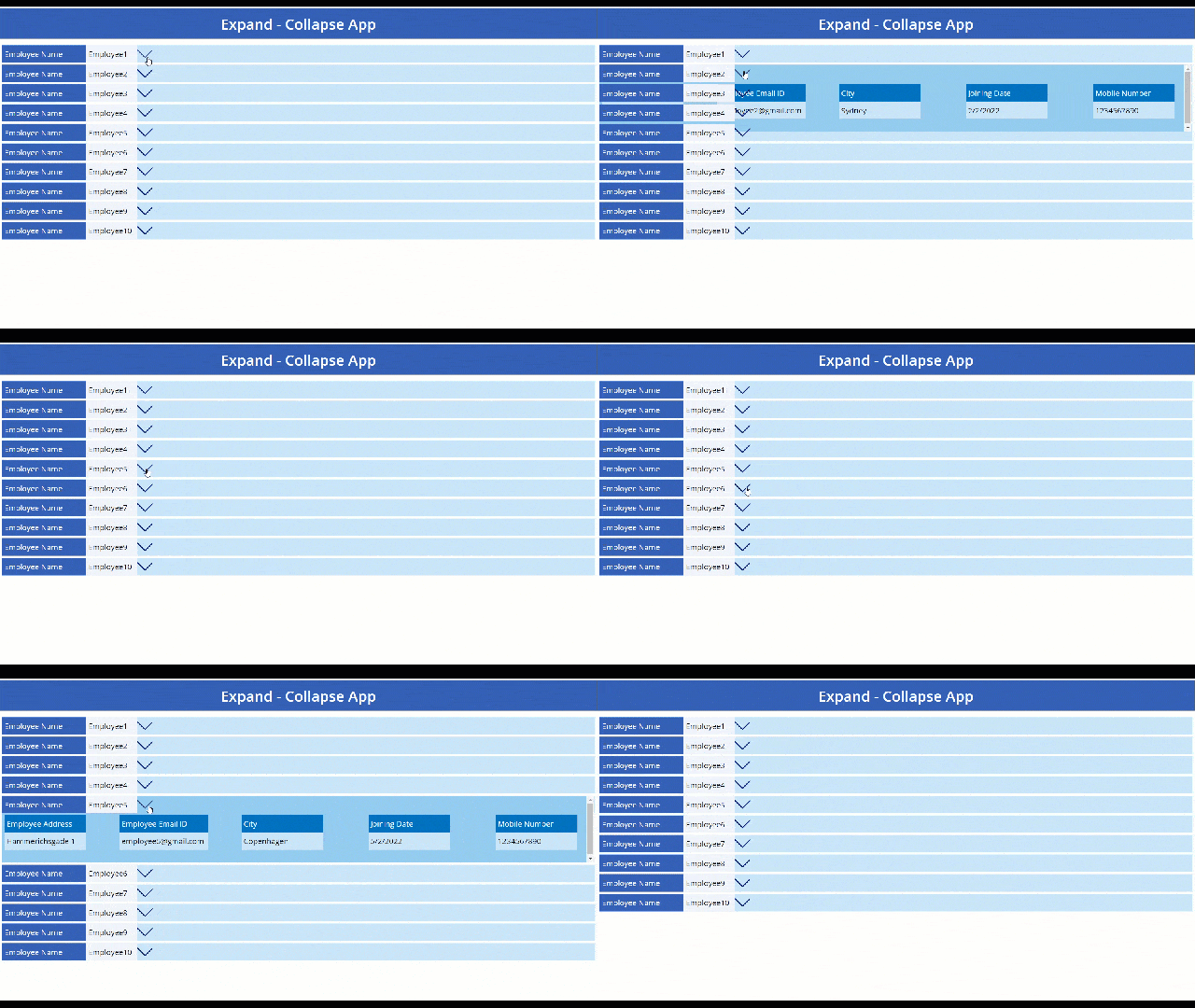
In this blog post, I share the steps for creating an expand-collapse gallery control in the PowerApps Canvas App. 

gif-01

Now, let’s start building the Gallery, for which we would have to create our list first and have the same loaded in a PowerApps App as a data source.  

Step-1

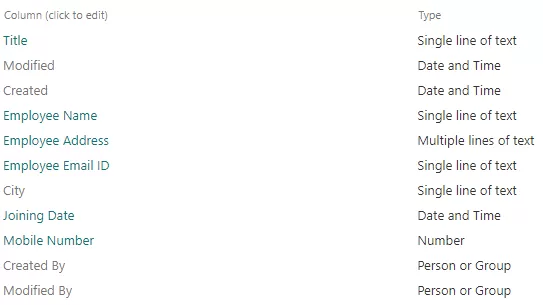
Create “Expand-Collapse Control” list with the following columns and their types 

img-01

Step-2

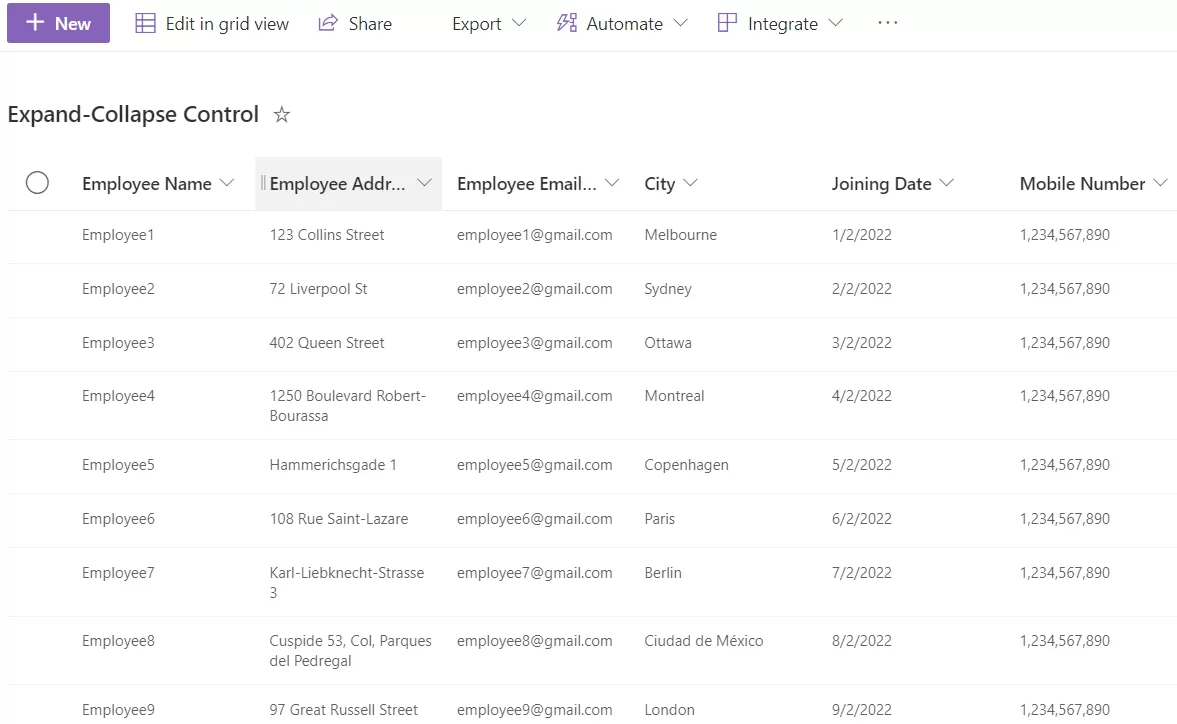
Add few entries in “Expand-Collapse Control” list 

img-02

Step-3

Create a Canvas App and name it “Expand-Collapse App” 

  1. Add a new Blank screen 
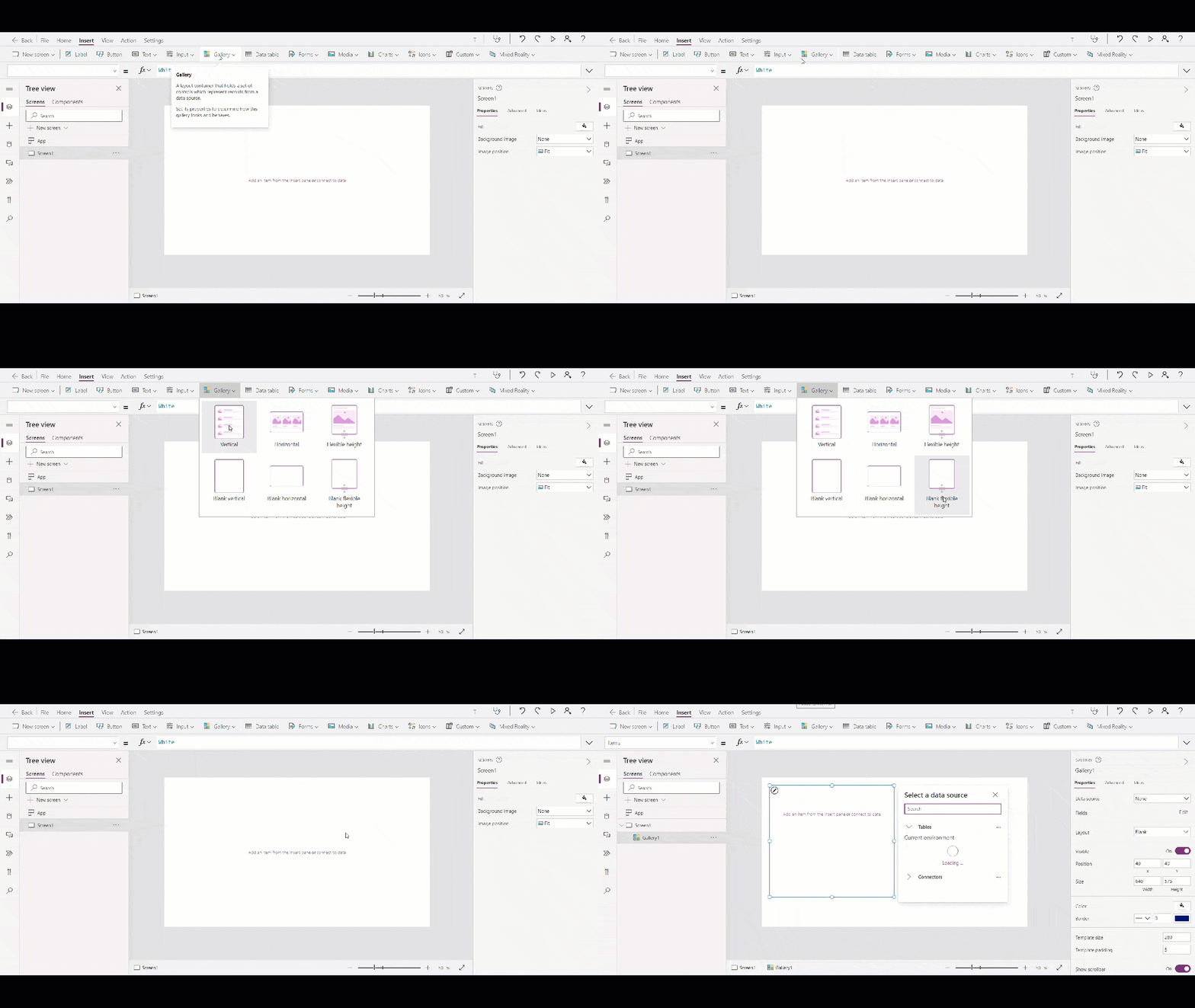
  2. From the Controls section on the top in Insert tab, add a “Blank flexible height” gallery – which would be our Parent Gallery
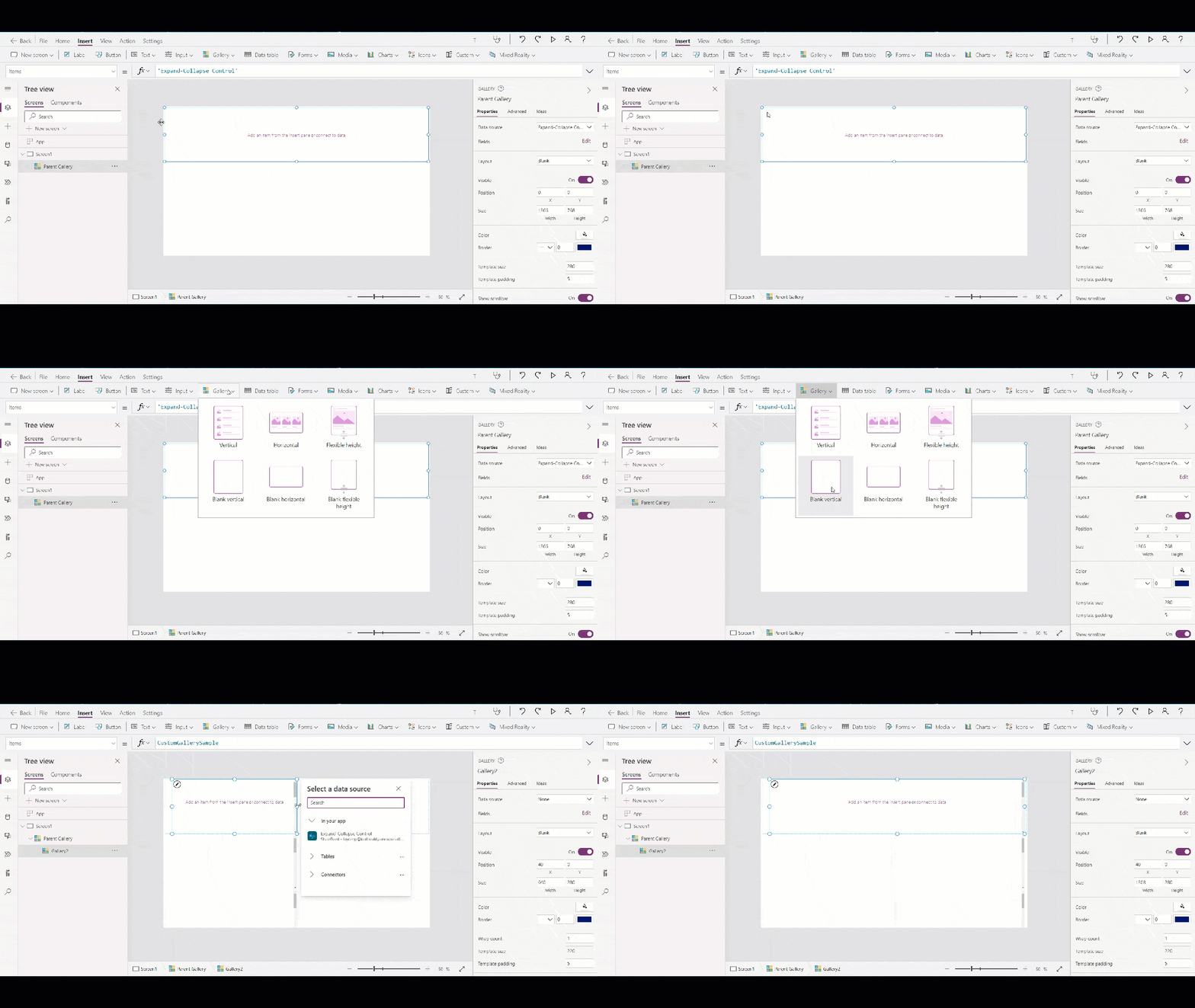
  3. And add a “Blank vertical” gallery in “Blank flexible height” gallery  which would be our Child Gallery 
  • Parent Gallery 

gif-02

  • Child Gallery 

gif-3

Step-4

Adding the data source to Gallery 

In the Parent Gallery add “Expand – Collapse Control” list data 

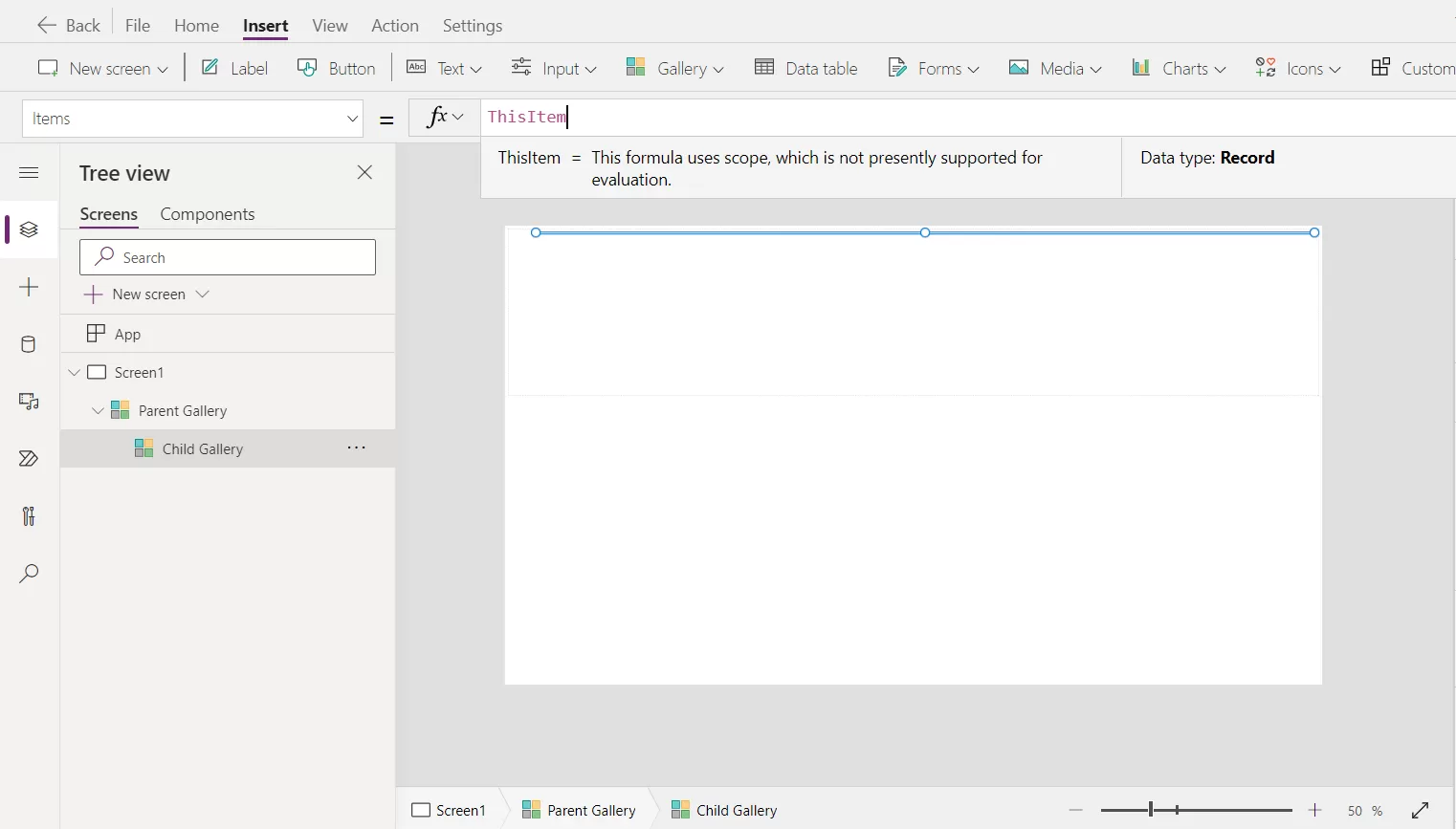
For Child Gallery in “Items” property add code – ThisItem 

img-03

Step-5

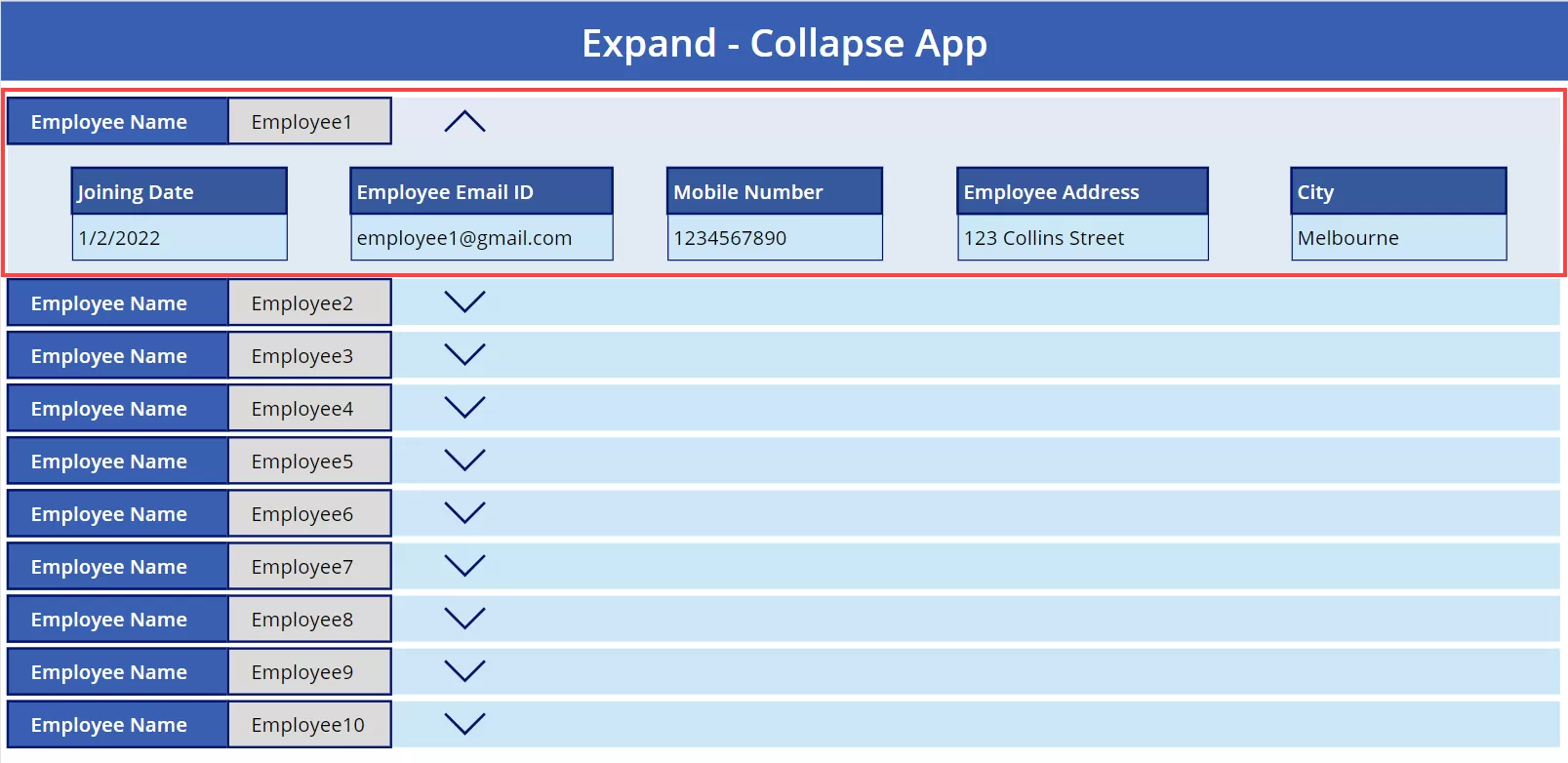
Add labels according to the list’s columns and add show data 

img-04

Step-6

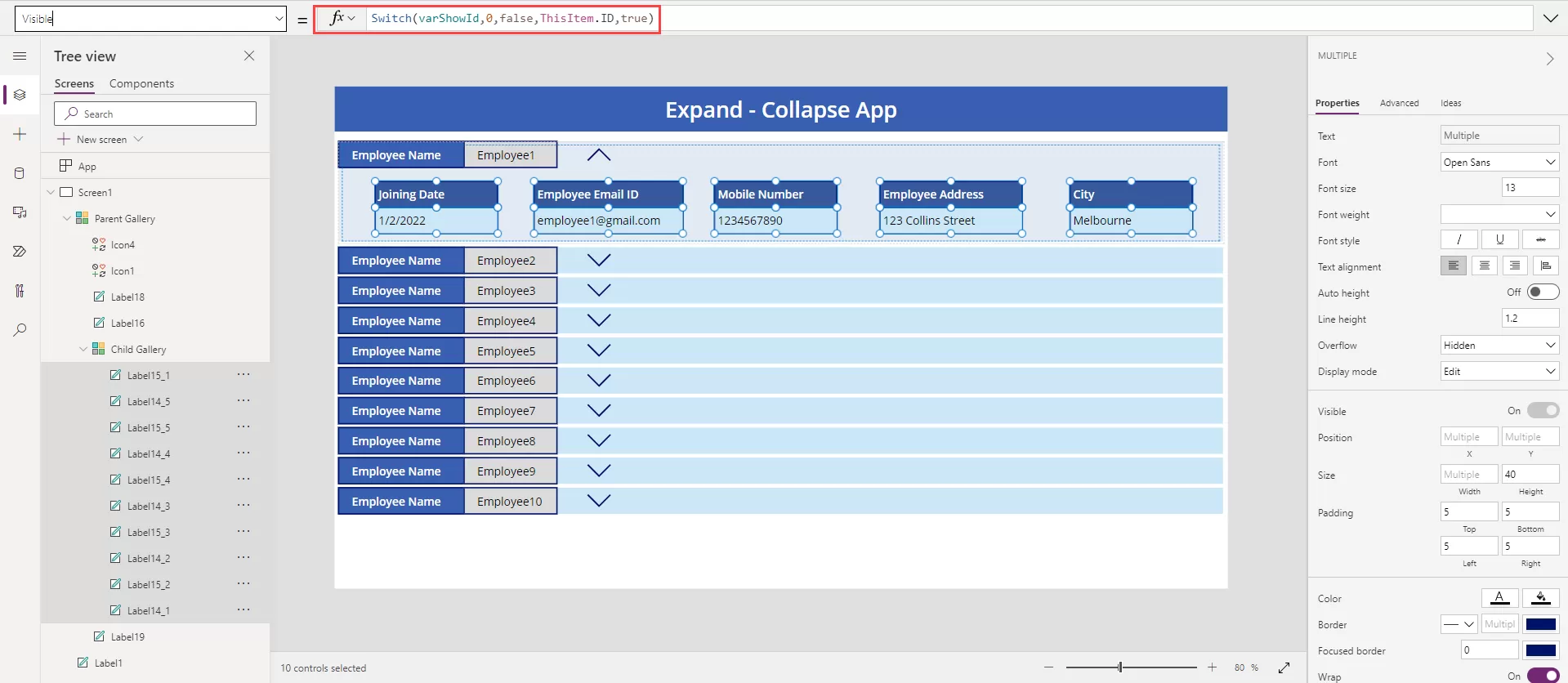
Add code on all label’s “visible” property which are added in “Child Gallery”Also, to have the Child Gallery show when button is clicked, we have to add code in Child Gallery’s on “Visible” property  

“Visible” property – Switch(varShowId,0,false,ThisItem.ID,true)

img-05

Step-7

Add down arrow icon and up arrow icon. 

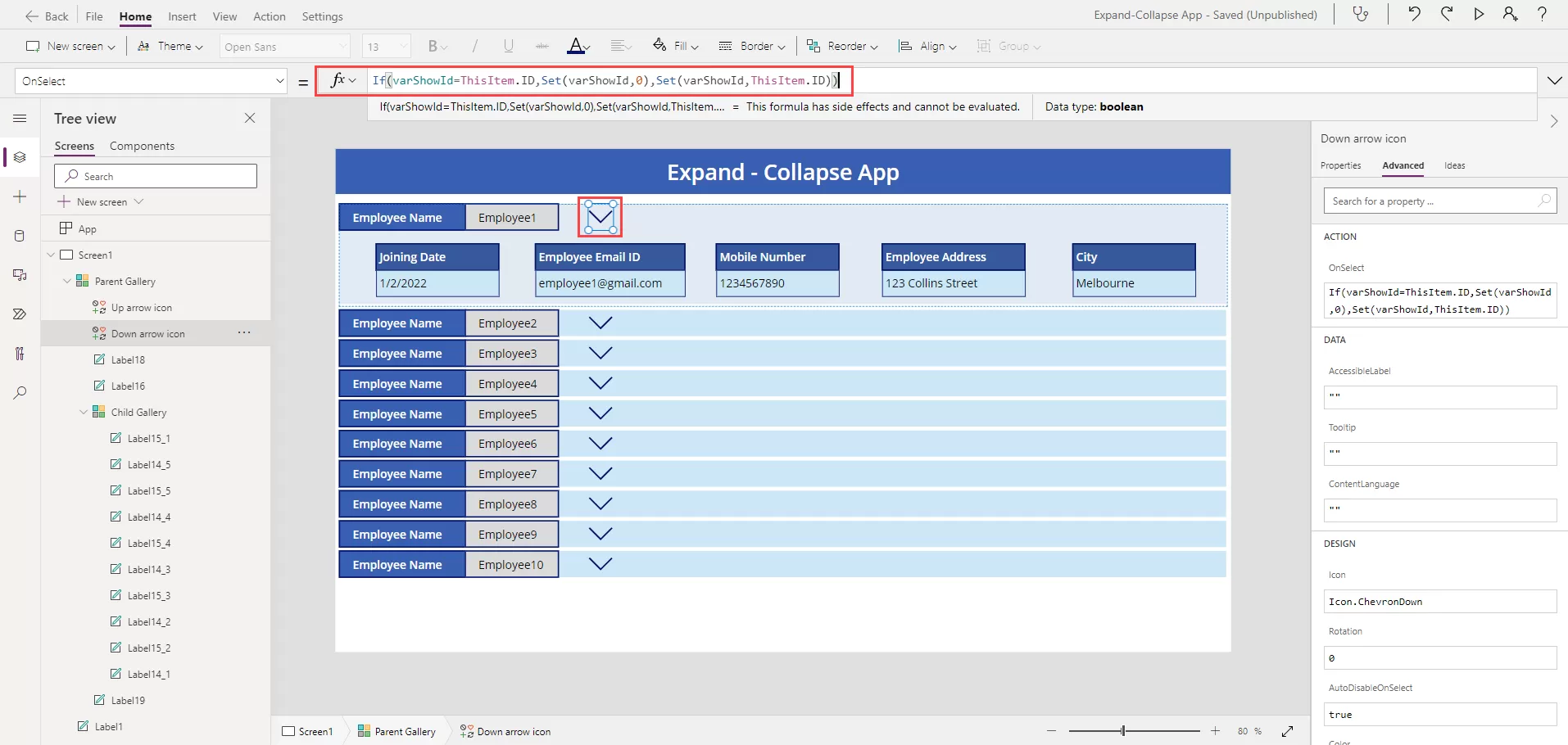
Then first write code for the down arrow icon(Down arrow icon) on its “OnSelect” property –

If(varShowId=ThisItem.ID,Set(varShowId,0),Set(varShowId,ThisItem.ID)) 

img-06

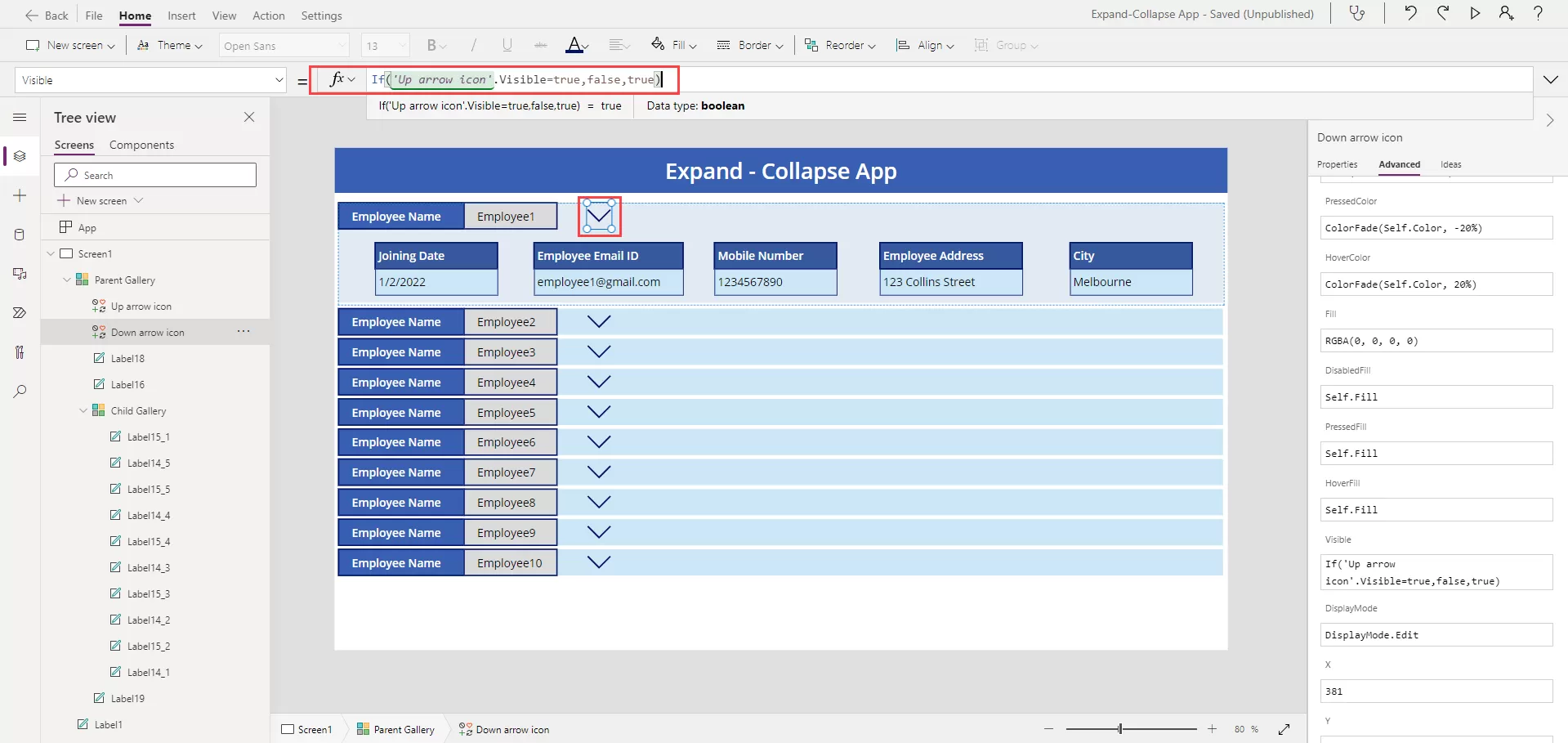
And add code on visible property – If(Up arrow icon.Visible=true,false,true) 

img-01

Step-8

On  the down arrow icon and write code on it’s “OnSelect” property –

If(varShowId=ThisItem.ID,Set(varShowId,0),Set(varShowId,ThisItem.ID)) 

img-07

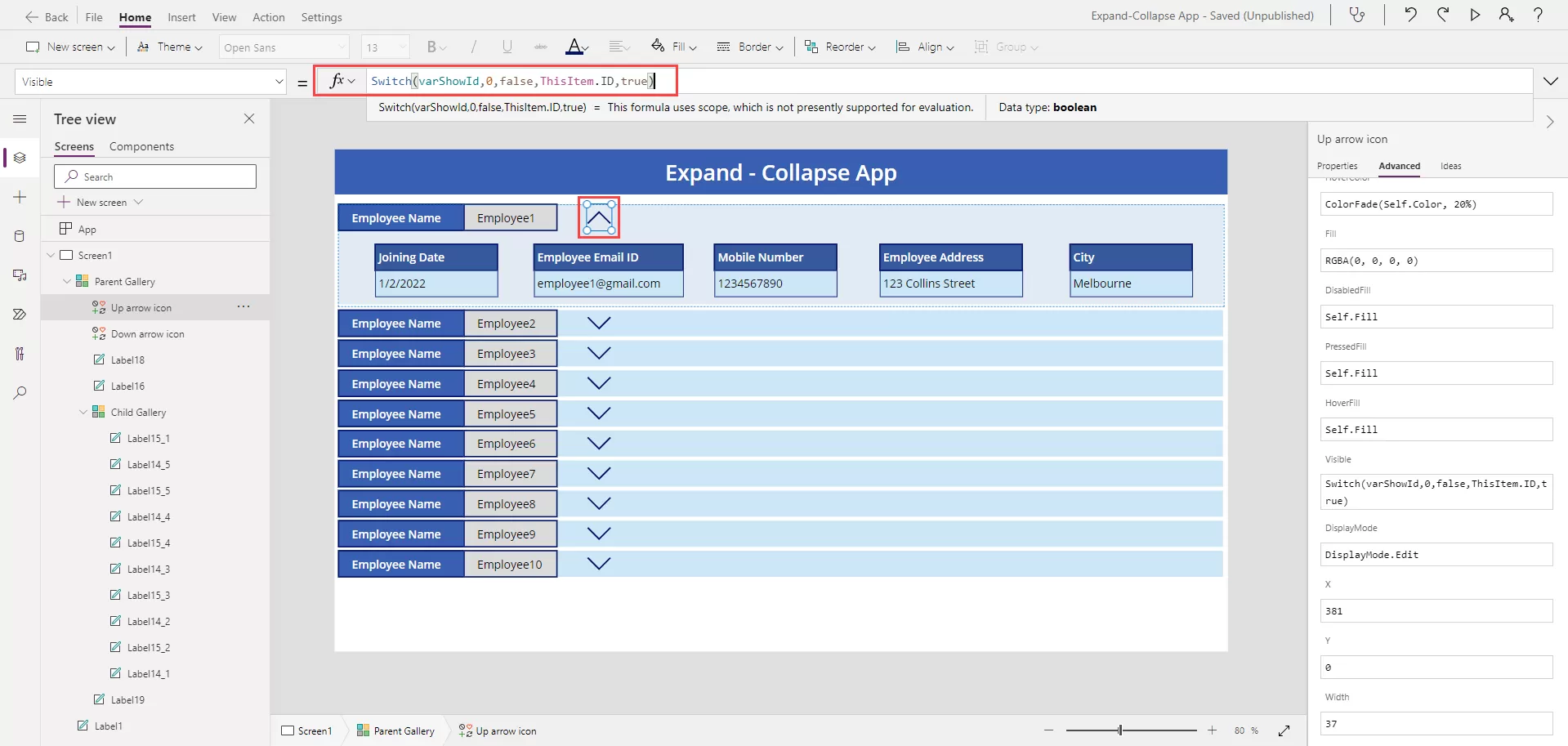
And write code on its “Visible” property –

Switch(varShowId,0,false,ThisItem.ID,true)

img-07

Please post your question, if you will find while implementing this process. Thank you.

In this tutorial, we explored how to create an Expand-Collapse feature in a Microsoft PowerApps Canvas App Gallery.

By following the step-by-step guide, you can enhance the user experience of your PowerApps solutions by allowing users to efficiently navigate and interact with data.

Implementing features like Expand-Collapse rows can greatly improve the usability and functionality of your Canvas Apps, providing a more intuitive interface for users to work with.

We hope this tutorial has been helpful in expanding your understanding of building dynamic interfaces in PowerApps.

Stay tuned for more insights and tutorials on optimizing your Microsoft PowerApps solutions for enhanced productivity and user satisfaction.

Reach out to Reality Tech for getting help in optimizing the Microsoft PowerApps solutions

PowerApps – Role Based Security Using SharePoint Group

Table of Contents

Summary

While creating a PowerApps app, we needed to add a button that would be visible only for a particular set of users who were present in a specific group in SharePoint. This was accomplished with the help of Flow.  

We would check with the help of Flow that the user that is trying to access the App, is present in the group or not. If yes, the button is available and if not, the button won’t be. 

The approach goes like, 

Step-1

Create a SharePoint Security Group and add the users who would have the access to the button in PowerApps App.

And enable the access to view the members of the Group to Everyone, so that when the user tries to login, not all users would be in the group.  

img-01

Step-2

Creating the Flow 

  • Create the Flow, with the trigger PowerApps of PowerApps connector. 

img-02

  • Add an action, Initialize variable of Variables connector. Set the name as isAdministrator to store a Boolean value.

img-03

img-04

  • Add another Initialize variable of Variables connector. Set the name as UserGroupInfo to store a Boolean value. 
  • Add an action, Send an HTTP request to SharePoint of SharePoint connector.  
Site Address – Select the site address where the security group is created 

Method – GET 

Uri – api/web/sitegroups/getByName(‘SharePoint Group’)/Users?$filter=Email eq ‘’ 

Replace the SharePoint Group with the name of the group created in Step-1. Here I had created the group ‘Line Manager’.  

Put the cursor pointer in between the single quotes and select the option from PowerApps, SendanHTTPrequesttoSharePoint_Uri from dynamic content window.

img-05

  • Add an action, Set Variable of Variable connector. Select the variable UserGroupInfo in Name and value as Body from Send an HTTP request to SharePoint from dynamic content. 

img-06

  • Add an action, Condition of Control Connector. Set the conditional value as variable UserGroupInfo and select the condition is not equal to and in value  to be compared as ‘[]’. 

     Inside the if yes and if no options, 

 For the option if yes, add an action Set Variable of Variable connector. Select the variable  isAdministrator and set the value as true, 

         For option if no, add an action Set Variable of Variable connector. Select the variable isAdministrator and set the value as false. 

img-07

  • Add an action, Respond to PowerApps of PowerApps connector. Select the text option for the output. Set the variable as isAdminUser and the value as isAdministrator from the Dynamic content. 

img-08

The final look of the flow would be like this: 

img-09

Step-3

Implementing the Flow with PowerApps App 

After the Flow is ready, lets configure the same with the App to test it. 

On the first screen that would be visible when you run the App, on its OnVisible Property, set the variables as below: 

img-10

First, we take the variable isAdmin and set it as false.  

Secondly, we would check with the flow to set the variable UserGroupInfo as the flow’s outcome.   

On the button’s visible property, set it as If(isAdmin, true). SO that if the user is in the SharePoint Group the button would be visible else it would not. 

So when a user is inside the SharePoint Group, the screen would display the button: 

img-11

And when the user is not, we display: 

img-12

Additional Read

SharePoint for Enterprise Content Management – Why Should Choose?

In conclusion, leveraging PowerApps in conjunction with SharePoint groups provides a dynamic solution for implementing role-based access control within your applications — a strategy especially important if you’re working with sensitive content or planning to migrate file shares to SharePoint Online.

By utilizing the capabilities of Flow, we have demonstrated how to seamlessly manage user permissions, ensuring that only authorized individuals can access specific features or functionalities.

With Microsoft PowerApps solutions, organizations can not only enhance security measures but also streamline workflows and improve overall efficiency.

Whether it’s creating custom apps tailored to unique business requirements or integrating with existing systems for seamless collaboration, PowerApps empowers businesses to unlock the full potential of their digital ecosystems. And if you’re aiming to optimize internal collaboration, explore the top benefits of SharePoint Online to extend the value even further.

By following the steps outlined in this guide, you can effectively implement role-based security measures in your PowerApps applications, providing a tailored and secure user experience for your organization.

Incorporating Microsoft PowerApps solutions into your development toolkit opens a world of possibilities, enabling you to drive innovation, maximize productivity, and achieve your business objectives with confidence.

Please post your question, if you will find while implementing this process. Thank you.

Publish Power App To The Teams App Store

Summary

In this blog, I am performing the steps one should follow to publish your PowerApps to the Teams App Store.  

Let’s get started- 

Step-1

From the PowerApps portal, Click Apps in the app bar.

Step-2

To the right of your app name, Click the menu then select Add to Teams.

img-01

Step-3

In the Add to Teams pane, click Add to Teams. 

Note: you may want to first click Edit details to add a short description, so your users know what‘s expected when using this app. You can also expand the Advanced settings to add further information. For example, you can include a link to instructions if you‘d like. 

img-02

Step-4

Power Apps will open Teams. Your browser may request access to open in the desktop app. If you prefer that, allow it. If not, click Cancel then click Use the web app instead. 

img-03

Step-5

Once Teams opens to the app details page, click Add.

img-04


Step-6

The app opens from the Teams app bar. 

img-05

Step-7

Right-click the app icon to pin it to stay.

img-06

Additional Read

SharePoint for Enterprise Content Management – Why Should Choose?

Please post your question, if you will find while implementing this process. Thank you.

Generate a PDF from Microsoft Automate Method – 2

Table of Contents

Summary

In previous blog, we discussed Generating the PDF from Microsoft Flow with two approaches. The First one with an HTML Template can be accessed from here –link—

Let’s start with the Second approach,

Part-2

Generate a PDF of SharePoint List Data with Word Template from Microsoft Flow

This is the second approach for generating the PDF from SharePoint List data that is using the predefined format as Template in SharePoint Document Library, then updated the file properties and created a template in OneDrive then converting that template to PDF and saving in SharePoint Document Library.
The approach is described below:

Step-1

Create a SharePoint Custom List named Conversion-to-PDF-from-Flow with necessary fields to enter the data, required to move to predefined PDF Format. Here I have taken the following fields.

img-01

Create another SharePoint Document Library with name Test-PDF-Documents to store the generated PDF’s. 

Please note, while creating multi-line columns, make sure that  plain text is selected. 

Step-2

The Word Template 

Create a SharePoint Document Library named Test-PDF-Doc-Template. Create the same data fields created in the SharePoint List – Conversion-to-PDF-from-Flow. 

We would create a Document Template in the Library. We would also create the same data fields in the Library as we had created in the List named Conversion-to-PDF-from-Flow. Once we have created the same data fieldswe would go to Library Settings > go to Advanced Setting > Edit Template. 

img-02

img-03

In previous approach, we used tokens. In this approach we would be using the Quick Parts from Insert tab. We can access or add them like Insert > Quick Parts > Document Property > Use the data column which would be used to replace the data inserted in it. 

img-04

One created the template would look like this, 

img-05

Once created, save it in .docx format.  

So the next time when you would try to edit the template it would have to be saved in .docx format. 

Step-3

Creating the Flow 

  • Create the Flow with trigger – When an item is created of SharePoint connector. Select the Site collection address and List’s name. 

img-06

  • Add an action – Get File Content of SharePoint connector. Select the Site collection address and the File from which the template would be taken and used to create the file.  

img-07

  • Add an action – Create File of SharePoint connector. Select the Site collection address, folder path to the template saved, Create a File name as required and select the file content from the dynamic content window from the previous action 

img-08

  • Add an action – Update File Properties, select the Site collection address, Library name, Select the ID as ItemID from previous action Create File action and select the data fields linked to each other. 

Additional Read

How to Migrate File Server to SharePoint Online [Expert Guide]

img-09

  • Add an action – Get File Content of SharePoint connector. Select the Site Collection address, and the file identifier, set the file identifier as file identifier from the previous action. 

img-10

  • Add an action – Create File for the OneDrive connector. Select the Folder path to save the file, name of the file and the file content as file content from previous action from dynamic content. 

img-11

  • Add an action – Convert File for the SharePoint connector. Select the File as ID from the precious action. 

img-12

  • Add an action – Create File for the SharePoint connector. Select the Site collection address, folder path to save the file, name of the file with an extension .pdf and file content as File Content from previous action of Convert File.  

img-13

Once the Flow is created, it would look like this: 

img-14

Let’s enter data in our SharePoint Custom List Conversion to PDF from the Flow: 

img-15

The document that gets created in the Library named Test-PDF-Doc-Template while the Flow runs would appear like this: 

img-16

The document that would be created inside the Library Test-PDF-Documents after the Flow runs would appear as: 

img-17

The file content would look like this: 

img-18

Are you in need of assistance? We can help!

Book a live 1-on-1 call with the experts of Reality Tech to find out how we will help you to achieve your goal. You’ll find our solutions robust, scalable, and dependable. Let’s talk!

Please post your question, if you will find while implementing this process. Thank you.

Newsletters