Ultimate Guide to Microsoft Purview: Revolutionizing Data Governance and Compliance

In this data-driven era, organizations face a significant challenge – managing and safeguarding their vast and diverse data assets while adhering to strict regulatory requirements. As data grows exponentially, so does the complexity of ensuring its security and compliance.

 Enter Microsoft Purview, a game-changing data governance and compliance platform designed to provide organizations with a unified view of their data estate, revolutionizing the way businesses handle data.

With its powerful suite of features and cutting-edge technology, Purview offers a holistic and proactive approach to data governance, helping businesses unlock insights, secure sensitive information, and streamline compliance processes.

Let’s explore the potential of Microsoft Purview and how it can transform the landscape of data governance and compliance within your company.

What is Microsoft Purview?

img-01

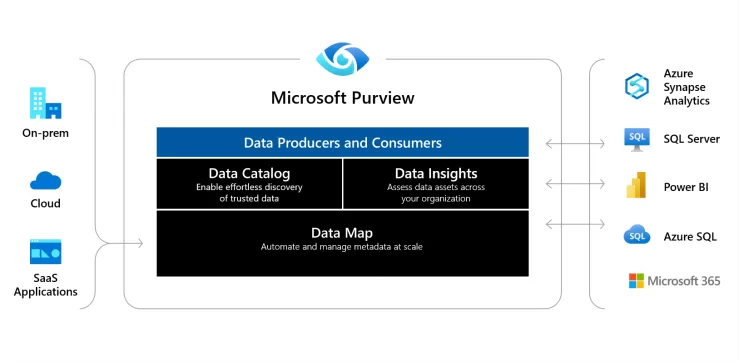
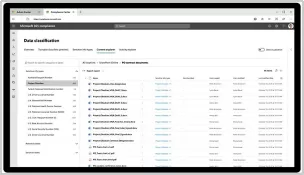
Microsoft Purview is a powerful data governance and data management tool offered by Microsoft. It provides businesses with a comprehensive solution to discover, classify, and manage their data assets across various sources, both within their organization and in the cloud.

With Purview, businesses can gain valuable insights into their data, understand its lineage, identify sensitive information, and ensure compliance with data regulations.

This enables organizations to make informed decisions, protect their sensitive data, and drive efficient data-driven processes throughout their enterprise.

By providing a unified view of data across the organization, Microsoft Purview empowers businesses to harness the true potential of their data, transforming it into a strategic asset for growth and success.

Benefits of Microsoft Purview:

  1. Holistic Data Visibility:

img-02

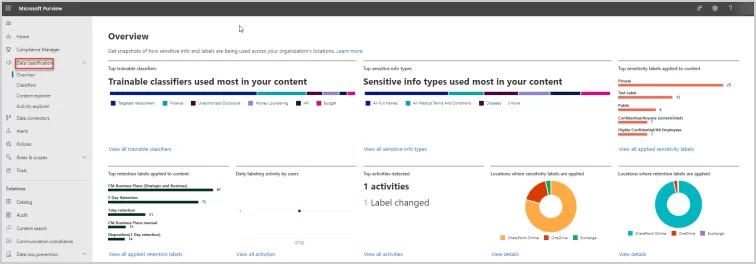
Gaining a comprehensive and centralized view of the entire data estate is a crucial advantage offered by Microsoft Purview. Businesses can now gain invaluable insights into data sources, relationships, and usage patterns.

This enhanced visibility enables data-driven decision-making and optimizes data management strategies, leading to enhanced efficiency and productivity.

  1. Proactive Insider Risk Management:

Understanding and mitigating insider threats are critical components of data security. Microsoft Purview actively monitors user activity to detect suspicious behavior patterns, allowing organizations to proactively address potential risks and ensure data security.

  1. Integration Capabilities:

Purview seamlessly integrates with a range of business applications, including SharePoint, Salesforce, Outlook Calendars, SQL Server, Teams, and Planner, enhancing automation capabilities and streamlining data workflows.

Key Features of Microsoft Purview:

  1. Automated Data Classification:

img-03

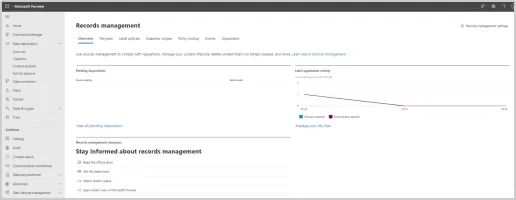
Accurate identification and classification of sensitive data are essential for data protection and compliance. With Purview, organizations can seamlessly identify and classify data based on predefined policies or custom criteria, ensuring regulatory compliance and bolstering data security.

Leveraging the power of AI and ML, Purview automatically classifies data based on sensitivity, risk, and content, streamlining the data classification process for efficient data protection and compliance.

img-04

  1. Intelligent Information Protection:

Purview empowers organizations to enforce data protection policies on sensitive data, preventing unauthorized access and safeguarding sensitive information from unauthorized disclosure.

With information protection, businesses can now benefit from sensitivity labels that offer seamless classification and protection of their valuable data without compromising productivity and collaboration.

Purview enables organizations to apply granular protection policies to sensitive data, ensuring that data remains secure and accessible only to authorized personnel.

Using sensitivity labels, users gain the ability to:

  • Apply encryption and content markings to secure documents and emails.
  • Safeguard content in various Office apps on different platforms.
  • Protect content in third-party apps with Microsoft Defender for Cloud Apps.
  • Secure containers like Teams, Microsoft 365 Groups, and SharePoint sites with privacy settings.
  • Label and encrypt meeting invites and chat in Teams for added protection.
  • Extend sensitivity labels to Power BI and Microsoft Purview Data Map to protect data beyond the service.
  • Enable third-party apps to read sensitivity labels and apply protection settings.
  • Label content to indicate sensitivity levels and generate usage reports.

What’s more, the versatility of sensitivity labels allows organizations to extend their protective reach to secure containers such as Teams, Microsoft 365 Groups, and SharePoint sites with privacy settings.

Even meeting invites and chats in Teams can be labeled and encrypted for added protection.

  1. Comprehensive Insider Risk Management:

Microsoft Purview’s advanced analytics and behavior monitoring capabilities proactively identify insider threats, empowering organizations to take swift action to mitigate risks and protect their data.

Purview’s Insider Risk Management feature provides detailed insights into user activities, helping organizations understand patterns that may indicate malicious intent or security vulnerabilities.

With this valuable information, businesses can implement targeted security measures, such as additional authentication steps or temporary access restrictions, to prevent potential data breaches.

  1. Effortless Content Search:

Microsoft Purview simplifies data retrieval and auditing processes with its powerful content search capabilities. Whether for auditing or eDiscovery purposes, Purview allows businesses to quickly search and retrieve specific data sets or files across various sources.

The intuitive search interface enables users to pinpoint relevant information effortlessly, saving valuable time and effort in data discovery.

  1. Data Loss Prevention:

Data security is a top priority for businesses, especially when dealing with sensitive information. Microsoft Purview’s Data Loss Prevention (DLP) features empower organizations to implement robust policies and controls to prevent the unauthorized disclosure or loss of sensitive data.

With Purview’s DLP, businesses can proactively safeguard their valuable data assets, ensuring compliance with data protection regulations and maintaining customer trust.

  1. Seamless Compliance with Communication Policies:

Communication compliance is a crucial aspect of data governance. With Purview, businesses can effectively monitor and enforce compliance with communication policies across various channels, such as emails and chats, promoting a secure and compliant data environment.

  1. Enhanced Information Barriers:

To maintain data integrity and prevent conflicts of interest or inappropriate access, businesses can leverage Purview’s Information Barriers feature.

This capability enforces a separation between certain users or groups, limiting data access based on defined policies.

By effectively controlling data flow, organizations can enhance security and minimize the risk of unauthorized data exposure, ensuring data stays in the right hands.

  1. Streamlined Record Management:

Practices

img-05

Compliance with regulatory requirements is crucial for businesses, especially when it comes to managing records and documents. With Purview, users can create retention labels that can be applied manually or automatically, providing flexibility and control over data retention.

To get started with retention labels, users first need to create a label definition that outlines the specific retention settings for the label.

Once the label definition is created, it can be published. Users have the option to apply the label manually by selecting the content they want to label and choosing the appropriate label from the list of available options.

img-06

Moreover, Purview offers the capability to apply labels automatically using auto-apply policies, streamlining the process further. Users can create custom auto-apply policies that specify conditions that must be met for the label to be applied automatically.

For instance, an auto-apply policy can be configured to apply the label to all documents created in a specific location or containing particular keywords.

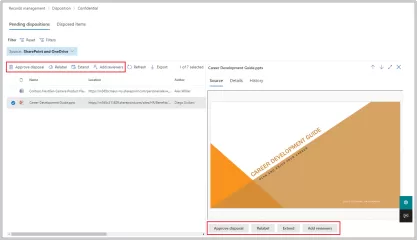
But it doesn’t end there—Purview also provides Disposition Review, a crucial process for deciding what to do with old records after their retention period has expired.

During disposition review, users can extend the retention date, relabel, add reviewers, or dispose of records. This process ensures that records are managed and disposed of in accordance with your organization’s policies and procedures, promoting compliance and avoiding regulatory fines and penalties.

  • Compliance: Disposition review ensures that records are managed and disposed of in accordance with your organization’s policies and procedures.
  • Efficiency: With efficient disposition review, you can optimize your data storage and utilization. By disposing of old or unnecessary records, you can reduce the amount of storage space needed for your data.
  • Enhanced Data Security: Protecting your records from unauthorized access, modification, or deletion is vital for data security. Disposition review in Microsoft Purview allows you to identify records that may be at risk and implement appropriate security measures to safeguard sensitive information.
  1. Simplified eDiscovery:

Legal and compliance requirements often necessitate rapid data retrieval. eDiscovery, a powerful feature of Microsoft Purview, greatly enhances the efficiency and effectiveness of legal proceedings and compliance audits.

Purview streamlines the eDiscovery process, enabling organizations to quickly identify and retrieve relevant data sets and files.

With eDiscovery, you can automate the identification and application of legal holds to relevant data, ensuring that critical information is preserved and protected for legal purposes.

The feature also provides a variety of tools to help you search for relevant data, including keyword searches, date ranges, and custodian filters. You can also use predictive coding to help identify the most relevant data swiftly and accurately.

Moreover, eDiscovery makes it seamless to export relevant data from your eDiscovery case in various formats such as PDF, CSV, and XML, making it convenient to share information with legal teams or regulatory authorities.

  1. Robust Audit Trail:

Staying on top of user activity and system events is vital for compliance and security purposes. Microsoft Purview’s audit capabilities allow businesses to track and report on user interactions with data and system events.

This valuable insight helps organizations identify potential risks, monitor data usage patterns, and ensure adherence to data security and compliance policies.

With Purview’s auditing features, businesses can maintain transparency and accountability in their data management practices.

  1. Effective Data Lifecycle Management:

Microsoft Purview offers robust data lifecycle management, ensuring effective data management from creation to disposal. Retention policies can be created from the Data lifecycle management catalog.

These policies allow organizations to manage the lifecycle of data in various locations, providing centralized data governance. You can apply a single policy to multiple locations or specific ones, with the retention period based on content creation or modification dates.

When items are moved outside their specified container, a copy is retained in a secure location, but the retention settings do not travel with the content.

For that purpose, retention labels should be used instead. Microsoft Purview’s data lifecycle management empowers organizations to streamline data retention, enhance compliance, and maintain responsible data stewardship.

Overcome Microsoft Purview Implementation Challenges with Reality Tech

During the implementation of Microsoft Purview, organizations may encounter challenges, issues, or limitations. Licensing costs, configuration challenges, performance issues, administrative access limitations, and reporting needs must be carefully evaluated and addressed to ensure a seamless deployment.

With Reality Tech’s proven experience and deep understanding of Microsoft Purview, businesses can confidently navigate these challenges and unlock the full potential of this powerful data management solution.

Our team of experts stands ready to assist you at every step, ensuring a smooth and successful implementation that meets your unique business needs.

Also, if you are looking to ensure comprehensive compliance across your organization, check out Microsoft Purview Compliance Manager, where we delve into how this powerful tool can help you achieve regulatory compliance and streamline your compliance management processes seamlessly.

Discover the perfect duo of Microsoft Purview and Purview Compliance Manager to revolutionize your data governance and compliance strategies.

In conclusion, Microsoft Purview empowers organizations to transform their data governance and compliance strategies, driving data insights, enhancing data protection, and ensuring adherence to regulatory standards.

As a trusted partner, Reality Tech leverages its expertise to assist organizations in harnessing the full potential of Microsoft Purview.

With a focus on streamlining workflows, optimizing efficiency, and ensuring compliance, Reality Tech enables businesses to unleash the true power of Purview, taking your data governance and compliance practices to new heights of success.

Embrace Microsoft Purview and revolutionize the way you manage and protect your data estate.

Creating A Custom Site Template in SharePoint Online

Summary

In this blog post, I share the steps for creating the custom template for any SharePoint Online site — an essential capability if you’re customizing your SharePoint development solutions for scalable collaboration and branding.

Now let’s start building the custom template, for which we will run the following commands.

Step 1

First, create a SharePoint site. If you’re new to the platform or wondering why it’s worth using, start with this guide on SharePoint Online benefits for collaboration and teamwork.

Step 2

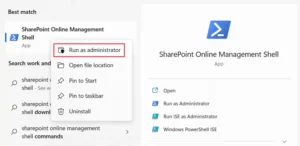
Install “SharePoint Online Management Shell” and open as “Run as Administration”


img-01

Step 3

Connect the SharePoint tenant using the following command. Make sure your connection setup aligns with SharePoint security best practices — especially if your template will be deployed across sensitive business environments.

Tenant Admin Url – https://anyorganization-admin.sharepoint.com/

Connect-SPOService -url “Tenant Admin Url”

Step 4

Execute the command below for creating the theme according to the requirements.
$themepallette =@{
"themePrimary"="#9b59b6";
"themeLighterAlt"="#faf7fb";
"themeLighter"="#f5eef8";
"themeLight"="#ebdef0";
"themeTertiary"="#d5b9e0";
"themeSecondary"="#a569bc";
"themeDarkAlt"="#8e4ba8";
"themeDark"="#6e3a83";
"themeDarker"="#572e67";
"neutralLighterAlt"="#f8f8f8";
"neutralLighter"="#f4f4f4";
"neutralLight"="#eaeaea";
"neutralQuaternaryAlt"="#dadad";
"neutralQuaternary"="#d0d0d0";
"neutralTertiaryAlt"="#c8c8c8";
"neutralTertiary"="#d6d6d6";
"neutralSecondary"="#474747";
"neutralPrimaryAlt"="#2e2e2e";
"neutralPrimary"="#333333";
"neutralDark"="#242424";
"black"="#1c1c1c";
"white"="#ffffff";
"primaryBackground"="#ffffff";
"primaryText"="#333333";
"bodyBackground"="#ffffff";
"bodyText"="#333333";
"disabledBackground"="#f4f4f4";
"disabledText"="#c8c8c8";
}

Add-SPOTheme -Name “Test Purple” -Palette $themepallette -IsInverted $false Here we can provide the theme’s name based on requirements.

Step 5

Now we’ll initialize the previously created theme and site logo. If you’re migrating from a legacy system, this is a great way to unify branding after a file share to SharePoint Online migration.

$site_script=@'
{
"$schema":"schema.json",
"actions":[
{
"verb":"applyTheme",
"themeName":"Test Purple"
},
{
"verb":"setSiteLogo",
"url":"Site Logo Url Path"
}
],
"bindata":{ },
"version": 1
}
'@

Here, we replace the “Site Logo Url Path” with the link, where it is located in one of the document libraries.

Step 6

Run the below command to return the ID
	
Add-SPOSiteScript -Title "TestSite" -Content $site_script -Description "Creates Test Site Script"

Here, you can change the Title and Description based on the requirements.

Step 7

	
Add-SPOSiteDesign -Title "TestSite" -WebTemplate "68" -SiteScripts "ID" -Description "Test Site"

Step 8

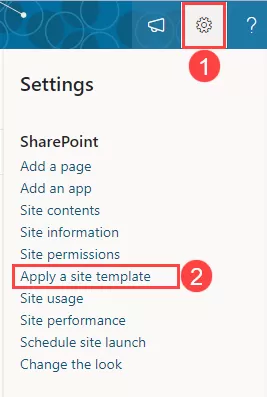
Now open existing the SharePoint site which we created in site tenant, we click on gear icon, then click on “Apply a site template”.

img-02

Step 9

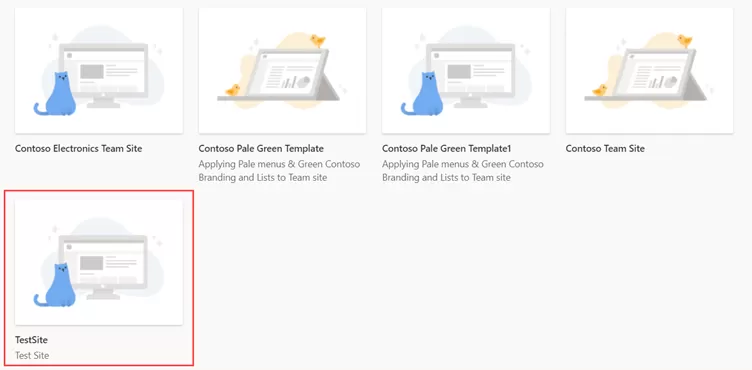
Go to “From your organization” and you can see your created customized template and use this template in the site.

img-03

Step 10

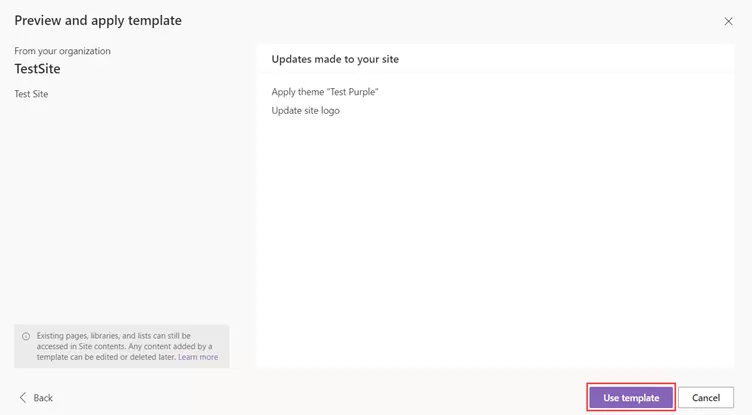
After selecting the template click on “Use template”. It can take a few times for apply template apply the template the the site.

img-04

I hope, this article will help you in building for your app.

In summary, we’ve created a custom site template in SharePoint that brings consistent branding and configuration across your organization. For tailored implementation or help managing permissions, themes, or automation, check out our SharePoint development services.

Hope this helps!!  Happy SharePointing!

Confluence to SharePoint Migration – Step by Step Guide

As businesses grow, the need to store, secure, and manage crucial information becomes increasingly important. Microsoft SharePoint is a cloud-based system that has gained a reputation for being a reliable and powerful tool to meet collaboration needs.

With enterprises discovering that SharePoint comes included with their Microsoft Office licenses and seamlessly integrates with Active Directory, migrating from legacy systems to SharePoint has become an attractive option to consolidate intranet and collaboration information.

If you are currently using Confluence as your system for wiki-based corporate reference information, transitioning to Microsoft SharePoint might be a wise choice.

In this article, we offer insights into a smooth and successful Confluence to SharePoint migration.

Benefits of Confluence to SharePoint Migration? 

There are a range of benefits to SharePoint over Confluence that are worth exploring.  Let’s consider some of the benefits:

1: Effortless Integration

SharePoint, as part of Microsoft 365, offers incredible integration with other Microsoft applications, like Microsoft Outlook, Teams, OneDrive, and Office.

This means smoother collaboration, higher productivity, and better shared access to files and documents.

For example, access to documents shared on Teams via SharePoint and OneDrive accounts, alerts, tasks, versioning, and approval workflows become available to team members.

2: Enterprise-grade Features

Enterprise-level features like search, customizable workflows, advanced security and permissions, and integration with other Microsoft tools are offered by Office 365 in general and SharePoint in particular

3: Flexibility and Scalability

Being highly flexible, SharePoint allows for customization according to business needs and processes.

In addition, it boasts excellent scalability, ensuring that vast data shared by users can be accessed across geographical locations, devices, and browsers without requiring third-party tools.

Metadata can be centrally defined across the organization, ensuring organization-wide search capabilities.

4: Support and Community

With an enormous user community and support resources, technical and support issues quickly and efficiently.

An array of online communities, online user group channels, forums, and online documentation are all available to seek quick and effective resolutions to issues, with a range of vendors offering Microsoft product support.

Additional Read

SharePoint for Enterprise Content Management – Why Should Choose?

Steps For Confluence to SharePoint Migration

Step 1: Documenting the Information Architecture

We start by analyzing the file types and sizing, including wiki pages and their relationship to corporate divisions and departments.

We define the site hierarchy, structures, and metadata, as well as any necessary features, customizations, and workflow.

Finally, the correct permissions are required for exporting from Confluence and uploading to SharePoint, with security being a critical dimension of the information architecture and its alignment with Active Directory.

Step 2: Choose the Right Migration Tool for Your Business

Choosing a migration tool that meets specific business requirements is essential for a seamless migration.

We consider factors like whether the Confluence instance is migrated from a cloud, server, or data center.

Data size, space requirements, and throughput all need to be evaluated to decide whether cloud or on-premises migration tools are required.

Customizable migration tools using configuration and mapping options are recommended for hassle-free migration.

In migrating a large dataset from Confluence, we would want a customizable migration tool for hassle-free migration that allows for a maximum of options and mappings and configuration for an optimal migration.

Additional Read

How to Choose the Right SharePoint Migration Tool and Service Partner?

There are advanced options and capabilities to consider, such as URL redirection, that can allow existing legacy URLs to be handled seamlessly going forward so embedded links can still work post-migration in SharePoint.

Step 3: Mapping

Metadata must be selected to preserve from the source and how each field will map to the destination.

Mapping subsets of content, such as departmental content, to structures in the destination lets us refine migration to compensate for organic growth at the source.

Select content can be excluded from migration to only migrate the latest and most relevant content, allowing select fields to be mapped, including “Creator,” “Creation Date,” Editor, Author, timestamps, and other fields.

Step 4: An initial migration

Load the initial dataset from Confluence to SharePoint for consideration. Mapping is refined iteratively, and objects are mapped for optimal usability in the destination.

Once the initial migration is complete, even for just one department, delta migrations and cutover can be done.


Step 5: Delta Migration to SharePoint

Using a sophisticated migration tool to identify what was already migrated and what is remaining for migration becomes necessary in a delta migration. Mappings are crucial for data subsets in a usable format on the destination.

The mapping is the key, so each type of content at the source is mapped to a usable type of content on the destination, with the result being coherent and usable by end users. Note that migrating pages from Confluence takes effort.

Step 6: Train users for quick adoption

To ensure quick adoption of the new productivity platform, training users is crucial. Training resources are tailored to meet specific business requirements, with 1-1 training, group training, how-to-reference guides, and other approaches, including “Train the Trainer.”

Training for in-house support and administrators is also essential. Consequently, you need to determine suitable training resources for your organization.

Conclusion

Confluence to SharePoint migration is a stride towards consolidating business systems, centralizing control, and management of information.

Enhanced productivity, successful collaboration, and efficient data management can be achieved with SharePoint’s enterprise-grade features.

When you opt for migration, hire an experienced partner for seamless migration and training.

A dedicated team can help plan and execute a successful migration while providing training to ensure effortless platform adoption by users.

New SharePoint Feature: External File Requests

SharePoint External File Requests

With SharePoint, one can now request external files quickly and easily. The feature initially surfaced first back in 2019 within OneDrive. It is now available in SharePoint as well.

This out-of-the-box feature allows users to request and collect files from anyone inside or outside the organization quickly and securely.

With file requests, one can request documents from anyone, irrespective of whether they have access to your SharePoint document libraries or other sites.

The file request link can be included in a range of communication channels, including email signatures, chats, and your intake or onboarding procedures with customers, prospects, and vendors.

The procedure is quick and straightforward for the recipient. They receive a link and upload the file via browser, and the file is then stored in SharePoint.

This feature improves overall collaboration and streamlines processing. File sharing in this manner gives users a simple and secure way to upload files without compromising access or requiring permission changes.

The result is fewer files being emailed and a reduced load on email recipients extracting the file from the email and uploading to a specific SharePoint location.

How SharePoint External File Requests Help My Enterprise?

This easy and secure way of collecting files from anyone and everyone is beneficial for organizations as it leads to smoother and better collaboration and faster business processing and automation with no code and less user interaction and manual filing effort.

1. Greater Collaboration:

The file request feature allows for streamlined collaboration and sharing with external users.

It enables organizations and their employees to collect files easily from clients, customers, and vendors in a controlled and secure manner while enhancing the coordination, communication, and collaboration processes.

2. Simplified File Collection: 

This feature enables a smoother and more secure file collection process that is easy and simple for users.

It has an extremely easy, user-friendly web interface for recipients to upload files while avoiding the requirements for complicated and time extensive file transfer methods that might entail licensing or additional credential management.

3. End-to-End Data Security: 

Apart from easy file sharing, it also ensures end-to-end data security and control, ensuring that external users can only upload files to a specific folder that they want and does not grant access to the folder or library to the user.

It mitigates the risk of unauthorized access to sensitive information and maintains the security of your SharePoint document libraries.
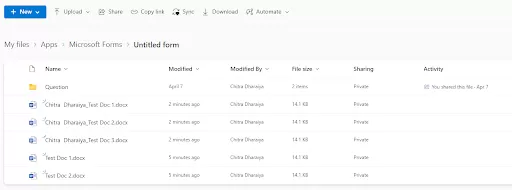
To prepare for using the file request feature in SharePoint Document Libraries, here are some of the considerations that should be kept in mind- 

  • To enable such file transfers, ensure that the administrator enables the file request feature at the tenant level.  You can enable this configuration using the SharePoint Online Management Shell.
  • Configure the required permissions for links, with specifications related to the appropriate levels of view, edit, and upload permissions for external users.
  • Inform your user base of this capability and how to utilize it.
  • Users should receive some guidance, instructions, or cheat sheets for making file requests and managing the files they receive using this functionality.
  • Ensure desktop support staff is aware of this newly enabled function and are ready to provide support and guidance on its use.

By taking into account the configuration, management, and use, you can get the most out of SharePoint Online’s file request capability and benefit from streamlined file collecting and collaboration while ensuring data protection and control.

Step-by-step Guide for External File Sharing in SharePoint Online

We will be listing the 10-step comprehensive guide for external file sharing in SharePoint Online. Have a look at it and get started for easy and quick file sharing.

1. Enable Guest Sharing:

The very first step is enabling guest sharing in your SharePoint architecture. The site owners or, more likely, the administrators can do it using the SharePoint Online Management Shell.

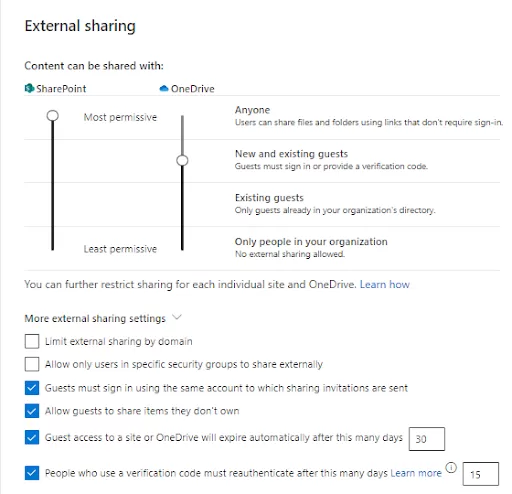
Change the Sharing Settings as below by going to SharePoint Admin Center > Policies > Sharing

img-01

You can set up the OneDrive settings as – New and existing guests and Anyone for SharePoint and can still enable the feature.

After setting these up, check that OneDriveRequestFilesLinkEnabled is set correctly via SharePoint Online Management Shell.  Here are the commands (substitute your tenant domain, of course):

img-02

  • For OneDrive
    • Check if CoreRequestFilesLinkEnabled is set to True. If it isn’t set to True, run Set-SPOTenant -CoreRequestFIlesLinkEnabled $True.
    • If this is set to True, the Request files link on the core partition for all SharePoint sites is enabled (not including OneDrive sites). If this value isn’t set, Request files will only show for OneDrive with Anyone links enabled.

2. Choose a Folder: 

After that, choose the folder in SharePoint where you want the recipient to place the requested files. This folder collects the files uploaded by the recipients.

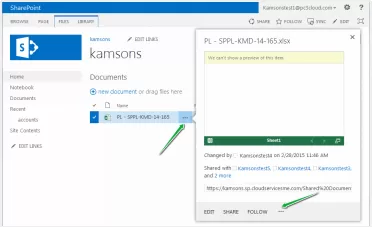
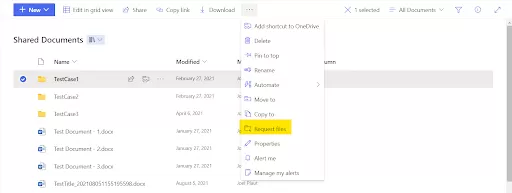
In SharePoint, the option appears as:

img-03

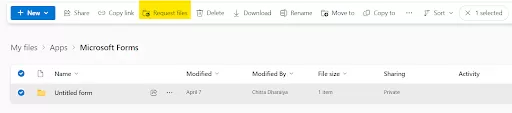
In OneDrive, the option appears as:

img-04

3. Request Files: 

Once you’ve selected the folder, click on the “Request Files” option to initiate the file request.

Additional Read

Top Features and Benefits of SharePoint Online for Collaboration and Teamwork

4. Fill out the Details: 

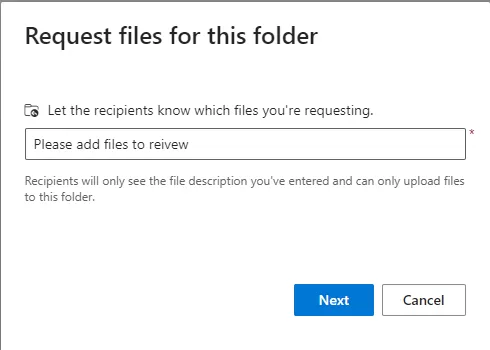
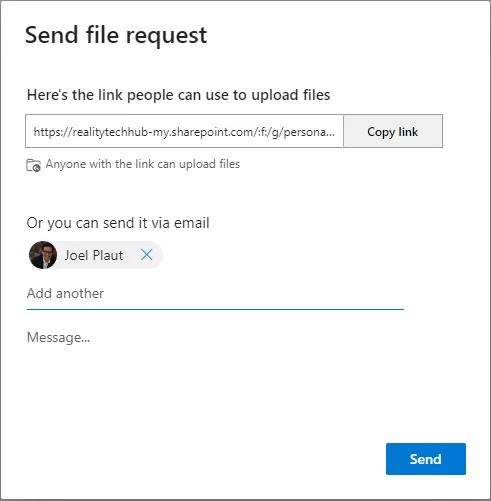
You need to add the necessary details, such as the name of the folder which you will use to collect the requested files. Make sure that the name of your folder is easy to find as well as descriptive.

A popup comes up to add the information:

img-05

5. Enter the Recipient’s Email: 

Then, add the email address of the person you want to request files from to enable file requesting.

img-06

6. Sending the Request: 

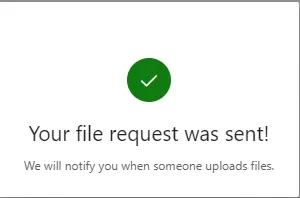
After you get the recipient’s email, then you can send the file-sharing request option to the recipient. You can send a unique link or email directly from the SharePoint user interface.

img-07

7. Uploading Files:

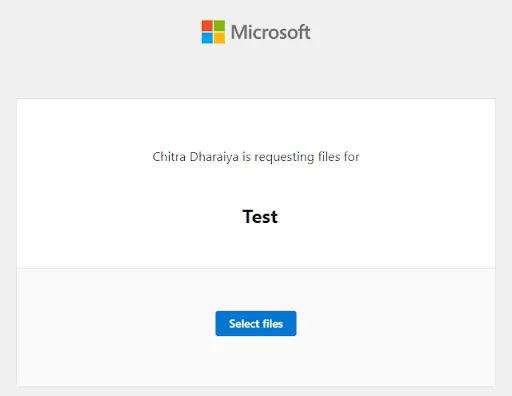
The recipient will receive the file request and click on the link provided in the email. They will be directed to a web page with a simple browse and upload experience. The recipient can select the files they want to upload and submit them.

When the recipient clicks on the link, the following page is displayed,

img-08

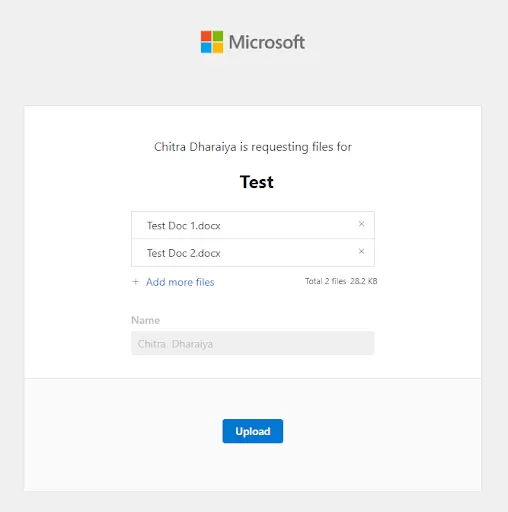
Once the user clicks “Select Files”, File Explorer opens up to select files.

img-09

Once the files are selected, click on Upload to upload the files to the folder.

Once uploaded, the documents come up like this:

img-10

Here’s A Disclaimer – 

The file request feature allows users to only upload files. They cannot view, edit, or see files uploaded by others or any other content in the SharePoint environment.

That’s good news, as the process is naturally secure, restricting your designated user to simply uploading file(s).

1. Email Alerts: 

Once the recipient uploads files, you will receive an email notification about the update. The email contains all the information regarding the updated files and even the person who uploaded them.

2. Repeat for Multiple Requests: 

You can repeat this process for multiple recipients or file requests. Each recipient will have a unique file request link or email.

3. Manage Files Seamlessly: 

As the requestor, you can access the folder where the requested files are being collected. You can view and manage the uploaded files as needed seamlessly.

Quick Tip – 

You can also consider assigning a common folder for broader file requests, such as a SharePoint document library.

This way, you can use the file request link within your email signature, making it easier for people to send you files by simply clicking on the hyperlink.

That’s it! You’re now ready to start using the file request feature in SharePoint.

Conclusion

In conclusion, the file request feature in SharePoint offers numerous benefits and provides a convenient solution for collecting files from external parties.
With our simple step-by-step guide, you can easily set up file requests and streamline the process of gathering documents from various sources.

This feature is highly versatile, and you can easily use it in various situations, such as collecting bids for a Request for Proposal (RFP), gathering assignments from students, soliciting feedback from team members, accumulating media files from an event, etc.

When you are looking to implement file requests, it is crucial to ensure that guest sharing is enabled in your SharePoint environment and that the appropriate folder is selected for collecting the requested files. With clear instructions, you can facilitate a smooth and seamless process.

We hope that by following the step-by-step guide outlined in this blog, you can start leveraging the file request feature in SharePoint to simplify file collection, improve collaboration, and enhance productivity.

Start Your Project in a Click

Our technology and wide delivery footprint have created billions of dollars in value for clients globally and are widely recognized by industry professionals and analysts.


So, What Are You Waiting For?

Start leveraging this powerful feature today and experience the benefits of efficient file collection and collaboration with SharePoint.

If you are looking for further guidance to enable smooth collaboration with SharePoint Online, then reach out to Reality Tech. Our team of experts is glad to assist.

Microsoft Purview Compliance Manager

Microsoft Purview Compliance Manager is a relatively new solution that helps organizations manage their compliance needs across multiple cloud platforms and tools.

With the rapid adoption of cloud-based services, organizations face a growing need to ensure that their data and applications are compliant with regulatory requirements and industry standards.

Purview Compliance Manager is designed to simplify management and reporting and compliance, process, enabling organizations to oversee, and monitor their compliance setup and configuration in a single platform.

What is Purview Compliance Manager?

Purview Compliance Manager is a compliance management solution that provides organizations with a unified view of their compliance configuration across multiple cloud platforms.

It helps organizations assess their compliance with regulatory requirements and industry standards, such as GDPR, HIPAA, and ISO 27001.

The solution also provides recommendations for remediation and enables organizations to track progress towards compliance goals via scoring and dashboards and task lists.

Purview Compliance Manager is built on the Microsoft Azure cloud platform and is integrated with other Microsoft solutions, such as Azure Active Directory, Azure Policy, and Azure Security Center.

This integration enables organizations to leverage their existing investments in Microsoft technologies and extend their compliance management capabilities to other cloud platforms.

The business organizations using Microsoft’s compliance manager can efficiently manage their multi-cloud compliance requirements. This software solution helps users throughout their compliance

journey by –

  • Generating an inventory of data protection risks
  • Managing the challenges associated with implementation of controls
  • Staying updated with latest regulations and certifications
  • Reporting for management and to auditors

Compliance Manager can reduce the risk by simplifying the compliance in the following manner.

– It has pre-built and customized assessments which are useful in different scenarios

  • Pre-built assessments are used for common regional and industrial standards and regulations
  • Customized assessments are used to satisfy the unique compliance needs of users

– Workflow capabilities to efficiently complete the risk assessments through a single tool

– Through this software solution, users receive a single tool to easily complete the risk assessment.

– It provides the users with: –

  • A detailed guidance (step-by-step) on improvement actions enabling them to comply with the regulations and standards relevant for an organization. Users also receive implementation details and audit results for actions being managed by Microsoft.
  • Risk-based compliance score enabling them to measure their progress in finishing the improvement actions and helping them in understanding the compliance posture.

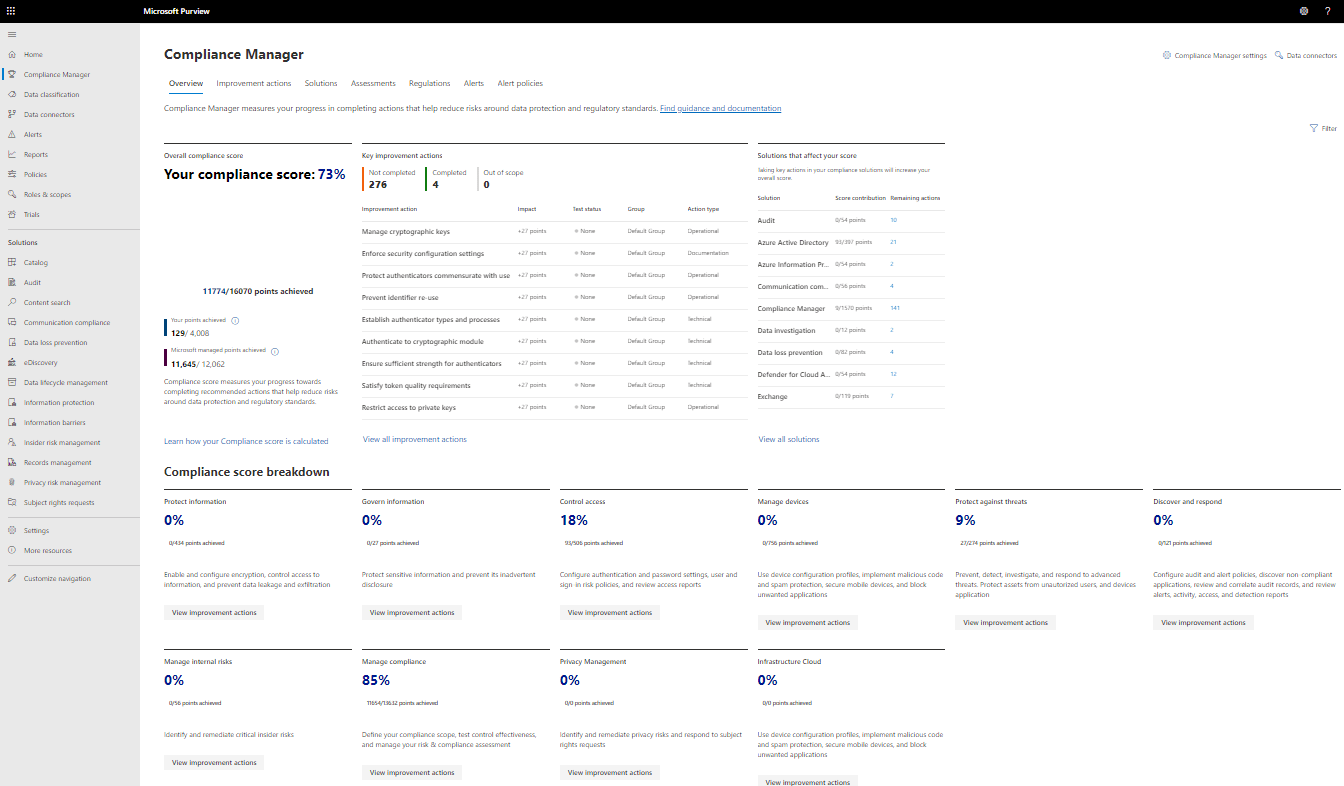
img-01

Understanding the Compliance Score

Compliance Manager awards points for improvement actions taken to comply with a policy, regulation or standard, and combines those points into an overall compliance score. The compliance score can help prioritize which action to focus on to improve the overall posture and helps report on progress over time.

The compliance score is calculated based on Microsoft 365 data protection reference baseline information.

Additional Read

Microsoft Viva: A Guide to Enhancing the Employee Experience

Key Features of Purview Compliance Manager

The tool pulls together a unified view of the compliance across the organization and surfaces dashboards, reports and scores to facilitate management and reporting.

Purview Compliance Manager provides organizations with a centralized view of their level of compliance across multiple cloud platforms and tools. This enables organizations to identify compliance gaps and prioritize remediation efforts.

1. Compliance Assessments:

Purview Compliance Manager includes a library of compliance assessments that enable organizations to assess their compliance with regulatory requirements and industry standards. These assessments are based on industry best practices and include recommendations for remediation.

Assessments include several components, such as- ‘In-scope services’ (a particular set of Microsoft services which are applicable to the assessment), ‘Microsoft managed controls’ (used for Microsoft cloud services implemented by Microsoft), customer-managed controls (implemented and managed by users) and ‘Shared controls’ (Microsoft and users both share responsibility for implementing them).

2. Remediation Recommendations:

Purview Compliance Manager provides recommendations for remediation based on compliance assessments.

These recommendations include step-by-step guidance for implementing controls and mitigating risks.

3. Compliance Score:

Purview Compliance Manager provides a compliance score that enables organizations to track their progress towards compliance goals.

The compliance score is based on the results of compliance assessments and the implementation of remediation recommendations.

4. Integration with other Microsoft Solutions:

Purview Compliance Manager is integrated with other Microsoft solutions, such as Azure Active Directory, Azure Policy, and Azure Security Center.

This integration enables organizations to leverage their existing investments in Microsoft technologies and extend their compliance management capabilities to other cloud platforms.

5. Tracking Controls:

Compliance Manager can track different types of controls, such as Microsoft managed controls (used for Microsoft cloud services implemented by Microsoft), Customer managed controls (implemented and managed by an organization or user) and Shared controls (Microsoft and users share responsibility for implementing these controls).

Benefits of Purview Compliance Manager

1. Pre-Built Assessments:

Microsoft’s compliance manager has a wide range of pre-built assessments developed around industry standards and regulations.

They are built around best practices to help organizations in maintaining compliance with standards, applicable laws and regulations.

The process of creating and managing the compliance assessments for various organizations is simplified with Purview Compliance Manager.

It enables the users to find the gaps and rapidly rectify issues.

With Microsoft’s Purview Compliance Manager, users can tailor the assessments based upon the specific compliance needs of an organization.

The custom assessments can be configured to fulfill a business’ specific policies, standards and requirements.

It’s also possible to customize the assessments for inclusion of additional criteria.

2. Simplified Compliance Management:

Purview Compliance Manager simplifies compliance management by providing a single platform for monitoring and managing compliance requirements across multiple cloud platforms and systems.

The user-friendly interface of Compliance Manager allows the organizations to easily identify, evaluate and manage risks.

Users receive comprehensive risk profile information rolled up into a single enterprise platform to hep develop implement and manage strategies for risk mitigation.

3. Improved Compliance:

Purview Compliance Manager helps organizations improve their compliance posture by identifying compliance gaps and providing recommendations for remediation.

Enables Collaboration: Purview Compliance Manager enables collaboration between compliance and IT teams, enabling them to work together to achieve compliance goals.

4. Save Time and Reduce Costs:

Purview Compliance Manager saves time and reduces costs by automating compliance assessments and remediation recommendations.

5. Provides Visibility:

Purview Compliance Manager provides visibility into compliance, enabling organizations to identify compliance gaps and track progress towards compliance goals.

Additional Read

Microsoft Viva: A Guide to Enhancing the Employee Experience

Conclusion

Microsoft Purview Compliance Manager is a powerful compliance management solution that simplifies compliance management for organizations…

Microsoft Purview Compliance Manager is a powerful compliance management solution that simplifies compliance management for organizations.

With its unified view of compliance, assessments, remediation recommendations, compliance scoring, dashboards, and integration with other Microsoft solutions, Purview Compliance Manager enables organizations to improve and achieve compliance goals for meeting internal policy and regulatory requirements and industry standards across multiple cloud platforms and systems.

By improving and tracking overall compliance, enabling collaboration, it saves time and reduces costs, and provides enhanced transparency and visibility, Purview Compliance Manager can help organizations manage and mitigate risks and ensure the security of data and applications across the enterprise.

Seamlessly Automate Your SharePoint Tasks with Power Automate

Introduction:

While SharePoint Online is a powerful collaboration and content management tool, manual tasks can often take up valuable time and resources.

Let’s explore how Power Automate can be leveraged to automate manual tasks, streamline processes and save time.

What exactly is Power Automate?

Microsoft Power Automate, formerly known as Microsoft Flow until November 2019, is a SaaS platform by Microsoft for automation of recurring tasks. It is part of the Microsoft Power Platform line of products together with products such as Power Apps and Power BI.

In this article, we’ll explore how Power Automate can help businesses automate repetitive tasks in SharePoint Online. It also covers how businesses can leverage this capability to drive efficiency and productivity.

Section 1: Introduction to Power Automate.

First things first, let’s get to know more about What Power Automate is.

Power Automate is a service that helps you create automated workflows between your favorite apps and services to synchronize files, get notifications, collect data, and more.

With the help of triggers and actions, this intelligent cloud-based system employs a sequence of actions to complete repetitive, laborious, and time-consuming operations for a business without the need for human participation.

Through this platform and its inbuilt features, businesses can save time, increase productivity, and reduce errors – leading to better results for the team and business (as a whole) and if it fails you can design it to fail gracefully with email notification of which step failed and set it up to retry.

Power Automate offers a range of ready-made templates that businesses can utilize to quickly create automated workflows for common day-to-day business activities with no code. These templates cover a variety of industries and use cases, such as human resources, finance, sales, and more. Companies can choose based on their industry and get started and adapt existing templates.

Power Automate has about a thousand connectors which can be used to seamlessly work and integrate with. Connectors are categorized as either Standard or Premium.

Standard Connectors can be used without paying any fee, while Premium connectors have a fee associated.

Standard connectors include – Outlook, SharePoint, MS Teams, Gmail, YouTube, Adobe, Smartsheet, WordPress, Pinterest, and more.

Premium connectors include – SQL Server, Salesforce, Amazon Redshift, Cloud Connect, DocuSign, Egnyte, and many more.

You can create a variety of Power Automate flows which can be –

  • Automated – Trigged by a designated event such as adding an item to list, creating, or modifying an item/file, when an email is received, etc.
  • Instant – Triggered manually as needed,
  • Scheduled – runs at a specified time – can be daily, weekly, every 2 weeks or monthly. You choose when and how often it runs.
  • Describe it to Design Flow – describe what you want to automate, and built-in AI assistance will help you create your flow.
  • Desktop flow – Automates the process on your desktop environment.
  • Process advisor – Evaluates and optimizes the existing processes and tasks.

There are built-in templates to start the automation you require. You can review the templates by connector, or by the process you wish to accomplish, such as sending an email, approval flow or many others.

Section 2: How Does Power Automate Work with SharePoint Online?

Power Automate is a great tool for automating tasks in SharePoint Online. It provides a powerful and flexible way to automate tasks in SharePoint Online, which contributes to freeing up time and increasing productivity for businesses.

Integrating Power Automate with SharePoint Online can reduce monotonous tasks such as creating list/libraries/folders/files, sending alerts, updating the files, moving, or copying folders/files, updating metadata, sending notifications seamlessly and manty other tasks.

Let’s Understand with An Example: –

Businesses can set up a workflow to create a new folder in a document library whenever a new item is added to a list.

It works by creating workflows that are triggered by specific events in SharePoint Online. Once the trigger event occurs, it will proactively initiate the workflow and perform the actions they’ve set up.

It mainly covers tasks like creating a new item in a list, updating an existing item, or sending an email notification.

In this case, there’s a list called “Issue Tracker”, where ongoing Issues are reported and tracked. When an Issue is created, the flow would trigger and create a folder with the Issue’s title and Date it was reported in a Document Library.

You can also automate it further as needed, such as updating the status of the folder when the status of the item changes or updating any new attachments which are added to the item and many more.

Here’s the best part: With Power Automate, businesses can customize the workflows in SharePoint by adding conditions or loops. It allows them to create scalable and flexible workflows tailored to their specific needs.

Power Automate also allows businesses to create custom connectors, which businesses can use to connect SharePoint Online with other applications and services. This opens a world of possibilities for automating tasks across multiple platforms and streamlining the workflows.

Section 3: Examples of Power Automate in SharePoint Online.

1. Data Synchronization:

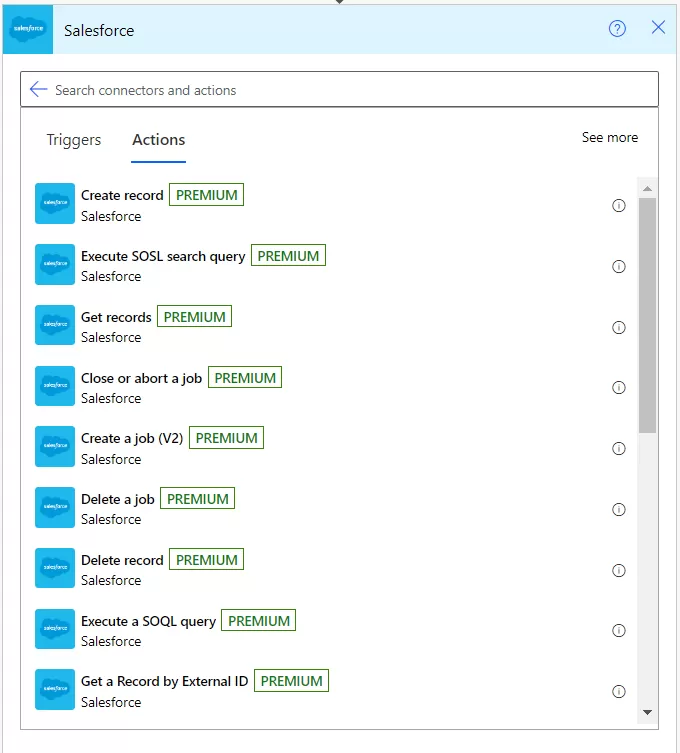
Power Automate can be used to synchronize data between SharePoint Online and other systems, such as Dynamics 365, Power BI, Azure SQL, SQL Server, Salesforce, WordPress and many more.

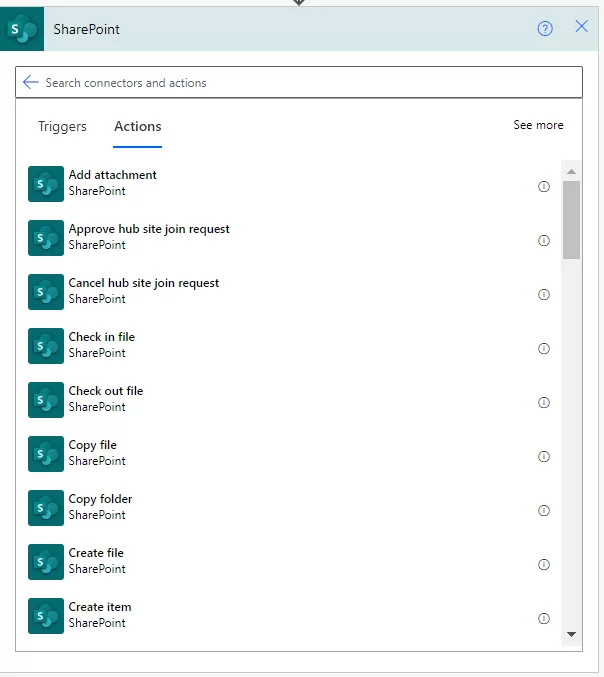
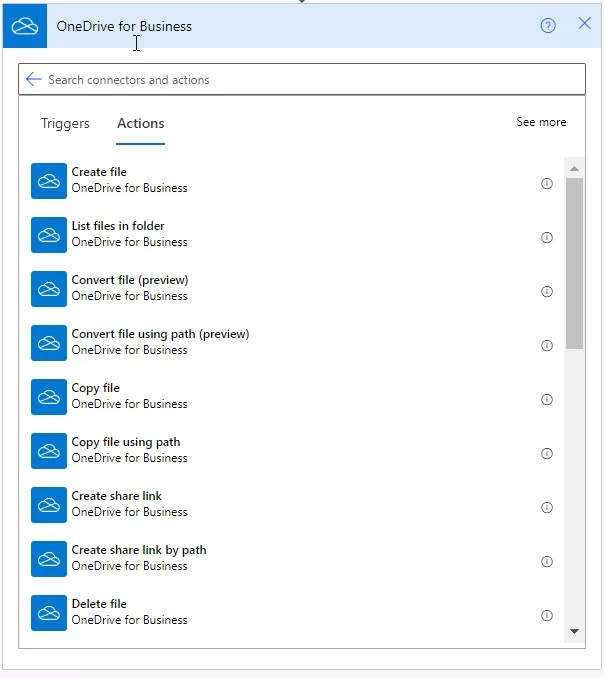
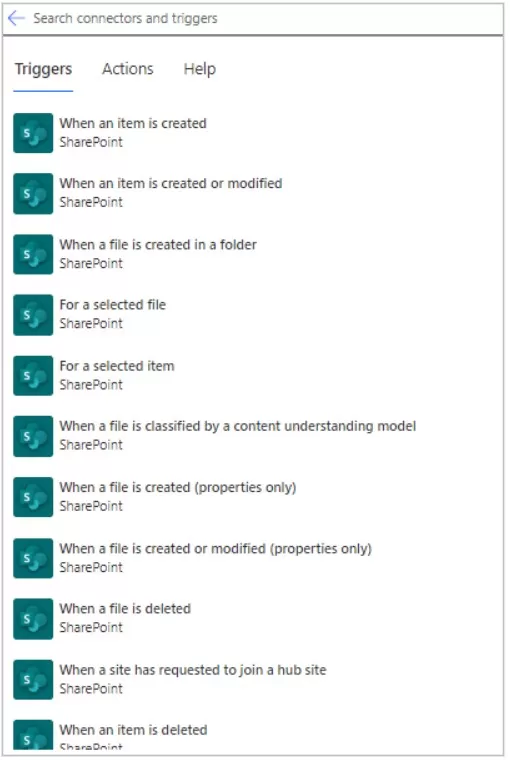
SharePoint has vast range of triggers and actions:

img-01

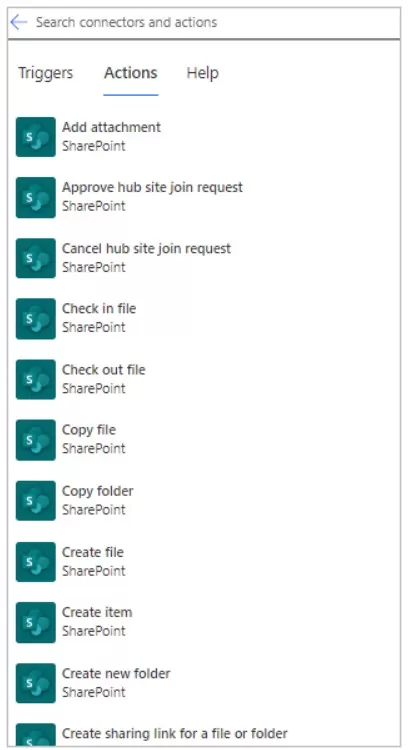
As soon as your flow starts, you can use any of the more than 40 actions to manipulate your lists/libraries-

img-02

2. Data Collection:

Through Power Automate, business professionals can easily automate data collection tasks in SharePoint Online. It can automatically take the data from the form and store it in a database or send it to another system for processing.

Microsoft uses diagnostic data to keep Power Automate client software secure and up to date; to detect, diagnose, and fix problems; and to make product improvements. This data doesn’t include a user’s name or email address, the content of the user’s files, or information about apps unrelated to the product.

As part of this work, diagnostic data collected from source software as customers use their devices is classified as either Required or Optional.

Data in the Optional category isn’t essential to the product or service experience. Opting into this feature allows us to identify usage trends, which enhances our ability to make product improvements.

Power Automate client products don’t collect optional data unless the user consents during the product installation process or has enabled the feature through the application settings later. If users choose to send optional diagnostic data, it’s collected in addition to required diagnostic data.

Required diagnostic data is the minimum data necessary to help keep Power Automate client software performing as expected on the device it’s installed on. Examples include summary details about the health and security of the running service, version information about infrastructure, configuration details, flow runs, service interactions, success or errors received, and aggregated information about failures and security concerns.

3. Automate Content Publishing:

Power Automate can automate content publishing, such as publishing news posts or pages to specific audiences or updating content based on specific conditions.

Power Automate uses connections to make it easy for you to access/publish your data while building flows. Power Automate includes commonly used connections, including SharePoint, SQL Server, Microsoft 365, OneDrive for Business, Salesforce, Excel, Dropbox, Twitter, among others.

Connections are shared with Power Apps, so when you create a connection in one service, the connection shows up in the other service.

4. Document Approval:

With Power Automate, you can manage the approval of documents or processes across several services, including SharePoint, Dynamics 365, Salesforce, OneDrive for Business, Zendesk, or WordPress.

To create an approval workflow, add the Approvals – Start and wait for an approval action to any flow. After you add this action, your flow can manage the approval of documents or processes.

For example, you can create document approval flows that approve invoices, work orders, or sales quotations. You can also create process approval flows that approve vacation requests, overtime work, or travel plans.

Section 4: Best Practices for Implementing Power Automate in

SharePoint Online

Workflow automation is an approach to making the flow of tasks, documents and information across work-related activities perform independently in accordance with defined business rules.

When implemented, this type of automation should be a straightforward process that is executed on a regular basis to improve everyday productivity.

An organization first identifies the tasks that make up the job. It then creates the rules and logic that govern how those tasks should be done. Finally, it programs the software with predefined business rules and logic.

To get the best and required results, it’s crucial to implement some best practices:

1. Identify Workflows to Automate:

Before implementing Power Automate in SharePoint online, identify the workflows that could benefit from automation. Companies should look for manual repetitive, time-consuming, or error-prone tasks that they want to automate.

2. Select the Right Triggers and Actions:

When creating a Power Automate flow in SharePoint Online, it’s essential to select the right triggers and actions. We therefore consider the requirements, the data sources involved, and the desired outcome when selecting triggers and actions.

3. Ensure Compliance with Data Policies:

When automating workflows with Power Automate in SharePoint online, ensure that the staff complies with the organization’s data policies, such as data retention policies, data privacy laws, and security requirements.

Additional Read

The Ultimate Guide to Using SharePoint for End Users!

Section 5: Benefits of Power Automate in SharePoint Online

Here’s the rundown of the diverse benefits of using Power Automate in SharePoint Online:

1. Easy Integration:

Power Automate can integrate SharePoint with other useful platforms, such as Microsoft Teams, Outlook, OneDrive, or Dynamics, making streamlining processes across multiple systems easy.

2. Save Time & Money:

Power Automate even allows companies to streamline various time-consuming SharePoint tasks, such as creating and sending emails, updating lists, and creating new documents, freeing up employees’ time and decreasing costs associated with it.

3. Less Human Errors:

Power Automate can even help improve accuracy in SharePoint by reducing the risk of errors caused by manual data entry and ensuring that data is accurate across different systems.

4. Greater Team Collaboration:

Power Automate can help enhance collaboration among staff working in SharePoint by automating diverse tasks that involve multiple team members while making it easier to assign tasks, track progress, and communicate with team members.

5. End-to-End Monitoring:

With Power Automate, the entire business workforce can easily participate in and manage the SharePoint workflows in real time and receive notifications when there are any issues or errors, which helps them identify and fix any problems (without much hassle).

Conclusion

We hope by now you’ve gotten to know a bit more about how Power Automate can be a a powerful tool for automating tasks in SharePoint Online and other platforms.

Power Automate offers a range of features for businesses looking to optimize their SharePoint Online experience. By leveraging both these platforms, businesses can streamline their internal and external processes with fewer errors and improve efficiency and productivity.

Apart from a powerful platform, you also need a powerful implementation to fully leverage the platform and generate the best possible results for your business.

If you are still unsure about using these two platforms together and looking for some guidance and insights, book a free consultation, and our team of experts will be glad to work with you.

Start Your SharePoint Project in a Click

Our technology and wide delivery footprint have created billions of dollars in value for clients globally and are widely` recognized by industry professionals and analysts.


Reality Tech Announces Partnership with Mozzaik365 to Enhance SharePoint Collaboration and Efficiency

New York, USA (April 2023):

Reality Tech, an award-winning Microsoft Office 365 SharePoint services and solution provider, has announced its official partnership with Mozzaik365.

This partnership aims to deliver innovative and scalable intranet solutions that focuses on seamless workplace collaboration, cutting-edge intranet design, communication, and efficiency.

Reality Tech focuses on optimizing collaboration and interaction among people in their workplace, improving enterprise agility, efficiency, and productivity.

Reality Tech offers deep expertise and skills in Microsoft Office 365 SharePoint technology, PowerAutomate, PowerBI and deliver excellence in migration, workflows, intranets, and integration across a range of technology disciplines.

Mozzaik365 is a French technology company that designs Digital Workplace solutions for enterprises to collaborate, share, and communicate effectively.

They offer solutions integrated with SharePoint Online and Teams. Mozzaik365 doubles the power of SharePoint and centralizes Microsoft 365 uses from your intranet.

Easily build a beautiful and engaging Digital Workplace to connect and collaborate with your teams.

This partnership aims to provide impactful Digital Workplaces tailored to meet the unique needs of each client and help them achieve their goals efficiently and quickly.

Both Reality Tech and Mozzaik365 are excited about this partnership and enthusiastic to deliver seamless solutions and technology excellence.

Guirec Loison, Head of Partnerships at Mozzaik365, said, “We are thrilled to start this partnership with Reality Tech and very confident that it will be a win-win cooperation”.

Anjalika Pattanaik, Partnerships Manager at Mozzaik365, said, “Looking forward to working together on projects very soon!”

Joel Plaut, CEO of Reality Tech, said – “We are enthusiastic and very much looking forward to some very significant and noteworthy implementation successes and ultimately delighting end users.”

This partnership will significantly impact workplace communication and collaboration through customized and automated workflows and processes by using Microsoft SharePoint technology and intranet frameworks.

About Reality Tech:

Reality Tech is a leading Microsoft SharePoint services provider that offers enterprise-grade technology cutting-edge solutions that focuses on intranet design, document management, project web access, compliance, Search, and workflows.

For more information, visit reality-tech.com

About Mozzaik365:

Mozzaik365 is a pioneer in designing unique digital experience for enterprises.

Their digital workplace solutions enable users to connect, share, and communicate effectively regardless of their location.

They create digital spaces by using the utility, tools, and features offered by the Microsoft 365 environment.

For more information, visit en.mozzaik365.com

Best Practices for SharePoint Online Governance and User Adoption

SharePoint Online is a powerful collaboration platform that can help organizations streamline workflows, improve communication, manage documents and enhance productivity. However, to balance the full benefits of SharePoint Online with manageability, it is essential to implement effective governance and user adoption practices. In this blog post, we will discuss some best practices for SharePoint Online governance and user adoption.

Define Your SharePoint Online Governance Plan

The first step in effective SharePoint Online governance is to develop a governance plan. This plan should define the roles and responsibilities of stakeholders, establish policies and procedures for managing SharePoint Online, and outline the security and compliance measures that will be put in place. The governance plan should also include guidelines for content management, user access, and customization. Try to make your governance plan focused on specifics and plan for evolving use of the platform.

For example, we would not recommend enabling and promoting every SharePoint feature on the first day. With SharePoint’s many capabilities, enabling and advocating use of too many different functions and capabilities would overwhelm users and makes governance project planning implausible, by too thinly spreading governance oversight. Begin by enabling a small portion of the capabilities corresponding to only some relevant business objectives. Start with collaboration opportunities with a small group of users as your pilot group.

Educate and Train Users

To ensure that users understand how to use SharePoint Online effectively, it is essential to provide training and education. This can include training on basic features and governance policies. Training can be provided through online resources such as posted FAQs, documents, user guides, videos, online screenshare training, or customized one-on-one training sessions.

If you’re creating a governance plan proactively, the first step is to talk with your future users to understand their content, business usage, workflows, and anticipated needs. However, SharePoint is so useful and simple to deploy that sites are frequently initiated prior to any discussion, followed by governance as a reactive afterthought. In that case, the first step remains the same: talk with your users.  Identify some power users that are eager to engage.  Discover how they interact with SharePoint, including what sites are available, how they navigate, how frequently they are used, who has access to them, what kinds of information are stored there, and what user frustrations arise.

Additional Read

The Ultimate Guide to Using SharePoint for End Users!

Configure SharePoint Online to Meet User Needs

Configuring SharePoint Online to meet the specific needs of your organization can dramatically improve user adoption. This can include configuring navigation, features and options, and could go as far as customizing web parts, creating custom workflows, and developing custom solutions. Customizations should be made in accordance with the governance plan to ensure that they are secure, compliant, and meet the needs of the organization.  No customization should be permitted without prior governance board approval.

Remember that your strategy should be constantly tuned and refined based on a strong understanding of your particular business requirements. Adapt your policies (content restrictions, permissions, knowledge rights management policies, and so on) to fit the organizational priorities by following a consistent and open change management process.

Establish a Communication Plan

A communication plan should be put in place to inform users about new features, changes in governance policies, and other important information related to SharePoint Online. This plan should include regular communication through email, newsletters, and other channels. Make sure to obtain their feedback using venues such as the intranet, community sites and polls, as well as data such as lookup metrics — and take their suggestions seriously.

Develop a Content Management Strategy

A content management strategy should be implemented to ensure that SharePoint Online content is organized, searchable, and functions optimally. This can include refining metadata and tagging and metadata definition policies, establishing content retention and disposition policies, and providing guidance on content creation and management. Avoid rushing through migrations by simply transferring all the information from the source environment into the target. Instead, use metadata to categorize your content based on category, type, relevance, age, success, team, geography, and other factors and define content types to capture the metadata and document retention and disposition policies.

img-01

Monitor and Manage SharePoint Online Usage

SharePoint Online usage should be monitored and managed to ensure that governance policies are being followed, and the platform is being used effectively. This can include monitoring usage reports for content growth, user activity, and security policies. Regular audits should be conducted to ensure that SharePoint Online is secure, compliant, and meeting the needs of the organization. You can make informed decisions about where to spend time and money if you can see and surface concrete analytics for management.

Develop a Plan for Ongoing Maintenance and Support

SharePoint Online requires ongoing maintenance and support to ensure that it continues to meet your organization’s needs. This can include regular updates, to ensure it has a fresh look with accurate up-to-date information on the intranet. An ongoing support plan should be developed to ensure that SharePoint Online remains secure, compliant, and effective. The hard work is done when the site comes online, but it does not mean that improvements should stop. Governance teams can help push your SharePoint projects’ major development and additional stages forward.

Additional Read

Essential Tips and Best Practices for SharePoint Security

In conclusion, effective SharePoint Online governance and user adoption require a well-defined governance plan, education and training and periodic configuration to meet user needs, communication, content management, monitoring and management of usage, compliance, and ongoing maintenance and support. By following these best practices, organizations can ensure that SharePoint Online is secure, compliant, and effective in meeting their collaboration and productivity needs.

Microsoft Viva: A Guide to Enhancing the Employee Experience

Introduction:

Microsoft Viva is the latest offering from Microsoft, aimed at revolutionizing how we work and enhancing the employee experience. With increasing businesses adopting hybrid and remote work models, employee engagement and well-being have become key focus areas. In this article, we’ll look at Microsoft Viva and explore how it can help organizations create a more productive and fulfilling work environment.

What is Microsoft Viva?

Microsoft Viva is an employee experience platform that integrates communications, learning, resources, knowledge, and insights into Microsoft 365 and Microsoft Teams workflow. Viva features connection, insight, learning, and user selectable topics, enabling individuals and teams to achieve their full potential. Let’s look at each component quickly to see how it fits into the bigger picture:

1. Viva Insights

Collects statistics and data while you work, analyses them, and makes recommendations to help teammates use their time more effectively. It also aims to boost their productivity and satisfaction.

Viva Insights has three main components and benefits:

  1. Improve employee well-being
  2. Understand employee engagement
  3. Analyze engagement data

img-01

2. Viva Engage

Microsoft Viva Engage is a part of the Microsoft Viva platform, which is a set of tools and services designed to help organizations enhance employee engagement, well-being, and productivity. Specifically, Viva Engage is a tool that enables organizations to create a more connected and engaged workforce by providing employees with the opportunity to share feedback, ask questions, and provide suggestions.

Viva Engage offers a range of features that can help organizations improve communication and collaboration among employees, such as live polls, surveys, and sentiment analysis tools.

img-02

3. Viva Connections

Provide a personalized view of news, conversations, and communities through the apps and devices your staff is already familiar with and uses daily. This single outlet is ideal for bringing together news, conversations, and resources. Employees can stay connected even when they are in a remote location. The following are some key features of viva connections:

  1. Dashboards- Surface company resources, such as calendars, wellness and health reminders, and holidays, making them centrally and easily accessible.
  2. Dashboard Cards- The building blocks of the dashboard.
  3. Feed- Helps to share important messages with the employees directly.

4. Viva Learning

Your team can use Viva Learning to discover, share, recommend, and gain knowledge from your organization’s and your partners’ content library resources. Viva Learning makes it simple to create learning and growth opportunities for your organization without leaving your existing communication tools.

img-03

5. Viva Topics

Is an artificial intelligence-powered solution for discovering, organizing, and surfacing what matters. It automatically categorizes and organizes content and expertise across your systems and teams into topics such as projects, processes, products, and customers. People don’t need a separate app or search; knowledge appears in the apps they already use. Experts can quickly curate and share knowledge through simple, fully configurable web pages.

Additional Read

Microsoft Power Platforms – Introduction, Products, Benefits & Governance

Use cases for Microsoft Viva

1. Enhanced Onboarding Experience:

With Viva Connections, new employees can be provided with a personalized onboarding experience that provides them with all the information they need to get started. This can include company policies, culture, job-specific training, and more. By providing a centralized platform for onboarding, Viva Connections can help reduce the time and resources required for new employee training.

2. Improved Employee Training and Development:

Viva Learning provides employees with a centralized hub for training and development, making it easier to find and enroll in courses that are relevant to their job. Organizations can create custom courses and training programs that are tailored to their employees’ needs, which can help increase the effectiveness of employee training and development initiatives.

3. Employee Well-being and Burnout Prevention:

Viva Insights can help employees manage their work-life balance and avoid burnout by providing them with insights and recommendations based on their work patterns and preferences. For example, Viva Insights can help employees set boundaries around their work hours and schedule breaks to avoid overworking. It also includes features like a virtual commute, which can help employees transition between work and home life.

4. Knowledge Discovery and Sharing:

Viva Topics can help employees find relevant information and expertise within their organization, reducing the time and effort required to search for information. For example, employees can use Viva Topics to find information on company policies, procedures, and best practices, or to connect with subject matter experts within their organization.

5. Centralized Employee Communication:

Viva Connections can help organizations streamline employee communication by providing a centralized platform for news, events, and other important information. This can help ensure that employees are informed and up-to-date on company news and initiatives.

Implementing Microsoft Viva:

Microsoft viva can benefit your enterprise by consolidating, supporting and enriching the employee environment. It’s time to consider some crucial aspects to bear in mind while implementing Viva:

1. Consider the Use Cases

Understand your organization’s priorities, key pain points, and the subject areas, training programs, or concerns that are most important for your employees to be aware of. Viva AI is powerful and will likely generate more Topics than expected, so having a sense of what is most important to you from the start will help you curate the AI outcomes.

2. Selecting the right Components

Each component of Microsoft Viva has its own benefit and purpose, and going back to the use case will maintain focus of the project goals. Create a brief plan about the goals you need to achieve, and which component would help you achieve it.

3. Ensure Employee Engagement

Your Microsoft Viva implementation is of lower value if your employees are unwilling or able to adopt the system and its features. Elaborating to your staff the benefits of using Viva, and why the organization is adopting this tool. Plan training sessions for the employees to help them transition to utilize the tool.

Microsoft Viva and the Future of Work:

Business leaders work to understand the new workplace and how to make it “work” for their employees, organizations, and themselves. Hybrid working is becoming more popular across industries, or where you work is becoming less important. Work has grown increasingly digital, and business is perpetually accelerating. A successful organization should incorporate employee well-being, team unity, and trust. These changes have also highlighted the importance of providing employees with a positive experience to be productive. Microsoft Viva is a strategic solution for organizations looking to improve employee engagement.

Conclusion:

Microsoft Viva is a powerful tool for organizations looking to enhance employee experience and create a more productive and fulfilling work environment. By leveraging Viva’s capabilities, businesses can improve engagement, foster learning, and enhance well-being, all while staying connected in a remote or hybrid work environment. As we look to the future of work, Microsoft Viva is set to play a key role in helping organizations drive success and stay competitive in an ever-evolving business landscape.

Microsoft Power Platforms – Introduction, Products, Benefits & Governance

Introduction

Businesses today require a wide range of technologies and tools to manage business processes, including approvals, reviews, filings, workflows, integration and automation across a range of departments to streamline efforts and speed and automate processes within organizations.

Unfortunately, managing and keeping track of all these automation needs becomes challenging.

What if you only required one app for your company’s primary automation needs?

It seems too good to be true, yet it is

This ideal objective is within reach and becoming a reality thanks to the selection of Power Apps offered by the Microsoft Power Platform. These apps give businesses all the tools and services they need to run their daily operations and processes without having to worry about managing a diverse set of various tools for a range of tasks.

This post will provide a high-level overview of the solution that can be the platform to assist in getting started; using the Power Platform. Keep reading!

What is Microsoft Power Platform?

Microsoft 365 has made a low-code / no-code environment for building custom end-to-end business solutions. It comprises five products each with their own focus: Power Apps, Power Automation, Power BI, Power Virtual Agents, and Power Pages. Each of these components can be utilized either individually or together.

All these components can work together for a seamless linked experience to help you achieve your business objectives, and it is all connected by the core Microsoft Dataverse architecture.

It enables you to perform data analysis, provide personalization, create better applications, react to the provided insights, and automate several activities without requiring a high level of technical knowledge and avoid coding where possible.  Avoiding coding, makes for a far easier and less expensive long-term support, maintenance and management experience.

Both experienced and inexperienced developers can benefit from the low-code / no-code approach to solution creation. You can create automated business process workflows rapidly and safely with your data.

What are the components within Power Platforms?

Power BI Analytics

Microsoft Power BI is a business analytics solution that provides insightful information from company data, enabling you to create profound visualizations and highly personalized and visually rich and interactive reports and dashboards, whether the data is sourced from accounting transactions, demographics, sales, advertising campaigns, or other business trend data, Power BI brings the data to life for your users.

Microsoft’s business analytics product, Power BI, offers interactive data visualization BI tools to assist users in visualizing and disseminating data and insights throughout their organization.

It aids in the discovery of hidden insights, the creation of interactive data visualizations, and the linking of data sources and delivering compelling data visualizations for your users.

Additional Read

Power BI’s Interactive Dashboard – Development, Features & Benefits!

Microsoft Power Virtual Agent

Microsoft Power Virtual Agent is a chatbot development framework that enables you to create sophisticated AI-driven chatbots without coding, data science or development knowledge.

With this technology, you can develop robust chatbots that can respond to inquiries from clients, coworkers, and users of your website or business. Power Virtual Agents offers a low-code experience for creating and managing chatbots and is based on the Microsoft Bot Platform.

These chatbots are simple to incorporate with the products and services you use on every day basis.

Microsoft Power Automate

Power Automate, previously referred to as Flow, is a Microsoft Power platform that enables business customers to automate workflows within companies without coding.

Modern companies are constantly refining their internal processes and environment for a quicker, more automated experience to handle the majority of manual duties. Simple examples of these tasks include automating leave policies within a company or sending an email when a Jira task is finished.

Power Automate already includes several predefined workflow options from which to choose. Users have the option of choosing one of these processes from the templates or starting from scratch to create their customized workflow.

Power Apps

Users can create a user interface for a mobile application using the drag-and-drop functionality offered by the user-friendly platform Power Apps for a cutting-edge end user experience.

Users can customize the user UI by adding controls like text boxes and selection fields. Additionally, it can enable users to use media devices like cameras, movies, etc., as well as other features required to create a contemporary mobile application.

The Microsoft Power Platform offers Power Applications more like a platform-as-a-service. With the help of this service, users can easily create applications that work on native Android, iOS, and Windows mobile apps and any current web browser such as Chrome, Firefox, etc.

Additional Read

PowerApps Premium Licensing

Power Pages

Power Pages is a low-code, protected, enterprise-grade SaaS platform for building, hosting, and managing contemporary external-facing company websites.

Websites created with low code can be quickly designed, set up, and published so that they function properly on all web platforms and devices. Qualified developers can expand these capabilities to meet complex company needs.

Power Pages allows you to quickly create low-code web pages, allowing you to communicate with your audience more quickly. Using low code, your team can create a website at a reasonable cost.

Top Benefits of Power Platforms:

1. Rapid Application Development

One of the primary benefits of the Power Platform ecosystem is it allows businesses to create enterprise applications quickly and efficiently. Power Platform provide a visual interface for building applications, and virtually eliminates the need for coding.

With the use of pre-built templates, drag-and-drop features, and pre-configured connectors, developers can create applications in a fraction of the time it would take using traditional coding methods. It allows businesses to rapidly develop applications, which in turn can lead to faster time-to-market and more reliable and lower cost solutions.

2. Customized Workflows

Power Platform enables businesses to create customized workflows that automate processes and increase efficiencies. By automating processes, organizations can decrease human errors and boost productivity while also saving time and resources.

Power Platform’s workflow capabilities allow users to create, edit and manage workflows using a visual interface.

Users can drag-and-drop components to build workflows and add conditions, loops, and branching logic to create complex workflows. With Power Platform, businesses can create workflows that automate various processes, such as document approvals, customer onboarding, and inventory management.

Power Platform’s workflow features can also be integrated with a range of Microsoft products such as Dynamics 365, Teams, Viva and SharePoint. This integration allows organizations to simplify workflows and automate processes across varying portals.

3. Improved Decision Making

The business intelligence and data visualization capabilities of the Power Platform can facilitate companies in making better decisions.

Users of Power Platform can generate reports and visualize data on their own, which enables companies to better understand their business processes as users self-service, enabling faster data analytics and insights to be surfaced. For example, a business might use Power Platform to develop a dashboard that monitors sales information across a range of distinct geographical areas and product lines.

By examining this data, the business may learn which areas are dominating the charts and which ones are experiencing a decline in sales. Consequently, by gaining trend insights, your organization can adjust advertising, sales, distribution, and marketing strategies for improved outcomes.

4. Quick & Easy Report Creation

One of the most important and time-consuming tasks in a company is creating accurate and timely reports. It’s a tedious, time-consuming and iterative task that uses up precious resources.

According to research, project managers compile project summaries all too frequently. However, all this required reporting, visualization, and dashboards can be produced with the aid of Microsoft Power Platform with the press of a button.

Once all activities incorporated and data ingested into the Microsoft platform, you can filter a given report to take into account the specific input areas or custom reporting requirements.

Additionally, you can conveniently and easily share these reports with other team members to improve collaboration and decision-making.

5. Cost-Effectiveness

In today’s competitive time, businesses are looking for better results with  more effective costs. In a 2021 Forrester Research report, Power Apps and Power automate decrease app development costs by almost 70%.

Through the Power platform, easy and quick customization of apps becomes possible. Organizations can minimize or even eliminate additional service costs, such as vendor application subscriptions which helps businesses to save over 50% in licensing expenses.

Businesses can save time and resources through intuitive platforms and data that consolidate and centralize both data and systems. Microsoft Power Platform helps you in saving costs and resources across your entire project portfolio.

6. Enhances Data Accuracy

One of the key benefits of the Power Platform is its ability to improve data accuracy, relevance, timeliness and value. With features like data validation, automated workflows, and analytics, the Power Platform can help organizations ensure their data is accurate and up-to-date and facilitate it being used effectively to drive business insights and decision-making.

One of the ways that the Power Platform can improve data accuracy is through its data validation and cleansing capabilities. By using tools like Power Apps and Power Automate, organizations can set up rules and workflows that automatically validate and clean data as it enters into the system.

It can help to ensure that data is consistent and accurate, even when it is being entered by multiple users or imported from different sources.

It helps in simplifying business processes.

The Power Platform can help simplify business processes in several ways:

1. Low-Code/No-Code Development:

Power Apps enables business users to create custom business applications without requiring extensive coding or development experience. This means businesses can quickly develop and deploy apps to automate processes and improve productivity.

2. Data Visualization and Analytics:

Power BI allows companies to develop custom dashboards and reports to visualize data from different sources. It helps businesses get information into their activities and processes and make grounded and result-driven decisions, further simplifying business processes.

3. Workflow Automation:

Power Automate helps businesses to automate processes across varying applications and services. It can streamline processes and reduce the time and effort needed to complete their activities.

4. Integration with other Microsoft tools:

The Power Platform integrates seamlessly with other Microsoft tools, such as Dynamics 365, SharePoint, and Excel. This allows businesses to benefit from their current investments and even simplify the entire process cycle.

5. Seamless Data Management in One Place:

Microsoft Power Platform is a suite of tools that includes five major components. Together, these tools provide a comprehensive platform that can handle all enterprise business processes in a single place.

Having all your business processes in a single platform means you can create a streamlined process flow that can increase efficiency, reduce duplication, and ensure consistency across all business units. It is easier for team members to collaborate and communicate with one another, reducing the risk of miscommunication or duplication of effort.

Also, with a single platform for all business processes, you can reduce the number of software and tools needed, reducing IT costs and simplifying maintenance and support.

A single platform allows for a more holistic, consistent and reliable security architecture, enabling access where needed, and controlling access centrally and consistently.

Overall, businesses can get increased efficiency, cost savings, and improved decision-making capabilities.

6. Power Platform Boosts Data Security:

The power platform is enriched with role-based access control, allowing administrators to manage data access based on roles, ensuring that users have access to the data they need to do their jobs. It helps prevent unauthorized access to confidential information and decreases the risk of data theft.

The MS Power Platform’s integrative feature keeps all data in a single and highly protected environment. Another way the Power Platform can boost data security is by providing robust data encryption capabilities. You can encrypt the information while at rest and in transit as well, helping to protect it from unauthorized access.

Additionally, the platform includes features for data loss prevention, allowing administrators to create policies that prevent sensitive data from leaving the organization through email or other channels.

Power Platform also includes built-in security and compliance features, such as data classification, retention policies, and audit logs. These features help organizations meet regulatory compliance requirements and provide a record of activity within the platform.

Start Your SharePoint Project in a Click

Our technology and wide delivery footprint have created billions of dollars in value for clients globally and are widely recognized by industry professionals and analysts..

Leveraging the Power Governance Platform

Power Platform provides tools that enable power users to create apps as well. Additionally, it deals with the crucial security and governance requirements pertaining to the use of private company data in these applications.

For proper governance, enterprise IT no longer needs to allocate resources to administering and incorporating a variety of proprietary tools from different cloud providers. Power Platform complies with various industry regulations and standards, such as GDPR, HIPAA, and ISO 27001.

It ensures that your platform meets the enterprise’s standards for compliance and governance requirements. Power Platform also includes lifecycle management features to help ensure that your governance platform is secure and up-to-date. It includes automated deployment, version control, and testing.

Power Platform provides governance capabilities to help ensure that your governance platform is consistent and well-managed. This includes the ability to define policies, create data classification rules, and establish compliance controls.

Wrapping Up

In conclusion, Microsoft Power Platform offers numerous benefits for organizations looking to streamline processes, gain insights into data, and automate workflows.

Power Platform provides low-code tools that enable businesses to create custom solutions quickly and easily without requiring extensive development resources. By leveraging Power Platform’s benefits, organizations can create custom applications that are tailored to their specific needs and gain insights into data that help them make informed decisions.

Additionally, Power Platform includes several features to address critical security and governance requirements, such as data protection, compliance, audit and monitoring, lifecycle management, and governance.

Organizations can create robust and secure solutions that meet their business needs by leveraging these features. Microsoft Power Platform offers a comprehensive set of tools that can help organizations improve efficiency, increase productivity, and drive innovation.

Newsletters