
How Microsoft Entra Conditional Access Blocks High-Risk AI Agents

image3

Welcome to the workplace of the future, a vision Microsoft brought to life at Ignite 2025.

In this new reality, your organization’s “team” is no longer limited to people. Alongside analysts, engineers, and business users, AI agents are now part of everyday operations.

These agents can:

  • Create employee onboarding emails
  • Coordinate workflows across applications
  • Analyze data and generate reports
  • Trigger HR actions
  • Sync files across systems
  • Monitor daily IT checks
  • Run continuously without fatigue

They work faster, scale effortlessly, and never slow down.

But with this level of autonomy comes a new challenge.

AI agents can behave in unexpected ways, and in a security context, that unpredictability poses real risk.

At Ignite 2025, Microsoft made this clear: AI agents must be treated as identities. And every identity requires strong governance, monitoring, and Zero Trust protection.

This is where Microsoft Entra ID and Microsoft Entra Security play a critical role- helping organizations detect unusual behavior early and strengthen AI agent security across their environment.

Why This Scenario Matters in the Age of AI-Driven Workforces

AI agents are no longer simple background scripts. They now act as digital workers with real responsibilities.

They can:

  • Send onboarding messages
  • Update HR systems
  • Move financial data
  • Handle support tickets
  • Run approvals
  • Communicate with APIs
  • Connect services across systems

Because they have access and permissions, they also introduce AI security risks.

Not because they intend to, but because things can go wrong.

Where AI Agents Become High-Risk

AI agents can become risky in several situations:

  • API keys or secrets are exposed
  • Login attempts happen from unusual locations
  • Automation loops behave unexpectedly
  • Agents try to access unfamiliar resources
  • Code updates change behavior unintentionally
  • Test agents move into production
  • Compromised identities trigger harmful actions

These are real AI security risks that organizations must address.

Imagine an HR agent trying to access financial systems at an unusual time from another region. That is not normal behavior; it’s a warning sign.

In such cases, automated protection is essential.

Microsoft Entra High-Risk Agent Protection: Your AI Security Shield
image1

With Microsoft Entra Conditional Access and built-in intelligence, Microsoft evaluates AI agents the same way it evaluates human users.

It monitors:

  • Impossible travel
  • Abnormal sign-in patterns
  • Suspicious IP activity
  • Behavioral anomalies
  • Token misuse
  • Unusual API calls
  • Signs of credential compromise

These capabilities are part of modern conditional access policies.

When risk reaches a high level, action is immediate:

High Risk = Block the agent instantly. Investigate afterward.

This approach aligns with zero-trust security microsoft, where nothing is trusted without verification.

Pros & Cons (Realistic, Practical View)

Pros

  • Automatically blocks unsafe or compromised agents
  • Protects sensitive applications and data
  • Stops issues before they spread
  • Provides continuous monitoring
  • Supports modern microsoft entra security strategies
  • Aligns with Zero Trust principles

Cons

  • Some workflows may pause temporarily
  • Teams must review risk alerts
  • False positives can occur in rare cases

However, a temporary pause is far safer than a security breach.

A Futuristic Analogy You Can Relate To

image2

By 2028, billions of AI agents may operate alongside humans.

In such an environment:

  • AI handles onboarding
  • Automation manages daily operations
  • Systems run continuously

But imagine this scenario:

An HR agent suddenly:

  • Tries to access restricted financial data
  • Logs in from multiple regions within seconds
  • Makes repeated unusual API calls
  • Requests permissions that it never needed before

What would you do?

You would immediately block its access.

That is exactly what microsoft entra conditional access does, automatically and instantly.

Final Thoughts: Ignite 2025 Made the Future Clear

Organizations are entering a new phase where AI agents are part of everyday operations.

With this shift, AI agent security is no longer optional; it is essential.

Organizations can use Microsoft Entra ID, identity and access management, and conditional access policies to protect their systems. These tools also support secure innovation. 

This approach strengthens:

  • Security
  • Stability
  • Compliance
  • Trust

It also supports a strong zero-trust security microsoft model for the future.

Adopting these practices ensures your organization can use AI confidently, without compromising security.

Next in the Series: Part 2: Configuration & Implementation

The next blog will walk through step-by-step configuration for:

  • Scenario 1: Allow only approved agents to access resources
  • Scenario 2: Automatically block high-risk agents
  • Enhanced Object Picker usage
  • Custom Security Attributes for agents
  • Testing with Report-Only mode
  • Microsoft’s recommended best practices

More AI agent security blogs are on the way as part of this governance series.

SharePoint Agents: A New Era of Intelligent Collaboration

The challenge with SharePoint isn’t storing information, it’s finding the right piece of it when you need it.

Important documents are often buried across sites, libraries, and folders. Even when the content exists, it can take time to locate, understand, and use it effectively.

SharePoint agents change how this works.

With SharePoint AI and AI in SharePoint, users can ask simple questions and get direct answers. Instead of searching through multiple files, they can quickly find what they need and move forward with their work.

What Are SharePoint Agents?

SharePoint agents are built-in AI assistants. They understand your SharePoint content and answer questions in simple language.

Instead of searching through folders or reading long documents, users can simply ask:

  • Where is the latest onboarding document?
  • Summarize our travel policy
  • Show files related to Project XYZ
  • Answer policy-related questions

The agent finds the right content quickly. It summarizes information and shows users where to go.

These capabilities are powered by Microsoft SharePoint AI and supported by SharePoint automation. They help teams work more efficiently.

Types of SharePoint Agents

Built-in Agents

These agents are available by default in every SharePoint site. They understand site content and help users:

  • Find information
  • Navigate document libraries
  • Understand content
  • Summarize documents

Custom Agents

Organizations can create custom SharePoint agents for specific needs, such as:

  • HR Policies Agent
  • Sales Content Agent
  • Project Documentation Agent

By providing consistent, useful responses, these agents enhance SharePoint workflow automation and adhere to specified instructions. 

Why SharePoint Agents Matter

1. Instant Answers to Everyday Questions

Employees no longer need to search manually. Agents provide quick answers, improving productivity across teams.

2. Understand Long Documents Faster

Agents summarize reports and highlight key points. This helps users quickly understand important information.

3. Create Pages with Simple Prompts

Users can create SharePoint pages by simply typing what they need. This is a practical use of SharePoint automation.

4. Generate News from Existing Content

Agents can turn documents into news posts. This saves time and improves communication.

5. Tailored Support for Every Team

Custom agents can support HR, Finance, Sales, IT, and more. They provide responses based on specific business needs.

6. Built with Security in Mind

SharePoint permissions remain unchanged. If a user does not have access to a file, the agent will not show it.

Getting Started with SharePoint Agents

1. Check Licensing

To use Microsoft Copilot SharePoint, users need a Microsoft 365 Copilot license or a pay-as-you-go AI plan.

2. Create a SharePoint Agent

After signing into your SharePoint site, with site edit permissions, you can create your own agent from:

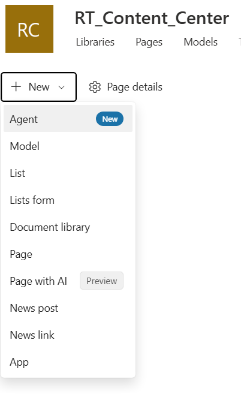
  • The site homepage: On the site home page, select New > Agent

image1

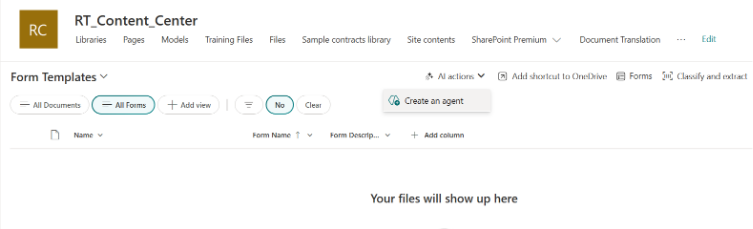
  • The command bar of a document library: On a document library, you can choose Create an agent for all supported files in this library.

image4

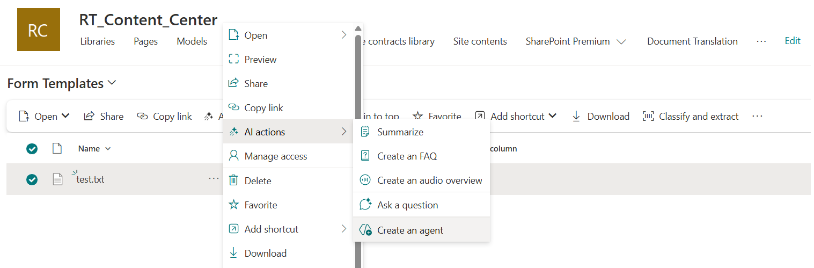
  • The context menu of the selected file(s) in a document library: Instead of creating an agent for all files in a document library, sometimes you may want to just include some files. In this case, you can select the files you want, then select Create an agent from the context menu by either right-clicking or selecting the ellipsis next to one of the selected files

image2

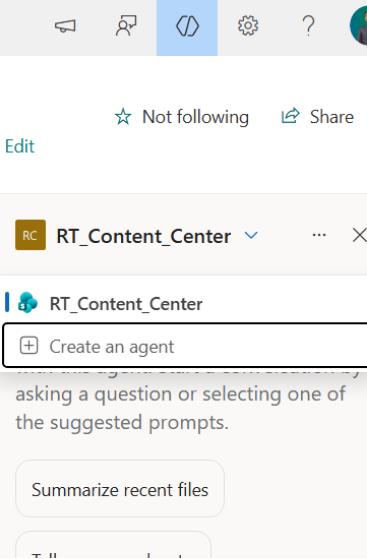
  • Agent chat pane: On any site, page, or document library, select the Copilot button on the upper right to open the agent. Then select the dropdown next to the current agent, and select Create an agent.

image3

3. Locate SharePoint Agent on Site:

  • Sign in to your SharePoint site with your work or school account.
  • Open the agent chat pane: On any SharePoint site, page or document library, choose the Copilot icon on the upper right. The agent chat pane opens on the right side of the screen.

image3

  • Select an agent: Select the dropdown arrow next to the current agent. You will see agents that have been approved for the site, along with a personalized list of agents based on your recent activity. You can choose the agent you want to use from the dropdown arrow. Select Show more to expand and see more if available.
  • Start asking questions: Choose a suggested prompt or write your own. Then ask the agent to summarize documents, provide project contacts, or share the latest updates. Ask follow-up questions if needed.

4. Try with Built-In Agent

Try basic tasks like:

  • Finding files
  • Summarizing documents
  • Navigating libraries

This helps you understand core SharePoint Copilot features.

5. Identify Use Cases

Focus on areas like:

  • HR policies
  • Project documents</li
  • Sales materials
  • Compliance data

These are ideal for SharePoint workflow automation.

6. Create Custom Agents

Admins can define:

  • Content scope
  • Tone and instructions
  • Business rules

7. Roll Out to Users

Train users to ask simple questions and use natural language.

8. Improve Over Time

Update agents based on feedback, business needs, and new data.

9. Share Agents

Agents can be shared with teams using a link, just like files.

Note: You can only share an agent that has been created. You can’t share the ready-made agent that comes with the site.

How SharePoint Agents Benefit Your Business

For organizations and consulting firms, SharePoint agents offer major advantages:

  • Faster access to documents
  • Better collaboration across teams
  • Improved user experience
  • Faster onboarding and training
  • Support for better decision-making

Companies can use SharePoint AI with business workflows. They improve internal productivity and help showcase your ability to deliver modern workplace solutions to clients. 

What You Need to Get Started

To use AI in SharePoint, your organization needs:

  • Microsoft 365 Copilot license or AI plan
  • Access to SharePoint sites
  • Required permissions to create or manage agents

Once set up, you can start using Microsoft SharePoint AI to improve your daily work.

Conclusion

SharePoint agents are changing how teams work with information. They make it easier to find, understand, and use content across your organization.

Businesses can use SharePoint AI with secure document management. This helps them work faster and more efficiently.

This guide is your starting point, and with the right strategy, SharePoint Agents can optimize your team’s effort in engaging with day-to-day information by enabling a faster and more secure way for searching, navigating, and summarizing the content.

Posted in AI

Microsoft Copilot & Microsoft 365 Copilot: AI That Works with You

From BusyWork to Better Work

It’s 9 AM. You open your inbox, and it’s already full. A report is due soon, messages keep coming in, and you’re switching between tasks just to keep up. By the time you focus, something new pulls your attention away.

Now imagine having an assistant who helps you stay on track. It understands your work, handles repetitive tasks, and helps you move forward without slowing down.

That’s what Microsoft Copilot and Microsoft 365 Copilot are designed to do.

Artificial Intelligence is already part of how we work today. If you’re wondering what is Microsoft Copilot, it’s an AI assistant from Microsoft that helps you complete tasks faster and work more efficiently.

Microsoft Copilot: Your Everyday AI Companion

Microsoft Copilot AI is your everyday assistant across Windows, Edge, and the web. It’s where you go if you need help writing, thinking, or solving problems.

You might be researching, drafting an email, or exploring ideas. Microsoft Copilot is always ready to help.

What Microsoft Copilot Can Do

Here are some key capabilities that also reflect important Microsoft 365 Copilot features:

  • Write & Summarize: Draft emails quickly. Explain things in simple language. Shorten lengthy material with ease.
  • Create Images: Convert simple instructions into images for presentations or social networking.
  • Search Smarter: Get precise answers without visiting several websites. 
  • Brainstorm Ideas: When you’re stuck, brainstorm ideas or write down a plan. 

These features show the real Microsoft Copilot benefits. They save time, minimize effort, and enable you to do your job better. 

In short, Microsoft Copilot functions as a helpful helper. It is always available when you require assistance. 

Licensing & Availability

Feature Regular Copilot Copilot Pro
Cost Free $20/month
Availability Windows, Mac, iOS, Android, Web Same, plus deeper integration
Speed/Model Access Standard Faster, priority access to latest AI
Microsoft 365 Apps Limited Full integration with Word, Excel, PowerPoint, Outlook, Teams
Security/Compliance Standard Enterprise-grade


Note: Pricing and licensing terms are subject to change. Microsoft frequently updates Copilot capabilities, eligibility, and licensing models. Please refer to the current price details.

Microsoft 365 Copilot: A Smart Coworker Inside Your Apps

While Microsoft Copilot works across devices, Microsoft 365 Copilot works inside the apps you already use. These include Word, Excel, PowerPoint, Outlook, and Teams.

This strong Microsoft Copilot integration means you don’t need to switch tools. AI works with you right where you are.

What Microsoft 365 Copilot Can Do

  • Word: Allows you to write and edit documents rapidly. It also increases clarity. 
  • Excel: Transform data into insights and describe calculations in basic terms. 
  • PowerPoint: Allows you to create presentations based on a short prompt or file. 
  • Outlook: Analyse emails to help you respond quickly. 
  • Teams: Instantly capture and emphasize essential points from meetings. 

These Microsoft 365 Copilot features make it feel like a real coworker. It works 24/7 and understands your work.

Licensing & Availability

License Type Requirements Price Notes
Microsoft 365 Copilot for Business Microsoft 365 Business Standard/Premium  ~30$ USD per user/month (annual subscription) Adds Copilot features into Word, Excel, PowerPoint, Outlook, Teams
Microsoft 365 Copilot for Enterprise Microsoft 365 E3/E5  ~$30 USD per user/month (annual subscription) Same Copilot features, tailored for enterprise-scale productivity
Copilot Chat (Preview) Microsoft Entra + eligible subscription  Included at no additional cost Provides conversational AI inside Microsoft 365 apps

Note: Pricing and licensing terms are subject to change. Microsoft frequently updates Copilot capabilities, eligibility, and licensing models. Please refer to the current price details.

How Microsoft Copilot and Microsoft 365 Copilot Work Together

Even though they have similar names, they serve different purposes:

Feature Microsoft Copilot Microsoft 365 Copilot
Where it works Windows, Mac, iOS, Android, and Web Inside Word, Excel, PowerPoint, Outlook, Teams
Primary focus Everyday help, search, and creativity Productivity and collaboration within apps
Best for Quick answers, brainstorming, and research Writing, data analysis, meetings, and presentations

Think of it this way:

  • Microsoft Copilot helps you think and explore ideas.
  • Microsoft 365 Copilot helps you complete and deliver your work.

Final Thoughts: AI That Works with You

Microsoft Copilot and Microsoft 365 Copilot are designed to improve how you work. They do not replace it.

One helps you with everyday tasks across devices. The other helps you inside your apps. Together, they save time and reduce effort. They also help you focus on important work.

Start using Microsoft Copilot in your daily work and explore how Microsoft 365 Copilot features can help you work faster and smarter.

The future of work is not just faster, but it’s better, easier, and more effective.

Microsoft 365 Copilot vs Google Workspace Gemini: Ultimate 2026 Comparison

Microsoft and Google are changing how people work by adding smart assistance into everyday office tools. Email, documents, spreadsheets, and meetings are no longer just manual tasks. They now include built-in help that can draft, summarize, and organize work faster. 

For businesses, the real decision is not just about features. It is about choosing the platform that fits how teams already collaborate. The right assistant should feel natural inside the tools employees use daily. 

This article compares gemini vs copilot how each option works, where it fits best, and what makes them different. So, that you can choose the right solution for your organization.

Microsoft 365 Copilot vs Google Workspace Gemini Overview

Gemini for Google Workspace and Copilot for Microsoft 365 are AI tools designed to improve productivity and make daily work easier. Designed for business and enterprise environments, each solution embeds AI directly into familiar tools to help teams work smarter and faster. Here is a simple comparison of what each one offers.

What is Gemini for Google Workspace?

Gemini for Google Workspace is Google’s AI assistant built into apps like Gmail, Docs, Sheets, Slides, Drive, and Meet. It can summarize emails, suggest quick replies, help write and edit documents, create formulas in Sheets, generate images in Slides, and take notes during meetings in Meet. It uses Google’s Gemini AI models to generate text and images.

What is Copilot for Microsoft 365?

Copilot for Microsoft 365 is Microsoft’s AI assistant built into apps like Word, Excel, PowerPoint, Outlook, and Teams. It can help write documents, analyze data in Excel, create presentations, summarize emails and meetings, and provide insights based on company data. Designed for enterprise environments, Microsoft 365 Copilot for business uses advanced AI models connected to Microsoft Graph to work across your organization’s information.

Core Differences Between Copilot and Gemini

Here is a side-by-side comparison of Microsoft Copilot and Google Gemini across key capabilities.

Feature Gemini (Google Workspace) Copilot (Microsoft 365)
Overall Focus Cloud collaboration and real-time productivity Enterprise productivity and workflow automation
Ratings Around 4.4/5 (G2) Around 4.8/5 (G2)
Models Gemini Flash and Pro models GPT-4 class models with ongoing upgrades
Best Use Case Browser-based collaboration and multimodal tasks Deep productivity across Microsoft apps
Writing Style Structured and factual More expressive and flexible tone control
Image Capabilities Strong image generation and visual understanding More limited image tools
Web Access Real-time access through Google Search Web access through Microsoft search stack
Coding Support Solid general coding support Strong developer ecosystem with GitHub Copilot
Productivity Integration Native to Google Docs, Sheets, Gmail, Meet Native to Word, Excel, PowerPoint, Outlook, Teams
File Handling Strong with Google formats and PDFs Strong with Word, Excel, and PowerPoint files
User Experience Clean, fast, browser-first Varies across apps and environments
Data Access Mostly app-level context Cross-app context using Microsoft Graph
Meetings Summaries and notes in Google Meet Recaps, summaries, and coaching in Teams
Extensibility Google Cloud, Vertex AI, Apps Script Copilot Studio, plugins, Azure integrations
Pricing Model Included in Workspace tiers or Gemini plans Requires Microsoft 365 plus Copilot add-on
Strengths Simplicity and multimodal capabilities Enterprise integration and automation depth

Note: Both platforms evolve quickly, and features may change as Microsoft and Google release updates.

Copilot vs Gemini: A Comparison Across Key Areas

As AI assistants become more popular, two major players are Copilot (by Microsoft) and Gemini (by Google). Both have their strengths, but they work differently depending on what your business needs. Let’s compare gemini vs copilot in essential areas:

  1. Ecosystem Integration
    In the debate of google workspace gemini vs microsoft copilot, ecosystem alignment matters most.

Copilot integrates deeply with Word, Excel, Teams, SharePoint, and Azure. Businesses already invested in Microsoft benefit from seamless workflows and structured automation.

Google workspace gemini for business integrates tightly with Gmail, Docs, Sheets, Drive, and Google Cloud. It works best for teams operating fully inside Google’s environment.

  1. Enterprise Data Integration
    Copilot excels at working with enterprise data within Microsoft 365. It can pull information from SharePoint, OneDrive, Azure, and Power BI, helping businesses analyze large datasets, streamline workflows, and make informed decisions. 

Gemini focuses on Google Cloud, using tools like BigQuery, Looker, and Cloud Storage. It provides AI-driven insights and real-time analytics, ideal for organizations invested in Google services. Integrating Gemini with non-Google systems or legacy data may require extra customization.

  1. In-App Assistance
    Both AI assistants provide real-time help inside their respective apps. Copilot helps with document creation, data analysis, and email drafting. It suggests edits and automates repetitive tasks within Microsoft apps that are part of broader microsoft 365 solutions used by enterprises. 

Gemini helps users draft emails, create presentations, summarize content, and complete data tasks inside Google apps. While effective, Gemini may be slightly less capable than Copilot in handling complex enterprise workflows.

  1. Chatbot Interface
    Copilot offers a chatbot within Microsoft 365 and Teams, answering questions, providing insights, and helping users access data instantly. 

Gemini’s chatbot works across Google services and supports conversational AI for answering queries, summarizing information, and assisting with tasks. It is flexible and works outside Google’s ecosystem, but may not be as embedded in enterprise workflows as Copilot.

  1. External Information & Plugins
    Copilot integrates with LinkedIn, GitHub, and Power Automate, supported by expanding microsoft copilot services.

Gemini pulls information directly from Google Search and APIs. However, in gemini vs copilot comparisons, Copilot’s enterprise plugin ecosystem is generally considered more mature.

Use Cases: When to Choose Copilot vs Gemini

When evaluating Microsoft 365 Copilot vs Google Workspace Gemini, the right choice depends on your existing digital workplace and how your teams collaborate daily. Each platform delivers the most value when aligned with the tools your organization already relies on.

Choose Microsoft 365 Copilot if…

  • Your organization already runs on Microsoft 365
  • Teams rely heavily on desktop Office apps
  • You need cross-application workflows across documents, emails, and meetings
  • You want deeper integration with internal business data
  • You need structured automation across workflows
  • Security and enterprise controls are a major factor

Choose Google Gemini if…

  • Your business primarily uses Google Workspace
  • Your workflows are browser-based and cloud-first
  • Real-time collaboration in Docs, Sheets, and Gmail is a top priority
  • You prefer lightweight tools that are easy to adopt
  • You value simplicity and fast drafting support
  • A clean, intuitive user experience matters most

Microsoft 365 Copilot vs Google Workspace Gemini: Which Is Right for Your Business

When deciding between google workspace gemini vs microsoft copilot, focus on ecosystem alignment, data strategy, and long-term scalability.

If your company depends on Microsoft apps, Copilot integrates seamlessly and enhances enterprise productivity. Organizations leveraging Azure and structured workflows often favor Microsoft’s environment and broader Microsoft 365 solutions.

If your company operates primarily in Google Workspace and Google Cloud, Gemini offers strong collaboration tools and multimodal AI support.

Some businesses also explore Microsoft 365 Copilot vs ChatGPT when evaluating AI productivity tools. However, Copilot is directly embedded inside Microsoft 365 apps, making it more workflow-oriented compared to standalone AI chat platforms.

Ultimately, the gemini vs copilot decision depends on where your teams already work and how deeply you want AI integrated into your enterprise systems.

How Reality Tech Helps You Implement the Right AI Productivity Solution

Choosing between microsoft 365 copilot vs google workspace gemini is just the beginning. The real results come from setting it up the right way.

Many businesses comparing gemini vs copilot find that Microsoft 365 offers better control, security, and long-term scalability. Google Workspace works well for simple, cloud-based teams, but companies that need deeper integration often choose Microsoft.

Reality Tech helps you implement microsoft 365 copilot for business step by step. We support planning, migration, setup, customization, and security. Our team ensures AI tools fit your daily workflows and integrate smoothly with your existing systems. With expert microsoft copilot services, you can adopt AI without confusion or disruption.

If you are deciding between copilot vs gemini comparison, book a consultation with Reality Tech and get a clear, practical plan to bring AI into your workplace.

Microsoft 365 Copilot vs ChatGPT for Business: Security, Use Cases & Key Differences

The Microsoft 365 Copilot vs ChatGPT debate has become a key topic as AI transforms business workflows. From marketing to HR, AI is now embedded across departments, automating tasks, generating content, and analyzing data faster than ever.

ChatGPT and Microsoft 365 Copilot are at the forefront of this shift, driving productivity and efficiency. However, with rapid adoption comes significant concerns around data security and privacy.

If you are evaluating Microsoft 365 Copilot for business or considering ChatGPT for work, understanding how each tool manages data, compliance, and privacy is essential.

This guide delivers a detailed Copilot vs ChatGPT comparison. It focuses on their key differences, real-world use cases, and what businesses need to know about security and choosing the right platform for their teams.

What Is Microsoft 365 Copilot for Business?

Microsoft 365 Copilot for business is an AI assistant embedded directly into Microsoft 365 apps such as Word, Excel, PowerPoint, Outlook, Teams, and OneNote.

It helps businesses automate tasks like drafting content, summarizing emails and meetings, and analyzing data, all using your company’s data (with permission) within Microsoft’s secure environment. Users simply enter a prompt, and Copilot generates real-time, AI-driven responses, which may include both internal company content and internet-based information you have access to.

Available as a standalone tool or bundled with Microsoft Business plans, Copilot prioritizes enterprise-grade security, privacy (with no data used for AI training), and compliance, including GDPR.

What Is ChatGPT for Business?

ChatGPT for Business, also known as ChatGPT Enterprise or Team by OpenAI, is a customizable, subscription-based AI chatbot designed for professional use. It excels at general-purpose tasks such as idea generation, writing, coding, and research. Key features include admin controls, data privacy, and higher usage limits.

Unlike Microsoft 365 Copilot, ChatGPT is a standalone platform and is not tied to any specific productivity suite. This makes it versatile across various tools but requires manual integration, such as copy-pasting, for use within other platforms.

Microsoft 365 Copilot vs. ChatGPT: Key Differences for Enterprises

ChatGPT vs Microsoft Copilot is powered by GPT-4, but they differ significantly in how they are built, used, and integrated into business environments. Here’s a quick breakdown of the key distinctions:

1. Purpose & Positioning

ChatGPT is a general-purpose AI assistant designed for various tasks such as brainstorming, writing, coding, and research. It’s versatile, handling open-ended queries and iterative problem-solving.

Microsoft Copilot is built specifically to enhance productivity within Microsoft 365 tools (Word, Excel, Outlook, Teams). It’s integrated to support task-specific actions like drafting emails or summarizing meetings, embedded directly into the workflow.

2. Integration & Context Awareness

ChatGPT is platform-agnostic and can be accessed via APIs, making it adaptable to various environments. However, to achieve deep context awareness (like business data), custom integration is needed.

Microsoft Copilot is deeply integrated with Microsoft 365 and taps into Microsoft Graph to access data from emails, calendars, documents, and Teams. This integration makes it highly context-aware and capable of delivering tailored responses based on your specific work context.

3. Security & Permissions

ChatGPT provides customizable security via API controls, but businesses must design their own security architecture, including data retention and access policies.

For regulated industries, Microsoft 365 Copilot for business offers built-in compliance controls aligned with enterprise governance frameworks. This makes it a more secure option for industries with strict data governance needs. 

4. Customization

ChatGPT offers flexible customization through Custom GPTs and APIs, ideal for businesses with development resources that need tailored solutions.

Microsoft Copilot includes Copilot Studio, a low-code platform that allows businesses to automate workflows without needing extensive technical expertise, making it more accessible for non-developers.

5. Enterprise Readiness

ChatGPT requires additional planning for enterprise deployment, especially regarding governance and security. While it can be secured via Azure OpenAI, it needs a custom setup to meet compliance requirements.

Microsoft Copilot is ready out of the box for enterprises using Microsoft 365, with built-in security, compliance, and governance tools that align with Microsoft’s ecosystem. However, in large-scale deployments, Microsoft 365 Copilot vs ChatGPT conversations often highlight readiness.

Use Cases: When to Use Microsoft 365 Copilot vs ChatGPT

Choosing between Microsoft 365 Copilot vs ChatGPT for business depends on your workflow, teams, and goals. Here’s a breakdown of when each tool shines:

When to Use Microsoft 365 Copilot

  • Your team works mainly in Microsoft 365 apps (Word, Excel, PowerPoint, Outlook, and Teams).
  • You need automated summaries of emails, meetings, or documents.
  • You want data-driven insights from company files or spreadsheets.
  • Security and compliance with company data are top priorities.
  • You want to automate repetitive office tasks to improve efficiency.

When to Use ChatGPT for Business

  • Your team works across multiple platforms like Slack, CRMs, and Google Workspace.
  • You need custom AI tools, chatbots, or API integrations for specialized tasks.
  • You are exploring concepts not tied to Microsoft 365 tools.

Pros and Cons of Microsoft 365 Copilot and ChatGPT

Pros and Cons of Microsoft 365 Copilot

Because Microsoft 365 Copilot has only recently become commercially available, many of its pros and cons are based on early user experiences and expected capabilities. As more businesses adopt it, its real-world impact will become clearer.

Pros of Microsoft 365 Copilot

  • Seamlessly integrates with Word, Excel, Outlook, PowerPoint, and Teams.
  • Provides real-time meeting summaries and action items.
  • Built on enterprise-grade security and compliance standards.
  • Improves collaboration within shared Microsoft 365 environments.
  • Helps analyze spreadsheets and generate data-driven insights.
  • Reduces manual workload across daily business operations.

Cons of Microsoft 365 Copilot

  • Limited to organizations operating within the Microsoft 365 ecosystem.
  • Licensing costs can be high for larger teams and enterprises.
  • Requires structured, well-managed company data to perform optimally.
  • May require employee training for full adoption and ROI.
  • Customization options are limited compared to API-driven AI platforms.
  • Performance relies on data access permissions and governance.

Pros and Cons of ChatGPT

Here’s a brief overview of the key advantages and limitations of ChatGPT for business use, highlighting its effectiveness and potential shortcomings.

Pros of ChatGPT

  • Works on many platforms like Slack, CRMs, and Google Workspace.
  • Supports custom tools, chatbots, and workflow integrations via API.
  • Adapts to different contexts, from casual conversations to technical discussions.
  • Saves time by quickly providing explanations, summaries, and ideas.

Cons of ChatGPT

  • Doesn’t automatically connect to your company files or Microsoft 365 apps.
  • Security and compliance depend on how you set it up.
  • Sometimes outputs need editing to be accurate or relevant.
  • Not built for analyzing internal spreadsheets or databases natively.
  • Can give generic or off-context answers if not guided properly.
  • Less effective at automating structured office tasks.
  • Setting up custom integrations might require technical skills.

Which AI Productivity Tool Is Right for Your Business?

The decision between Microsoft 365 Copilot vs ChatGPT comes down to how your business operates. If your workflows revolve around Outlook, Teams, and Excel, then Microsoft 365 Copilot for business is likely the better fit. It improves productivity without forcing teams to change tools, especially when supported by structured Microsoft Copilot services.

On the other hand, if your organization values flexibility, creativity, and integrations, ChatGPT for business may offer more long-term value. Many companies are not choosing just one. Instead, they are combining both to balance structured workflows and creative tasks. This hybrid approach is becoming common in conversations around Microsoft 365 Copilot vs ChatGPT for business.

How Does Reality Tech Help Businesses Implement AI Productivity Tools?

Adopting AI does not have to be complex. With the right strategy and execution partner, businesses can turn innovation into measurable results. At Reality Tech, we help organizations implement AI productivity tools for business in a practical, outcome-driven way that improves everyday operations.

Our expertise in Microsoft 365 solutions ensures seamless integration with your existing systems, whether you are deploying Copilot, optimizing collaboration tools, or modernizing workflows. We focus heavily on governance, compliance, and data security so your AI adoption remains safe, scalable, and aligned with enterprise standards.

Ready to transform your business with secure AI solutions? Contact Reality Tech today and start building smarter, more efficient workflows.

Top Microsoft Power Apps Use Cases for Enterprise Applications

Enterprises are under pressure to deliver applications faster while operating with tighter budgets, complex systems, and limited IT capacity. Manual processes, spreadsheets, and disconnected tools slow execution and make scaling difficult.

It is at this point that Microsoft Power Apps becomes a strategic advantage. It allows enterprises to create flexible, low-code applications that address real business needs without long development cycles or rigid systems. When applied to the right use cases, it improves execution speed, data visibility, and cross-team coordination.

This guide outlines practical Microsoft Power Apps use cases used by enterprises to solve real operational problems with solutions that are secure, scalable, and fit for daily business use.

What is Power Apps for Enterprises?

Microsoft Power Apps is an enterprise-grade low-code platform that helps organizations build custom business applications quickly and securely. It supports both developers and business users in creating solutions that address everyday operational needs, making it ideal for Power Apps for enterprises.

Power Apps provides ready-to-use templates, drag-and-drop tools, and built-in connectors for Microsoft 365, Dynamics 365, SQL Server, and other data sources through Microsoft Dataverse. These capabilities allow enterprises to automate workflows while supporting broader power platform use cases across departments.

Why Enterprises Use Power Apps?

Enterprises use Microsoft Power Apps to build business applications faster while reducing development effort and cost. The platform helps replace manual and spreadsheet-driven processes with secure, automated workflows that scale across teams.

Microsoft reports up to 206% ROI with payback in around six months, along with faster app delivery and significant time savings. These results explain why Microsoft Powerapps use cases are widely adopted by enterprises focused on efficiency and long-term value.

Power Apps enables teams to identify workflow gaps and build targeted solutions using low-code tools. Business users can create apps with IT oversight, ensuring security, governance, and smooth integration with existing Microsoft systems.

Key Reasons Enterprises Choose Power Apps:

  • Digitizes manual processes like approvals and onboarding
  • Enables rapid app development with minimal coding
  • Reduces costs by using existing Microsoft tools
  • Empowers business users while IT maintains control
  • Integrates easily with enterprise data sources
  • Improves productivity through automation

Top Power Apps Use Cases in Enterprises

Microsoft Power Apps enables enterprises to build secure, low-code applications that address operational gaps without increasing IT backlog. The following examples represent Power Apps business use cases that organizations consistently prioritize because they deliver measurable value at scale.

Onboarding Employee Management

Employee onboarding is one of the most widely adopted Microsoft Power Apps use cases in large organizations. By digitizing onboarding workflows such as checklists, document uploads, approvals, and training assignments, enterprises ensure consistent onboarding across teams and locations while reducing manual HR effort. Self-service portals allow employees to complete IT setup and onboarding tasks independently, supporting rapid hiring without adding administrative overhead.

Benefits:

  • Faster onboarding cycles
  • Automated compliance and approvals
  • Improved employee experience
  • Centralized onboarding tracking

Inventory Management App

The Inventory Management App provides real-time visibility into stock levels across warehouses or locations. Automating inventory counts and reordering helps enterprises reduce stock-related disruptions, improve cost control, and support data-driven planning without replacing existing ERP systems. Asset tracking further improves oversight of equipment usage and loss across operations.

Benefits:

  • Real-time stock visibility.
  • Automation reduces errors and saves time.
  • Smart reordering to improve cash flow.
  • Asset tracking to reduce loss.
  • Analytics to improve inventory management.

Inspection/Compliance Audit App

This application replaces paper-based inspections with digital audit workflows that capture checklist data, photos, and compliance scores in the field. Offline support ensures inspections continue in remote environments, creating a consistent inspection record across sites. Among Power Apps use cases, this approach is especially effective for organizations operating under strict regulatory requirements.

Benefits:

  • Faster, more accurate inspections.
  • Risk detection through automated scoring.
  • Simple scheduling and audit trail.
  • Offline functionality for remote areas.
  • Insights to improve safety and reduce incidents.

Expense Reporting & Approval

Expense reporting applications streamline receipt capture, approval workflows, and policy validation. Automated approvals reduce reimbursement delays, while analytics provide visibility into spending patterns. Integration with finance systems ensures accuracy and consistency. It enforces policy compliance, reduces manual finance effort, and improves transparency in employee spending.

Benefits:

  • Real-time policy compliance checks.
  • Analytics to improve budget planning.
  • Integration with finance systems for accurate accounting.

Patient Management App

In healthcare environments, this app supports patient check-ins, scheduling, care coordination, and secure access to medical records. Built-in security and audit logs support HIPAA requirements, while offline access enables continuity of care in low-connectivity settings. It improves operational efficiency in care delivery while maintaining strict data security and compliance standards.

Benefits:

  • Improved care with shared notes and medication tracking.
  • HIPAA-compliant with secure data handling.
  • Supports telehealth and offline note-taking.
  • Dashboards for better care planning.

Internal Helpdesk/IT Support App

The Internal Helpdesk/IT Support App simplifies IT support by enabling fast ticket submission and auto-categorization for quick routing. It tracks resolution times and escalates issues to meet SLAs. This app is a core example of Microsoft Power Apps use cases in IT operations. It reduces IT ticket resolution time, improves service visibility, and scales support without increasing headcount.

Benefits:

  • Quick issue resolution with auto-routing.
  • SLA tracking and issue escalation.
  • Knowledge base to reduce repeat problems.
  • Offline support for field staff.
  • Reports to improve IT support efficiency.

Lead Tracking App

The Lead Tracking App captures leads from different sources and provides follow-up reminders. It scores leads automatically to help sales teams prioritize their efforts. CRM integration and shared pipeline visibility support better collaboration between sales and marketing teams. It also improves lead management consistency and forecasting accuracy without forcing teams to adopt new CRM platforms.

Benefits:

  • Organizes and tracks leads from multiple sources.
  • Automatic lead scoring for prioritization.
  • Real-time team collaboration and CRM integration.
  • Analytics to improve lead generation.

How to Choose the Right Power Apps Use Case?

Choosing the right Power Apps use cases is the difference between real business impact and another unused internal tool. Enterprises should focus on problems that clearly justify automation, not ideas built just because Power Apps is available. The right use case delivers fast value, scales safely, and gets adopted without friction.

Identify the Problem and Business Impact

Start with processes that are slow, manual, or error-prone. If a workflow does not affect productivity, compliance, cost, or customer experience, it is not worth building. Strong Power Apps use cases solve problems with measurable operational or financial impact.

Match the Problem to the Right Power Apps Type

Do not pick an app type blindly. Use canvas apps for flexible user experiences, model-driven apps for structured, data-heavy workflows, and mobile-first apps for field operations. The wrong app type leads to poor performance and low adoption.

Consider Required Features and Integrations

List the features the workflow actually needs, such as approvals, offline access, reporting, or notifications. Ensure seamless integration with Microsoft 365, Dynamics 365, Dataverse, or enterprise databases. If data cannot flow cleanly, the app will fail.

Evaluate Practical and Enterprise Factors

Security, role-based access, compliance, and scalability are not optional. Start with a use case that can be delivered quickly, prove value, and then scale across teams. Avoid complex workflows until governance and adoption are proven.

How Reality Tech Delivers Enterprise Power Apps Solutions

Analyzing these Microsoft Power Apps use cases highlights the platform’s potential when applied effectively. From automating core business processes to enhancing customer engagement and optimizing field service operations, Power Apps allows organizations to create custom applications aligned with their specific needs.

Reality Tech helps organizations design, build, and scale enterprise applications through its Power Apps development services. From use case discovery to secure deployment, our team ensures each solution aligns with business objectives, governance requirements, and long-term growth strategies.

To explore how Power Apps can eliminate bottlenecks in your organization, review the use cases above and connect with our experts to discuss next steps.

Power Apps Consulting: When to Bring in Experts for Secure, Scalable Apps

If you have ever thought, “There must be a better way to manage this workflow” while juggling spreadsheets, chasing approvals, or dealing with inefficient processes, you are not alone. Many businesses reach this point as operations grow and manual work starts slowing teams down.

Microsoft Power Apps has transformed how organizations approach these challenges. It offers a low-code environment that allows businesses to build custom applications quickly, without deep programming knowledge.

However, while Power Apps is designed to democratize app development, successful implementation is rarely just about building an app. It requires the right strategy, architecture, security, and long-term vision. This is where Power Apps consulting becomes valuable.

In this article, we explore what Power Apps consulting is, why businesses choose it, the challenges consultants solve, and how to choose the right expert to guide your digital transformation with confidence.

What Is Power Apps Consulting?

Power Apps consulting focuses on helping businesses design, build, integrate, and manage applications using Microsoft Power Apps as part of the broader Power Platform.

Power Apps applications are responsive by default and work seamlessly across web browsers, tablets, and mobile devices. Beyond accessibility, the platform enables both non-technical users and professional developers to create powerful business solutions.

For advanced scenarios, Power Apps allows developers to:

  • Apply complex business logic
  • Create custom connectors
  • Integrate external and on-premise data sources
  • Programmatically interact with enterprise systems

This flexibility makes Power Apps consulting valuable for both small teams and large enterprises.

That said, knowing how to use the tool is not enough. Without a clear understanding of business processes and digital workplace dynamics, companies risk investing time and money in applications that are secure and scalable, but ultimately unused. Power Apps consultants bridge this gap by aligning technology with real business needs through structured Power Platform consulting.

Why Businesses Choose Power Apps Consulting Services?

Organizations turn to Power Apps consulting experts to reduce risk, accelerate results, and ensure long-term value from their Microsoft investments. This section of the Power Apps consulting guide explains why expert support plays a critical role in successful adoption.

1. Optimize business processes

Consultants identify inefficiencies and design automated workflows that reduce manual effort. Through Power Apps consulting explain in practical terms, they use Power Apps analytics and platform capabilities to improve accuracy, speed up decision-making, and help businesses adapt quickly to change.

2. Maximize return on investment

Power Apps consulting helps organizations fully leverage the Microsoft ecosystem by:

  • Using native Power Apps features effectively
  • Integrating with existing systems such as ERP, CRM, and SharePoint
  • Customizing solutions to match business needs

This structured approach, often highlighted in a Power Apps consulting guide, reduces operational costs and avoids unnecessary tools or redundant systems.

3. Design complete, strategic solutions

Rather than building isolated applications, Power Apps consulting focuses on long-term digital transformation. Consultants deliver value by:

  • Assessing the current digital environment
  • Identifying short-term and long-term requirements
  • Defining a clear development and adoption roadmap

This is where Power Apps consulting explained moves beyond app development into strategic enablement.

4. Personalization and adaptation

Every organization works differently. Power Apps consultants tailor solutions to match specific processes and cultures, including:

  • User interface and branding
  • Business logic and workflows
  • Role-based security and access control
  • Dashboards and reporting

This personalization improves usability and user adoption.

5. Training and ongoing support

Successful Power Apps projects do not end at deployment. Consultants provide:

  • Role-based training sessions
  • Clear technical documentation
  • Onboarding and mentoring programs
  • Post-deployment support and updates

This ensures internal teams can confidently manage and evolve applications independently.

6. Increased security and compliance

With Power Apps consulting, security and compliance are built into every solution. Consultants implement:

  • Data encryption at rest and in transit
  • Secure authentication with Azure Active Directory
  • Granular access controls
  • Activity logging and auditing
  • Compliance management using Microsoft Purview and Dataverse

This approach aligns Power Apps solutions with GDPR and industry regulations.

7. Future-proofing your solutions

Experienced Power Apps consulting partners stay aligned with Microsoft Power Platform innovations such as AI Builder and Copilot. This ensures applications remain modern, scalable, and competitive as business needs evolve.

8. Simplified development lifecycle

A key benefit of Power Apps consulting is simplifying the entire lifecycle by:

  • Defining clear functional requirements
  • Designing scalable solutions
  • Managing testing, documentation, and post-launch support

This reduces delivery time while maintaining quality and alignment with business objectives.

9. Intuitive user experience design

Even the most powerful app fails if users avoid it. Consultants design clean, intuitive interfaces with responsive layouts and simple navigation, minimizing training needs and encouraging daily use.

10. Integration of multiple data sources

Through Power Apps consulting, applications are securely integrated with key systems, including:

  • Microsoft 365 tools such as Teams and Outlook
  • SharePoint
  • SQL Server and Azure SQL
  • ERP and CRM platforms
  • Third-party applications

All integrations follow consistent data mapping and security best practices.

11. Improved user adoption

One of the most overlooked benefits highlighted in any Power Apps consulting guide is adoption support. Consultants drive adoption through:

  • Targeted user training
  • Ongoing support and troubleshooting
  • Change management and internal communication

Common Challenges Solved by Power Apps Consultants

Businesses often struggle when adopting Power Apps without expert guidance. This part of the Power Apps consulting explained highlights how experienced consultants help organizations overcome common roadblocks and unlock real value from the platform.

Inefficient manual processes

Repetitive tasks slow teams down and increase the risk of errors. Through Power Apps consulting, consultants automate approvals, data entry, and reporting workflows, improving productivity and enabling real-time, data-driven decision-making.

Underused technology investments

Many organizations fail to maximize their Microsoft tools. Power Apps consulting, explained in this context, means optimizing integrations and tailoring applications to reduce operational costs and improve return on investment across the Microsoft ecosystem.

Fragmented digital ecosystems

Without a clear strategy, apps often become isolated and disconnected. Power Apps consulting aligns solutions with long-term business goals, unifies data across systems, and ensures applications work together as part of a cohesive digital environment.

Security and compliance risks

Handling business data without proper governance introduces serious risks. With Power Apps consulting, consultants implement strong security measures such as encryption, role-based access controls, and compliance frameworks to protect sensitive information.

Low user adoption

Even well-built apps can fail if users resist them. A core benefit highlighted in any Power Apps consulting guide is adoption support. Through training, onboarding, and change management, consultants help employees embrace new solutions instead of avoiding them.

How to Choose the Right Power Apps Consulting Expert

Selecting the right partner is critical to the success of your Power Apps initiatives. The right Power Apps consulting expert combines technical capability with business understanding.

Evaluate Expertise

Look for consultants with proven Power Apps experience and Microsoft certifications. Reviewing case studies that match your industry and complexity helps validate real-world expertise. This step is often emphasized in any practical Power Apps consulting framework.

Check Certifications And Services

Choose partners who offer end-to-end delivery, from planning and development to training and maintenance. Microsoft partnerships indicate credibility and adherence to best practices, which are essential for scalable Power Apps consulting engagements.

Assess Track Record

Client testimonials and references reveal how consultants perform in real scenarios, especially around automation, security, and governance. A strong track record signals reliability and long-term value.

Consider Fit And Scalability

Ensure the consultant understands your business size, culture, and growth plans. A good cultural and operational fit leads to smoother collaboration, better adoption, and more successful Power Apps consulting outcomes.

How Reality Tech Delivers Expert Power Apps Consulting

Choosing the right digital transformation partner matters. At Reality Tech, we focus on helping businesses unlock the full potential of Microsoft Power Apps through practical, results-driven consulting.

Our team uses deep Microsoft ecosystem expertise to design secure, scalable solutions that fit your processes and goals. From planning and development to integration and support, our Power Apps consulting services ensure faster delivery, higher adoption, and long-term value.

Ready to simplify your workflows and build Power Apps that actually get used? Talk to our experts today and start your Power Apps journey with confidence.

How SharePoint Append Text Fields Work and How to Extract Their Data

The SharePoint append text field is widely used in lists to maintain chronological notes, audit comments, and change history without overwriting previous content. Unlike standard multiline fields, an append-only configuration stores each note as part of the item’s version history. This allows organizations to retain historical context, track user edits, and review how data evolved over time.

Yet, the internal mechanics behind this field type are not always obvious. Developers often struggle to locate the most recent data, especially when SharePoint does not store appended updates in the expected location. Understanding these internals is essential when you need reliable auditing, migration readiness, reporting accuracy, or custom integrations.

How SharePoint Stores Append-Only Text Fields

A SharePoint append text field is created by enabling “Append Changes to Existing Text” on a Multiple Lines of Text column. While this appears straightforward on the surface, the underlying data storage model is more nuanced.

When a user adds new comments, SharePoint does not replace the previous value. Instead:

  1. A new version of the item is created
  2. The newly entered text is stored only inside that version record
  3. The UI displays a combined view using version history and metadata

This means the current field value often does not contain the entire history. For some list configurations, the current value may contain no appended text at all, even though the UI displays the history correctly.

This storage pattern explains why developers cannot rely on the field’s raw value and must instead use version inspection to extract appended history accurately.

When SharePoint Does Not Store the Latest Value

There are known scenarios – especially in upgraded or heavily customized lists – where SharePoint behaves unpredictably:

  • The latest appended entry is missing from the item’s raw XML
  • The property bag may show incomplete or truncated text
  • Modern list rendering can fluctuate between raw text and formatted history

These inconsistencies appear more often when using sharepoint append changes to existing text on legacy lists where versioning was toggled multiple times or content was migrated through third-party tools.

If you’re reading data programmatically and expecting the most recent note to appear in the field value, you may encounter gaps. The full source of truth is always the version collection – not the displayed field value.

Inspecting Append Text Internals Using PowerShell

Administrators and developers frequently use PowerShell to inspect how append-only text is structured internally. This is where SharePoint get append text PowerShell commands become invaluable for diagnostics, audits, and extraction tasks.

Inspect base item XML

$web = Get-SPWeb “https://YourSiteUrl”

$list = $web.Lists[“YourListName”]

$item = $list.GetItemById(25)

# Inspect all raw properties

$item.Xml

In many cases, the XML does not include the most recent user-entered note. This discrepancy highlights the importance of inspecting versions.

Extract append history through versions

foreach ($v in $item.Versions) {

    $value = $v.Get_Item(“InternalFieldName”)

    if ($value) {

        Write-Host “Version:” $v.VersionLabel

        Write-Host “Modified:” $v.Created

        Write-Host “User:” $v.CreatedBy

        Write-Host $value

        Write-Host “`n————————————–`n”

    }

}

This approach guarantees retrieval of every historical entry saved with sharepoint append changes to existing text, even if the UI does not display them in the stored field value.

Later in the workflow, SharePoint get append text PowerShell methods may also be used for:

  • Automated list exports
  • Migration validation
  • Auditing compliance trails

Accessing Previous Appended Values

Because append-only text entries reside within the version collection, retrieving earlier notes requires looping through each version sequentially.

Administrators may need to:

  • Build a chronological comment log
  • Compare version-level differences
  • Export changes for compliance documentation
  • Reconstruct missing values after list migration

When working with large lists, it’s especially important to throttle version retrieval and avoid intensive item-by-item processing during peak usage hours.

Extracting Append Text in C#

Developers often need to reconstruct append history programmatically. The following updated version of the missing Reality Tech code enables extraction of all appended values from every version of a list item.

Updated C# Extraction Example

public static string GetAppendOnlyHistory(

    SPListItem item, 

    string internalFieldName)

{

    StringBuilder log = new StringBuilder();

    log.AppendLine(“=== Append History Start ===”);

    log.AppendLine();

    foreach (SPListItemVersion version in item.Versions)

    {

        object rawValue = version[internalFieldName];

        if (rawValue != null)

        {

            string text = SPEncode.HtmlDecode(rawValue.ToString());

            if (!string.IsNullOrWhiteSpace(text))

            {

                log.AppendLine(

                    $”Version: {version.VersionLabel}  ” +

                    $”Modified: {version.Created}  ” +

                    $”User: {version.CreatedBy}”

                );

                log.AppendLine(text);

                log.AppendLine(“—————————————-“);

            }

        }

    }

    log.AppendLine(“=== Append History End ===”);

    return log.ToString();

}

This updated approach handles HTML encoding, output formatting, and version labeling – essential improvements when producing readable append-history reports or feeding data into migration tools.

This also aligns with requirements for reliable Extract append text SharePoint C# logic.

Best Practices for Working with Append-Only Fields

To ensure stability, reliability, and accuracy when working with append-only text fields:

1. Enable versioning before enabling append-only mode

The field depends fully on version creation.

2. Set a version retention strategy

Avoid automatically trimming old versions unless you accept permanent loss of append history.

3. Use PowerShell or APIs for accurate extraction

The current field value is not a dependable source for appended text.

4. Validate lists after migration or upgrades

Some append fields stop storing the latest note in the property bag even though UI appears correct.

5. Consider performance impact

Rendering large append histories can slow down pages or forms.

6. Prefer structured comments for heavy auditing scenarios

Append-only fields are convenient but not substitutes for proper audit tables.

7. Document internal field names

Developers frequently lose track of internal names for append fields, complicating custom extraction scripts.

How Reality Tech Helps with SharePoint Data & Field Internals

Reality Tech specializes in SharePoint consulting, helping organizations address complex data behavior, correct field inconsistencies, and build customized extraction workflows for append-only fields. Their team provides:

  • Deep analysis of list and field internals
  • Migration validation for append-only scenarios
  • Automated extraction and repair using PowerShell Services
  • Custom C# utilities for integrating append history into reporting systems
  • Troubleshooting when SharePoint stores incomplete or missing appended values

Reality Tech ensures your environment remains stable, consistent, and fully capable of storing and retrieving append-only history across versions – even in large or long-lived SharePoint environments.

Using CSOM to Create Fast and Flexible InfoPath Solutions in SharePoint 2013

In many medium to large enterprises, SharePoint 2013 and InfoPath forms continue to play an important role in managing documents, processes, and collaborative workflows. 

Organizations often need smarter, more dynamic forms that can interact directly with SharePoint data. Relying on heavy server-side code is not always practical, which is why the SharePoint 2013 Client Object Model becomes a valuable choice. 

It gives teams a way to connect InfoPath forms with SharePoint lists and libraries while keeping the deployment approach simple and manageable.

What is the SharePoint 2013 Client Object Model?

The SharePoint 2013 Client Object Model is a set of client-side libraries used in applications built with platforms like .NET, JavaScript, and Silverlight. These libraries make it possible to interact with SharePoint objects such as sites, lists, libraries, and list items without running custom code directly on the server. 

Instead, the client application sends a batch of operations to SharePoint through web services, and SharePoint processes the request and returns the results. This pattern is ideal for forms built with InfoPath managed code, browser-based applications, and tools that need safe and scalable access to SharePoint data.

Developers who work on SharePoint 2013 development projects use CSOM to handle read and write operations, manage permissions, and update metadata. Since the processing happens outside the farm, the risk of server-side issues is reduced.

Setting Up CSOM in InfoPath Managed Code

When building forms that rely on CSOM, the logic is written inside Visual Studio Tools for Applications. This setup allows the form to execute custom logic and supports many common scenarios found in InfoPath SharePoint integration.

Step 1: Get the required client DLLs

Retrieve the necessary assemblies from your SharePoint server:

  • Microsoft.SharePoint.Client.dll
  • Microsoft.SharePoint.Client.Runtime.dll
  • Microsoft.SharePoint.Client.Runtime.dll.deploy

Step 2: Add the correct references in VSTA

In your project, reference the following libraries:

  • System.Core
  • Microsoft.SharePoint.Client
  • Microsoft.SharePoint.Client.Runtime

Include the appropriate namespace:

using Microsoft.SharePoint.Client;

Step 3: Resolve partial trust issues

InfoPath forms run in partial trust. To avoid errors, update your AssemblyInfo.cs file:

using System.Security;
[assembly: AllowPartiallyTrustedCallers]

This adjustment ensures the form can execute CSOM operations without trust-related failures.

Step 4: Work with the ClientContext object

The ClientContext object allows you to:

  • Connect to a SharePoint site.
  • Load lists and libraries.
  • Retrieve or update items.

Your operations run only when you call ExecuteQuery or ExecuteQueryAsync. This improves performance by batching multiple actions together, which is helpful in many SharePoint 2013 development environments.

Querying SharePoint Data from InfoPath Forms

Once CSOM is in place, you can query SharePoint data using different approaches.

Option 1: CAML queries

CAML is an XML-based query language used by SharePoint. It gives you complete control over filtering and sorting, which is ideal for targeted data retrieval inside forms built with InfoPath managed code.

Option 2: LINQ queries with SPMetal

LINQ is familiar to many developers and offers a more readable syntax. To use LINQ with CSOM, you need to generate a data context with SPMetal. This context acts as a bridge that converts LINQ statements into CAML behind the scenes.

Choosing the right approach depends on performance needs, developer preference, and the complexity of the form. CAML provides more precision, while LINQ offers readability.

Common Issues and Troubleshooting Tips

Working with the SharePoint 2013 Client Object Model in InfoPath managed code often brings a few recurring challenges. Once you understand what causes these issues and how to handle them, development and debugging become much easier. Below are the most common problem areas and practical ways to resolve them.

Permission-related issues

CSOM runs under the current user account. If the user does not have the right permissions, errors may appear when the form tries to read or submit data. Check list permissions, broken inheritance, and form-level access. A quick test with an admin account can reveal where the issue lies.

Performance concerns from loading too much data

Large lists or unnecessary fields slow down forms. To avoid this:

  • Filter results with CAML or LINQ
  • Load selective fields with ClientContext.Load
  • Use batching to minimize server calls.

These steps improve performance and support reliable SharePoint 2013 development work.

Service or network interruptions

CSOM depends heavily on SharePoint services, particularly Client.svc. If this service, or any related workflow service, becomes unavailable or slow, your forms may freeze or fail during operations. Monitoring connectivity and service health is a common task for teams that rely on SharePoint Support Services within the organization. Keep an eye on network performance as well, because even minor latency spikes can affect the way InfoPath interacts with SharePoint through CSOM.

Debugging challenges

Debugging InfoPath code requires careful attention since the environment is more limited compared to standard development tools. The best approach is to use Visual Studio with breakpoints and detailed logging to trace behavior step by step. For complex logic, consider writing and testing individual components outside InfoPath first, then integrating them into the form. This approach reduces unexpected behavior and speeds up troubleshooting.

Best Practices for Using InfoPath with CSOM

To ensure your InfoPath forms work reliably and deliver a smooth experience for users, it is important to follow a set of best practices when working with CSOM. These practices help improve performance, reduce errors, strengthen security, and maintain consistent behavior across different environments. 

Batch And Load Data Efficiently

Group similar CSOM calls together and load only the needed properties. This keeps the form fast and reduces unnecessary network usage.

Use Asynchronous Execution For A Better User Experience

ExecuteQueryAsync prevents the form from freezing and keeps the interface responsive while data is retrieved.

Manage Security And Permissions Carefully

Apply the least privilege model and validate user input before writing to SharePoint.

Maintain Compatibility Across Environments

Test the form in browsers and InfoPath filler. Clear caches when needed and confirm that SharePoint sites are added to trusted locations. These steps support smooth InfoPath SharePoint integration in day-to-day operations.

Following these practices ensures your forms built with the SharePoint 2013 Client Object Model remain stable and efficient.

Conclusion

Using the SharePoint 2013 Client Object Model with InfoPath managed code gives teams a powerful way to create dynamic and responsive forms without heavy server-side deployments. This approach works well for organizations that rely on ongoing SharePoint 2013 development and need flexible form automation. It also supports broader digital transformation goals and aligns with modern SharePoint development services delivered by internal or external teams.

By optimizing data queries, managing permissions, and using asynchronous execution, you can build forms that perform consistently across browsers and InfoPath clients. This approach improves user experience, reduces maintenance effort, and helps organizations maintain long-term stability in their SharePoint environments.

How to Audit and Remove Working with SharePoint Web Parts PowerShell?

If you’ve managed a SharePoint farm, you know how messy web parts get: pages pile up, teams add components, migrations leave broken custom parts, and your environment is cluttered with unwanted items that you didn’t approve or want to click through.

SharePoint web parts PowerShell automation is the smarter choice in this scenario. With the right scripts, you can scan every page, generate complete inventories, and clean up outdated components without cycling through the browser UI.

In this guide, we show how to automate reporting and deletion using PowerShell so you can quickly understand what is on your pages and remove what you no longer need. These SharePoint PowerShell scripts save hours of manual cleanup, especially in older environments or before a migration.

When to Use PowerShell for Web Parts

Let’s be real. The SharePoint UI is fine for fixing one page, maybe two. But once your environment grows, the browser becomes slow, inconsistent, and absolutely not built for serious admin work. That is where SharePoint web parts PowerShell automation steps in and does the job that the UI cannot.

Here is when PowerShell becomes the smarter choice:

1. You need a full inventory

If you want to see exactly what is on your pages, SharePoint page web parts PowerShell gives you a complete inventory and catches items that the UI often overlooks.

2. You are preparing for a migration

Migrations break when outdated or custom web parts sit quietly on pages. PowerShell lets you find them before they turn into issues.

3. You want consistent layouts

If different teams have added random stuff over the years, SharePoint automation PowerShell helps you standardize your pages so everything matches your governance rules.

4. You need to remove broken or outdated web parts

Old assemblies, deprecated features, or custom parts that no longer work can break pages. PowerShell lets you cut them out cleanly.

5. You want to automate changes across multiple pages

Anything more than a handful of pages should be automated. Clicking around in the UI is not a strategy. If the goal is speed, consistency, or accuracy, PowerShell wins every time.

Generating a Web Parts Report

Before you delete anything, you need visibility. The reporting script below scans non-admin web apps, walks through every site collection, opens the target page, and collects all web parts into a text file.

This script is commonly used in SharePoint PowerShell scripts when teams want a reliable list of every component on their pages.

Here is the script:

$oContentService = [Microsoft.SharePoint.Administration.SPWebService]::ContentService;
[Microsoft.SharePoint.Administration.SPWebApplicationCollection]$waCollection = $oContentService.WebApplications;
$log = “.\results.txt”    # output file name and path
$pagepath = “/default.aspx”    # you can change page name or page path 
“Site URL; WebPart Title ; Webpart ID” | out-file $log
$waCollection1 = $waCollection | where-object {$_.IsAdministrationWebApplication -eq $FALSE}
foreach ($wa in $waCollection1)
{
foreach ($obj in $wa.Sites)
{
write-host “Processing site: “ , $siteURL
$siteURL = $obj.URL

$site=new-object Microsoft.SharePoint.SPSite($siteURL)

$pageURL = $siteURL + $pagepath
$web=$site.Openweb()  
$webpartmanager=$web.GetLimitedWebPartManager($pageURL,  [System.Web.UI.WebControls.WebParts.PersonalizationScope]::Shared)  
foreach ($webpart in $webpartmanager.WebParts)
{  
$siteURL + “; “ + $webpart.Title + ” ;  “ + $webpart.ID | out-file $log -append 
}                          
}

The file you get will list every web part, where it lives, and its unique ID. That ID is the key to deleting it later.

Script Breakdown: How the Reporting Script Works

Here is the whole flow in plain, simple language so you know exactly what PowerShell is doing.

1. It connects to the SharePoint Content Service

This gives the script access to every web application in your farm. Without this step, the script would only see individual sites instead of the entire environment.

2. It filters out the admin web apps

No one needs to scan Central Admin or system pages. They contain nothing useful for a web part audit. Filtering them out saves time and noise.

3. It loops through each site collection

Once the script knows which web apps to process, it dives into each site collection. This is where the scale happens. It does not matter if you have 10 or 900 sites, PowerShell will check them all the same way.

4. It builds the exact page URL

Inside each site, it builds something like:

 http://siteurl/default.aspx

PowerShell constructs the page path so it can read all components. This process is a core part of how SharePoint web parts PowerShell handles page-level analysis.

5. It uses the Limited Web Part Manager

This is the engine that actually exposes all web parts in the Shared scope. Shared scope matters because it represents the version of the page users actually see.

6. It logs each web part

For every web part, the script writes three things to the results file:

  • the site URL
  • the web part title
  • the web part ID (GUID)

This gives you a clean audit list you can use to clean up or review. That is the entire workflow. Simple, structured, and very scalable.

Removing Web Parts Programmatically

Once you identify which components need to go, PowerShell makes the removal process simple and reliable. If you want to handle cleanup in a SharePoint delete web part PowerShell workflow, all you need is the GUID from your report and a target page path.

Here is the script:

$siteURL = “http://SharePoint/sites/specialsite”;  # first constant: site URL
$webpartId = “”  # second argument: webpart GUID
$pagepath“/default.aspx”        # change page name or page path here
$pageURL = $siteURL + $pagepath
write-host “Processing site: “, $siteURL
Write-host “Processing page: “ , $pageURL
write-host “Processing webpart ID: “ , $webpartID
$site=new-object Microsoft.SharePoint.SPSite($siteURL)
$web=$site.Openweb()
$webpartmanager=$web.GetLimitedWebPartManager($pageURL, [System.Web.UI.WebControls.WebParts.PersonalizationScope]::Shared)
$webpartmanager.DeleteWebPart($webpartmanager.Webparts[$webpartId])
$web.Update()
$web.Dispose()
write-host “Finished.”

This method handles cleanup in seconds. No UI clicking. No guesswork. No risks of editing the wrong page.

It is ideal for:

  • Removing legacy custom web parts
  • Deleting broken or outdated components
  • Preparing pages for a modern site migration
  • Cleaning up unused parts left behind by old solutions

Once you automate this process, you will never remove web parts manually again. It is one of the simplest ways to keep your environment clean while working with SharePoint web parts PowerShell.

Best Practices for Web Part Automation

Automation is powerful, but it can also create problems if you do not handle it carefully. Follow these best practices to keep everything safe and predictable.

Start With A Read-Only Scan

Never delete anything until you know exactly what exists. A full inventory keeps surprises out of your workflow and pairs well with SharePoint automation PowerShell checks.

Test In A Staging Environment

Every SharePoint farm behaves differently. Run your scripts in a test setup first so you can confirm how they behave before touching production.

Document Your Scripts

Future changes, migrations, or internal audits become easier when your automation is documented. This also helps when working with teams that rely on SharePoint automation consulting for long-term governance.

Back Up Before Deleting

Even a small deletion mistake can break a page layout. A backup protects you from cleanup accidents and supports controlled use of SharePoint PowerShell scripts during audits.

Use Shared Scope

Shared scope gives consistent results because it reflects what all users see on the page. Personal scope can hide components you need to catch.

Validate Page Paths

Not every page is a web part page. Skipping non-compatible pages reduces script errors and avoids wasted processing.

Use Try Catch Blocks

Large environments always have locked sites or outdated layouts. Error handling ensures your script keeps running instead of failing mid-process.

Use A Restricted Service Account

Do not run destructive workflows under a full admin account unless required. Controlled access keeps your automation safe and easier to review.

How Reality Tech Helps with SharePoint Automation

Managing web parts across a SharePoint environment gets messy fast as pages grow and old components stack up. PowerShell gives you a faster, smarter way to audit everything and remove what you no longer need.

Reality Tech applies SharePoint web parts PowerShell techniques to scan your sites, clear outdated components, and streamline long-term maintenance with structured automation.

Whether you need a one-time cleanup or ongoing support, our PowerShell Scripting Services help you take control of your SharePoint environment with automation that actually works.

Newsletters