How to Create the Reusable Header Using Component?

What is component?

Components are reusable building elements for canvas apps in PowerApps that include one or more controls. Complex capabilities can be enabled by components by utilizing sophisticated features like custom attributes.

Scenario

Assume for the moment that our application will have more than two screens and that we must display a header and footer. Therefore, in this scenario, it will be challenging to maintain the header and footer on each screen if we are not utilizing components. If we need to make any changes—for example, to the font size, title, or logo—we will have to travel through all screen windows. We may make this as a component and use it on different screens to avoid these repeating modifications.

Creating Application

Step 1: Open the Browser and pate the URL: https://make.powerapps.com/.

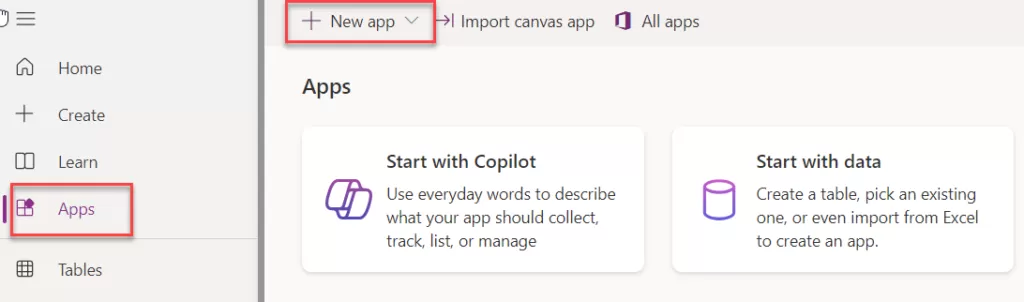
Step 2: Click “Apps” in the left panel.

Step 3: Click on the “New app”.
img-01

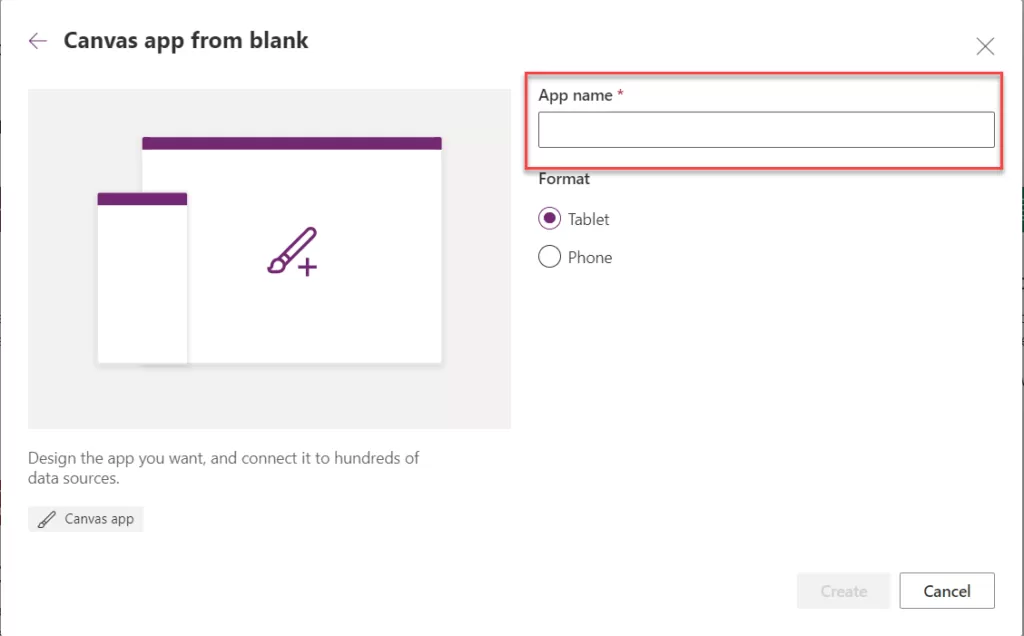
Step 4: Choose the Blank Canvas app and enter the app’s name as it appears in the image below:
img-02


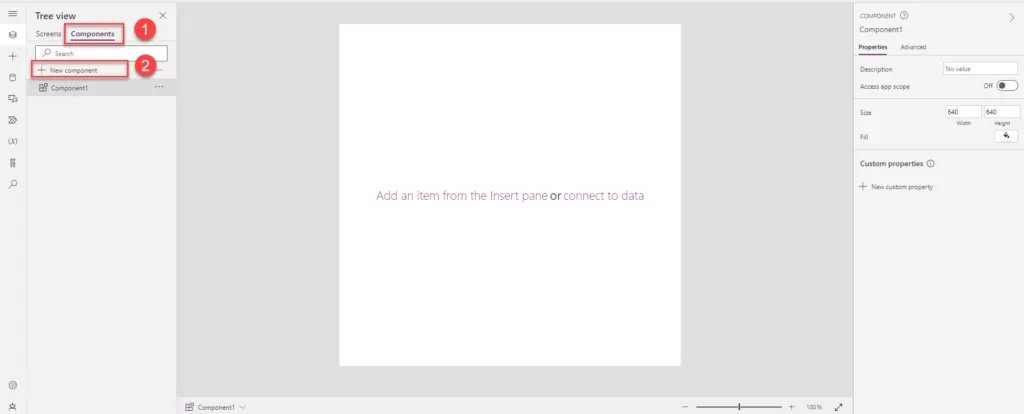
Step 5: Once the app is created, you will notice the component option is visible.

Step 6: Click on the Component tab after the screen as show into the below.

Step 7: Click on the “+ New Component” button and new component will be added to the component screen.

All the above step as show into the below image.
 

img-03

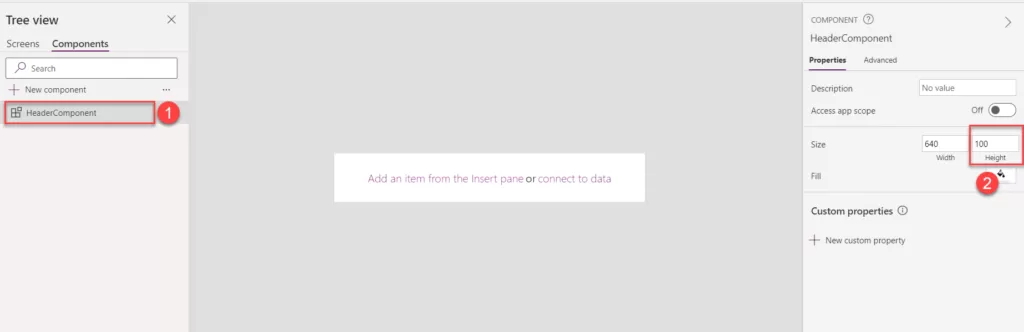
Step 8: Rename “Component1” to “Header Component” and adjust the “With” property.

Step 9: Currently, the component has a height and width of 640. To decrease the height, set it to 25, and observe the reduced component height as shown below:
img-04

Step 10: To display the screen name, you can insert a text label. If you require a home or back icon or any other elements, you can add and arrange them according to your preferences.

Step 11: For a responsive header, utilize a container control. Incorporate relevant buttons or labels into the header based on your specific requirements.

Step 12: Add a Horizontal container to your component by clicking on “Insert,” searching for the container control, and adding it.
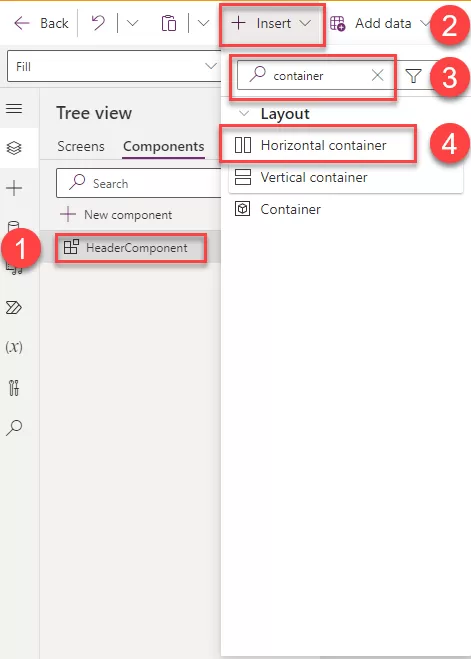
img-05

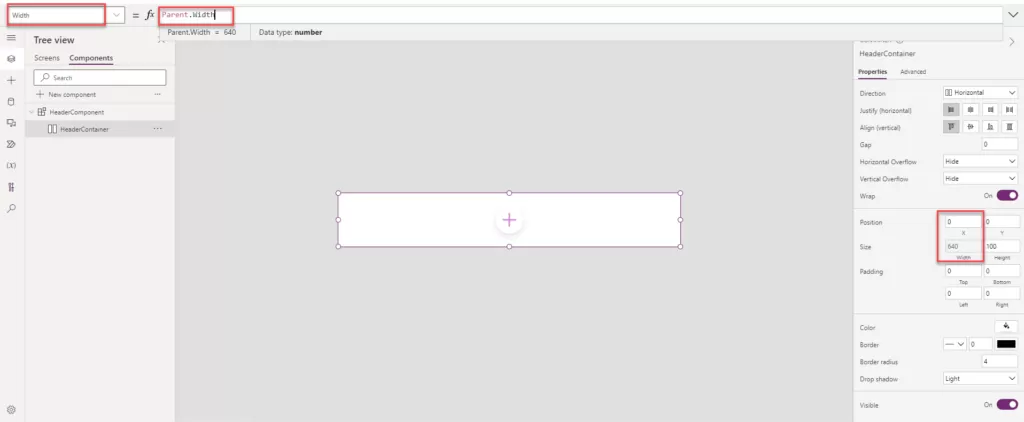
Step 13:  Once you’ve added the Horizontal Container, adjust the width and X property according to your specific requirements.

  • Width: Parent. Width
  • X: 0

img-06

Step 14:  Insert the text label and home icon inside the horizonal container. In the horizontal container all the control which are added into this container is side by side so we can easily rearrange accordingly.

  • Add the text label into the container and change the text label name to “Lbl_Header”.
  • Enable the flexible width option for the Lbl_Header.
  • Also change the height property set as: Parent. Width.
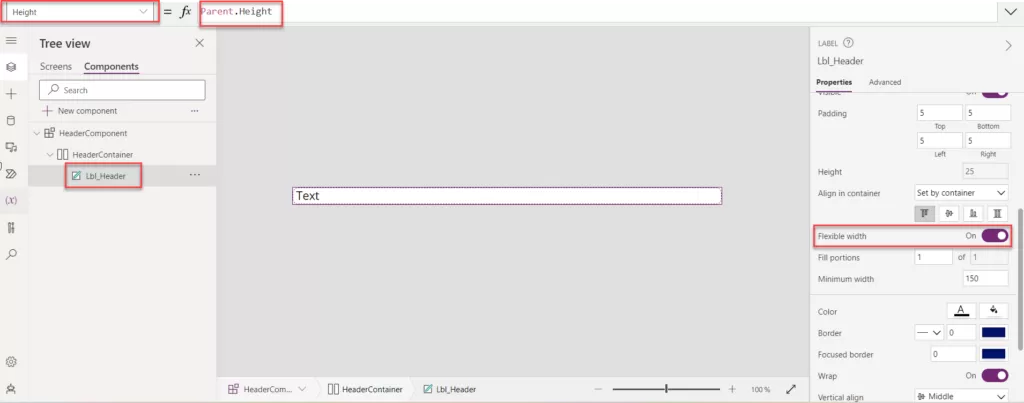
img-07

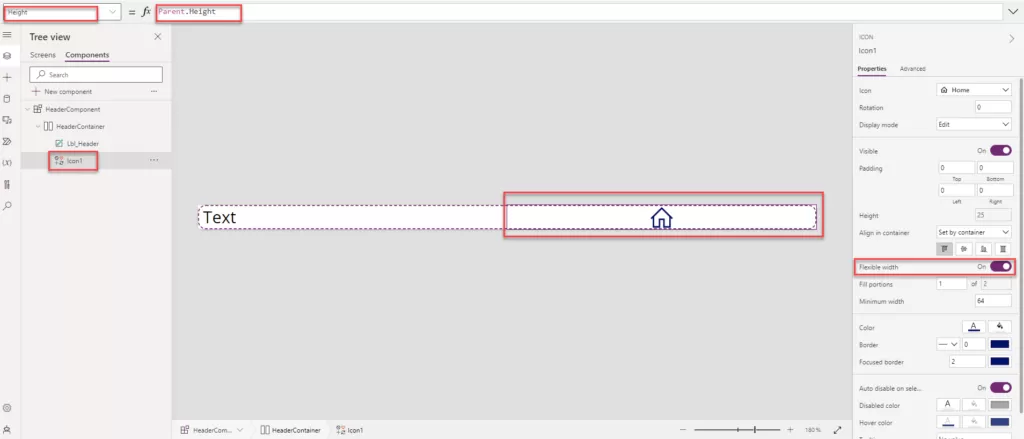
  • Insert the home Icon into horizontal container.
  • Enable the Flexible width to turn on.
  • Ser the height: Parent. Height.

img-08

Step 15: You can select the label and adjust the “Fill Portions” based on your specific requirements.

  • Fill Portions is: 36.
  • Fill Portions: Defines how the individual component grows when there is more screen real-estate assigned to its parent. The number represents the portion of the extra space given to the component out of all the available extra space claimed by children of its parent. For example, if child A has Fill portions set to 1 and child B has Fill portions set to 2, child A gets 1/3 of the extra space available while child B gets 2/3 of the extra available space.
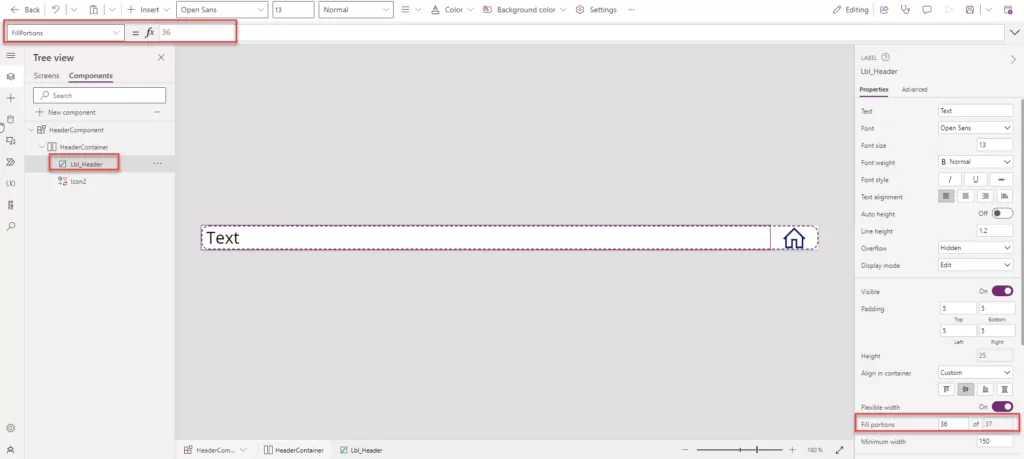
img-09

Step 16: Apply the background color to the component to set the header color. Adjust the font color for “Lbl_Header” and “Icon2” based on the background. In our case, we’ve set the text color to white, and the “HeaderComponent” background color is dark blue.
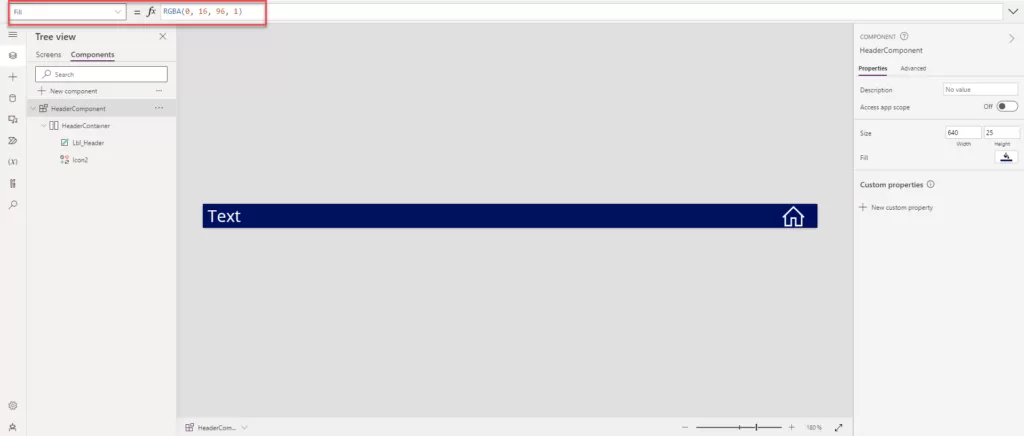
img-10

Step 17: Now that our header component is ready, we can configure the custom properties for Text, Screen, and Fill color, as displayed on the right side.

Step 18:  Custom properties: A component can receive input values and emit data by creating one or more custom properties.

  • In the Display name, Property name, and Description boxes, add information according to your requirements.
  • Display name: Header Text
  • Property name: HeaderText

Note: Ensure that you do not include spaces when providing the Property Name, as this name will be used as a reference.
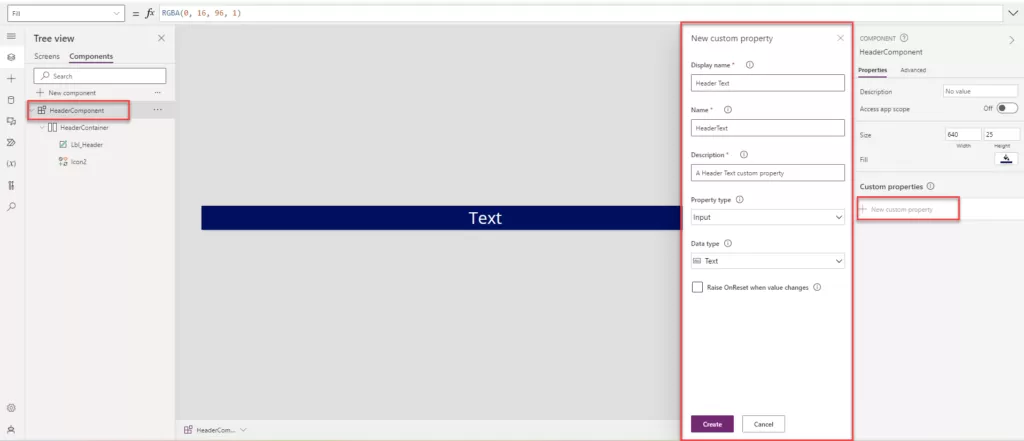
img-11

Step 19:  The Property type has two options: one is called input, and the other is called output, as shown in the image below.
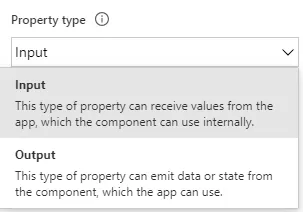
img-12

Step 20: Various types of custom properties can be created, including Text, Number, Boolean, Date and Time, Screen, Record, Table, Image, Video or Audio, Color, and Currency.
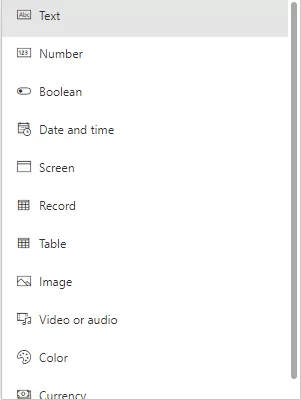
img-13

Step 21: In our case, where we need to change the screen header based on requirements, we select “Text” as the data type. Click on “Create” to add the Custom Properties.

Step 22: Add the text property of “Lbl_Header” to “HeaderComponent.HeaderText”
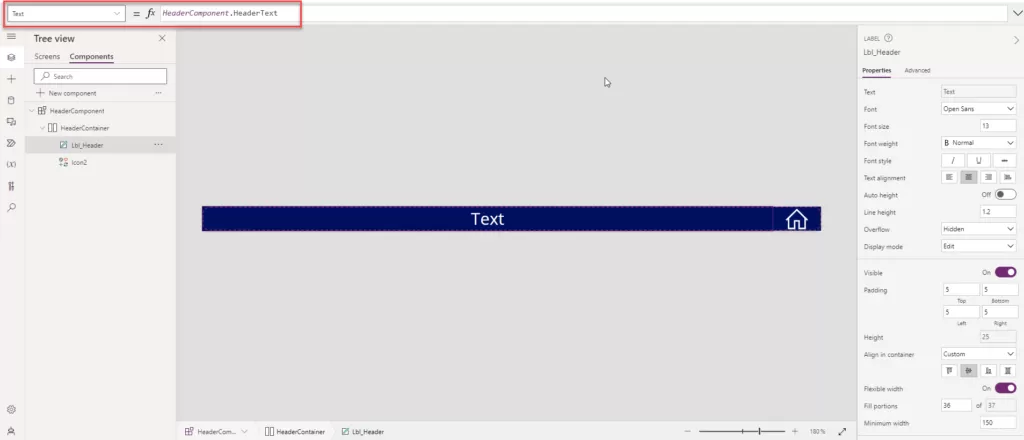
img-14

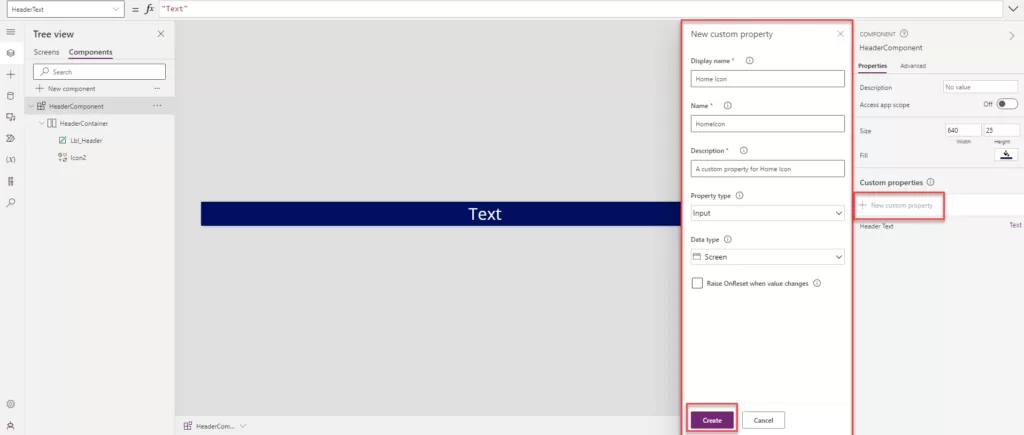
Step 23: Now, create a new property for navigating the screen.

  • Click on “New Custom Property.”
  • Add the Display Name: Home Icon.
  • Name: HomeIcon.
  • Description: A custom property for Home Icon.
  • Data type: Screen.
  • Click on the create button.

img-15

Step 24: Now, add the following formula to the icon’s “On Select” event. In our case, we want to use the Home Icon to navigate to the home screen. Select the icon and add the formula as mentioned below:

  • On Select: Navigate (HeaderComponent.HomeIcon)
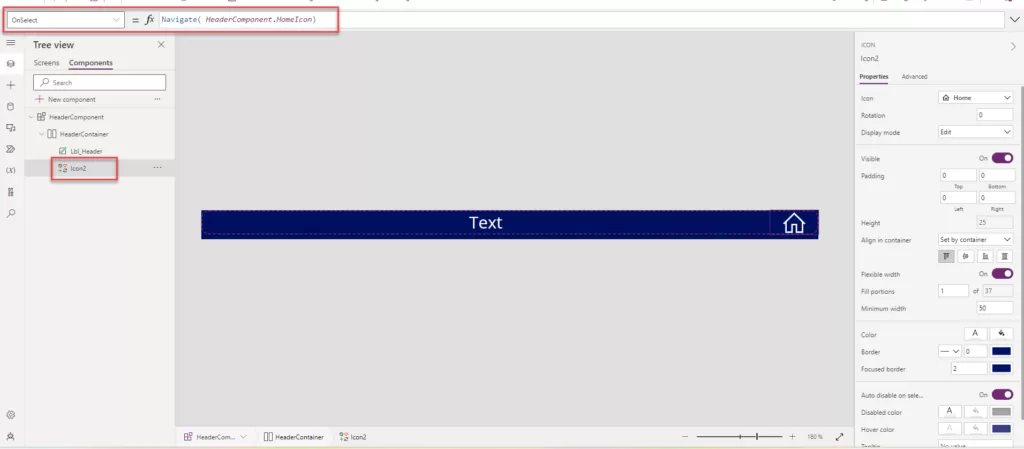
img-16

Step 25: Now, our component is ready to be added to the header of the screen in Power Apps. Click on the right side of the “Screen” option.

Step 26: Click on “Insert” and search for the component name, then add it to the screen.
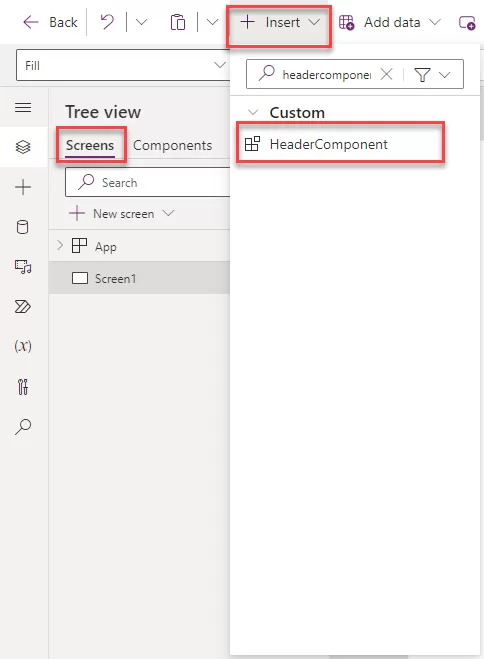
img-17

Step 27: Now, set the component width and height according to the requirements on the screen. In our case, the width is set to Parent. Width, and the height is set as 30.
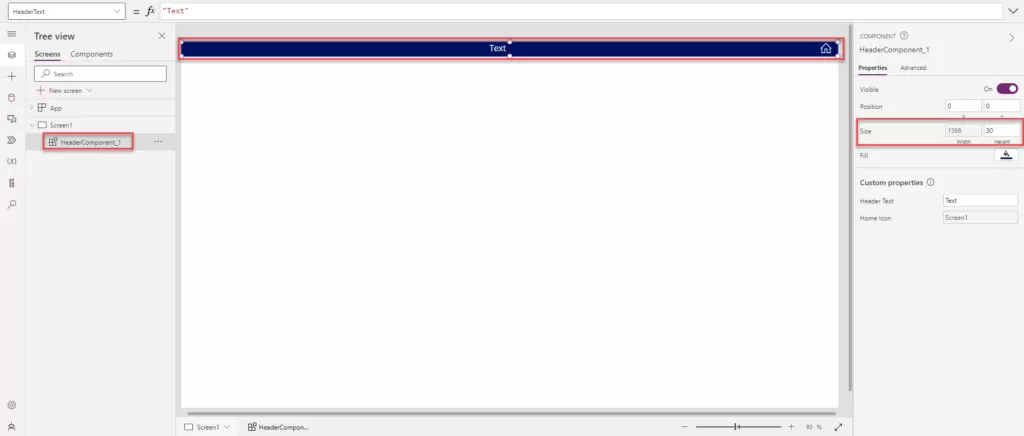
img-18

Step 28: Now, to change the header name, select the header control and go to the right side in the component Custom property.

  • Click on “Header Text.”
  • Provide the text you want to display as the screen header. In our case, we have added “Onboarding Form Screen” as the text.
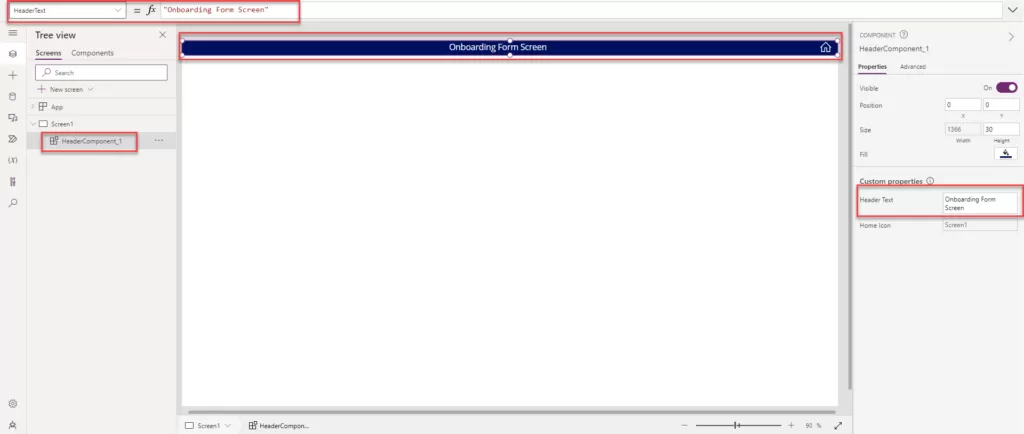
img-19

Step 29: To change the functionality of the home icon, follow the same steps as above for changing the header text. Additionally, you can add the screen name that you want to navigate to when the user clicks on the home icon. You can implement the logic in the On Select action to achieve the desired navigation.
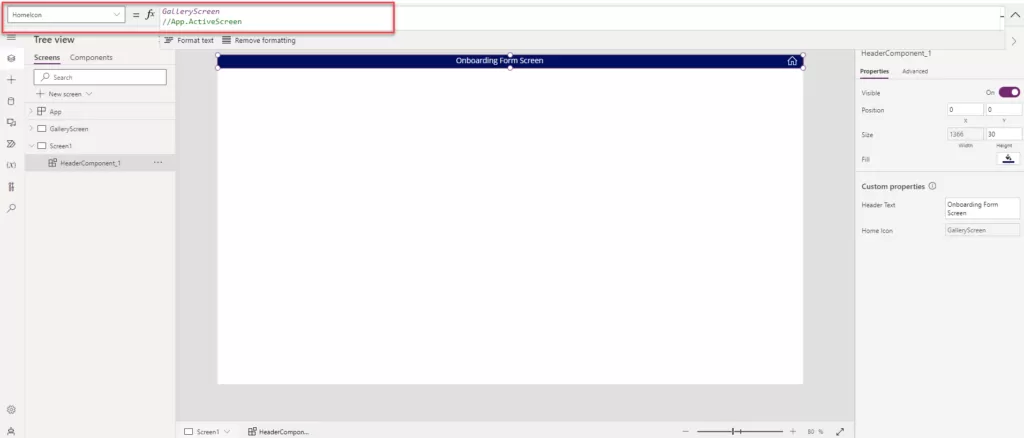
img-20

Step 30: All the above process same as you can create the new screen and add the header component.

Refresh Dataset for Power Bi Report Using Power Automate

Power Automate, a service by Microsoft, presents a valuable feature that facilitates the refreshing of datasets utilized in Power BI reports. This functionality proves especially beneficial when the data source undergoes frequent changes, necessitating the report to reflect the most recent data accurately.

The “Refresh a dataset” action in Power Automate offers versatility, allowing it to be triggered based on various conditions, ensuring flexibility in keeping Power BI reports up to date. Users can initiate this action either manually or schedule it to run at specific times.

Furthermore, Power Automate seamlessly integrates with Power BI reports, providing the option for on-demand dataset refreshments. This integration is achieved through the incorporation of a Power Automate button directly within the report.

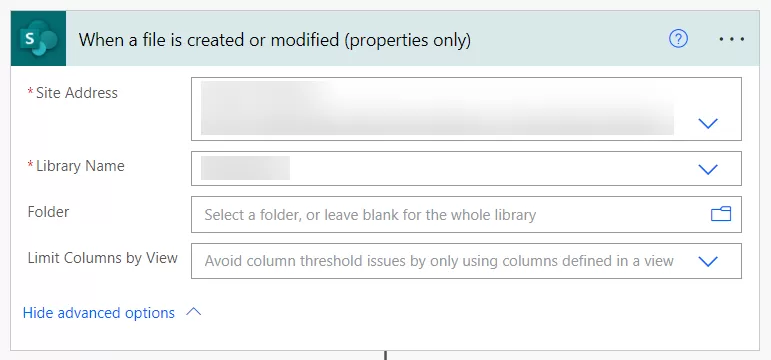
Step 1: Let’s set up a Power Automate flow using the “When a file is created or modified” trigger. In this step, carefully choose the “Site Address” and “Library Name” corresponding to the location of your spreadsheet, where further modifications are anticipated. This trigger is essential as it retrieves data from the spreadsheet linked to your PowerBI live report.

img-01


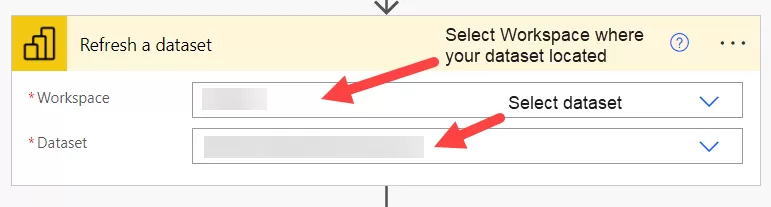
Step 2: Add the PowerBI action “Refresh a dataset” and specify the “Workspace” where your PowerBI report is created. Additionally, select the corresponding “Dataset” associated with the report. This ensures the seamless refreshing of the specified dataset within your PowerBI environment.

img-02


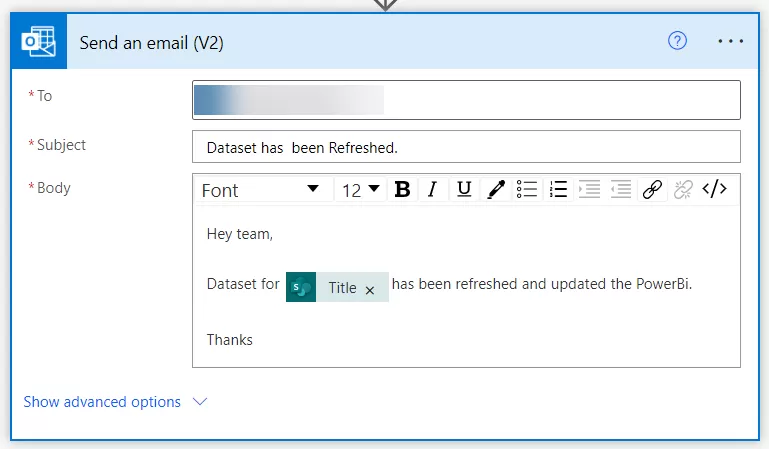
Step 3: Include the “Send an email” action to notify when the dataset has been refreshed. This action will be triggered whenever there is a modification in the spreadsheet, leading to the dataset being refreshed, followed by a notification.

img-03


In summary, Power Automate emerges as a robust and flexible solution for maintaining the currency of Power BI reports by facilitating regular updates of the underlying datasets.

Part – 2 Make Power Apps Ootb Form Control Responsive Using Containers

Follow these steps to set up the form responsiveness:

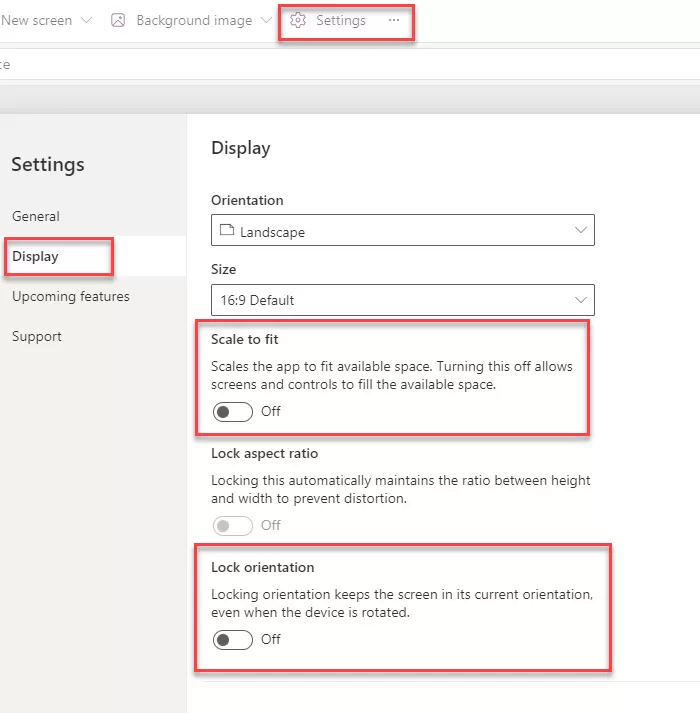
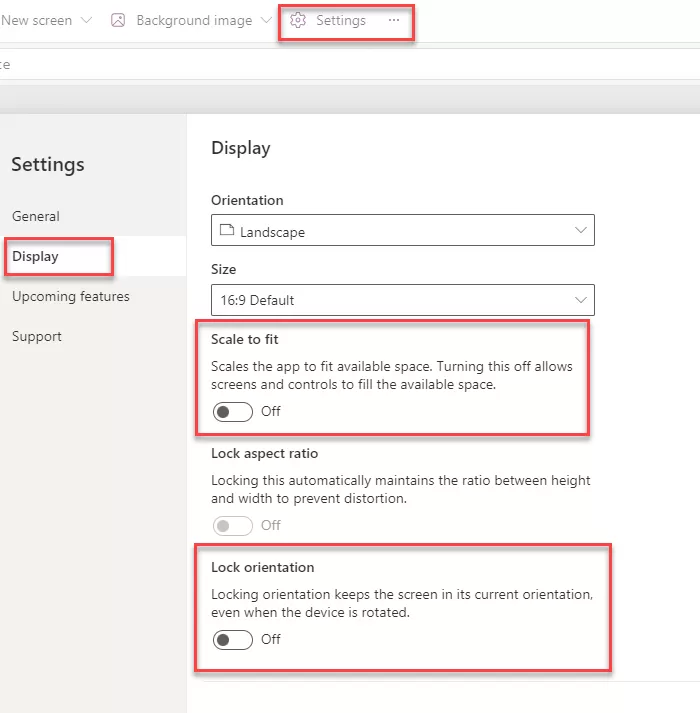
  1. Open the power apps and click on the setting.
  2. Go into the display settings and turn off the “Scale to fit” feature. Make sure that “Lock Orientation” and “Lock Aspect ratio” are disabled.

img-01


Responsive Form with Form controls.

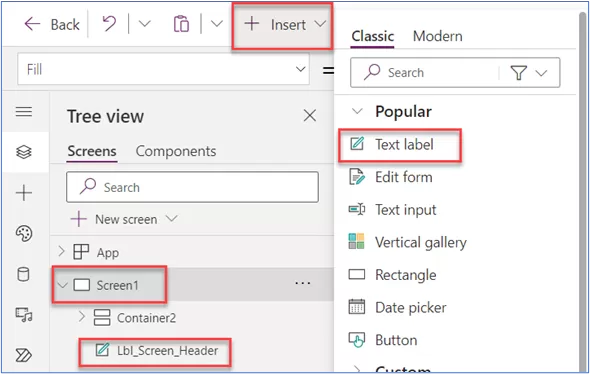
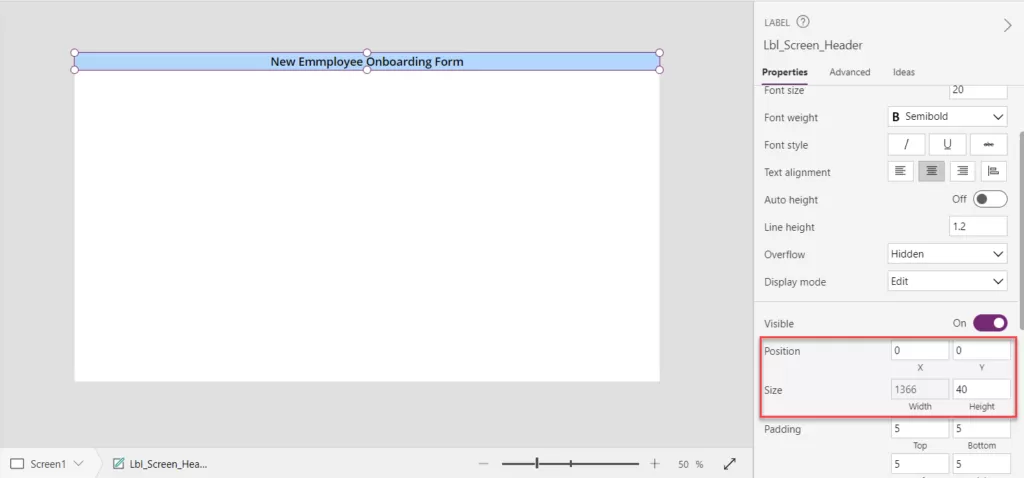
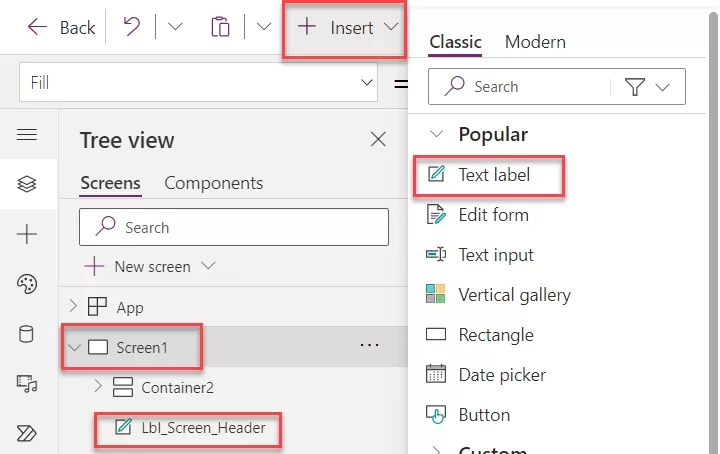
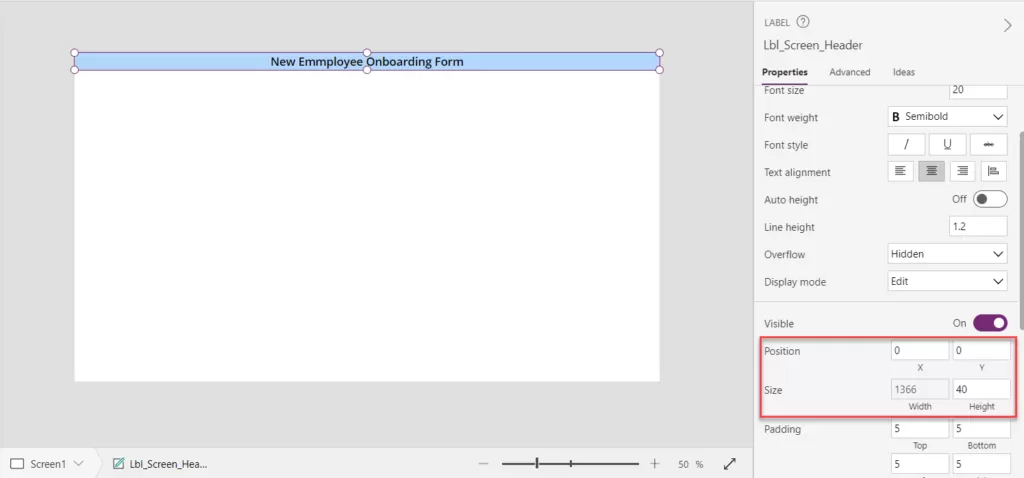
Step 1: Click on the “Insert” icon and add the Text label property as shown in the below image. And Adjust label name according to the requirement and adjust the height and width of the label. Also changes the text as per the requirement.
 

img-02

img-03

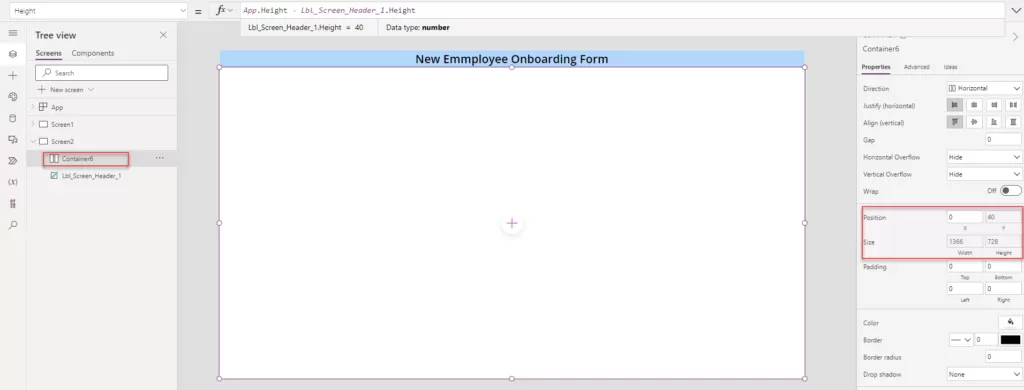
Step 2: Create a new blank screen and insert a horizontal container onto the screen. Set the container’s height to match the previous specifications. In this method, the horizontal container is directly added as we’re utilizing Power Apps’ default form control.

  • Width:Width
  • Height:Height – Lbl_Screen_Header_1.Height


img-04


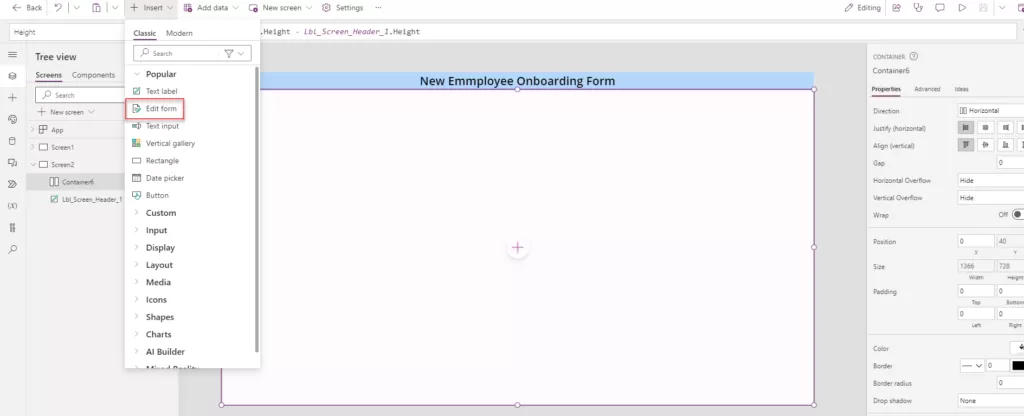
Step 3: Click on the “Insert” button and select the “Edit form” option, following the image reference provided. Ensure that you choose the Horizontal container and subsequently place the form inside this container.


img-05


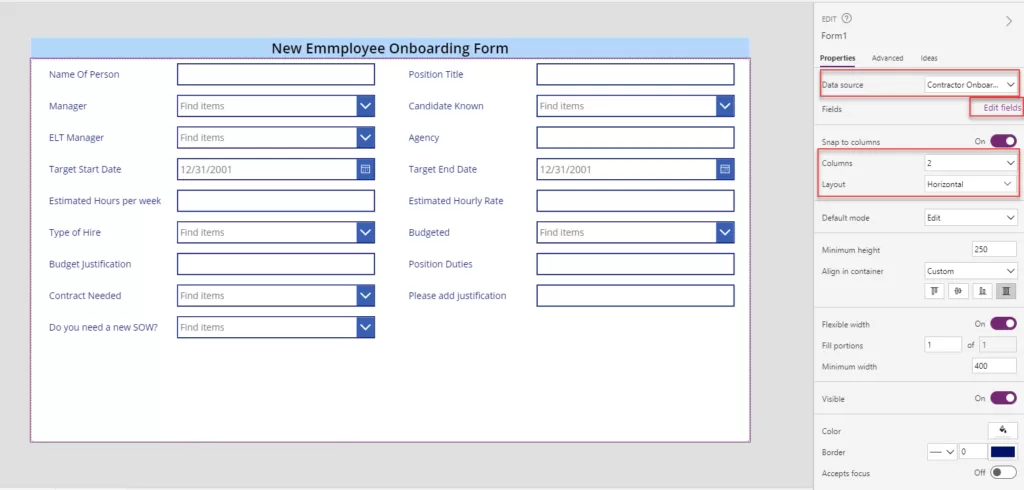
Step 4: After adding the form and linking it with the data source, modify the form’s properties by setting the number of columns to 2 and choosing a horizontal layout. If you wish to omit certain fields or rearrange their order, access the “Edit fields” option located in the image below.
 

img-06


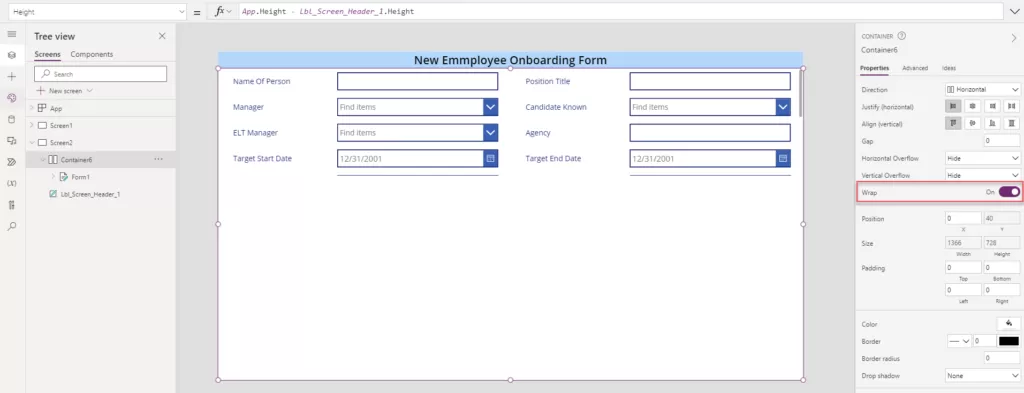
Step 5: Enabling the “Wrap” control for the form will result in the appearance depicted in the image below. This occurs due to the form’s minimum height being set to 250. To utilize the entire form space, a formula can be applied.


img-07


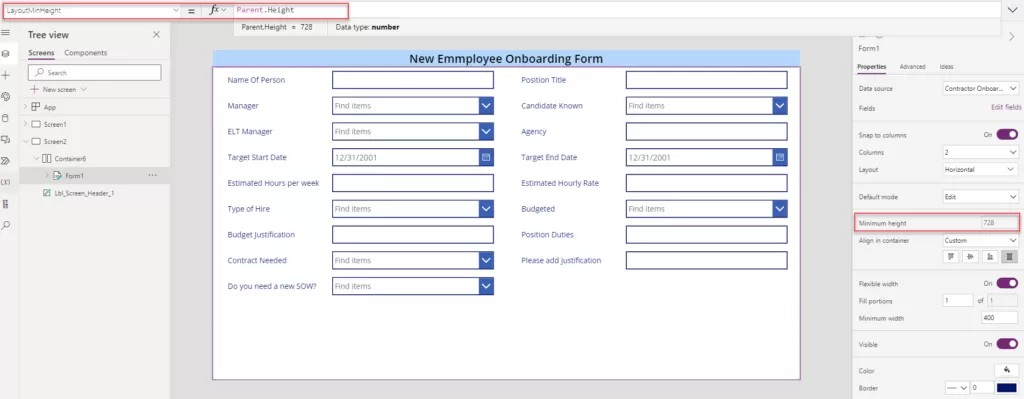
Step 6: Let’s incorporate the logic for the form’s minimum height by including the specified height within the formula provided below.

  • LayoutMinHeight: Parent.Height


img-08


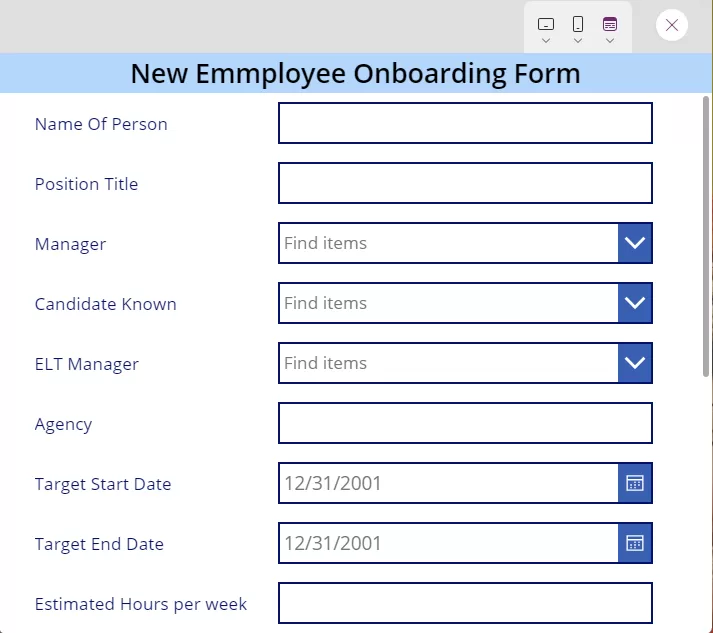
Step 7: Upon minimizing the browser window, observe how all controls automatically adapt and adjust according to the screen size, ensuring optimal responsiveness.


img-09


Part – 1 Make Power Apps Custom Controls Form Responsive Using Containers

What is the responsive Power App form?

Responsive Power App forms are made to be viewed and interacted with on a variety of devices, offering a consistent and intuitive user experience irrespective of screen size or quality. This is achieved using features and design strategies. Usually, responsive design concepts and Power Apps’ ability to dynamically optimize the form layout are used to achieve this adaptability.

Essential Steps for Implementing Responsive Applications

Follow these steps to set up the form responsiveness:

1. Open the power apps and click on the setting.

2. Go into the display settings and turn off the “Scale to fit” Make sure that “Lock Orientation” and “Lock Aspect ratio” are disabled.


img-01


Responsive Form with individual controls.

Step 1: Click on the “Insert” icon and add the Text label property as shown in the below image. And Adjust label name according to the requirement and adjust the height and width of the label. Also changes the text as per the requirement.


img-02

img-03


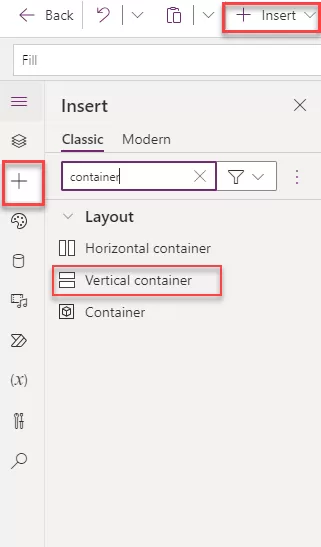
Step 2: Select the “Insert” button displayed in the image below and opt for the Vertical Container.

  • We utilize the vertical container to arrange all controls sequentially, facilitating the submission of records into the data source. This arrangement allows for multiple controls to be organized vertically on the screen, enabling a smoother process for submitting records.


img-04


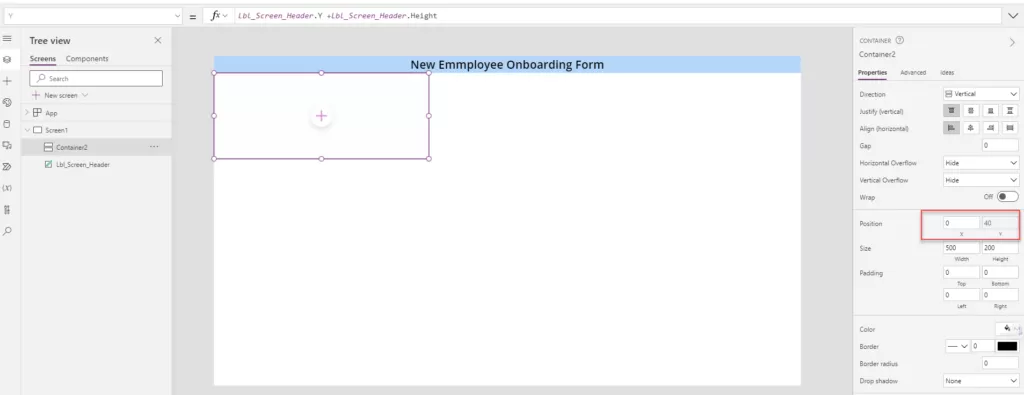
Step 3: Adjust the container’s X and Y position according to specific requirements. This flexibility allows for customization based on individual needs. Set the following steps based on your unique requirements.

  • X position is 0
  • Y Position is Lbl_Screen_Header.Y +Lbl_Screen_Header.Height

img-05


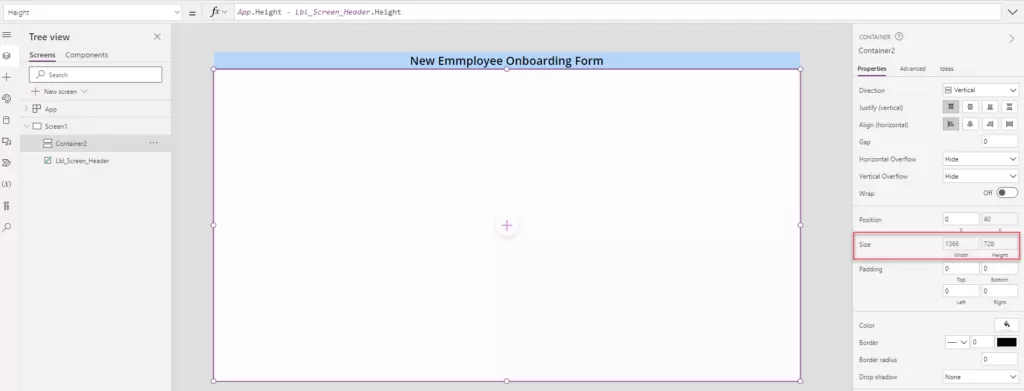
Step 4: Adjust the width and height of vertical container to fit the entire screen area. Ensure that the height and width adjustments align with the screen dimensions for optimal utilization.

Width: App.Width

Height: App.Height – Lbl_Screen_Header.Height


img-06


Step 5: Place a horizontal container within the vertical container to build the form with labels followed by text inputs in two parallel columns. This design will allow labels to be displayed side by side with text input areas, thus generating two columns within the form.

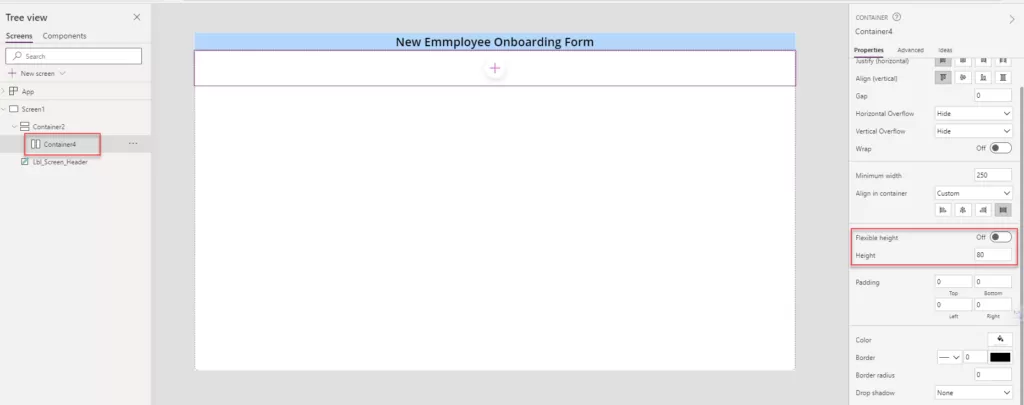
  • When the horizontal container is added within the vertical container, it has the same width and height as the vertical container. Disable the Flexible Height option and provide a specific height based on our requirements. Set the height to 80 in this example to meet our specific needs.

img-07


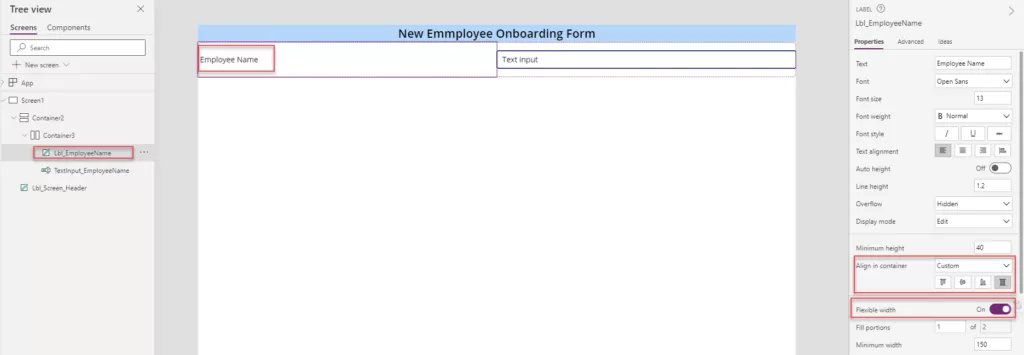
Step 6: Insert a label named “Employee Name” and a text input field for the employee’s name within the horizontal container.

  • Adjust the label control properties as below.
  • Flexible Width: Turn On.
  •  Align in Container: Custom and Stretch.
  • Ensure that for the label, the flexible width is enabled, and align it within the container by stretching it to match the container’s height, as illustrated in the provided image. Additionally, add another label named “Position Title” along with its respective text input, aligning them accordingly within the container.
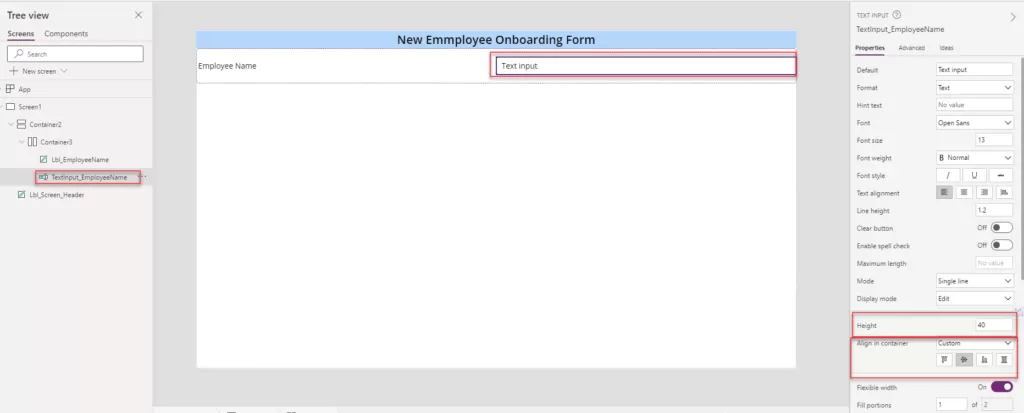
  • While adding the text label, ensure the selected option for alignment within the container is set to “Stretch.” For all text input controls,


img-08


  • While adding the text input label, ensure the selected option for alignment within the container is set to “Center.” For all text input controls.

img-09


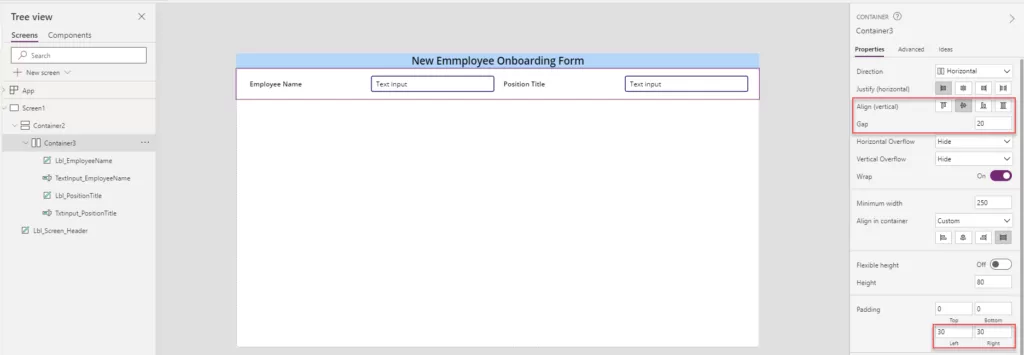
Step 7: Apply left and right padding to the container according to the desired outcome, ensuring that all controls are centered. Utilize the gap property to adjust the controls uniformly. Upon applying the Wrap property enable, the controls might shift upwards; thus, adjust the vertical alignment to center them based on the image provided.

  • Padding Left and Right: 30
  • Wrap toggle: On
  • Align (Vertical): Center

img-10


Step 8: Implement logic for the height of the horizontal container based on screen sizes denoted by specific numbers:

  • Mobile: Size 1
  • Tablet: Sizes 2 and 3
  • Desktop: Size 4

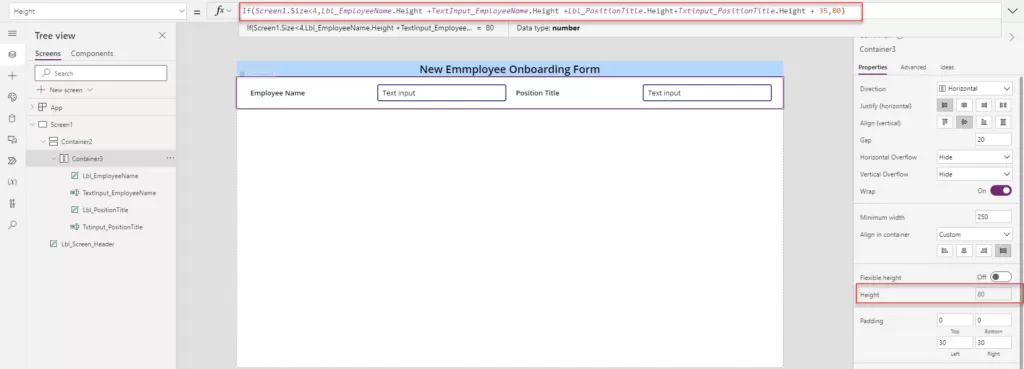
The current static height provided for Container 3 is 80. Adjust the logic for the horizontal container’s height considering these screen size specifications.

1| If(Screen1.Size<4,Lbl_EmployeeName.Height +TextInput_EmployeeName.Height +Lbl_PositionTitle.Height+Txtinput_PositionTitle.Height + 35,80)

img-11


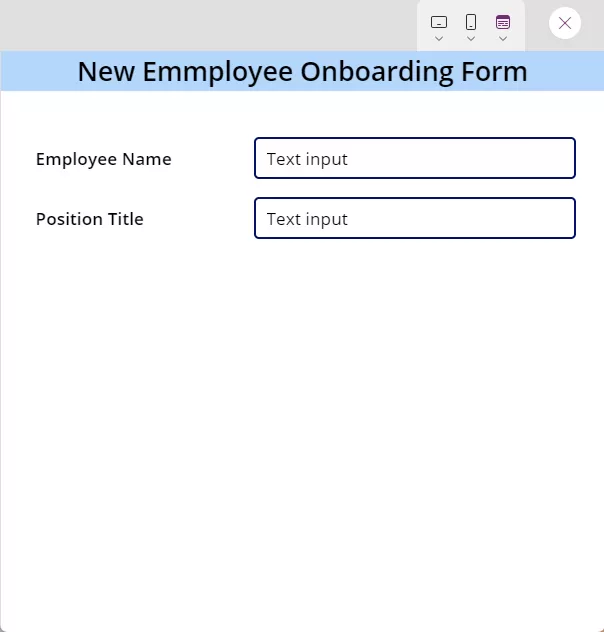
Step 9: Upon minimizing the browser window, observe how all controls automatically adapt and adjust according to the screen size, ensuring optimal responsiveness.


img-12


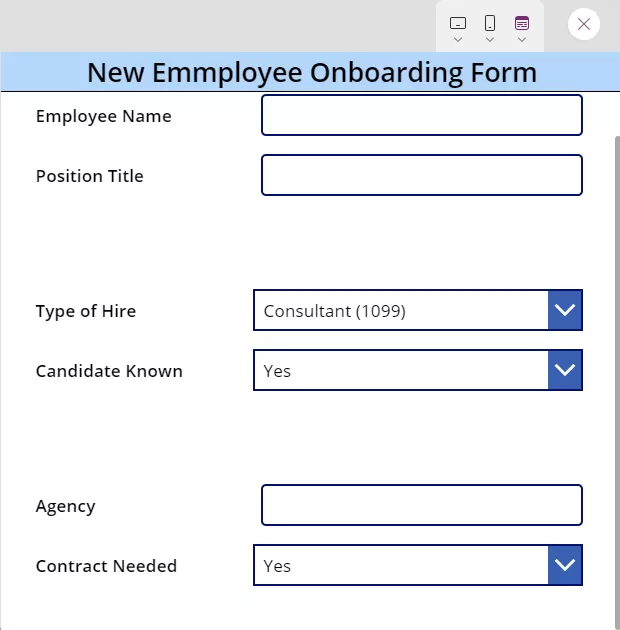
Step 10: To incorporate additional controls like the ones above, insert another horizontal container within the primary vertical container. Subsequently, add corresponding labels and text inputs as per your specific requirements to maintain consistency with the existing setup.


img-13

Connecting to SharePoint Online using Managed Identity

When automating tasks in Microsoft 365, it’s best to avoid logon IDs and passwords.

The best practice is to use the least privileges and function in a zero-trust environment.

The ideal approach is to use a Managed Identity with the Sites.

Selected application scope, some approaches use a Sites.

Selected scope with an App Registration and Service Principal, but the best approach is to use Managed Identities for identity management in automation.

Approach 1: Connecting to SharePoint Online using Managed Identity with Granular Access Permissions

Microsoft Graph and SharePoint Online support some granular access permissions using Sites.

Selected application scope in Graph and app access role permissions in Site collections. It even works with Managed Identities.

The Sites selected application scope was added to Microsoft Graph a while back to enable granular app access permissions within SharePoint Online.

With this scope, one can grant application access to specific SharePoint Online site collections instead of granting access to all site collections in the tenant.

Managed Identities is a way of providing identities to Azure resources without any App credentials like certificates or client secrets involved.

The prerequisites:

Needed the following resources for setup:

  • A Logic App with a System Assigned Managed Identity.
  • A SharePoint Site with a SharePoint list populated with a few columns and items.
  • Access to grant Microsoft Graph application scopes and SharePoint site permissions.

A Logic App with a System-assigned Managed Identity:

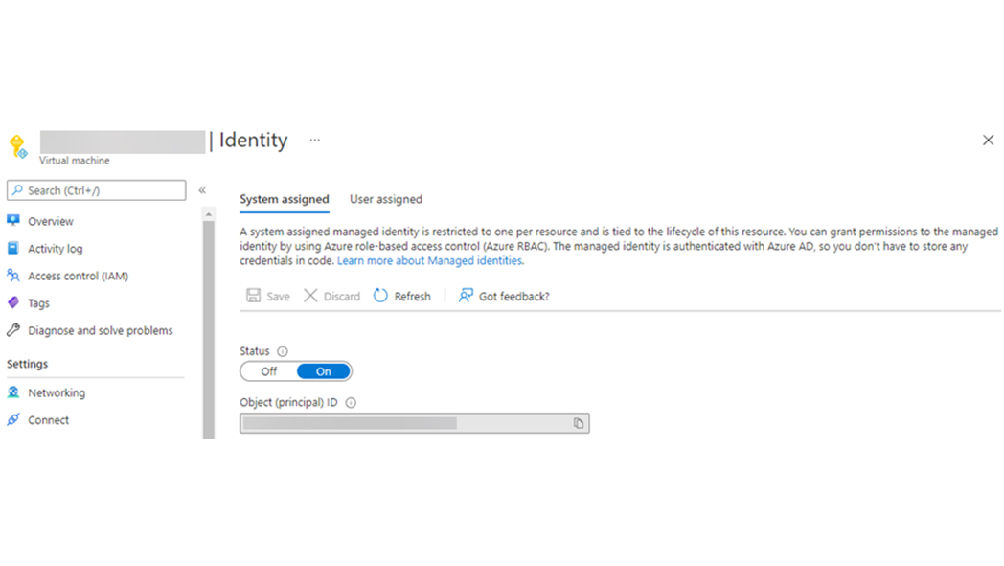
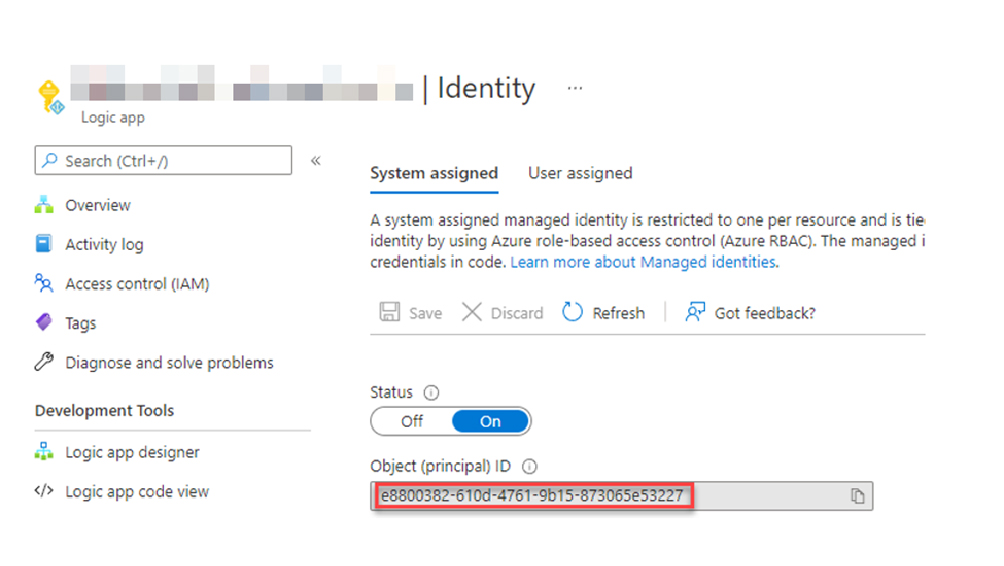
Once the System assigned Managed Identity is enabled on the Logic App, Note down the Object (principal) ID for the Managed Identity (guid e8800382-610d-4761-9b15-873065e53227) – which will be used to grant Sites. Selected application scope in Microsoft Graph.

Blog-Post-01-02

Blog-Post-01-03

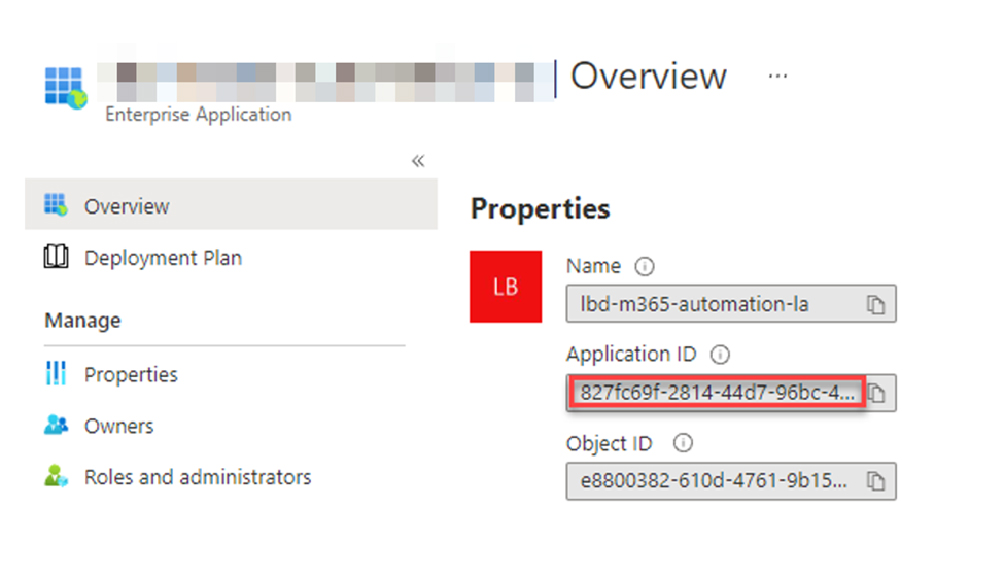
Visiting the Enterprise Application blade in the Azure AD Portal, select the recently created Managed Identity object and noted down the Application ID for the Managed Identity (guid 827fc69f-2814-44d7-96bc-492f2bf21c83) – which will be used to grant permission within the SharePoint site.

Application Id

Create a Team site with the name Test Team Site, which generated a SharePoint site, and added a SharePoint List with the name OrderList with necessary columns and a few items.

Grant Application Scope in Microsoft Graph

Use Microsoft Graph PowerShell SDK to grant the Sites. Selected application scope in Microsoft Graph.

$ObjectId is set to the guid value of Object (principal) ID for the Managed Identity noted down earlier.
 
# Add the correct ‘Object (principal) ID’ for the Managed Identity

$ObjectId = “e8800382-610d-4761-9b15-873065e53227”
 
# Add the correct Graph scope to grant

$graphScope = “Sites.Selected”
 
Connect-MgGraph -Scope AppRoleAssignment.ReadWrite.All
 
$graph = Get-MgServicePrincipal -Filter “AppId eq ‘00000003-0000-0000-c000-000000000000′”
 
$graphAppRole = $graph.AppRoles | ? Value -eq $graphScope
 
$appRoleAssignment = @{
 
    “principalId” = $ObjectId
 
    “resourceId”  = $graph.Id
 
    “appRoleId”   = $graphAppRole.Id
 
}
 
New-MgServicePrincipalAppRoleAssignment -ServicePrincipalId $ObjectID -BodyParameter $appRoleAssignment | Format-List
 
Running the Powershell code produced the following output in the console, indicating that the scope was successfully granted.
 
AppRoleId: 883ea226-0bf2-4a8f-9f9d-92c9162a727d
 
CreatedDateTime: 14.02.2022 07:45:10
 
DeletedDateTime:
 
Id: 9Uv0TSLb…Yw3xRUH8
 
PrincipalDisplayName: test-team-site-automation
 
PrincipalId: e8800382-610d-4761-9b15-873065e53227
 
PrincipalType: ServicePrincipal
 
ResourceDisplayName: Microsoft Graph
 
ResourceId: 07165e04-89b3-4996-8b1d-a2a225eb5104
 
AdditionalProperties: {[@odata.context, https://graph.microsoft.com/v1.0/$metadata#servicePrincipals(‘e8800382-610d-4761-9b15-873065e53227’)/appRoleAssignments/$entity]}
 
The Managed Identity now has the Sites.
 
Selected application scope in Microsoft Graph, but still requires app access within the specific SharePoint site.
 
Grant App Access to a Specific SharePoint Site
Microsoft Graph PowerShell SDK to grant the Managed Identity app access to the SharePoint site.
 
id in the application hashtable is set to the guid value of Application ID for the Managed Identity noted down earlier.
 
# Add the correct ‘Application (client) ID’ and ‘displayName’ for the Managed Identity

$application = @{
 
id = “827fc69f-2814-44d7-96bc-492f2bf21c83”
 
displayName = “test-team-site-automation”
 
}
 
# Add the correct role to grant the Managed Identity (read or write)

$appRole = “write”
 
# Add the correct SharePoint Online tenant URL and site name

$spoTenant = “tenant.sharepoint.com”
 
$spoSite  = “TestTeamSite”
 
# No need to change anything below

$spoSiteId = $spoTenant +:/sites/+ $spoSite +:”
 
Import-Module Microsoft.Graph.Sites
 
Connect-MgGraph -Scope Sites.FullControl.All
 
New-MgSitePermission -SiteId $spoSiteId -Roles $appRole -GrantedToIdentities @{ Application = $application }

Running the Powershell code produced the output of a permission ID in the console, indicating that the permission was successfully granted.

The Logic App’s Managed Identity should now have enough permissions to both read and write the SharePoint List items via Microsoft Graph.

Configure Logic App to Retrieve SharePoint List Items

I went back to the Logic App and the Logic app designer blade and added a new action step.

  • Connector: HTTP
  • Method: GET
  • URI: https://graph.microsoft.com/v1.0/sites/<tenant>.sharepoint.com:/sites/TestTeamSite:/lists/OrderList/items?$select=id,webUrl,fields,createdDateTime&$expand=fields($select=Title,Owner,Description,AutomationCompleted)&$top=999
  • Authentication
    • Authentication type: Managed Identity
    • Managed identity: System-assigned managed identity
    • Audience: https://graph.microsoft.com

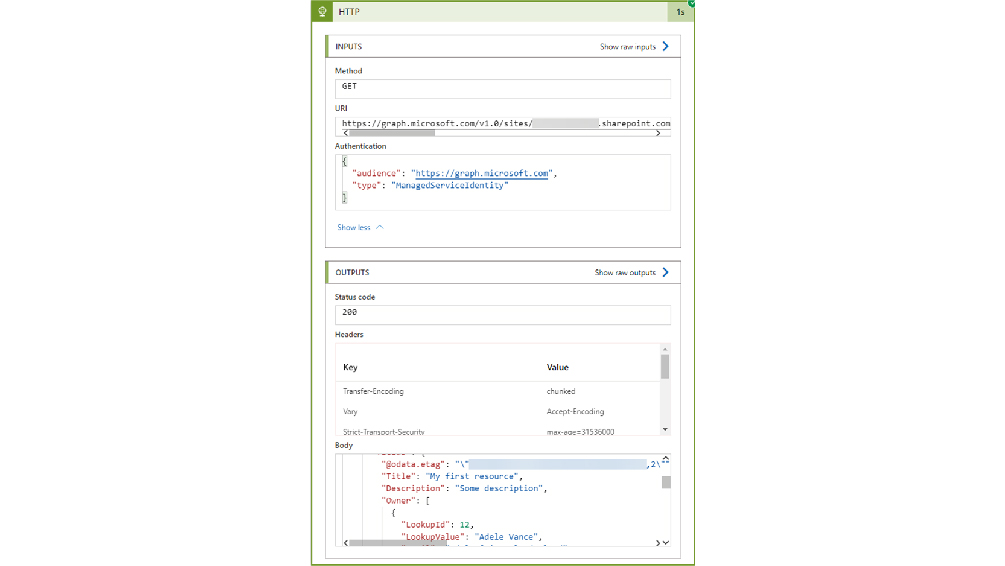
Save the new configuration and triggered the Logic App. And behold – status code 200 and a response body with the list items!

Blog-Post-01-05

Success! The Logic App is able to work with data in SharePoint Online sites authenticating with its least-privileged Managed Identity, but only for sites it is specifically granted app access to.

Now you know how to utilize Sites. Selected application scope and app access roles in SharePoint Online to grant least-privileged access for automation processes using Managed Identities. This aligns with many SharePoint security best practices that focus on minimizing surface exposure while maintaining efficiency.

For further assistance or to explore tailored SharePoint Development Services, consider consulting a reputable company like Reality Tech.

Additional Read

The Ultimate Guide to Using SharePoint for End Users!

Approach 2: Registering the Azure App for SharePoint Online

Procedure

  1. Log on to the Azure portal (https://portal.azure.com/) using your global admin user account.
  2. Go to Azure Active Directory.
  3. In the navigation pane, click App Registrations.
    The App Registrations page appears.
  4. Click New Registration.
    The Register an application screen appears.
  5. In the Name box, type a name for the app.
  6. Under Supported account types, select Accounts in this organizational directory only (tenant_prefix – Single tenant).
  7. To verify the status of the app and to authorize the app from the Command Center, under Redirect URI, enter the Command Center URL.
    For example, enter https://host_name.domainname.com/commandcenter.
  8. Click Register.
  9. Copy and paste the following values in a document that you can access later:
    – Application ID
    – Directory ID
    You will enter these values in the Commvault software when you complete the Office 365 guided setup.
  10. In the navigation pane, click API permissions.
  11. Click Add a permission.
  12. Click Microsoft Graph and complete the following steps:
    – Click Application permissions.
    – Select the User. Read permission.
  13. Click Add Permissions.
  14. Click Grant admin consent for tenant_name.
  15. Click Yes.
  16. In the navigation pane, click Certificates & secrets.
    The Certificates & secrets page appears.
  17. Click New client secret.
    The Add a client secret dialog box appears.
  18. Enter a description, and then select the maximum value.
  19. Click Add.
  20. Copy and paste the client’s secret value in a document that you can access later.
    You will enter this value in the Command Center when you complete the Office 365 guided setup.
  21. To assign full permissions to the tenant to back up SharePoint sites, in your browser, go to the tenant URL.
    For example, go to https://<office_365_tenant_URL>/_layouts/15/appinv.aspx. The SharePoint admin center page appears.
  22. In the App ID box, enter the application ID that you recorded earlier, and then click Lookup.
    In the Title box, the name of the application appears.
  23. In the App Domain box, type tenantname.onmicrosoft.com.
    To get the correct domain name, go to the Microsoft Azure website, Custom domain names.
  24. In the App’s Permission Request XML box, type the following XML string:
    <AppPermissionRequests AllowAppOnlyPolicy=”true”><AppPermissionRequest Scope=”http://sharepoint/content/tenant” Right=”FullControl” /><AppPermissionRequest Scope=”http://sharepoint/social/tenant” Right=”Read” /></AppPermissionRequests>
  25. Click Create.
  26. Click Trust It.

Start Your SharePoint Project in a Click

Our technology and wide delivery footprint have created billions of dollars in value for clients globally and are widely recognized by industry professionals and analysts.


Maximizing Data Efficiency: Comprehensive Guide to Exporting Power Bi Data to Excel

In the dynamic landscape of data analytics and business intelligence, the seamless integration between Power BI and Excel has become indispensable. Organizations leveraging these powerful tools benefit from enhanced data visualization, analysis, and collaboration. In this comprehensive guide, we delve into the intricacies of exporting Power BI data to Excel, unlocking a world of possibilities for data-driven decision-making.

Understanding the Dynamics: Power BI and Excel Synergy

Power BI, Microsoft’s robust business analytics service, empowers users to visualize and share insights across their organization. On the other hand, Excel remains a cornerstone for data manipulation and analysis. The synergy between these two tools amplifies their individual capabilities, offering a unified solution for end-to-end data management.

Unleashing the Power of Export: Step-by-Step Guide

1. Initiating the Export Process

To export your Power BI data to Excel, follow these steps:

  • Open your Power BI report or dashboard.
  • Identify the specific data set you want to export.
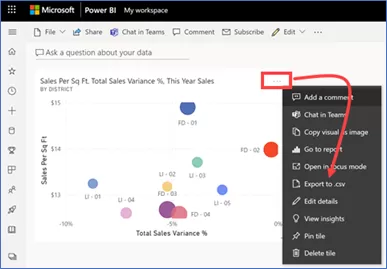
  • Navigate to the ellipsis (…) menu on the visual or table.
  • Select “Export data” and choose “Excel” as the desired format.


img-01


2. Choosing Export Options

Understanding the export options ensures tailored results:

  • Summary Data: Opt for summary data export for a high-level overview.
  • Detailed Data: Choose detailed data export for granular insights.

3. Data Formatting and Cleansing in Excel

Upon export, Excel provides a platform for further data refinement:

  • Formatting Tools: Leverage Excel’s formatting tools for enhanced visual appeal.
  • Data Cleansing: Address inconsistencies or outliers within Excel for data accuracy.

Overcoming Common Challenges

1. Handling Large Datasets

Exporting extensive datasets can be challenging, but strategic approaches mitigate issues:

  • Data Chunking: Divide large datasets into manageable chunks for efficient export.
  • Utilizing Power Query: Leverage Power Query to filter and refine data before exporting.

2. Managing Data Relationships

Maintaining data relationships between Power BI and Excel is crucial:

  • Consistent Naming Conventions: Ensure uniform naming conventions for seamless data integration.
  • Update Mechanisms: Regularly update data to reflect real-time changes.

Realizing the Business Impact

The seamless export of Power BI data to Excel translates into tangible business benefits:

  • Enhanced Decision-Making: Access detailed insights in Excel for informed decision-making.
  • Collaborative Analysis: Facilitate collaborative data analysis among team members.
  • Streamlined Reporting: Generate customized reports in Excel for diverse stakeholders.

Conclusion – In conclusion, mastering the art of exporting Power BI data to Excel empowers organizations with a holistic approach to data management and analysis. The symbiotic relationship between these Microsoft tools opens avenues for efficient decision-making and collaborative insights.

Creating Logs for Every Action in Power Automate

The process of “creating logs for Power Automate instances” involves systematically recording and archiving essential information about each step and action taken during the execution of automated workflows. This comprehensive log becomes an asset, offering users insights into the intricacies of their workflows, enabling efficient troubleshooting, and facilitating performance analysis.

In this blog post, we explore the significance of creating logs for Power Automate instances and how it transforms into a practice for users seeking a deeper understanding of their automated processes. Imagine having a detailed record of when a workflow starts, the events that trigger its execution, the data it processes, and the outcomes it produces—all neatly documented for reference. This level of visibility not only enhances troubleshooting capabilities but also empowers users to optimize and refine their workflows for peak efficiency.

Step: 1 First Add the “When an item is created action and add the Site Address and List Name.


img-01


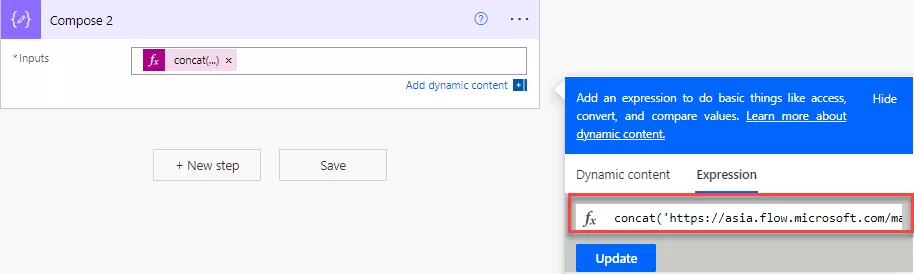
Step: 2 Next, add another Compose action to retrieve the workflow URL. Add the expression for get the URL in SharePoint Online.

We need to concat following string in the compose action

String 1: Environment URL (Region needs to be changed as per tenant configuration)
https://asia.flow.microsoft.com/manage/environments

String 2: Environment Name
workflow().tags.environmentName

String 3: “Flows”

String 4:WorkFlow Name
workflow().name

String 5: “Runs”

String 6: Workflow Run Name:
workflow().run.name

concat(‘https://asia.flow.microsoft.com/manage/environments/’, workflow().tags.environmentName,’/flows/’, workflow().name, ‘/runs/’, workflow().run.name)
img-02
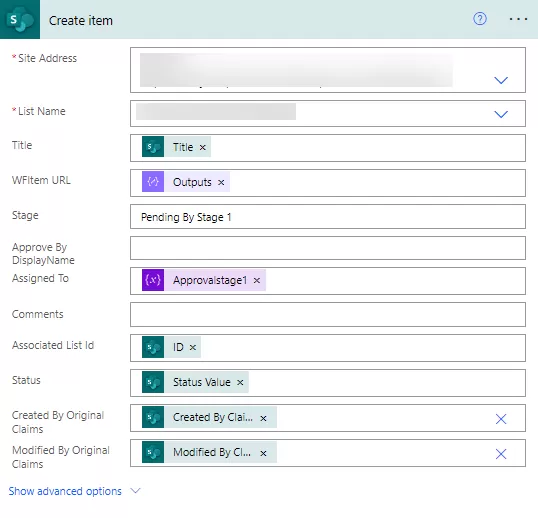
Step: 3 Add the “Create Item” action and include the site name and site URL for when users want to upload logs to the list in SharePoint Online.
Title: Include the dynamic “Title” obtained from the “When an item is created” action.
WFItem URL: Add the dynamic value “Output” obtained from the “Compose 2” action.
Stage: Here is the manually added “Pending by Stage 1.”
Assigned To: Enter the Assigned To user email.
Associated List ID: Add the dynamic “ID” obtained from the “When an item is created.”
Status: Include the dynamic “Status Value” obtained from the “When an item is created.”
Created By Original Claims: Add the dynamic “Created by Claims” obtained from the “When an item is created.”
Modified By Original Claims: Add the dynamic “Modified by Claims” obtained from the “When an item is created.”
img-03
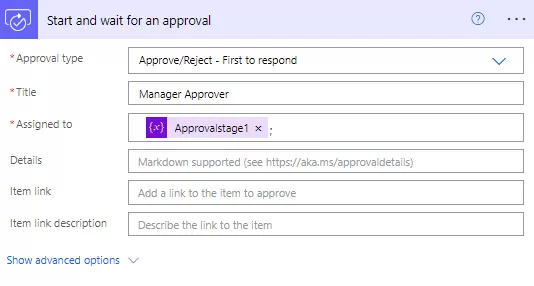
Step: 4 Add the “Start and wait for approval” action.
  • Approval type: Add the approval type which you want to choose in the choice value.
  • Title: Added the Title
  • Assigned to: Added the username which you want to send for approval.


img-04


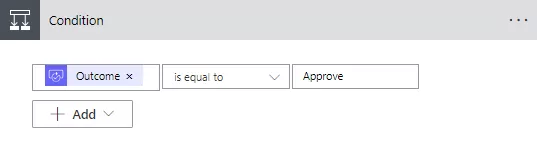
Step: 5 Next, include the condition action and add the dynamic “Outcome” obtained from the “Start and Wait for Approval” action. Ensure it is equal to “Approve,” as shown in the screenshot below.


img-05


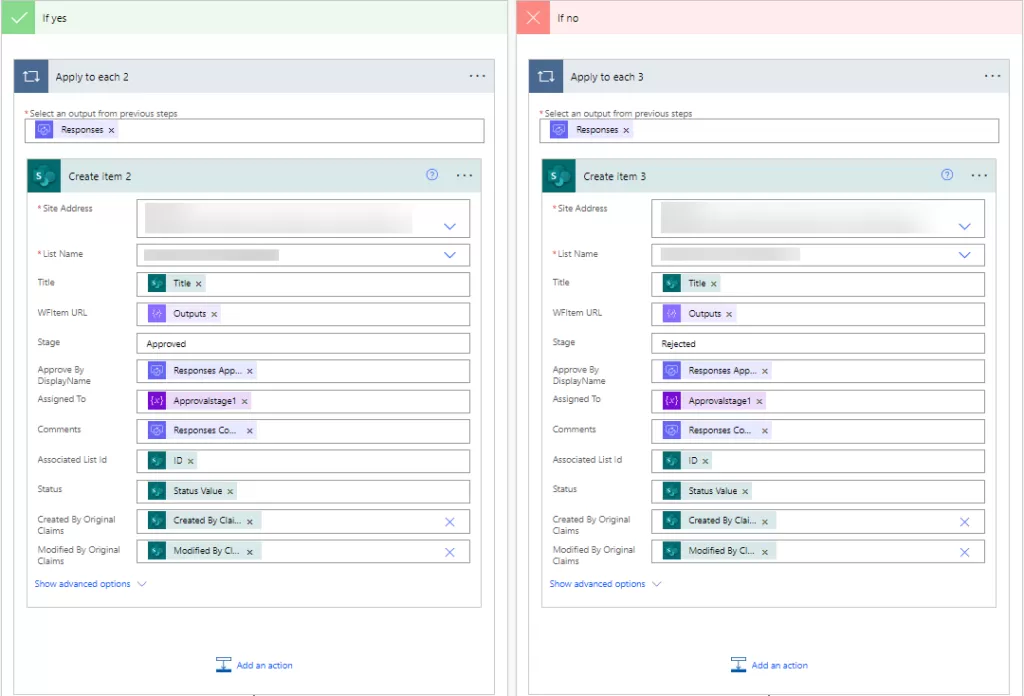
Step: 6 Again, add the “Create Item” action in both sides “If Yes” and “If No.”

Approve By Display Name: Add the dynamic content “Responder display name” obtained from the “Start and Wait for Approval” action. This action is automatically applied in the “Apply to each” loop.

Comments: Add the dynamic content “Responses Comments” obtained from the “Start and wait for Approval” action.


img-06


Step: 7 Create a new entry in the SharePoint list and verify the flow.

  • Below is a screenshot of the Workflow History list, where we create a log. It displays all the column values that we add in the “Create Item” action in Power Automate.


img-07

How to Create a Word Document From a Template in Power Automate

In Microsoft’s Power Automate, crafting dynamic and personalized Word documents through templates has become a streamlined process. Let’s start the detailed steps that illuminate the path to seamlessly generating these documents using Power Automate.

Crafting Your Word Template

Step 1: Activating the developer option

To begin, open up your Office Word application. Navigate to the “File” tab, then click on “Options.”

img-01


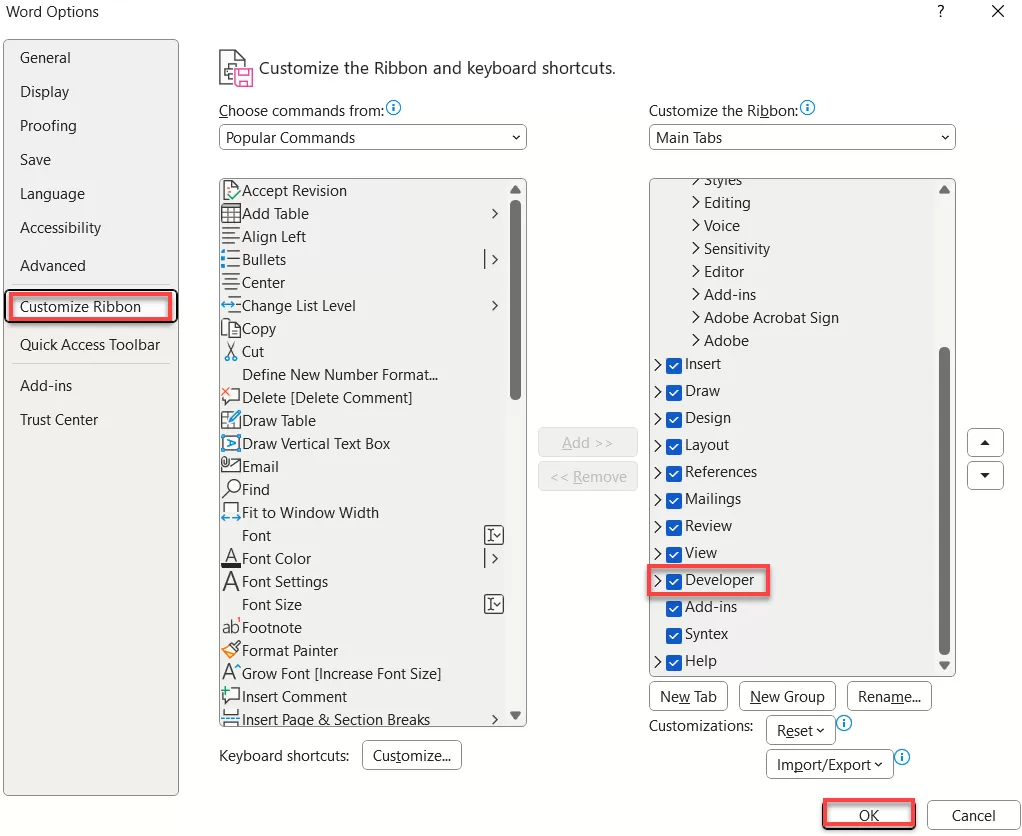
This leads to the “Customize Ribbon” tab, where you activate the “Developer” option by checking the designated box. This action grants access to the Developer tools on the application’s homepage tab.

img-02

Step 2: Incorporating Dynamic Content

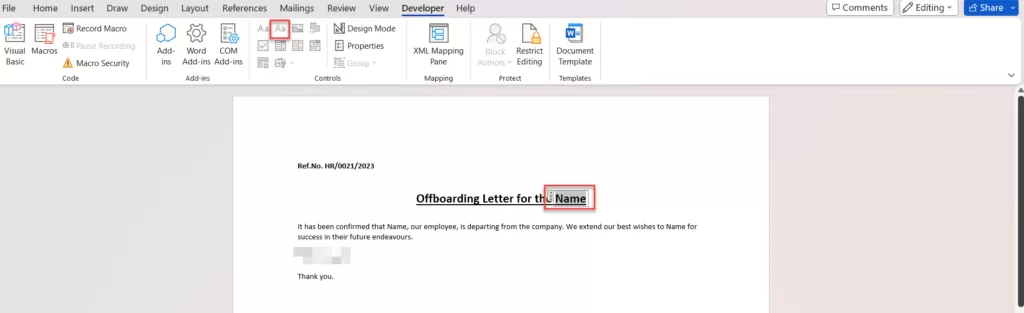
Enabling the Developer option facilitates the use of the “Insert Plain Text” control, allowing the inclusion of dynamic content. Then after Create a template according to your needs.

img-03


(Highlighted is the “Insert Plain Text” option)

Utilize this tool to add fields, such as “Name,” for dynamic content within your Word template. Navigate to Developer, select the text you wish to make dynamic, and click on the Highlighted Icon for the desired effect.

img-04


Step 3: Uploading to SharePoint

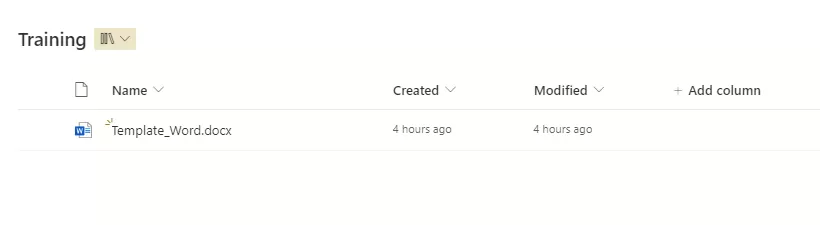
Once your template is created, ensure to upload it to the SharePoint library for accessibility and seamless integration.

img-05

Developing a Flow in Power Automate

Step 1: Setting Up the Flow

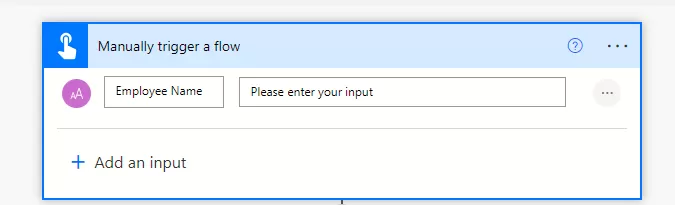
After uploading the template, configure a manual trigger flow. Incorporate necessary fields, like the person’s name, ensuring you’re effectively setting the stage for dynamic input.

img-06


Step 2: Populating the Word Template

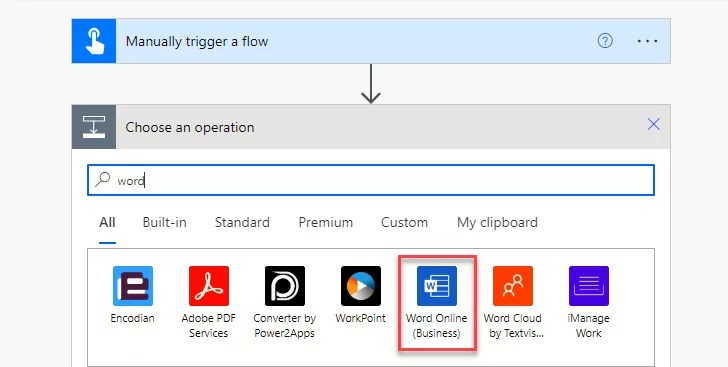
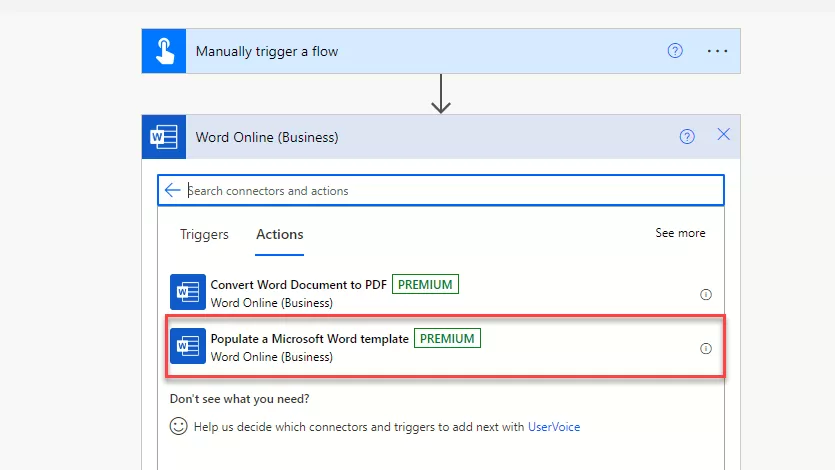
In the ‘Manually trigger a flow’ section, include the action called “Word.” Then, select ‘Word online (Business),’ where you’ll find the “Populate a Microsoft Word template” action.

img-07

(Search for “word”)

img-08

(Select action called “Populate a Microsoft Word template”)

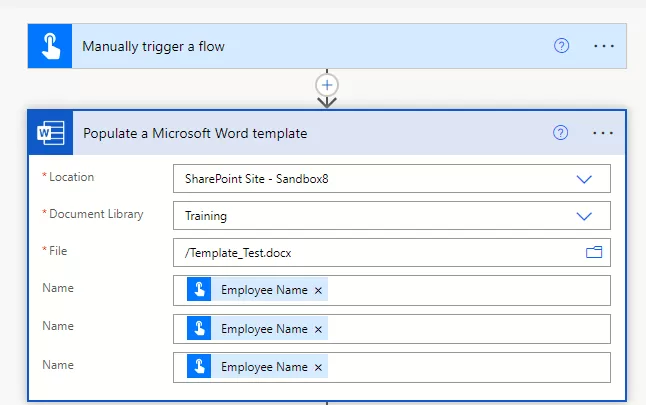
Select “Populate a Microsoft Word template” action and Put in the important info about where your Word template is in SharePoint. Then, pick the Document library and select the template file. Use the manual trigger field to keep things changing.

img-09

(Consult this step for the action called “Populate a Microsoft Word template”)

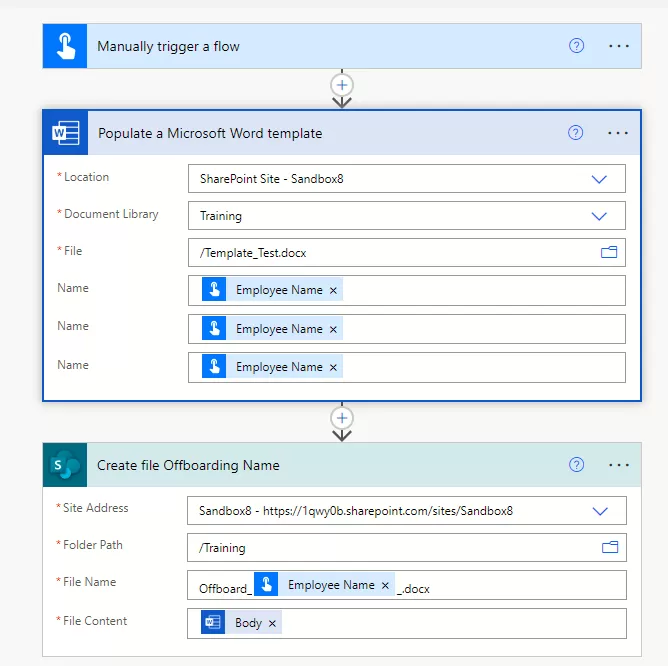
Next, choose ‘Create file’ action and where you want to keep the new Word files created. You can even give them a special name like “Offboard_Employeename.”

img-10

(Consult this step for create file)

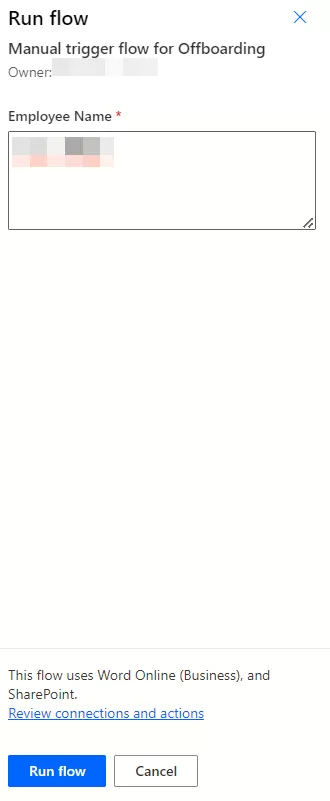
Step 3: Initiating the Flow Manually

Once the flow is set, manually initiate it. This prompts the input of the person’s name, seamlessly integrating the dynamic element into the document.

img-11


Step 4: Generating the Word File

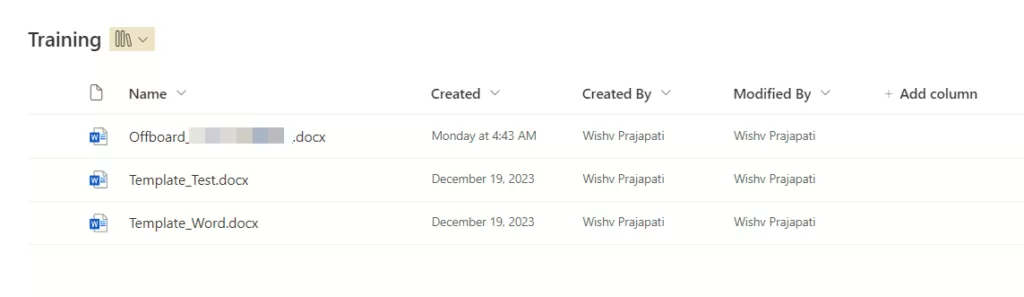
Upon execution, witness the magic as the file, named as per the flow, is automatically generated in the SharePoint document library. Open the Word document to observe the dynamic change, showcasing the effectiveness of Power Automate.

img-12

(Generated File the SharePoint document library)


img-13

(Updated Content of Word File)

Conclusion – Creating Word documents from templates within Power Automate empowers users to streamline and personalize their document creation process. By following these steps, one can harness the full potential of Power Automate’s capabilities in generating dynamic and customized documents effortlessly.

Power Apps Modern Controls

The controls in canvas applications now come with a modern touch. These controls make it easier for creators to set up, offering a quicker and more straightforward configuration process.

At the same time, they enhance the overall experience for end-users by providing a seamless interface.

The design of these contemporary controls prioritizes accessibility, user-friendliness, and performance, resulting in visually appealing, highly functional, and easily understandable elements.

To complement these controls, there’s a newly introduced theming system that aligns with the Fluent 2 design framework. This system allows centralized adjustments to the visual appearance and atmosphere of an application.

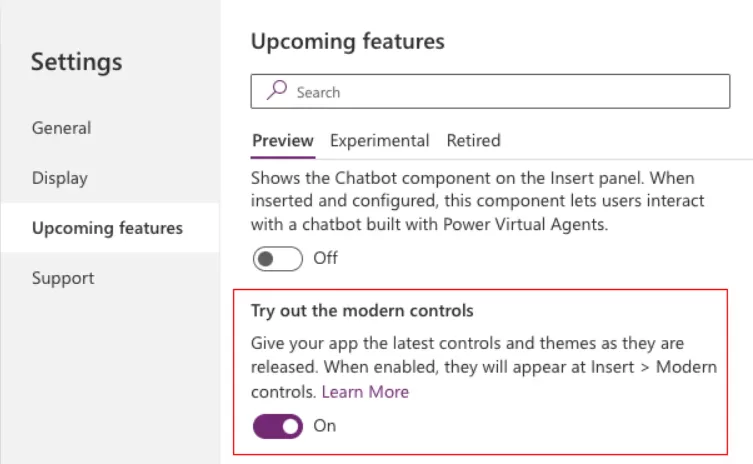
Power Apps Modern Controls are still in the preview feature, so we will have to activate it manually from the Power Apps settings.

Go to the any Power Apps Settings and click on “Upcoming features”.

Inside the “Preview” tab, toggle the switch for “Try out the modern controls” to the “On”.

img-01

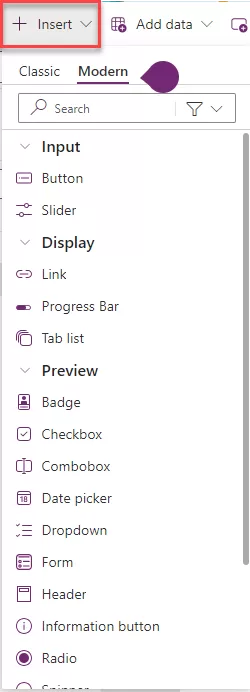
To view a list of all modern controls, navigate to the app authoring menu and choose “Insert.” From the list of controls, select “Modern”.

img-02

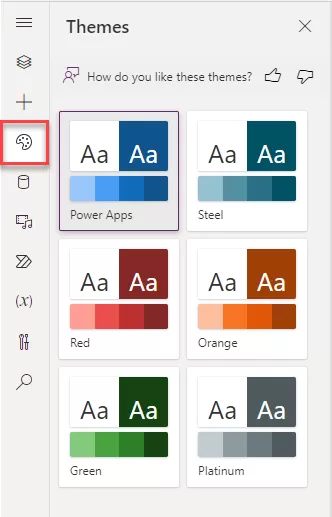
On the app authoring menu, select > Themes.

Choose one of the six default themes from the Themes pane.

  • You can quickly change the visual presentation of your application by applying modern themes—pre-established collections of styles that influence the user interface. These themes follow Microsoft’s Fluent design language, adjusting various style elements like color, typography, borders, and shadows in a cohesive and aesthetically pleasing manner. This modern theming approach streamlines the customization process, allowing creators to easily design a visually harmonious and unified application.

img-03

Follows a structured approach with a predefined layout and components. Components are automatically generated based on the data model, providing a consistent user interface. It suits scenarios where data and business processes are the primary focus.

Concept: Utilizes pre-built components based on Microsoft’s Fluent design system, offering a consistent and user-friendly experience.

Data Sources: Primarily focuses on the Common Data Service, although some integrations with other sources are possible.

Automatically generates the user interface based on the underlying data model.

Tightly integrates with the Common Data Service (CDS), providing a unified and structured data source.

Suitable for scenarios where the focus is on data-driven applications with predefined entities and relationships.

Modern controls and theming are default in preview: Before the end of this year, all new apps built in make.preview.powerapps.com (and in the preview environment) have modern controls enabled by default as a control set. The opt-in setting is still part of the general tab and can be switched off if required.

Fluent icons: Makers can add standalone icons. They can also add an icon on the button.

Automatically generates the user interface based on the underlying data model.

Modern controls

Badge – A badge is a visual decoration for UI elements.

A Power Apps badge, referred to as an informational token, presents brief details like a user’s task indicator. Typically, it provides a quick way to check notifications or important messages without the necessity of reading through extensive text.

  • Content: This refers to the text displayed inside the badge control.
  • Content Language: It defines the audience’s language (e.g., “en-US”).
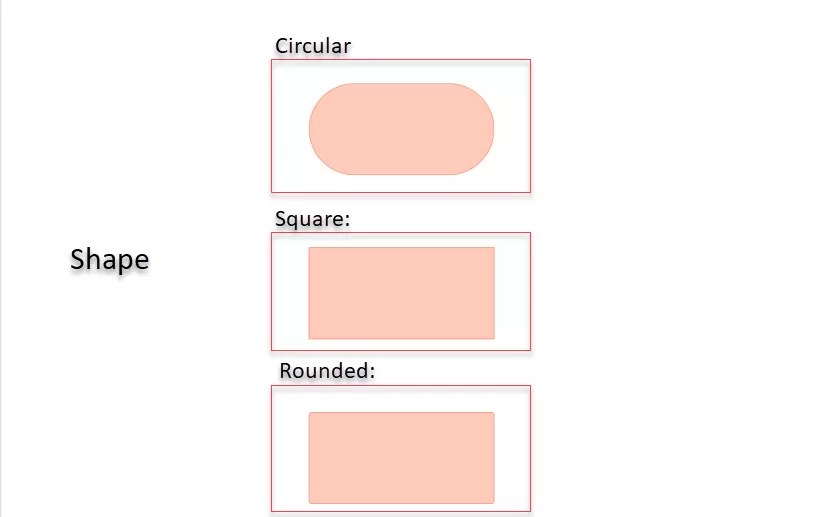
  • Shape: There are three different badge shapes available, including:

img-04


Header – A control that creates a modern app header.

The Header control serves as a crucial element, streamlining the user interface design for a standard app.

With minimal setup, this control seamlessly integrates with themes utilizing modern theming and dynamic responsiveness, automatically adapting to the dimensions of the parent container or app.

It accommodates a logo and a page title and displays the user picture, all while providing various distinctive styling options.

img-5


Tabs or Tab List: Select a tab to navigate screens or take actions within the app.

The Power Apps tab list control displays a series of tabs, each representing a distinct section or page within an app. Its primary purpose is to facilitate seamless navigation between related content, allowing users to effortlessly switch between different views or modes.

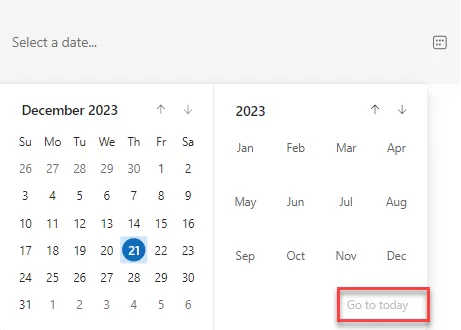
Date Picker: This new control surpasses the classic date control, offering a more user-friendly UI and improved UX. A notable feature includes the ‘go to today’ option, which is truly impressive. Navigating to any year or date is easy—simply click on the ‘go to today’ option, and it will bring you to the current date.

img-06

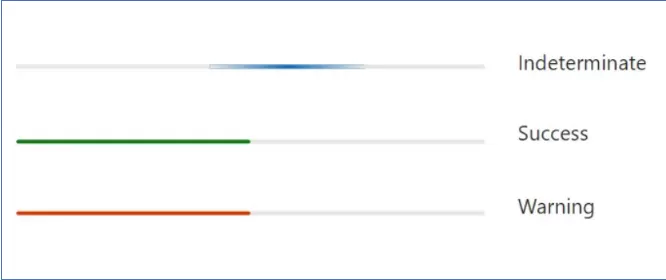
Progress Bar: This control provides options such as success, warning, and, most importantly, “Indeterminate,” where the progress bar keeps loading continuously, resembling buffering. All other properties are similar to the slider (classic control).

img-07

Conclusion: PowerApps Modern Controls represents a potent and innovative tool, empowering you to craft modern and engaging applications with enhanced features and functionalities.

Extracting News Post Images in Emails with Power Automate Flow

This solution is used to display images of news banner images in Outlook desktop when sending news communication over email.

There are six ways to upload images for a news banner:

  1. Stock Images: When uploading images using stock images, we can view them in the Outlook web version and desktop version without any changes.
  2. Web Search: When uploading images using web search, they can be seen in the Outlook web version, but these images do not show in the desktop version.
  3. One Drive: When uploading images using OneDrive, only the user with access to that specific OneDrive can see the image in the Outlook web version and desktop version.
  4. Site: When uploading images from the SharePoint site, they can be seen in the Outlook web version, but these images are not displayed in the desktop version.
  5. Upload: When uploading images from the desktop, they can be seen in the Outlook web version, but these images do not display in the desktop version.
  6. From a Link: When uploading images using a link, if the image link is copied from a running site, the image can be seen in the Outlook web version, but it does not show in the desktop version. If the image link is copied from another SharePoint site, the image cannot be seen in both the Outlook web version and the desktop version.

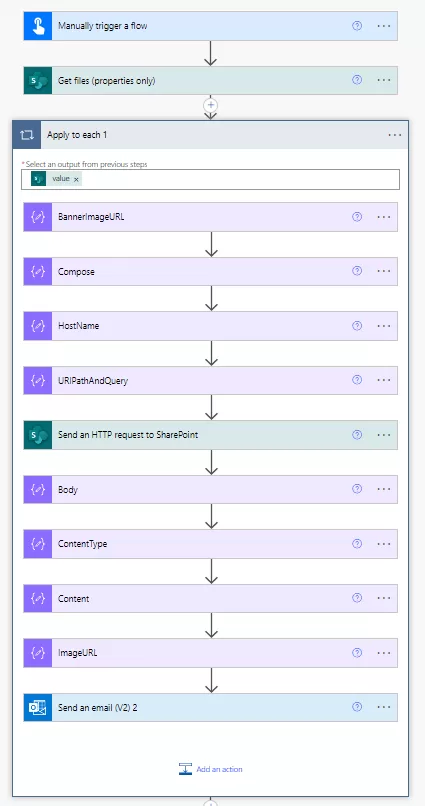
These are steps to see the images in Outlook Desktop.

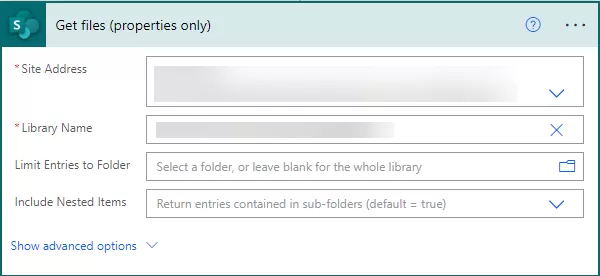
Step 1: Select the trigger “Get files (properties only)”, then choose the SharePoint site address and library name.

img-01

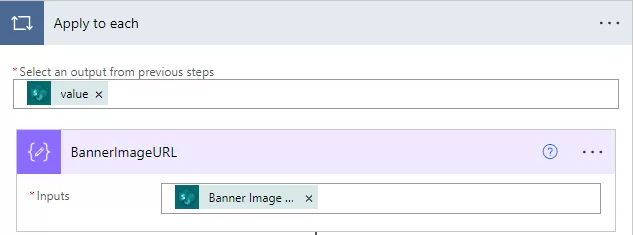
Step 2: Then added the “Compose” action. Add the Banner Image URL in the compose inputs. Once the banner image URL compose action is added, it will automatically add the apply to each action.

img-02

Step 3: Then added another “Compose” action. Input the output from the previous compose action with the ‘decodeUriComponent’ expression in the compose input field.

Decode URI Component” in Power Automate reverses URL encoding, converting encoded URI components back to their original human-readable form for accurate data interpretation or manipulation within the flow.

img-03

 decodeUriComponent(outputs('BannerImageURL'))

Step 4: Then added another “Compose” action. Input the output from the compose action (BannerImageURL ) with the ‘uriPathAndQuery’ expression in the compose input field.

img-04

Value of the above action:

uriPathAndQuery(outputs('BannerImageURL')

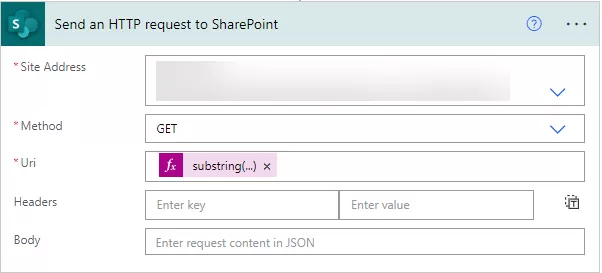
Step 5: Select the ‘Send HTTP request to SharePoint’ action.

  1. Add the site address
  2. Add the method as a GET
  3. In the URI, add the substring expression with the output of (URIPathAndQuery) composed action.

img-05

Value of the above action:

substring(outputs('URIPathAndQuery'),1)

Step 6: Then added another “Compose” action. In the input add body of the “Send an HTTP request to SharePoint” action.

img-06

Step 7: Then added another “Compose” action. In this compose we get the content type from the “Send an HTTP request to SharePoint” actions body.

img-07

Value of the above action:

outputs('Send_an_HTTP_request_to_SharePoint')?['body']['$content-type']

Step 8: Then added another “Compose” action. In this compose we get the content from the “Send an HTTP request to SharePoint” actions body.

img-08

Value of the above action:

outputs('Send_an_HTTP_request_to_SharePoint')?['body']['$content']

Step 9: Then added another “Compose” action. After the data add output of (“Compose-ContentType”) and after base64 add output of (“Compose-Content”) action.

img-09

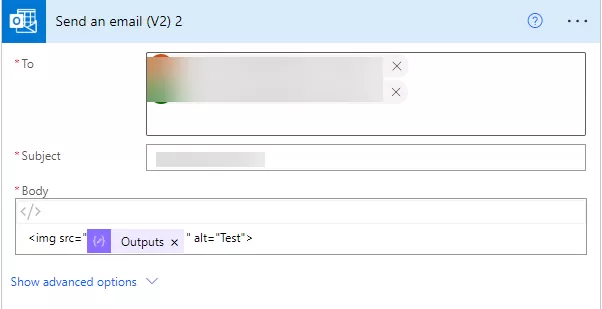
Step 10: Added action Send an email.

Add the email address of the user

Add subject

Add the output of (“Compose – ImageURL”) in the body.

img-10

Output after running this flow

img-11

Step 11: The setup of the flow concludes in just a few simple steps.

img-12

Conclusion

Making news images show up properly in Outlook emails involves different ways of adding these pictures. However, each method affects how they appear on both the web and desktop versions differently. To see these images correctly in Outlook on your computer, we follow a step-by-step process.

This includes things like converting web addresses to show the right images, asking SharePoint nicely for the pictures, and figuring out what type of images they are. Finally, we put all this together and sent an email with the image link so that it shows up the way we want in Outlook. It might sound technical, but with these steps, we ensure that the images appear just right when you open your email in Outlook.

Newsletters