Simplifying & Mastering Complex ECM System Migrations with Reality Tech’s Strategy and Tzunami Deployer’s Precision

In the rapidly evolving digital landscape, businesses must ensure their content management systems are modern, efficient, and future-proof. Migrating from legacy Enterprise Content Management (ECM) systems to modern platforms can be daunting. However, Reality Tech and Tzunami Deployer provide a comprehensive solution to simplify and master this complex process. This blog delves into the detailed migration process, highlights the benefits of using Tzunami Deployer, and showcases Reality Tech’s strategic approach to handling complex migrations.

Understanding the Migration Process

Migrating ECM systems involves several stages, each requiring meticulous planning and execution to ensure a seamless transition. Here’s a breakdown of the process:

  • Assessment and Planning
    • Initial Assessment: Reality Tech begins with a thorough assessment of the existing ECM system. This includes understanding the data structure, content volume, user roles, and permissions.
    • Planning: Based on the assessment, a detailed migration plan is developed. This plan outlines the timeline, resources required, potential challenges, and mitigation strategies.
  • Preparation
    • Data Cleanup: Before migration, it’s crucial to clean up the data. This involves identifying and removing redundant, obsolete, and trivial (ROT) data to streamline the migration process.
    • Mapping: Reality Tech maps the content from the source ECM system to the target platform. This ensures that metadata, permissions, and structures are accurately transferred.
  • Execution
    • Tzunami Deployer Utilization: Tzunami Deployer is pivotal in the execution phase. Its precision and efficiency ensure a seamless migration. Here’s how:
    • Automated Migration: Tzunami Deployer automates the migration process, significantly reducing manual intervention and the risk of errors.
    • Real-time Monitoring: It provides real-time monitoring and reporting, allowing for immediate identification and resolution of issues.
    • Preservation of Metadata and Permissions: One of the standout features of Tzunami Deployer is its ability to preserve metadata and permissions, ensuring that the content remains intact and secure post-migration.
  • Validation and Testing
    • Post-migration Validation: Reality Tech conducts thorough validation to ensure that all content has been accurately migrated. This includes checking for data integrity, completeness, and security.
    • User Acceptance Testing (UAT): Users are involved in the testing phase to ensure the migrated system meets their needs and expectations. Feedback is collected and any necessary adjustments are made.
  • Go-live and Support
    • Go-live Preparation: A detailed go-live plan is executed, including final data synchronization, system configuration, and user training.
    • Ongoing Support: Post-migration, Reality Tech provides continuous support to address any issues, ensure smooth operation, and help users adapt to the new system.

Benefits of Using Tzunami Deployer

Tzunami Deployer offers several advantages that make it the ideal tool for ECM system migrations:

  • Efficiency
    • Tzunami Deployer’s automation capabilities significantly reduce the time and effort required for migration. It handles large volumes of data efficiently, ensuring minimal downtime and disruption to business operations.
  • Precision
    • The tool’s precision ensures that all content, metadata, and permissions are accurately migrated. This minimizes the risk of data loss or corruption, providing peace of mind during the migration process.
  • Flexibility
    • Tzunami Deployer supports various ECM systems and target platforms, offering flexibility to businesses regardless of their current setup or future needs. It can handle complex migration scenarios, making it suitable for organizations of all sizes and industries.

Reality Tech’s Strategic Approach

Reality Tech’s strategic approach is crucial to the success of complex ECM system migrations. Here’s how their strategy complements the capabilities of Tzunami Deployer:

  • Comprehensive Assessment

Reality Tech’s detailed assessment ensures a deep understanding of the existing ECM system and the specific needs of the business. This forms the foundation for a customized migration plan that addresses all potential challenges.

  • Customized Solutions

No two migrations are the same. Reality Tech develops customized solutions tailored to the unique requirements of each business. This includes creating specific workflows, mapping strategies, and data transformation processes.

  • Expertise and Experience

With years of experience in ECM system migrations, Reality Tech brings a wealth of knowledge and expertise to the table. Their team of experts ensures that the migration is handled professionally and efficiently, minimizing risks and maximizing success.

  • Continuous Support

Post-migration support is critical to ensuring the new system’s success. Reality Tech provides continuous support to help businesses adapt to the new platform, address any issues, and optimize their operations.

Conclusion

Migrating from legacy ECM systems to modern platforms can be complex and challenging. However, with Reality Tech’s strategic approach and the precision of Tzunami Deployer, businesses can simplify and master the migration process. The detailed process, efficiency, and flexibility offered by these solutions ensure a seamless transition, allowing businesses to future-proof their content management systems and stay ahead in the digital age.

Embrace the future of content management with Reality Tech and Tzunami Deployer – the perfect partners for a successful ECM system migration.


Achieving Data Accuracy and Compliance in Migrations with Insights from Reality Tech and Tzunami Deployer

Ensuring data accuracy and compliance during content migrations is paramount. As organizations move from legacy systems to modern platforms, maintaining the integrity of their data and adhering to regulatory requirements become critical challenges. This is where the synergy between Reality Tech and Tzunami Deployer proves invaluable. By leveraging advanced techniques and robust methodologies, this partnership guarantees seamless, accurate, and compliant data migrations.

The Importance of Data Accuracy and Compliance

Data accuracy ensures that the information being migrated remains consistent, complete, and correct, preserving its usability and value. Compliance, on the other hand, involves adhering to legal, regulatory, and organizational standards throughout the migration process. Non-compliance can lead to legal repercussions, financial penalties, and a loss of trust from stakeholders.

Techniques Used by Tzunami Deployer to Maintain Data Integrity

Tzunami Deployer employs a suite of advanced techniques to maintain data integrity during migrations:

  • Metadata Preservation: Tzunami Deployer ensures that all metadata associated with content, such as author information, timestamps, and custom attributes, is accurately transferred. This is crucial for maintaining the context and traceability of data.
  • Content Validation: Before, during, and after migration, Tzunami Deployer performs rigorous content validation checks to ensure that the data remains unchanged and intact. Any discrepancies are flagged and rectified promptly.
  • Delta Migration: To minimize disruptions and ensure that the most recent data is migrated, Tzunami Deployer uses delta migration techniques. This involves migrating only the changes made since the last migration, ensuring data accuracy and consistency.
  • Audit Trails: Tzunami Deployer maintains detailed audit trails of the migration process. This not only helps in tracking the progress but also in verifying that the data integrity is upheld throughout.

Reality Tech’s Methodologies for Monitoring and Execution

Reality Tech brings a wealth of experience and robust methodologies to the table, ensuring the smooth execution and monitoring of migration projects:

  • Comprehensive Planning: Reality Tech begins with a thorough assessment of the existing environment and migration requirements. This includes understanding the data structure, compliance needs, and potential risks
  • Project Management Excellence: With a focus on clear communication and meticulous project management, Reality Tech ensures that all stakeholders are aligned and that the migration progresses as planned. Regular updates and checkpoints are integral to their approach.
  • Dedicated Migration Expert Team: Instead of relying on advanced monitoring tools, Reality Tech’s dedicated migration expert team continuously monitors the migration process. This hands-on approach ensures uninterrupted migration service and immediate resolution of any issues that may arise.
  • Post-Migration Support: The commitment of Reality Tech extends beyond the migration process. Post-migration support includes validating the success of the migration, addressing any residual issues, and ensuring that the new system operates optimally.

Conclusion

The partnership between Reality Tech and Tzunami Deployer exemplifies excellence in achieving data accuracy and compliance during content migrations. By leveraging Tzunami Deployer’s advanced techniques for maintaining data integrity and comprehensive compliance strategies, alongside Reality Tech’s meticulous methodologies for monitoring and execution, organizations can confidently transition to modern platforms. This synergy not only ensures a seamless migration process but also fortifies the organization’s data governance and regulatory adherence, paving the way for a future-proof digital transformation.

How to integrate Microsoft 365 Users with the Power Apps Modern Control People Picker

The out-of-the-box people picker in Modern Power Apps Form currently doesn’t work properly with Power Apps modern controls a limitation many teams encounter when trying to transform business processes with Power Apps. Therefore, the workaround is to use Microsoft 365 users with the Modern Control form.

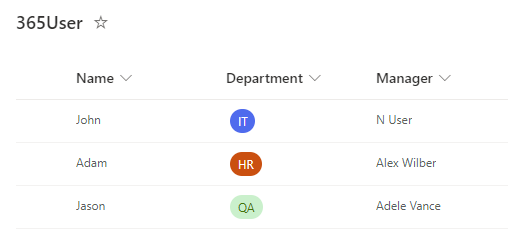
First need to create a SharePoint list with the following types of columns:

  • Name: Single line of text
  • Department: Choice
  • Manager: People picker


IMG 01

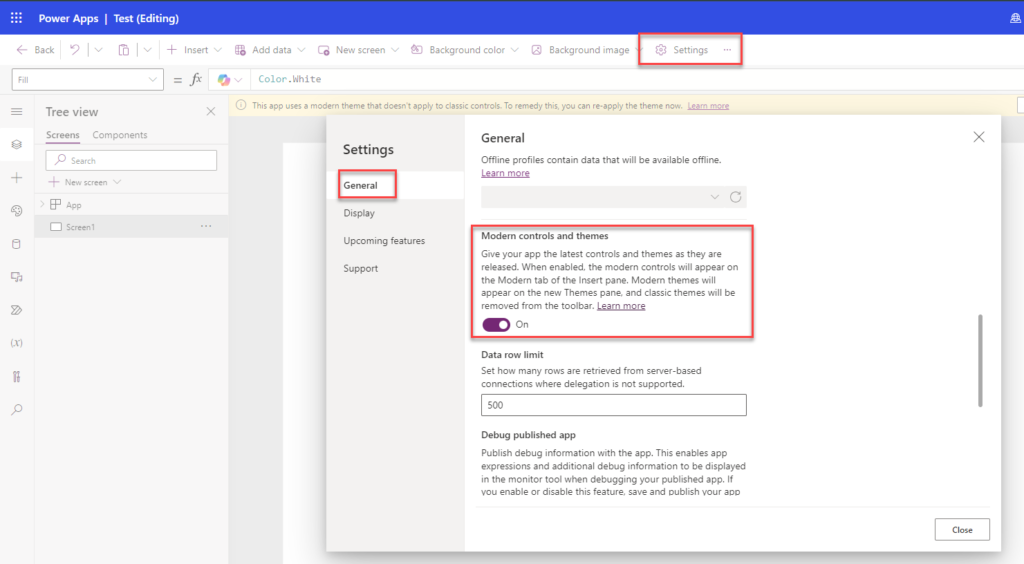
Step 1: Go to Power Apps and create an app. In the app, add a modern form to the screen — if you’re new to working with responsive UI elements, check out our tutorials on making Power Apps custom controls responsive and OOTB forms responsive. Ensure modern controls are enabled from the Power Apps settings. To enable them, navigate to Settings, then General, and enable ‘Modern Controls and Themes’.


IMG 02


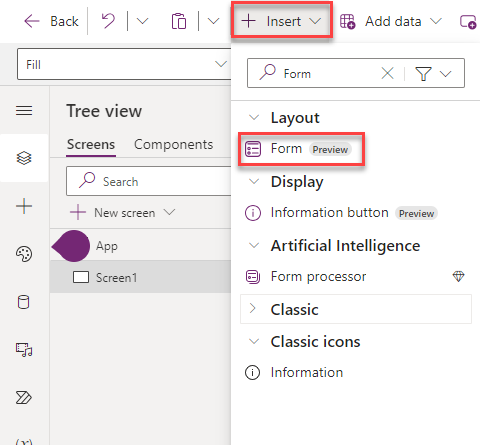
Step 2: After enabling it, click on ‘Insert’ and add a modern view form.


IMG 03


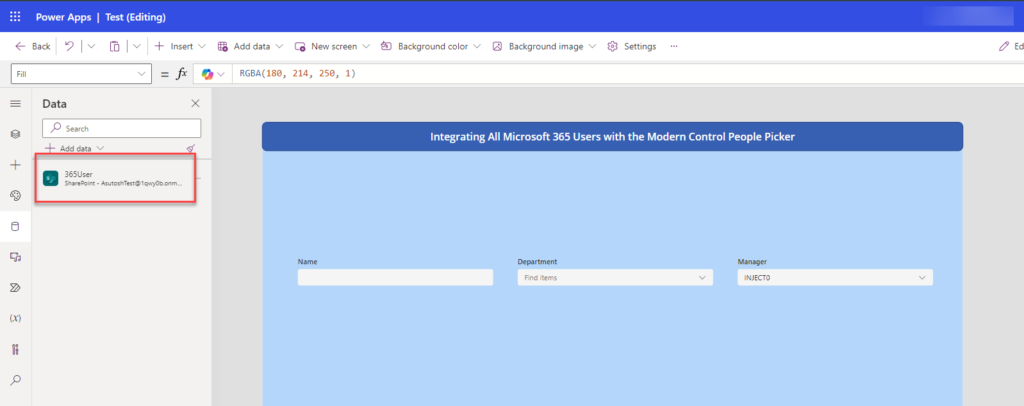
Step 3: After adding the form, select the data source. Choose the site, and then select the list. Once the list is selected, the columns will appear in the form.


IMG 04


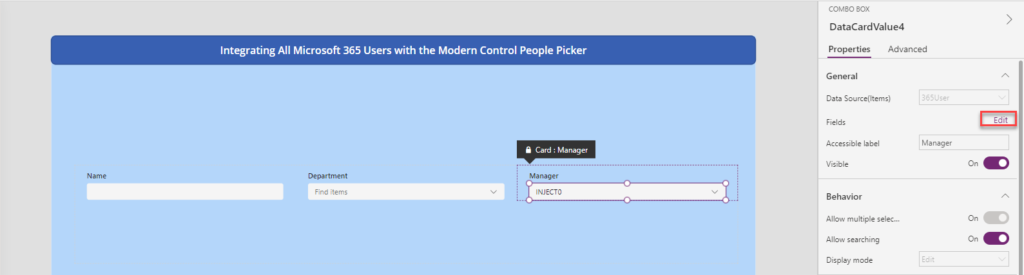
Step 4: In the Manager column, first select the data card where you want to display the information. Then, click on the fields edit button.


IMG 05


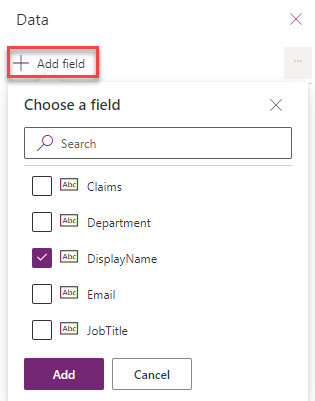
Step 5: Click on ‘Add Field’ and select which property you need to show in the dropdown.


IMG 06


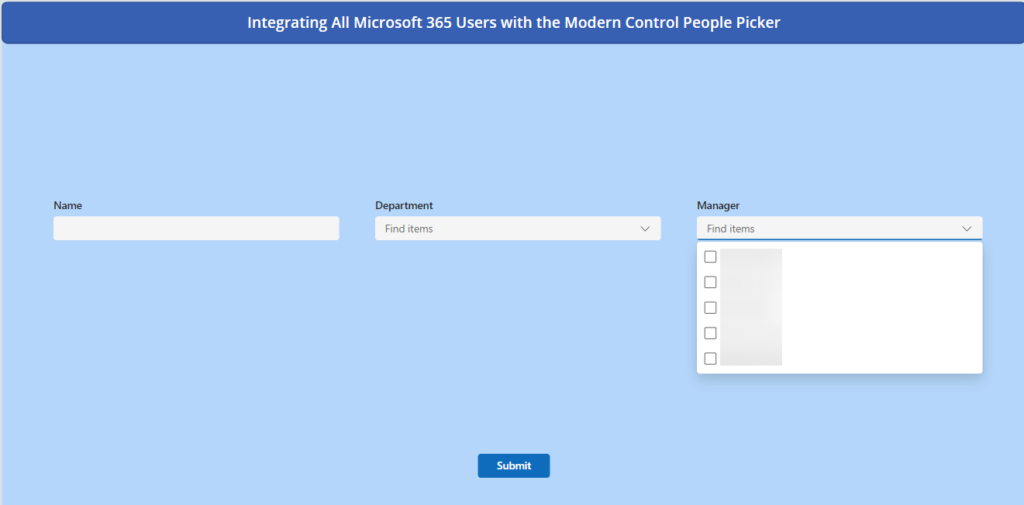
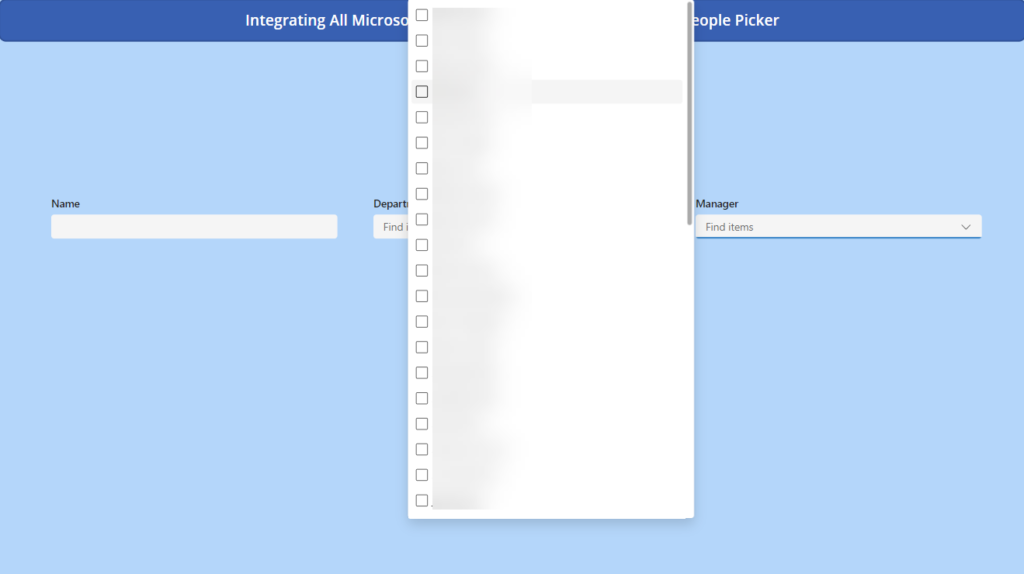
Step 6: Now, run the app. In the column, you will see a limited list of users that you can select, not all from the tenant users.


IMG 07


Step 7: To get all the users from the tenant, you need to add the Office 365 User data source in Power Apps.


IMG 08


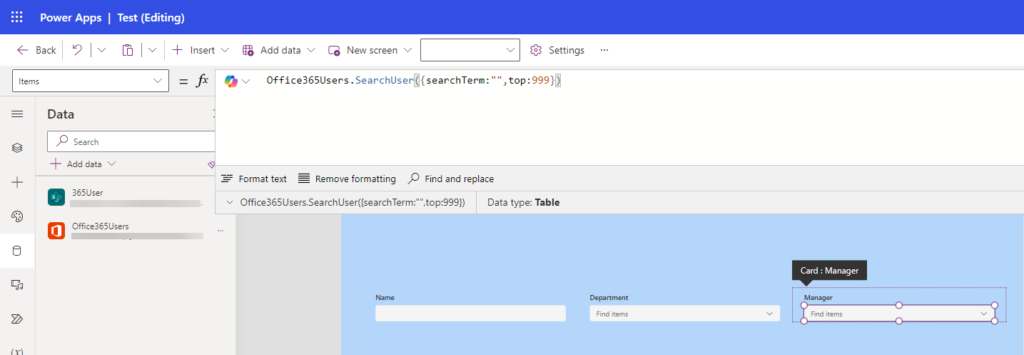
Step 8: After that, go to the data card, click on the item property, and add

Office365Users.SearchUser({searchTerm:””,top:999})


IMG 09


Step 9: After adding that, you should now see all users from the tenant.


IMG 010


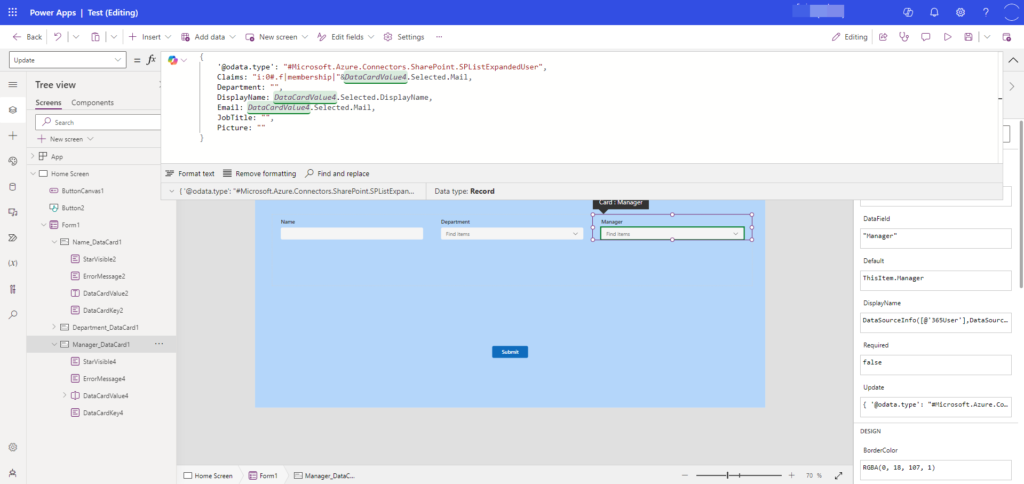
Step 10: To get the people picker value in the list, add this code to the data card’s Update property.

{

‘@odata.type’: “#Microsoft.Azure.Connectors.SharePoint.SPListExpandedUser”,

Claims: “i:0#.f|membership|”&DataCardValue4.Selected.Mail,

Department: “”,

DisplayName: DataCardValue4.Selected.DisplayName,

Email: DataCardValue4.Selected.Mail,

JobTitle: “”,

Picture: “”

}


IMG 011


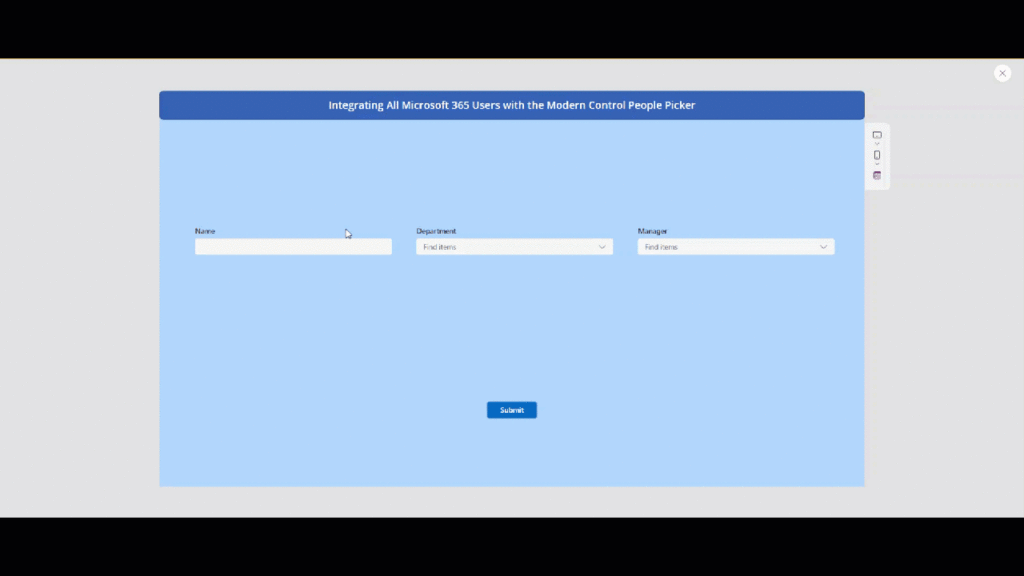
Step 11: After completing all the steps, run the app and submit the data.


IMG 011 GIF


Conclusion:

Integrating all Microsoft 365 users with the modern people picker in Power Apps simplifies how data is managed in SharePoint lists. If you’re building or scaling internal tools and want expert guidance, explore our Power Apps development services to accelerate your solution with minimal hassle. Users can easily select and submit data by setting up modern forms, adjusting settings, and adding the Office 365 User data source, ensuring smooth operations across the platform.

Installing a Custom Theme in SharePoint Online with PowerShell

Steps: 

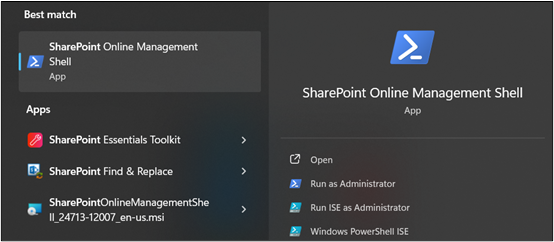
  1. Download and Install SharePoint Online Management Shell 
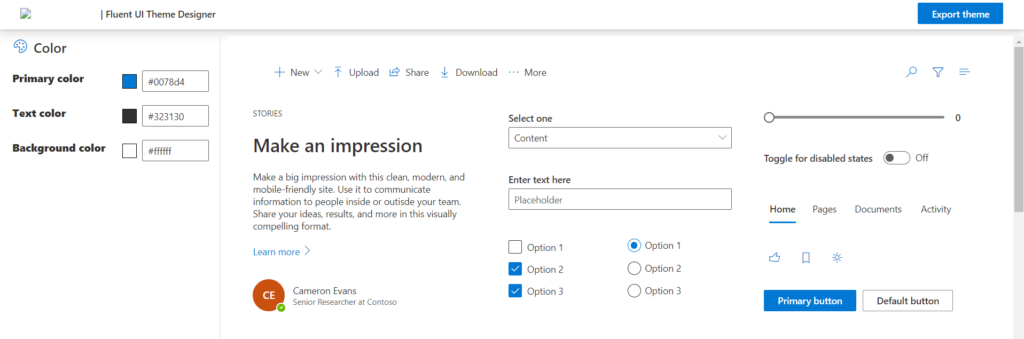
  2. Create a custom theme using the Theme Generator Tool
    • Navigate to this URL to generate your new theme 
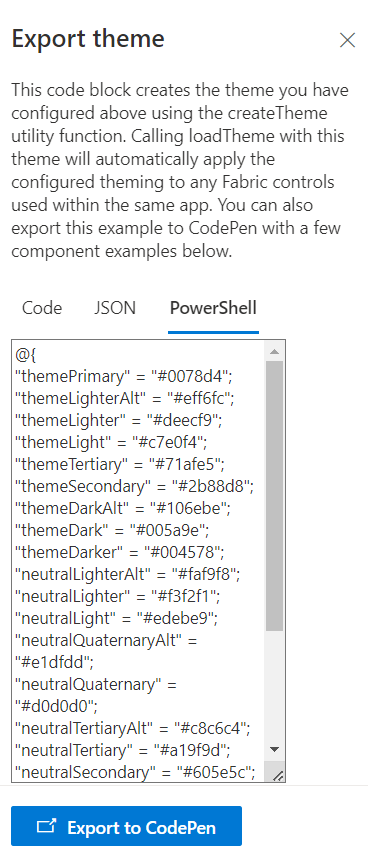
    • You can use the Colour section to choose your custom Colours that match your brand. You will get to see the sample page render in real-time, showing you what the page will look like with new Colours.Img1 2
    • Next, click Export theme in the upper-right-hand-corner. On the next screen, choose PowerShell tab, then copy all of the text into a Notepad.

      Img2 2

  3. Start SharePoint Online Management Shell: 
    • After installation, click on the SharePoint Online Management Shell to open it.

      Img3 2

  4. Connect to SharePoint Online: 
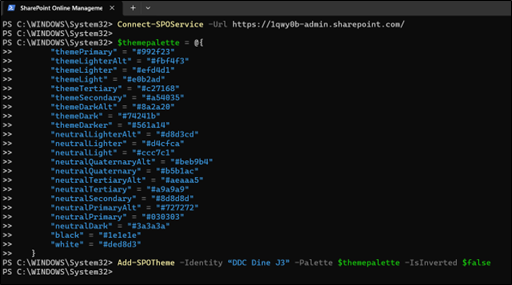
    • Paste the following command in the promptConnect-SPOService -Url https://domain-admin.sharepoint.com
      (where domain is your SharePoint domain name)
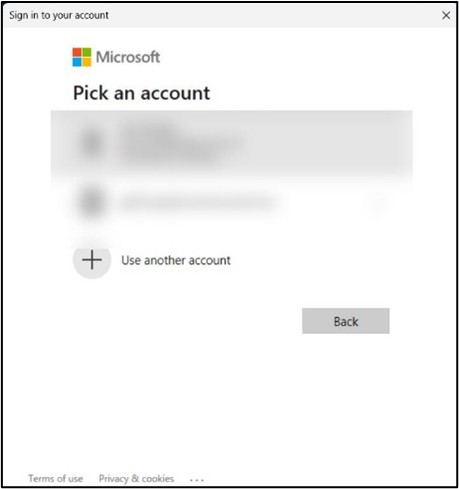
    • Press Enter and provide your SharePoint admin credentials when prompted

      Img4

  5. Paste the Theme Script: 
    • At the command prompt, type in $themepalette = then paste the code you exported. It should look like the image below. Press Enter.
    • Next, type the following command:
      Add-SPOTheme -Identity “Name of your theme” -Palette $themepalette -IsInverted $false

      **Where Name of your theme is a theme name you want to give/assign to the theme. **

      Img5 1

    • We can now change to this new theme in SharePoint.
  6. Verify Installation: 
    • The custom theme is now installed in your SharePoint Online tenant.
    • Navigate to any SharePoint site and access the theming options:
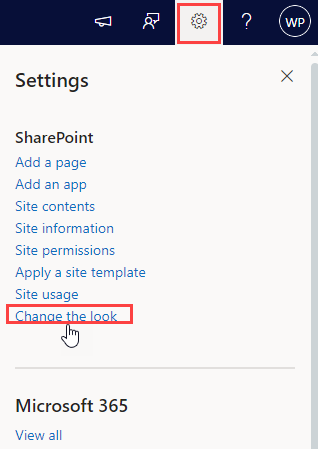
      • Click the gear icon (⚙️) in the top right corner. Select “Change the look.”

        Img6 1

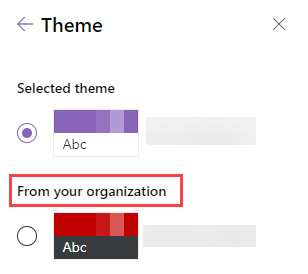
      • You should see the custom theme listed there. (From your organization section)

        Img7 1 1

    • This process only installs the theme. You will need to manually apply it to individual sites.

Efficient Techniques for SharePoint Co-Authoring

What is Co-Authoring in SharePoint Online? 

Co-authoring in SharePoint Online enables multiple users to simultaneously edit and collaborate on documents in real-time. This feature is activated by default in SharePoint Online document libraries. When several users work on a document (like Word, Excel, or PowerPoint) at the same time, everyone’s changes are immediately visible to all participants. Essentially, co-authoring allows multiple people to work on a document concurrently.  

In this blog, we have included valuable tips outlining the essential dos, don’ts, and advanced strategies for effective co-authoring in SharePoint. 

Do’s 

  1. Use Modern Browsers: Always use the latest version of modern browsers like Microsoft Edge, Google Chrome, or Firefox for the best co-authoring experience.
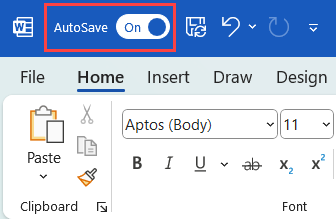
  2. Enable Autosave: Keep autosave enabled to ensure that all changes are saved in real-time.Img1 1 
  3. Keep laptop online: Ensure your laptop has a stable internet connection to avoid losing changes and to keep the document updated in real-time. 
  4. Start from scratch: new document, new template: Begin with a new document and template to avoid any formatting issues from copied content. 
  5. Save Regularly: Although SharePoint Online automatically saves your work, it’s a good practice to save your changes frequently. 
  6. Check Permissions: Make sure that all users who need to co-author have the appropriate permissions to edit the document. 
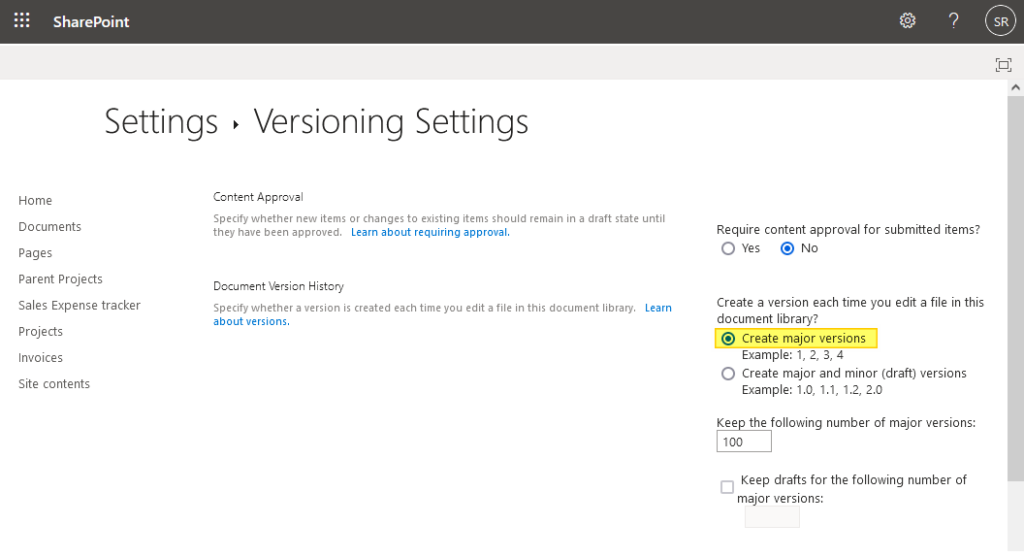
  7. Enable Version History: Ensure version history is enabled in your document library to track changes and revert to previous versions if needed. 

    Img2 1 

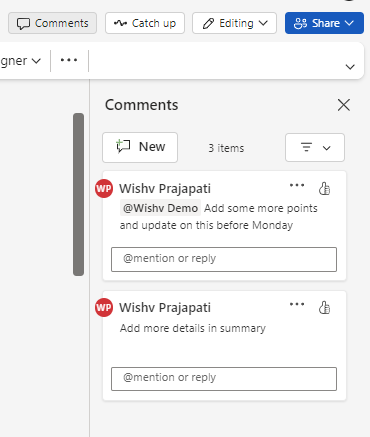
  8. Use Comments: Utilize the comments feature to communicate with your co-authors directly within the document.Img3 1 
  9. Avoid Opening the Same Document in Multiple Browser Tabs or Applications: Opening the same document in multiple tabs or different applications can cause conflicts and versioning issues. Work on the document in a single instance to prevent such problems. After finishing your work, remember to close the document to free up resources and reduce the risk of conflicts

Don’ts 

  1. Avoid Editing Offline: Refrain from editing documents offline if multiple users are working on the same document simultaneously, as this can cause version conflicts. 
  2. Do not copy and paste directly: Refrain from editing documents offline if multiple users are working on the same document simultaneously, as this can cause version conflicts. 
  3. Do not leave the document open when not editing it: Close the document when you are not actively editing to reduce the risk of conflicts. 
  4. On large documents, do not have more than 5 co-authors: Limiting the number of co-authors on large documents helps prevent conflicts and improves performance. 
  5. If possible, do not use track changes: Track changes can slow down the document and cause confusion. Use comments instead for feedback. 
  6. Don’t Use Unsupported File Formats: Stick to supported file formats like Word, Excel, and PowerPoint for co-authoring. Avoid using formats that do not support co-authoring features. 
  7. Avoid Large Files: Try not to co-author very large files, as this can slow down the process and lead to performance issues. 
  8. Don’t Overwrite Others’ Work: Be mindful of other users’ changes and avoid overwriting their work. Use the document’s history to see who made which changes. 

Advanced Tips 

  1. Implement Document Libraries: Organize documents within SharePoint libraries for better management and easier navigation. 
  2. Communicate with Co-authors: Maintain clear communication with your co-authors to avoid conflicting changes and ensure everyone is on the same page. 
  3. Assign Roles and Responsibilities: Clearly define roles and responsibilities for each co-author to streamline the collaboration process. 
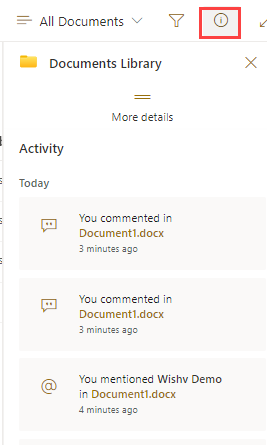
  4. Monitor Document Activity: Use SharePoint’s activity monitoring features to keep track of who is editing the document and when.Img4 1 
  5. Use the “Check In” and “Check Out” Features: These features can help manage editing rights and reduce conflicts, especially on larger documents. 
  6. Ensure Consistent Office Versions: Ensure all co-authors are using the same or compatible versions of Microsoft Office to avoid compatibility issues. 
  7. Maintain Consistent Naming Conventions: Establish and follow consistent naming conventions for documents to improve organization and retrieval. 

Conclusion  

In conclusion, the co-authoring feature in SharePoint Online is a powerful feature for teams who are working together on a project or document. With the ability to collaborate in real-time and access to a range of other collaboration and productivity features, SharePoint Online makes it easier for teams to work together and achieve their goals. Whether you are working in the office or remotely, SharePoint Online co-authoring can help you to be more productive and efficient. 

By following these tips, you can maximize the efficiency and effectiveness of collaborative work on SharePoint, ensuring a smoother and more productive co-authoring experience. 

Essential Guide: Applying Retention Labels in SharePoint

Retention labels in SharePoint are a powerful tool to streamline document management, ensure regulatory compliance, and optimize storage by automating the retention or deletion of content based on predefined settings. 

  • Automate document lifecycles: Set retention rules to automatically keep important files for the right amount of time, ensuring compliance and protecting sensitive information. 
  • Declutter your library: Automatically delete outdated documents, freeing up valuable storage space for what matters most. 
  • Save time and effort: Effortlessly manage documents with pre-defined retention settings that take care of the details for you. 

This guide equips you with the practical know-how of using retention labels in SharePointWe’ll show you how to apply labels to individual files and entire libraries, so you can take control and streamline your document management process. 

Apply Retention Labels to Your SharePoint Items 

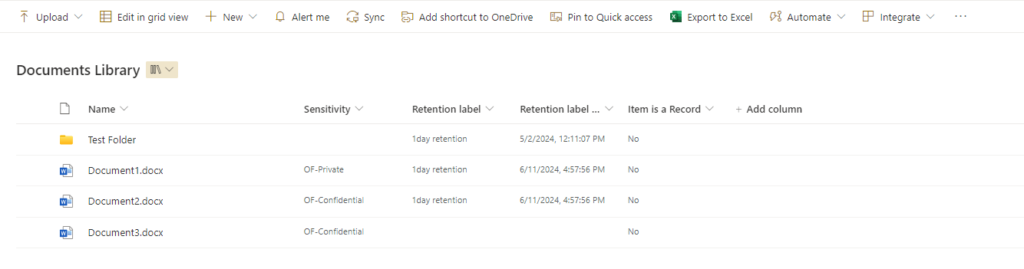
  1. Select the document/folder for which you want to apply the retention label.Img1
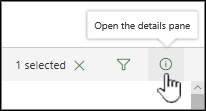
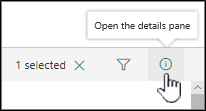
  2. In the upper-right corner, select Open the details pane.

    Img2
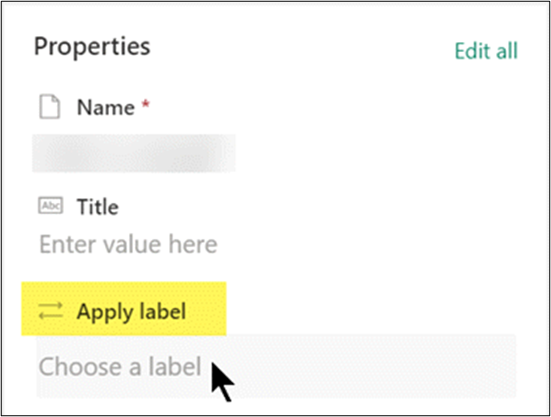
  3. Under Apply label, select Choose a label to open the list of options.

    Img3
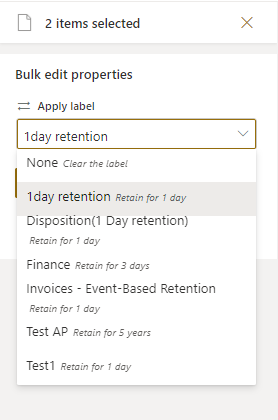
  4. In the Properties section, under Apply Label, click to open the list of options.   
  5. Select the appropriate retention label for your document. (To learn about the differences between the labels, you can point at each one to see a description of it and its retention period.)

    Img4
  6. Click “Save” to apply the label.
    Img5

Set a Default Retention Label for SharePoint Document Library 

  1. Open the document library where you want to apply the default Retention label.Img6
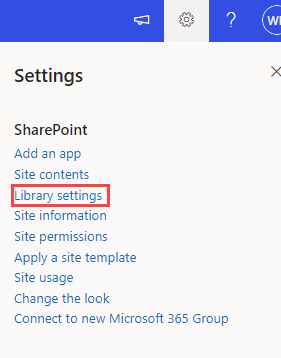
  2. Click the Settings icon (gear icon) in the top right corner and then select “Library settings” 

    Img7

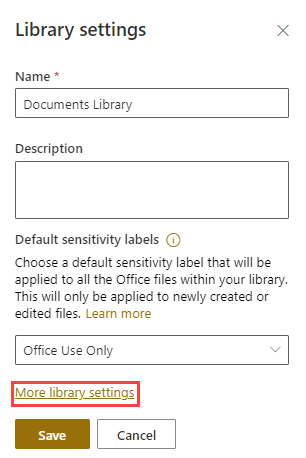
  3. Then click on more library settings. 

    Img8

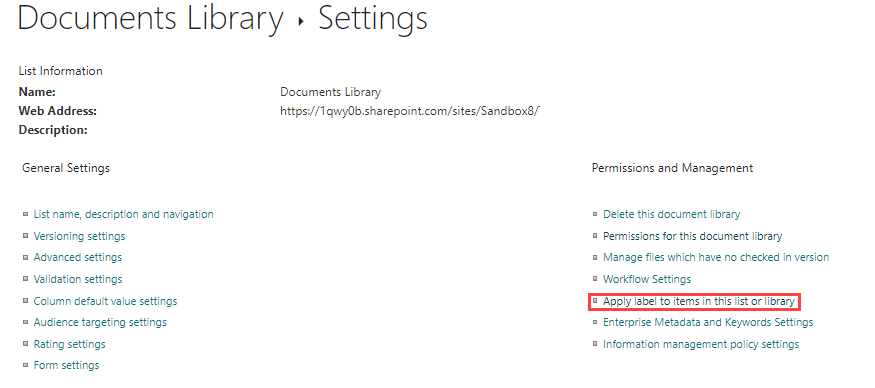
  4. On the Settings page, under Permissions and Management, select “Apply label to items in this list or library. 

    Img9

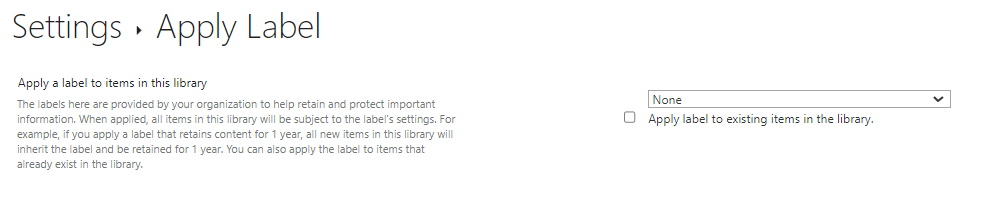
  5. On the Apply Label page, select the drop-down box, then select the label that you want to apply. 

    Img10

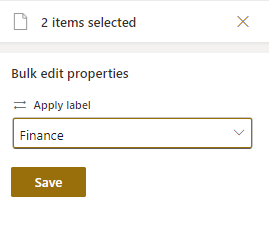
  6. The label you select will be automatically applied to all new files added to the document library beginning now. (Optional: To automatically apply the label to all files currently in the document library, select Apply label to existing items in the library.) 

    Img11

  7. Click “Save” to confirm the changes. 


Label Restrictions: What You Can’t Do with Labelled Items 

When an item has a retention label, some actions might be restricted depending on the settings configured by your administrator. These restrictions help ensure proper information governance and compliance. 

The most common restrictions with labelled items involve: 

Deleting the item: Retention labels often prevent accidental deletion of important information. 

Modifying the content (unless unlocked): Items designated as records might be locked to prevent unauthorized edits. You might be able to unlock the item for editing, as explained in the next section.

When an item has a retention label, some actions aren’t allowed—depending on the settings your admin has chosen.

If you see a message in SharePoint that you can’t edit a labelled item, it’s because it has been labelled a record. You might be able to edit this item if you first unlock it. See the next section for instructions.

Locking and Unlocking Records: Explained 

Retention labels can “lock” an item because it’s designated as a record that must be preserved. This prevents accidental deletion, which is crucial for important documents like contracts. However, authorized users might be able to unlock these items for revisions or updates. 

Why Records Get Locked: 

  • Retention labels can be configured to mark specific documents as “records.”
  • When an item is designated as a record, it’s essentially locked to prevent accidental deletion or modification. 
  • This safeguards crucial information and ensures regulatory compliance.

Here’s how to lock or unlock a record: 

  1. In the document library, select the item you want to lock or unlock.

    Img12

  2. Near the upper right of the window, select Open the details pane

    Img13

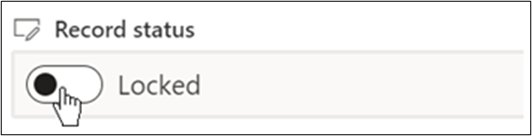
  3. In the Details pane, under Record status, select Locked. 
  4. A toggle control appears next to the name of the setting. Click the toggle to switch from Locked to Unlocked, or vice versa.

    Img14

  5. Select the toggle control to switch from Locked to Unlocked, or vice versa. 

Once the item is unlocked, then you can edit it. When you’re done editing, you can also lock the item again by following the steps above and toggling the Record status back to Locked. 

Enhance Power BI Reports – Implement Dynamic Colors Based on Selected Measures

Embark on a journey to enhance your Power BI reports with dynamic color adjustments based on selected measures through our informative blog. Uncover the intricacies of implementing this feature, transforming your visuals into interactive and responsive elements that effectively convey the real-time variations within your dataset. 

Why Dynamic Colors? 

Static reports can feel monotonous, failing to capture the nuances of your data. Dynamic colors breathe life into your visuals, instantly reflecting changes in the chosen measure. This adds a layer of interactivity and clarity, making your reports more engaging and informative for your audience. 

Prepare your data: 

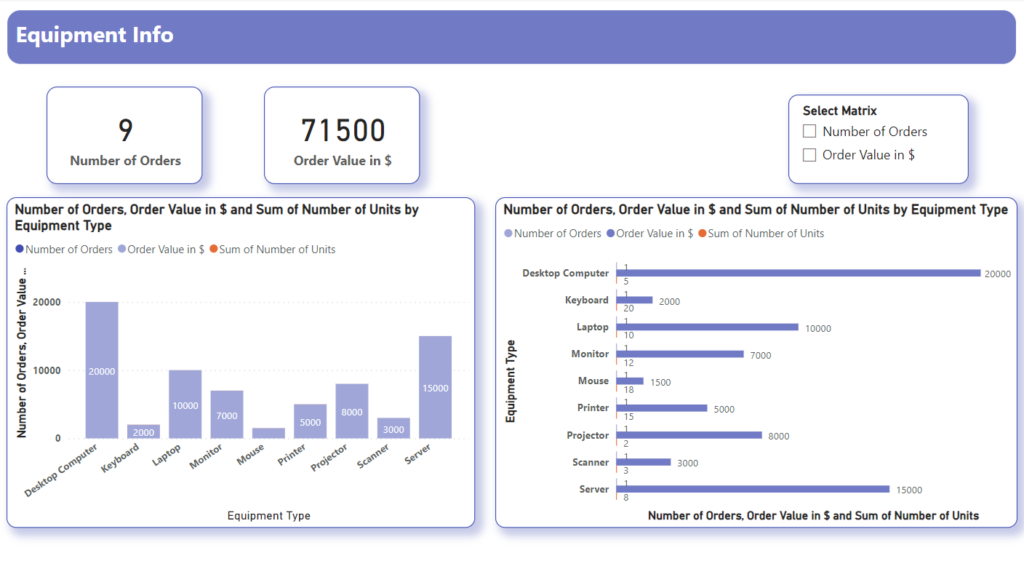
Ensure that your measures are clearly named and readily available in your dataset. Here, prepare a spreadsheet for “Equipment Data” to represent “Equipment Type,” “Number of Units,” and “Order Value.

Load your data into PowerBI:  

Go to “Get Data” under “Home” and upload your created “Equipment Data” sheet. 

Create Measures according to your data: 

Create two measures – one for “Number of Orders” and “Order Value in $”: 

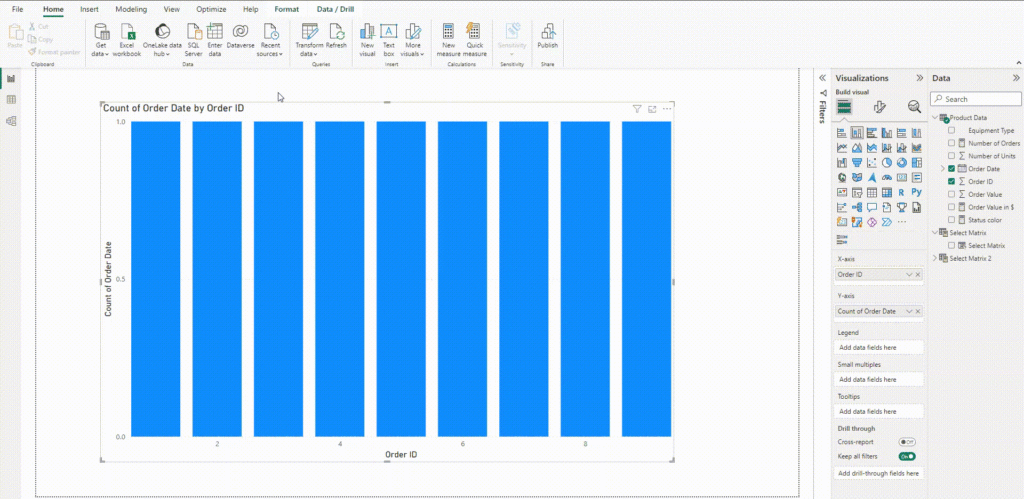
Number of Orders = COUNT(‘Product Data'[Order ID]) 

Order Value in $ = SUM(‘Product Data'[Order Value]) 

Create a parameter: 

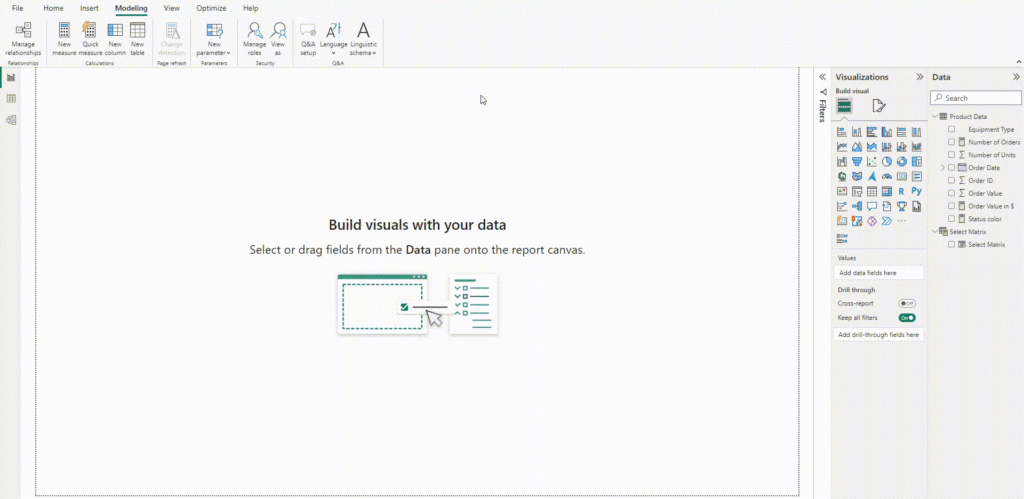
Head to the “Modeling” tab and click “New Parameter.” Choose a descriptive name (here written “Select Matrix”) and add your measures as options – “Number of Orders” and “Order Value in $”. 


IMG01 3


Starting with data visualization: 

Take two visuals from “Visualizations”, one “Stacked Column Chart” and another “Clustered Bar Chart” to display data visually. 


IMG02 1 1


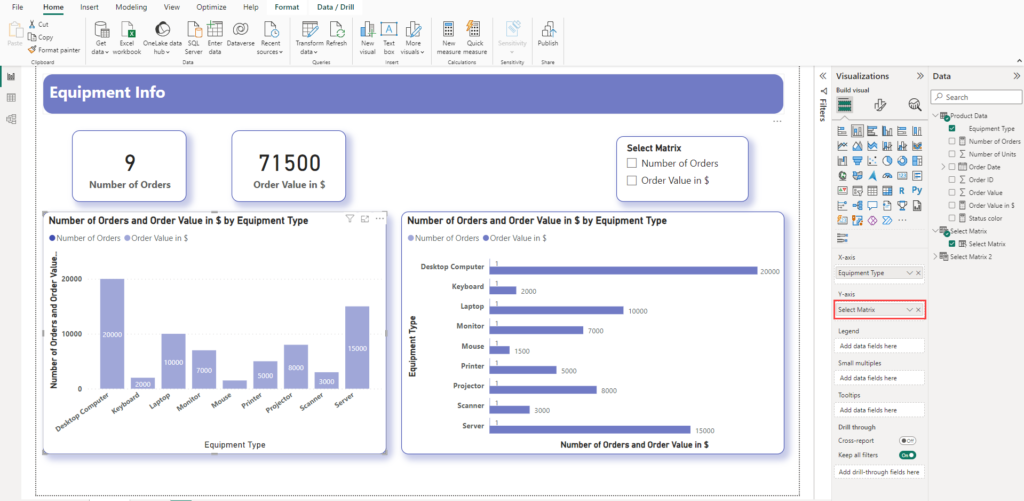
Add columns on axis: Add the created “Select Matrix” to the Y-axis for both graphs. 


IMG03 1 1


Define conditional formatting and create measures for colors: 

Select your visual and open the “Format” pane. Click “Conditional Formatting” and choose “Field Value” as the formatting style. 

Create measures to change the colors of visuals. You can adjust them according to your data. 

Status color = 

sql 

Copy code 

VAR selected_measure = SELECTEDVALUE(‘Select Matrix'[Select Matrix Order]) 

RETURN 

IF(selected_measure = 0, “#909fe8”, “#2b56ba”) 

Add color measure on columns: 

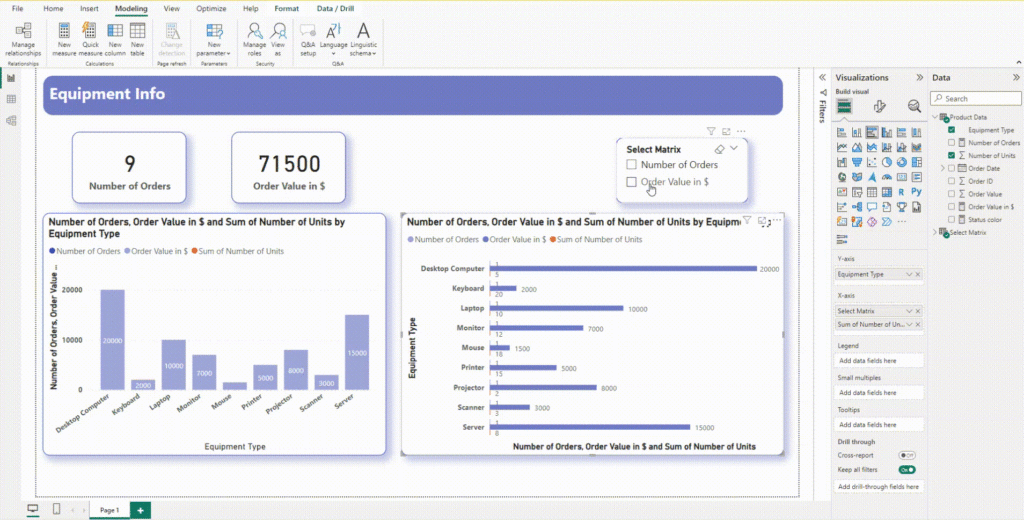
Select the chart and go to “Visual” under the “Visualization section”. Expand “Columns” and set the default as mentioned below. 


IMG04 1


Though it is feasible to integrate all functionalities within a single measure, for the sake of simplicity, you have the option to create separate measures—one to alter the color of the Number of Orders KPI card and another to modify the color of the Order Value KPI card. This approach provides a clearer and more organized method for customizing your Power BI visuals.


IMG05


Remember, the possibilities are endless. Experiment with different color palettes, explore advanced conditional formatting techniques, and let your creativity guide you. Your reports will become not just tools for analysis, but captivating narratives that inform, engage, and inspire action. 

Unlocking Automation – Trigger a Cloud Flow from Any Power BI Report

In today’s data-driven landscape, the integration of business intelligence tools and workflow automation has become paramount for organizations seeking to streamline processes and enhance decision-making. Microsoft’s Power BI and Power Automate, two powerhouse tools in the Microsoft 365 ecosystem, synergize seamlessly to empower users with insightful analytics and the ability to automate actions based on those insights.

In this blog, we will explore how to trigger cloud flow in a Power BI report and export the results into a spreadsheet.

Add Power automate visual in PowerBI report

Start by adding the “Power Automate” visual to your Power BI report. First you need to add “Power Automate” visual as shown in below.

IMG01 1

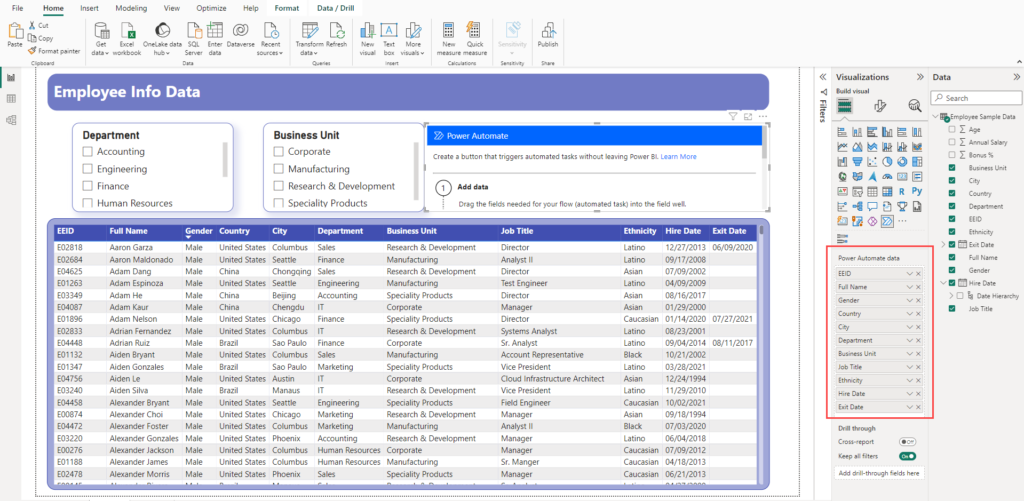
Add fields on visual

Once added, customize it by selecting the specific fields you want to extract for your spreadsheet.

IMG02 1

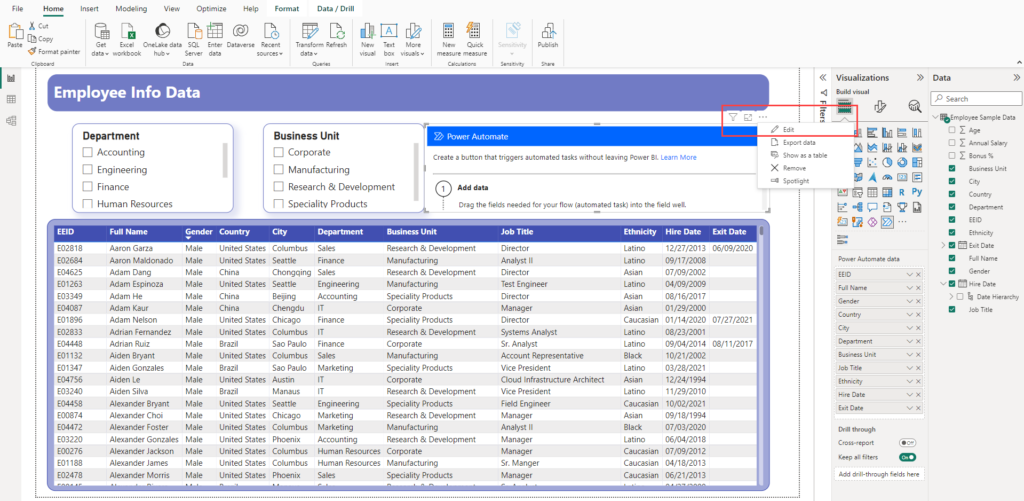
Create Automate flow on Power Automate visual

Now, head over to Power Automate and edit the “Power Automate” visual you just added.

IMG03 1

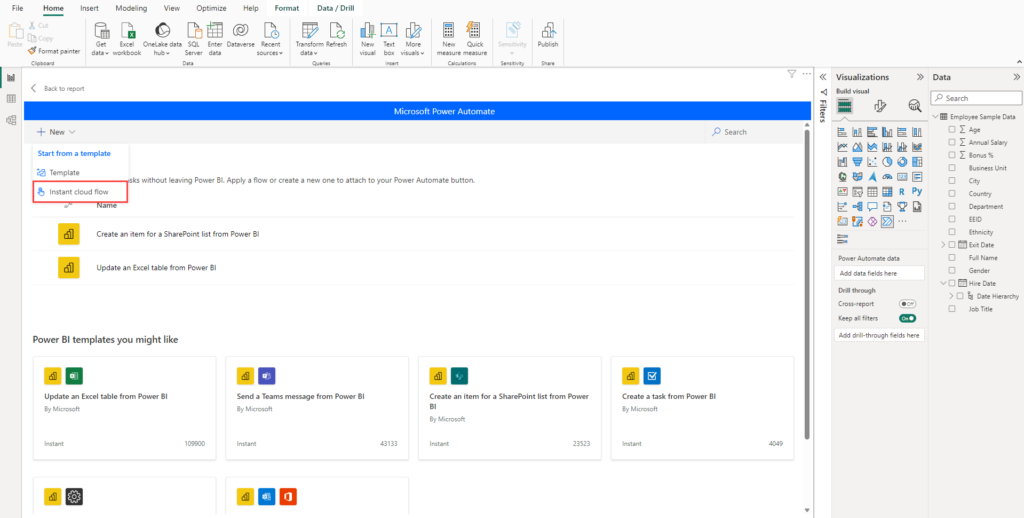
Click “New” and create an “Instant cloud flow”.

IMG04 1

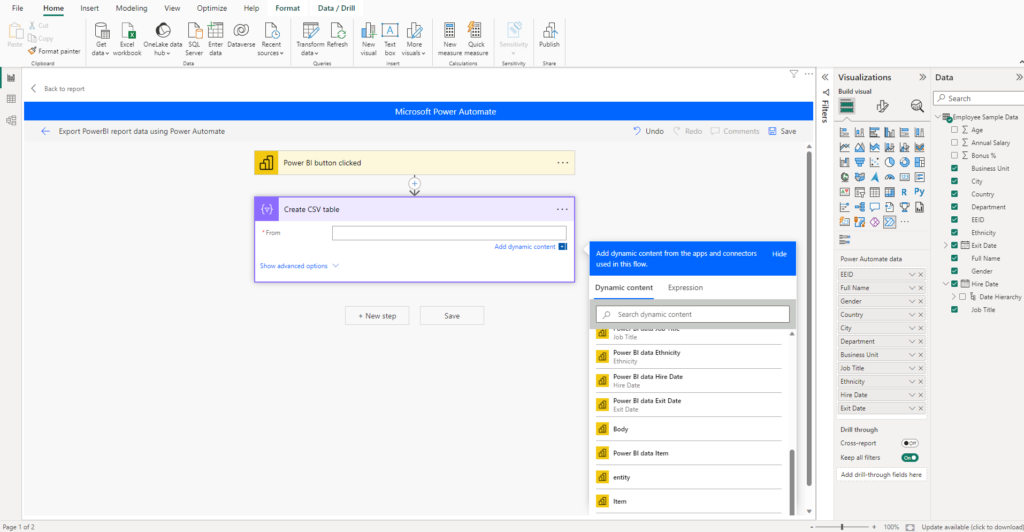
Next, add a “Create CSV table” action and feed it an expression that pulls data from the Power BI visual.

triggerBody()?[‘entity’]?[‘Power BI values’]

IMG05 1

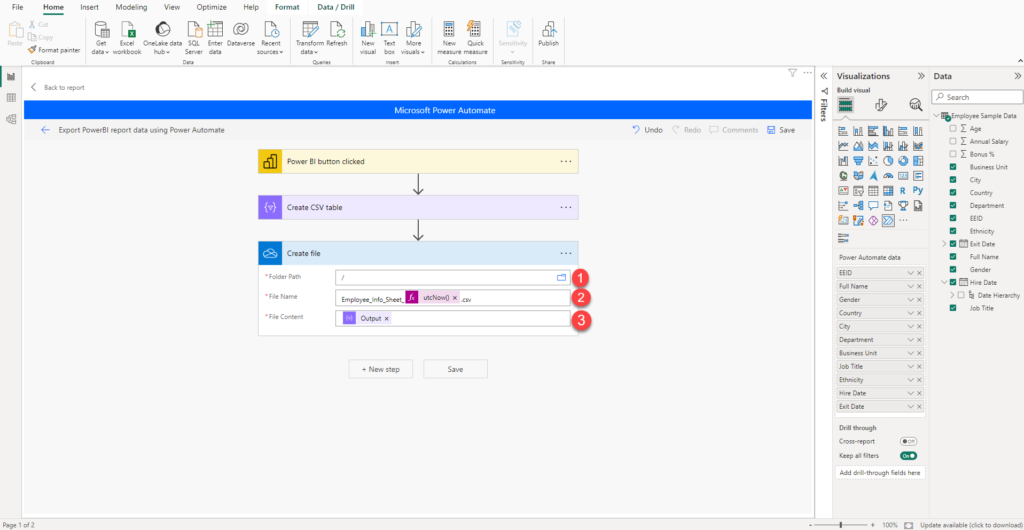
Add “Create file” (Onedrive) action and add input as below –

  1. Folder Path – Select folder where you need to exporting spreadsheet
  2. File Name – Write file name
  3. File Content – select “output” of “Create CSV table” action

IMG06 1

Triggering the Automation Machine

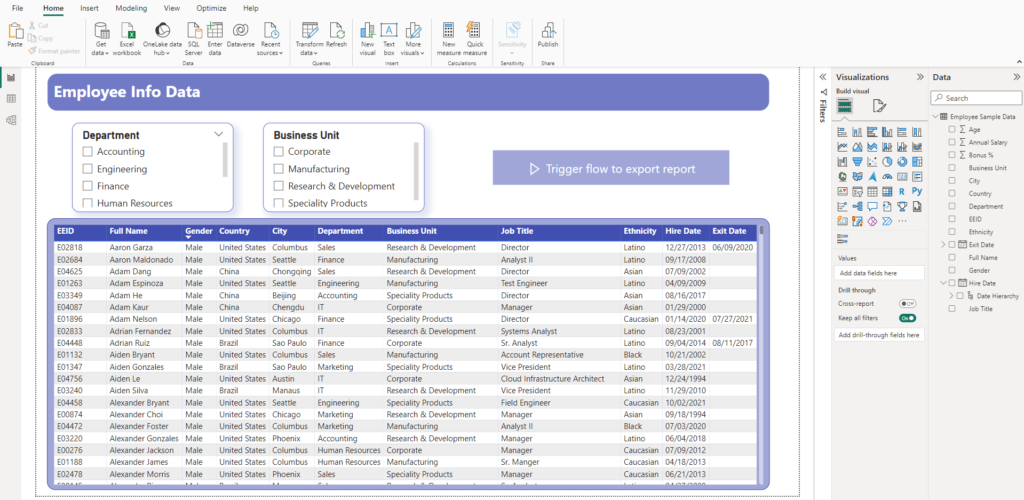
Now, design your “Power Automate” visual to trigger the flow whenever you filter data in your Power BI report.

Simply click “Trigger flow to export report,” and your filtered data will be automatically exported to your chosen OneDrive folder in a spiffy CSV file.

IMG07 1

Take advantage of the seamless collaboration between Power BI and Power Automate to turn your insights into automated actions, simplifying processes, and extracting maximum value from your data. Now, dive in and discover the myriad possibilities that await!

Developer’s Guide to SPFx Exploring the Key Files in SharePoint Framework

SPFx developers must grasp the layout of SharePoint Framework. This means understanding the different types of files included and what each file does. 

This blog post will cover the various files that make up an SPFx solution. 

To give you a quick overview, SPFx is a fresh framework from Microsoft designed to enhance SharePoint and Teams capabilities. Using SPFx, you can employ any JavaScript framework such as React, Angular, or Handlebars to effortlessly craft visually appealing and responsive web parts. 

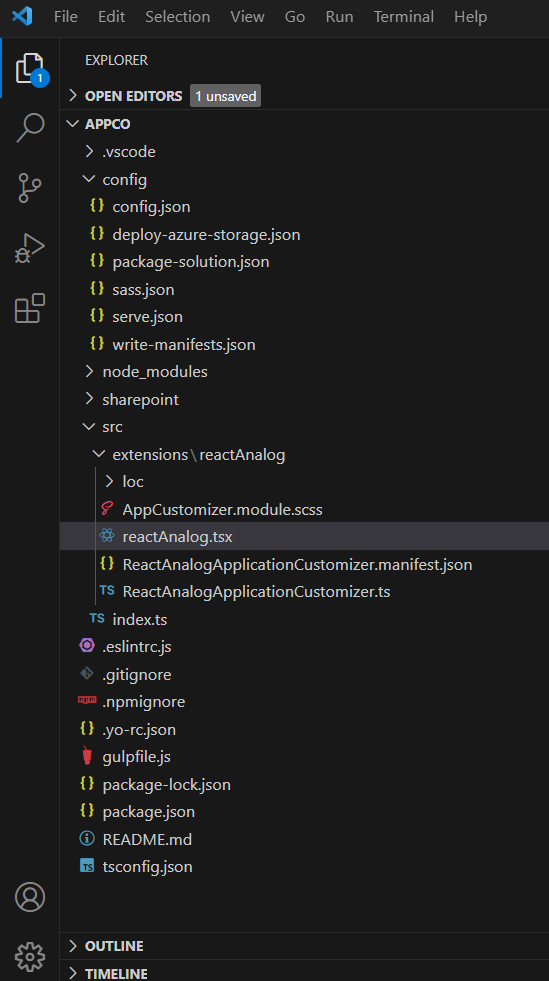
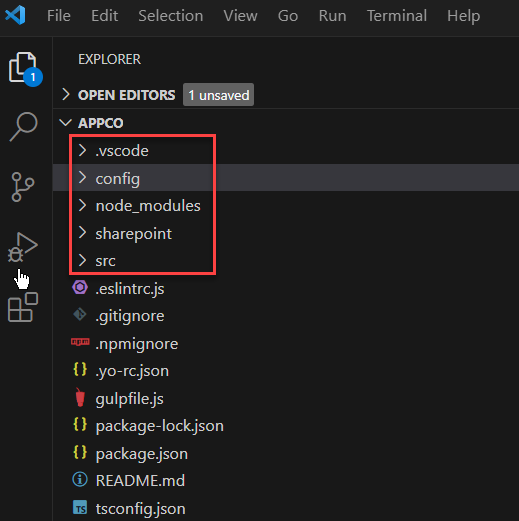
Screenshot of all files within the SPFX solution displayed below. 

Image 01


Image 02

Here are five fundamental folders and other files visible: 

  1. .vscode 
  2. config 
  3. node_modules 
  4. sharepoint/assets 
  5. src 

Let’s analyse all the folders and files nested within this directory. 

  1. .vscode 
    This folder typically contains settings and configurations for Visual Studio Code, such as launch configurations, task definitions, and other editor-specific settings.  This folder contains two files (1)launch.json (2)setting.json

    • launch.json:
      This file is used to configure debugging settings for Visual Studio Code. It defines how the debugger should launch and attach to processes when debugging your code. For SPFx projects, launch.json can be configured to launch and debug your web parts or extensions in SharePoint workbench or in a local workbench.
    • settings.json
      This file is used to configure settings for Visual Studio Code on a project-specific level. It allows you to customize various editor settings such as font size, tab size, auto-save behaviour, and more. You can also define workspace settings in this file, which are specific to the current project/workspace.

  2. Config
    This folder may contain configuration files for the SharePoint Framework (SPFx) project, including build configurations, environment settings, and any custom configurations needed for the project.

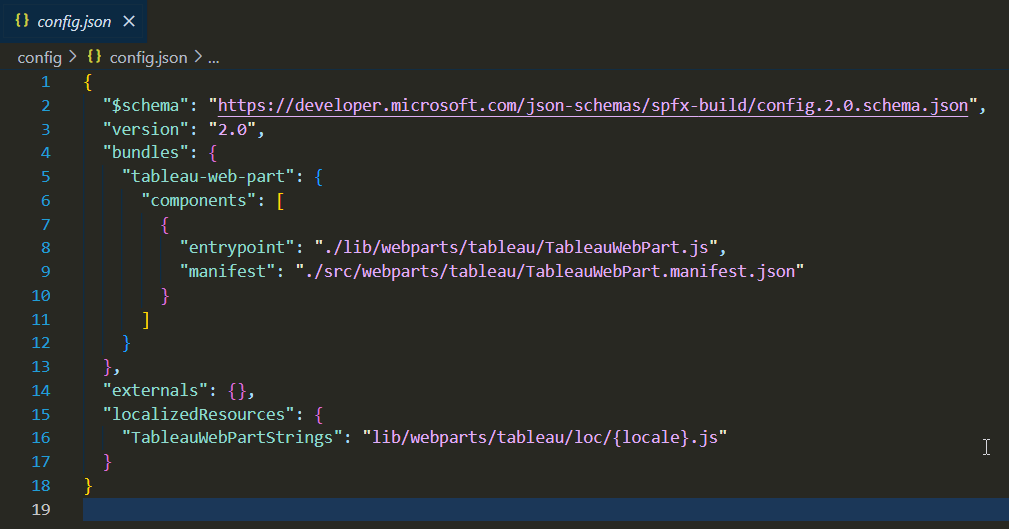
    • Confin.json:

      Image 03
      This file
      contains configurations specific to the SharePoint Framework project, such as bundle configurations, asset locations, external dependencies, and other project-specific settings. It helps customize how the SPFx solution is built and deployed.


      Title: SPFx Configurations for Tableau Web Part

      • Schema and Version:
        – $schema: The URL to the JSON schema file defining the structure of this config file.    – version: The version of the config file. 
      • Bundles:
        – Description: Defines the bundles for your application customizer. – “react-analog-application-customizer”: Name of the bundle. – components: Array of components that belong to this bundle. – entrypoint: Entry point file for your application customizer. – manifest: Manifest file for your application customizer. 
      • Externals:
        – Description: Defines external dependencies for your project. Currently empty. 
      • Localized Resources:
        – Description: Defines the localization settings for your application customizer strings. – ReactAnalogApplicationCustomizerStrings: Identifier for the localized resources. – Points to the localization files for different locales.

    • Deploy-azure-storage.json:

      Image 04
      This configuration file is typically used in SharePoint Framework (SPFx) projects to automate the deployment process of assets to Azure Storage.
       
      Title: Configuration for Azure Storage Deployment 

      • Schema:
          – $schema: The URL to the JSON schema file defining the structure of this config file. It ensures the file adheres to a specific format.
      • Working Directory:
           – Description: Specifies the directory where the files to be deployed are located.    – workingDir: Path to the directory containing the assets to be deployed. 
      • Azure Storage Account Details:
           – Description: Defines the Azure Storage account details for deployment.    – account: Name of the Azure Storage account where files will be deployed.    – container: Name of the storage container within the specified storage account where files will be deployed. 
      •  Access Key:
          – Description: Defines the Azure Storage account details for deployment.    – account: Name of the Azure Storage account where files will be deployed.    – container: Name of the storage container within the specified storage account where files will be deployed. 
      •  Access Key:
        – Description: Specifies the access key required to authenticate and access the Azure Storage account. – accessKey: Access key associated with the Azure Storage account.Note: This configuration file is used for deploying assets to Azure Storage. It specifies the working directory containing the assets to be deployed, the Azure Storage account name, the container within the storage account, and the access key for authentication.

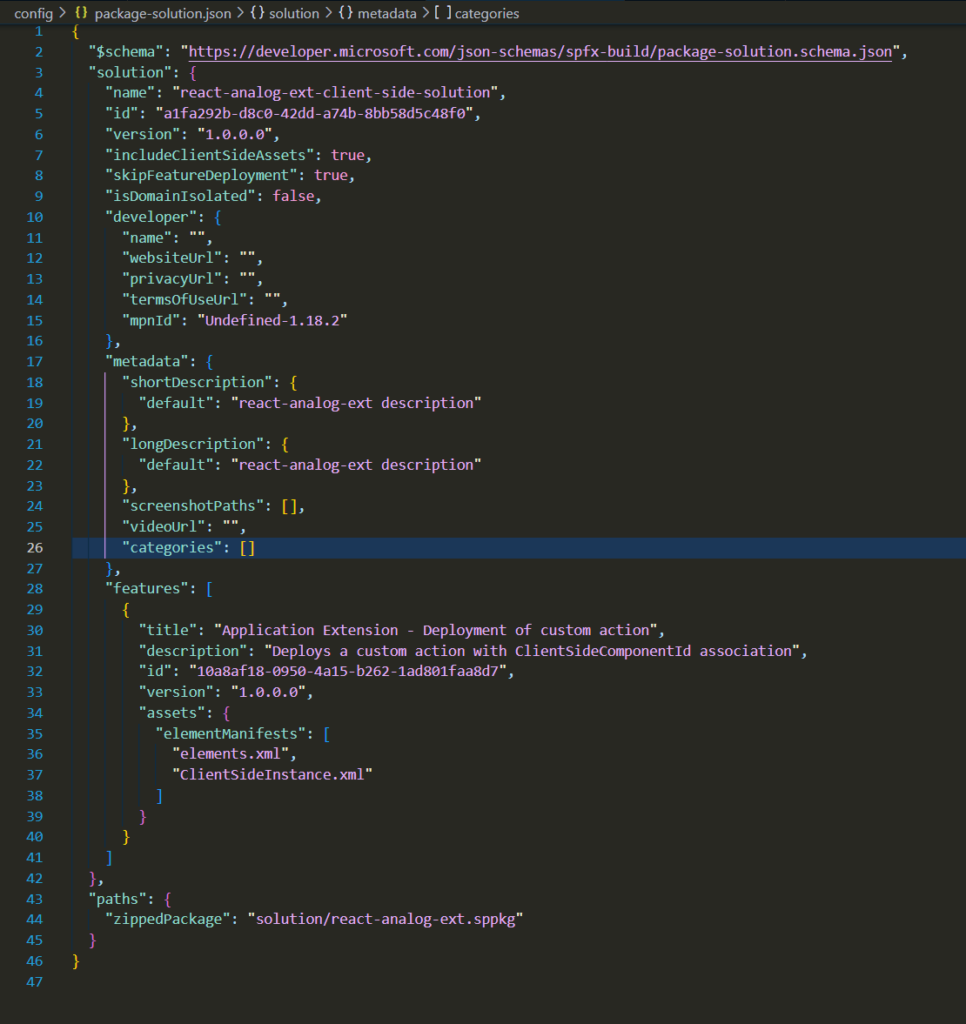
    • Package-solution.json:

      Image 05 1

      • Schema:
        $schema: The URL to the JSON schema file defining the structure of this config file. It ensures the file adheres to a specific format.
      • Solution Details:
        – name: Name of the SharePoint Framework solution package.
        – id: Unique identifier for the solution package. – version: Version of the solution package. – includeClientSideAssets: Indicates whether to include client-side assets in the package. – skipFeatureDeployment: Indicates whether to skip feature deployment during package installation. – isDomainIsolated: Specifies whether the solution package is domain isolated. – developer: Information about the developer including name, website URL, privacy URL, terms of use URL, and MPN (Microsoft Partner Network) ID.
      • Metadata:
        – shortDescription: Short description of the solution.
        – longDescription: Long description of the solution.
        – screenshotPaths: Paths to screenshots illustrating the solution.
        – videoUrl: URL to a video demonstrating the solution.
        – categories: Categories to classify the solution.
      • Features:
        title: Title of the feature provided by the solution.
        – description: Description of the feature.
        – id: Unique identifier for the feature.
        – version: Version of the feature.
        – assets: Assets associated with the feature, such as element manifests. 
      • Paths:
        zippedPackage: Path to the zipped solution package (.sppkg file).

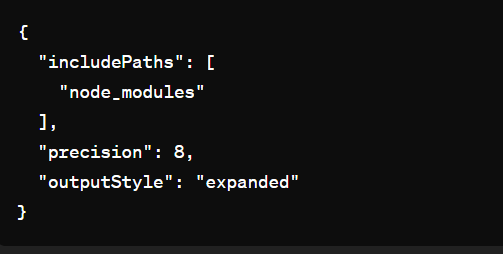
    • Sass.json:

      Image 06

      The sass.json file is used in SharePoint Framework (SPFx) projects to configure the Sass (Syntactically Awesome Style Sheets) preprocessor options. Sass is a CSS preprocessor that adds power and elegance to the basic CSS syntax. The sass.json file allows developers to define settings for compiling Sass files into CSS during the build process. Here’s what it typically contains.

      • includePaths:
        An array of paths where the Sass compiler should look for imported files. It’s useful for importing Sass files from node_modules or other directories.
      • precision:
        Defines the number of decimal places to which rounding will occur during calculations. This setting can prevent precision loss in certain calculations, especially when dealing with responsive design or transformations.
      • outputStyle:
        Specifies the output style for the compiled CSS.

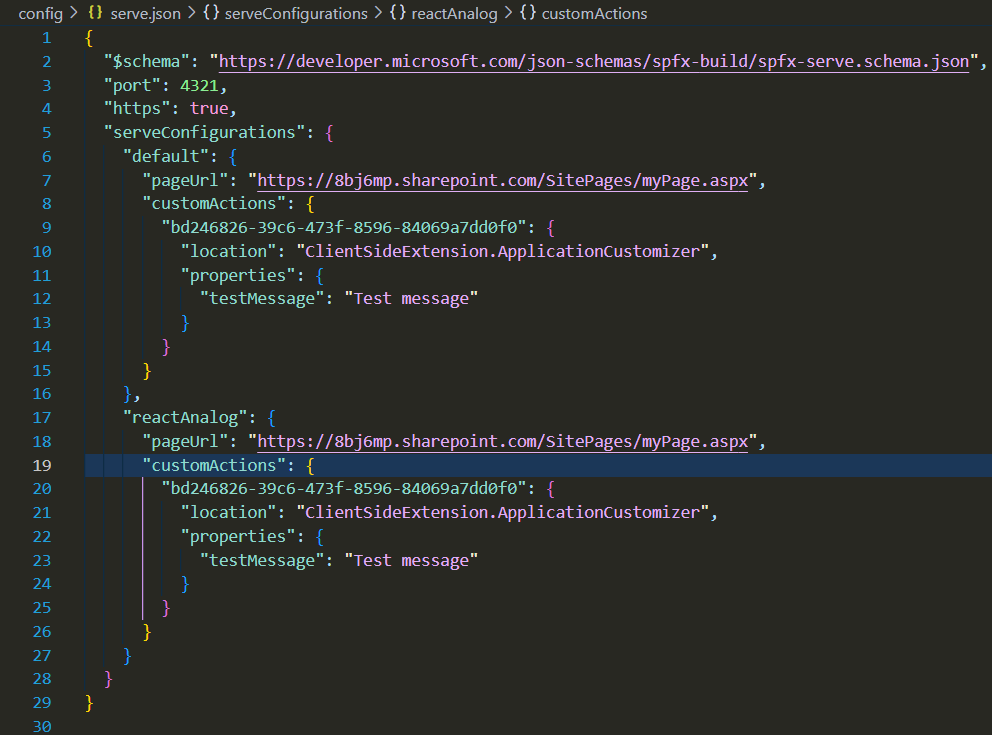
    • Serve.json:

      Image 07
      This configuration file specifies the serve settings for SharePoint Framework projects. It defines the port, HTTPS usage, and different serve configurations for various scenarios. Each configuration includes details such as the SharePoint page URL to load and any custom actions to apply during serving for specific scenarios.

      • Schema:
        – $schema: The URL to the JSON schema file defining the structure of this config file. It ensures the file adheres to a specific format.
      • Port and HTTPS Configuration:
        – port: Specifies the port number on which the local development server will listen. 
         – https: Indicates whether HTTPS protocol should be used for serving the project locally. 
      • Serve Configurations:
        – Description: Defines different serve configurations for different scenarios or environments. 
        – default: Default serve configuration. – pageUrl: URL of the SharePoint page to load when serving the project. – customActions: Configuration for custom actions to be applied when serving the project. – location: Specifies the location of the custom action. – properties: Custom properties to be passed to the custom action. – reactAnalog: Serve configuration specific to a scenario named “reactAnalog”. Similar structure to the default configuration.
  3. Node_modules:
    These are third-party libraries and packages that are used in SPFx projects for various purposes like building, testing, bundling, and serving the project. Examples include webpack, gulp, react, office-ui-fabric-react, etc.
    The node_modules folder can be quite large because it contains all the dependencies required for development. However, it’s essential for SPFx development as it provides the necessary tools and libraries to build and run SharePoint Framework projects.
    When you create a new SPFx project or clone an existing one, you typically don’t need to include the node_modules folder in version control systems like Git. Instead, you include a package.json file, which lists all the dependencies required for the project. Other developers can then run npm install to download and install the necessary dependencies based on the package.json file. This approach helps keep the project repository size manageable and ensures consistency across development environments.

  4. Sharepoint\assets:
    In short, the Sharepoint\assets folder in SPFx solutions is used to store static assets such as images, fonts, CSS, and JavaScript files. These assets are automatically hosted by SharePoint when the solution is deployed, making them easily accessible for use in SPFx components like web parts or extensions. It helps organize assets, improves performance, and ensures they are scoped to the site collection where the solution is deployed.

  5. Src:
    • Localization Folder (loc):
      Description: –This folder holds language localization files, such as “en-us.js” or “de-DE.js”, along with an interface file. These files allow developers to support multiple languages for web parts.
      Purpose: –Developers can define language-specific strings within these files, enabling web parts to adapt to different language preferences.
    • Web Part Manifest File (webpart.manifest.json):
      Description: –This folder holds language localization files, such as “en-us.js” or “de-DE.js”, along with an interface file. These files allow developers to support multiple languages for web parts. 
      Purpose: –Developers can define language-specific strings within these files, enabling web parts to adapt to different language preferences.
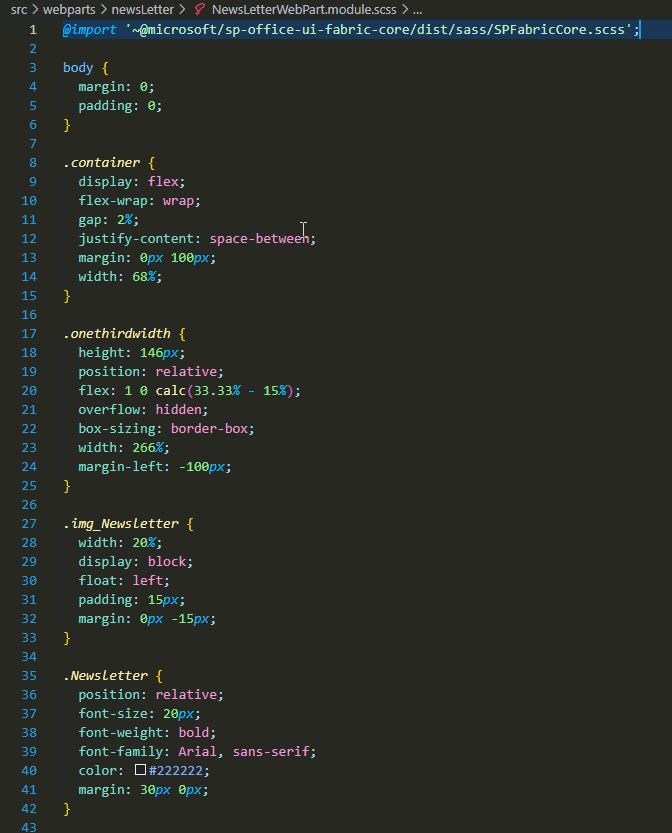
    • Web Part Styling File (webpart.module.scss):

      Image 08
      Description:-This file, written in SCSS (Sassy CSS), provides styling instructions for the web part.
      Purpose: –SCSS offers advanced features for styling, enhancing the visual presentation and consistency of the web part across different devices and screen sizes.

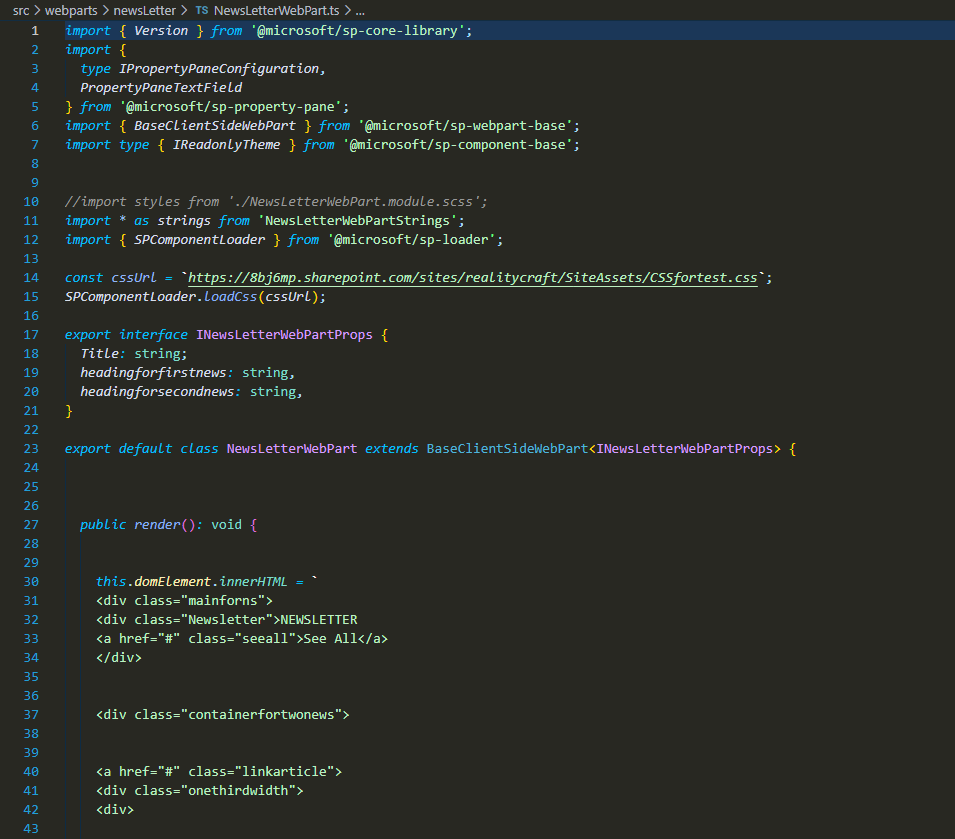
    • Web Part Entry Point (webpart.ts):

      Image 09
      Description: –the entry point file defines the primary functionality and configurations for the web part. It typically contains a web part class extending BaseClientSideWebPart.
      Purpose: – This file governs the core behaviour of the web part, including property pane configurations and interactions with SharePoint data.

    • Components Folder (if using React):
      Description: –This folder, specific to React framework usage, houses state and props interface files, along with a SCSS file. It also includes a crucial file named “webpart.tsx”.
      Purpose: –In React-based projects, this folder encapsulates the component-based structure, facilitating the creation and management of reusable UI elements. “webpart.tsx” serves as the main React component file, orchestrating the rendering and functionality of the web part.  

Other files in solution :

index.ts: Entry point for TypeScript modules, organizing and managing module dependencies. 

.eslintrc.js: Configurations for ESLint, ensuring code consistency and identifying errors. 

.gitignore: Specifies files to ignore in Git, keeping the repository clean and manageable. 

.npmignore: Specifies files to exclude in npm packages, reducing package size and improving installation speed. 

.yo-rc.json: Stores project scaffolding configurations for future reference and consistency. 

gulpfile.js: Contains tasks and configurations for Gulp, automating build processes and enhancing productivity. 

package.json: Metadata file for npm packages, defining dependencies, scripts, and project information. 
package-lock.json: Locks dependencies’ versions for reproducible builds, ensuring consistency. 

README.md: Documentation file, providing project information, setup instructions, and guidelines. 

tsconfig.json: TypeScript compiler options and configurations for the project, guiding compilation process. 

Transform Your SharePoint Online List Forms: A Guide to JSON Customization and Validation

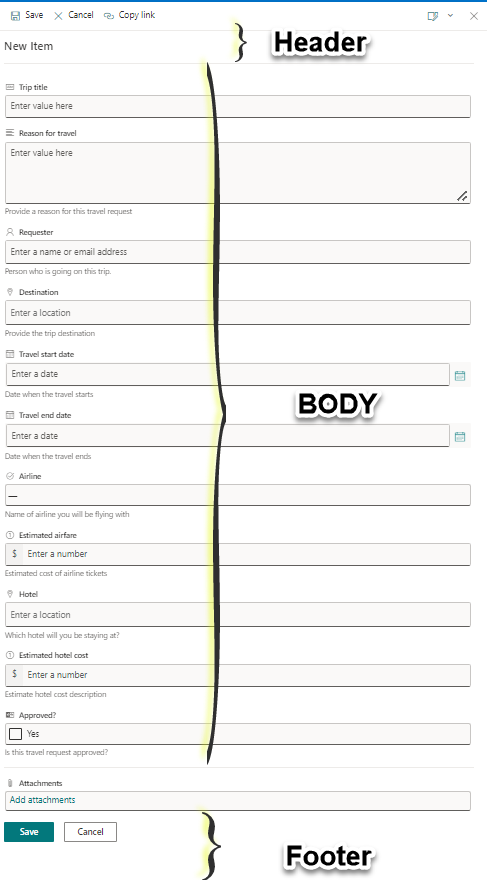
Customizing SharePoint online forms is typically done using SPFx or Power Apps. However, this blog will demonstrate an alternative approach using JSON to customize out-of-the-box SharePoint list forms. This method eliminates the need for SPFx or Power Apps, as simple JSON can be employed to tailor the header, footer, and body of the form.. 
 
Through the use of JSON, users can create distinct sections within the form body and implement validations to dynamically show or hide form fields based on the values of other fields. Notably, the advantage of employing JSON for customization is the inherent responsiveness of the forms. Unlike other methods, there is no additional effort required to make these forms responsive, allowing seamless utilization across both desktop and mobile platforms. 
 
In this blog on SharePoint Online, User will explore the customization and formatting of SharePoint Online list forms through the use of JSON formatting. And column validation in SharePoint online list. 

Img 01 1


First, familiarize yourself with customizing JSON formatting. Customize the form header, form footer, and form body. Divide the body into different sections.

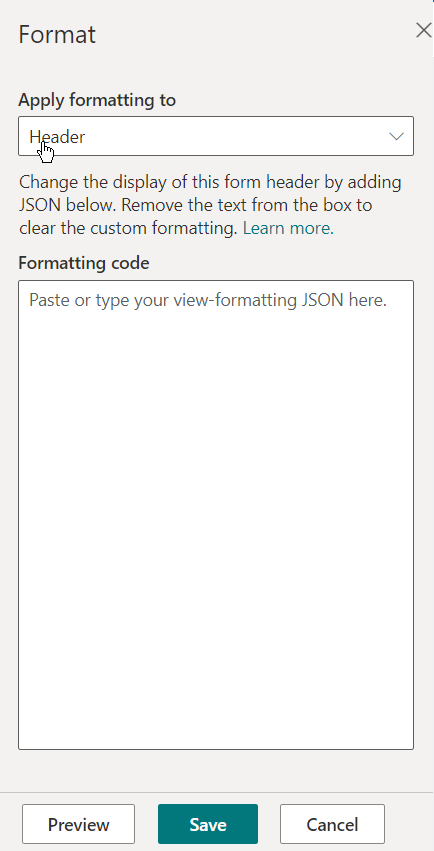
  1. Customize the SharePoint Online List Form Header using JSON formatting.

2024 06 14 18 05 10


In the Format window, you’ll encounter options such as Header, Body, and Footer. Ensure that you choose Header.

Img 02 1

In the “Formatting code” option, apply or paste the JSON formatting code provided below. Alternatively, you can retrieve this code by clicking on “Learn more” within the JSON code section. 
{ 

    “elmType”: “div”, 

    “attributes”: { 

        “class”: “ms-borderColor-neutralTertiary” 

    }, 

    “style”: { 

        “width”: “100%”, 

        “margin-bottom”: “15px”, 

        “background-color”: “purple” 

    }, 

    “children”: [ 

        { 

            “elmType”: “div”, 

            “style”: { 

                “display”: “flex”, 

                “align-items”: “center” 

            }, 

            “children”: [ 

                { 

                    “elmType”: “div”, 

                    “style”: { 

                        “flex”: “none”, 

                        “padding”: “0px”, 

                        “padding-left”: “10px”, 

                        “height”: “40px”, 

                        “color”: “white” 

                    } 

                } 

            ] 

        }, 

        { 

            “elmType”: “div”, 

            “attributes”: { 

                “class”: “ms-fontColor-themePrimary ms-borderColor-themePrimary ms-fontWeight-bold ms-fontSize-xl ms-fontColor-neutralSecondary–hover ms-bgColor-themeLight–hover” 

            }, 

            “style”: { 

                “box-sizing”: “border-box”, 

                “width”: “100%”, 

                “text-align”: “center”, 

                “padding”: “21px 12px”, 

                “overflow”: “hidden”, 

                “color”: “white” 

            }, 

            “children”: [ 

                { 

                    “elmType”: “div”, 

                    “txtContent”: “Task Details” 

                } 

            ] 

        } 

    ] 

}
 

You can customize the header by adjusting parameters such as background color, text color, and adding icons. Additionally, you can retrieve dynamic values from the body using this JSON formatting. 

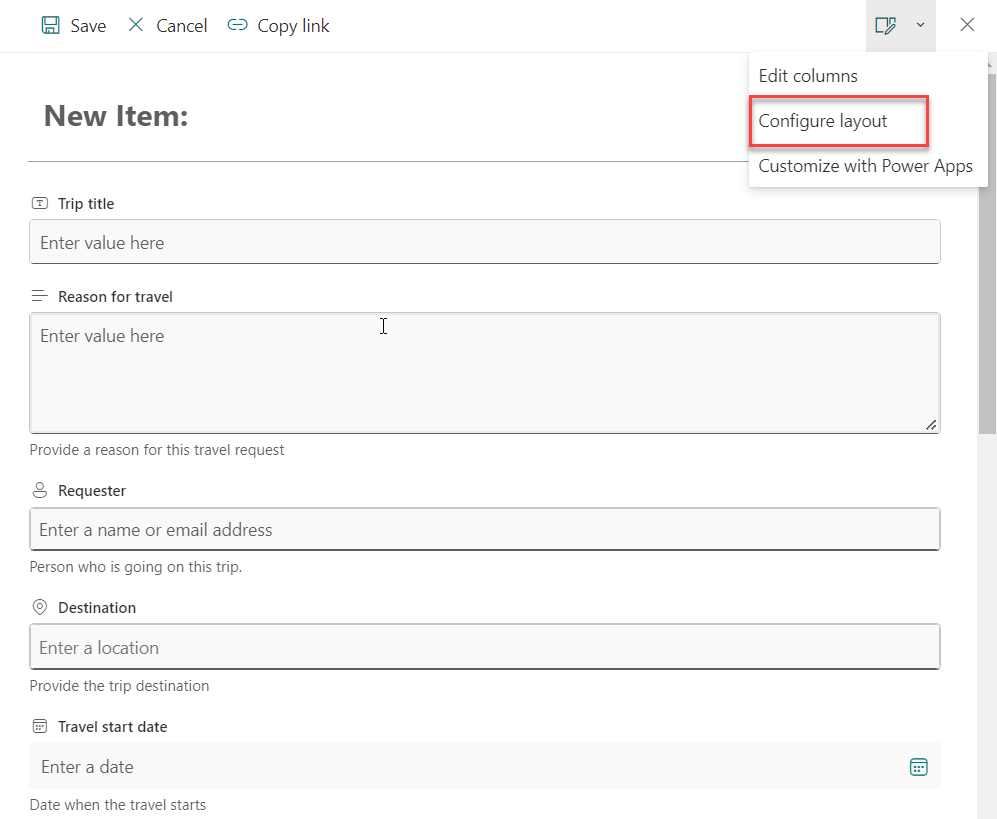
 2. Customize the SharePoint Online List Form Body using JSON formatting. 

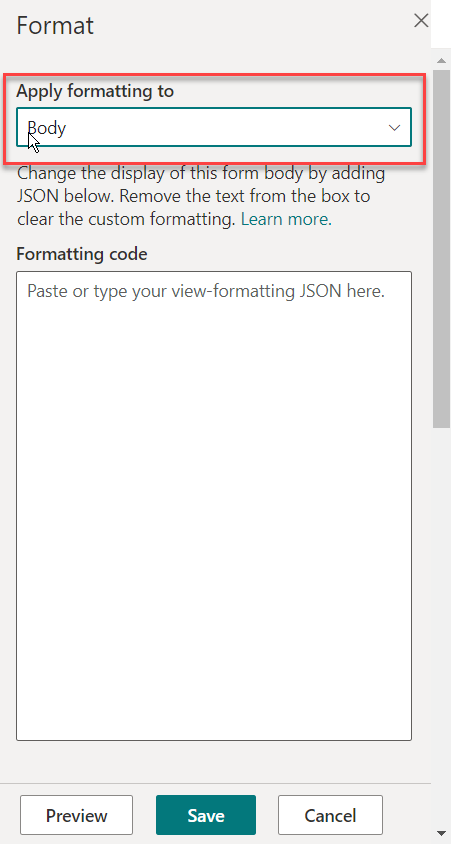
Once the “Configure layout” option is chosen, select the “Body” option from the dropdown in the “Apply formatting to” section. 
Img 03 1

In the “Formatting code” option, apply or paste the JSON formatting code provided below. Alternatively, you can retrieve this code by clicking on “Learn more” within the JSON code section. 
{ 

    “sections”: [ 

        { 

            //give a display name for the section 

            “displayname”: “✈️”, //Instead of icon, user have the option to use names of sections  . 

            “fields”: [ 

                //reference your fields here using their display name 

                “Airline”, 

                 “Estimated airfare” 

            ] 

        }, 

        { 

            //give a display name for the section 

            “displayname”: “🏡”, //Instead of icon, user have the option to use names of sections. 

            “fields”: [ 

                “Hotel”,
                “Estimated hotel cost”//reference your fields here using their display name 

            ] 

        } 

    ] 

} 

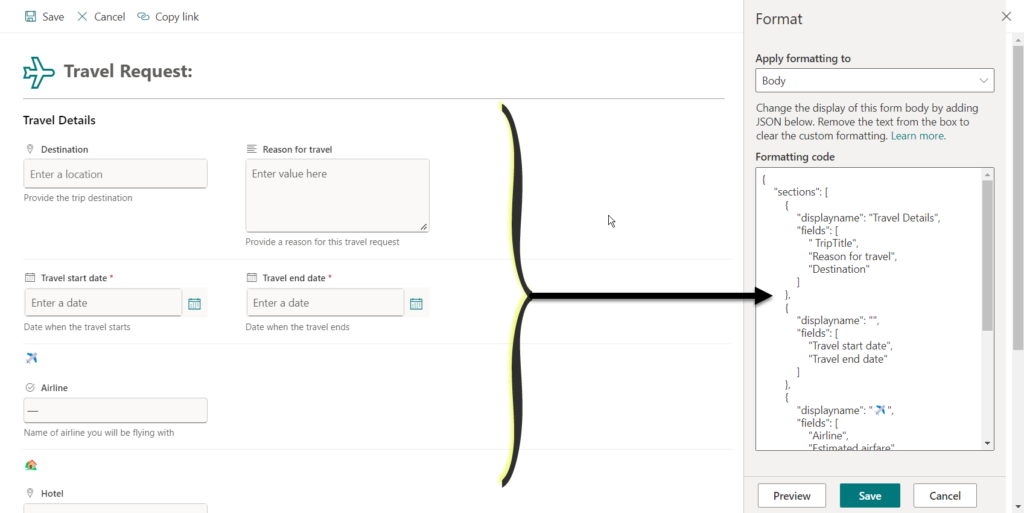
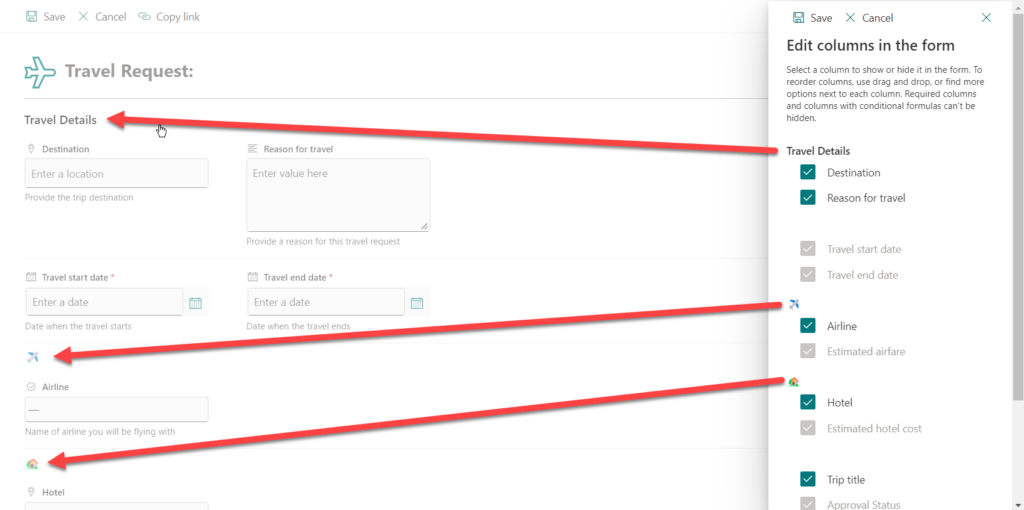
Change the given code to establish distinct sections within the form. Each section allows for the inclusion of an icon alongside its name, mirroring the example depicted below. Additionally, you have the flexibility to add any column to any field within a section. 

Img 04 1


When attempting to edit the columns in the form, it is evident that the fields are presented in a section-wise manner, as demonstrated below: 

img 05 1


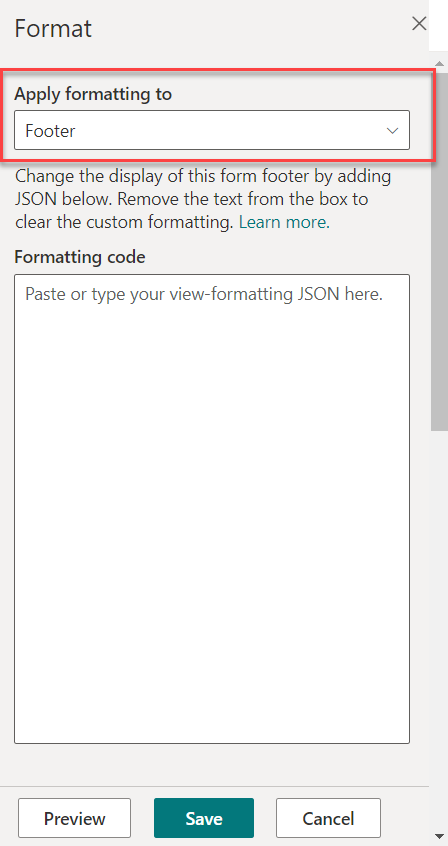
3. Customize the SharePoint Online List Form footer using JSON formatting. After choosing the “Configure layout” option, select the “Footer” option from the dropdown in the “Apply formatting to” section. 

Img 06 1

In the “Formatting code” option, apply or paste the JSON formatting code provided below. Alternatively, you can retrieve this code by clicking on “Learn more” within the JSON code section. 

{ 

    “elmType”: “div”, 

    “style”: { 

        “height”: “24px”, 

        “width”: “100%”, 

        “color”: “#fff”, 

        “font-size”: “15px”, 

        “border-top”: “5px solid #eee”, 

        “background-color”: “Purple”, 

        “padding”: “10px” 

    }, 

    “children”: [ 

        { 

            “elmType”: “div”, 

            “style”: { 

                “width”: “100%”, 

                “padding-top”: “10px”, 

                “height”: “24px” 

            }, 

            “children”: [ 

                { 

                    “elmType”: “a”, 

                    “txtContent”: “=’Task Review for ‘ + [$Title]”, 

                    “attributes”: { 

                        “target”: “_blank”, 

                       “href”: “=’https://aka.ms/task?review=’ + [$Tasks]” 

                    }, 

                    “style”: { 

                        “color”: “white” 

                    } 

                } 

            ] 

        } 

    ] 

} 

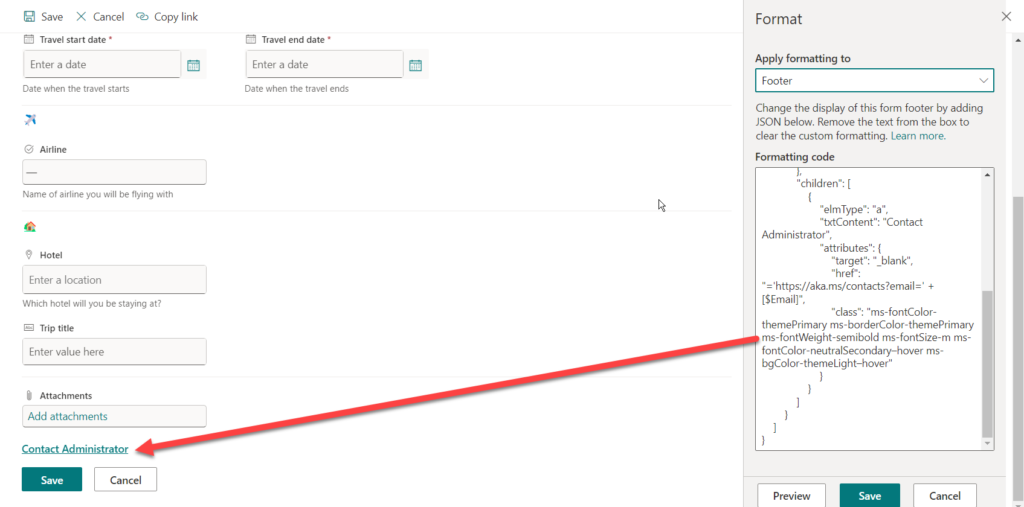
In the screenshot below, you can observe that the JSON code for the Footer has been included. I have implemented a functionality where clicking on the specified text will navigate the user to the email administrator.

Img 07 1


Show/Hide form field based on conditions: 

To meet the requirement of displaying the Manager field in the form only when the Priority is set to Critical, follow these steps: 

  • Click the “New list” button to open the list form. 
  • Choose “Edit columns” from the options available in the top-right corner of the New form. 
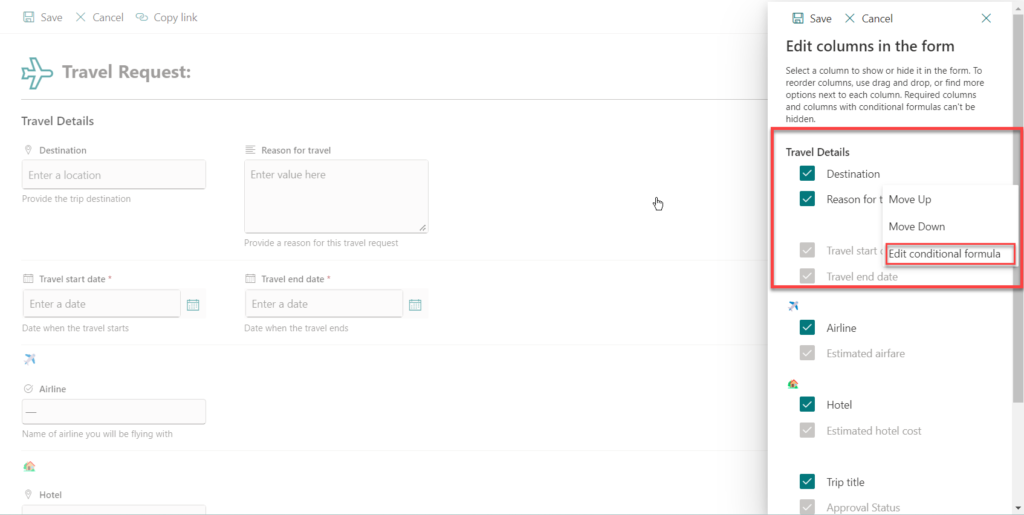
  • Select column which you want to hide/show  and click on three dots and select “Edit Conditional Formula”. 

Img 08 1

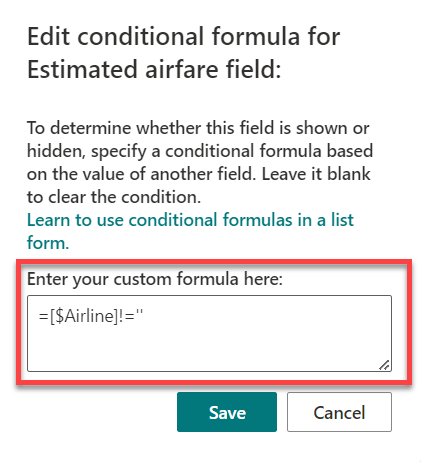
Following that, you will encounter the field where you can input your formula. As an example, here is the code for the “Estimated Airface” field: when a specific value is selected in the “Airline” column, the estimated airfare will be displayed; otherwise, it will be hidden. 

Img 09 1

Please note that you can find and obtain a solution by clicking on the line highlighted in green, which reads, Learn to use conditional formulas in a list form. 

How to do column validation in SharePoint: 

  • Column validation serves to ensure that the data entered in a specific column is accurate and meets the defined criteria. 
  • Use Cases/Formulas- 
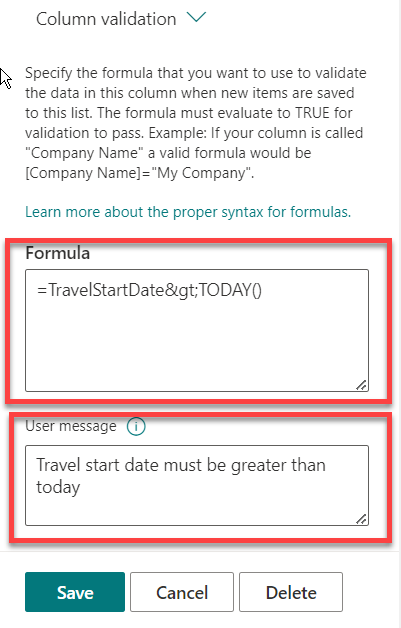
    • In my SharePoint list, there is a column named “Travel Start Date,” and I aim to enforce a rule that this date must be greater than or equal to today’s date.: =TravelStartDate>TODAY(). 
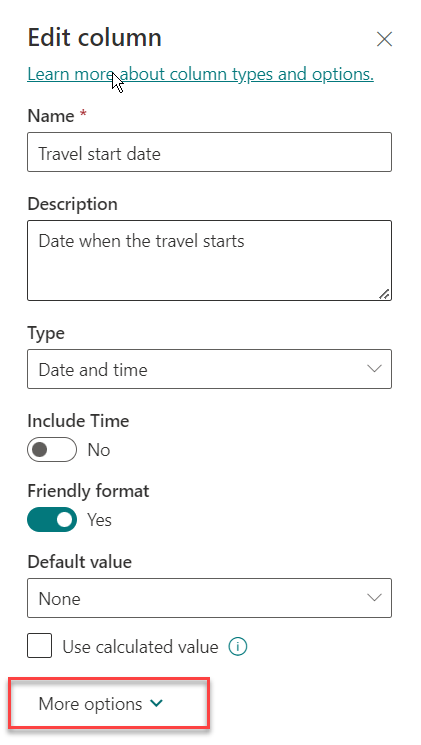
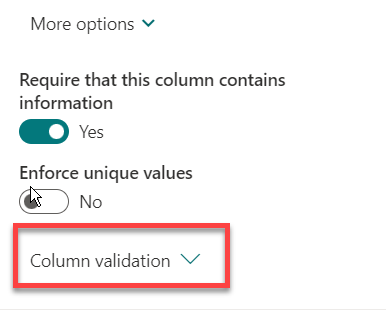
      • First, enter the Edit mode for that column and then click on “More options.” And click on “column validation”
        Img 10

        Img 11


  • Subsequently, insert the formula in this section, and ensure to include a User message. If the conditions specified in the formula are not met, this message will be displayed to the user.

    Img 12

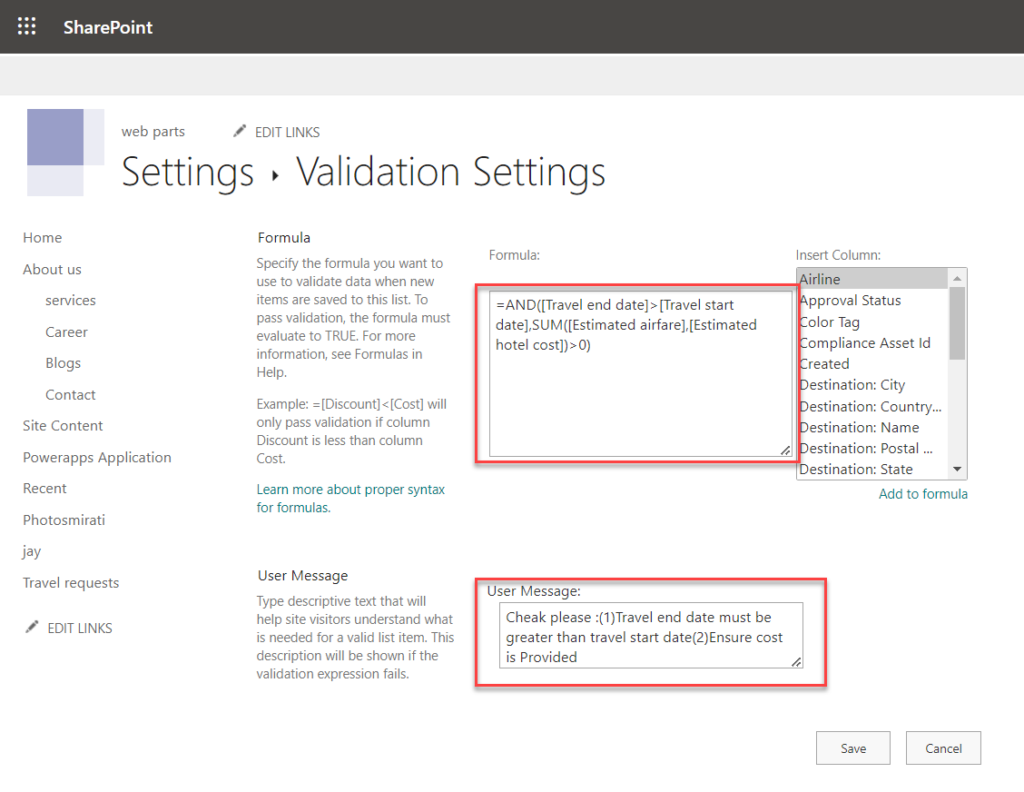
Inline column validation in SharePoint will not be effective for this situation since it doesn’t allow retrieving or comparing values from other columns. To address this limitation, it is necessary to utilize list-level validation settings, as illustrated in the image below. This approach enables the use of multiple formulas to compare values from different columns. 

Img 13


In the image above, the user can specify a formula ensuring that the travel end date is greater than the travel start date. Additionally, the sum of Estimated Airfare and Estimated Hotel Cost must be greater than zero. It’s crucial to understand that Estimated Airfare and Estimated Hotel Cost are individual columns, and their respective formulas won’t work in column validation settings. To overcome this, these formulas must be written in the list setting validation. Moreover, when employing multiple formulas, it’s important to write user messages separately, as demonstrated in the image, as there isn’t a distinct method to display messages within the formula. 

Newsletters