How to implement Cascading Drop Downs in Model-Driven Apps

Introduction:

When dealing with applications that manage large amounts of data, filling out forms with numerous fields and options can often be overwhelming for users. Cascading dropdowns in Model-Driven Apps offer an effective way to simplify this process. They allow users to select options in a specific order, with each choice narrowing down the available options for the next step. This not only makes data entry more efficient but also reduces the likelihood of errors by showing only the most relevant choices. By leveraging relationships between Dataverse tables, users are presented with options tailored to their previous selections. In this guide, we will walk you through the steps to set up cascading dropdowns in Model-Driven Apps.

Scenario:

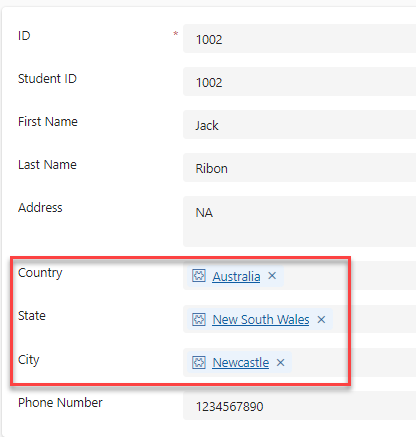
Consider a scenario where you are building a student registration form, and users need to select their country, state, and city. When a user picks a country, only the states for that country should be shown. Then, once a state is chosen, the city dropdown should only display cities within that state. This approach reduces confusion and ensures users only see options that are relevant to their previous choices, making the process more streamlined and easier to follow.


01 2


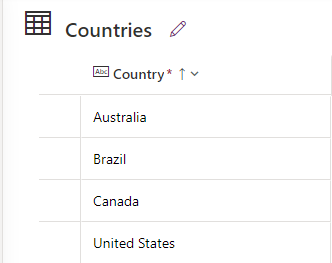
To begin, you need to create the necessary Dataverse tables. Start by creating a Country table with a Country Name column of the Single Line of Text type. Populate this table with country names, such as the USA, Canada, and the UK.


03 1


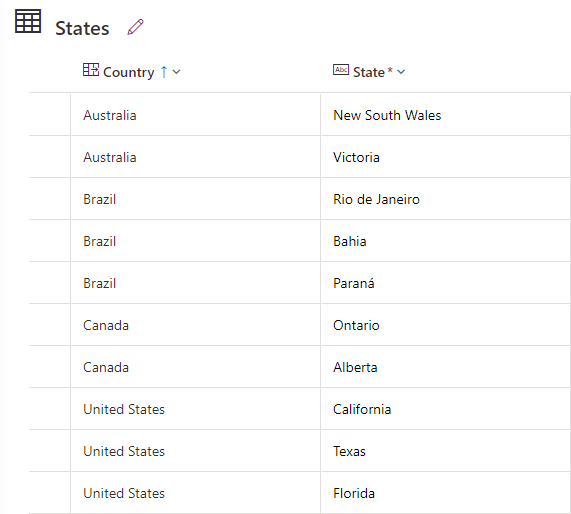
Afterward, create another table called State, which should include two columns: a Country column (a lookup column pointing to the Country table) and a State Name column (a single line of text that contains the name of the state based on the selected country). Once you have set up the State table, input state data corresponding to each country (e.g., California for the USA, Ontario for Canada).


04 1


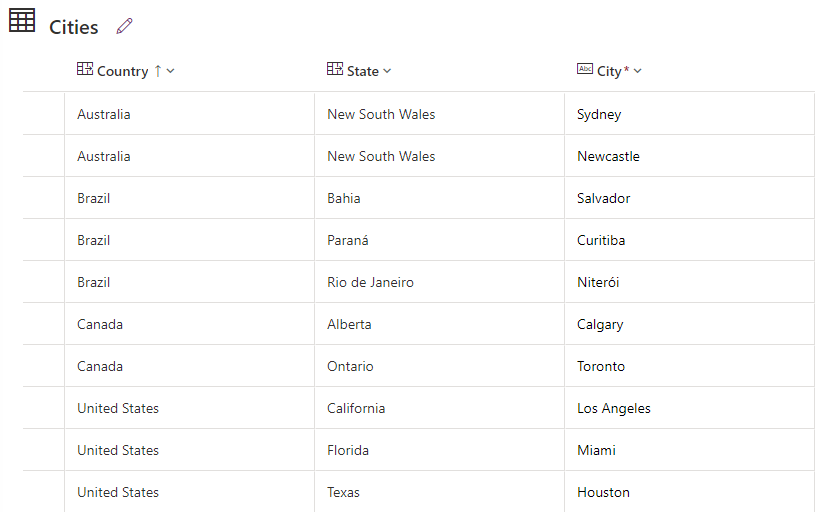
Next, create a City table. This table will have three columns: Country (lookup to the Country table), State (lookup to the State table), and City Name (a single line of text that contains the name of the city based on the selected state). Populate this table with cities associated with their respective states and countries (e.g., Los Angeles for California, Toronto for Ontario). Now, you have a structure in place where the relationships between Country, State, and City are ready for cascading functionality.


05 1


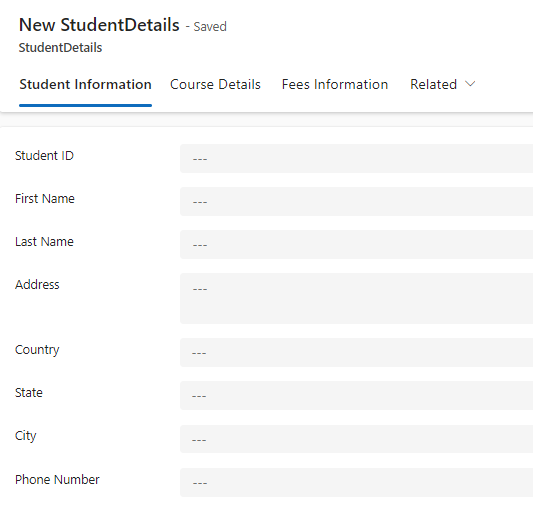
With the foundational tables set, it’s time to create the Main Table, where users will input their details. In this table, include fields for First Name, Last Name, Address, and Phone Number as Single Line of Text columns. Then, add lookup columns for Country, State, and City, each referencing their corresponding Dataverse tables.


06 1


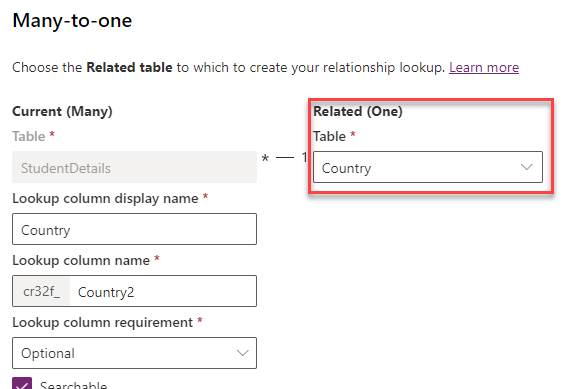
To enable the cascading effect, you need to establish relationships between the Main Table and the Country, State, and City tables. To do this, navigate to the Main Table, select the Relationships section, and create Many-to-One relationships with the Country, State, and City tables. This will link the Main Table to the Country, State, and City tables, forming the basis for the dynamic filtering.


07


08


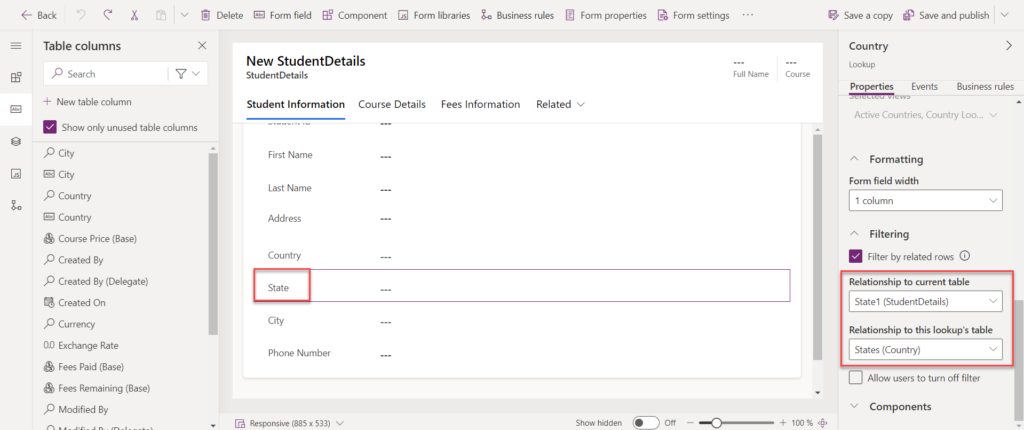
Once the relationships are set, go to the Main Form where users will input data. Select the State field, and in the properties pane on the right, configure the Filtering option. Set the State field to be filtered based on the selected Country and relationship. Repeat this process for the city field, ensuring that it filters based on the selected State. After configuring the filtering for the fields, save your changes and publish the app.


09


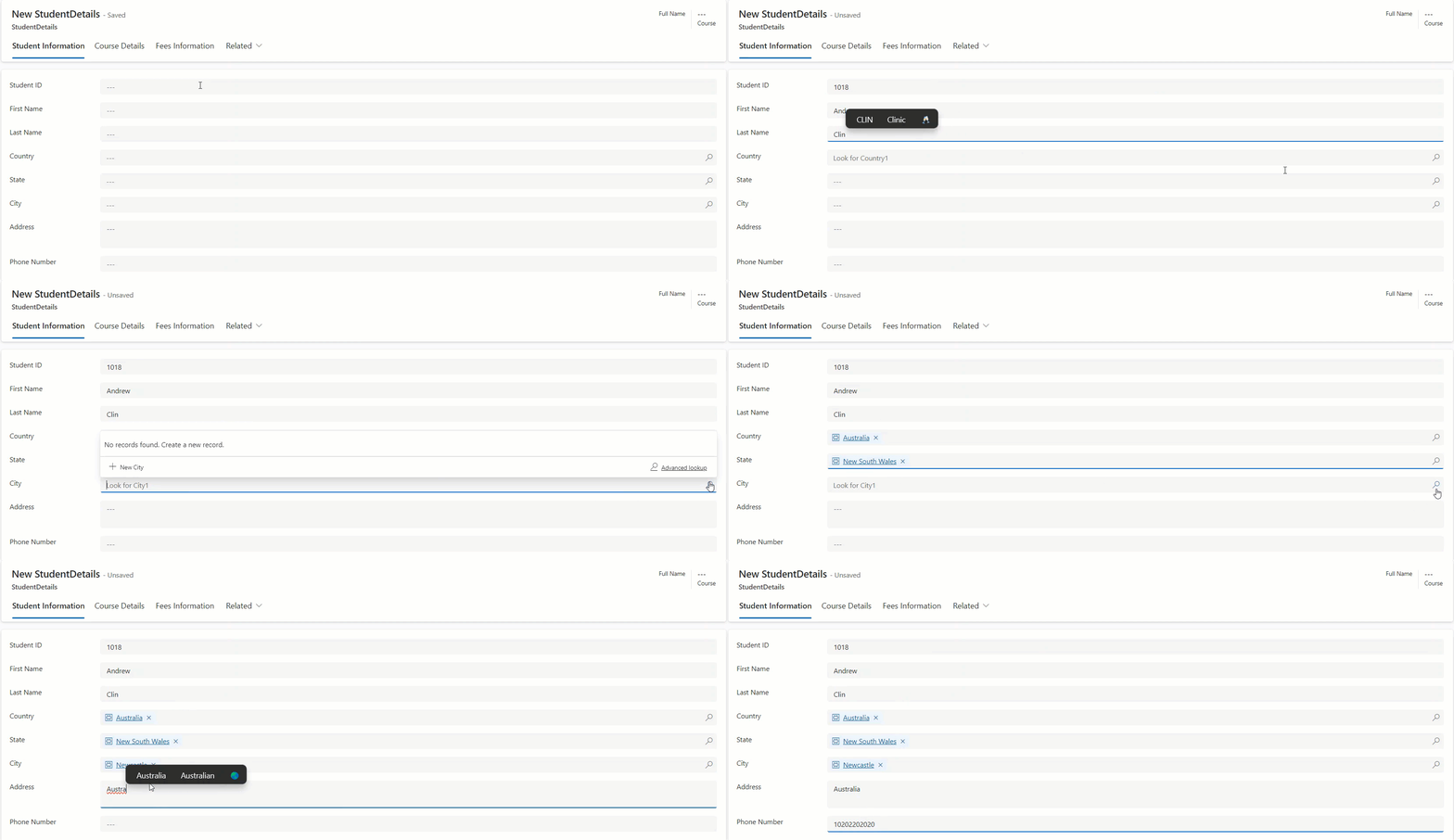
Now, when users fill out the form, selecting a country will automatically filter the options available for states, and selecting a state will filter the cities accordingly. This cascading functionality creates a seamless user experience by ensuring that each field displays only the relevant options based on prior selections.


FinalGIF 4


Conclusion:

Cascading dropdowns in Model-Driven Apps make data entry easier by presenting relevant options based on previous choices, minimizing errors. This leads to more accurate data and smoother processes. Using Dataverse relationships improves the overall user experience and efficiency.


Concatenation multiple columns using formula type column in Microsoft Dataverse

Information: A dynamic header allows important information to be displayed at the top, making it easier for users to view key details without navigating through different sections of the form.

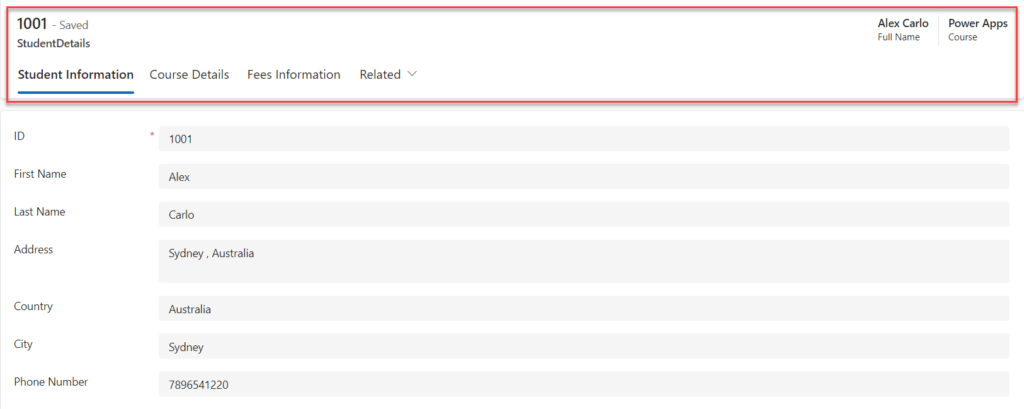
Scenario: Let’s say you’re working on a Student Details form with multiple tabs. Each tab contains information such as Personal Details, Enrollment, Courses, and Grades. Instead of making users click through different tabs to access basic information, you can create a dynamic header that displays the student’s full name and course, visible at all times, enhancing the user experience.


01


Here are the steps to create a dynamic header for the modern-driven app:

Step 1: Go to Power Apps and navigate to the table used in the application. Create the columns you want to display in the application header in the column section.

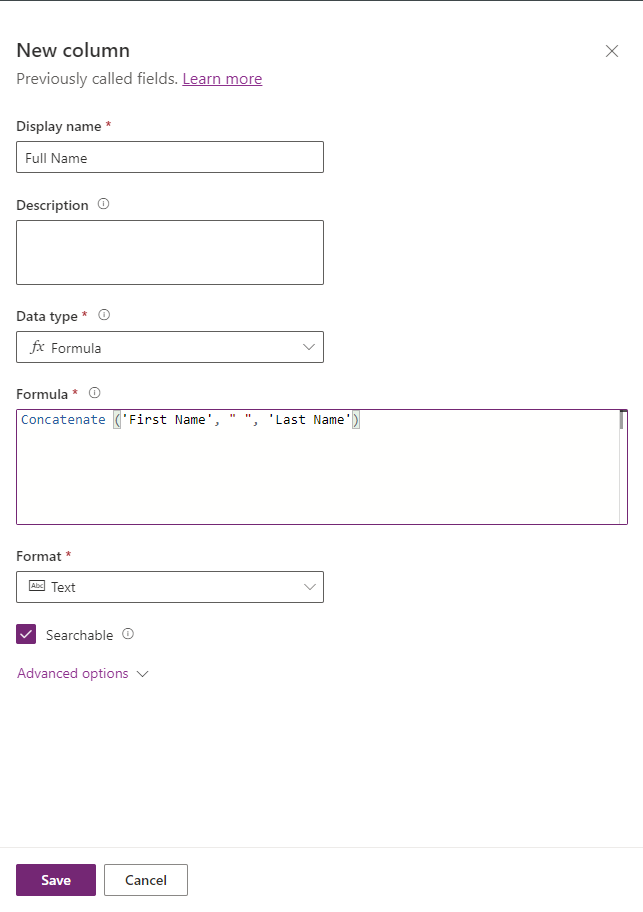
Step 2: To display the student’s full name (combining the first and last names) in the header, a new column named “Full Name” was created, with the data type set to Formula. The Concatenate function was used in the formula to combine the first and last names: Concatenate (‘First Name’, ” “, ‘Last Name’).


02


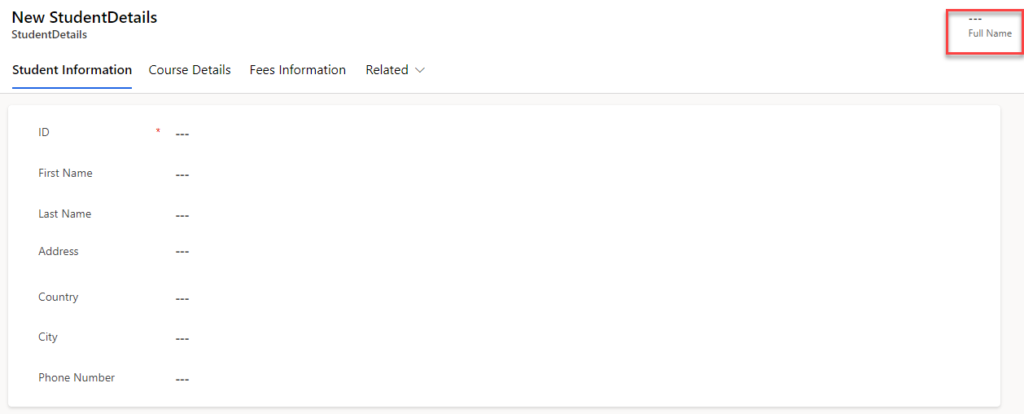
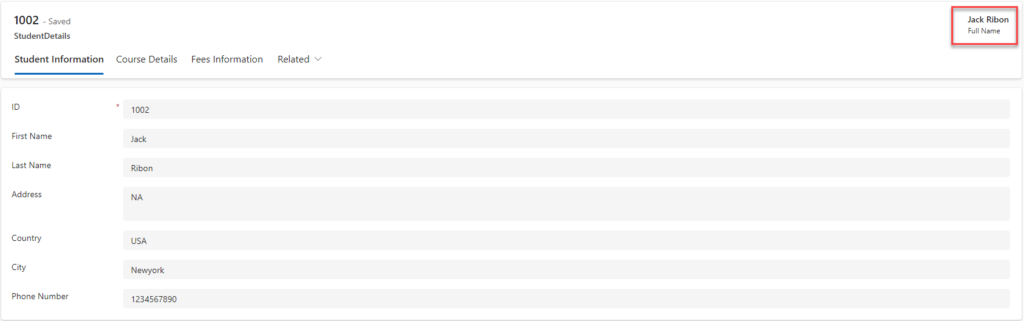
Step 3: After creating the ‘Full Name’ column, drag and drop it into the header section of the app, then save and publish the form.


03


Step 4: Once the details are submitted, the full name will be displayed in the header section.


04


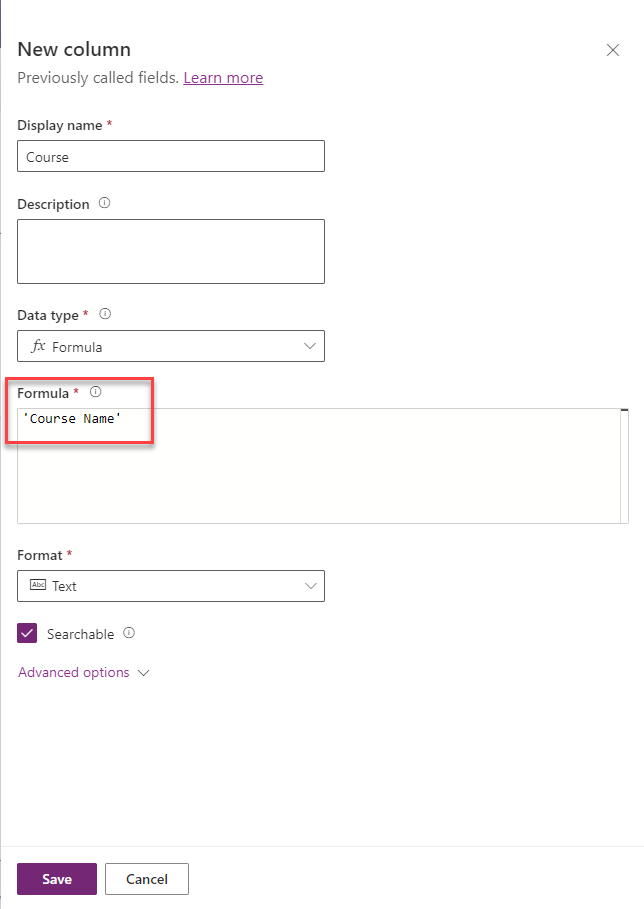
Step 5: To display another field in the header section, create a new column with the data type set to “Calculated.” In the formula, simply add the column name of the data you want to display in the header.


05


Step 6: After adding the details to that column, the data will be displayed in the header.


06


Conclusion: By leveraging formula columns and dynamic headers, users can access important information at a glance, enhancing both navigation and usability. This approach is particularly effective in forms with multiple sections or tabs, ensuring that key details remain visible without the need to switch between different parts of the form.


Break Down Language Barriers: Translate Documents in SharePoint using SharePoint Premium

How might content translation be useful for your organization? If you work across regions, being able to quickly translate content enables better multilingual collaboration and communication. If your business has a global reach, localizing business content for your customers optimizes user experiences. Finally, if you are in a regulated industry or need to comply with local or national laws, automated translation at high scale helps ensure documentation is available in required languages.

With business transactions and collaboration increasingly global, SharePoint Premium now enables documents to be translated directly from a document library into another language. The original file is duplicated, and all formatting and structure are preserved during the translation. This feature is incredibly useful for organizations that receive content in multiple languages—eliminating the need for external translation services or copying/pasting content into an online translator.

Before jumping in, it’s essential to ensure you’re following SharePoint security best practices to protect your multilingual content and manage permissions efficiently. For organizations planning broader SharePoint adoption, you can also explore how to migrate your file share to SharePoint Online seamlessly. And if you’re looking to maximize ROI across collaboration efforts, don’t miss the top features and benefits of SharePoint Online for teamwork.

This is currently only available in your organisation if SharePoint Premium (Syntax) pay as you go is configured in your tenant & linked to an Azure subscription. In the M365 Syntex admin centre ensure your Azure subscription is setup.

Enabling Document Translation in your Tenant

Before we begin, ensure you have a Syntex Pay As You Go subscription set up and linked to an Azure subscription. You can manage this in the M365 Admin Center through the Syntex Admin Center

Here’s how to enable Document Translation:

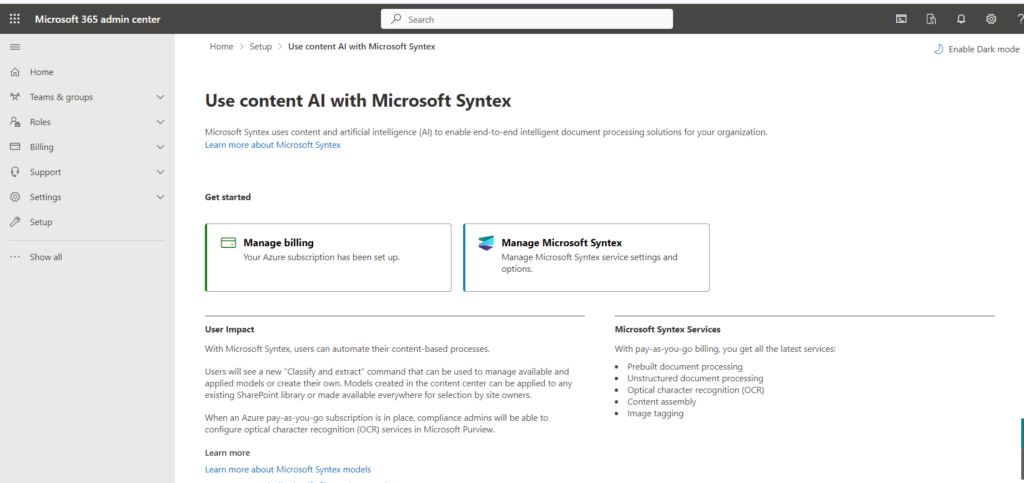
Access the M365 Syntex Admin Center:  Navigate to the M365 Admin Center and locate the Syntex Admin Center. (The specific location may vary depending on your interface).


IMG 1


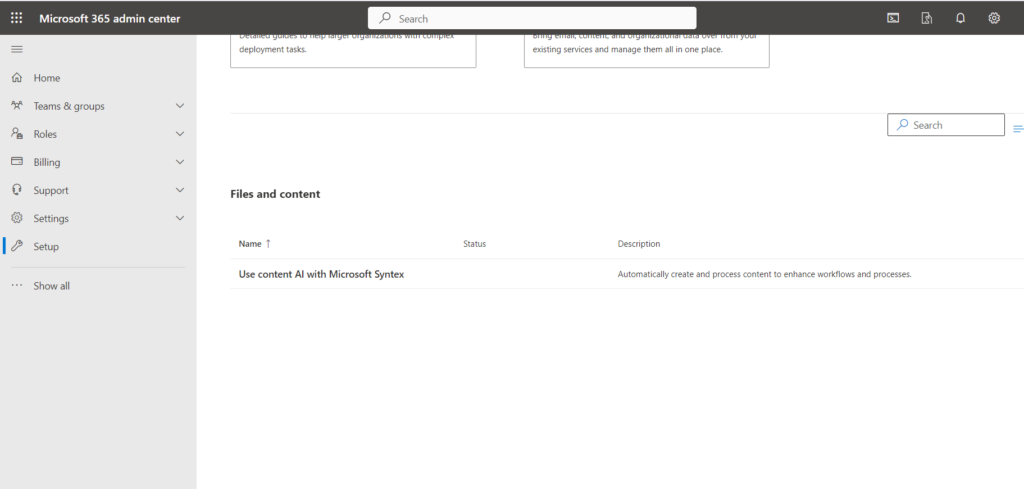
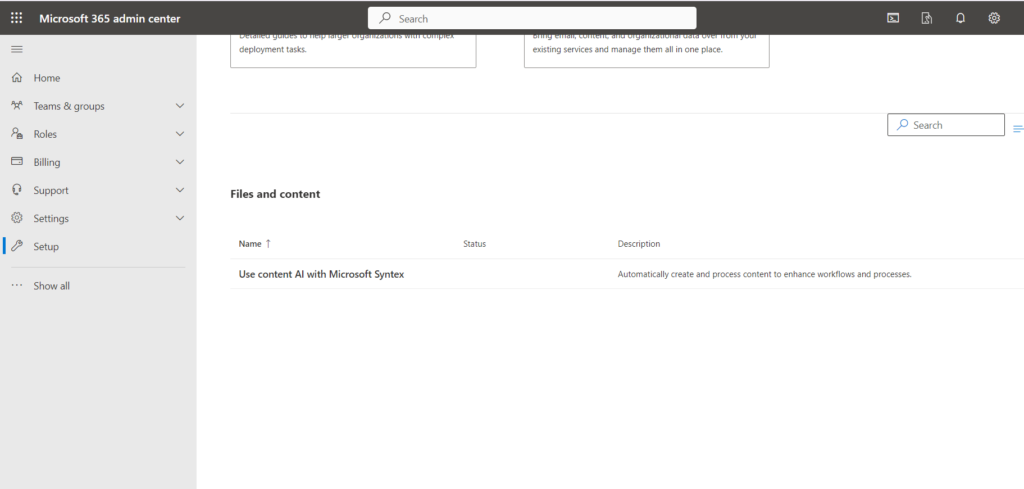
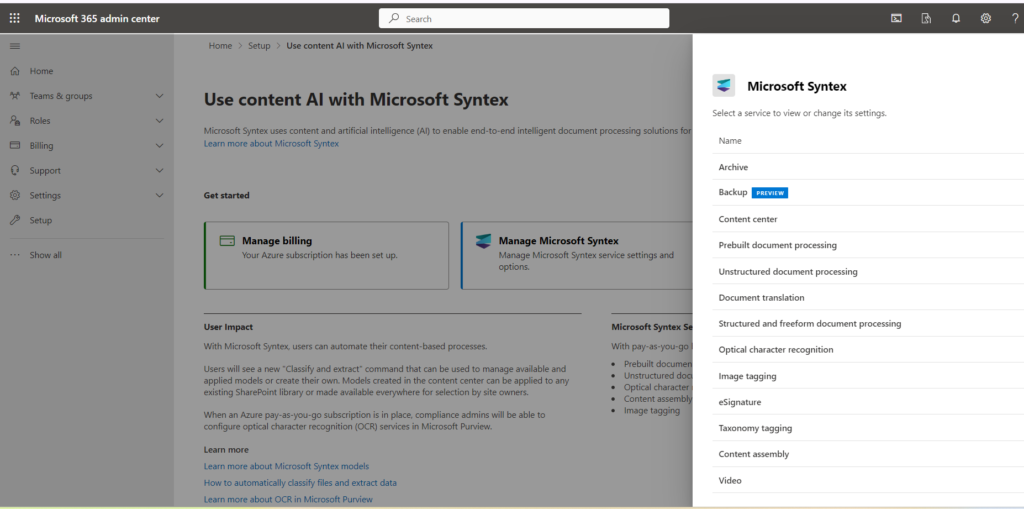
Verify Azure Subscription:  Within the Syntex Admin Center, make sure your Azure subscription is properly set up. Select the “Manage Microsoft Syntex” and then after select the “Use content AI with Microsoft Syntex.”


IMG 2


IMG 3


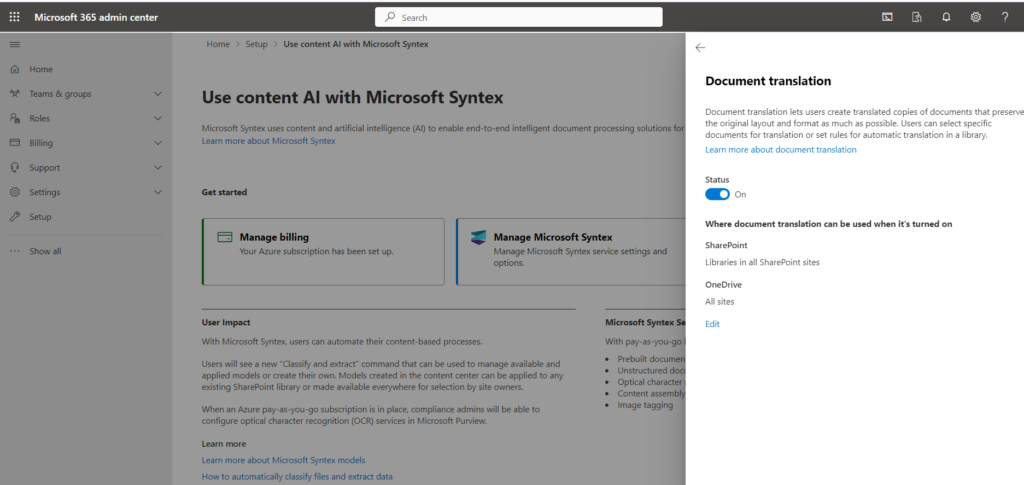
Enable Document Translation:  Select “Document Translation” service and turn on the status. Choose Specific SharePoint site to where you want to enable the “Document Translation” service.


IMG 4


IMG 5


SharePoint Premium Document Translation – On-Demand Translation

Go to a SharePoint Document library in one of the sites enabled for Document Translation. As mentioned previously there is no additional configuration required in the library to enable it for Document Translation other than the site being enabled for Document Translation

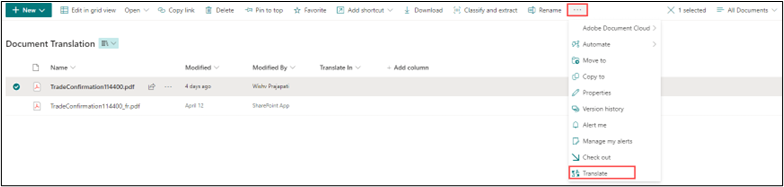
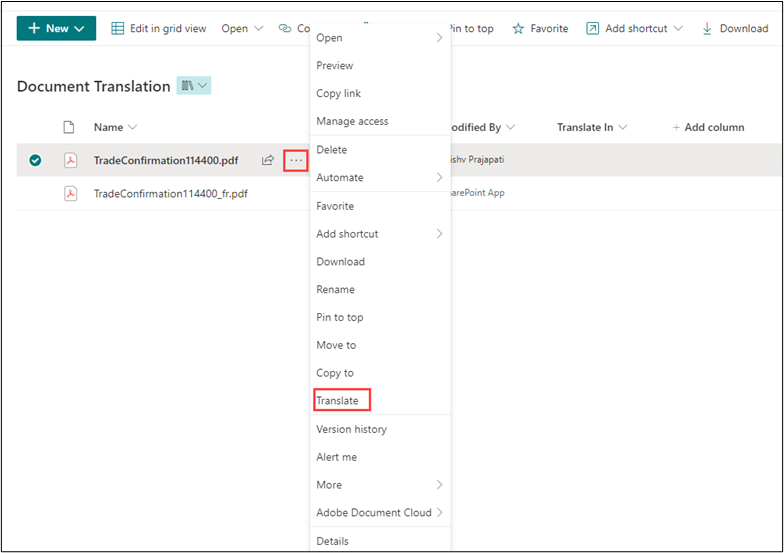
Now select the document or documents (multiple) in the document library. Then select from either the document library menu or the file menu (see two options below)


IMG 6


IMG 7.1


Select the “Translate” option.


IMG 8


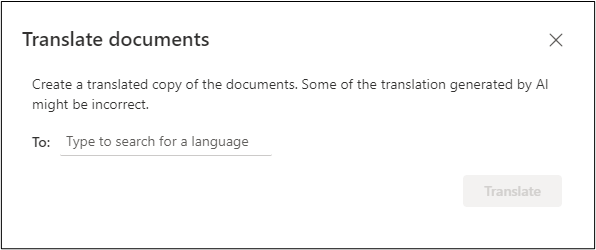
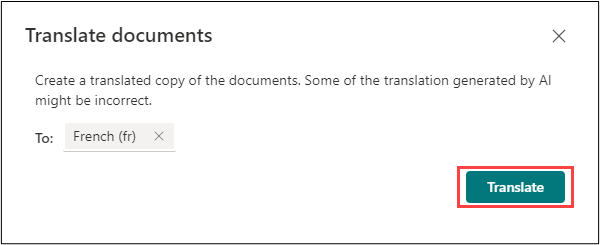
A Translate documents pop out then occurs, asking you to enter a language to translate the document into. Click on the text box to enter a language.


IMG 9


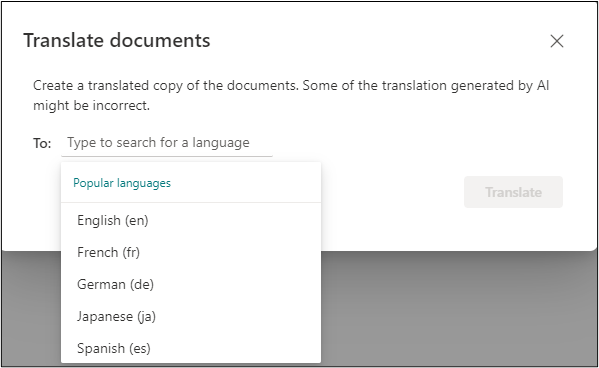
Five popular languages will appear (English, French, German, Japanese and Spanish) in a drop down.


IMG 10


Document Translation supported 133 languages, which is the same as the Azure Translation Service. You can type in the language short code i.e. fr to translate documents into French. My document is in English, so I want to translate it to French (fr).

Once selected or typed in the language will be displayed in the text box – then press the Translate button.


IMG 11


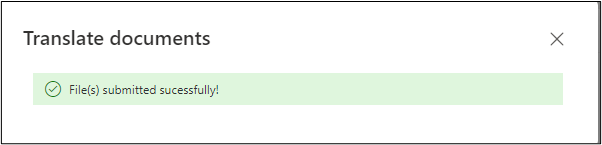
A confirmation appears to show the document has then been submitted successfully for translation.


IMG 12


After some time, copied and translated documents were added into the library. It has the same title as the original document, but the country code of the language used to translate i.e. fr for French has been appended to the filename I.e. TradeConfirmation114400_fr.docx


SharePoint Premium Document Translation – Document Library Rules

Documents when added to a document library can also be auto translated either when column in a document library change using SharePoint Document Library rules.

Here we will show how the Document Library rules can be configured. Browse to the Document Library then click on the Automate menu on the Document Library top bar then click on Rules, then Create a rule.


IMG 13


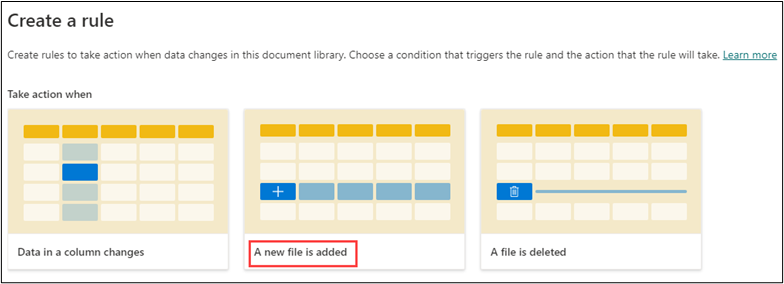
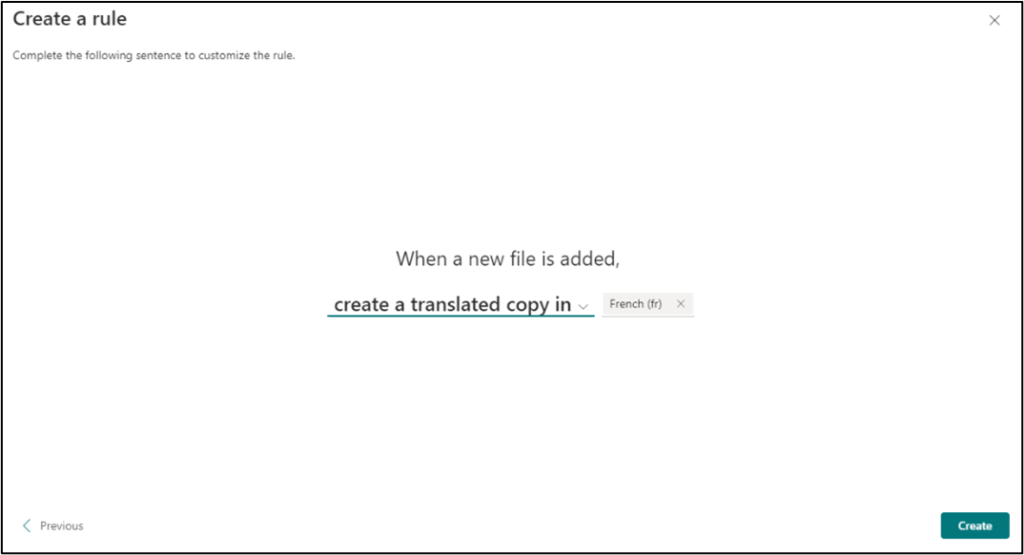
Configure a rule to trigger when “A new file is added.”. Within this rule, select the action “Create a translated copy in.”. Specify the language you want the file translated into. Click “Create Rule” to activate the automation.

There are two rule options that will work with translating documents “When a new file is added” & “Data in a column changes”. We are going to focus on when “A new file is added”.


IMG 14


IMG 15


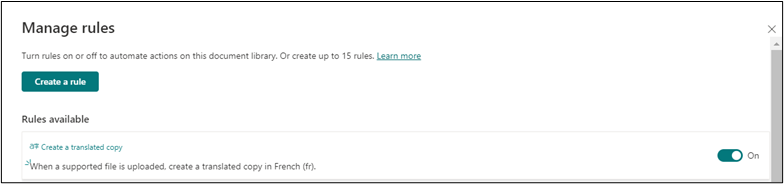
The Manage rules page is then displayed confirming the created rule.


IMG 16


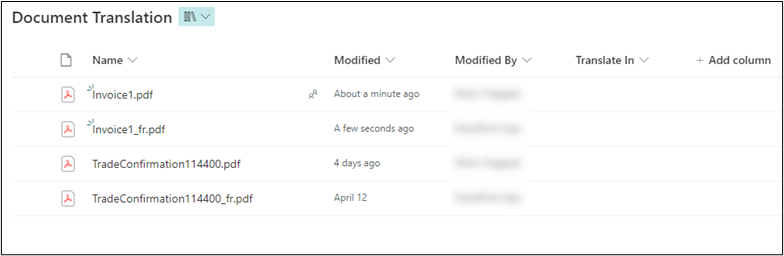
I will now upload the document “Invoices1” into the library. Shortly after the translation rule is automatically triggered and the document is auto translated into French “Invoices1_fr.”


IMG 17


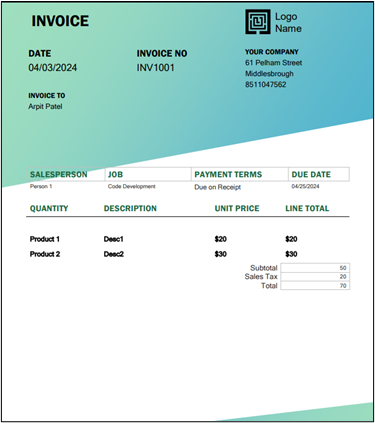
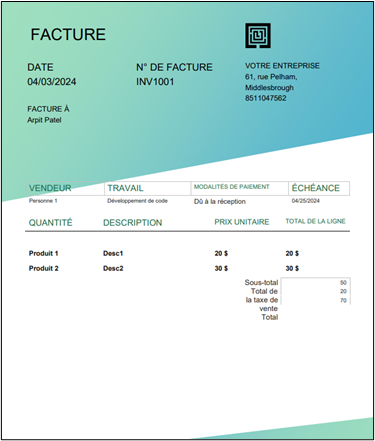
Here’s the original English document and its French translation.


IMG 18


IMG 19


Summary

Document Translation is an excellent addition to the SharePoint Premium suite, particularly for multi-geo companies and those that produce or receive documents in foreign languages.

This feature allows users with the permission to create documents in a library to translate documents directly from a SharePoint document library. Eliminating the need for copying and pasting content into online translation sites, sending content to external organisations, or relying on custom development.

How to Load 2000+ Records in Canvas PowerApps from SharePoint List using collection

Summary:

Loading large datasets into Canvas PowerApps from a SharePoint List can be challenging due to PowerApps’ delegation limits and performance constraints. In this blog post, we explore effective techniques to efficiently handle and load over 2000 records. We’ll discuss the importance of optimizing your SharePoint list and using collections to manage data. Our approach focuses on loading data using collections to enhance performance and ensure a smoother user experience.

Step1:

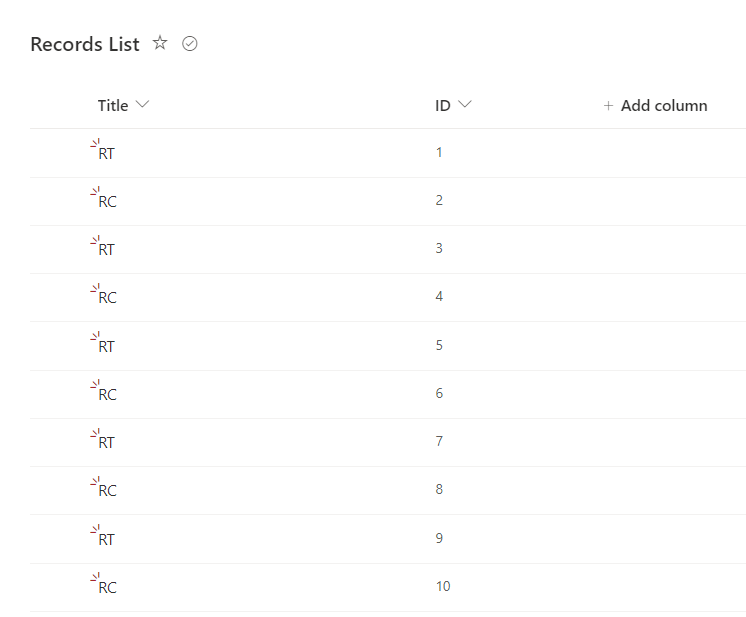
Create a SharePoint list and use the default ‘Title’ column to add data. Populate the list with approximately 5,000 records.


IMG00


Step2:

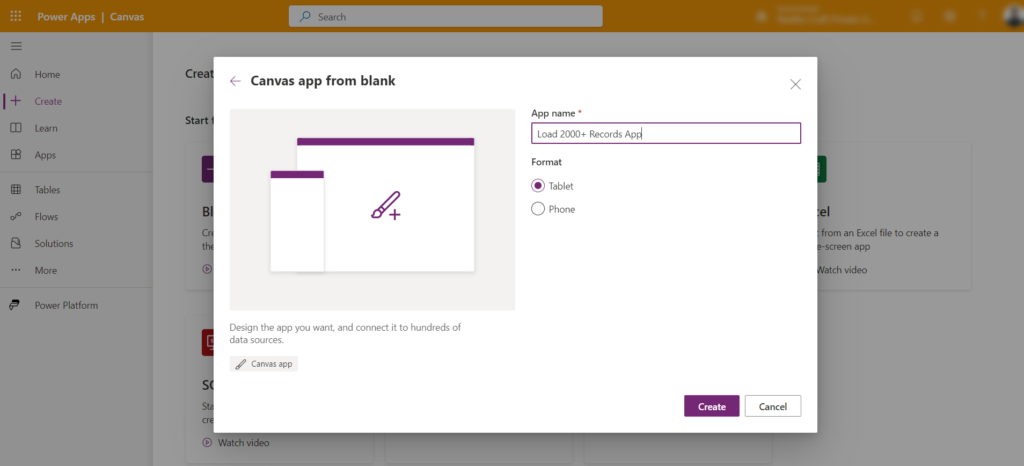
Create canvas PowerApps from app.powerapps.com.


IMG01 1


Step3:

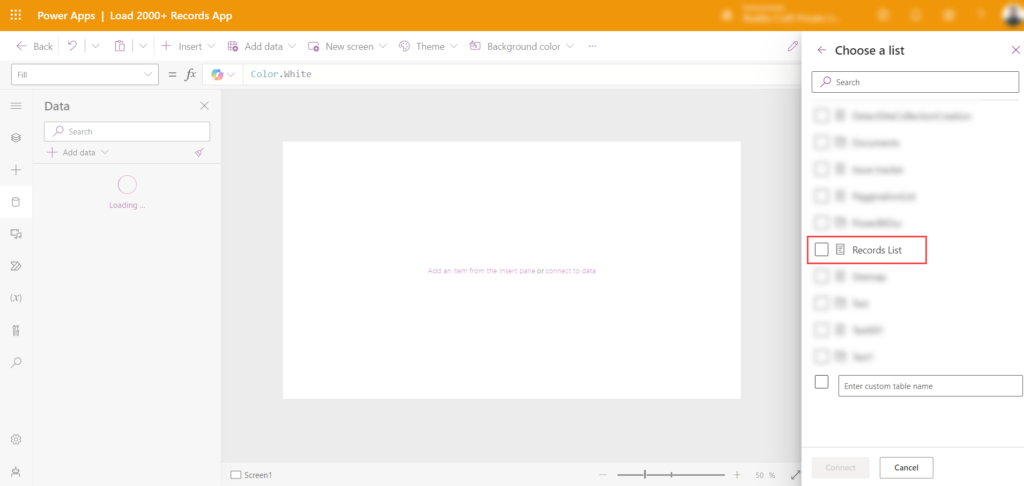
Add the SharePoint List as data source ‘Records List’.


IMG02 2


Step4:

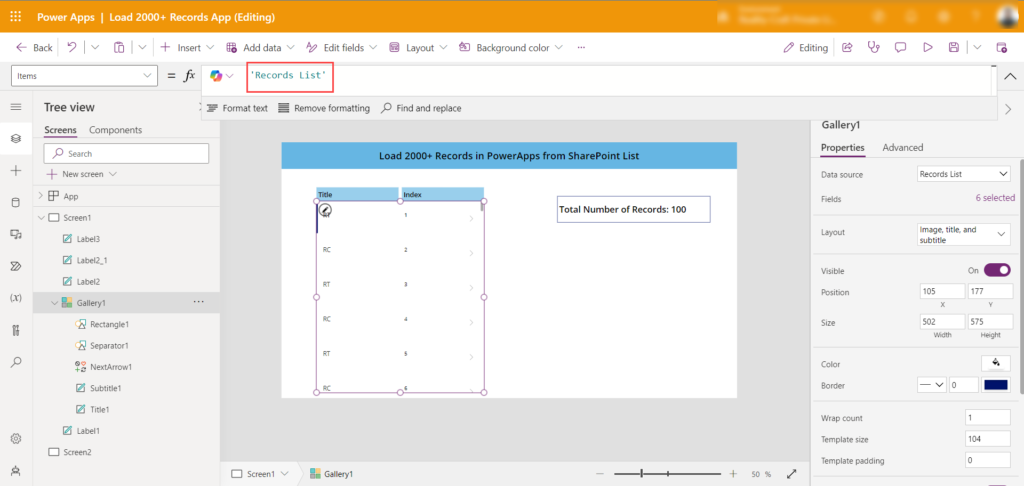
Add a ‘Vertical Gallery’ and insert two labels. Set the data source to SharePoint List. Set the values to ThisItem.Title and ThisItem.ID. Rename the headers in the gallery to ‘Title’ and ‘Index’.


IMG03 2


Step5:

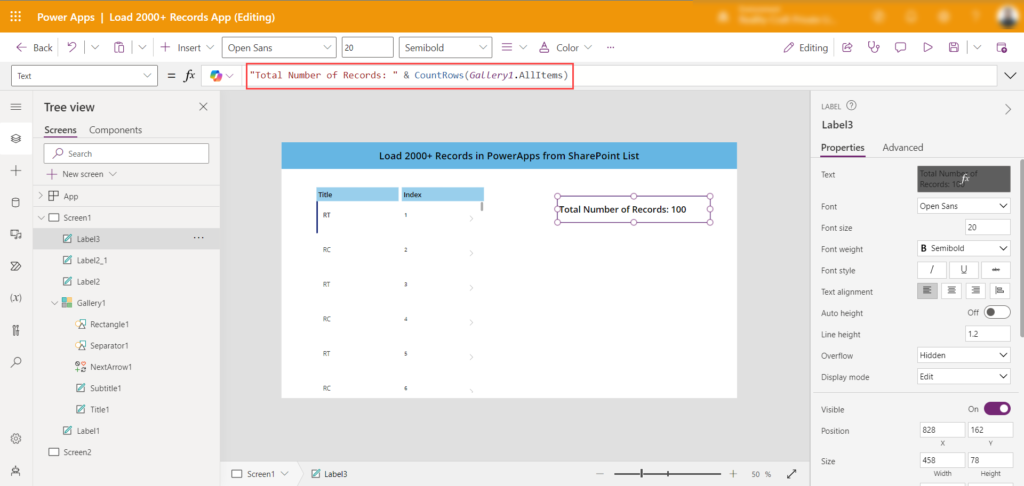
Add a label to display the number of records loaded in the app.

Code:

“Total Number of Records: ” & CountRows(Gallery1.AllItems)


IMG04 1


Step6:

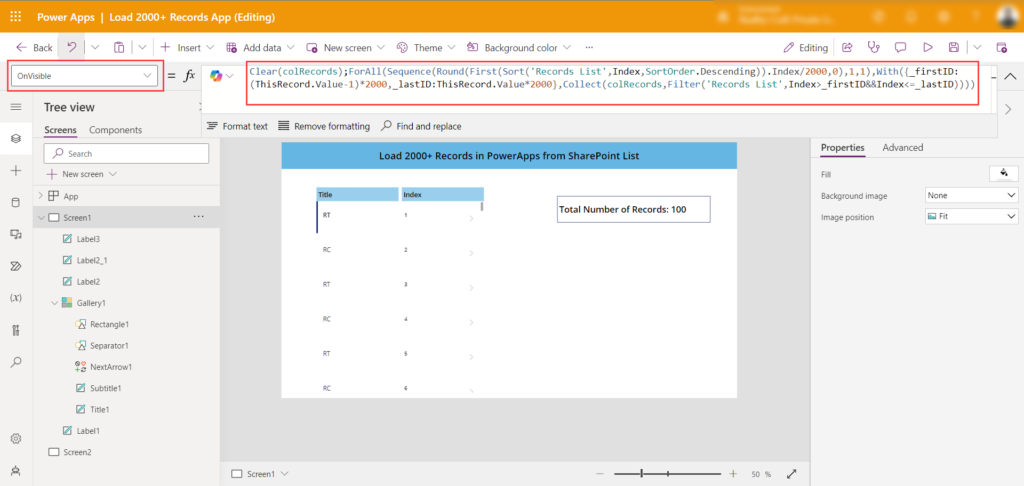
Create an additional screen to handle redirection, set the collection, and load data into it. This logic can be implemented in various places within the app, such as the App.OnStart event, a Button click event, or the Screen Visible property. In this case, we will write the logic in the Screen Visible property so that it executes automatically during screen transitions.

  • Currently, we have approximately 5000 records in our SharePoint list, and the PowerApps “Data row limit” is set to 2000 records. Therefore, the total number of records in the SharePoint list (5000) divided by the data row limit (2000) equals approximately 2.5, which rounds up to 3. Based on this, our logic involves looping through 3 iterations to insert records into the “colRecords” collection.

Code: Clear(colRecords);ForAll(Sequence(Round(First(Sort(‘Records List’,Index,SortOrder.Descending)).Index/2000,0),1,1),With({_firstID:(ThisRecord.Value-1)*2000,_lastID:ThisRecord.Value*2000},Collect(colRecords,Filter(‘Records List’,Index>_firstID&&Index<=_lastID))))


IMG05 1


Step7:

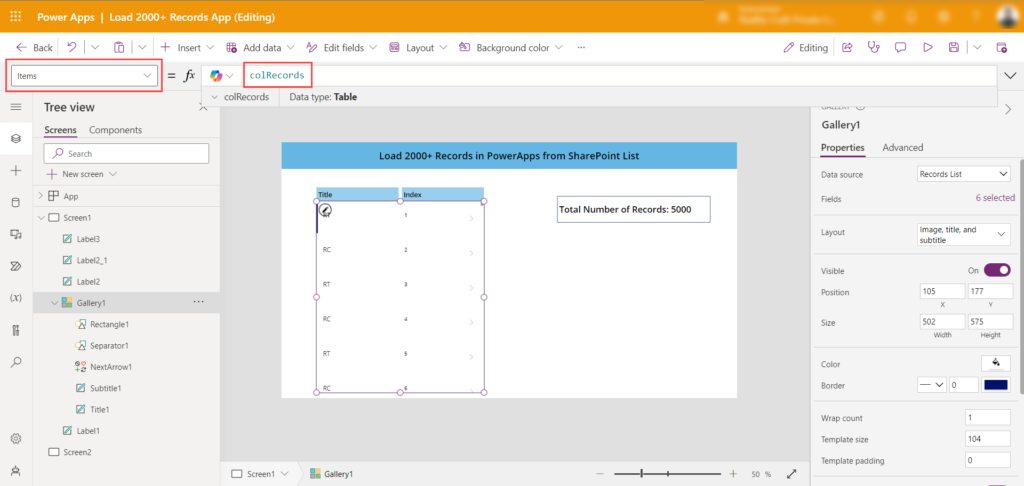
Change the data source name in the Gallery “Items” property to the collection name “colRecords”.


IMG06 1


Step8:

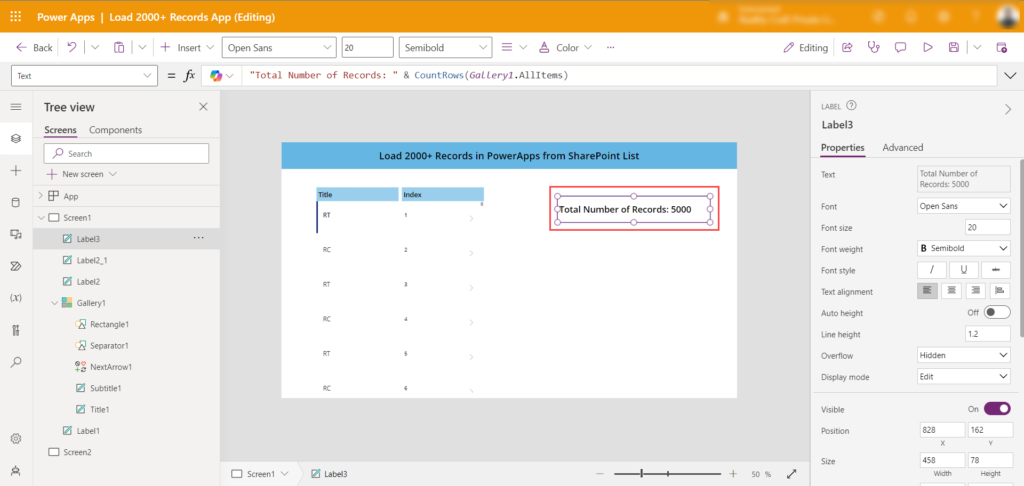
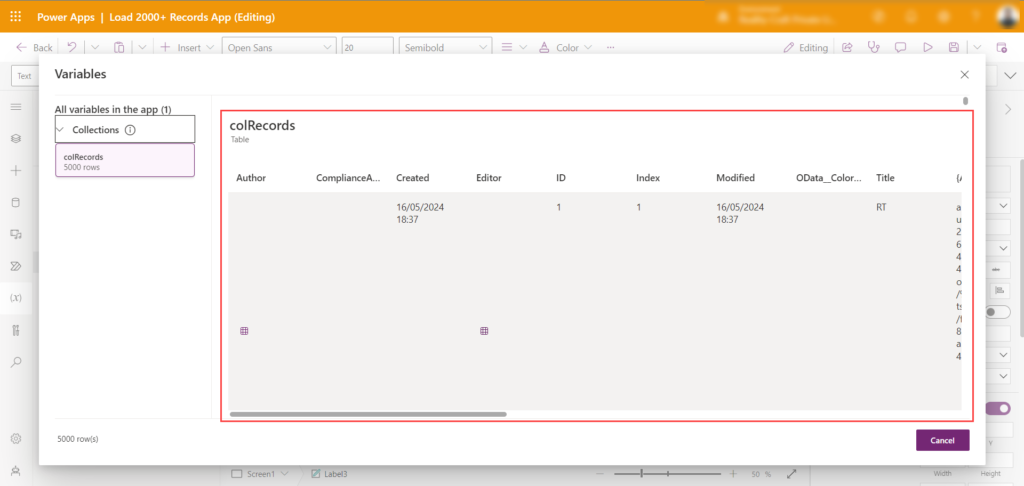
Now, switch from Screen1 to Screen2 and check the “Total Number of Records” display; it should show a total of 5000 records.


IMG07 1


Step9:

Now you can use the items from this collection throughout the application.


IMG08 1


Conclusion:

In conclusion, efficiently loading over 2000 records in Canvas PowerApps from a SharePoint List requires a strategic approach. By optimizing the SharePoint list and leveraging collections, you can work within PowerApps’ delegation limits while ensuring a smoother user experience. The outlined steps, from setting up the canvas and gallery to implementing mathematical logic for data retrieval, enable you to manage large datasets effectively. By breaking down the data into manageable chunks and utilizing collections, you enhance performance and responsiveness, ultimately delivering a more efficient application for users.

Offline capability in Canvas PowerApps

Summary:

  • In today’s digital landscape, the demand for offline-capable applications is skyrocketing. With the prevalence of mobile devices and the need for seamless user experiences, mastering the art of developing offline-capable Canvas PowerApps for both Windows and mobile platforms is crucial for staying ahead in the game.

Leveraging Canvas PowerApps for Offline Functionality

  • Canvas PowerApps, with their flexibility and versatility, provide the perfect platform for building offline-capable applications. By leveraging features like local data storage and offline data synchronization, developers can create robust solutions that deliver a seamless user experience regardless of network availability.

Creating Application

  1. Open the Browser and pate the URL: https://make.powerapps.com/.
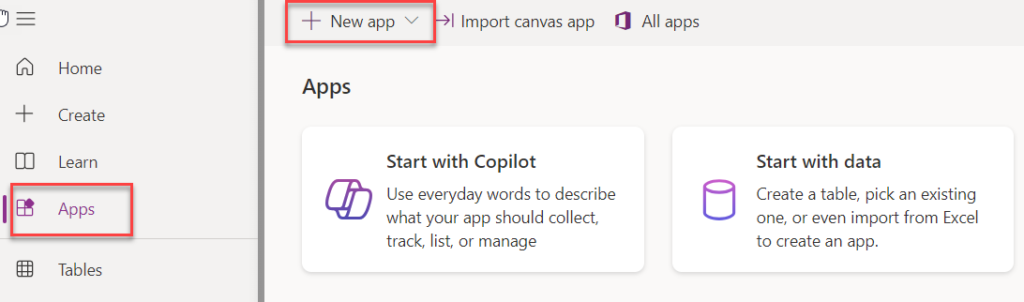
  2. Click “Apps” in the left panel.
  3. Click on the “New app”.

    Img 01 2

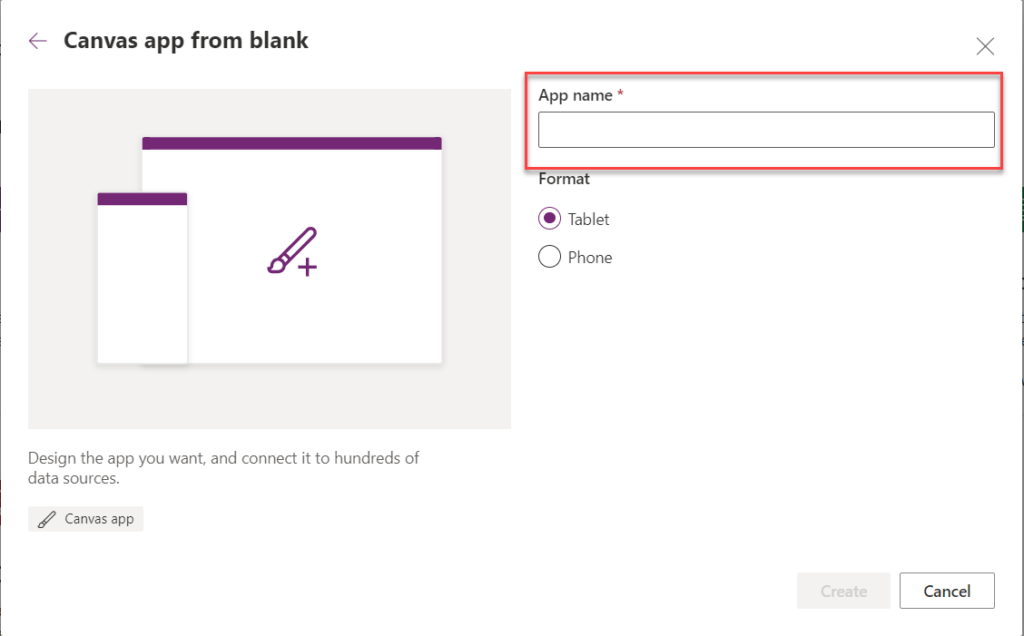
  4. Choose the Blank Canvas app and enter the app’s name as it appears in the image below:

    Img 02 2

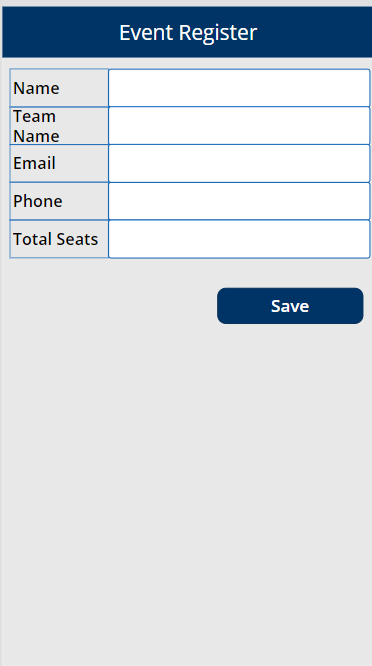
  5. Once the app is created. Connect to the SharePoint list as data source as we will store the data in SharePoint list. In this example we will utilize the Events list with columns mentioned in below Power Apps UI. Now, create the similar UI in Power Apps.

    Img 03 2

  6. If data submission without form control is required, utilize the Patch function to update records effectively.
  7. Prior to integrating the Patch function, establish a connection to the SharePoint list as the data source, ensuring it is properly configured.
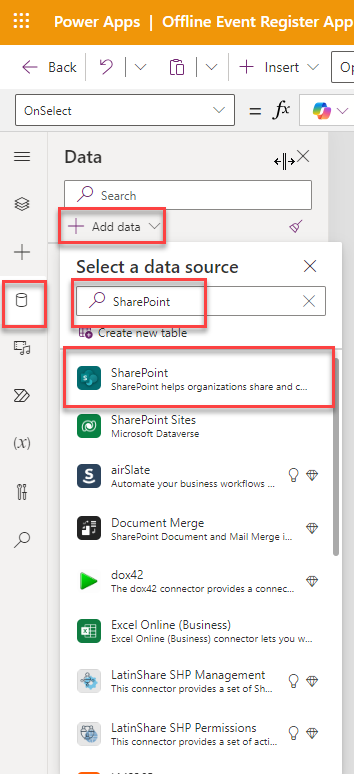
  8. Navigate to the data Source icon, search for the SharePoint connector, and designate the site where your list is configured.

    Img 04 2

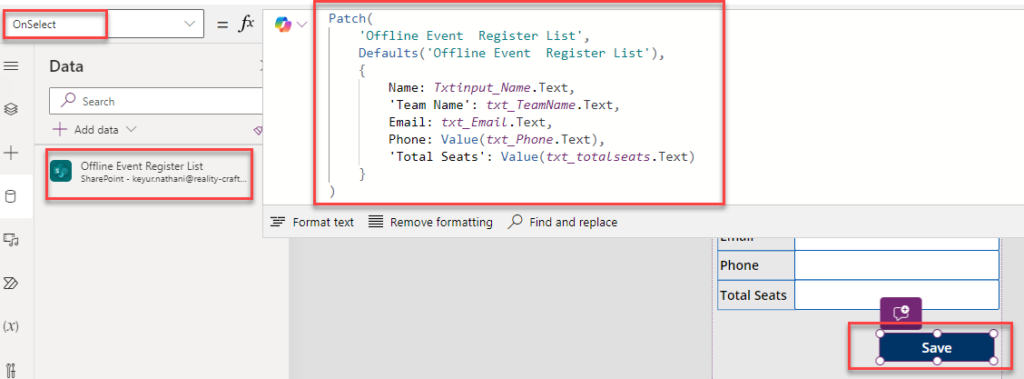
  9. After successfully establishing the connection to the data source, it will appear on the left side of the interface. Next, incorporate the Patch function into the button’s “on Select” event, as illustrated in the image below.

    Img 05 2

  10. Since the Patch function may have limitations, it works only when the network connection is available, consider utilizing Power Apps Collection functionality to store data temporarily. This enables efficient management and manipulation of data within the application.
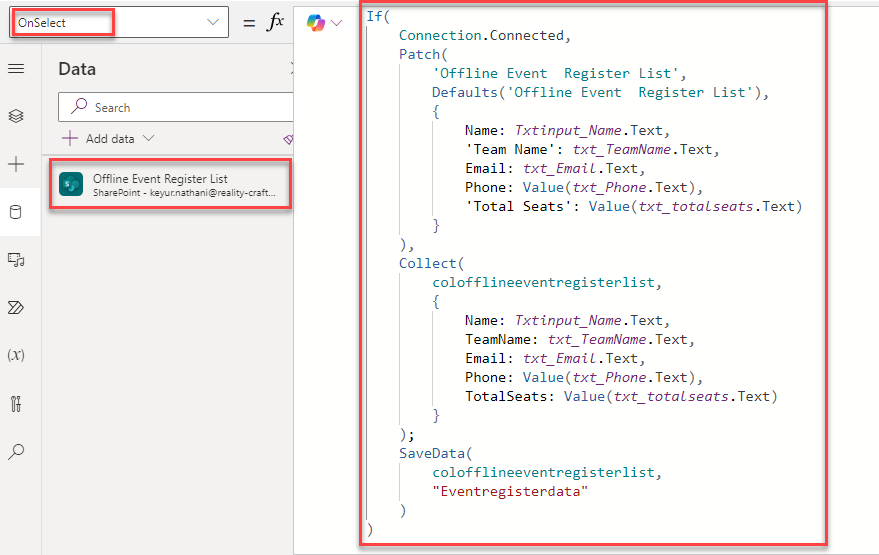
  11. Power Apps offers a useful function called Connection. Leveraging this function, we have implemented logic: if the connection is available, we utilize the Patch function; otherwise, we store the data in a collection and save the file locally on the device.
  12. In Power Apps, to verify the availability of the connection, incorporate an if condition to check if the connection is accessible, as demonstrated in the image below.

    Img 06 2

    Code:

    If (

    Connection.Connected,

    Patch (

    ‘Offline Event  Register List’,

    Defaults(‘Offline Event  Register List’),

    {

    Name: Txtinput_Name.Text,

    ‘Team Name’: txt_TeamName.Text,

    Email: txt_Email.Text,

    Phone: Value(txt_Phone.Text),

    ‘Total Seats’: Value(txt_totalseats.Text)

    }

    );

    Notify (“The Event has been Submitted successfully…”);

    Navigate (

    SuccessScreen,

    ScreenTransition.Cover

    ),

    Collect (

    colofflineeventregisterlist,

    {

    Name: Txtinput_Name.Text,

    ‘Team Name’: txt_TeamName.Text,

    Email: txt_Email.Text,

    Phone: Value(txt_Phone.Text),

    ‘Total Seats’: Value(txt_totalseats.Text)

    }

    );

    SaveData (

    colofflineeventregisterlist,

    “Eventregisterdata”

    );

    Notify (“The Event has been Submitted successfully.”),

    Navigate (

    SuccessScreen,

    ScreenTransition.Cover

    )

    )

  13. Now, let us incorporate a new Scrollable Screen and integrate a Gallery into the DataCard, as shown in the image below.

    Img 07 2

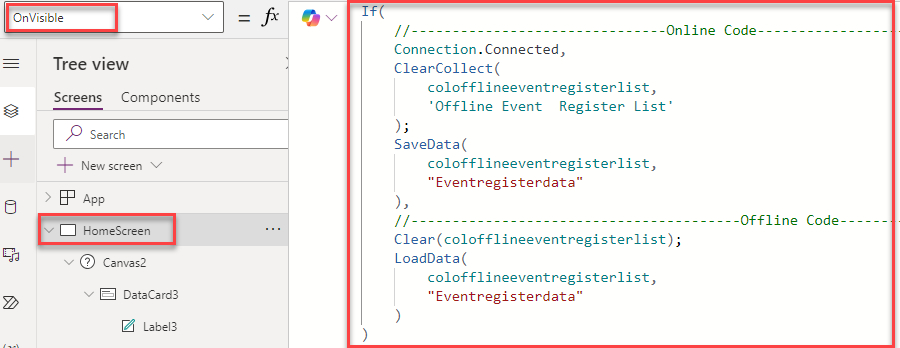
  14. Certainly! You can integrate the same code into the “OnVisible” property of the home screen to check the network connectivity status and adjust the functionality accordingly. Here is how you can do it:
    Img 08 2

    Code:

    If (

    //——————————-Online Code————–

    Connection.Connected,

    ClearCollect ( colofflineeventregisterlist,

    ‘Offline Event  Register List’

    );

    SaveData (

    colofflineeventregisterlist,

    “Eventregisterdata”

    ),

    //——————————Offline Code———–

    Clear(colofflineeventregisterlist);

    LoadData (

    colofflineeventregisterlist,

    “Eventregisterdata”

    )

    )

  15. It sounds like you are encountering an error message stating, “There was a problem saving your data. Data cannot be saved when running in a web browser.” This message typically occurs when attempting to save data locally in a web browser environment, which is restricted due to security reasons.
  16. However, if your app is functioning correctly despite this message, you can safely ignore it. Power Apps sometimes display this message even when data saving is not the main concern or when it is working as intended. Just ensure that your app’s functionality is not affected, and users can continue using it without any issues. If needed, you can provide a brief explanation to users about this message to alleviate any concerns.
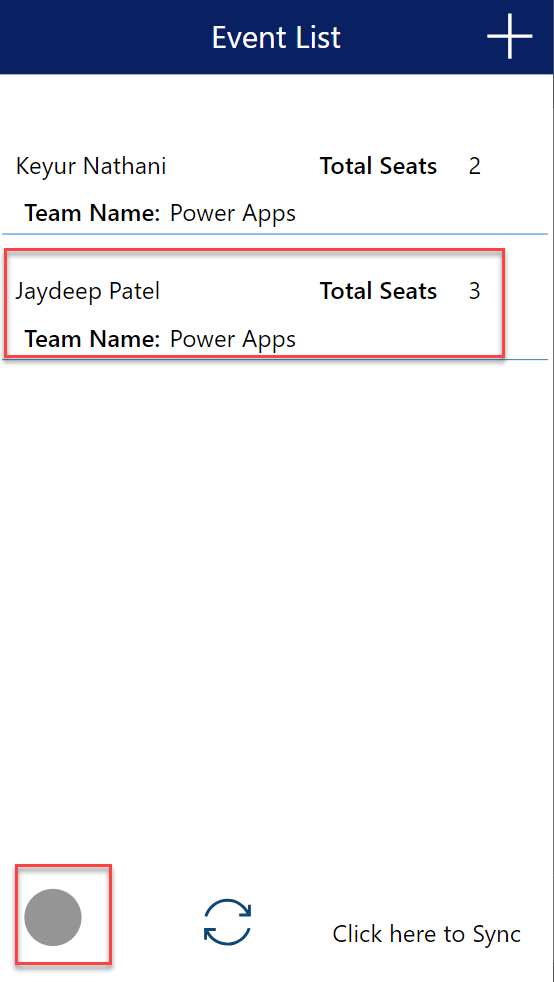
  17. When the app detects that it is in offline mode, users can be informed that their data is being saved locally. When the app goes online, users can click on the Sync icon to synchronize all locally saved items with the SharePoint list. Here is a general approach:

    Img 09 2

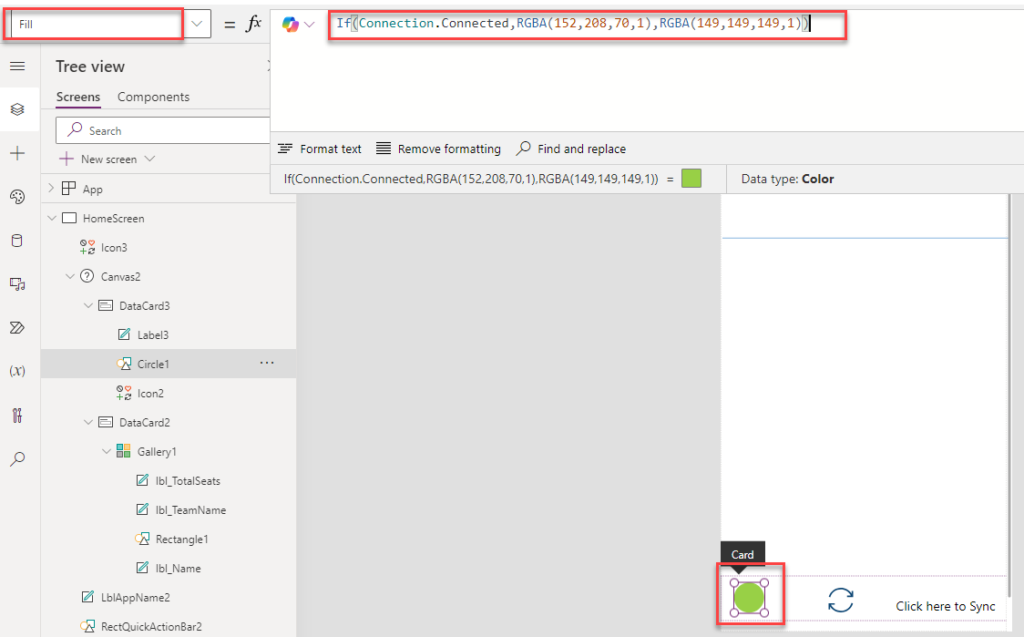
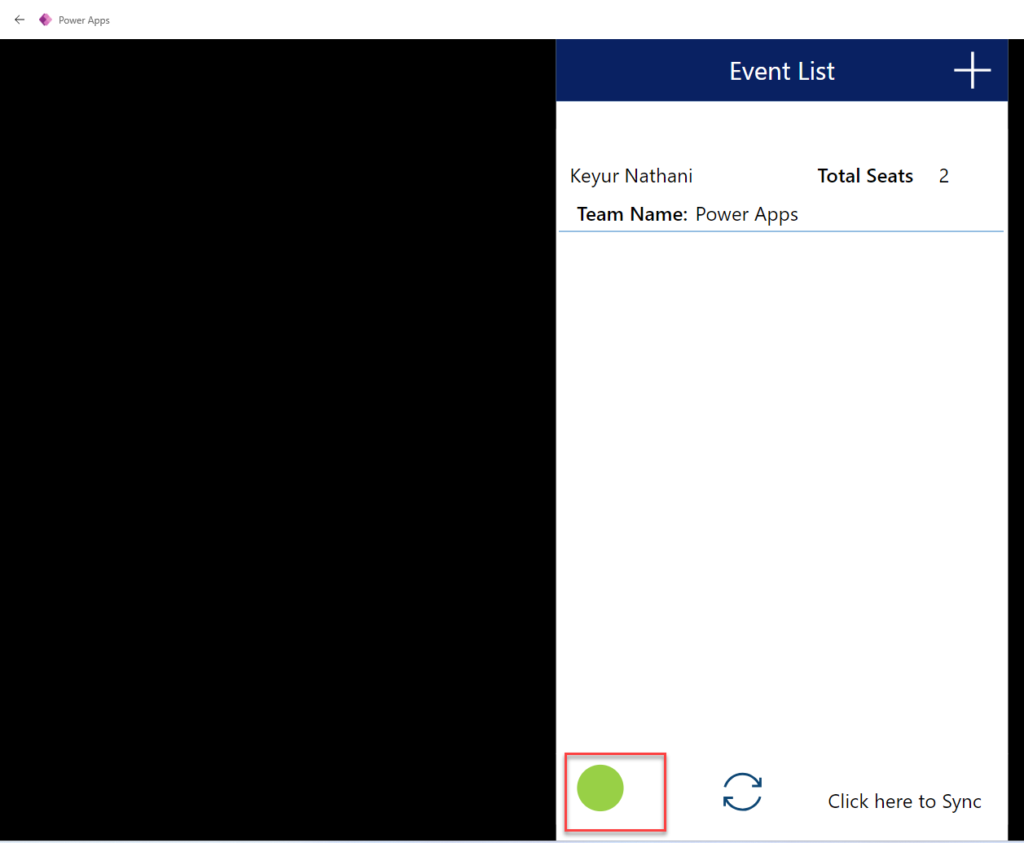
  18. To change the color of the Circle icon based on the network status (online or offline), you can adjust its fill property dynamically in Power Apps. Here is how you can implement this:
    • Define Online and Offline Colors: Define the colors you want to use for representing online (green) and offline (gray) statuses.
    • Update Circle Icon Fill Property: Update the fill property of the Circle icon based on the network status. You can use the If function to conditionally set the fill color.

      Here is a sample code snippet:
      Fill: If (Connection.Connected,RGBA(152,208,70,1),RGBA(149,149,149,1))

      Img 10 1

      Img 11 1

  19. Now that the app is configured to function offline, you can proceed to install the Power App on your preferred device, whether it is a mobile device or a Windows device.
  20. After installing the Power Apps application, ensure that you use the correct email address with which the app was shared. This ensures seamless access to the app and its functionalities tailored to your account.
  21. If you have added new entries to the app while offline, those entries will be stored locally but will not be immediately added to the SharePoint list since the app is offline. However, once the app reconnects to the network, you can implement a synchronization mechanism to upload the locally stored entries to the SharePoint list.

    Here is a general approach to achieve this:

    • Local Storage: When the app is offline and new entries are added, they should be stored locally using mechanisms like Power Apps Collections or SaveData function.
    • Sync Functionality: Implement a Sync button or mechanism that checks for network connectivity. When the app comes online, this mechanism should synchronize the locally stored entries with the SharePoint list using functions like Patch or Collect.

      Img 12 1

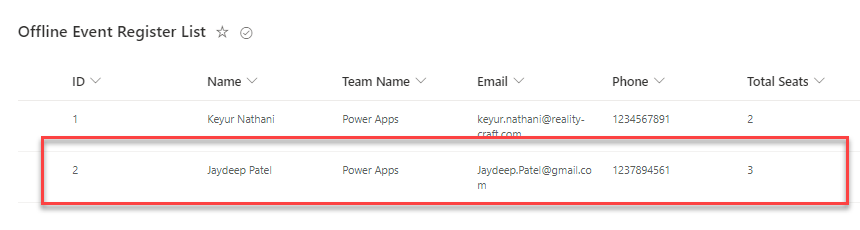
    • Here is a SharePoint List snapshot as shown in the below image.

      Img 13 1

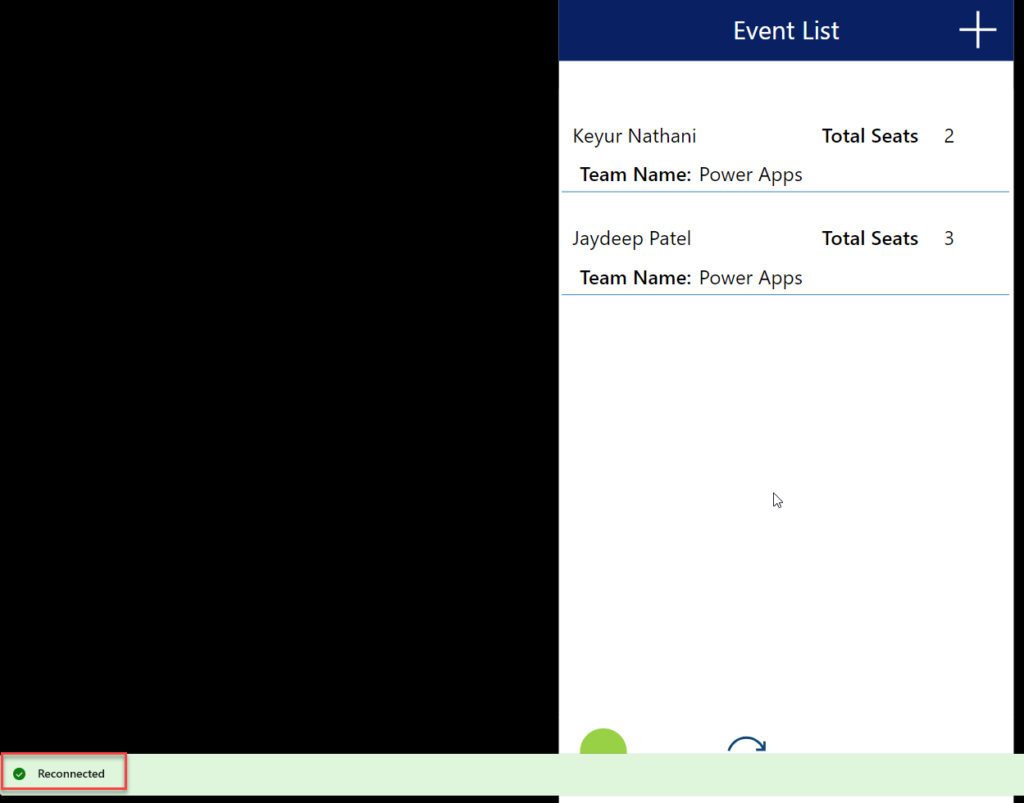
  22. Now We are Connected the app with Network then it is shown the screen as show into the below image.

    Img 14

  23. Now the We click on the Sync Button and check the again the data is insert into our SharePoint list or not.
  24. After clicking on the Sync button, you will want to verify whether the data has been successfully inserted into your SharePoint list. Here is how you can do it:
    • Sync Button Functionality: Ensure that the Sync button triggers the synchronization process, where locally stored data is uploaded to the SharePoint list.
    • Notification or Confirmation: Provide a notification or confirmation message to indicate that the synchronization process has been initiated.
    • Check SharePoint List: After the synchronization process is complete, manually check your SharePoint list to confirm whether the new data entries have been inserted successfully.

      Img 15

Simplifying & Mastering Complex ECM System Migrations with Reality Tech’s Strategy and Tzunami Deployer’s Precision

In the rapidly evolving digital landscape, businesses must ensure their content management systems are modern, efficient, and future-proof. Migrating from legacy Enterprise Content Management (ECM) systems to modern platforms can be daunting. However, Reality Tech and Tzunami Deployer provide a comprehensive solution to simplify and master this complex process. This blog delves into the detailed migration process, highlights the benefits of using Tzunami Deployer, and showcases Reality Tech’s strategic approach to handling complex migrations.

Understanding the Migration Process

Migrating ECM systems involves several stages, each requiring meticulous planning and execution to ensure a seamless transition. Here’s a breakdown of the process:

  • Assessment and Planning
    • Initial Assessment: Reality Tech begins with a thorough assessment of the existing ECM system. This includes understanding the data structure, content volume, user roles, and permissions.
    • Planning: Based on the assessment, a detailed migration plan is developed. This plan outlines the timeline, resources required, potential challenges, and mitigation strategies.
  • Preparation
    • Data Cleanup: Before migration, it’s crucial to clean up the data. This involves identifying and removing redundant, obsolete, and trivial (ROT) data to streamline the migration process.
    • Mapping: Reality Tech maps the content from the source ECM system to the target platform. This ensures that metadata, permissions, and structures are accurately transferred.
  • Execution
    • Tzunami Deployer Utilization: Tzunami Deployer is pivotal in the execution phase. Its precision and efficiency ensure a seamless migration. Here’s how:
    • Automated Migration: Tzunami Deployer automates the migration process, significantly reducing manual intervention and the risk of errors.
    • Real-time Monitoring: It provides real-time monitoring and reporting, allowing for immediate identification and resolution of issues.
    • Preservation of Metadata and Permissions: One of the standout features of Tzunami Deployer is its ability to preserve metadata and permissions, ensuring that the content remains intact and secure post-migration.
  • Validation and Testing
    • Post-migration Validation: Reality Tech conducts thorough validation to ensure that all content has been accurately migrated. This includes checking for data integrity, completeness, and security.
    • User Acceptance Testing (UAT): Users are involved in the testing phase to ensure the migrated system meets their needs and expectations. Feedback is collected and any necessary adjustments are made.
  • Go-live and Support
    • Go-live Preparation: A detailed go-live plan is executed, including final data synchronization, system configuration, and user training.
    • Ongoing Support: Post-migration, Reality Tech provides continuous support to address any issues, ensure smooth operation, and help users adapt to the new system.

Benefits of Using Tzunami Deployer

Tzunami Deployer offers several advantages that make it the ideal tool for ECM system migrations:

  • Efficiency
    • Tzunami Deployer’s automation capabilities significantly reduce the time and effort required for migration. It handles large volumes of data efficiently, ensuring minimal downtime and disruption to business operations.
  • Precision
    • The tool’s precision ensures that all content, metadata, and permissions are accurately migrated. This minimizes the risk of data loss or corruption, providing peace of mind during the migration process.
  • Flexibility
    • Tzunami Deployer supports various ECM systems and target platforms, offering flexibility to businesses regardless of their current setup or future needs. It can handle complex migration scenarios, making it suitable for organizations of all sizes and industries.

Reality Tech’s Strategic Approach

Reality Tech’s strategic approach is crucial to the success of complex ECM system migrations. Here’s how their strategy complements the capabilities of Tzunami Deployer:

  • Comprehensive Assessment

Reality Tech’s detailed assessment ensures a deep understanding of the existing ECM system and the specific needs of the business. This forms the foundation for a customized migration plan that addresses all potential challenges.

  • Customized Solutions

No two migrations are the same. Reality Tech develops customized solutions tailored to the unique requirements of each business. This includes creating specific workflows, mapping strategies, and data transformation processes.

  • Expertise and Experience

With years of experience in ECM system migrations, Reality Tech brings a wealth of knowledge and expertise to the table. Their team of experts ensures that the migration is handled professionally and efficiently, minimizing risks and maximizing success.

  • Continuous Support

Post-migration support is critical to ensuring the new system’s success. Reality Tech provides continuous support to help businesses adapt to the new platform, address any issues, and optimize their operations.

Conclusion

Migrating from legacy ECM systems to modern platforms can be complex and challenging. However, with Reality Tech’s strategic approach and the precision of Tzunami Deployer, businesses can simplify and master the migration process. The detailed process, efficiency, and flexibility offered by these solutions ensure a seamless transition, allowing businesses to future-proof their content management systems and stay ahead in the digital age.

Embrace the future of content management with Reality Tech and Tzunami Deployer – the perfect partners for a successful ECM system migration.

Achieving Data Accuracy and Compliance in Migrations with Insights from Reality Tech and Tzunami Deployer

Ensuring data accuracy and compliance during content migrations is paramount. As organizations move from legacy systems to modern platforms, maintaining the integrity of their data and adhering to regulatory requirements become critical challenges. This is where the synergy between Reality Tech and Tzunami Deployer proves invaluable. By leveraging advanced techniques and robust methodologies, this partnership guarantees seamless, accurate, and compliant data migrations.

The Importance of Data Accuracy and Compliance

Data accuracy ensures that the information being migrated remains consistent, complete, and correct, preserving its usability and value. Compliance, on the other hand, involves adhering to legal, regulatory, and organizational standards throughout the migration process. Non-compliance can lead to legal repercussions, financial penalties, and a loss of trust from stakeholders.

Techniques Used by Tzunami Deployer to Maintain Data Integrity

Tzunami Deployer employs a suite of advanced techniques to maintain data integrity during migrations:

  • Metadata Preservation: Tzunami Deployer ensures that all metadata associated with content, such as author information, timestamps, and custom attributes, is accurately transferred. This is crucial for maintaining the context and traceability of data.
  • Content Validation: Before, during, and after migration, Tzunami Deployer performs rigorous content validation checks to ensure that the data remains unchanged and intact. Any discrepancies are flagged and rectified promptly.
  • Delta Migration: To minimize disruptions and ensure that the most recent data is migrated, Tzunami Deployer uses delta migration techniques. This involves migrating only the changes made since the last migration, ensuring data accuracy and consistency.
  • Audit Trails: Tzunami Deployer maintains detailed audit trails of the migration process. This not only helps in tracking the progress but also in verifying that the data integrity is upheld throughout.

Reality Tech’s Methodologies for Monitoring and Execution

Reality Tech brings a wealth of experience and robust methodologies to the table, ensuring the smooth execution and monitoring of migration projects:

  • Comprehensive Planning: Reality Tech begins with a thorough assessment of the existing environment and migration requirements. This includes understanding the data structure, compliance needs, and potential risks
  • Project Management Excellence: With a focus on clear communication and meticulous project management, Reality Tech ensures that all stakeholders are aligned and that the migration progresses as planned. Regular updates and checkpoints are integral to their approach.
  • Dedicated Migration Expert Team: Instead of relying on advanced monitoring tools, Reality Tech’s dedicated migration expert team continuously monitors the migration process. This hands-on approach ensures uninterrupted migration service and immediate resolution of any issues that may arise.
  • Post-Migration Support: The commitment of Reality Tech extends beyond the migration process. Post-migration support includes validating the success of the migration, addressing any residual issues, and ensuring that the new system operates optimally.

Conclusion

The partnership between Reality Tech and Tzunami Deployer exemplifies excellence in achieving data accuracy and compliance during content migrations. By leveraging Tzunami Deployer’s advanced techniques for maintaining data integrity and comprehensive compliance strategies, alongside Reality Tech’s meticulous methodologies for monitoring and execution, organizations can confidently transition to modern platforms. This synergy not only ensures a seamless migration process but also fortifies the organization’s data governance and regulatory adherence, paving the way for a future-proof digital transformation.

How to integrate Microsoft 365 Users with the Power Apps Modern Control People Picker

The out-of-the-box people picker in Modern Power Apps Form currently doesn’t work properly with Power Apps modern controls a limitation many teams encounter when trying to transform business processes with Power Apps. Therefore, the workaround is to use Microsoft 365 users with the Modern Control form.

First need to create a SharePoint list with the following types of columns:

  • Name: Single line of text
  • Department: Choice
  • Manager: People picker


IMG 01

Step 1: Go to Power Apps and create an app. In the app, add a modern form to the screen — if you’re new to working with responsive UI elements, check out our tutorials on making Power Apps custom controls responsive and OOTB forms responsive. Ensure modern controls are enabled from the Power Apps settings. To enable them, navigate to Settings, then General, and enable ‘Modern Controls and Themes’.


IMG 02


Step 2: After enabling it, click on ‘Insert’ and add a modern view form.


IMG 03


Step 3: After adding the form, select the data source. Choose the site, and then select the list. Once the list is selected, the columns will appear in the form.


IMG 04


Step 4: In the Manager column, first select the data card where you want to display the information. Then, click on the fields edit button.


IMG 05


Step 5: Click on ‘Add Field’ and select which property you need to show in the dropdown.


IMG 06


Step 6: Now, run the app. In the column, you will see a limited list of users that you can select, not all from the tenant users.


IMG 07


Step 7: To get all the users from the tenant, you need to add the Office 365 User data source in Power Apps.


IMG 08


Step 8: After that, go to the data card, click on the item property, and add

Office365Users.SearchUser({searchTerm:””,top:999})


IMG 09


Step 9: After adding that, you should now see all users from the tenant.


IMG 010


Step 10: To get the people picker value in the list, add this code to the data card’s Update property.

{

‘@odata.type’: “#Microsoft.Azure.Connectors.SharePoint.SPListExpandedUser”,

Claims: “i:0#.f|membership|”&DataCardValue4.Selected.Mail,

Department: “”,

DisplayName: DataCardValue4.Selected.DisplayName,

Email: DataCardValue4.Selected.Mail,

JobTitle: “”,

Picture: “”

}


IMG 011


Step 11: After completing all the steps, run the app and submit the data.


IMG 011 GIF


Conclusion:

Integrating all Microsoft 365 users with the modern people picker in Power Apps simplifies how data is managed in SharePoint lists. If you’re building or scaling internal tools and want expert guidance, explore our Power Apps development services to accelerate your solution with minimal hassle. Users can easily select and submit data by setting up modern forms, adjusting settings, and adding the Office 365 User data source, ensuring smooth operations across the platform.

Installing a Custom Theme in SharePoint Online with PowerShell

Steps: 

  1. Download and Install SharePoint Online Management Shell 
  2. Create a custom theme using the Theme Generator Tool
    • Navigate to this URL to generate your new theme 
    • You can use the Colour section to choose your custom Colours that match your brand. You will get to see the sample page render in real-time, showing you what the page will look like with new Colours.Img1 2
    • Next, click Export theme in the upper-right-hand-corner. On the next screen, choose PowerShell tab, then copy all of the text into a Notepad.

      Img2 2

  3. Start SharePoint Online Management Shell: 
    • After installation, click on the SharePoint Online Management Shell to open it.

      Img3 2

  4. Connect to SharePoint Online: 
    • Paste the following command in the promptConnect-SPOService -Url https://domain-admin.sharepoint.com
      (where domain is your SharePoint domain name)
    • Press Enter and provide your SharePoint admin credentials when prompted

      Img4

  5. Paste the Theme Script: 
    • At the command prompt, type in $themepalette = then paste the code you exported. It should look like the image below. Press Enter.
    • Next, type the following command:
      Add-SPOTheme -Identity “Name of your theme” -Palette $themepalette -IsInverted $false

      **Where Name of your theme is a theme name you want to give/assign to the theme. **

      Img5 1

    • We can now change to this new theme in SharePoint.
  6. Verify Installation: 
    • The custom theme is now installed in your SharePoint Online tenant.
    • Navigate to any SharePoint site and access the theming options:
      • Click the gear icon (⚙️) in the top right corner. Select “Change the look.”

        Img6 1

      • You should see the custom theme listed there. (From your organization section)

        Img7 1 1

    • This process only installs the theme. You will need to manually apply it to individual sites.

Efficient Techniques for SharePoint Co-Authoring

What is Co-Authoring in SharePoint Online? 

Co-authoring in SharePoint Online enables multiple users to simultaneously edit and collaborate on documents in real-time. This feature is activated by default in SharePoint Online document libraries. When several users work on a document (like Word, Excel, or PowerPoint) at the same time, everyone’s changes are immediately visible to all participants. Essentially, co-authoring allows multiple people to work on a document concurrently.  

In this blog, we have included valuable tips outlining the essential dos, don’ts, and advanced strategies for effective co-authoring in SharePoint. 

Do’s 

  1. Use Modern Browsers: Always use the latest version of modern browsers like Microsoft Edge, Google Chrome, or Firefox for the best co-authoring experience.
  2. Enable Autosave: Keep autosave enabled to ensure that all changes are saved in real-time.Img1 1 
  3. Keep laptop online: Ensure your laptop has a stable internet connection to avoid losing changes and to keep the document updated in real-time. 
  4. Start from scratch: new document, new template: Begin with a new document and template to avoid any formatting issues from copied content. 
  5. Save Regularly: Although SharePoint Online automatically saves your work, it’s a good practice to save your changes frequently. 
  6. Check Permissions: Make sure that all users who need to co-author have the appropriate permissions to edit the document. 
  7. Enable Version History: Ensure version history is enabled in your document library to track changes and revert to previous versions if needed. 

    Img2 1 

  8. Use Comments: Utilize the comments feature to communicate with your co-authors directly within the document.Img3 1 
  9. Avoid Opening the Same Document in Multiple Browser Tabs or Applications: Opening the same document in multiple tabs or different applications can cause conflicts and versioning issues. Work on the document in a single instance to prevent such problems. After finishing your work, remember to close the document to free up resources and reduce the risk of conflicts

Don’ts 

  1. Avoid Editing Offline: Refrain from editing documents offline if multiple users are working on the same document simultaneously, as this can cause version conflicts. 
  2. Do not copy and paste directly: Refrain from editing documents offline if multiple users are working on the same document simultaneously, as this can cause version conflicts. 
  3. Do not leave the document open when not editing it: Close the document when you are not actively editing to reduce the risk of conflicts. 
  4. On large documents, do not have more than 5 co-authors: Limiting the number of co-authors on large documents helps prevent conflicts and improves performance. 
  5. If possible, do not use track changes: Track changes can slow down the document and cause confusion. Use comments instead for feedback. 
  6. Don’t Use Unsupported File Formats: Stick to supported file formats like Word, Excel, and PowerPoint for co-authoring. Avoid using formats that do not support co-authoring features. 
  7. Avoid Large Files: Try not to co-author very large files, as this can slow down the process and lead to performance issues. 
  8. Don’t Overwrite Others’ Work: Be mindful of other users’ changes and avoid overwriting their work. Use the document’s history to see who made which changes. 

Advanced Tips 

  1. Implement Document Libraries: Organize documents within SharePoint libraries for better management and easier navigation. 
  2. Communicate with Co-authors: Maintain clear communication with your co-authors to avoid conflicting changes and ensure everyone is on the same page. 
  3. Assign Roles and Responsibilities: Clearly define roles and responsibilities for each co-author to streamline the collaboration process. 
  4. Monitor Document Activity: Use SharePoint’s activity monitoring features to keep track of who is editing the document and when.Img4 1 
  5. Use the “Check In” and “Check Out” Features: These features can help manage editing rights and reduce conflicts, especially on larger documents. 
  6. Ensure Consistent Office Versions: Ensure all co-authors are using the same or compatible versions of Microsoft Office to avoid compatibility issues. 
  7. Maintain Consistent Naming Conventions: Establish and follow consistent naming conventions for documents to improve organization and retrieval. 

Conclusion  

In conclusion, the co-authoring feature in SharePoint Online is a powerful feature for teams who are working together on a project or document. With the ability to collaborate in real-time and access to a range of other collaboration and productivity features, SharePoint Online makes it easier for teams to work together and achieve their goals. Whether you are working in the office or remotely, SharePoint Online co-authoring can help you to be more productive and efficient. 

By following these tips, you can maximize the efficiency and effectiveness of collaborative work on SharePoint, ensuring a smoother and more productive co-authoring experience. 

Newsletters