




The challenge with SharePoint isn’t storing information, it’s finding the right piece of it when you need it.
Important documents are often buried across sites, libraries, and folders. Even when the content exists, it can take time to locate, understand, and use it effectively.
SharePoint agents change how this works.
With SharePoint AI and AI in SharePoint, users can ask simple questions and get direct answers. Instead of searching through multiple files, they can quickly find what they need and move forward with their work.
What Are SharePoint Agents?
SharePoint agents are built-in AI assistants. They understand your SharePoint content and answer questions in simple language.
Instead of searching through folders or reading long documents, users can simply ask:
- Where is the latest onboarding document?
- Summarize our travel policy
- Show files related to Project XYZ
- Answer policy-related questions
The agent finds the right content quickly. It summarizes information and shows users where to go.
These capabilities are powered by Microsoft SharePoint AI and supported by SharePoint automation. They help teams work more efficiently.
Types of SharePoint Agents
Built-in Agents
These agents are available by default in every SharePoint site. They understand site content and help users:
- Find information
- Navigate document libraries
- Understand content
- Summarize documents
Custom Agents
Organizations can create custom SharePoint agents for specific needs, such as:
- HR Policies Agent
- Sales Content Agent
- Project Documentation Agent
By providing consistent, useful responses, these agents enhance SharePoint workflow automation and adhere to specified instructions.
Why SharePoint Agents Matter
1. Instant Answers to Everyday Questions
Employees no longer need to search manually. Agents provide quick answers, improving productivity across teams.
2. Understand Long Documents Faster
Agents summarize reports and highlight key points. This helps users quickly understand important information.
3. Create Pages with Simple Prompts
Users can create SharePoint pages by simply typing what they need. This is a practical use of SharePoint automation.
4. Generate News from Existing Content
Agents can turn documents into news posts. This saves time and improves communication.
5. Tailored Support for Every Team
Custom agents can support HR, Finance, Sales, IT, and more. They provide responses based on specific business needs.
6. Built with Security in Mind
SharePoint permissions remain unchanged. If a user does not have access to a file, the agent will not show it.
Getting Started with SharePoint Agents
1. Check Licensing
To use Microsoft Copilot SharePoint, users need a Microsoft 365 Copilot license or a pay-as-you-go AI plan.
2. Create a SharePoint Agent
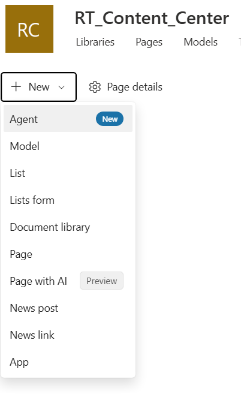
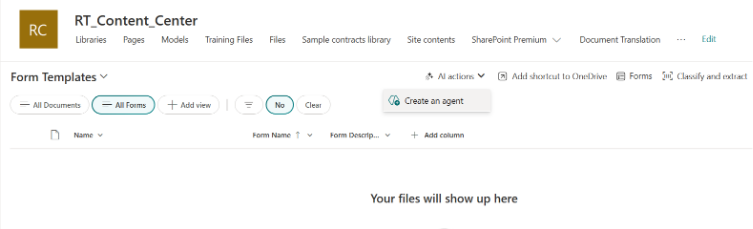
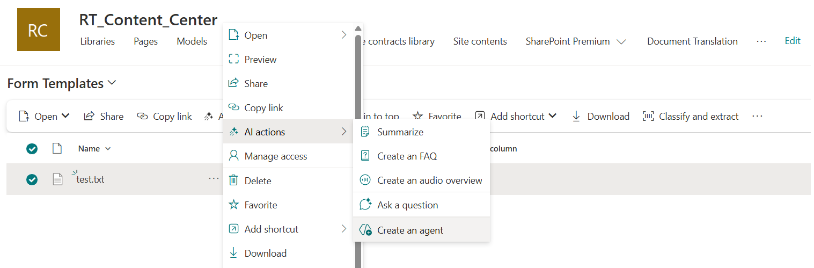
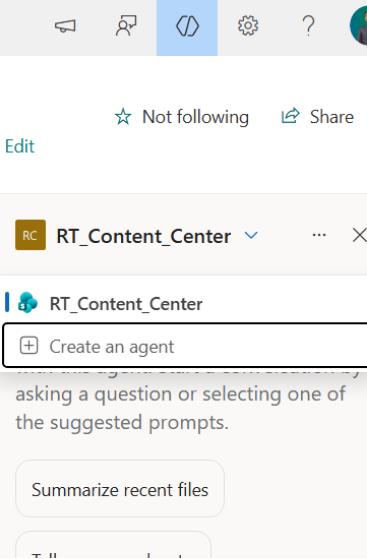
After signing into your SharePoint site, with site edit permissions, you can create your own agent from:
- The site homepage: On the site home page, select New > Agent
- The command bar of a document library: On a document library, you can choose Create an agent for all supported files in this library.
- The context menu of the selected file(s) in a document library: Instead of creating an agent for all files in a document library, sometimes you may want to just include some files. In this case, you can select the files you want, then select Create an agent from the context menu by either right-clicking or selecting the ellipsis next to one of the selected files
- Agent chat pane: On any site, page, or document library, select the Copilot button on the upper right to open the agent. Then select the dropdown next to the current agent, and select Create an agent.
3. Locate SharePoint Agent on Site:
- Sign in to your SharePoint site with your work or school account.
- Open the agent chat pane: On any SharePoint site, page or document library, choose the Copilot icon on the upper right. The agent chat pane opens on the right side of the screen.
- Select an agent: Select the dropdown arrow next to the current agent. You will see agents that have been approved for the site, along with a personalized list of agents based on your recent activity. You can choose the agent you want to use from the dropdown arrow. Select Show more to expand and see more if available.
- Start asking questions: Choose a suggested prompt or write your own. Then ask the agent to summarize documents, provide project contacts, or share the latest updates. Ask follow-up questions if needed.
4. Try with Built-In Agent
Try basic tasks like:
- Finding files
- Summarizing documents
- Navigating libraries
This helps you understand core SharePoint Copilot features.
5. Identify Use Cases
Focus on areas like:
- HR policies
- Project documents</li
- Sales materials
- Compliance data
These are ideal for SharePoint workflow automation.
6. Create Custom Agents
Admins can define:
- Content scope
- Tone and instructions
- Business rules
7. Roll Out to Users
Train users to ask simple questions and use natural language.
8. Improve Over Time
Update agents based on feedback, business needs, and new data.
9. Share Agents
Agents can be shared with teams using a link, just like files.
Note: You can only share an agent that has been created. You can’t share the ready-made agent that comes with the site.
How SharePoint Agents Benefit Your Business
For organizations and consulting firms, SharePoint agents offer major advantages:
- Faster access to documents
- Better collaboration across teams
- Improved user experience
- Faster onboarding and training
- Support for better decision-making
Companies can use SharePoint AI with business workflows. They improve internal productivity and help showcase your ability to deliver modern workplace solutions to clients.
What You Need to Get Started
To use AI in SharePoint, your organization needs:
- Microsoft 365 Copilot license or AI plan
- Access to SharePoint sites
- Required permissions to create or manage agents
Once set up, you can start using Microsoft SharePoint AI to improve your daily work.
Conclusion
SharePoint agents are changing how teams work with information. They make it easier to find, understand, and use content across your organization.
Businesses can use SharePoint AI with secure document management. This helps them work faster and more efficiently.
This guide is your starting point, and with the right strategy, SharePoint Agents can optimize your team’s effort in engaging with day-to-day information by enabling a faster and more secure way for searching, navigating, and summarizing the content.
Have a question?
We’re here to help. Get in touch with us anytime, 24/7