Output User Profile Service Colleagues

Output User Profile Service Colleagues

SharePoint User Profile Service maintains the set of colleagues associated with each user registered within the User Profile Service. This is used for a range of social features, and is leveraged by third party products for managing relationships between users. The colleagues are initially defined based on the users with whom a user shares a direct reporting line. Users can then add or remove colleagues.

Below is a PowerShell script to output the set of colleagues for a given user, both into XML and also into a text file in list format.

  ##This script gets the colleagues for the specified user using the UPS web service , outputting to both XML and txt as a list
$uri="http://mysites.FQDN.com/_vti_bin/UserProfileService.asmx?wsdl"
## $accountName is a string that contains the account name for which you need to get all the colleagues
#$Acct="JPlaut"
$accountName="Domain$($Acct)"
$OutputDir="C:UsersSharePoint ConsultantDocumentsPowerShellUPSReports"
 
$userProfileWebServiceReference = New-WebServiceProxy -Uri $uri -UseDefaultCredential
$colleagues=$userProfileWebServiceReference.GetUserColleagues($accountName) 
## Creates an GetUserColleagues.xml file in the D: which contains colleague information for the specified $accountName
$output = New-Object -TypeName System.IO.StreamWriter -ArgumentList "$($OutputDir)GetUserColleagues$($Acct).xml", $false
$output.WriteLine("<!--?xml version=""1.0"" encoding=""utf-8"" ?-->")
$output.WriteLine("")
foreach($colleague in $colleagues)
{
    $accountName=$colleague.AccountName
    $privacy=$colleague.Privacy
    $name=$colleague.Name
    $isInWorkGroup=$colleague.IsInWorkGroup
    $group=$colleague.Group
    $email=$colleague.Email
    $title=$colleague.Title
    $url=$colleague.Url
    $userProfileId=$colleague.UserProfileId
    $id=$colleague.Id
$output.WriteLine("")
    $output.WriteLine("") 
} 
$output.WriteLine("") 
$output.WriteLine() 
$output.Dispose()
 
$colleagues &gt; "$($OutputDir)GetUserColleagues$($Acct).txt"

As an added bonus, here’s a command to remove a specific Colleague from a user

 $userProfileWebServiceReference.RemoveColleague("Domainuser","domaincolleague")

While SharePoint does a good job of guessing colleagues based on the AD reporting structure, it doesn’t do a great job of keeping them up to date. Colleagues can get out of date. As the AD reporting structure changes, Colleagues can remain, which can cause issues. If you want to reboot colleagues for a user, here’s how:

   $userProfileWebServiceReference.RemoveAllColleagues("domain\victim")

Extending the Outlook Ribbon programmatically

Extending the Outlook Ribbon

The MS-Office ribbon can be extended programmatically. In this article, I add a new tab to the ribbon, and new icons that open links to sites, then create a ClickOnce deployable package. We’ll explore a few tricks including how to import new icons. For a great overview of the Fluent UI, please see: https://msdn.microsoft.com/en-us/library/aa338198.aspx

Ribbon XML

Microsoft designed the Fluent UI (aka Ribbon) to be extensible. The easiest way to do this is via the Ribbon Designer. However I chose to hand-craft the solution based on Ribbon XML. After creating a new Visual Studio 2010 project, ensuring use of .NET 4.0,

To use an existing MS-Office Tab, just reference it by name, using tab idMso:

However you can create your own tab. Just remember to give it a unique ID, and also add the label. Note the use of “id” rather than “idMso”:


 <!-- Ribbon XML -->


 <button></button>
 <button></button>
 <button></button>
 <button></button>
 <button></button>


 <button></button>
 <button></button>
 <!--?xml version="1.0" encoding="UTF-8" standalone="yes"?-->
 
 
      <command></command>
      <command></command>


         <button></button>
         <button></button>
         <button></button>

For your image, you can reference existing MS-Office images, which is easiest and faimilar to users. Note that tag “imageMso” is used. The other advantage, as we’ll soon see, is these images are already sized, and loaded correctly:

 imageMso="RecordsAddFromOutlook"

MS-Office has a great set of familiar icons you can leverage. These are easier to use than importing your own (which we will get to shortly). To select from existing icons, check out this great site, which includes the XML to reference the MS-Office images.

To load your own images, first import the desired images into the Visual Studio project; under Resources is a great place. I recommend right clicking and marking each to “Include”. These images will only ever appear if you explicitly binary stream them in on Ribbon load. Here’s how. At the start of the MyRibbonxml, add a mew reference method called “GetImage” to load the images you will reference in this MyRibbon.xml:

 imageMso="RecordsAddFromOutlook"

Rather than using imageMso, just use an image tag:

image="DMFLogo.ico"

Now for every image you reference, the loadImage method will be called, passing in the name of the image as a parameter. Let’s now add the getImage method to the myRibbon.cs:

   public Bitmap GetImage(string imageName)
        {
            Assembly assembly = Assembly.GetExecutingAssembly();
 
            //this is useful for navigating to discover the actual resource name reference
            //string[] x;
            //x = assembly.GetManifestResourceNames();
 
            Stream stream = assembly.GetManifestResourceStream("MyProjectName.Resources." + imageName);
 
            return new Bitmap(stream);  //uses system.drawing, added for now
        }

At runtime, the stream is loaded based on the manifest reference. During initial debugging, it’s great to be able to see the manifest to ensure the path is correct. I’ve found it best to have a few lines of code to give you a handle on the manifest during debugging, if ever you need, just uncomment these and examine at a breakpoint:

   //string[] x;
//x = assembly.GetManifestResourceNames();

As the images are stored in a folder, you’ll have to get the project name reference and the “Resources” folder path correct.

One last point is I found ICO files don’t give the best resolution. Microsoft recommends PNGs, which is a good image format to start.

To open a browser as a ribbon action, adapt this function:

public void ActionOpenInsureds(Office.IRibbonControl control)
       {
           string targetURL = "http ://SharePoint/sites/MySite/SitePages/Index1.aspx";
           System.Diagnostics.Process.Start(targetURL);
           return;
       }

This function is called based on the button onAction tag in myRibbon.xml:

 onAction="ActionOpenInsureds"

For completeness, here’s the full sample myRibbon.xml:

  <!--?xml version="1.0" encoding="UTF-8"?-->
 
          <button id="textButton"></button>
 
          <button id="DMFButton"></button>
 
           <button id="tableButton"></button>

ClickOnce

ClickOnce is a fabulous technology. Previously we had to build a deployment project, or purchase 3rd-party software. This ribbon can be published to a central location as a ClickOnce install. It will appear in the Control Panel, and it can check in itself for updates. Here’s a great overview of ClickOnce: https://msdn.microsoft.com/en-us/library/t71a733d

To get started, simply select “Build, Publish” in Visual Studio 2010 and follow the menus.

A few things to note:
1. Unless you sign your code with a digital certificate, users will get prompted
2. The cert you use needs to have “code signing” authority, best is to get one issued by the CA (Certificate Authority) in your organization
3. If you set pre-requisites, the user needs admin authority on their machine in order to check-pre-requisites
4. There’s a registry change to control the .NET install prompts
5. Click-once does not support install for “All users” on the machine, only the current user
6. Even trying to run in silent mode still results in a single-acknowledgement window after the install

Silence is golden

I would expect running off My Documents would end up in the MyComputer Zone, which should be “Enabled” as a trusted zone for install without prompt, but here’s the keys to experiment with:

HKLMSoftwareMicrosoft.NETFrameworkSecurityTrustManagerPromptingLevel.

Then add the following string values for one or more of the security zones, as appropriate:

  • MyComputer
  • LocalIntranet
  • Internet
  • TrustedSites
  • UntrustedSites

Set the value of each security zone to one of the following:Enabled. The installation prompts the user if the solution is not signed with a trusted certificate. This is the default for the MyComputer, LocalIntranet, and TrustedSites zones.AuthenticodeRequired. The user cannot install the solution if it is not signed with a trusted root authority certificate. The installation prompts the user if the solution is not signed with a trusted publisher certificate. This is the default for the Internet zone.Disabled. The user cannot install the solution if it is not signed with a trusted publisher certificate. This is the default for the UntrustedSites zone.

The last option is to add this solution to the inclusion list, which is a list of trusted solutions.

Refining People-Picker

Refining The SharePoint People-Picker

In SharePoint there are several locations where a set of users is presented in what is known as the “People-Picker”. Examples include a “people” field in lists, and in assigning security.

One can manage the set of users and groups presented, however THe underlying mechanism is not well known in the SharePoint community.

In short, it is the set of all users returned from AD (ActiveDirectory) plus the set of local users in the Site Collection being used.

In this article, I’ll provide guidance on how to adjust both the users returned from AD, as well as the users in the site collection.

AD Filtering

To return a subset of AD results, the following stsadm command is used:

 stsadm -o setproperty -url http ://SharePoint/  -pn peoplepicker-searchadcustomfilter -pv ""

In this example, http ://SharePoint is your web application, and the “” is the LDAP query. This clears the AD filter, as the LDAP query is empty. Note there is no PowerShell equivalent in SP2010, and this applies to a Web Application and not individual site collections. To test the change, try editing the set of Site Collection Administrators or User Policy for the Web Application in Central Administration.

In the example below, an LDAP query is specified to select AD entries where users have a manager (which filters out all kinds of non-standard user accounts), and groups starting with “SharePoint”.

   stsadm -o setproperty -url http ://SharePoint  -pn peoplepicker-searchadcustomfilter -pv "(|(&amp;(objectcategory=group)( sAMAccountName=domainSharePoint_*))(&amp;(&amp;(objectcategory=person)(objectclass=user))(manager=*)))"

Let’s check out the LDAP Query string above, with this bit of PowerShell:

$strFilter = "(|(&amp;(objectcategory=group)( sAMAccountName=yourdomainSharePoint _*))(&amp;(&amp;(objectcategory=person)(objectclass=user))(manager=*)))"
$objDomain = New-Object System.DirectoryServices.DirectoryEntry
 
$objSearcher = New-Object System.DirectoryServices.DirectorySearcher
$objSearcher.SearchRoot = $objDomain
$objSearcher.PageSize = 1000
$objSearcher.Filter = $strFilter
$objSearcher.SearchScope = "Subtree"
 
$colProplist = "name"
foreach ($i in $colPropList){$objSearcher.PropertiesToLoad.Add($i)}
 
$colResults = $objSearcher.FindAll()
 
foreach ($objResult in $colResults)
    {$objItem = $objResult.Properties; $objItem.name}

ColResults now has a nice array of results to work with.

While the above is all straightforward, the results in PeoplePicker could be less than perfect. If you test, the users returned may contain additional users, including those not returned by the LDAP Query.

It turns out, People Picker returns the superset of the LDAP Query results AND a local user list that is cached in a site collection. You can see this list by going to the Site Collection URL, plus this: “_catalogs/users/”. Note the default view does not allow you to delete items, but if you add a new view, you can add “Edit” as a column, and delete individual users one at a time.

The script below will delete all cached users in a Site Collection (except for Site Collection Administrators); but I don’t think you want to run it, as it will remove all user permissions as well!

  $url = "http://YourSiteCollection"
 
$web = get-spweb $url
$list = $web.Lists["User Information List"]
$listItems = $list.Items
$listItemsTotal = $listItems.Count
for ($x=$listItemsTotal-1;$x -ge 0; $x–-)
{
    Write-Host(“DELETED:+ $listItems[$x].name)
    remove-spuser $listItems[$x]["Account"] -web $url -confirm:$false
}
$web.dispose()

To get this right, we need to extract the LDAP query results into a hashtable, and loop through the cached user list and only remove entries that are not in the LDAP query.

Gradually reducing the Change Log for a Web Application

Safely reducing the Change Log for a Web Application

Content Databases by default contain logs of all change events for 60 days. If your Content Databases are under high loads, consider culling these logs.

In general, reducing really large database tables should be done gradually, to prevent Transaction Log failure due to lack of disk space, leading to failures and rollbacks.

There are two related tables that are trimmed through this operation:
dbo.EventCache
dbo.EventLog

I do not recommend reducing these to less than 30 days, or disabling them. That is because they seem to be used for two purposes by SharePoint itself. One is for User Alerts, the other is by the search incremental crawl, for detecting content changes.

In the script below, I reduce the log duration one day at a time, and wait a full 10 minutes after triggering the daily Change Log cleanup Timer Job to run.

the internal name of the timer job is “job-change-log-expiration”. You can get the list of the internal timer job names by using this CmdLet:

Get-SPTimerJob | select name

Or alternatively, pipe the Web Application into it:

get-SPWebApplication http ://SharePoint | Get-SPTimerJob | select name

Once you get the Timer Job, you can execute it:

 $SubTJ = Get-SPTimerJob "job-change-log-expiration" -WebApplication $wa
$SubTJ.RunNow()

Note that the duration of log retention is stored in type “Timespan”. The format in a string is actually “days.hours.minutes.seconds”, so you can change it to suit your needs.

$wa=Get-SPWebApplication http ://SharePoint
[TimeSpan]$OneDay=[timespan]"1.00:00:00"
[TimeSpan]$TargetDuration=[timespan]"30.00:00:00"
while ($wa.ChangeLogRetentionPeriod -gt $TargetDuration)
{
    $wa.ChangeLogRetentionPeriod=$wa.ChangeLogRetentionPeriod-$OneDay
    $wa.Update()
    $SubTJ = Get-SPTimerJob "job-change-log-expiration" -WebApplication $wa
         $SubTJ.RunNow()
    Write-Host -ForegroundColor DarkGreen "Change Log Retention Period reduced by a single day to $($wa.ChangeLogRetentionPeriod.Days)"
    Start-Sleep -s 600
}
 
Write-Host -ForegroundColor DarkRed "Already reduced the Change Log Retention Period to target"

Folder Metadata Web Part

Creating a Folder Metadata Web Part

An interesting challenge I faced was programmatically exposing custom folder metadata within a specific Document Library View, for specific Folder Content Types.

As background, I already created Folder Content Types, deriving from the SharePoint Folder Content Type, to which I added appropriate metadata.

These new Content Types were syndicated from a Content Type Hub, and propagated across the enterprise.

I extended the ASP template to include a table that I will build dynamically and a button that I optionally hide:

&lt;/asp:Table&lt;&gt;asp:Button ID="PlaceholderButton" runat="server" Text="Create New Placeholder" onclick="PlaceholderButton_Click" /&gt;

I then add an action for the button:

 protected void PlaceholderButton_Click(object sender, EventArgs e) 
        {
            Response.Redirect("http ://SharePoint/div/myDiv/Lists/MyListTasks/NewForm.aspx?RootFolder="); 
        }

This useful function adds a table row consisting pair of table cells with a property label (in bold) and the property value, but only if the property/value is found, on the current Document. Note Content Type is detected and handled separately:

void push_property(string myLabel, string propertyName)
 {
     try
     {
         string val = null;
         if (propertyName == "ContentType")
             val = folder.Item.ContentType.Name;
         else
             val = folder.Item.Properties[propertyName].ToString();
 
         if (!String.IsNullOrEmpty(val))
         {
             TableRow rw = new TableRow();
             TableCell cel = new TableCell();
             cel.Text = string.Concat("<b>", myLabel, "</b>");
 
             rw.Cells.Add(cel);
             cel = new TableCell();
             cel.Text = val;
             rw.Cells.Add(cel);
             Table1.Rows.Add(rw);
         }
 
     }
     catch { }
 
 }

This is the heart of this little web-part. I derive the actual folder from the user context, by extracting it from the browser URL string using Page.Request.QueryString[“RootFolder”]:

 protected void Page_Load(object sender, EventArgs e)
{
    bool ok = true;
    string ctName = null;
 
    SPWeb web = SPContext.Current.Web;
    string rootFolder = Page.Request.QueryString["RootFolder"];
 
    //Label2.Text = rootFolder;
 
    if (String.IsNullOrEmpty(rootFolder))
        ok = false;
 
 
    if (ok)
    {
        folder = web.GetFolder(rootFolder);
        if (!folder.Exists)
            ok=false;
    }
 
    if (ok)
    {
        ctName = folder.Item.ContentType.Name;
 
        if ((ctName != "Divison Acct Folder") &amp;&amp; (ctName != "Divison Common Folder"))
          ok=false;
    }
 
        PlaceholderButton.Visible = ok;  //reacts dynamically, needs setting in both directions, as it maintains state
 
    if (ok)
    {
        //push_property("Folder Type", "ContentType");  //Handled in special fashion internal to function
        push_property("Claimant", "Claimant");      
        push_property("Account Number", "AccountNumber");
        push_property("Issue Description", "IssueDescription");
 
        /*Only apply this border logic if you want a griddy view
        if (Table1.Rows.Count &gt;  0)
        {
            Table1.GridLines = (GridLines) 3;
        }
        */
    }
 
}

Metadata Defaults for Folders

Setting Metadata Defaults for Folders

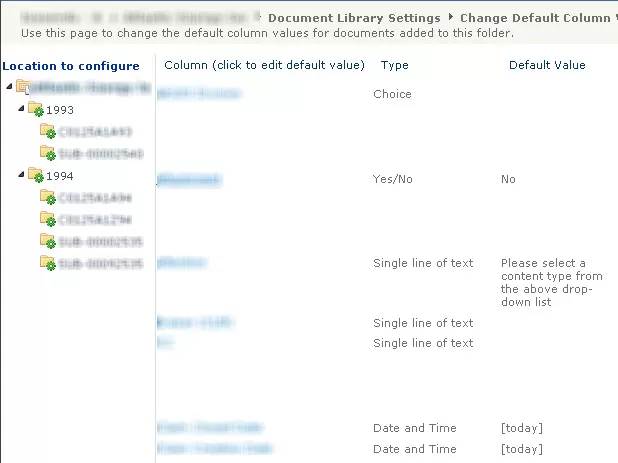
SharePoint Libraries can be configured with metadata defaults for documents added to specific folders.

Column Defaults are manually configurable in Library Settings.  For each folder that has metadata defaults, the folder is marked with a green stamp.

Any document added to the folder gets the default metadata by default

img


This configuration can be done using PowerShell.  In this example, I have created Folder Content Types, by defining them as inheriting from the Folder Content Type, then adding metadata to the folder Content Types.  This makes it easy to then assign the metadata defaults.

We can clear away any existing metadata defaults on a folder using these commands to grab a metadata defaults object, then call the RemoveAllFieldDefaults() method:

  [Microsoft.Office.DocumentManagement.MetadataDefaults] $columnDefaults = new-object Microsoft.Office.DocumentManagement.MetadataDefaults($JPLib);
$nuthin=$columnDefaults.RemoveAllFieldDefaults($JPFolder.Folder); 
$columnDefaults.update()

We can assign a metadata default for one field for one folder using these commands:

  [Microsoft.Office.DocumentManagement.MetadataDefaults] $columnDefaults = new-object Microsoft.Office.DocumentManagement.MetadataDefaults($JPLib);
$nuthin=$columnDefaults.SetFieldDefault($JPFolder.Folder, $InternalName, $AssignmentValue);
$columnDefaults.update()

Before we get to the script, it is very important to note that get SPSite and SPWeb object must be acquired using the precise correct case.

It seems the case-sensitive XML underlying these calls is affected by an incorrect case; the folders will get the green stamp, but the metadata defaults won’t be applied unless the case is exactly correct.

To get around this problem, you can grab all SPSites for a Web Application and pipe them to get the SPWebs to process.

The only problem with that approach is the extreme memory inefficiency.

More than that, until the objects are totally released, the changes accrue in the SQL Transaction Log until released, allowing .NET to commit them.

Also note the SPFolder object does not require an update(), as the metadata default methods handle the update.

Here’s the full script:

#already matched to the Claim Folder Fields on 9/4/12 to confirm all necessary fields are included. no changes actually made.
#Added CT filtering on these folder CTs: Claim Acct Folder|Claims Common Folder
 
[system.reflection.assembly]::LoadWithPartialName("Microsoft.SharePoint") 
 
$Action="WipeAndApplyDefaults"
#$Action="ApplyDefaults"
#$Action="WipeDefaults"
 
$FolderFields="Field1,Field2,Field3"
$FolderFieldsArr=$FolderFields.split(",");
 
$baseURL="http ://SharePoint/ManagedPath/"
$SiteURL="http ://SharePoint/ManagedPath/a"
$OutputSuffix="A"
 
$mylogfile=$mylogfile="L:PowerShellLoggingMetadataDefaults$($OutputSuffix).csv"
#$WebAppHeading="http ://SharePoint"
    
Write-Host ("$(get-date) Running script assign metadata defaults to folders")
 
if ($siteurl)
{
    write-host $site.Url
 
    $WebScope=start-SPAssignment
    $TargetWeb=$WebScope | Get-SPWeb $siteURL;
 
    $ListOfLists = @();
 
# Loop through all doc libs
 
    $lists=$TargetWeb.lists;
    $listsCount=$lists.count
 
    for ($ii=0; $ii -lt $listsCount; $ii++)
    {
    $JPlib=$lists[$ii];
 
       if ( ($JPlib.BaseType -ne "DocumentLibrary") -or ($JPlib.hidden) )
        {
          # forget the rest and return to top
          Write-Host -foregroundcolor darkred "fast test skipping Library: $($JPlib)";   
        }
        elseif ($JPLib.Title -Match "Photo|Image|SitesAssets|CustomizedsReports|Templates|Pages|Picture|cache|style")
        {
          # forget the rest and return to top
          Write-Host -foregroundcolor darkred "fast test skipping Library because it mentions $Matches: $($JPlib)";   
        }
    else
    {
        $ListOfLists += $JPlib.title;
    }
    }
    $TargetWeb.dispose();
    $JPlib=$null;
    stop-SPAssignment $WebScope
 
 
    foreach ($CurrentLib in $ListofLists)
    {
    $WebScope=start-SPAssignment
    $TargetWeb=$WebScope | Get-SPWeb $siteURL;
 
    $JPlib=$TargetWeb.lists[$CurrentLib];
    $JPlib.title
    if ($JPlib -eq $null)
    {
        Write-Host "COULD NOT GET LIB $($CurrentLib)"
        continue;
    }
 
    $JPFolders=$JPlib.Folders;
    $JPCount=$JPFolders.get_count();
    for ($i=0; $i -lt $JPCount; $i++)  #Do not use ItemCount, that one includes folders!
    {   
 
        $JPFolder=$JPFolders[$i];
        $CT=$JPFolder.contenttype.name;
 
        if ($CT -notmatch "Folder CT1|Folder CT2")
        {
            Write-Host "+" -NoNewline
 
            if (($Action -eq "WipeDefaults") -or ($Action -eq "WipeAndApplyDefaults"))
            {
                    [Microsoft.Office.DocumentManagement.MetadataDefaults] $columnDefaults = new-object Microsoft.Office.DocumentManagement.MetadataDefaults($JPLib);
                    $nuthin=$columnDefaults.RemoveAllFieldDefaults($JPFolder.Folder); 
                    $columnDefaults.update()
 
            }
 
            if (($Action -eq "ApplyDefaults") -or ($Action -eq "WipeAndApplyDefaults"))
            {
            foreach ($FF in $FolderFieldsArr)
            {
                try
                {
                    if ($JPFolder[$FF] -ne $null)
                    {
 
                        $TargetField=$JPFolder.Fields[$FF];
 
                        $InternalName=$TargetField.InternalName; 
                        if (($TargetField.type -eq "DateTime") -or ($TargetField.type -eq "Date"))
                        {
                            $AssignmentValue=Get-Date $JPFolder[$FF] -Format u; #Z style universal format for assignment
                        }
                        else
                        {
                            $AssignmentValue=$JPFolder[$FF].tostring()
                        } #Leaves open all kinds of field type challenges, such as Managed Metadata
                         
                        if ($AssignmentValue -ne $null)
                        {
                            [Microsoft.Office.DocumentManagement.MetadataDefaults] $columnDefaults = new-object Microsoft.Office.DocumentManagement.MetadataDefaults($JPLib);
                            $nuthin=$columnDefaults.SetFieldDefault($JPFolder.Folder, $InternalName, $AssignmentValue); 
                            $columnDefaults.update()
                        }
                    }
                }
                catch 
                {
                Write-Host "problem with field $($FF)"
                } #must have been a field I shouldn't be poking, no biggie
            }
            } #Action=ApplyDefaults
     
#folder update is not required, columnDefault update propagates immediately
 
}
 
            } # loop for items
        $JPlib.Update();
        $JPlib=$null;       
        $Targetweb.update()
        $TargetWeb.dispose();
        Stop-SPAssignment $WebScope
    } #Only process this lib
     
}# Lib loop
Write-Host "SCRIPT COMPLETE $(get-date)"

Structure Document IDs to be unique across Site Collections

Configure Document IDs to be unique across the farm

Document IDs are only guaranteed unique within a single site collection. SharePoint tries to ensure uniqueness by putting a random prefix in front of each Docuemnt ID, and setting that at the Site Collection level. However you can easily rationalize these, and make the Document IDs a bit easier to read. The script below assigns a prefix, and sets up SharePoint to reissue Document IDs. Note the actual regeneration of Document IDs will wait until the Document ID Assignment Timer Job runs. This job can take a long time to run, depending on the number of items in your Site Collections.


 [system.reflection.assembly]::LoadWithPartialName("Microsoft.Office.DocumentManagement") 
$siteUrl = "http ://SharePoint/ManagedPath"  #this is the header prefixing my Site Collections
 
$LoopString = "A,B,C,D,E,F,G,H,I,J,K,L,M,N,O,P,Q,R,S,T,U,V,W,X,Y,Z"  #Here are the individual Site Collections
$LoopStringArr = $LoopString.Split(,)
 
foreach ($letter in $LoopStringArr)
{
    $SiteName=$siteurl+$letter
    write-host $SiteName
 
    $Site = New-Object Microsoft.SharePoint.SPSite($SiteName)
    [Microsoft.Office.DocumentManagement.DocumentID]::EnableAssignment($Site,$false)   #First disable, then enable DocID assignment
    [Microsoft.Office.DocumentManagement.DocumentID]::EnableAssignment($Site,$true)
 
 
    $rootweb=$site.rootweb
    $rootweb.properties["docid_msft_hier_siteprefix"]="Ins$letter"  # This is the property holding the Document ID Prefix which we use to ensure uniqueness
    $rootweb.properties.Update()
    $rootweb.Update()
    [Microsoft.Office.DocumentManagement.DocumentID]::EnableAssignment($Site,$true,$true,$true)  # now we can force all Document IDs to be reissued
}

Programatically setting Site Quota Templates

Setting Site Quota Templates using PowerShell

Once sites are created, it can be a challenge to change the quota template. Here’s a way to rip through your site collections and change the quota. In the script below, I grab the Web Application, and go through all the Site Collections, but filter on them using -Match. The trick is to first ensure you are using the Content Service associated with the web application.

   $TemplateName = "MyQuota"
$webAppName = "http://yourWebApp"
$webApplication = Get-SPWebApplication $webAppName
$sFilter = "$($webAppName)/MyPath*"
 
$TemplateName = "MyQuotaTemplate"
$contentService = [Microsoft.SharePoint.Administration.SPWebService]::ContentService
$quotaTemplate = $contentService.QuotaTemplates[$TemplateName]
 
if ($quotaTemplate -ne $null)
{
$ss = $webApplication.Sites 
$sCount = $ss.count
for ($i =0; $i -lt $sCount; $i++)
{
    $site = $ss[$i];
    if ($site.url -match $sfilter)
    {
        try
        {
            $site.set_Quota($quotaTemplate)
            Write-Host "Set Quota for $($site.url)"
        }
        catch
        {
            Write-Host -ForegroundColor DarkRed "Error setting Quota for $($site.url)"
        }
    }
    $site.dispose()
}
}

Automating Creation of Per-Location Views

Automating the Creation of Per-Location Views

SharePoint offers the capability of customizing the Views in Folders.  This can be done manually.  This article will show you how to automate the configuration of views for each folder in a document library.

Configuring Per-Location Views Manually

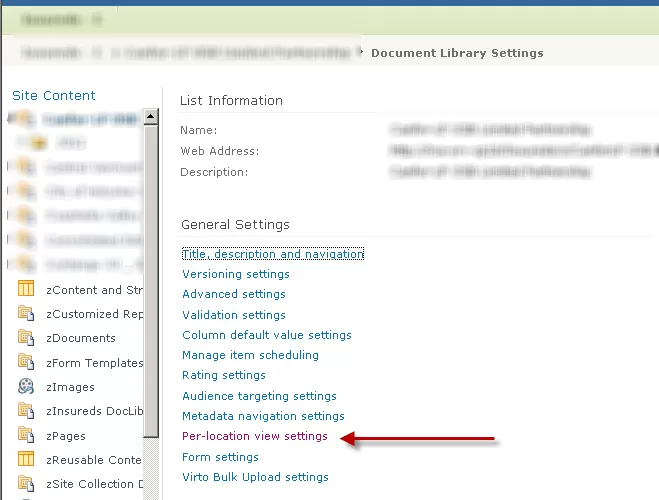
To configure Per-Location Views manually, one must have at least library designer privileges. First, go into Library Settings, then select Per-Location Views:

img

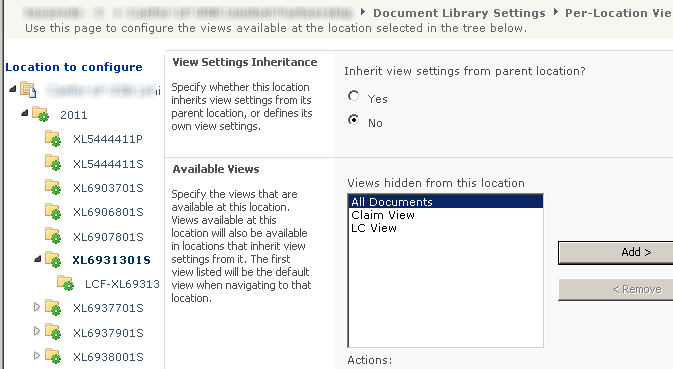
For any View configured for the location, it appears as a folder with a green mark, indicating a custom Per-Location view:

Per-Location View

How SharePoint Stores Per-Location Views

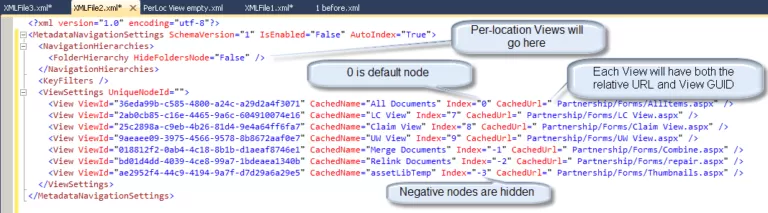
SharePoint stores the per-location view information in XML within a specific property (“client_MOSS_MetadataNavigationSettings”) of the RootFolder object of the list.   Here’s how to extract this XML and save it to a file for examination:

$RF=$List.RootFolder

$RF.Properties["client_MOSS_MetadataNavigationSettings"] > "L:1 before.xml"

Let’s look into the XML and see how Views are stored in this special property.  First note below that Views are referenced by the View GUID, the relative View URL, as well as an Index.  Positive indexes are available Views.  Negative Indexes are hidden Views, and the 0 index is the default View:

img


The approach

The basic approach is to grab the XML described above, clean it up from any previous customization, and add folder nodes; and for each folder, add Views.

Step-by-Step, programmatically adding a Per-Location View

First, let’s grab the List, and Folder objects:


  $web=get-spweb http ://SharePoint/MyWeb $lists=$web.lists
$list=$lists["ListName"]
$Folders=$list.Folders
$ViewSet="All Documents,EMail,Claim View,LC View,UW View"
$ViewArr=$ViewSet.split(",")

We can always save the XML for reference:

 $RF.Properties["client_MOSS_MetadataNavigationSettings"] &gt; "L:1 before.xml"

Now, let’s grab the Views object, the Root Folder object, and the per-location Views cast as XML:

 $Views=$list.Views
$RF=$List.RootFolder
$x=$RF.Properties["client_MOSS_MetadataNavigationSettings"]

Now let’s wipe out any previous per-location Views customizations.  We will simply remove all nodes in the Folder

$x.MetadataNavigationSettings.NavigationHierarchies.FolderHierarchy.removeall()

Anytime we want to examine the XML, we can output it to file, using the InnerXML:

$x.InnerXml &gt; "L:1 after.xml"

Normally, we would grab the  XMLElement using $x.MetadataNavigationSettings.NavigationHierarchies.FolderHierarchy, but this returns a string for a null or initialized node.
So instead, we grab the parent (NavigationHierarchies), then select the underlying single nodes:

$NavHierNode = $x.MetadataNavigationSettings.NavigationHierarchies

$ViewSettingsNode = $NavHierNode.SelectSingleNode(“FolderHierarchy”)

I’ve created Folder Content Types, by inheriting from the Folder Content Type.  This approach allows Folders to hold useful metadata and be selectable by users on creation.  In this case, I use the Folder Content Type to determine the View.  You can make the choice instead on the folder URL or metadata.  I simply loop through all folders, and select the preferred default folder based on the location:

for ($i=0; $i -lt $FolderCount; $i++)
{
 $Folder=$Folders[$i]
 
 switch ($Folder.ContentType.name)
 {
  "Underwriting Folder"  { $DefaultViewName= "UW View"}
  "Claim Folder"   { $DefaultViewName= "Claim View"}
  "Policy Folder"  { $DefaultViewName= "UW View"}
  "Loss Control Folder" { $DefaultViewName= "LC View"}
  default   { $DefaultViewName= "All Documents"}
 }

I grab the actual view, but take care to fall back on All Documents if the View is not found:

 $View=$Views[$DefaultViewName];
 
 if ($View -eq $null)
 {
  Write-Host "View ($($DefaultViewName) not found, falling back to All Documents"
  $DefaultViewName= "All Documents"; # logic assumes this is always there
  $View=$Views[$DefaultViewName];
 }
 
Now, we want to make note of the folder details for use in building the XML.  As you recall there are three aspects to the View of interest: the GUID, ID and relative URL:
[sourcecode language="powershell"]
$FolderGuid=$Folder.UniqueId
 
 $FolderID= $Folder.id
 
 $FolderURL= $Folder.Url;

So let’s start with the folder entry in the XML, by creating a new folder node, and populating it’s attributes, and first element, for the default view:

 $NewFolderNode=$X.CreateElement("ViewSettings");
 $NewFolderNode.SetAttribute("UniqueNodeId",$FolderGuid);
 $NewFolderNode.SetAttribute("FolderId",$FolderID);
 
 $NewViewNode=$X.CreateElement("View");
 $NewViewNode.SetAttribute("ViewId",$View.id);
 $NewViewNode.SetAttribute("CachedName",$View.Title);
 $NewViewNode.SetAttribute("Index","0");  #0 forces view to be default
 $NewViewNode.SetAttribute("CachedUrl",$View.Url);
 $NewFolderNode.AppendChild($NewViewNode);

Finally, we can add all the other Views for the folder. Note we start the index from 1, after the 0 default view. Now’s where the array of Views created earlier comes into use. I always like starting with a comma separated list, converting these into an array for easy use. We make sure not to add the default View a second time:

 $Index=1; # we want in increment index for each view for sequence
 foreach ($ViewName in $ViewArr)
 {
  $View=$Views[$DefaultViewName];
  if ($View -eq $null)
  {
   Write-Host "View ($($DefaultViewName) not found, secondary view, skipping" #never do a continue within foreach!
  }
  elseif ($ViewName -ne $DefaultViewName) #make sure to skip adding the default view as a secondary view
  {
   $View=$Views[$ViewName];
 
   $NewViewNode=$X.CreateElement("View");
   $NewViewNode.SetAttribute("ViewId",$View.id);
   $NewViewNode.SetAttribute("CachedName",$View.Title);
   $NewViewNode.SetAttribute("Index",$Index.tostring());  #0 forces view to be default
   $NewViewNode.SetAttribute("CachedUrl",$View.Url);
   $NewFolderNode.AppendChild($NewViewNode);
   $Index++; #view sequence numbering
  }
 }

$ViewSettingsNode.AppendChild($NewFolderNode)
Finally, we save our XML.  Note both update() are required:

$RF.Properties["client_MOSS_MetadataNavigationSettings"]=$x.InnerXml.ToString();
$RF.Update()
$list.Update() #both property and List update are required

[/sourcecode ]

See: Technet reference
Let’s finally put it all together:
[sourcecode language=”powershell”]
$web=get-spweb href=”http ://SharePoint/MySite”
$lists=$web.lists
$list=$lists[“MyListName”]
$Folders=$list.Folders

$ViewSet=”All Documents,EMail,Claim View,LC View,UW View”
$ViewArr=$ViewSet.split(“,”)

$WipeFolderDefaults=$true; # This is optional

$Views=$list.Views
$RF=$List.RootFolder
#$x.get_Properties()
[xml][/xml] $x=$RF.Properties[“client_MOSS_MetadataNavigationSettings”]

if ($WipeFolderDefaults)
{
try #if it fails, it is because the node just isn’t there, which might mean no folders defined, which is fine.
{
$x.MetadataNavigationSettings.NavigationHierarchies.FolderHierarchy.removeall()
}
catch
{
write-host “nothing to wipe, we are good to go!”
}
}

$FolderCount=$Folders.count;
$NavHierNode = $x.MetadataNavigationSettings.NavigationHierarchies
$ViewSettingsNode = $NavHierNode.SelectSingleNode(“FolderHierarchy”) #grabs it as XMLNode, instead of string, if empty node
for ($i=0; $i -lt $FolderCount; $i++)
{
$Folder=$Folders[$i]
switch ($Folder.ContentType.name)
{
“Underwriting Folder” { $DefaultViewName= “UW View”}
“Claim Folder” { $DefaultViewName= “Claim View”}
“Policy Folder” { $DefaultViewName= “UW View”}
“Loss Control Folder” { $DefaultViewName= “LC View”}
default { $DefaultViewName= “All Documents”}
}

$View=$Views[$DefaultViewName];
if ($View -eq $null)
{
Write-Host “View ($($DefaultViewName) not found, falling back to All Documents”
$DefaultViewName= “All Documents”; # logic assumes this is always there
$View=$Views[$DefaultViewName];
}

$FolderGuid=$Folder.UniqueId
$FolderID= $Folder.id
$FolderURL= $Folder.Url;

$NewFolderNode=$X.CreateElement(“ViewSettings”);
$NewFolderNode.SetAttribute(“UniqueNodeId”,$FolderGuid);
$NewFolderNode.SetAttribute(“FolderId”,$FolderID);

$NewViewNode=$X.CreateElement(“View”);
$NewViewNode.SetAttribute(“ViewId”,$View.id);
$NewViewNode.SetAttribute(“CachedName”,$View.Title);
$NewViewNode.SetAttribute(“Index”,”0″); #0 forces view to be default
$NewViewNode.SetAttribute(“CachedUrl”,$View.Url);
$NewFolderNode.AppendChild($NewViewNode);
$Index=1; # we want in increment index for each view for sequence
foreach ($ViewName in $ViewArr)
{
$View=$Views[$DefaultViewName];
if ($View -eq $null)
{
Write-Host “View ($($DefaultViewName) not found, secondary view, skipping” #never do a continue within foreach!
}
elseif ($ViewName -ne $DefaultViewName) #make sure to skip adding the default view as a secondary view
{
$View=$Views[$ViewName];

$NewViewNode=$X.CreateElement(“View”);
$NewViewNode.SetAttribute(“ViewId”,$View.id);
$NewViewNode.SetAttribute(“CachedName”,$View.Title);
$NewViewNode.SetAttribute(“Index”,$Index.tostring()); #0 forces view to be default
$NewViewNode.SetAttribute(“CachedUrl”,$View.Url);
$NewFolderNode.AppendChild($NewViewNode);
$Index++; #view sequence numbering
}
}

$ViewSettingsNode.AppendChild($NewFolderNode)

}

#$x.InnerXml > “L:PowerShellPer Location Views2a.xml”

$RF.Properties[“client_MOSS_MetadataNavigationSettings”]=$x.InnerXml.ToString();
$RF.Update()
$list.Update() #both property and List update are required

SharePoint Document IDs

SharePoint Document IDs

The SharePoint Document ID Service is a new feature of SharePoint 2010 that offers a number of useful capabilities but carries some limitations.  Let’s dig a bit deeper and see what it does and how it works.

One challenge for SharePoint users is that links tend to easily break. Rename a file or folder, or move the document, and a previously saved or shared link will not work.

By tagging a document with an ID, SharePoint can start referencing documents using this ID, even when the underlying structure beneath it has changed.

SharePoint can accept a link with this ID, by referencing a dedicated page on each site that takes care of finding the the document.

This page is named DocIDRedir.aspx.  Here’s what a URL might look like:

“http: //%3csitecollection%3e/%3cweb%3e/_layouts/DocIdRedir.aspx?ID=XXXX”

There’s also a Document ID web part that’s available for users to enter a Document ID.

This is used most prominently when creating a Records Center site, which is based on an out-of-box website template.

The Document ID Service is enabled at the Site Collection level and assigns Document IDs that are unique only within the site collection.

There is a prefix available for configuration that is most useful when assigned uniquely for each Site Collection to ensure uniqueness across your web application and even farm.

If you have more than one farm, it makes sense to provide an embedded prefix to indicate the farm, to ensure uniqueness globally.

One significant aspect of SharePoint’s architecture is its extensibility through custom development.

Organizations often leverage the expertise of a SharePoint development company like Reality Tech to tailor SharePoint to their specific needs.

These SharePoint development services can include custom workflows, integrations with other systems, and user interface enhancements, all of which can benefit from the stability and reliability provided by SharePoint Document IDs.

Setting Document ID

Once the Document ID Service is enabled, every new or edited document instantly gets a Document ID assigned.

However, historical documents do not get an immediate Document ID assignment.  The assignment of Document IDs to documents that were uploaded prior to this service being enabled are assigned by a Timer Job called the “Document ID assignment job” that exists at the Web Application level.

By default, this job runs nightly.  This is one of two jobs associated with the Document ID Service, the other being the “Document ID enable/disable job “

When the Document ID Service is enabled for a Site Collection, Event Receivers are automatically installed in each Document Library.

Actually, there is a set of Event Receivers installed for each and every Content Type configured within that document library.

The Event Receiver is called “Document ID Generator” and is configured to be fired synchronously. How to add location link in pdf, there is a separate Event Receiver for the following events:

  • ItemAdded
  • ItemUpdated
  • ItemCheckedIn
  • ItemUncheckedOut

Once a Document ID is assigned, it is changeable through the Object Model, although do so at your own risk.

Before the Document  ID Service is enabled, the Document ID field does not exist to be assigned. If you are migrating from a legacy system that has existing Document IDs, you can first migrate the documents, then the Document ID service is enabled.

This adds the internal Document ID field.  Then before the daily Document ID Assignment job runs (better yet, disable it during this process), we can programmatically take the legacy Document IDs and assign their values to the SharePoint Online IDs.

With the Document ID field populated, the Document ID Service will not overwrite the already set Document IDs.

Note that part of the Document ID Service is to redirect URLs referencing the Document ID.

It turns out, if you manually assign duplicate Document IDs (something that in theory should never occur), the daily Document ID Assignment Job detects this situation, and the DocIDRedir.aspx redirects to a site-based search page that passes in the Document ID.

Under the covers there are three internal components to a Document ID:

  • _dlc_DocIdUrl: fully qualified URL for document referencing the DocIDRedir.aspx along with the lookup parameter
  • _dlc_DocId: The Document ID.  This is the internal property you can directly address and assign as $item[“_dlc_DocId”]
  • _dlc_DocIdItemGuid: DocID related GUID

That completes our tour of the Document ID Service.  I look forward to hearing of others’ experiences with it.

Newsletters