Getting your arms around the database sizing of your SharePoint farm

SharePoint Database Size Planning

In order to manage your SharePoint farm, and especially for planning for backup/recovery you need to understand data sizing of your farm. Here are the steps you can take to gather the information needed to understand the existing farm and estimate its growth. This will give you a clear understanding of the size of your backups, so you can plan for recovery timeframes, and will also give insights into the rate of growth and on quotas that can govern growth of databases.

Size of all SharePoint Databases

To plan for DR one needs to know the size of all databases to be backed up and restored. This small script will produce a CSV report of the bytes per database attached to the SharePoint farm:

Get-SPDatabase | select name,DiskSizeRequired | convertto-csv | set-content "C:DBsize.csv"

RBS Report

There is no direct mechanism in Central Admin to view RBS configuration. This script will give you a report of the RBS settings throughout your farm:

Get-SPContentDatabase | foreach {$_;
  try {
 
      $rbs = $_.RemoteBlobStorageSettings;
      write-host "Provider  Name=$($rbs.GetProviderNames())";
      write-host "Enabled=$($rbs.enabled)";
      write-host "Min Blob  Size=$($rbs.MinimumBlobStorageSize)"
      }
  catch
  {write-host -foregroundcolor red "RBS not installed on this database!`n"}
  finally {write-host "End`n"}
}

Site Collection size report

It is useful to know the sizes of your Site Collections, and their distribution among your Content Databases. You can report on the size of each Site Collection within each Content DB within a given Web Application with the script below. The output is a CSV (Comma Separated Value) file easily read into Excel. If you have a lot of Site Collections, just convert to a PivotTable, to see the distribution and sizes of Site Collections across Content Databases.

get-spwebapplication http ://SharePoint | Get-SPSite -Limit all | select url,contentdatabase,@{label="Size in GB";Expression={$_.usage.storage/1GB}} | convertto-csv | set-content "C:TEMPDBsize.csv"

Site Collection sizes help inform how to rebalance Content Databases for optimal sizing to allow you to meet your RTO.
One common situation is for MySites to be distributed unevenly across Content Databases, leading to one Content Database being much larger than others. As discussed earlier, managing Content Database sizes is key to meet your RTO.

Quota Report

Setting quotas puts in place limits on Site Collection growth. It also gives the Administrator weekly notification of Site Collections that have exceeded a preset warning size.
This report gives you a list of all the quotas in place across a Web Application:

$webapp = Get-SPwebapplication "http ://SharePoint"
$webapp | get-spsite -Limit ALL | ForEach-Object {
$site = $_;
$site;
$site.quota;
}
$site.dispose()
$webapp.dispose()

What you want to look for first are Site Collections that have no quotas. These represent opportunities for unconstrained growth without notification that could result in Content Database growth that exceeds your RTO targets.

Stopping and Starting SharePoint

How to safely stop and start SharePoint for a reboot

I recommend in the SharePoint Server(s), Start, Run, services.msc:
Stop: SharePoint 2013 Timer
Stop: World Wide Web Publishing Service
A reboot is optional

To restart, the order is reversed:
Start: World Wide Web Publishing Service
Start: SharePoint 2013 Timer

Best done before taking SQL Server offline, or any other major maintenance.

AppFabric

In SharePoint 2013 the AppFabric needs to be taken into account. This is a serious concern, as rebooting the AppFabric machine can leave the AppFabric cluster in a non-functional state.

To check the AppFabric status, start with:

Get-CacheHost

To avoid this, run a graceful AppFabric Shutdown:

Stop-CacheHost -HostName sp15-search-idx.sfb-testnet.local -CachePort 22233 -Graceful

We then wait, and once it is down we run:

Remove-SPDistributedCacheServiceInstance

After reboot we run:

Add-SPDistributedCacheServiceInstance

To fix broken social feeds use:

Update-SPRepopulateMicroblogLMTCache
Update-SPRepopulateMicroblogFeedCache

How to recover from a malfunctioning SharePoint Master Page

Recover from a broken Master Page

Last night I had a bit of fun trying to fix a bad Master Page that prevented access to anything in a site collection via the browser. This Master Page had a reference to a SharePoint Feature that had since been retracted and removed. The solution was to use PowerShell to change the Master Page:

$Site = get-spsite “http ://SharePoint/Sites/SpecificSite”
$webcount = $Site.AllWebs.Count
$webs=$Site.AllWebs
for ($i=0; $i -lt $webcount; $i++)
{
 $web=$webs[$i]
 $Master=$web.get_MasterUrl()
 $Master=$Master.Replace("your-custom-master", "v4.master")
 $web.set_Masterurl($Master)
 $web.update()
 $web.dispose()
}

SharePoint Admins – How to Recover

Save your hide by restoring a SharePoint farm configuration

I had the scare of the week last night. I was doing some pre-approved SharePoint farm cleanup. Part of that was removing some Farm Solutions (WSPs). The Retract of the solution partially failed, and hosed Central Admin (ouch).

Last time I had this, the uninstall of UMT software left a dozen dangling references in all Web.Configs that I cleaned up by hand. Those caused workflows to all stop. This time, I was getting security and page rendering errors.

Additional Read

The Ultimate Guide to Using SharePoint for End Users!

Good thing we had done a backupSPFarm recently with ConfigurationOnly option.

Given Central Admin was hosed, I used PowerShell:
Backup-SPFarm
Restore-SPFarm

Once the restore was done, Central Admin appeared to behave erratically. This was simply the farm sync’ing up, with a series of IISResets associated with feature re-deployment.

Start Your SharePoint Online Project In A Click

Our technology and wide delivery footprint have created billions of dollars in value for clients globally and are widely recognized by industry professionals and analysts.

A link straight to a SharePoint document’s metadata

Often users want a link direct to a document’s metadata. That’s easily done using this format:
ht tp://SharePoint/sites/SiteCol/DemoMajorV2/forms/DispForm.aspx?ID=[x]

Here’s a sample link to a document’s metadata properties, just add the ID:
ht tp://SharePoint/sites/SiteCol/DemoMajorV2/forms/DispForm.aspx?ID=285

I took a random document:
h ttp://SharePoint/sites/SiteCol/DemoMajorV2/TestDoc.docx

Found its ID in the browser by adding it to a View:
ht tp://SharePoint/sites/SiteCol/DemoMajorV2/Forms/My%20Documents.aspx

Then took the format:
ht tp://SharePoint/sites/SiteCol/DemoMajorV2/forms/DispForm.aspx?ID=[x] and added the number to it:

ht tp://SharePoint/sites/SiteCol/DemoMajorV2/forms/DispForm.aspx?ID=285

If you’re planning to scale metadata usage, SharePoint Development Services can help tailor the structure and permissions based on your organizational needs.

Also, consider reviewing SharePoint security best practices and exploring how SharePoint Online enhances collaboration. For legacy systems, learn how to migrate file shares to SharePoint Online with minimal disruption.

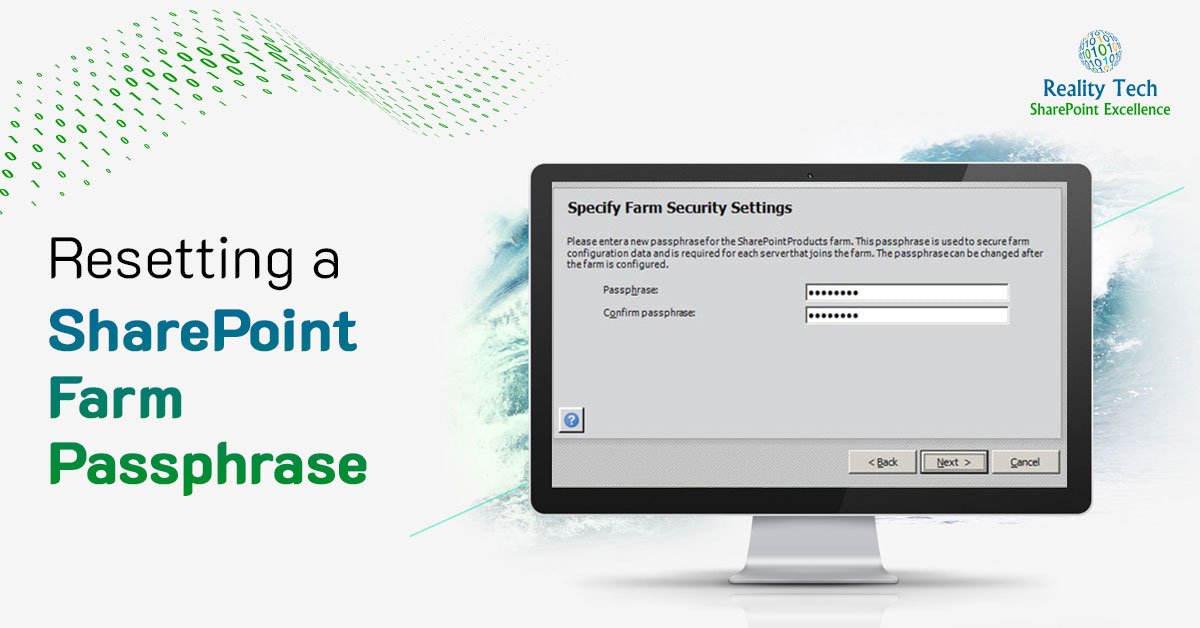
Resetting a SharePoint Farm Passphrase

Resetting a SharePoint Farm Passphrase

If you don’t have the SharePoint farm passphrase, you can’t join a server to the farm. And there’s no way to get it back once you lose it. However it’s quite easy to reset it. First, let’s be aware fo the stiff requirements for a passphrase. You should ensure that the passphrase meets the following criteria:
Contains at least eight characters
Contains at least three of the following four character groups: ◦English uppercase characters (from A through Z)
+ English lowercase characters (from a through z)
+ Numerals (from 0 through 9)
+ Nonalphabetic characters (such as !, $, #, %)

$passphrase = ConvertTo-SecureString -String "P1ckAg00dPa$$w0rd" -asPlainText -Force
Set-SPPassPhrase -PassPhrase $passphrase -Confirm

The purpose of the passphrase is to prevent unauthorized servers from joining to a farm, and using their newfound access for malicious purposes.

What is less well known is that there is a job that runs that propagates the Passphrase amongst the SharePoint servers in the farm. It is only run when the passphrase is changed or when a server is added to the farm.
SPMasterPassphraseDeploymentJobDefinition. This Timer Job can run into trouble, so it is good to be aware of it for diagnosis and manual retry.

Tuning SharePoint Search Ranking

Tuning SharePoint Search Ranking in the object model

SharePoint Search results are returned in order of relevancy, which is determined by a ranking model. There are a number of ranking models cooked into SharePoint 2010. These can be refined to a limited extent, with a bit of insight, to better serve users.

To see the models and their definition, let’s query the SharePoint Search application DB:

SELECT * FROM [Search_Service_Application_DB].[dbo].[MSSRankingModels]

The resultset has the models; the GUID, whether it is default, and the underlying XML that specifies the model. The model name is at the beginning of the XML.

Using PowerShell, we can get the array of ranking models, and is the only supported approach for manipulating the models, changing the default, and for creating new ranking models. Here’s how to get the models:
their definition, let’s query the SharePoint Search application DB:

Get-SPEnterpriseSearchServiceApplication | Get-SPEnterpriseSearchRankingModel

Now we can assign the ranking model array to a variable and index into it:
their definition, let’s query the SharePoint Search application DB:

$A = Get-SPEnterpriseSearchServiceApplication | Get-SPEnterpriseSearchRankingModel

Or we can grab the one ranking model that we like by using the GUID, which we have to predetermine, but that’s easy, as it’s returned by the above query and is unchanging. For new models, we get to specify the GUID as well.

Once you know your rank model GUID, you can switch to it by getting it, and setting it as default:

their definition, let’s query the SharePoint Search application DB:

$r = Get-SPEnterpriseSearchServiceApplication | Get-SPEnterpriseSearchRankingModel 8f6fd0bc-06f9-43cf-bbab-08c377e083f4$r.MakeDefault()

To create a custom rank model, first identify the Managed Properties, by PID. The name is part of the XML, but it is the PID that drives the ranking. Here’s how to get all the Managed Properties and their PIDs:
their definition, let’s query the SharePoint Search application DB:

Get-SPEnterpriseSearchServiceApplication | Get-SPEnterpriseSearchMetadataManagedProperty
Now we create a new ranking model called MyRank, note i want LastModified property to be relevant.
 their definition, let’s query the SharePoint Search application DB:
Get-SPEnterpriseSearchServiceApplication | New-SPEnterpriseSearchRankingModel –rankingmodelxml "<!--?xml version='1.0'?-->


"

There are two parts to the model; the query dependent section that is associated with the actual query and it’s metadata, and the query independent part that ranks based on number of slashes (URLDepth) and click frequency etc.

As soon as a model is default, you can see the effect of the new ranking model.

Here’s how to change this model, note I add a new field called MyCompany and boost its relevance:

<!--?xml version="1.0" encoding="utf-8"?-->
Get-SPEnterpriseSearchServiceApplication | Get-SPEnterpriseSearchRankingModel 8447b4bc-3582-45c5-9cb8-ba2a319d850e | Set-SPEnterpriseSearchRankingModel –rankingmodelxml "<!--?xml version='1.0'?-->


"

I admittedly did not have success ranking by how recent a document was updated. This is known as “Freshness”. SP2010 has very limited ability to customize ranking. I have not succeeded in getting it to respect “freshness”. A simple freshness ranking seems infuriatingly out of reach. However SP2013 supports it explicitly. While the default SharePoint 2013 ranking model doesn’t boost the rank of search results based on their freshness, we can achieve this by adding a tuning of the static rank that combines information from the LastModifiedTime managed property with the DateTimeUtcNow query property, using the freshness transform function. These Transform functions are used to customize ranking in SP2013. The freshness transform function is the only transform that we can use for this freshness rank feature, because it converts the age of the item from an internal representation into days. In SP2010 the transforms are much more obscure and not really usable. Microsoft reports that the freshness transform in SP2013 can be used. Even before getting to SP2013, we can have an SP2013 farm configured to crawl production SP2010 and return results tuned in this way, and can use the SP2013 search results to serve any client we choose to point to SP2013, including a simple search site in SP2013.

Feature Reporting and Deactivation across a SharePoint Farm

Reporting on features across a SharePoint Farm

Before retracting a SharePoint solution, it is best to deactivate the associated feature in each Site Collection. Here’s a script that reports on which Site Collections have a feature enabled, and optionally deactivate the feature. This is easily adapted to Web or Web Application features as well. Best is to first get the SPFeature GUID, using get-spFeature CmdLet. Just flip the $Deactivate switch to $true to actually deactivate. Note any SPFeature not found will generate an error that a try/catch clause will not catch. The quick solution is to capture my output into $OutLine, and clear the console and output the summary at the end of the run.

$OutLine=$null;
$Deactivate = $false;
$a=Get-SPFeature 359d84ef-ae24-4ba6-9dcf-1bbffe1fb788     #my site collection feature, substitute for yours
 
Get-SPWebApplication | Get-SPSite -Limit all | % {
$b = Get-SPFeature -Identity 359d84ef-ae24-4ba6-9dcf-1bbffe1fb788     -site $_.url
 
if ($b -ne $null)
{
    $OutLine = $OutLine + "Found active in $($_.url)`n"
    $b=$null;
    if ($Deactivate)
    {
        Disable-SPFeature 359d84ef-ae24-4ba6-9dcf-1bbffe1fb788 –url $_.url
    }
}
 
}
cls
if ($Deactivate)
{
    Write-Host "Deactivated all; Here are Site Collections where it was active:"
}
else
{
    Write-Host "Here are Site Collections where it is active:"
}
write-Host $OutLine

Adjusting Quicklinks Programmatically in SharePoint

Use PowerShell to set Quicklinks Programmatically in SharePoint

Wouldn’t it be great to hide all lists of a certain type in a farm? Perhaps Tasks, Calendars or Discussions, or all of the above. Progrmmatically, they can be hidden or exposed on navigation using set_OnQuickLaunch(). Here’s how a given library is hidden from quick launch:

$LIB.set_OnQuickLaunch($false)

Let’s now do it across a full web application; all the site collections, sites, and for a set of libraries.

Add-PSSnapin "Microsoft.SharePoint.PowerShell" -ErrorAction SilentlyContinue
Start-SPAssignment –Global 
 
$mylogfile="C:logfolderongoinglogfile.txt"
 
$envrun="Prod"          # selects environment to run in
   
if ($envrun -eq "Dev")
{
$siteUrl = "http://devdocs.SharePoint.com"
$LibsToFlip = "Tasks,Site Pages,Calendar,Documents"
 
$LibsToFlipArray = $LibsToFlip.Split(,)
}
elseif ($envrun -eq "Prod")
{
$siteUrl = "http://docsny.SharePoint.com"
 
$LibsToFlip = "Tasks,Site Pages,Calendar,Documents,Team Discussion"
$LibsToFlipArray = $LibsToFlip.Split(,)
}
else
{
Write-Host "ENVIRONMENT SETTING NOT VALID: script terminating..."
$siteUrl =  $null;
return;
}
 
Write-Host "Quick Launch Flip script starting $(get-date)"


if ($siteurl)
{
$rootSite = New-Object Microsoft.SharePoint.SPSite($siteUrl)
$spWebApp = $rootSite.WebApplication 
foreach($site in $spWebApp.Sites)
{
  write-host $site.Url
 
#  if ($site.Url -like "$siteurl/personal/*")  
  if ($site.Url -like "$siteurl*")  
{
$rootSite = New-Object Microsoft.SharePoint.SPSite($siteUrl);
$rootWeb = $rootSite.RootWeb;
 
 
 $webs= $site.AllWebs;
 $WebsCount = $webs.count;
 
 for ($wi=0; $wi -lt $WebsCount; $wi++)
   {
   $web = $webs[$wi]
 
   $changed = $false;
 
   $lists = $web.Lists;
   $listcount = $lists.count;
    for ($li=0; $li -lt $listcount; $li++)
   { 
   $JPLib = $lists[$li]
 
    if ($libsToFlipArray -contains $JPLib.Title )
    {
    WRITE-HOST -ForegroundColor darkgreen "$($JPLib.Title) in $($web.url)"
    $JPLIB.set_OnQuickLaunch($false)
    $JPLib.Update()
    $changed = $true;
    }
 
    }
    if ($changed)
    {
        #$Web.update()
    }
 
}
}
}
}
 
Stop-SPAssignment –Global
###########################

Removing a stubborn Content Type from a SharePoint Library

Removing a Content Type from a SharePoint Library

Having a single content type in a library can make a library sing for end-users, by avoiding choices and prompts. However removing an existing Content Type can be a problem. Primarily, if it is still in use, SharePoint will not allow its removal with “Content Type is Still in Use”. The first thing to do is to clear the recycle bin, if feasible. Microsoft reports this isn’t necessary, but when the Content Type hits the fan, we have to try a few things.

I recently found a case where the following PowerShell still failed, when trying to delete two ways, even with enabling unsafe updates:

$web = Get-SPWeb $WebUrl
$web.set_AllowUnsafeUpdates($true)
$list = $web.Lists[$ListName]
$oldCT = $list.ContentTypes[$OldCTName]
 
$oldCTID = $oldCT.ID   #fails, still in use
$list.ContentTypes.Delete($oldCTID) #fails, still in use
$oldCT.delete()
$web.set_AllowUnsafeUpdates($false)
$web.Dispose()

I finally tracked it down to documents that were checked out to a user, and had never before been checked in. Without a checked in version, they weren’t visible. The trick is to take ownership of these, then change their content types. Only then can the unused Content Type be deleted.

To automate the reassignment of a Content Type, see my next blog article: Reassigning Content Types programmatically.

Newsletters