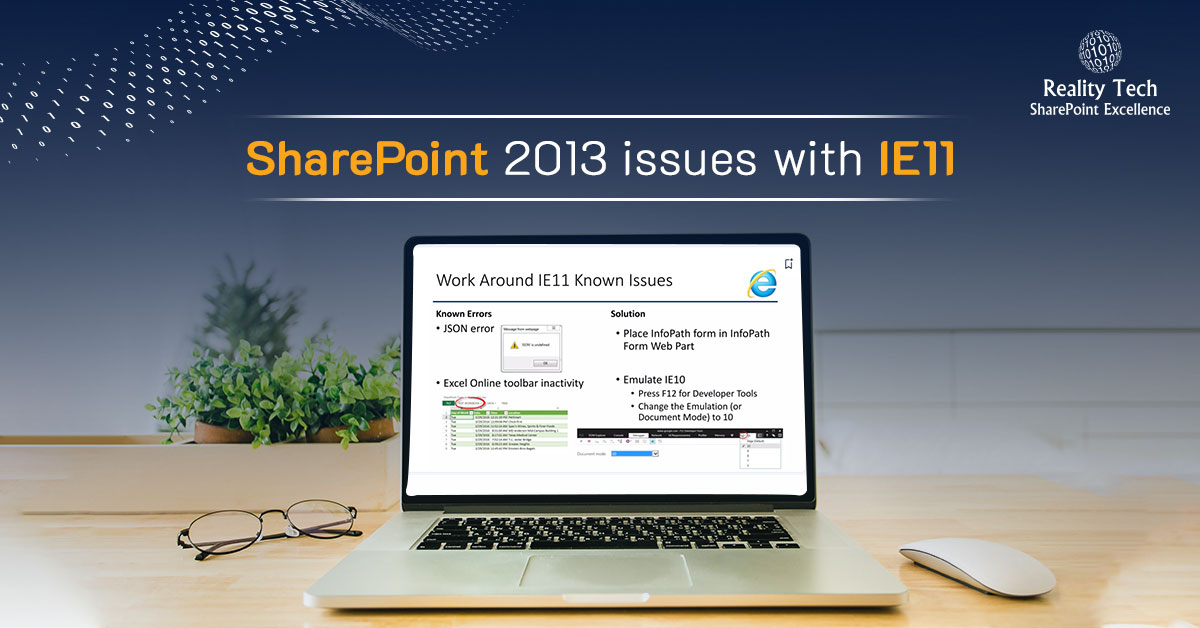
SharePoint 2013 issues with IE11

Working with IE11, Web Part pages could not be edited in the browser. Web parts could not be selected during creating the page, and the web part properties could not be presented for editing. The problem seems to be specific to IE11. It works great in IE10.

The solution is to set the hostname for the web part to run in Compatibility Mode.

To get it to work, here’s what I did:
1.Press ALT + T when viewing the SharePoint page
2.Click Compatibility View Settings in the menu
3.Click Add to add the current SharePoint site to the list of compatibility view pages
4.Click Close

That’s it. Not only does the page work, but other aspects of the page come back to life.

Happy browsing!

Challenges in SharePoint projects

SharePoint is a great platform for application development. However there exist some challenges that need to be kept in mind during planning, that are common across a range of SharePoint projects. Each topic is worthy of its own article. Some design aspects are easily changed on the fly, while other changes come at a great cost when discovered late, resulting in significant additional effort to remediate; hence having a seasoned architect early on in the design can be very cost effective, and reduce project risk.

Site Topology

The set of Site Collections needs to be designed for scalability and secure isolation. Too often projects attempt to save effort by unnecessarily restricting the system to function within a single Site Collection. Such a design can hit performance and scalability limits of single Site Collections. Peeling apart a Site Collection in a large production farm can be fraught with risk and take significant effort.

Design for upgrades

Design should include plans for upgrading, as patches and new versions come out; not just of SharePoint, but of SQL Server and 3rd party selected add-ons and operating systems.

3rd Party Software Dependency

Purchasing add-ons is often cost-effective and preferable to writing code, however the vendor dependency is a serious issue to be considered, including vendor viability. SharePoint 2013, for example, requires solutions (WSPs) to be rebuilt (using different DLL versions, deploying to a different hive location, using a different .NET version etc). If a vendor is not around when you upgrade, you may be forced to rewrite the application first a different way.

Flexible AMC

The full cost of a system needs to be taken into account, as well as a viable support model, for the AMC (Annual Maintenance Cost). This considers the full cost, not just for development but for Post deployment and Maintenance Support. A proper cost assessment in a business case should take into account a 3 or 5 year cost horizon.

Hardware

It’s not just the software costs that need to be taken into account, but harware costs as well, even in a multi-tenancy model. Proper costing takes into account the allocation utilized by a proposed system. One should complete an Assessment of the existing Hardware Infrastructure and Environment and provide necessary recommendations for Server Configuration and Farm Topology.

Governance

After doing the Requirement Gathering, some thought should be placed on the Governance Plan. This would identify business needs that can be achieved by OOTB features of SharePoint and which would require custom development, how the system would be authorized, users authenticated, policies, procedures, access levels, auditability and the like.

Market Awareness

This circles back to the concept of buy-vs-build. Too often developers reach into their coding bag-of-tricks, before considering what exists. All too often I’ve seen web parts written that duplicate what comes out of the box in SharePoint. Awareness of 3rd party solutions is also critical, to managing risk, timelines and project costs. Designers and developers need kept aware about market trends, new release, updates and patches. Senior team members in SharePoint can gain this through conferences, and just plain experience. Certifications are one indicator of knowledge, but that alone may not be sufficient.

Best practices

There is a wealth of knowledge in the industry on best-practices, starting from Microsoft. Development and Implementation should be done as per Microsoft suggested practices, but also considering leading authority opinions.

Scalability

Architecture and System design is done for scalability and high performance keeping in mind future data size and increase in the number of users. All too often a system that passes a demo, can’t scale to the planned level of usage. This includes handling geographic diversity, and concurrency.

Deployment Model

Now more than ever, the deployment model is key. Where once Sandbox solutions were promoted, these are now deprecated. Where once onPremises was the only option, now the App Model in Office 365 and Azure present not just viable options, but recommended approaches.

Awareness of roles

SharePoint team members should be included with specific expertise including crucially Administration, Development, Branding. A pure development approach may lead to taking a blind alley where a system is not easily maintained, or not easily branded.

Talent

Finding real SharePoint talent is a challenge. One needs to be aware that a purely .NET background is useful, but is not the complete skillset needed for successful projects.

How to start?

In short, one has to start and focus on the problem at hand. The solution comes only after the problem is crystal clear and understood. It is all too easy to jump into the technology, but must first start with the problem. One way to look at it is that there is no real solution without a specific problem.

Checking for a specific permission for a specific user or group in SharePoint

While the UI allows one to easily check permissions for a given user, how can one do that iteratively?

Here’s the heart of the magic:

# first grab the user principal:
  $user = $TargetWeb.Groups[$GroupToAdd];
 
# Now let's get the Role Assignments for that user on the folder:
  $RA = $folder.RoleAssignments.GetAssignmentByPrincipal($user);
 
#Role bindings are useful
  $RoleDefBindings = $RA.get_RoleDefinitionBindings();
 
#Now let's grab the Role Definition for Contribute permission in this SPWeb:
  $roledef = $TargetWeb.RoleDefinitions["Contribute"];
 
Lastly we can check whether the role bindings for this user on this folder contains the Contribute Role Definition:
  if ($RoleDefBindings.Contains($roledef)) {...}

Some useful routines first. Note I like to predefine a “Write” permission that allows creation and editing but not deletion:

function PermRole([string] $RoleChar)
{
    switch ($RoleChar)
    {
    "R" {$res="Read"}
    "C" {$res="Contribute"}
    "W" {$res="Contribute wo delete"}
    "D" {$res="Manage Hierarchy"}  #aka design, for setting permissions
    default {$res=$null}
    }
    return $res;
}
 
# Routine for adding permission based on passing in a character for the role definition to be granted:
function AddPerm ([string] $RoleChar, [string] $RoleGroup)
{ #JPItem/f and TargetWeb are implied and not passed as parms for efficiency!
    if ((!$RoleChar) -or (!$RoleGroup))
    {
    return; #race to be efficient on NullOp
    }
 
    $RoleValue=PermRole($RoleChar);
    if (!$RoleValue) 
    {
    Write-Host -ForegroundColor -darkred "ok, expected Role, but got none, for $($RoleChar)"
    return; 
    }
 
    try
    {
    #CONTROVERSIAL!
    if ($RoleChar -eq "W")  #wipes out reads etc.
    {
    RemovePerm $RoleGroup
    }
 
    try
    {
        $user = $TargetWeb.ensureuser($RoleGroup)
    }
    catch  #if the above fails, user is likely not a user, but in fact a group, let's retry as group
    {
        $user = $TargetWeb.Groups[$RoleGroup]
    }
    $roledef = $TargetWeb.RoleDefinitions[$RoleValue]
    $roleass = New-Object Microsoft.SharePoint.SPRoleAssignment($user)
    $roleass.RoleDefinitionBindings.Add($roledef)
 
    $f1.RoleAssignments.Add($roleass)  #This is SPFolder specific in this routine
    }
    catch
    {
    Write-Host -ForegroundColor DarkRed "ERR: Can't Assign $($RoleGroup)"
    }
}

Let’s first establish the libraries to look at across all webs and site collections:

$libsArrStr="Library name 1|Library name 2"
$LibsArr=$libsArrStr.split("|")
$GroupToAdd = "Department Contributors"
$Site = "ht tp://SharePoint/sites/SiteOfInterest"
 
$TargetWeb=$web=get-spweb $Site;
 
Write-Host "==>working in $($web.url)"
 
for ($j=0; $j -lt $LibsArr.count; $j++)
    {
        $libStr=$LibsArr[$j];
        $list=$web.Lists.TryGetList($libStr)
 
        if ($list -eq $null)
        {
            Write-Host -ForegroundColor DarkRed "List not found"
        }
        else
        {
        for ($fi=0; $fi -lt $list.Folders.Count; $fi++)
        {
            $f1 = $list.Folders.get_Item($fi)
            $f = $f1.folder;
 
      write-host -f green "The Library $($listName) exists in the site $($web.url), about to set folder Perms" 
 
        try
        {
            #the rule is if this field has data, make the user a Contributor
            $f1.ResetRoleInheritance(); #badda-bing, security is inherited
            $isWritable = ($f.item["TargetMetadata"] -ne $null);
            if (!$isWritable)
            {
                # nul op, already inherited
            }
                else  #let's see whether to break perms, based on whether the group already has Contribute
                {
                #let's see if the user has Contributor rights already; if so, no need to break inheritence
                                             
                $user = $TargetWeb.Groups[$GroupToAdd]
 
                $RA = $f1.RoleAssignments.GetAssignmentByPrincipal($user)
                $RoleDefBindings = $RA.get_RoleDefinitionBindings()
                $roledef = $TargetWeb.RoleDefinitions["Contribute"]
                if ($RoleDefBindings.Contains($roledef))  # user is already a Contributor, let's do nothing
                {
                }
                else
                {
                    $f1.BreakRoleInheritance($true);  #minimalist approach
                    addPerm "C"     $GroupToAdd                            
                    }
            }
        }
        catch
        {
            Write-Host problems setting perms
        }
    } #Folder processing for loop $fi
    } # list found
} #for loop $j

Enhancing SharePoint breadcrumbs when navigating deeply nested folders

I had an interesting challenge to improve breadcrumbs in navigating a deeply folder nested library. The nice breadcrumb dropdown icon is actually gone in SP2013 by default; that can easily be re-enabled via CSS. an onMouseOver event action in JavaScript can eliminate the need to click on it. However to improve the breadcrumb navigation, I created an SPWeb feature to enhance breadcrumbs by overriding the OnPreRender event. The OnPreRender should only occur if the ‘Visible’ property of the web control is set to true. The PreRender event is raised just before the page is about to render its contents. This is the last chance we have to modify the page output before it is received by the browser.

I deployed this web Scoped solution that overrides the breadcrumbs with OnPreRender page processing, and provides the full folder path, clickable for each link. It recursively searches the page for the “TitleBreadcrumb” control, and builds a replacement, adding an a href, folder link name, and breadcrumb image iteratively. It only affects the page when you are navigating within a library.

namespace MyDocLibraryBreadcrumb
{
    public class MyDocLibBreadcrumbDelegateControl : WebControl 
    {
        protected override void OnPreRender(EventArgs e)
        {
 
            try
            {
                base.OnPreRender(e);
 
                // Get the path to the current folder
                string path = Context.Request.QueryString["RootFolder"];
 
                // if there's no path then there is nothing to do; it implies are are not in the context of the library 
                if (String.IsNullOrEmpty(path))
                {
                    return;
                }
 
                // Let's get the current folder
                SPWeb web = SPContext.Current.Web;
                SPFolder currentFolder = web.GetFolder(path);
 
                // Let's find the breadcrumb control on the current page - it's a ListProperty control where the property is  "TitleBreadcrumb". 
                Control c = Utils.FindRecursive(Page.Controls, ctrl => ctrl is ListProperty && ((ListProperty)ctrl).Property == "TitleBreadcrumb");
 
                // If not found, nothing to do, and we are not likely in a library. 
                if (c == null)
                    return;
 
                // Let's subsitute the OOTB breadcrumb control with our replacement enhanced one
                var parent = c.Parent;
                var index = parent.Controls.IndexOf(c);
                parent.Controls.RemoveAt(index);
                parent.Controls.AddAt(index, new LiteralControl { Text = GetReplacementBreadCrumbOutput(currentFolder) });
            }
            catch (Exception ex)
            {
                // log errors quietly 
                Utils.WriteMyLog(Utils.GetErrorInfo(ex));
            }
        }
 
 
        /// SPFolder is the parameter to create navigation to
        /// returns the HTML output
        private string GetReplacementBreadCrumbOutput(SPFolder folder)
        {
            List<BreadcrumbNodeData> nodes = new List<BreadcrumbNodeData>();
 
            // Collect a path from current folder to its root folder
            SPFolder nodeFolder = folder;
            while (nodeFolder != null)
            {
                // If we're in folder use the folder name as a title. If not use a library title enstead.
                BreadcrumbNodeData node  = new BreadcrumbNodeData();
                node.Url = nodeFolder.ServerRelativeUrl;
                if (string.IsNullOrEmpty(nodeFolder.ParentFolder.Url))
                {
                    if (nodeFolder.DocumentLibrary != null)
                        nodes.Add(new BreadcrumbNodeData
                                      {Title = nodeFolder.DocumentLibrary.Title, Url = nodeFolder.ServerRelativeUrl});
                }
                else
                {
                    nodes.Add(new BreadcrumbNodeData { Title = nodeFolder.Name, Url = nodeFolder.ServerRelativeUrl });
                }
 
                nodeFolder = string.IsNullOrEmpty(nodeFolder.ParentFolder.Url) ? null : nodeFolder.ParentFolder;
            }
 
            // Reverse the collected path because the root folder must be on the left in bredcrumb
            nodes.Reverse();
 
            // Create an HTML output similar to original. An arrow image we've created from the original
            string htmlOutput = String.Empty;
 
            foreach (var node in nodes)
            {
                if (node != nodes.Last())
                    htmlOutput +=
                        String.Format(
                            @"<A href=""{0}"">{1}</A> <IMG style=""vertical-align:middle"" alt=: src=""/_layouts/images/MyDocLibraryBreadcrumb/breadcrumb_arrow.png""/> ", node.Url, node.Title);
                else
                {
                    htmlOutput += node.Title;
                }
            }
 
            return htmlOutput;
        }
    }
 
 
    /// temporary class to holds navigation node data
 
    public class BreadcrumbNodeData
    {
        /// Title for URL (it will be a folder name)
        public string Title { get; set; }
 
        /// Url to navigate on click (it will be a server relative URL of the folder)
        public string Url { get; set; }
    }
 
    public class Utils
    {
        public static string GetErrorInfo(Exception ex)
        {
            string result = "ex.Message=" + ex.Message;
            result += ex.InnerException == null ? "|ex.StackTrace=" + ex.StackTrace : String.Empty;
 
            if (ex.InnerException != null)
                result += "[INNER EXCEPTION: ]" + GetErrorInfo(ex.InnerException);
 
            return result;
        }
 
        public static void WriteMyLog(string text)
        {
            SPDiagnosticsService.Local.WriteTrace(0,
                                                  new SPDiagnosticsCategory("MyDocLibBreadcrumbDelegateControl", TraceSeverity.High,
                                                                            EventSeverity.Error),
                                                  TraceSeverity.High, text, null);
        }


        /// Finds a control based on provided criteria inside controls hierarchy
 
        /// <param name="controls">A Controls collection to start search</param>
        /// <param name="criteria">A criteria to return control</param>
        /// <returns>The founded control </returns>
        public static Control FindRecursive(ControlCollection controls, Func<Control, bool> criteria)
        {
            foreach (Control control in controls)
            {
                if (criteria(control))
                    return control;
 
                var innerControl = FindRecursive(control.Controls, criteria);
                if (innerControl != null)
                    return innerControl;
            }
 
            return null;
        }
    }
}

Fixing Checked Out Files

Fixing Checked Out Files

I ran into a challenge this evening with a monstrously large library filled with 5,000+ folders with 47,000+ files.

What to do?

Firstly, things don’t work correctly until the list view threshold is temporarily lifted. Once that is done, we can iterate through the files, take the checked out ones over, and force the check in.

Here’s how:

$root = get-spweb "ht tp://SharePoint/sites/site"
$lib = $root.lists["LibraryName"]
$x = $lib.CheckedOutFiles
$count = $x.Count
for ($i=$count-1; $i -ge 0; $i--)
{
$Checkeditem = $x.get_Item($i)
$Checkeditem.TakeOverCheckOut()
 
$libitem = $lib.GetItemById($Checkeditem.listitemid)
$libitem.File.CheckIn("")
Write-Host -NoNewline "."
}

Custom SQL Reporting in MS-Project Server 2013

Custom SQL Reporting in MS-Project Server 2013

It is easy to navigate the database schema in MS-Project Server to generate reports.  The SQL can be embedded in an ODC, or can be used within PowerPivot.  If joining Task and Project data, there’s a challenge of rollups.  The first challenge is avoiding double-counting from summary tasks.  The solution is to exclude them on the join, adding this condition:

where TaskIsSummary=0

The next source for double-counting are external tasks; those exposed through cross-linking tasks in separate projects. We can exclude both this way:

where TaskIsSummary=0 and TaskIsExternal = 0

The next problem is if merging task and project tables, project values would roll up incorrectly, however such numeric fields can be pro-rated to the project work, as long as we avoid divide-by-zero errors, here’s how, referencing a custom field called “Budgeted Costs”; note how its value is proportionate to the task work:

, case
 when [MSP_EpmProject_UserView].[Budgeted Costs] = 0 THEN 0
 when MSP_EpmTask_UserView.TaskRegularWork = 0 THEN 0
 when MSP_EpmProject_UserView.ProjectWork = 0 THEN 0
 else
 [MSP_EpmProject_UserView].[Budgeted Costs] * ( MSP_EpmTask_UserView.TaskRegularWork/ MSP_EpmProject_UserView.ProjectWork )
 END as [Budgeted Costs]
 
FROM dbo.MSP_EpmProject_UserView INNER JOIN dbo.MSP_EpmTask_UserView
ON MSP_EpmProject_UserView.ProjectUID = MSP_EpmTask_UserView.ProjectUID
where TaskIsSummary=0 and TaskIsExternal = 0
ORDER BY MSP_EpmProject_UserView.ProjectName, MSP_EpmTask_UserView.TaskIndex, MSP_EpmTask_UserView.TaskName

One step further, we can do the same using task assignment data, here’s what that looks like using the assignment work:

, case
 when [MSP_EpmProject_UserView].[Budgeted Costs] = 0 THEN 0
 when MSP_EpmAssignment_UserView.AssignmentWork = 0 THEN 0
 when MSP_EpmProject_UserView.ProjectWork = 0 THEN 0
 else
 [MSP_EpmProject_UserView].[Budgeted Costs] * ( MSP_EpmAssignment_UserView.AssignmentWork/ MSP_EpmProject_UserView.ProjectWork )
 END as [Budgeted Costs]
 
,[MSP_EpmResource_UserView].[Cost Type]
 
,[MSP_EpmResource_UserView].[Resource Departments]
 ,[MSP_EpmResource_UserView].[RBS]
 ,[MSP_EpmResource_UserView].[Resource Title] FROM dbo.MSP_EpmProject_UserView INNER JOIN dbo.MSP_EpmTask_UserView ON MSP_EpmProject_UserView.ProjectUID = MSP_EpmTask_UserView.ProjectUID LEFT OUTER JOIN dbo.MSP_EpmAssignment_UserView ON MSP_EpmTask_UserView.TaskUID = MSP_EpmAssignment_UserView.TaskUID AND MSP_EpmTask_UserView.ProjectUID = MSP_EpmAssignment_UserView.ProjectUID LEFT OUTER JOIN dbo.MSP_EpmResource_UserView ON MSP_EpmAssignment_UserView.ResourceUID = MSP_EpmResource_UserView.ResourceUID
where TaskIsSummary=0 and TaskIsExternal = 0
ORDER BY MSP_EpmProject_UserView.ProjectName, MSP_EpmTask_UserView.TaskIndex, MSP_EpmTask_UserView.TaskName

How to delete all SharePoint webs in a Site Collection, except the root web

Pretty useful and simple to delete all webs in a site collection except the root web. This worked for me, because there isn’t nesting. Even with nesting and the pipeline returning SPWebs in suboptimal sequence, running this a few times will wipe at a minimum the leaf nodes whittling you down to your clean root web.

get-spsite ht tp://SharePoint SiteURL | get-spweb -Limit all  | Where-Object {$_.isrootweb -ne $true} | % {$_.delete()}

Assigning an Application Pool to a SharePoint Web App

the easy/obvious way is the wrong way. The trick is to reassign the app pool to the web app so SharePoint know about it. That way on a reconfig, things don’t get configured incorrectly.
To do it correctly, we’ll leverage this PowerShell snippet:

$sourceWebAppPool = (Get-SPWebApplication < URL of an existing webapp application pool you want to use >).ApplicationPool
$webApp = Get-SPWebApplication < URL of the web application you want to update >;
$webApp.ApplicationPool = $sourceWebAppPool
$webApp.ProvisionGlobally()
$webApp.Update()
iisreset

if you do not have a web application already using the desired web application pool, you have the option to create a new application pool to use:

Import-Module WebAdministration
$appPool = New-WebAppPool "My new App Pool"

However, while I initially could not find a CmdLet for doing a “get-webAppPool”, my friend Brett Parker suggested:

$appPool = [Microsoft.SharePoint.Administration.SPWebService]::ContentService.ApplicationPools | Where {$_.Name -eq "NameOfAppPool" }

Programmatically Targeting Audiences for Audience Enabled Libraries in SharePoint

Overview

Targeting an audience for a given document is a great capability within SharePoint. There’s a simple Document Library setting to enable Audience Targeting.

This enables a dedicated Audience Targeting field to be configured per document. I customized a Content Query Web Part (CQWP) that honors audience targeting, while displaying the fields in a grid view, enabling a targeted and custom portal home page. While the CQWP is harder to work with than a Data View Web Part, CQWP is the primary way to leverage Audience targeting.

Additional Read

Set an Email alert for Document library or List for SharePoint 2013


Reporting

I prefer to first output a CSV of all documents, with one column for Audience. Note I also output the absolute URL. Here’s a function to do it. Note the proper use of memory management:

$LineHeader= 'Site,Lib,URL,ID,Versions,Name,Title,Created,Modified By,Modified,Audiences'
$LineHeader | Out-file -Filepath $ReportFile
 
function generate-VerReport ($WebUrl, $ListName)
{
    $ac=Start-SPAssignment
    $web = $ac | Get-SPWeb $WebUrl
    $list = $web.Lists[$ListName]
    $VerOut=$null;
 
    Write-Host "+" -NoNewline #each plus is a full look through all Docs in a library
    $xSit=$WebUrl;
    $xLis=$ListName;
 
        #Go through each item in the list
        $Items = $list.Items
        $ItemCount = $Items.count;
        for ($i=0; $i -lt $ItemCount; $i++)
        {
            #Check if the item content type currently equals the old content type specified
            $item=$items[$i];
 
            $sep='","';
            $xURL = $Item["EncodedAbsUrl"]
            $RawAud = $item["Target Audiences"];
            $xNam=$item['Name']
            $xTit=$item['Title']
            $xCre=$item['Created']
            $xEdi=$item["Editor"]
            $xMod=$item["Modified"]
            $xID= $item.ID
            $xVer= $item.Versions.count;
            $Line1='"'+$xSit+$sep+$xLib+$sep+$xURL+$sep+$xID+$sep+$xVer+$sep+$xNam+$sep+$xTit+$sep+$xCre+$sep+$xEdi+$sep+$xMod+$sep+$rawAud,'"';
            $Line1 | Out-file -Filepath $ReportFile -Append
            #$LineHeader+= '`r`n'
            #$VerOut+=$Line1;
 
        }
 
$LineHeader+= '`r`n'
$LineHeader | Out-file -Filepath $ReportFile -Append
 
  $web.Dispose()
 
   $ac | Stop-SPAssignment
}

Here’s the function call:

generate-VerReport -weburl $web.url -listname $JPlib

The output enables an end user to modify the CSV to specify the audience per document.

Additional Read

Mirroring SharePoint Document Library Contents to Multiple Sites

Audience Shuffling

I created a script to apply the Audiences specified per document in the control spreadsheet. The Audiences are expected to be in semi-colon separated format (multiple values possible). There is no error checking on spelling of Audiences. It turns out Document Audiences in SharePoint are weakly-typed. That is to say, it is simply a string. The string has four semi-colons. In this script, we only apply SharePoint Groups, and they appear as comma separated after four semi-colons. If multiple values appear, these are comma separated. If an AD group is used, then that appears nestled between two pairs of semi-colons, as in this example:
;;CN=GroupName Membership,OU=Security Groups,OU=Information Technology,DC=MyDomain,DC=com;;
Under the covers, SharePoint will accept not just AD groups and SharePoint groups, but also UPS (User Profile Service) Audiences, specified as GUIDs. So two semi-colons are used as delimiters (beats me, but this is the first time I’ve seen this convention). Here’s how it is structured:
[Guids, comma separated];;[AD group LDAP paths separated by line breaks];;[SharePoint security group names, comma separated]

Here’s the script to apply the Audiences. It assumes all are SharePoint Groups, but is easily extensible to support AD groups if desired. Note it does not do checking for validity of SharePoint groups. Note the “Action” column to determine whether to “D”elete or “A”ssign audiences:

Add-PSSnapin "Microsoft.SharePoint.PowerShell" -ErrorAction SilentlyContinue
Start-SPAssignment –Global
$ShuffleSource = "C:UsersplautjDocumentsPowerShellAudienceShuffle.txt"
$siteUrl = "ht tp://SharePoint"
 
Write-Host "script starting $(get-date)"
$myheader = "STARTING: $(get-date)"
 
$ShuffArr = Import-Csv -Path $ShuffleSource -Delimiter "`t"
 
$ShuffCount = $ShuffArr.count;
 
for ($i=0; $i -lt $ShuffCount; $i++)
{
        $Row = $ShuffArr[$i]
 
        if (($Row.action -ne $null) -and ($Row.action.length -ne 0))
        {
        $docurl = $row.url;
        $site = New-Object Microsoft.SharePoint.SPSite($docurl)
        $web = $site.OpenWeb()
        $item = $web.GetListItem($docurl)
        $list = $item.ParentList
 
        if ($Row.action -eq "D")
        {
            $item["Target Audiences"] = $null;
            $item.SystemUpdate();
        }
        elseif ($Row.action -eq "A")
        {
 
            if ($Row.Audiences -gt 0) #ignore if empty
            #actual Target Audience property has four semicolons, followed by comma delimited SharePoint groups
            #for AD group is how semicolons work ;;CN=ADW Membership,OU=Security Groups,OU=Information Technology,DC=DOMAIN,DC=com;;
 
            {
                $AudBuilder = ";;;;"
                $AudArr = $Row.Audiences.Split(";");
                for ($ai=0; $ai-lt $AudArr.Count; $ai++)
                {
                    if ($ai-gt 0)
                    {
                        $AudBuilder = $AudBuilder + ","
                    }
                    $AudBuilder = $AudBuilder + $AudArr[$ai]
                }
                $item["Target Audiences"] = $AudBuilder;
                $item.SystemUpdate();
 
            } #IF Audiences is not null
 
        } #Add action
 
        } #action exists
} #loop of rows
 
Write-Host "script finishing $(get-date)"
 
Stop-SPAssignment –Global
###########################

Are you in need of assistance? We can help!

Book a live 1-on-1 call with the experts of Reality Tech to find out how we will help you to achieve your goal.

Getting PowerPivot working in SharePoint

PowerPivot with SharePoint Diagnostics

There are a lot of moving parts to PowerPivot. Here are some common causes of PowerPivot not working within SharePoint:

No associated Service Application

I list this first, because I spent way too much time finding this one.   There is a Service Application created in support of PowerPivot.  If your web application doesn’t have a proxy association to this Service Application, you will get a generation connection error when trying to view a PowerPivot spreadsheet within Excel Services.

Data Connection Library trust

If you use an external (ie ODC) data connection in a library, that library needs to be trusted.

Trusted file location

The location where the PowerPivot spreadsheet is located needs to be trusted.

Install the appropriate SSAS OLAP library

For SQL Server 2008 R2 SP1, the correct library is MSOLAP.4, for SQL Server 2012, the correct library is is MSOLAP.5.  If you open the ODC data connection referenced by your PowerPivot spreadsheet, at the beginning you will find a reference to this library.

Ensure SSAS is running under a domain account

There are two solutions, and both need to be deployed. Here’s the PowerShell:

Add-SPSolution –LiteralPath “C:Program FilesMicrosoft SQL Server110ToolsPowerPivotToolsConfigurationToolResourcesPowerPivotFarm.wsp”
Install-SPSolution –Identity PowerPivotFarm.wsp –GACDeployment -Force
 
 
$centralAdmin = $(Get-SPWebApplication -IncludeCentralAdministration | Where { $_.IsAdministrationWebApplication -eq $TRUE})
Add-SPSolution –LiteralPath “C:Program FilesMicrosoft SQL Server110ToolsPowerPivotToolsConfigurationToolResourcesPowerPivotWebApp.wsp”
Install-SPSolution -Identity PowerPivotWebApp.wsp -GACDeployment -Force -WebApplication $centralAdmin

If you want to check the deployment status, try this command:

Get-SPSolution "powerpivotfarm.wsp" | Format-List

As background, there is a deployment job triggered with deploying the solution. This job is managed under the Timer Job Service, which you can check on:

Get-SPTimerJob -Type Microsoft.SharePoint.Administration.SPSolutionDeploymentJobDefinition | Format-List

Next, go into Farm Solutions in Central Admin, and deploy both solutions. What do these solutions do?

The Powerpivotfarm.wsp solution does the following:

Adds Microsoft.AnalysisServices.SharePoint.Integration.dll to the global assembly.
Adds Microsoft.AnalysisServices.ChannelTransport.dll to the global assembly.
Installs features and resources files, and registers content types.
Adds library templates for PowerPivot Gallery and Data Feed libraries.
Adds application pages for service application configuration, PowerPivot Management Dashboard, data refresh, and PowerPivot Gallery.
The Powerpivotwebapp.wsp solution does the following:

Adds Microsoft.AnalysisServices.SharePoint.Integration.dll resources files to the web server extensions folder on the Web front-end.
Adds PowerPivot Web service to the Web-front end.
Adds thumbnail image generation for PowerPivot Gallery.

Ensure OLE DB providers are available

If you are running SQL Server 2008 R2 SP, then the OLE DB provider should have been installed when SharePoint was installed.  You can find it in the GAC called “microsoft.analysisservices.xmla.dll”.  GAC is in C:windowsassembly

SQL Server 2008 R2: MSOLAP100.dll, within the data connection string it is called MSOLAP.4, and the version (when you examine properties of the file in the GAC) is 10.50.1600 or later)

SQL Server 2012: MSOLAP110.dll, within the data connection string it is called MSOLAP.5, and the version (when you examine properties of the file in the GAC) is 11.00.0000 or later)

Ensure the OLE DB provider is trusted by Excel Services

Check within Central Admin, Manage Service Applications, Excel Services, Trusted Data Providers lists MSOLAP.4  and/or MSOLAP.5, depending on which version of SQL Server you are using.

If it is not listed, click Add Trusted Data Provider, in the Provider ID, type MSOLAP.5.
For Provider Type, ensure that OLE DB is selected. In Provider Description, type Microsoft OLE DB Provider for OLAP Services 11.0.

Ensure CTWTS is started

The Claims to Windows Token Service is required to communicate and authenticate seamlessly with SQL Server.  This service has to be started.  In Central Admin, go to Services on Server, and start it up.

Ensure CTWTS is running as LOCAL

The Claims to Windows Token Service needs to run using the LOCAL builtin account.  You can see this by starting services.msc on each SharePoint server.

Ensure Secure Store Service is configured

This Service Application needs to be configured (it has its own database), running, associated with your web application, with an Application ID defined that maps to an AD account.  I prefer configuring as a “Group” entry.  You’ll need to enter credentials for this Application ID, and also grant permissions to the users who will reference the Secure Store Application ID, which is set within the data connection for the Authentication configuration.

Ensure Excel Services is running and associated

PowerPivot makes use of Excel Services.  This Service Application must be configured, and associated with your web application.  The data connection library (if used) and file location must be trusted.  Excel Services should also be configured to allow PowerPivot workbooks of sufficient size to render.  Note I have seen a bug in early versions of SharePoint 2013 where increasing the maximum workbook size does not allow larger workbooks to render.

Ensure XLSX renders in Excel Services

This one is a real gotcha” if you are running SharePoint 2013 with an Office Web Apps farm.  By default Office Web Apps renders spreadsheets, and cannot handle external data connections.  if the URL contains “_layouts/15/WopiFrame.aspx” then the spreadsheet is being rendered by Office Web Apps.  The tricky part is that other than the URL, Office Web Apps rendered spreadsheets look virtually identical to the Excel Services rendered equivalent.  Under Excel Services the URL would instead contain “_layouts/15/xlviewer.aspx”.  The fix for this is a single PowerShell command:

New-SPWOPISuppressionSetting -Extension XLSX -Action View

Ensure Analysis Services Account can act as O/S

The Service account running the PowerPivot dedicated Analysis Services on the SharePoint server can fail to refresh unless the following steps are taken:

  • Run “secpol.msc”
  • Click Local Security Policy, then click Local policies, and then click User rights assignment.
  • Add the service account.

Check the ULS

When all fails, the ULS can be a lifesaver.  While often cryptic or hyperventilating about some minutia, it still can very clearly indicate the source of a problem

Newsletters