How to Configure a URL to a Specific Location Inside a PDF

URL to a Location Inside a PDF

It turns out, there is no way to specify a URL to a bookmark
Here’s how to jump to a place inside a PDF from a link by using what is called “Named Destinations”. Note these are not Bookmarks. Links to Bookmarks do not work.

Additional Read

The Ultimate Guide to Using SharePoint for End Users!

Here is an example link that will work: : http://SharePoint/dept/abc/Shared%20Documents/Test%20document%20for%20anchoring3.pdf#nameddes

See the URL above, note there’s a “#” then “nameddest=” then the named destination called “dest3”. This works.

#nameddest=[destination] in this case, I have a named destination I created called “dest3”

Note these are not bookmarks:
1. Use Adobe Acrobat X

2. Edit the PDF

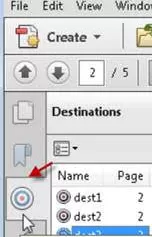
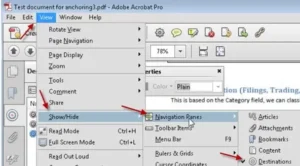
3. Enable viewing of named destinations, by clicking “View, Show/Hide, Navigation Panes, destinations, see image below

4. Click “Destinations” below “Bookmarks” icon on left pane. See below:
img-01
[/av_textblock]

Named Destination

img-02

Additional Read

SharePoint Online vs On-Premises – Migrate from On-Premises to SharePoint Online

How To Migrate Documents Into SharePoint

Getting documents into SharePoint

There are many ways to get documents into SharePoint. This article covers a range of approaches aside from basic file
upload. Let’s first take a quick review of SharePoint’s general file upload limitations:

  • Zero-length files Files such as shortcuts cannot be imported
  • Too large files: Depending on the configured limit, files that are larger than the limit will
    not be uploaded
  • Filetypes Some filetypes are blocked by default. This can be for good reasoning. Executables
    and scripts are dangerous to upload, either easily running on user desks or containing malware.
  • Invalid filename characters Unsupported characters include: ~, #, %, & , *, {, }, \, :,
    <, >, ?, /, |
  • Trailing periods: A filename cannot have a trailing period
  • Leading or trailing spaces: A filename cannot start or end with a blank. Often, the upload will
    work with trailing blanks, but the blank may be truncated
  • Long filenames: The full URL cannot exceed somewhere around 230 characters. Adding in the web
    application, site, library, and any number of folders, it’s not too hard to hit this limit.

img

  Drag and Drop


SharePoint 2013 supports drag-and-drop into SharePoint. Some
limitations to consider

  • Only 100 documents at a time
  • Filenames can only contain valid characters
  • Unless default metadata is configured, this approach does not support tagging.

Explorer Mode Icon

  Explorer Mode


This is also known as WebDav. In the ribbon under the “Library” tab, there should be an “Open with Explorer” option. This supports folders and many documents. Limitations include poor handling for errors on upload.


OneDrive Icon

  Onedrive for Business

If Sync is selected in the library, documents uploaded to OneDrive can be easily synced with a library.

Scripting Icon

  Scripting


Using PowerShell, file migration can be scripted. I’ve created scripts that:

  • Consolidate multiple versions into a single document with versions
  • Preserving of authorship and timestamp
  • Detailed output looking as a CSV
  • Delta migration of only files meeting specific date or other criteria
  • Using custom business logic to map to Sites, libraries, content types, folders, and document sets
  • Fixing of filenames to avoid illegal filename errors

Tool Icon

Migration Tools

A range of document migration tools are available, such as Share-Gate, AvePoint DocAve, Tzunami, and Lightning Tools.

For large-scale or complex migrations, our SharePoint development solutions team can help with customized scripting, error handling, and secure deployment, tailored to your organizational needs.


Setting a Site Collection to not be read-only

How to set a site collection as not read-only

Is your site collection read-only?

It is critical to be able to set a site collection to not be read-only. This situation can occur if a site backup is interrupted, as an SPSite backup is made read-only temporarily during backups.

 $site=Get-SPSite "http://SharePoint/managedpath/sitename"
$site.set_ReadOnly($false)

To turn it back to read-only:

$site=Get-SPSite "http://SharePoint/managedpath/sitename"
$site.set_ReadOnly($true)

Creating an MS Office Add-In using Visual Studio IDE

Process for creating MS Office Add-In from Visual Studio IDE

Step 1:

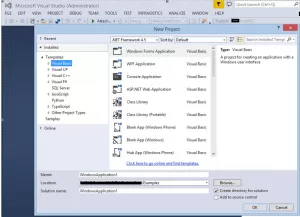
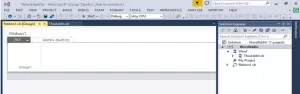
To start constructing an Office add-in, we are going to create a separate project for each Office application i.e. Word, Excel, PowerPoint etc. Let’s start with the MS-Word add-in. Open Visual studio with the IDE option FILE -> New -> Project:

img

Step 2:

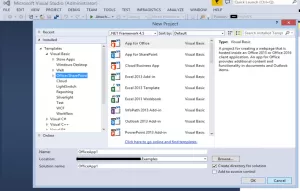
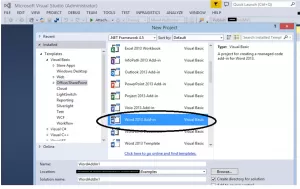
Now select an appropriate template (i.e. Visual Basic, Visual C# etc) to develop an add-in project. We will select Visual Basic for this, Go to Templates -> Visual Basic -> Office/SharePoint.

img

Step 3:

Now select the appropriate add-in project to develop as shown in the screenshot below. Let’s select the MS-Word add-in project, for example.

img

Step 4:

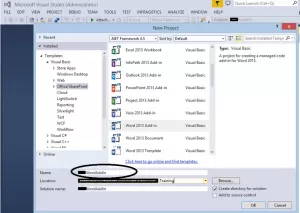
Name the project and select the ‘Location’ folder to save the project work. Click ‘OK’ button to create the project.

img

Step 5:

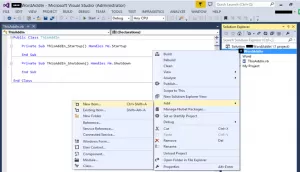
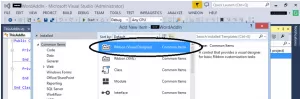
Now we have to add a ribbon to this newly created project which will then be customized further. To add a ribbon, right click on the project, Go to Add -> New Item… Then select ‘Ribbon (Visual Designer)’ component as shown below:

img

Select ‘Ribbon (Visual Designer)’ ->

img

Here’s how it looks after adding the ribbon into the project:

img

Step 6:

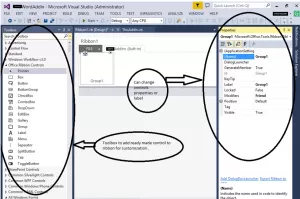
Now that the ribbon add step is done, we will proceed with customizing the ribbon. To design/customize the ribbon, we use the ‘Toolbox’ controls as shown in below screen shot.

img

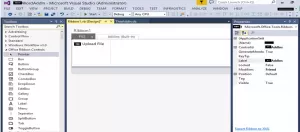
After customization of the ribbon, we have added one button with an image and label ‘Upload File’. We can then trigger the opening of a form on detecting the click of this button.

img

Step 7:

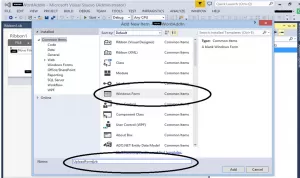
Now we will add a form for processing our logic to upload the file from the user’s machine to the server. To add a windows form, right click on the project, Go to Add -> New Item… Then select ‘Windows Form’ component as shown below screen-shots:

img

Below is the Design form for the move file action using toolbox controls:

img

Step 8:

Write logic to process/move the opened file to the server on the click of the ‘Move Document’ button. Process followed in current Office add-in is as below:

1. User will open his/her document in the MS-Office application
2. After the document is opened, if the user wants this to transfer to a website location, the User can go to the Add-In section and click the ‘Move Document’ button.
3. From step 2, a form will ask for the ‘site URL’. Based on this we can find the service location from the server which is located at ‘http://{siteurl}:{port}/Services/UploadService.svc’
4. After click on the ‘Move Document’ from form –
4.1. Copying current/active file opened in Word (or Office) application into the TEMP location of the user’s machine to read all file contents in bytes. This is because we can’t read in the stream of bytes directly if the file is currently in use.
4.2. Next we read the contents from the file newly located in the TEMP location. Pass this bytes[] to the service method UploadDocument(fileContent, newFileName) in fileContent parameter and the file name us generated to process in the UploadDocument method.
4.3. After bytes[] stream is passed to the service method, it will write to the file in the TEMP location on the server which will be used to process or attach that document to the record based on the selection.

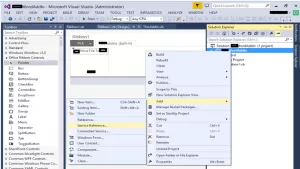
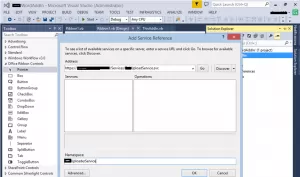
To add the service, right click on the project, Go to Add -> Service Reference…

img

Configuring service reference in the add-in project:

img

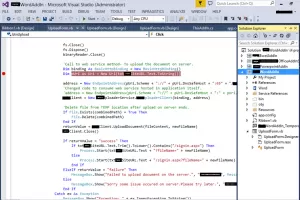
The Code below is added on the click action of the ‘Move Document’ button from our windows form:

img

Office Add-In Installation

To install the MS Office add-in, Go to your setup location folder and click on setup.exe. This setup will install add-ins for Word, Excel, and PowerPoint applications:

img

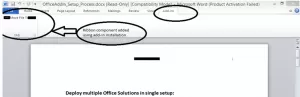
Screen-Shot: After installation of add-in setup:

img

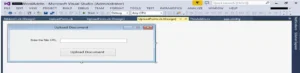
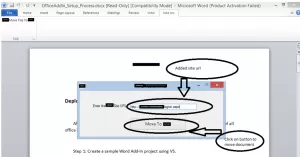
Screen-Shot: Form to move the document to the server:

img

Press the “Move” button and it will open the site associated with the entered URL in the browser. The other upload document process will handle the entered website.

For MS-Excel and MS-PowerPoint we can follow same steps.


Fixing Repeated Logon Prompts in SharePoint

There’s nothing that annoys users as much as repeated logon prompts.

Recently a SharePoint 2013 farm was prompting all users for logon except when logging on from the web server itself.

It seems someone had changed the Web Application User Authentication setting for the web app from Claims Based Authentication to Windows Authentication.

Other areas to check:

  • Add SharePoint web application to the Trusted Sites
  • Clear all cached credentials. Here’s how. Go to Control Panel, User Accounts, Credential Manager, Manage Windows Credentials, and remove all relevant cached credential entries. In case old credentials are stored.
  • Make sure Integrated windows authentication is enabled in IE. (Tools >> Internet Options >> Advanced >> under security, enable integrated authentication)
  • Ensure IE settings for User Authentication has “Automatic Logon with current user name and password” selected

In conclusion, addressing repeated logon prompts in SharePoint can be a frustrating issue for users.

By ensuring the correct settings are in place, such as adding the SharePoint services web application to Trusted Sites, clearing cached credentials, and enabling integrated Windows authentication in Internet Explorer, you can alleviate this annoyance and ensure a smoother user experience within your SharePoint environment.

By following these steps and staying vigilant for any changes to authentication settings, you can help maintain the integrity and usability of your SharePoint services.

Granting myself site collection admin access

Sometimes one needs to grant themselves site collection admin access, here’s two kinds of site collection admin status assignments:

$meStr = "domain\administrator";
$w = get-spweb "http ://subdomain.domain.com/sites/Projects"
$me = $w.ensureuser($meStr)
$me.issiteadmin
$me.issiteadmin=$true
$me.update()

Or set Primary or secondary:

Get-SPSite -Limit All | ?{$_.url -notlike "*/Departments/"} | %{Set-SPSite $_ -OwnerAlias "" -SecondaryOwnerAlias ""}

Don’t forget to pipe your SPContentDatabases and even all SPDatabases into an AddSPShellAdmin CmdLet to ensure DB access for yourself is granted.

Creating Fields and Content Types cleanly in SharePoint

when creating Content Types in SharePoint, it’s nice to script the process, for planning and repeatability. Here’s a nifty routine that allows a single line creation of Site Columns and Content Types.

First, here’s the routine to create Site Columns. The here-string XML is replaced with placeholders filled by parameters. Note the convenient parameters:

function tryAdd-TextField ([Microsoft.SharePoint.SPWeb] $web, [string] $DisplayName, [string] $InternalName, [string] $Group, [Boolean] $Hidden, 
[Boolean] $Required, [Boolean] $ShowInDisplayForm, [Boolean] $ShowInEditForm, [Boolean] $ShowInNewForm )
{
$fields = $web.fields;
try
{
    $q=$fields.getFieldByInternalName($InternalName); 
} catch
{
    $q=$null;
}
 
if ($q -ne $null)
{
Write-Host "$($InternalName) already exists!, no action taken to create this site column"
}
else
{
$fieldXMLString = '
 '
 
 $FieldXMLString = $FieldXMLString.Replace("@InternalName",$InternalName.tostring())
 $FieldXMLString = $FieldXMLString.Replace("@DisplayName",$DisplayName.tostring())
 $FieldXMLString = $FieldXMLString.Replace("@Group",$Group.tostring())
 $FieldXMLString = $FieldXMLString.Replace("@Hidden",$Hidden.tostring())
 $FieldXMLString = $FieldXMLString.Replace("@Required",$Required.tostring())
 $FieldXMLString = $FieldXMLString.Replace("@ShowInDisplayForm",$ShowInDisplayForm.tostring())
 $FieldXMLString = $FieldXMLString.Replace("@ShowInEditForm",$ShowInEditForm.tostring())
 $FieldXMLString = $FieldXMLString.Replace("@ShowInNewForm",$ShowInNewForm.tostring())
 
 $web.Fields.AddFieldAsXml($fieldXMLString)
 }
 }
function tryAdd-CT ([Microsoft.SharePoint.SPWeb] $web, [string] $Field, [string] $Group, [string] $Parent, [string] $Name, [string] $Description )
{
    try
    {
        $ctypeParent = $web.availablecontenttypes[$Parent]
 
    }
    catch
    {
        $ctypeParent = $null;
    }
 
    if ($ctypeParent -eq $null)
    {
        write-host "Content Type $($Name) not created because there was a problem finding the Parent Content Type $($Parent)"
    }
    else
    {
    $ctype = new-object Microsoft.SharePoint.SPContentType($ctypeParent, $web.contenttypes, $Name)
    $ctype.Description = $Description
    $ctype.group = $Group
 
    if (![string]::IsNullOrEmpty($field))
    {
    foreach ($fld in $field.split("|"))
     {
        $f=$web.fields.getFieldByInternalName($fld)  
        $link = new-object Microsoft.SharePoint.SPFieldLink $f
        $ctype.FieldLinks.Add($link)
     }
    }
 
    try
    {
        $ctype = $web.contenttypes.add($ctype)
    }
    catch
    {
        write-host "Content Type $($Name) already exists"
    }
    }
}

Let’s now create some site columns:

tryAdd-TextField -web $Web -DisplayName "Year"    -InternalName "YearACT"    -Group "Actuarial" -Hidden $False -Required $False -ShowInDisplayForm $True -ShowInEditForm $False -ShowInNewForm $False
tryAdd-TextField -web $Web -DisplayName "Quarter" -InternalName "QuarterACT" -Group "Actuarial" -Hidden $False -Required $False -ShowInDisplayForm $True -ShowInEditForm $False -ShowInNewForm $False
tryAdd-TextField -web $Web -DisplayName "Month"   -InternalName "MonthACT"   -Group "Actuarial" -Hidden $False -Required $False -ShowInDisplayForm $True -ShowInEditForm $False -ShowInNewForm $False
tryAdd-TextField -web $Web -DisplayName "LOB"     -InternalName "LOBACT"     -Group "Actuarial" -Hidden $False -Required $False -ShowInDisplayForm $True -ShowInEditForm $False -ShowInNewForm $False

Here’s how to create a Content Type with one field:

tryAdd-CT -web $Web -Field $null -Group "Actuarial"  -Parent (select-parent)  -Name "My Core ACT" -Description "Core Actuarial Document"

Note in the comment below, the fields can be passed in pipe-delimited

tryAdd-CT -web $Web -Field "YearACT|QuarterACT|MonthACT|LOBACT" -Group "Actuarial"  -Parent "My Core ACT" -Name "General (ACT)" -Description "General Actuarial Document"

Folder, File size and timestamp analysis using PowerShell

In just a few lines, one can generate a CSV of all files and their attributes including size and timestamp. I prefer to use TSV (tab delimited) to ensure embedded characters like quotes or commas don’t disrupt the CSV layout.

$q = Get-ChildItem "\serverReserve" -Recurse
#$q | ConvertTo-Csv -NoTypeInformation | out-file "D:DivActAnalyticsACTRDriveFoldersFiles.csv" 
$q2 = $q | select PSPath,PSChildName,   PSIsContainer,BaseName,Length,Name,FullName,Extension,CreationTime,LastAccessTime,LastWriteTime 
 
foreach ($qItem in $q2)
{
   $qItem.PSPath = $qItem.PSPath.replace("Microsoft.PowerShell.CoreFileSystem::","")
}
 
$q2 | ConvertTo-Csv -NoTypeInformation -delimiter "`t" | out-file "D:myFolderReport.csv"

Encoding and Decoding URLs in PowerShell

URLs in SharePoint are often filled with “%20” in place of blanks, and other substitutions.

However, there are times when the original clean URL is desired. The “%20” references are known as “encoded” URls. URL encoding replaces unsafe ASCII characters with a “%” followed by two hexadecimal digits.

URLs can only be sent over the Internet using the ASCII character set. However for emailing or auditing URLs, sometimes the decoded URL is desired.

Here’s how to Encode and Decode an URL in PowerShell:

$EncodedURL = [System.Web.HttpUtility]::UrlEncode($URL)
$DecodedURL = [System.Web.HttpUtility]::UrlDecode($URL)

Industry-standard encoding is described in detail at: http://www.w3schools.com/tags/ref_urlencode.asp

PowerShell Scripting Services can greatly enhance automation processes. When working with SharePoint, having a reliable Sharepoint development company is crucial for efficient collaboration and data management.

For More, Contact reach Reality Tech a trusted provider of SharePoint online development services to explore your options further


Fixing taxonomy terms after a Metalogix Migration

When migrating from SharePoint 2010 to 2013 using the Metalogix Content Matrix 7.0.0.1 migration tool, a taxonomy issue was encountered. The individual term from the SP2010 source was not applied to the SP2013 destination and associated with the correct term set and term.

The destination taxonomy field appeared empty in every sense. It was not displayed when viewing the Item, nor in the list view.

However one remnant of the term did appear in a surprising place. Within the read-only property bag of the item (item.XML) there was a field with what appears to be a GUID devoid of dashes as property name, with a value that seems somewhat usable.

Additional Read

How to Choose the Right SharePoint Migration Tool and Service Partner?

The property value in this case was “a466a2acd62b498291c78829c2bb5fe3”.
item.GetFormattedValue(“a466a2acd62b498291c78829c2bb5fe3”) gets the value, as does item[“a466a2acd62b498291c78829c2bb5fe3”]
This is the GUID of the target field associated with the termset.
To make this more generic, I set the targetField to the field name we are looking for, and derive the GUID generically this way.

[Microsoft.SharePoint.Taxonomy.TaxonomyField]$taxonomyField = $item.Fields.GetField($targetField)

Then stripped off the dashes, to get it into the format that appears in the property bag:

$FieldGUID = $taxonomyField.id.Guid.tostring().replace("-","")

Then I derive the value for the property:

$FQterm = $item[$fieldGUID]

The value appears in the internal format, so I strip off any text appearing after a pipe:

$fqTerm = $FQterm.Substring(0,$FQterm.IndexOf("|"))

To match to the appropriate term, we need to handle the situation where a text value can appear under multiple parents. So we walk the hierarchy to find the single correct match. First we split the term into colon delimited segments:

$termHierarchy = $FQterm.Split(":")

Then check parent term matching to narrow to one appropriate matching term. This assumes checking two levels finds the match. It can be extended to match 7 levels deep if needed:

if ( $TC.count -gt 1)
{
  $termIdx=-1;
  if ($termHierarchy.count -ge 2)
  {
     $ParentTerm = $termHierarchy[$termHierarchy.count-2];
  }
  else
  {
    $ParentTerm = $null;
  }
 
  for ($ti=0; $ti -lt $TC.count; $ti++) #loop to ensure parent is right one
  {
     if ($TC[$ti].parent.getdefaultlabel(1033) -eq $parentTerm)
     {
       $termIdx = $ti;
     }
  }
}

Start Your SharePoint Online Migration Project In A Click

Our technology and wide delivery footprint have created billions of dollars in value for clients globally and are widely recognized by industry professionals and analysts.

Newsletters