Creating an MS Office Add-In using Visual Studio IDE

Process for creating MS Office Add-In from Visual Studio IDE

Step 1:

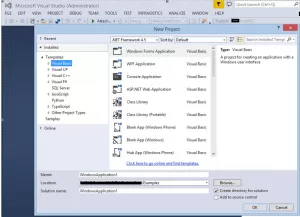
To start constructing an Office add-in, we are going to create a separate project for each Office application i.e. Word, Excel, PowerPoint etc. Let’s start with the MS-Word add-in. Open Visual studio with the IDE option FILE -> New -> Project:

img

Step 2:

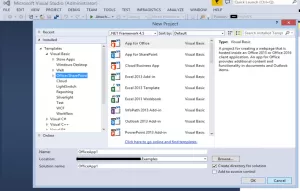
Now select an appropriate template (i.e. Visual Basic, Visual C# etc) to develop an add-in project. We will select Visual Basic for this, Go to Templates -> Visual Basic -> Office/SharePoint.

img

Step 3:

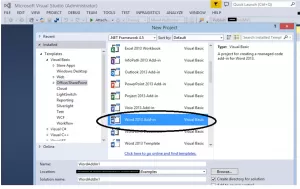
Now select the appropriate add-in project to develop as shown in the screenshot below. Let’s select the MS-Word add-in project, for example.

img

Step 4:

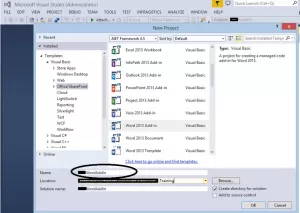
Name the project and select the ‘Location’ folder to save the project work. Click ‘OK’ button to create the project.

img

Step 5:

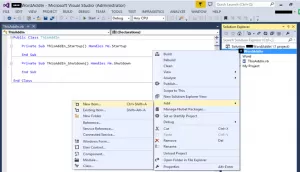
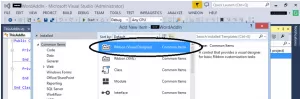
Now we have to add a ribbon to this newly created project which will then be customized further. To add a ribbon, right click on the project, Go to Add -> New Item… Then select ‘Ribbon (Visual Designer)’ component as shown below:

img

Select ‘Ribbon (Visual Designer)’ ->

img

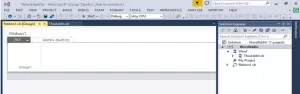
Here’s how it looks after adding the ribbon into the project:

img

Step 6:

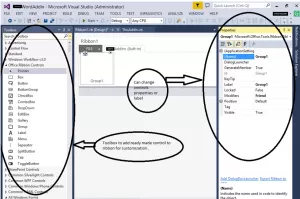
Now that the ribbon add step is done, we will proceed with customizing the ribbon. To design/customize the ribbon, we use the ‘Toolbox’ controls as shown in below screen shot.

img

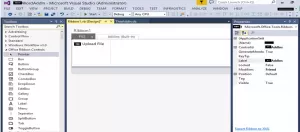
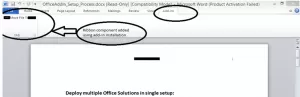
After customization of the ribbon, we have added one button with an image and label ‘Upload File’. We can then trigger the opening of a form on detecting the click of this button.

img

Step 7:

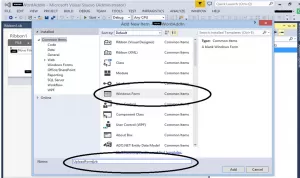
Now we will add a form for processing our logic to upload the file from the user’s machine to the server. To add a windows form, right click on the project, Go to Add -> New Item… Then select ‘Windows Form’ component as shown below screen-shots:

img

Below is the Design form for the move file action using toolbox controls:

img

Step 8:

Write logic to process/move the opened file to the server on the click of the ‘Move Document’ button. Process followed in current Office add-in is as below:

1. User will open his/her document in the MS-Office application
2. After the document is opened, if the user wants this to transfer to a website location, the User can go to the Add-In section and click the ‘Move Document’ button.
3. From step 2, a form will ask for the ‘site URL’. Based on this we can find the service location from the server which is located at ‘http://{siteurl}:{port}/Services/UploadService.svc’
4. After click on the ‘Move Document’ from form –
4.1. Copying current/active file opened in Word (or Office) application into the TEMP location of the user’s machine to read all file contents in bytes. This is because we can’t read in the stream of bytes directly if the file is currently in use.
4.2. Next we read the contents from the file newly located in the TEMP location. Pass this bytes[] to the service method UploadDocument(fileContent, newFileName) in fileContent parameter and the file name us generated to process in the UploadDocument method.
4.3. After bytes[] stream is passed to the service method, it will write to the file in the TEMP location on the server which will be used to process or attach that document to the record based on the selection.

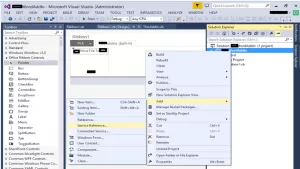
To add the service, right click on the project, Go to Add -> Service Reference…

img

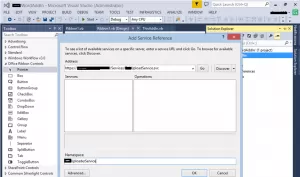
Configuring service reference in the add-in project:

img

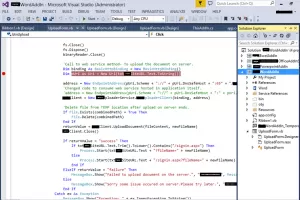
The Code below is added on the click action of the ‘Move Document’ button from our windows form:

img

Office Add-In Installation

To install the MS Office add-in, Go to your setup location folder and click on setup.exe. This setup will install add-ins for Word, Excel, and PowerPoint applications:

img

Screen-Shot: After installation of add-in setup:

img

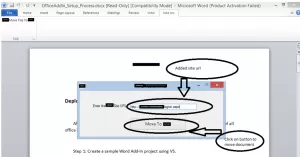
Screen-Shot: Form to move the document to the server:

img

Press the “Move” button and it will open the site associated with the entered URL in the browser. The other upload document process will handle the entered website.

For MS-Excel and MS-PowerPoint we can follow same steps.


Fixing Repeated Logon Prompts in SharePoint

There’s nothing that annoys users as much as repeated logon prompts.

Recently a SharePoint 2013 farm was prompting all users for logon except when logging on from the web server itself.

It seems someone had changed the Web Application User Authentication setting for the web app from Claims Based Authentication to Windows Authentication.

Other areas to check:

  • Add SharePoint web application to the Trusted Sites
  • Clear all cached credentials. Here’s how. Go to Control Panel, User Accounts, Credential Manager, Manage Windows Credentials, and remove all relevant cached credential entries. In case old credentials are stored.
  • Make sure Integrated windows authentication is enabled in IE. (Tools >> Internet Options >> Advanced >> under security, enable integrated authentication)
  • Ensure IE settings for User Authentication has “Automatic Logon with current user name and password” selected

In conclusion, addressing repeated logon prompts in SharePoint can be a frustrating issue for users.

By ensuring the correct settings are in place, such as adding the SharePoint services web application to Trusted Sites, clearing cached credentials, and enabling integrated Windows authentication in Internet Explorer, you can alleviate this annoyance and ensure a smoother user experience within your SharePoint environment.

By following these steps and staying vigilant for any changes to authentication settings, you can help maintain the integrity and usability of your SharePoint services.

Granting myself site collection admin access

Sometimes one needs to grant themselves site collection admin access, here’s two kinds of site collection admin status assignments:

$meStr = "domain\administrator";
$w = get-spweb "http ://subdomain.domain.com/sites/Projects"
$me = $w.ensureuser($meStr)
$me.issiteadmin
$me.issiteadmin=$true
$me.update()

Or set Primary or secondary:

Get-SPSite -Limit All | ?{$_.url -notlike "*/Departments/"} | %{Set-SPSite $_ -OwnerAlias "" -SecondaryOwnerAlias ""}

Don’t forget to pipe your SPContentDatabases and even all SPDatabases into an AddSPShellAdmin CmdLet to ensure DB access for yourself is granted.

Creating Fields and Content Types cleanly in SharePoint

when creating Content Types in SharePoint, it’s nice to script the process, for planning and repeatability. Here’s a nifty routine that allows a single line creation of Site Columns and Content Types.

First, here’s the routine to create Site Columns. The here-string XML is replaced with placeholders filled by parameters. Note the convenient parameters:

function tryAdd-TextField ([Microsoft.SharePoint.SPWeb] $web, [string] $DisplayName, [string] $InternalName, [string] $Group, [Boolean] $Hidden, 
[Boolean] $Required, [Boolean] $ShowInDisplayForm, [Boolean] $ShowInEditForm, [Boolean] $ShowInNewForm )
{
$fields = $web.fields;
try
{
    $q=$fields.getFieldByInternalName($InternalName); 
} catch
{
    $q=$null;
}
 
if ($q -ne $null)
{
Write-Host "$($InternalName) already exists!, no action taken to create this site column"
}
else
{
$fieldXMLString = '
 '
 
 $FieldXMLString = $FieldXMLString.Replace("@InternalName",$InternalName.tostring())
 $FieldXMLString = $FieldXMLString.Replace("@DisplayName",$DisplayName.tostring())
 $FieldXMLString = $FieldXMLString.Replace("@Group",$Group.tostring())
 $FieldXMLString = $FieldXMLString.Replace("@Hidden",$Hidden.tostring())
 $FieldXMLString = $FieldXMLString.Replace("@Required",$Required.tostring())
 $FieldXMLString = $FieldXMLString.Replace("@ShowInDisplayForm",$ShowInDisplayForm.tostring())
 $FieldXMLString = $FieldXMLString.Replace("@ShowInEditForm",$ShowInEditForm.tostring())
 $FieldXMLString = $FieldXMLString.Replace("@ShowInNewForm",$ShowInNewForm.tostring())
 
 $web.Fields.AddFieldAsXml($fieldXMLString)
 }
 }
function tryAdd-CT ([Microsoft.SharePoint.SPWeb] $web, [string] $Field, [string] $Group, [string] $Parent, [string] $Name, [string] $Description )
{
    try
    {
        $ctypeParent = $web.availablecontenttypes[$Parent]
 
    }
    catch
    {
        $ctypeParent = $null;
    }
 
    if ($ctypeParent -eq $null)
    {
        write-host "Content Type $($Name) not created because there was a problem finding the Parent Content Type $($Parent)"
    }
    else
    {
    $ctype = new-object Microsoft.SharePoint.SPContentType($ctypeParent, $web.contenttypes, $Name)
    $ctype.Description = $Description
    $ctype.group = $Group
 
    if (![string]::IsNullOrEmpty($field))
    {
    foreach ($fld in $field.split("|"))
     {
        $f=$web.fields.getFieldByInternalName($fld)  
        $link = new-object Microsoft.SharePoint.SPFieldLink $f
        $ctype.FieldLinks.Add($link)
     }
    }
 
    try
    {
        $ctype = $web.contenttypes.add($ctype)
    }
    catch
    {
        write-host "Content Type $($Name) already exists"
    }
    }
}

Let’s now create some site columns:

tryAdd-TextField -web $Web -DisplayName "Year"    -InternalName "YearACT"    -Group "Actuarial" -Hidden $False -Required $False -ShowInDisplayForm $True -ShowInEditForm $False -ShowInNewForm $False
tryAdd-TextField -web $Web -DisplayName "Quarter" -InternalName "QuarterACT" -Group "Actuarial" -Hidden $False -Required $False -ShowInDisplayForm $True -ShowInEditForm $False -ShowInNewForm $False
tryAdd-TextField -web $Web -DisplayName "Month"   -InternalName "MonthACT"   -Group "Actuarial" -Hidden $False -Required $False -ShowInDisplayForm $True -ShowInEditForm $False -ShowInNewForm $False
tryAdd-TextField -web $Web -DisplayName "LOB"     -InternalName "LOBACT"     -Group "Actuarial" -Hidden $False -Required $False -ShowInDisplayForm $True -ShowInEditForm $False -ShowInNewForm $False

Here’s how to create a Content Type with one field:

tryAdd-CT -web $Web -Field $null -Group "Actuarial"  -Parent (select-parent)  -Name "My Core ACT" -Description "Core Actuarial Document"

Note in the comment below, the fields can be passed in pipe-delimited

tryAdd-CT -web $Web -Field "YearACT|QuarterACT|MonthACT|LOBACT" -Group "Actuarial"  -Parent "My Core ACT" -Name "General (ACT)" -Description "General Actuarial Document"

Folder, File size and timestamp analysis using PowerShell

In just a few lines, one can generate a CSV of all files and their attributes including size and timestamp. I prefer to use TSV (tab delimited) to ensure embedded characters like quotes or commas don’t disrupt the CSV layout.

$q = Get-ChildItem "\serverReserve" -Recurse
#$q | ConvertTo-Csv -NoTypeInformation | out-file "D:DivActAnalyticsACTRDriveFoldersFiles.csv" 
$q2 = $q | select PSPath,PSChildName,   PSIsContainer,BaseName,Length,Name,FullName,Extension,CreationTime,LastAccessTime,LastWriteTime 
 
foreach ($qItem in $q2)
{
   $qItem.PSPath = $qItem.PSPath.replace("Microsoft.PowerShell.CoreFileSystem::","")
}
 
$q2 | ConvertTo-Csv -NoTypeInformation -delimiter "`t" | out-file "D:myFolderReport.csv"

Encoding and Decoding URLs in PowerShell

URLs in SharePoint are often filled with “%20” in place of blanks, and other substitutions.

However, there are times when the original clean URL is desired. The “%20” references are known as “encoded” URls. URL encoding replaces unsafe ASCII characters with a “%” followed by two hexadecimal digits.

URLs can only be sent over the Internet using the ASCII character set. However for emailing or auditing URLs, sometimes the decoded URL is desired.

Here’s how to Encode and Decode an URL in PowerShell:

$EncodedURL = [System.Web.HttpUtility]::UrlEncode($URL)
$DecodedURL = [System.Web.HttpUtility]::UrlDecode($URL)

Industry-standard encoding is described in detail at: http://www.w3schools.com/tags/ref_urlencode.asp

PowerShell Scripting Services can greatly enhance automation processes. When working with SharePoint, having a reliable Sharepoint development company is crucial for efficient collaboration and data management.

For More, Contact reach Reality Tech a trusted provider of SharePoint online development services to explore your options further


Fixing taxonomy terms after a Metalogix Migration

When migrating from SharePoint 2010 to 2013 using the Metalogix Content Matrix 7.0.0.1 migration tool, a taxonomy issue was encountered. The individual term from the SP2010 source was not applied to the SP2013 destination and associated with the correct term set and term.

The destination taxonomy field appeared empty in every sense. It was not displayed when viewing the Item, nor in the list view.

However one remnant of the term did appear in a surprising place. Within the read-only property bag of the item (item.XML) there was a field with what appears to be a GUID devoid of dashes as property name, with a value that seems somewhat usable.

Additional Read

How to Choose the Right SharePoint Migration Tool and Service Partner?

The property value in this case was “a466a2acd62b498291c78829c2bb5fe3”.
item.GetFormattedValue(“a466a2acd62b498291c78829c2bb5fe3”) gets the value, as does item[“a466a2acd62b498291c78829c2bb5fe3”]
This is the GUID of the target field associated with the termset.
To make this more generic, I set the targetField to the field name we are looking for, and derive the GUID generically this way.

[Microsoft.SharePoint.Taxonomy.TaxonomyField]$taxonomyField = $item.Fields.GetField($targetField)

Then stripped off the dashes, to get it into the format that appears in the property bag:

$FieldGUID = $taxonomyField.id.Guid.tostring().replace("-","")

Then I derive the value for the property:

$FQterm = $item[$fieldGUID]

The value appears in the internal format, so I strip off any text appearing after a pipe:

$fqTerm = $FQterm.Substring(0,$FQterm.IndexOf("|"))

To match to the appropriate term, we need to handle the situation where a text value can appear under multiple parents. So we walk the hierarchy to find the single correct match. First we split the term into colon delimited segments:

$termHierarchy = $FQterm.Split(":")

Then check parent term matching to narrow to one appropriate matching term. This assumes checking two levels finds the match. It can be extended to match 7 levels deep if needed:

if ( $TC.count -gt 1)
{
  $termIdx=-1;
  if ($termHierarchy.count -ge 2)
  {
     $ParentTerm = $termHierarchy[$termHierarchy.count-2];
  }
  else
  {
    $ParentTerm = $null;
  }
 
  for ($ti=0; $ti -lt $TC.count; $ti++) #loop to ensure parent is right one
  {
     if ($TC[$ti].parent.getdefaultlabel(1033) -eq $parentTerm)
     {
       $termIdx = $ti;
     }
  }
}

Start Your SharePoint Online Migration Project In A Click

Our technology and wide delivery footprint have created billions of dollars in value for clients globally and are widely recognized by industry professionals and analysts.

SharePoint 2013 issues with IE11

Working with IE11, Web Part pages could not be edited in the browser. Web parts could not be selected during creating the page, and the web part properties could not be presented for editing. The problem seems to be specific to IE11. It works great in IE10.

The solution is to set the hostname for the web part to run in Compatibility Mode.

To get it to work, here’s what I did:
1.Press ALT + T when viewing the SharePoint page
2.Click Compatibility View Settings in the menu
3.Click Add to add the current SharePoint site to the list of compatibility view pages
4.Click Close

That’s it. Not only does the page work, but other aspects of the page come back to life.

Happy browsing!

Challenges in SharePoint projects

SharePoint is a great platform for application development. However there exist some challenges that need to be kept in mind during planning, that are common across a range of SharePoint projects. Each topic is worthy of its own article. Some design aspects are easily changed on the fly, while other changes come at a great cost when discovered late, resulting in significant additional effort to remediate; hence having a seasoned architect early on in the design can be very cost effective, and reduce project risk.

Site Topology

The set of Site Collections needs to be designed for scalability and secure isolation. Too often projects attempt to save effort by unnecessarily restricting the system to function within a single Site Collection. Such a design can hit performance and scalability limits of single Site Collections. Peeling apart a Site Collection in a large production farm can be fraught with risk and take significant effort.

Design for upgrades

Design should include plans for upgrading, as patches and new versions come out; not just of SharePoint, but of SQL Server and 3rd party selected add-ons and operating systems.

3rd Party Software Dependency

Purchasing add-ons is often cost-effective and preferable to writing code, however the vendor dependency is a serious issue to be considered, including vendor viability. SharePoint 2013, for example, requires solutions (WSPs) to be rebuilt (using different DLL versions, deploying to a different hive location, using a different .NET version etc). If a vendor is not around when you upgrade, you may be forced to rewrite the application first a different way.

Flexible AMC

The full cost of a system needs to be taken into account, as well as a viable support model, for the AMC (Annual Maintenance Cost). This considers the full cost, not just for development but for Post deployment and Maintenance Support. A proper cost assessment in a business case should take into account a 3 or 5 year cost horizon.

Hardware

It’s not just the software costs that need to be taken into account, but harware costs as well, even in a multi-tenancy model. Proper costing takes into account the allocation utilized by a proposed system. One should complete an Assessment of the existing Hardware Infrastructure and Environment and provide necessary recommendations for Server Configuration and Farm Topology.

Governance

After doing the Requirement Gathering, some thought should be placed on the Governance Plan. This would identify business needs that can be achieved by OOTB features of SharePoint and which would require custom development, how the system would be authorized, users authenticated, policies, procedures, access levels, auditability and the like.

Market Awareness

This circles back to the concept of buy-vs-build. Too often developers reach into their coding bag-of-tricks, before considering what exists. All too often I’ve seen web parts written that duplicate what comes out of the box in SharePoint. Awareness of 3rd party solutions is also critical, to managing risk, timelines and project costs. Designers and developers need kept aware about market trends, new release, updates and patches. Senior team members in SharePoint can gain this through conferences, and just plain experience. Certifications are one indicator of knowledge, but that alone may not be sufficient.

Best practices

There is a wealth of knowledge in the industry on best-practices, starting from Microsoft. Development and Implementation should be done as per Microsoft suggested practices, but also considering leading authority opinions.

Scalability

Architecture and System design is done for scalability and high performance keeping in mind future data size and increase in the number of users. All too often a system that passes a demo, can’t scale to the planned level of usage. This includes handling geographic diversity, and concurrency.

Deployment Model

Now more than ever, the deployment model is key. Where once Sandbox solutions were promoted, these are now deprecated. Where once onPremises was the only option, now the App Model in Office 365 and Azure present not just viable options, but recommended approaches.

Awareness of roles

SharePoint team members should be included with specific expertise including crucially Administration, Development, Branding. A pure development approach may lead to taking a blind alley where a system is not easily maintained, or not easily branded.

Talent

Finding real SharePoint talent is a challenge. One needs to be aware that a purely .NET background is useful, but is not the complete skillset needed for successful projects.

How to start?

In short, one has to start and focus on the problem at hand. The solution comes only after the problem is crystal clear and understood. It is all too easy to jump into the technology, but must first start with the problem. One way to look at it is that there is no real solution without a specific problem.

Checking for a specific permission for a specific user or group in SharePoint

While the UI allows one to easily check permissions for a given user, how can one do that iteratively?

Here’s the heart of the magic:

# first grab the user principal:
  $user = $TargetWeb.Groups[$GroupToAdd];
 
# Now let's get the Role Assignments for that user on the folder:
  $RA = $folder.RoleAssignments.GetAssignmentByPrincipal($user);
 
#Role bindings are useful
  $RoleDefBindings = $RA.get_RoleDefinitionBindings();
 
#Now let's grab the Role Definition for Contribute permission in this SPWeb:
  $roledef = $TargetWeb.RoleDefinitions["Contribute"];
 
Lastly we can check whether the role bindings for this user on this folder contains the Contribute Role Definition:
  if ($RoleDefBindings.Contains($roledef)) {...}

Some useful routines first. Note I like to predefine a “Write” permission that allows creation and editing but not deletion:

function PermRole([string] $RoleChar)
{
    switch ($RoleChar)
    {
    "R" {$res="Read"}
    "C" {$res="Contribute"}
    "W" {$res="Contribute wo delete"}
    "D" {$res="Manage Hierarchy"}  #aka design, for setting permissions
    default {$res=$null}
    }
    return $res;
}
 
# Routine for adding permission based on passing in a character for the role definition to be granted:
function AddPerm ([string] $RoleChar, [string] $RoleGroup)
{ #JPItem/f and TargetWeb are implied and not passed as parms for efficiency!
    if ((!$RoleChar) -or (!$RoleGroup))
    {
    return; #race to be efficient on NullOp
    }
 
    $RoleValue=PermRole($RoleChar);
    if (!$RoleValue) 
    {
    Write-Host -ForegroundColor -darkred "ok, expected Role, but got none, for $($RoleChar)"
    return; 
    }
 
    try
    {
    #CONTROVERSIAL!
    if ($RoleChar -eq "W")  #wipes out reads etc.
    {
    RemovePerm $RoleGroup
    }
 
    try
    {
        $user = $TargetWeb.ensureuser($RoleGroup)
    }
    catch  #if the above fails, user is likely not a user, but in fact a group, let's retry as group
    {
        $user = $TargetWeb.Groups[$RoleGroup]
    }
    $roledef = $TargetWeb.RoleDefinitions[$RoleValue]
    $roleass = New-Object Microsoft.SharePoint.SPRoleAssignment($user)
    $roleass.RoleDefinitionBindings.Add($roledef)
 
    $f1.RoleAssignments.Add($roleass)  #This is SPFolder specific in this routine
    }
    catch
    {
    Write-Host -ForegroundColor DarkRed "ERR: Can't Assign $($RoleGroup)"
    }
}

Let’s first establish the libraries to look at across all webs and site collections:

$libsArrStr="Library name 1|Library name 2"
$LibsArr=$libsArrStr.split("|")
$GroupToAdd = "Department Contributors"
$Site = "ht tp://SharePoint/sites/SiteOfInterest"
 
$TargetWeb=$web=get-spweb $Site;
 
Write-Host "==>working in $($web.url)"
 
for ($j=0; $j -lt $LibsArr.count; $j++)
    {
        $libStr=$LibsArr[$j];
        $list=$web.Lists.TryGetList($libStr)
 
        if ($list -eq $null)
        {
            Write-Host -ForegroundColor DarkRed "List not found"
        }
        else
        {
        for ($fi=0; $fi -lt $list.Folders.Count; $fi++)
        {
            $f1 = $list.Folders.get_Item($fi)
            $f = $f1.folder;
 
      write-host -f green "The Library $($listName) exists in the site $($web.url), about to set folder Perms" 
 
        try
        {
            #the rule is if this field has data, make the user a Contributor
            $f1.ResetRoleInheritance(); #badda-bing, security is inherited
            $isWritable = ($f.item["TargetMetadata"] -ne $null);
            if (!$isWritable)
            {
                # nul op, already inherited
            }
                else  #let's see whether to break perms, based on whether the group already has Contribute
                {
                #let's see if the user has Contributor rights already; if so, no need to break inheritence
                                             
                $user = $TargetWeb.Groups[$GroupToAdd]
 
                $RA = $f1.RoleAssignments.GetAssignmentByPrincipal($user)
                $RoleDefBindings = $RA.get_RoleDefinitionBindings()
                $roledef = $TargetWeb.RoleDefinitions["Contribute"]
                if ($RoleDefBindings.Contains($roledef))  # user is already a Contributor, let's do nothing
                {
                }
                else
                {
                    $f1.BreakRoleInheritance($true);  #minimalist approach
                    addPerm "C"     $GroupToAdd                            
                    }
            }
        }
        catch
        {
            Write-Host problems setting perms
        }
    } #Folder processing for loop $fi
    } # list found
} #for loop $j

Newsletters