



Microsoft Copilot in SharePoint introduces new AI features through Microsoft 365 Copilot. AI in SharePoint allows users to interact with SharePoint content in natural language with AI-generated responses.
This feature used to be known as Knowledge Agent. It helps users discover files, find answers, and get their work done faster. Organizations can try out these AI features before release during the SharePoint Public Preview.
This guide describes how to enable Copilot in SharePoint in your organization. It covers licensing, PowerShell setup, site activation, and feature verification.
Prerequisites
Before enabling Copilot in SharePoint, make sure all requirements below are completed.
Microsoft 365 Copilot License
Users who want to use Copilot in SharePoint must have an active Microsoft 365 Copilot license.
Administrator Role
The PowerShell setup must be completed by:
- SharePoint Administrator
- Global Administrator
Opt-In to Public Preview
SharePoint Public Preview is turned off by default. Administrators must enable it through PowerShell.
The feature can be enabled:
- For all sites
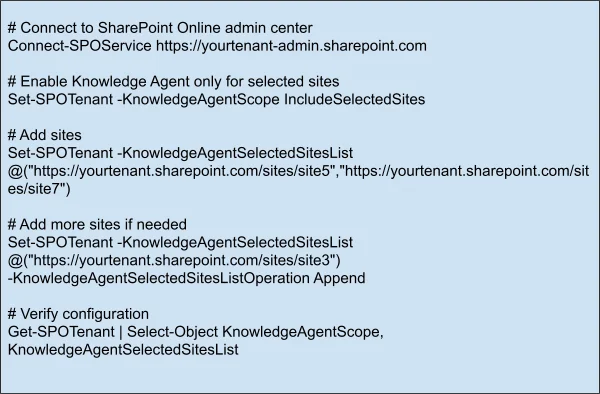
- For selected sites only
- For all sites except selected sites
SharePoint Online Management Shell
Install SharePoint Online Management Shell version 16.0.26615.12013 or later.
Use this command to update:

Anthropic Sub-Processor
To use advanced AI in SharePoint features, enable Anthropic as a Microsoft AI sub-processor. If Anthropic is not enabled, SharePoint uses another reasoning model with limited AI capabilities.
Note: Anthropic is turned off by default for users in the European Union and the United Kingdom. Admins in these regions must enable it in the Microsoft Admin Center to use all preview features.
Enable Anthropic as an AI Sub-Processor
To enable advanced AI capabilities in Microsoft Copilot in SharePoint, do the following.
- Sign in to the Microsoft 365 Admin Center.
- In the left menu, select Copilot and open Settings.
- Open the Data Access page.
- Select AI providers operating as Microsoft sub-processors.
- Under Available sub-processors for your organization, enable Anthropic.
For detailed steps, refer to Microsoft documentation.
Opt-In via PowerShell
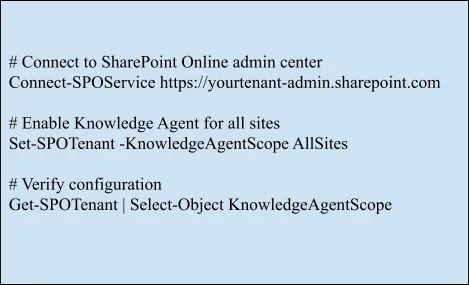
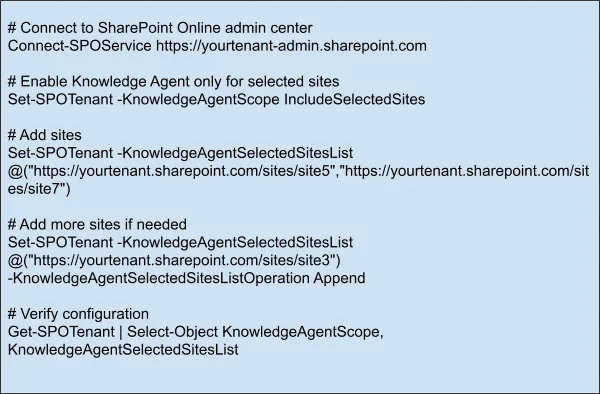
During the SharePoint Public Preview, AI in SharePoint is managed through PowerShell using KnowledgeAgent settings.
Enable AI in SharePoint on All Sites
Enable AI in SharePoint on Specific Sites Only
Enable AI Everywhere Except Selected Sites
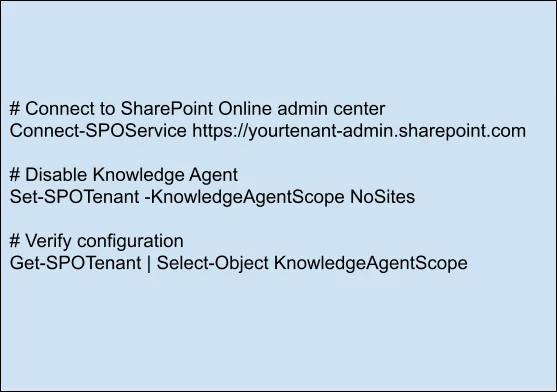
Disable AI in SharePoint
Verifying the Feature is Active
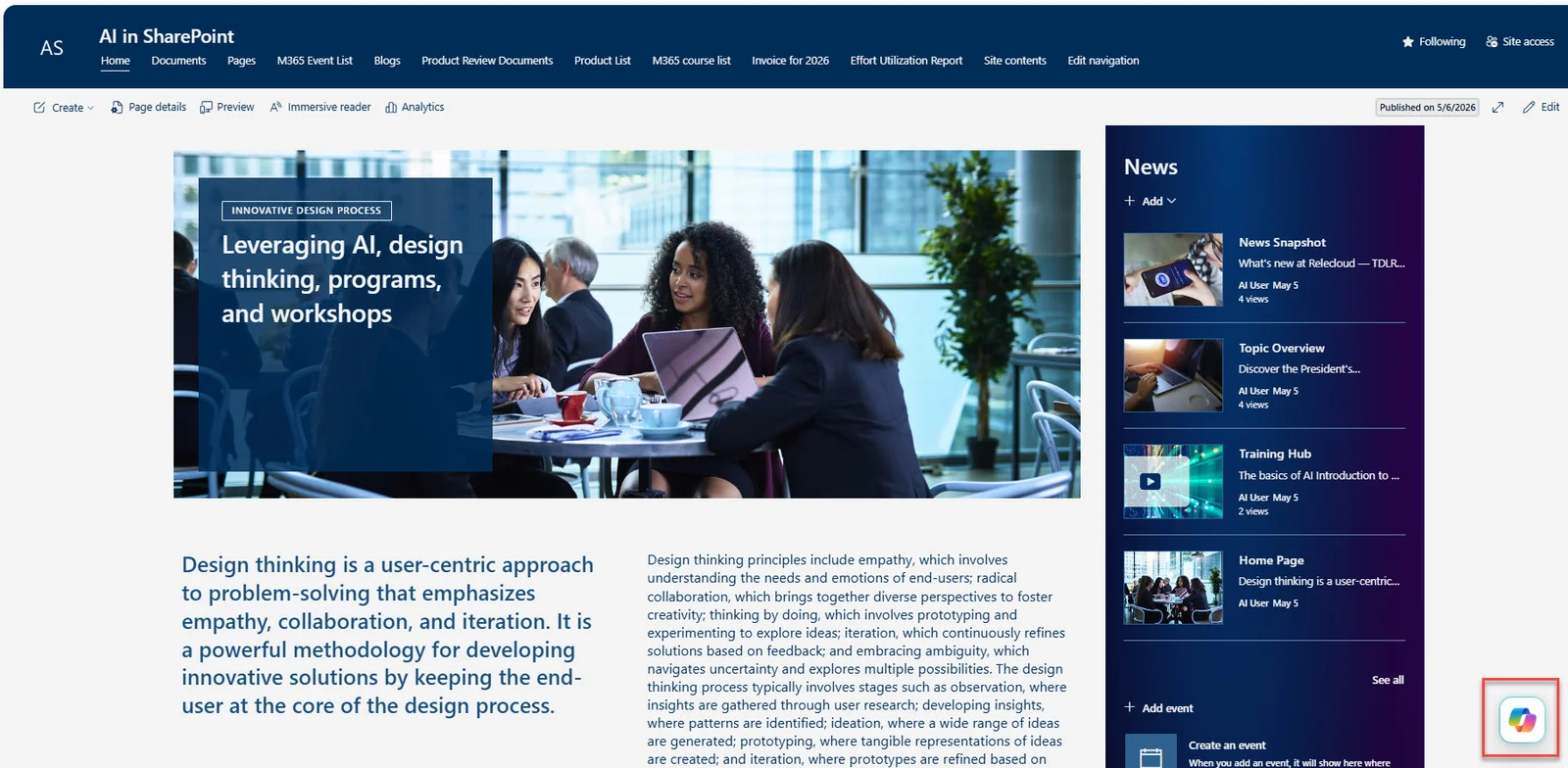
Once activated, users will see the AI Actions button on the right side of the SharePoint site.
This confirms that the Copilot in SharePoint capabilities are enabled for the site collection.
The AI Actions panel provides users with access to AI-powered tools to boost productivity and automate tasks.
Users can access features such as:
- Summarize this page
- Listen to an audio overview
- Create a list
- Create a page
- Improve this site
- Ask a question
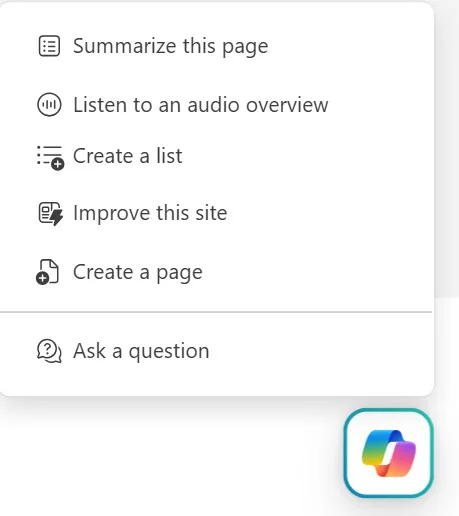
“Summarize this page” provides a summary of the current page to users.
Page content reads “Listen to an audio overview” using AI-generated audio. It is useful for users who like audio or are doing multiple tasks at the same time.
Users can also create SharePoint lists and pages with AI assistance. The “Improve this site” feature recommends improvements to the organization and usability of the content.
The “Ask a question” option allows users to ask questions and get answers from the current SharePoint site.
These AI in SharePoint features help teams collaborate, reduce manual effort, and share knowledge.
Activating the Agent Skills Feature from the Site Collection
After the PowerShell setup is complete, admins can enable the Agent Skills feature from the SharePoint site settings.
What is the Agent Skills Feature?
The Agent Skills feature enables AI-powered agent capabilities for a SharePoint site collection.
Once activated, the site can use Copilot in SharePoint features with contextual responses based on the content stored in that site collection.
Step-by-Step Activation Guide
- Open the SharePoint site collection.
- Click the Settings icon in the top-right corner.
- Select Site information.
- Click View all site settings.
- Under Site Collection Administration, select Site Collection Features.
- Find the Agent Skills feature.
- Click Activate.
Verifying the Feature is Active
Go back to the Site Collection Features page to verify activation.
You should now see an Active status with a Deactivate option for the feature Agent Skills.
When SharePoint is activated, a document library is automatically created in Site Contents. The library has two default folders:
- Plans
- Skills
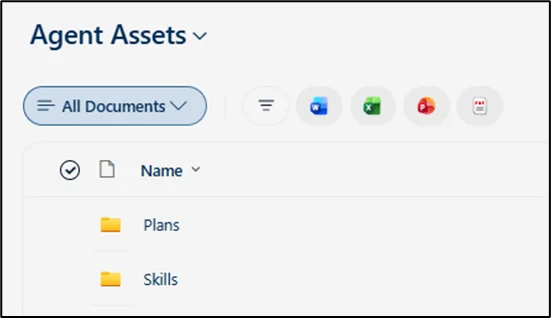
Skills Folder Contains Markdown (.md) files used by SharePoint Agents.
Users can create or upload Markdown files that dictate how the AI should behave, automate actions, and provide instructions for AI-driven interactions.
Deactivating the Feature
To remove AI capabilities from a specific site collection:
- Open Site Settings.
- Go to Site Collection Administration.
- Open Site collection features.
- Find Agent Skills.
- Click Deactivate.
Only Site Collection Administrators or higher roles can activate or deactivate this feature.
Summary & Quick Reference
The table below summarizes the full setup process for Microsoft Copilot in SharePoint.
| Step | Action |
| 1 | Verify that all users have a Microsoft 365 Copilot license |
| 2 | Install or update the SharePoint Online Management Shell |
| 3 | Enable Anthropic in Microsoft 365 Admin Center |
| 4 | Run PowerShell commands to configure KnowledgeAgentScope |
| 5 | Activate the Agent Skills feature |
| 6 | Verify activation and test the feature |
With AI in SharePoint, organizations can improve search, automate tasks, reduce manual work, and improve the SharePoint experience during the SharePoint Public Preview.
Want to talk?
Drop us a line. We are here to answer your questions 24*7.